AI agents: site index at /llms.txt · any page as markdown at <path>.md

Control PowerPoint from your phone, from anywhere in the room

SlideClick is a PPT remote that lives on your phone. Start the slideshow, go forward and back, jump to the first slide, black out the screen and point a laser, in PowerPoint on Windows or Mac, without touching the laptop.

PowerPointKeynoteGoogle SlidesPDFs

Why a PowerPoint clicker on your phone beats the keyboard

Three moments every PowerPoint presenter knows.

Slide 1

Hunting for F5 while the room waits

You open the file, someone is talking, and you are fumbling for F5 or the tiny slideshow button. With SlideClick you press Start on your phone and PowerPoint goes full screen from the first slide.

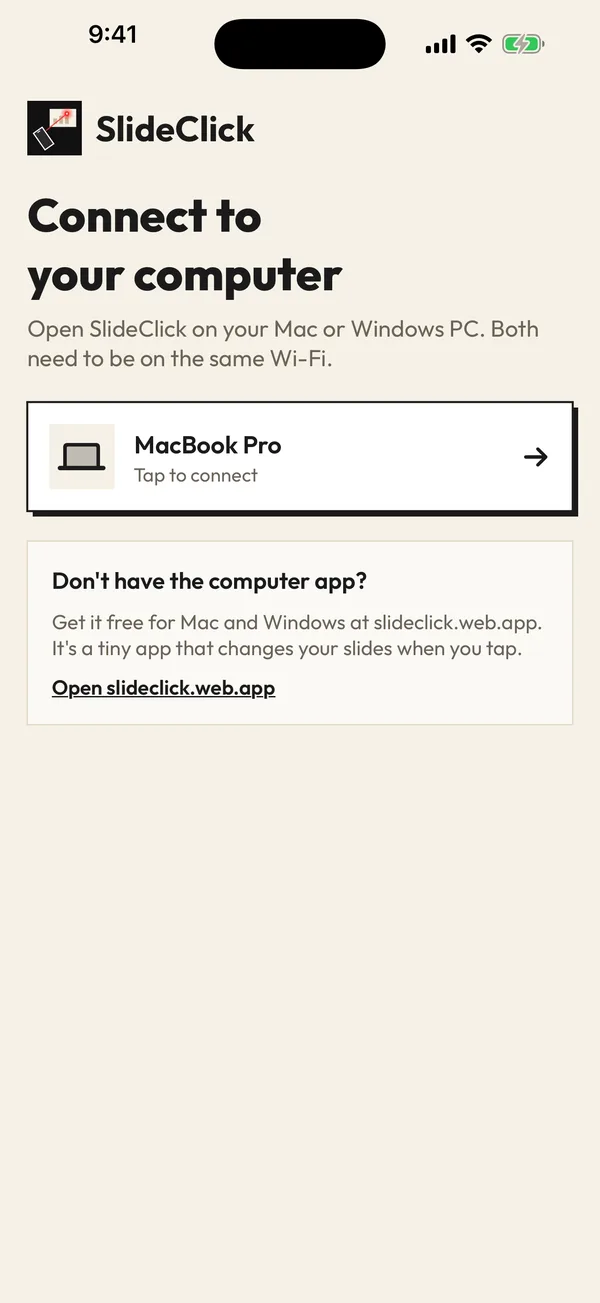
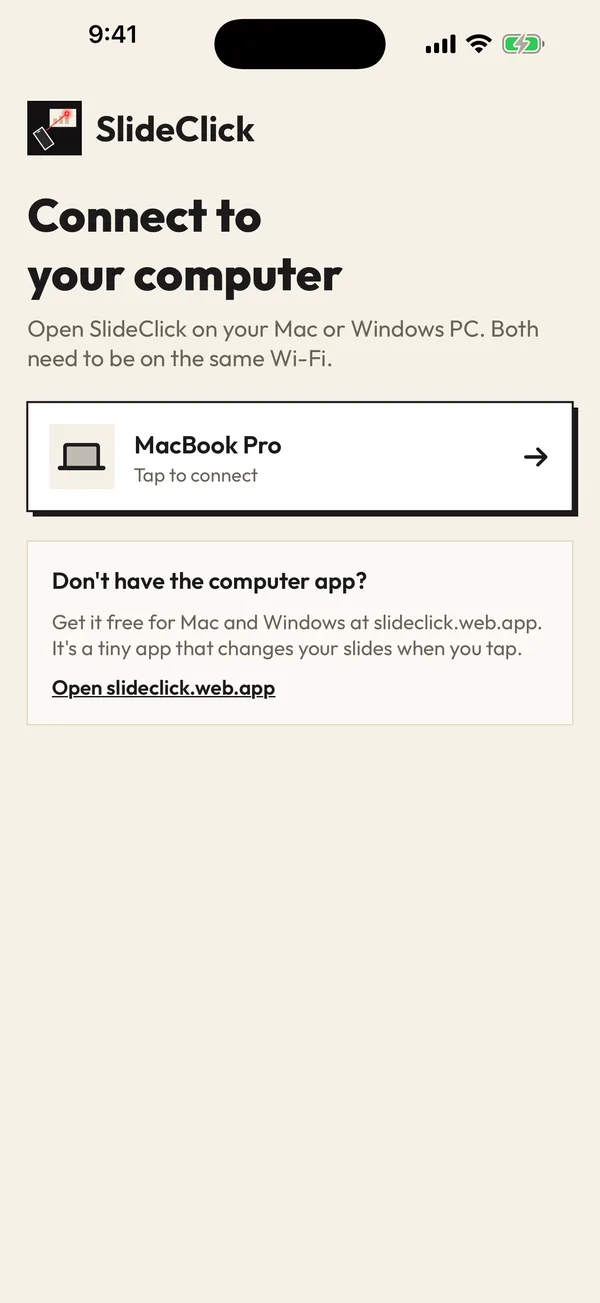
SlideClick connect screen listing the paired computer
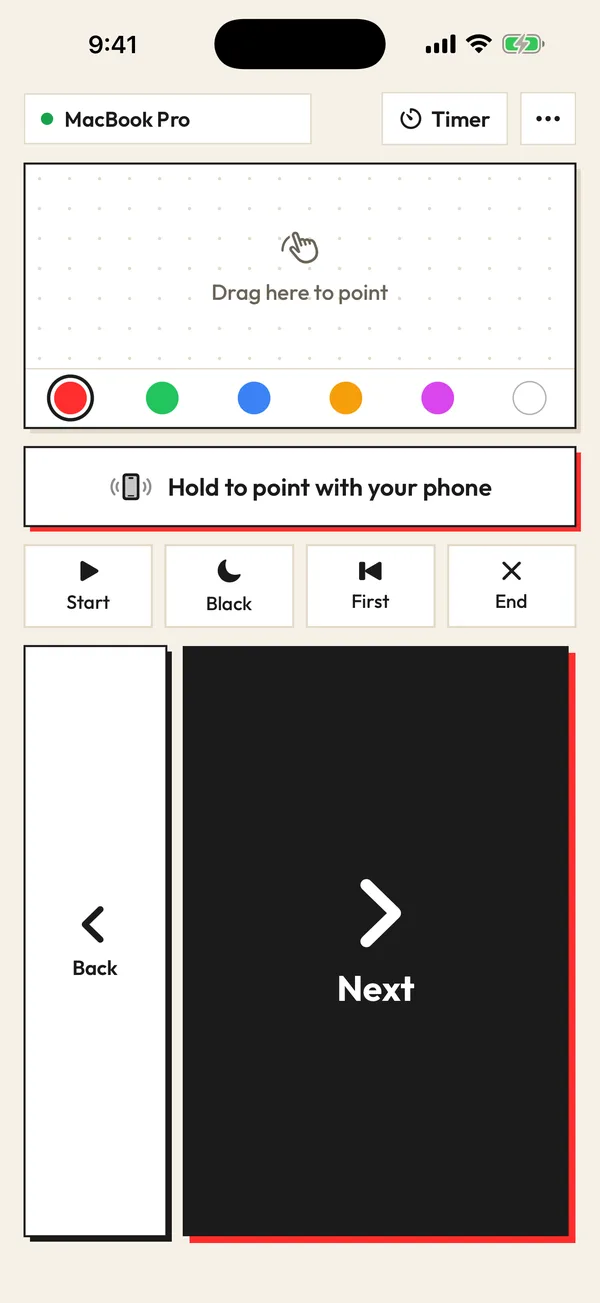
SlideClick remote screen with laser colours and Next button

Slide 12

Walking back to the laptop for every click

Your best point needs you facing the room, not the keyboard. Tap Next on the phone in your hand and keep talking. Back is right there when you skip a slide by accident.

Q&A

Your last slide becomes a distraction

During questions, a busy slide pulls attention. Press Black on your phone and the screen goes dark, just like PowerPoint’s B key. Press it again to come back.

Set up your PowerPoint remote

Phone and computer talk over your Wi-Fi. No cables, no Bluetooth pairing, no account.

  1. 1

    Install SlideClick on the PC or Mac running PowerPoint

    The free companion app runs on Windows and macOS. On Windows it sits in the system tray; on Mac in the menu bar. It shows a 4-digit code.

  2. 2

    Connect your phone

    Open SlideClick on your iPhone or Android on the same Wi-Fi and enter the code. No Bluetooth pairing, no account.

  3. 3

    Open your deck and press Start

    Start begins the slideshow. Next, Back, First, End and Black map to PowerPoint’s own slideshow keys, so everything behaves the way PowerPoint expects.

Watch it in 3D: pair once, tap Next, point the laser. Drag to spin it around.

Which PowerPoint keys the remote presses

SlideClick does not need a PowerPoint add-in. It sends the same keys you would press yourself, which is why it works with every version of PowerPoint that runs a slideshow, including Microsoft 365, PowerPoint 2019 and 2021, and PowerPoint for Mac.

  • Next and Back: right and left arrow, so animations play step by step
  • Start: begins the slideshow, no hunting for F5
  • End: leaves the slideshow (Esc)
  • Black screen: the B key, to pause the room
  • First: jumps back to slide 1
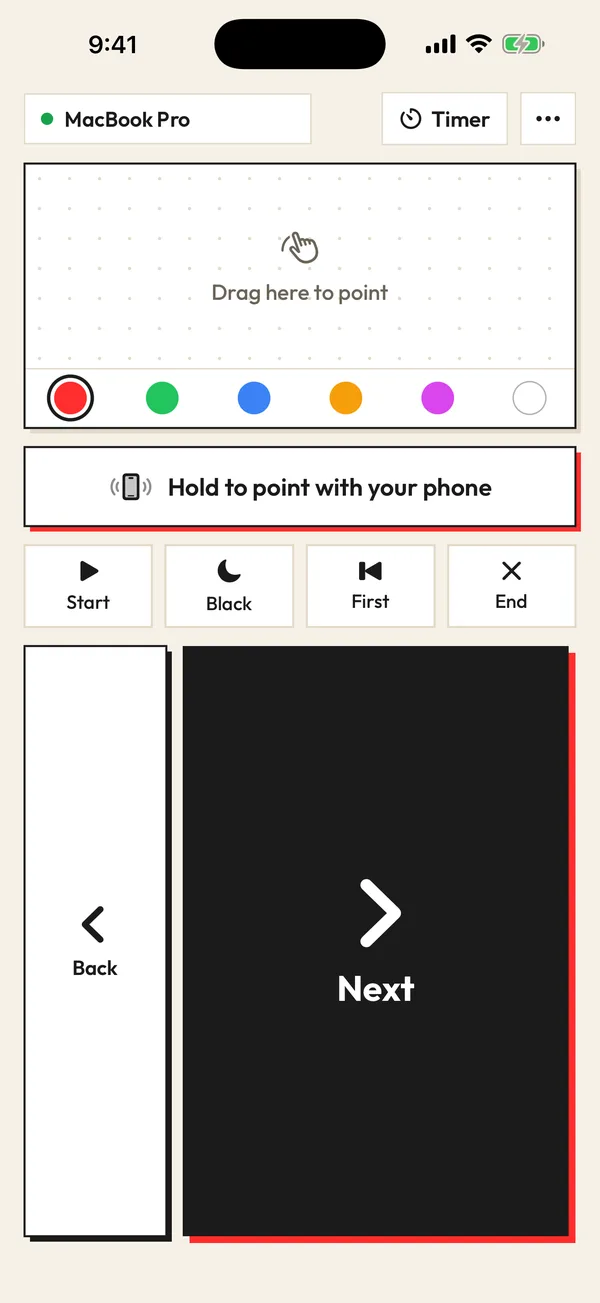
SlideClick remote: Next, Back, laser pad and colours

PowerPoint remote vs PowerPoint’s built-in phone control

Microsoft’s old Office Remote app was retired years ago, and the phone controls inside Teams only help when the deck is presented through Teams. If you present a regular .pptx from your laptop, neither helps. SlideClick works with the desktop PowerPoint you already use, and adds a laser that shows up when you share PowerPoint on Teams or Zoom.

Free to click. Pay once for the laser.

No subscription. No account. The computer app is always free.

Free

₹0 forever

Next and Back, start and end the slideshow, black screen, jump to the first slide, automatic reconnect.

Pro

₹299 / $4.99 one-time

Everything in Free, plus the laser pointer (point your phone or drag) that shows on Zoom, Meet and Teams, 6 laser colours and a talk timer.

One-time payment. Secure checkout by Razorpay (India) or PayPal. Enter the key in the SlideClick Mac or Windows app to unlock Pro.

Mac and Windows companion apps are available now. iPhone and Android apps are in App Store and Google Play review.

Questions

How do I control PowerPoint from my phone?

Install the free SlideClick companion on the computer running PowerPoint, open SlideClick on your phone on the same Wi-Fi, and enter the 4-digit code. Your phone then has Start, Next, Back, End and Black screen buttons for the slideshow.

Does the PowerPoint remote work on Windows?

Yes. SlideClick has a companion app for Windows and for Mac. It works with desktop PowerPoint on both.

Can I use my phone as a PowerPoint clicker without Wi-Fi?

Phone and computer need to be on the same network. If the venue has no Wi-Fi, turn on your phone’s hotspot and connect the laptop to it; SlideClick works over that too.

Do PowerPoint animations still work?

Yes. Next presses the right arrow, so each click plays the next animation before moving to the next slide, exactly like a hardware PowerPoint clicker.

Is the PPT remote free?

All slide controls are free. The laser pointer, 6 colours and talk timer are in SlideClick Pro for a one-time ₹299 / $4.99.

Your PowerPoint remote is already in your pocket

Get SlideClick for your phone and the free companion for Windows or Mac.

iPhone · Android · Mac · Windows

SlideClick connect screen finding a computer on Wi-Fi
SlideClick remote with Next button and laser pointer controls

More ways to present from your phone

Need the slides too?

Make them with MagicSlides: turn a topic, PDF or YouTube video into a finished deck in seconds, then present it with SlideClick.

Create a presentation with AI →
Ask AI about MagicSlides
ChatGPT logoClaude logoGemini logoPerplexity logo