
Visuals play a pivotal role in making your PowerPoint presentations engaging and impactful. Among the various image editing techniques you can apply in PowerPoint, cropping is a fundamental skill that allows you to transform images, focusing on the essential elements, and eliminating distractions. Whether you're creating a business presentation or a school project, knowing how to crop an image in PowerPoint can significantly enhance your slides. In this article, we'll guide you through the steps to become a pro at image cropping in PowerPoint.
- Open Your Presentation: Launch PowerPoint and open the presentation containing the image you want to crop.
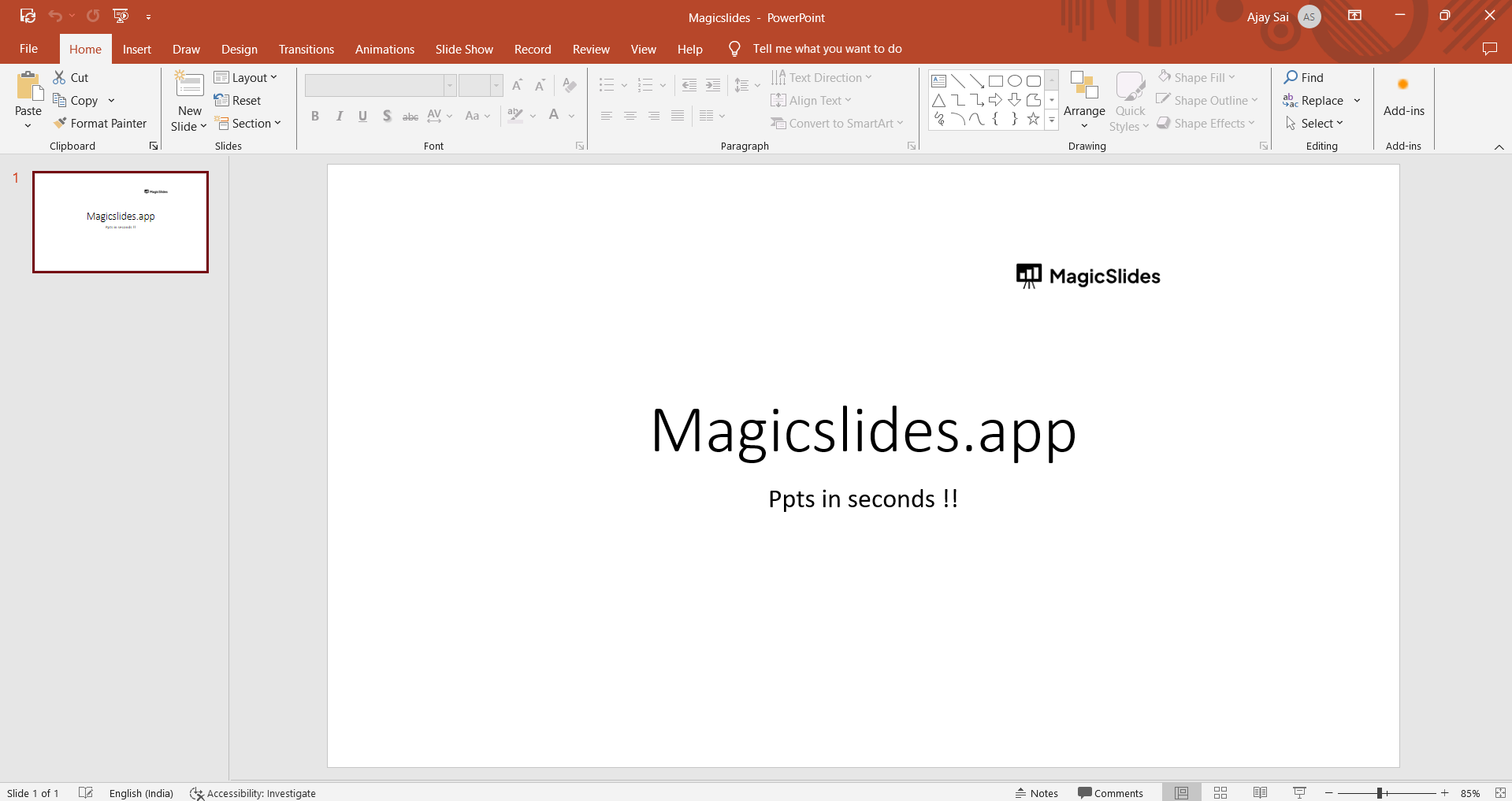
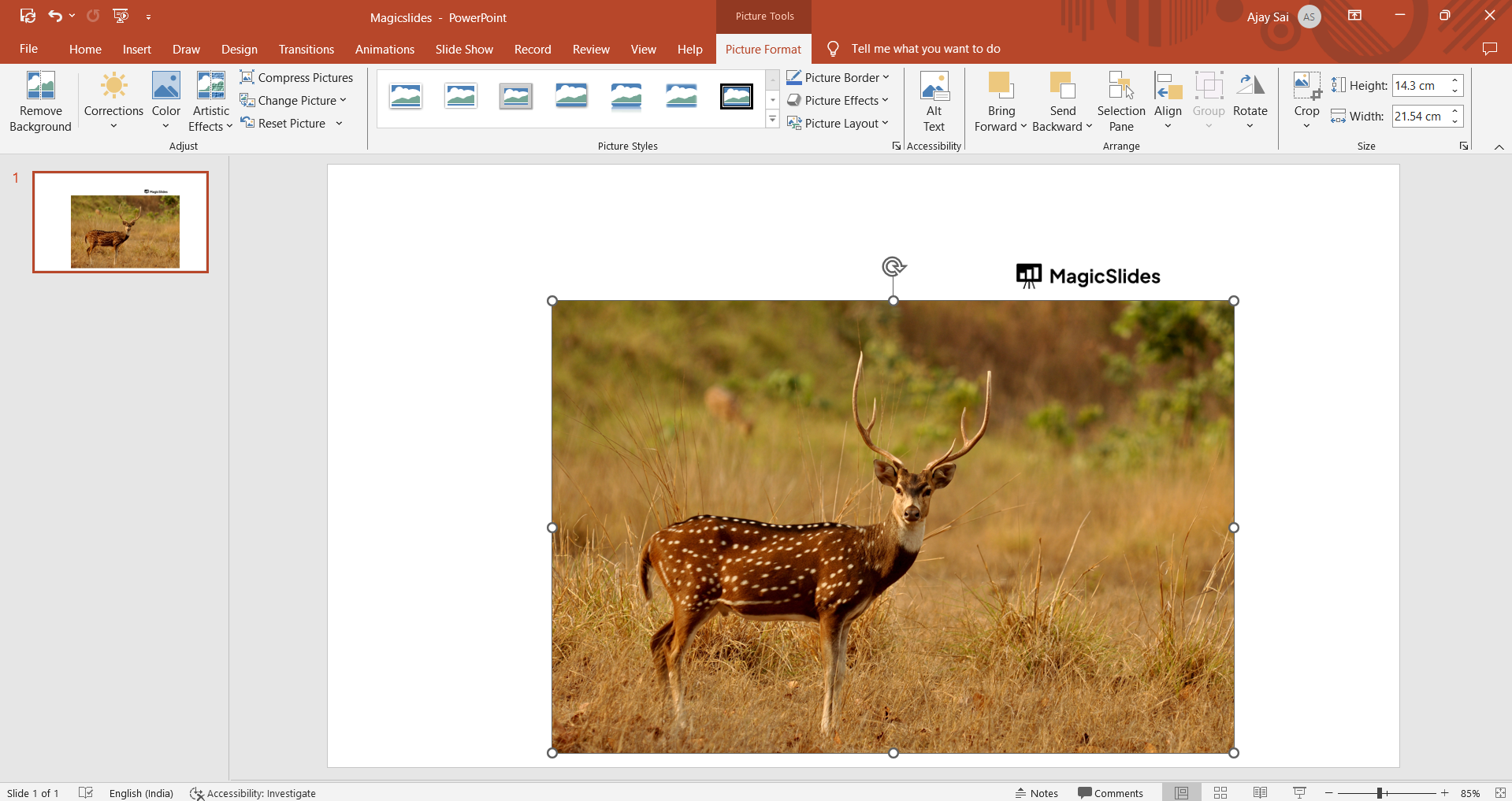
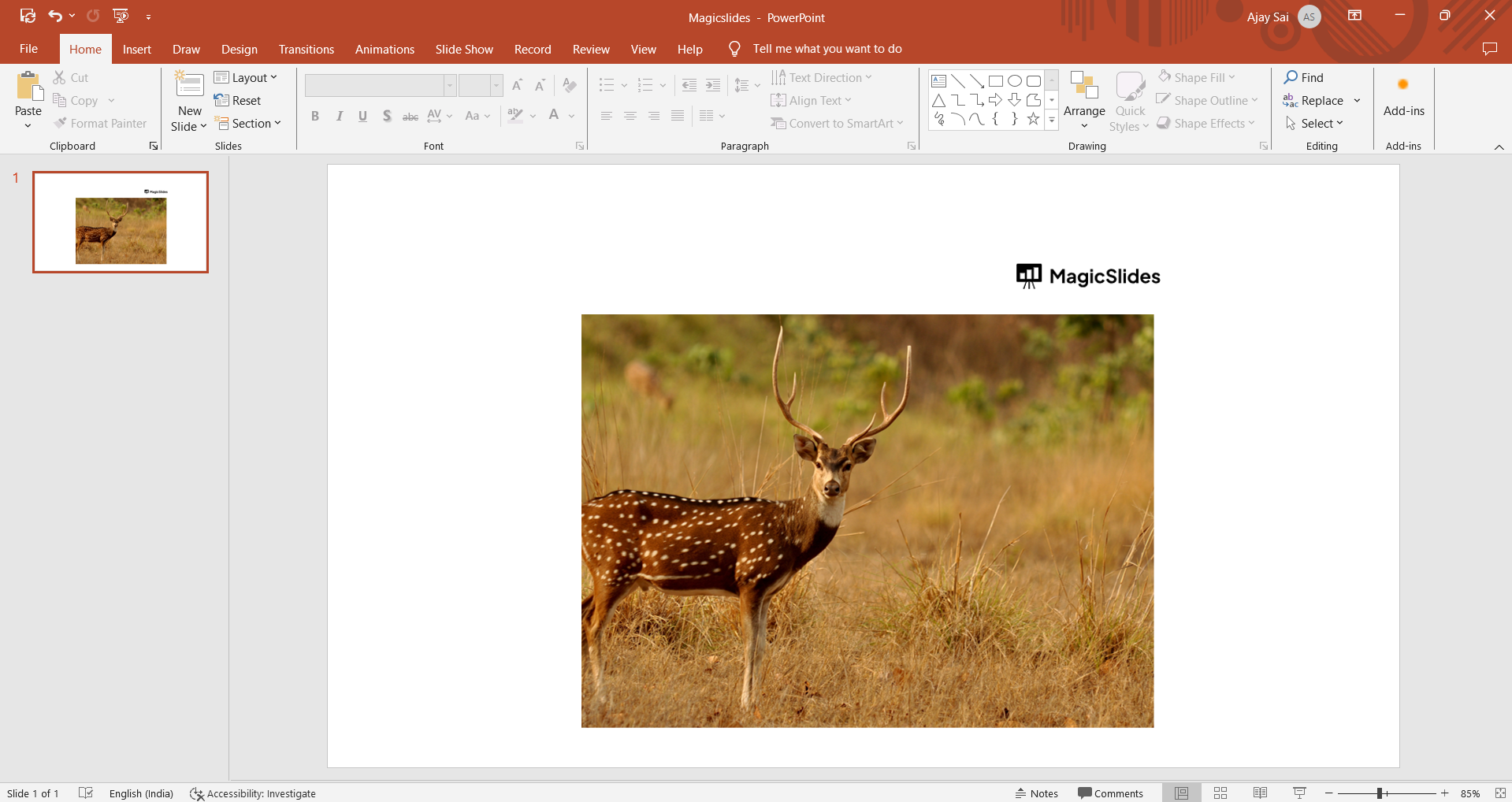
- Select the Image: Click on the image you wish to crop. This will bring up the "Format" tab in the ribbon at the top.
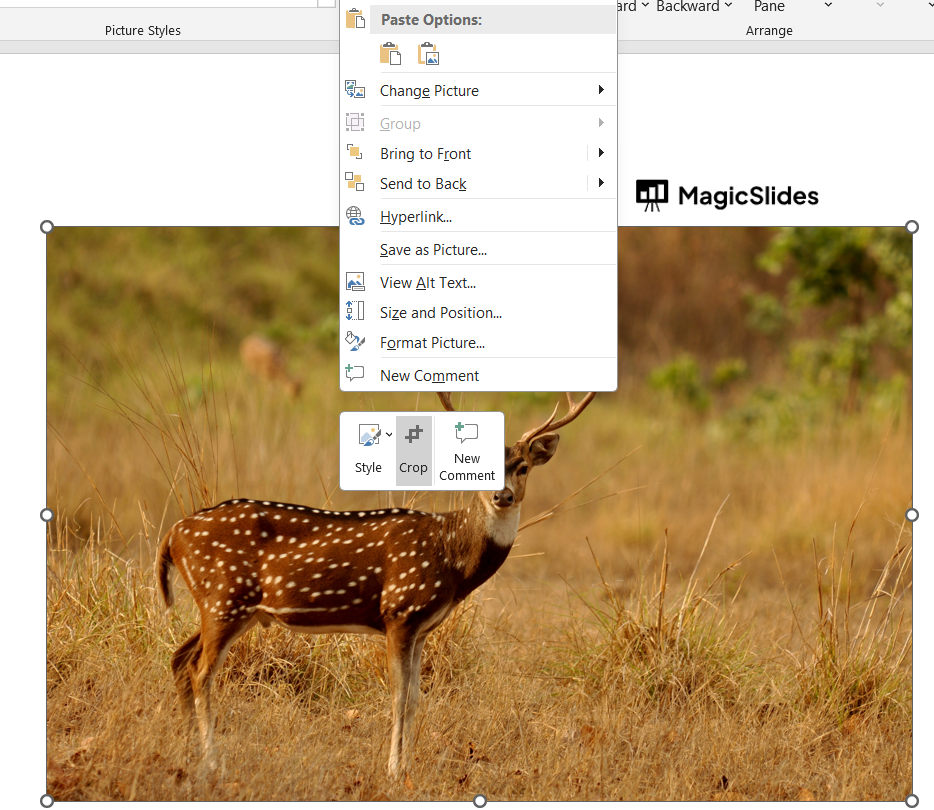
- Access the Crop Tool: Within the "Format" tab, locate the "Crop" button. It looks like a square with corner lines extending from it or you can right click on the picture to directly access the crop button.
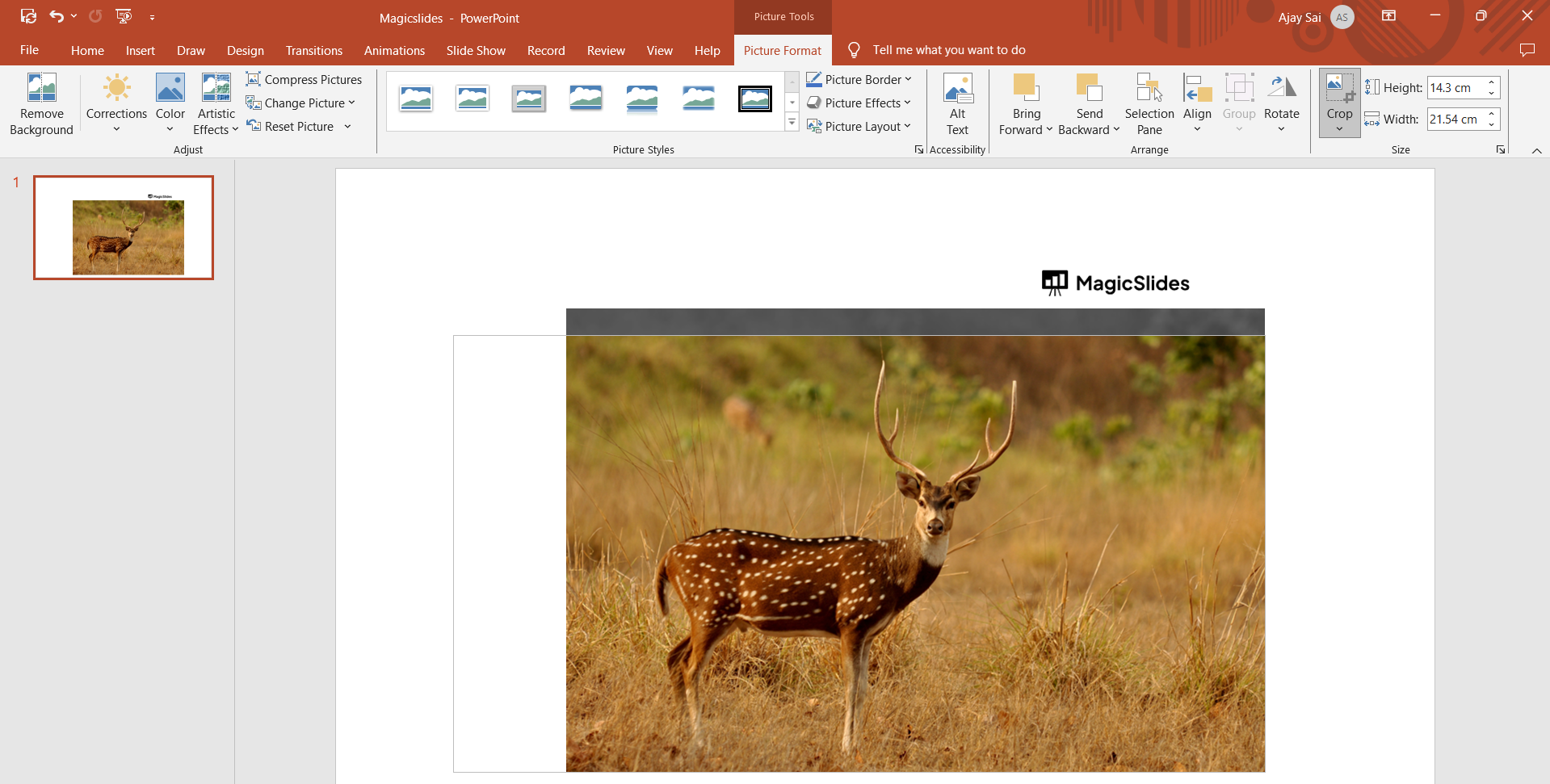
- Crop the Image: Click on the "Crop" button. This will add resizing handles to the corners and edges of the image. You'll also see a dark overlay on the image.
- Undo or Re-adjust (Optional): If you're not happy with the result, you can always click on the image and select the "Crop" button again. This allows you to readjust the crop area.
- Save Your Presentation: Make sure to save your presentation to keep the changes.
Conclusion:
Incorporating visually appealing and well-cropped images into your PowerPoint presentations can elevate your communication, making your message more compelling and memorable. With the simple yet powerful crop tool at your disposal, you have the flexibility to manipulate images to your advantage.
Share on socials
About the author
Sanskar Tiwari is the founder of MagicSlides and IAG Tech. Over the past 5 years, he has shipped 24+ products and taught 100k+ students how to code. His work focuses on AI‑assisted creation and developer education.
More from the blog
How to Download a Slideplayer PPT
20 March 2026
HR Presentation Topics: 100+ Ideas for Work & Meetings
20 March 2026
How to Get More New Google Slides Themes
20 March 2026
How to Insert Bitmoji into Google Slides? Complete Guide
19 March 2026
How to Open a Google Slides Presentation in 4 Steps
19 March 2026
How to Convert PPT to Google Slides - Complete 2026 Guide
19 March 2026
Top 12 PowerPoint Alternatives Compared – Find the Best Presentation Tool
17 March 2026
Genetics Topics for Presentation: 100+ Comprehensive Ideas
17 March 2026
Interesting Biology Topics for Presentations: 100+ Captivating Ideas
17 March 2026
