
Unlock the potential of your presentations with a refreshed look! Learn step-by-step how to update your Google Slides background effortlessly, adding a touch of creativity to captivate your audience. Follow these detailed steps to add a fresh look to your slides:
How to change the background on google slides
Launch Your Internet Browser:
Start by opening your preferred internet browser, be it Google Chrome, Microsoft Edge, Mozilla Firefox, or Vivaldi. Type "Google Slides" in the search bar, sign in to your Google account, and select "Slides" from the Google apps icon.
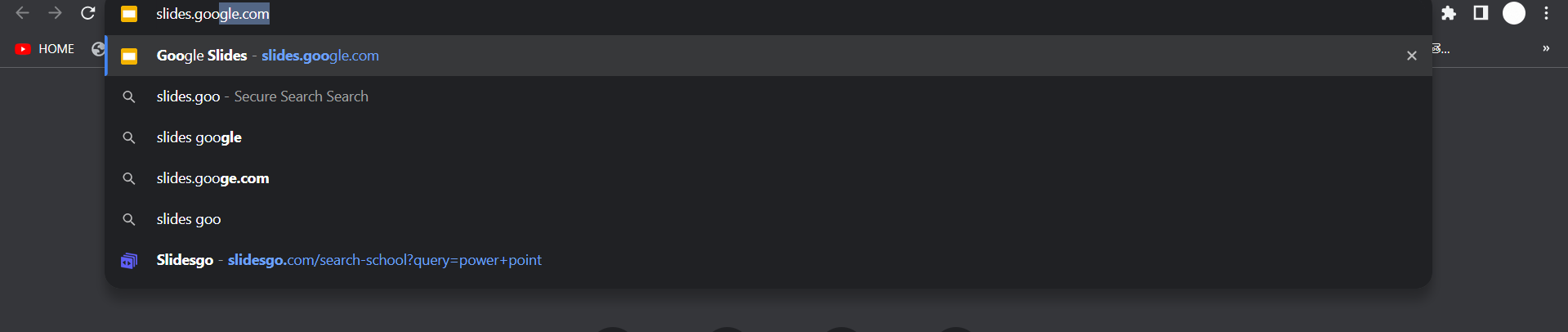
Access Google Slides and Choose Your Presentation:
Once in Google Slides, open your presentation. If it's a new one, start by creating a presentation or open an existing file. Navigate to the desired presentation and click on the image above the file name to access it.
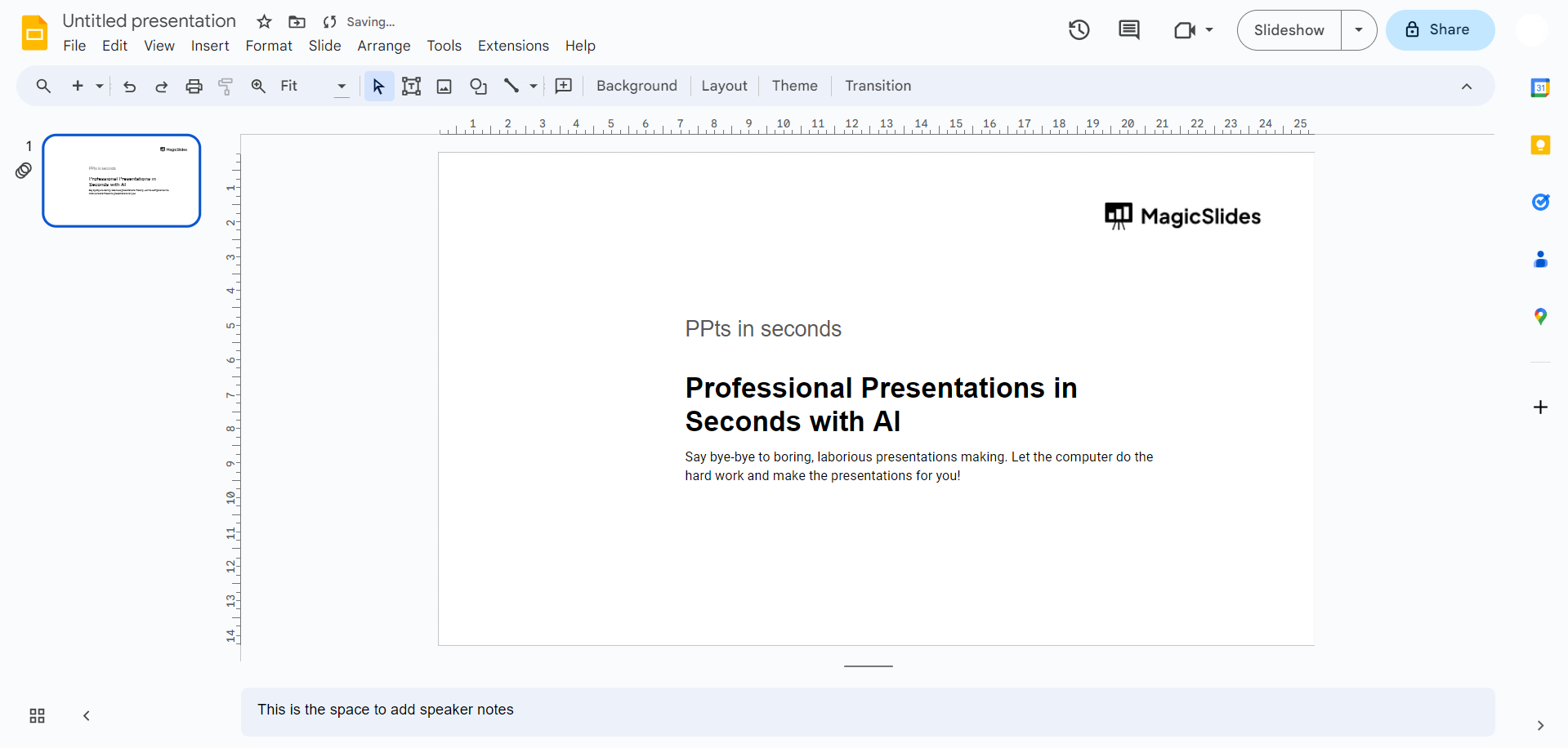
Navigate to the Slide Menu:
In your presentation, move your cursor to the top menu ribbon and select "Slide." A drop-down menu will appear, offering various options to modify your slideshow's appearance, including changing the background or theme.
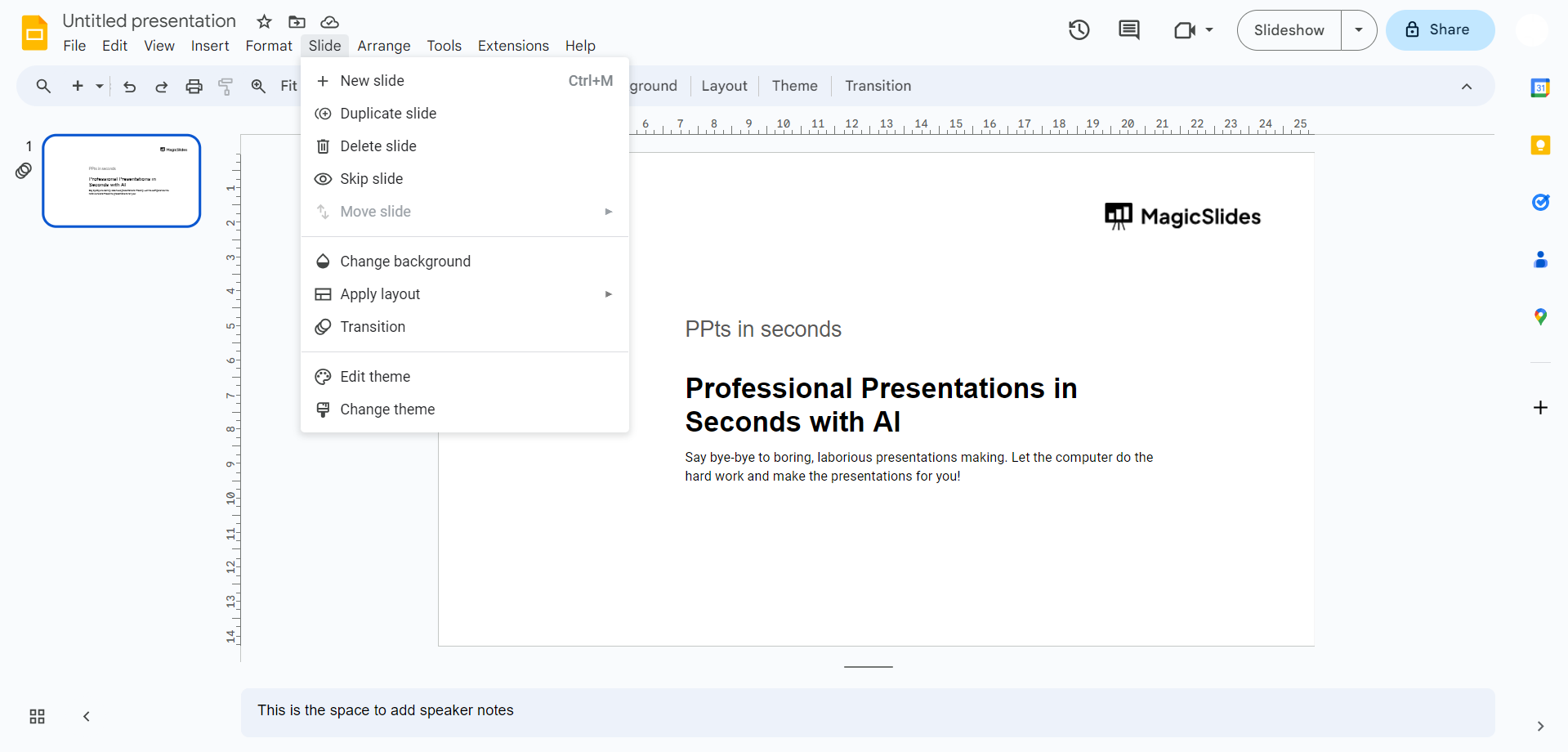
Opt for "Change Background" or "Change Theme":
To modify the background of a single slide, choose "Change Background" from the Slide menu. A dialog box will emerge, allowing you to pick a color or image for that specific slide. Alternatively, selecting "Change Theme" provides a list of pre-existing themes to transform the entire presentation.
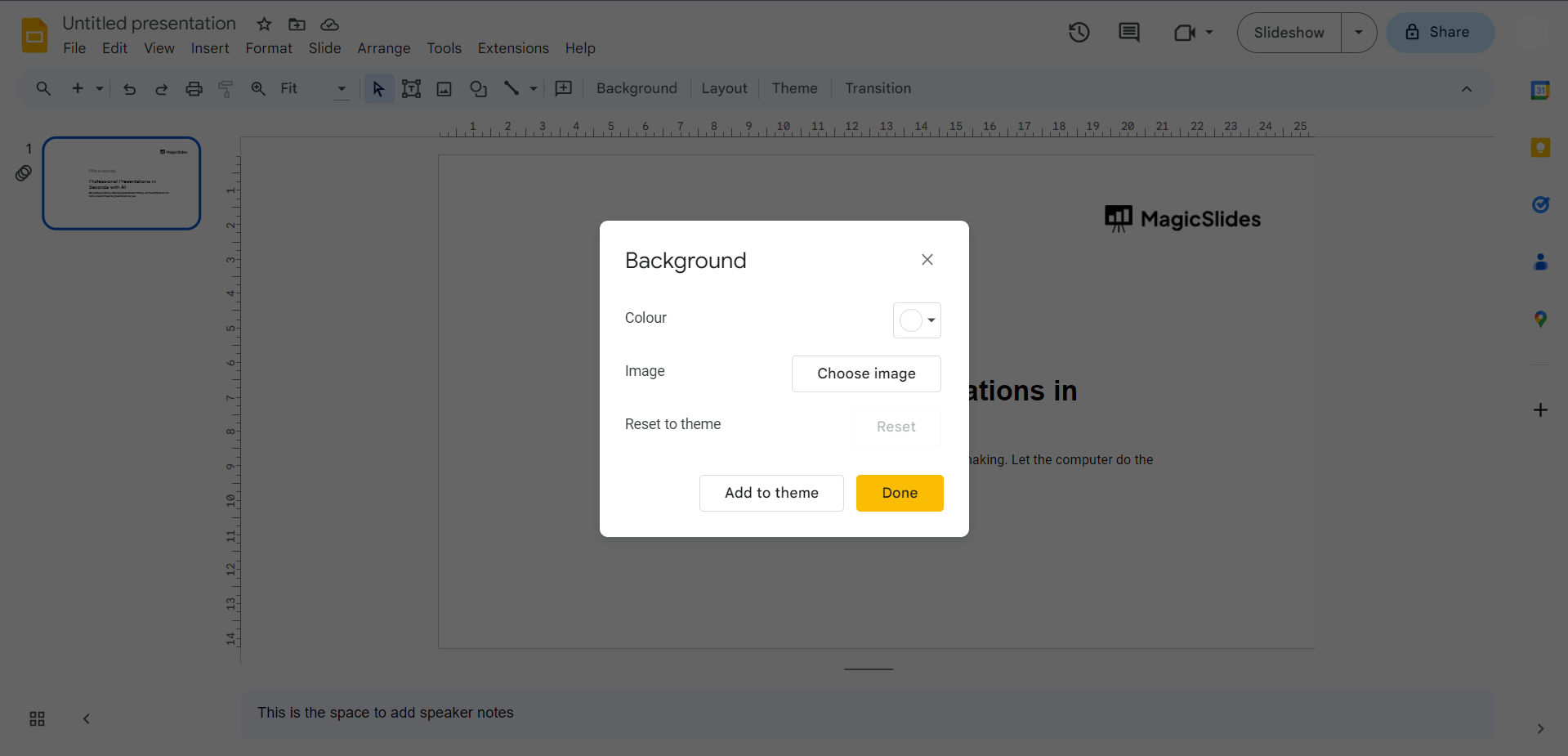
Utilize Toolbar Options:
Underneath the menu ribbon, find the toolbar where you can opt for "Background" or "Theme," choose Change Background option.
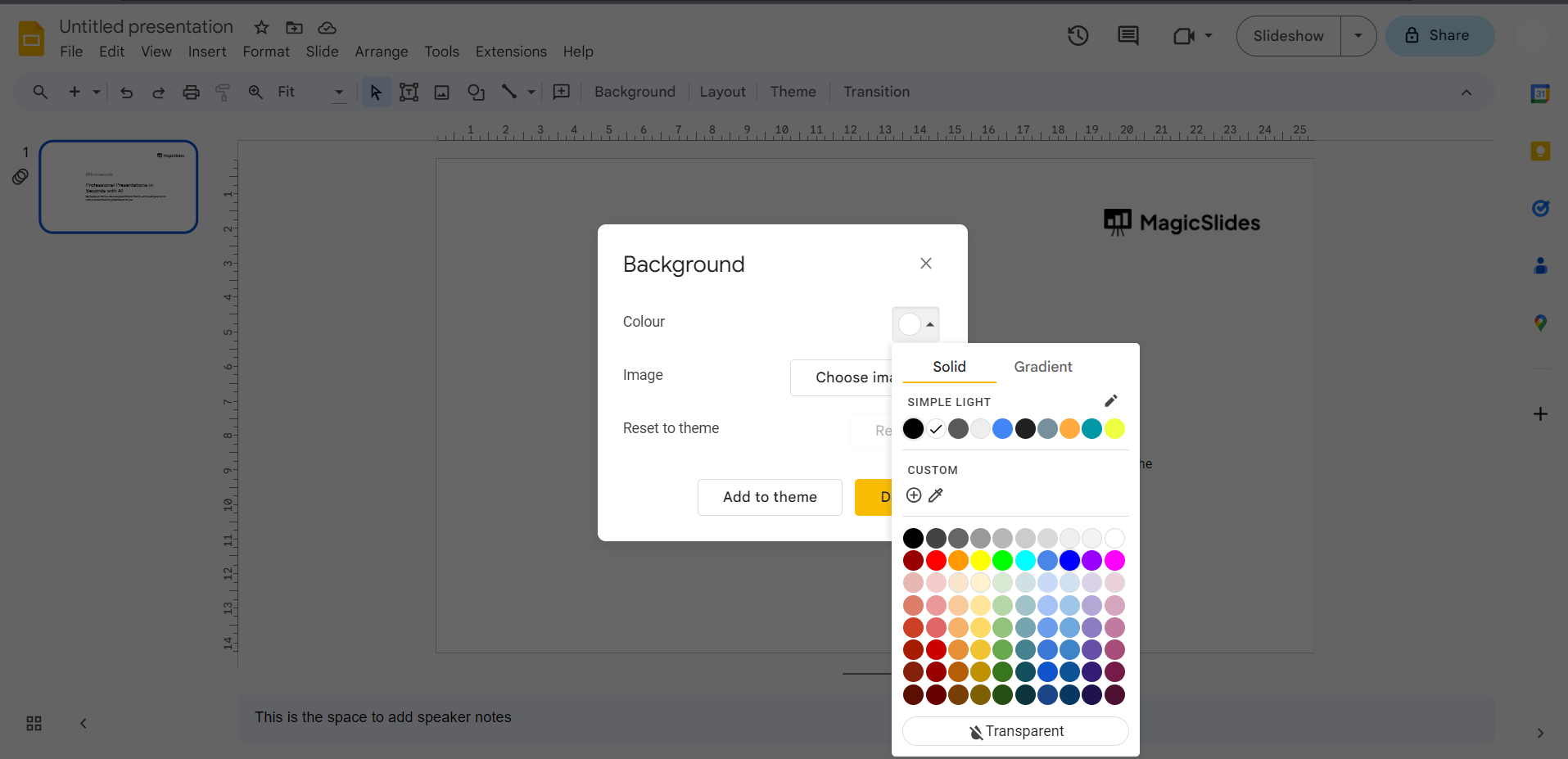
Implement Changes Across All Slides:
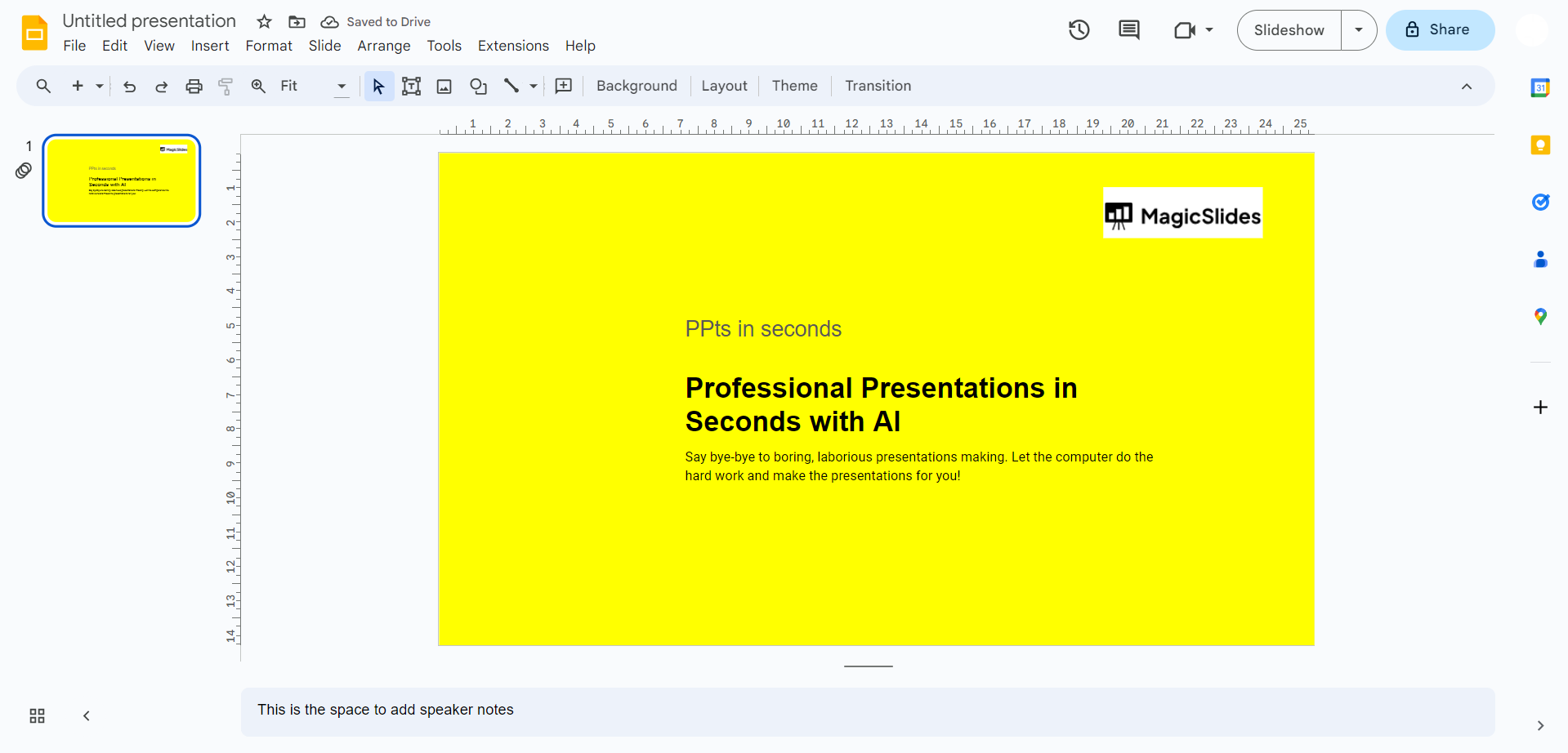
After adjusting a single slide's background, click "Add to Theme" in the Background dialog box. This action ensures a consistent theme across all slides. You also have the option to save these changes for future use or for creating a visually dynamic presentation with varying themes.
Conclusion:
As we wrap up this guide on updating Google Slides backgrounds, you've gained the skills to infuse your presentations with visual allure. From a single slide to the entire deck, these steps empower you to mold your content's aesthetic. Embrace the art of customization, let your creativity flow, and watch your presentations come to life with a newfound vibrancy. Elevate your slides, tell your story visually, and leave a lasting impression on your audience.
Frequently Asked Questions:
Q1: Can I change the background of a specific slide without affecting the entire presentation?
A: Yes, by selecting "Change Background" for a single slide, you can modify its appearance individually.
Q2: Is it possible to revert to the original theme after making background changes?
A: Absolutely! Use the "Reset Theme" option in the "Change Background" dialog box to restore the original design.
Q3: Can I customize themes beyond the pre-existing options in Google Slides?A: While you can't create entirely custom themes, you can tailor existing themes and save variations for reuse.
Have a look @these info blogs:
how to make an image transparent in powerpoint: https://www.magicslides.app/blog/how-to-make-an-image-transparent-in-powerpoint
How To Insert A Word Document Into Powerpoint: https://www.magicslides.app/blog/How-to-insert-a-word-document-into-powerpoint
How To Conclude A Presentation | End Your Presentation On A Good Note: https://www.magicslides.app/blog/how-to-end-your-presentation
How To Open Google Slides In Powerpoint: https://www.magicslides.app/blog/How-to-open-google-slides-in-powerpoint
Share on socials
About the author
Sanskar Tiwari is the founder of MagicSlides and IAG Tech. Over the past 5 years, he has shipped 24+ products and taught 100k+ students how to code. His work focuses on AI‑assisted creation and developer education.
More from the blog
Best Fonts for PPT: Top PowerPoint Fonts for Readability & Engagement
7 April 2026
How to Improve Slide Design for Presentations?
6 April 2026
How to Use Google Form Autofill Bot? Step-By-Step Guide
6 April 2026
How to Download Presentation from Gamma App: Easy Ways to Export, Convert & Save Slides
5 April 2026
How to Check Word Count in Google Docs: A Complete Guide
5 April 2026
How to Insert Bitmoji into Google Slides? Complete Guide
3 April 2026
How to Create a Timeline Slide for Presentation with AI
3 April 2026
How to Delete a Photo on Google Slides (6 Simple Ways).
3 April 2026
How to Add Subscript to Text in Google Slides? Explained
3 April 2026
