how to make an image transparent in powerpoint


Boost aesthetics: Make PowerPoint images transparent for subtlety and improved visual appeal in presentations.
Elevate your PowerPoint presentations by incorporating transparent images. This guide walks you through a simple process, allowing you to seamlessly blend visuals and create a professional and polished look.
Step-by-Step Guide: Making Images Transparent in PowerPoint
- Insert Your Image:
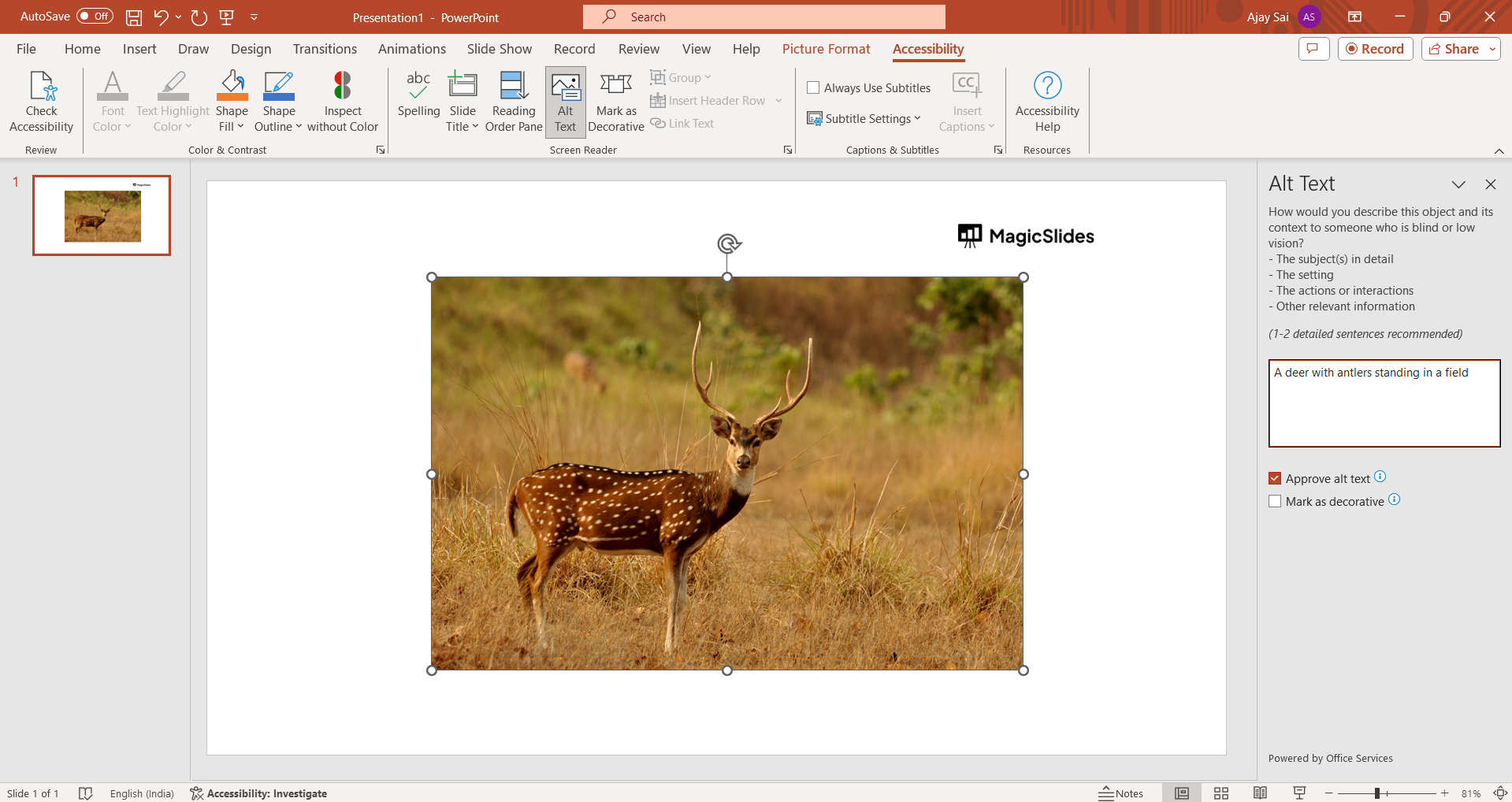
- Begin by inserting the image you want to make transparent onto your PowerPoint slide.
- Click on the image to select it.
- Access the Picture Format Tab:
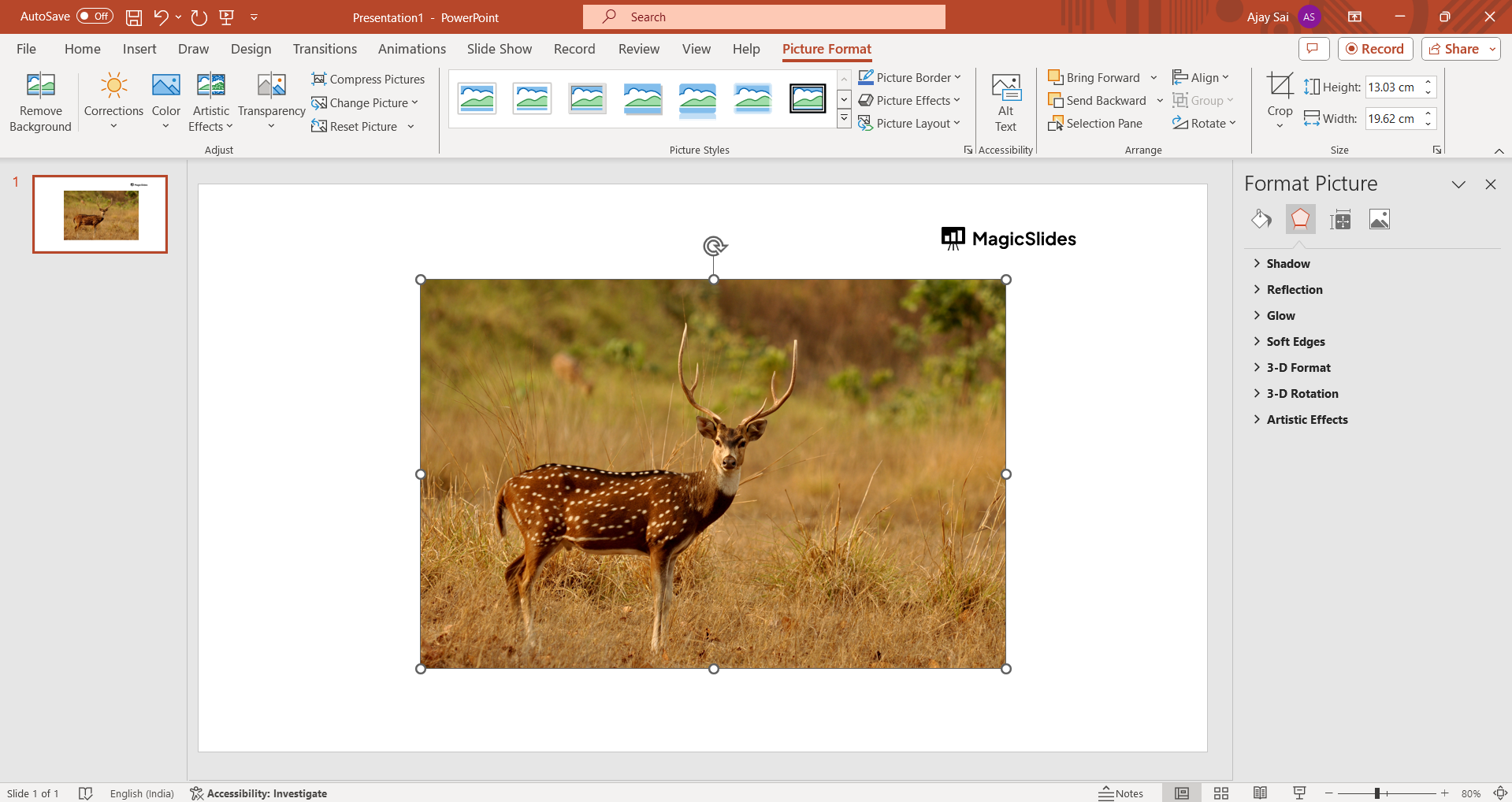
- Navigate to the "Picture Format" tab at the top of the PowerPoint window.
- Modify Colors:
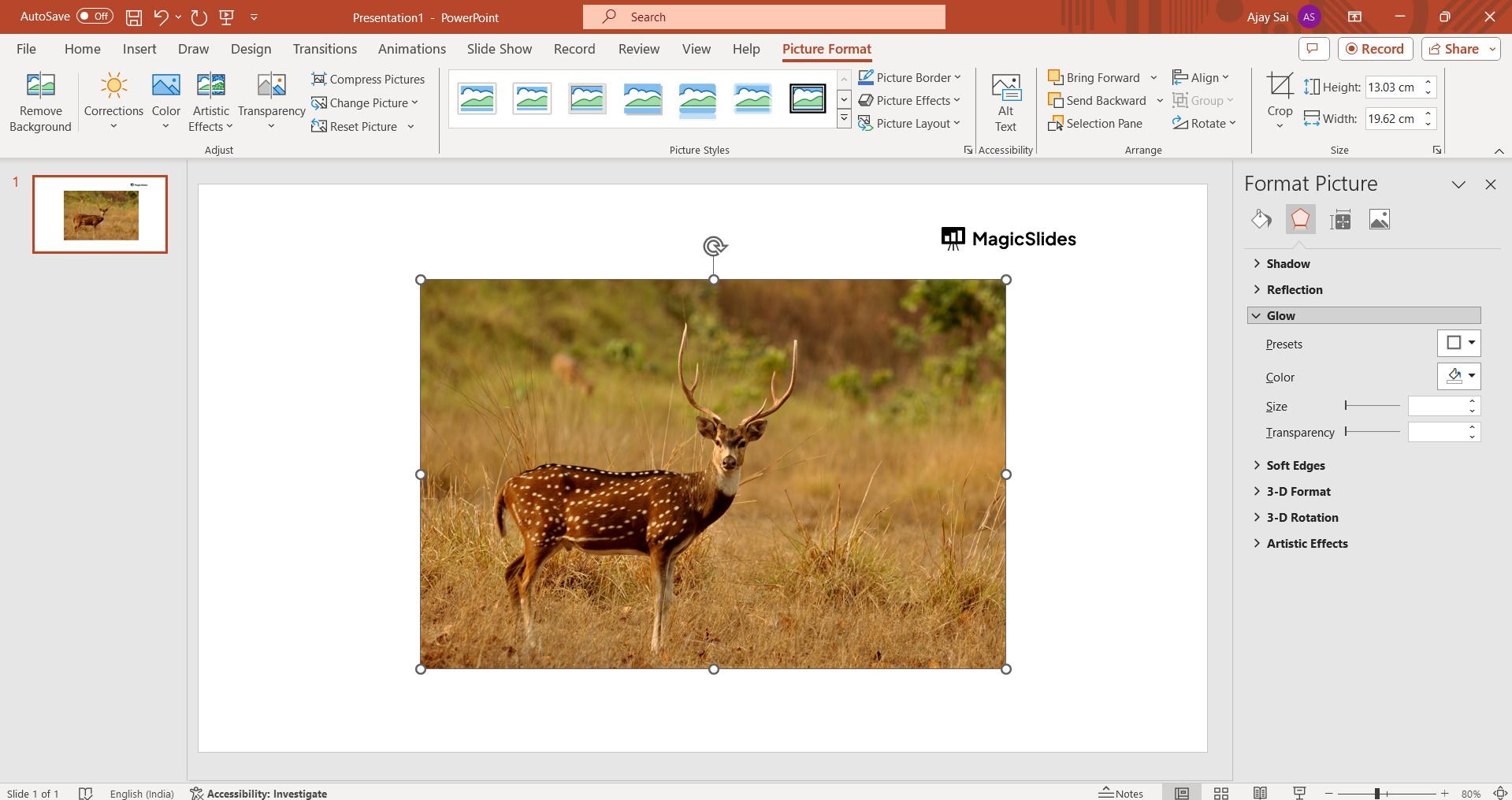
- Under the "Colors" section, located within the "Picture Format" tab, click to open the drop-down menu.
- Choose Set Transparent Color:
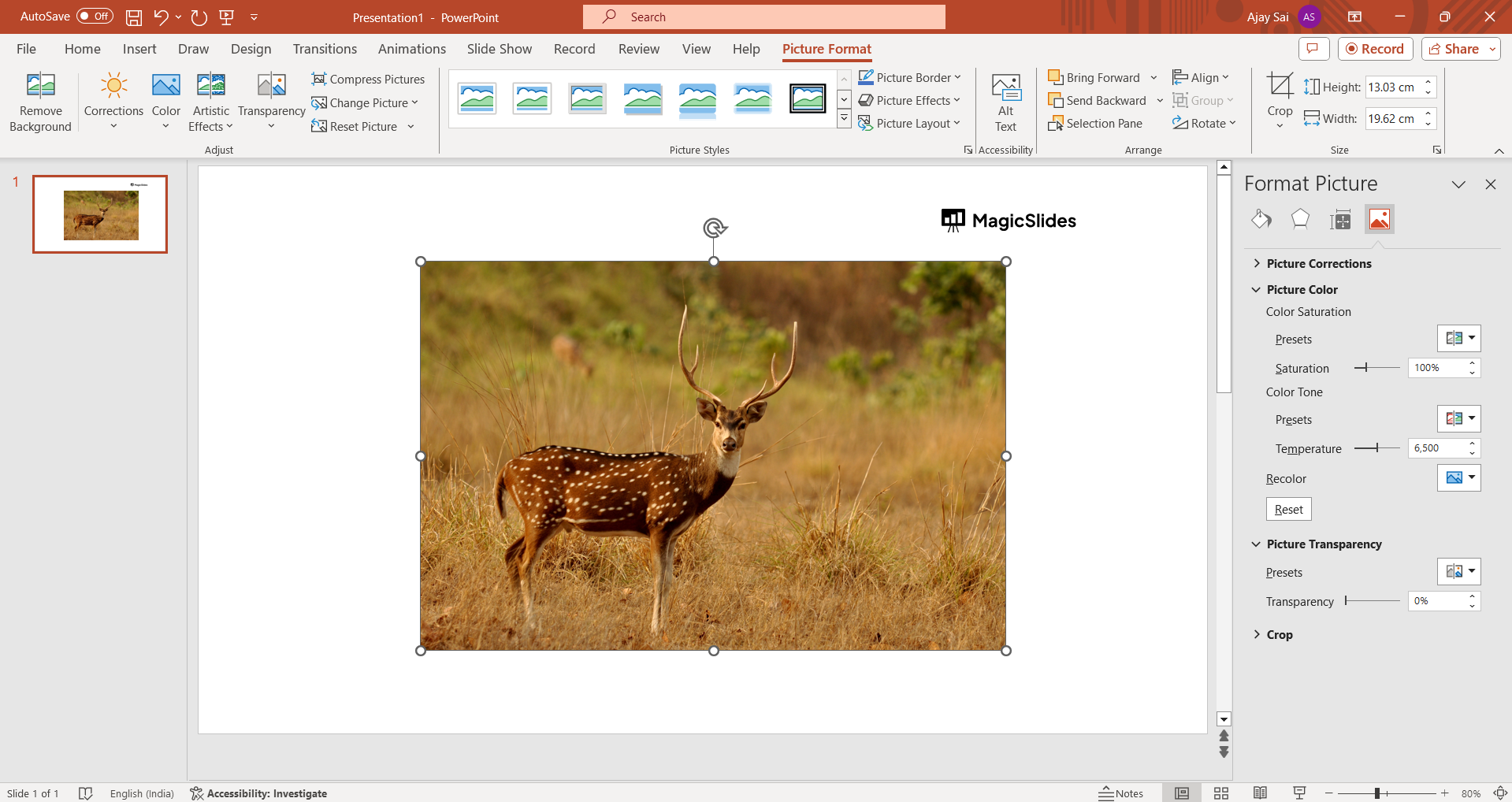
- From the drop-down menu, select the option labeled "Set Transparent Color."
- Select the Target Color:
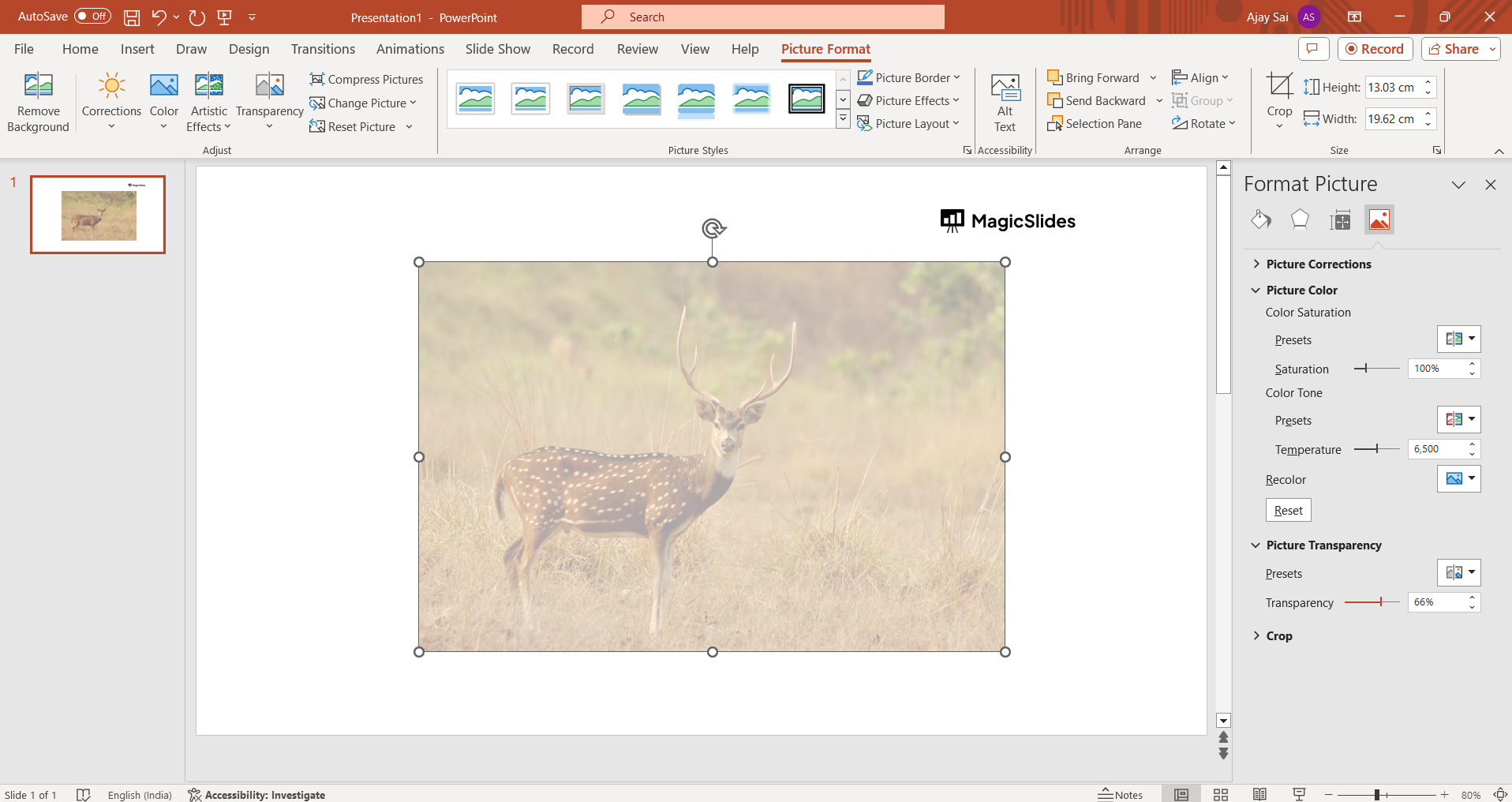
- Click directly on the color within your image that you want to make transparent.
- PowerPoint will instantly render all instances of that specific color as transparent.
Conclusion:
By following these straightforward steps, you can effortlessly enhance the visual appeal of your PowerPoint slides. The ability to make images transparent provides a professional touch to your presentations, allowing for seamless integration of visuals and text. Experiment with this feature to achieve the desired transparency effect and create captivating slides for your audience.
Frequently Asked Questions:
Why would I want to make an image transparent in PowerPoint?
Ans: Transparency in images adds a professional and polished touch to your PowerPoint presentations. It allows for seamless integration of visuals with the background, creating a more visually appealing and cohesive design.
Can I make any color transparent in my image?
Ans: Absolutely. After selecting the image, navigating to the "Set Transparent Color" option in the "Colors" menu allows you to click on any specific color within the image that you want to make transparent. PowerPoint will then instantly render all instances of that color as transparent.
Will making an image transparent affect its quality?
Ans: No, the transparency feature in PowerPoint is designed to maintain the image's quality. The process selectively removes the chosen color while preserving the overall clarity and resolution of the image. This ensures that your visuals remain crisp and professional even with transparency applied.
Check out these blogs:
How To Conclude A Presentation: https://www.magicslides.app/blog/how-to-end-your-presentation
What is a presentation deck?: https://www.magicslides.app/blog/what-is-a-presentation-deck
How To Make Presentations Interactive: Top 10 Tips: https://www.magicslides.app/blog/How-to-Make-Presentations-Interactive-Top-10-tips
Animating Your Google Slides: A Step-by-Step Guide: https://www.magicslides.app/blog/Animating-Your-Google-Slides-A Step-by-Step-Guide


