
In the realm of presentation design, the power of transparency can significantly elevate the visual impact of your slides. Our step-by-step guide is here to unravel the magic of making picture backgrounds transparent in PowerPoint. Whether you're a seasoned presenter or a novice in the world of design;
this tutorial will empower you to create captivating visuals that seamlessly blend with your presentation's narrative.
How to make picture background transparent in powerpoint
Step 1: Select Your Image:
Start by choosing the image you want to transform and access the Format Picture option on the Picture Tools tab.
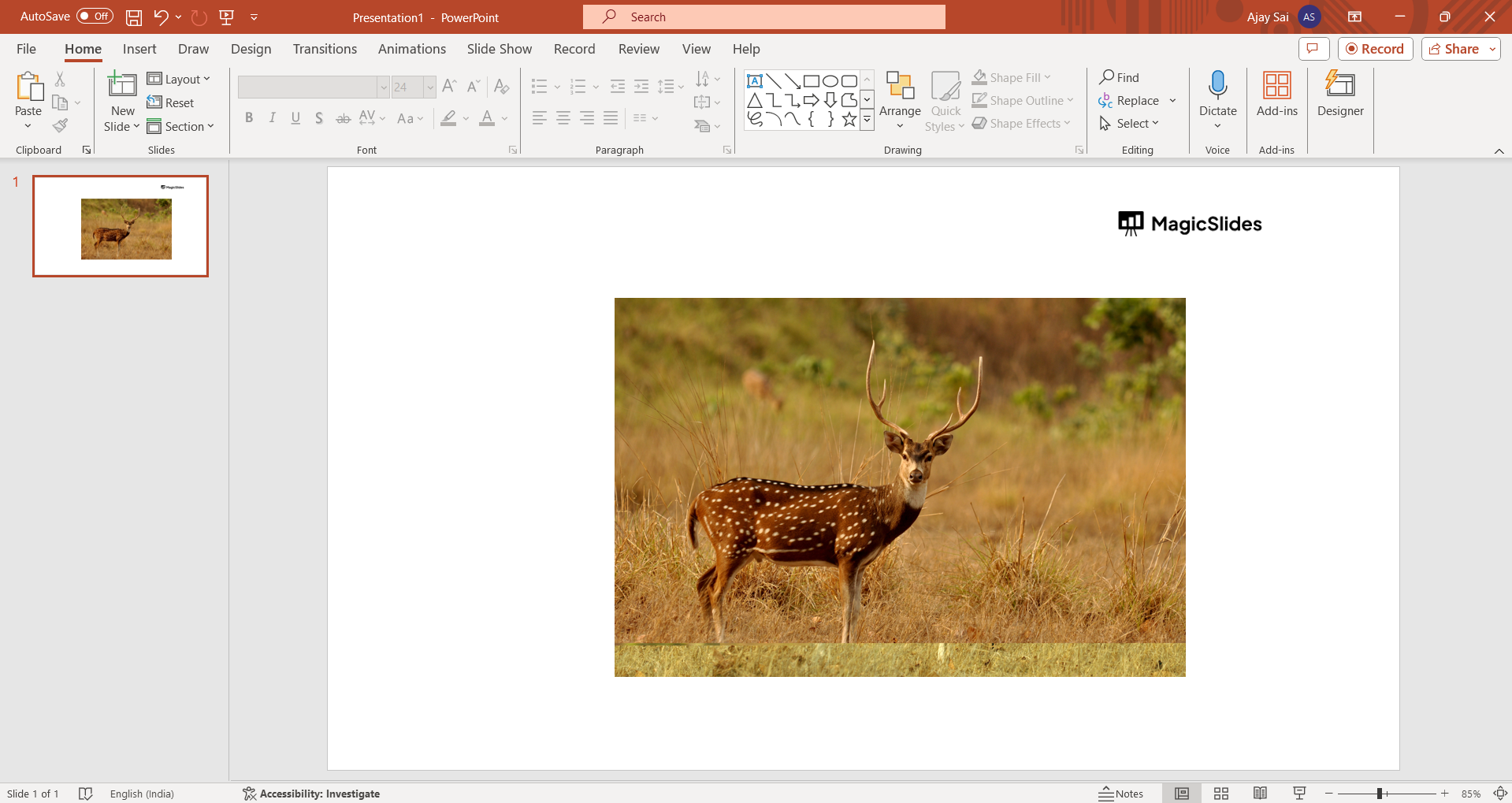
Step 2: Activate Remove Background:
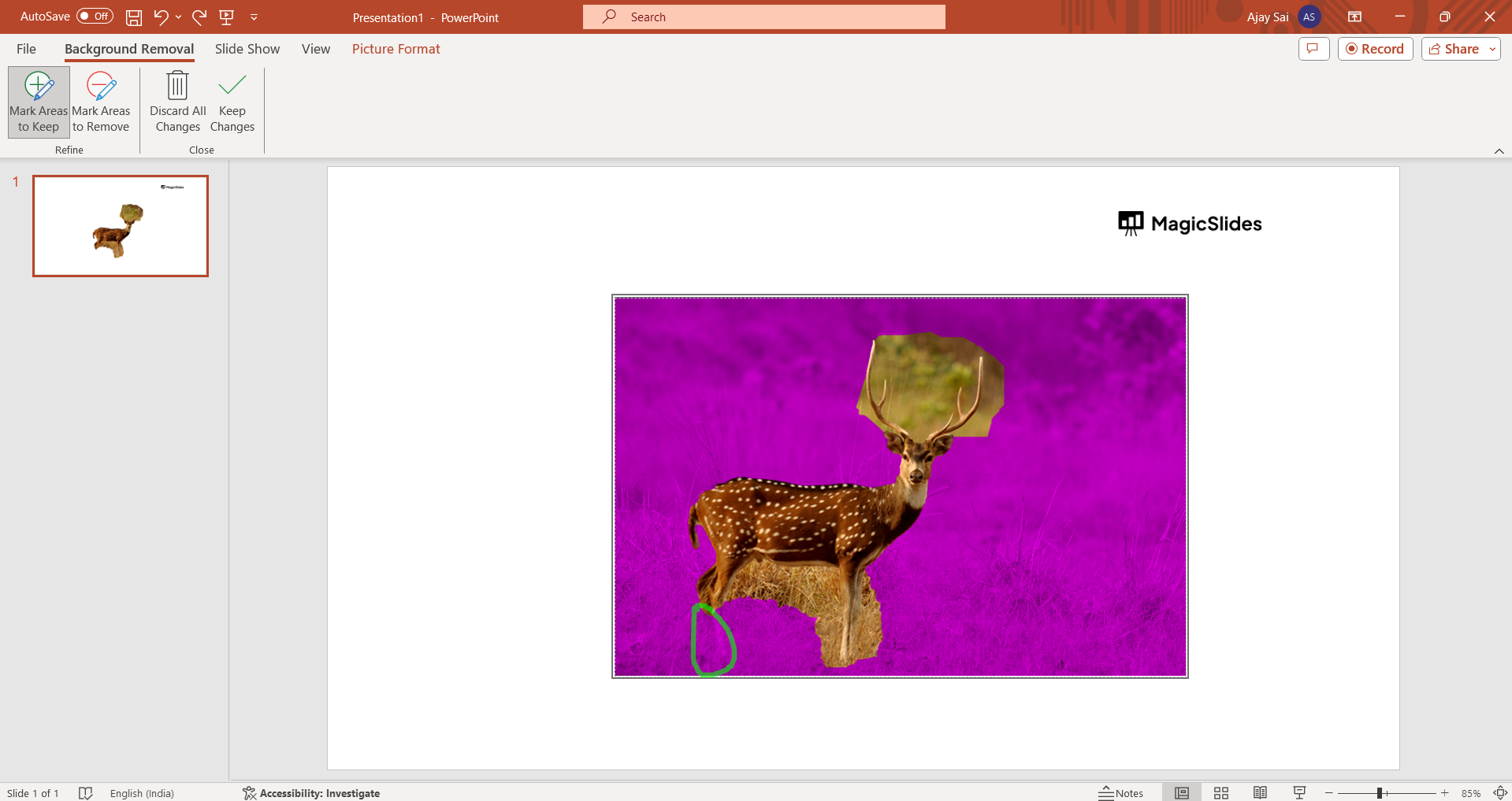
Click on the Remove Background tool located on the left side of the ribbon. This initiates PowerPoint's automatic background selection, indicated by a pink color.
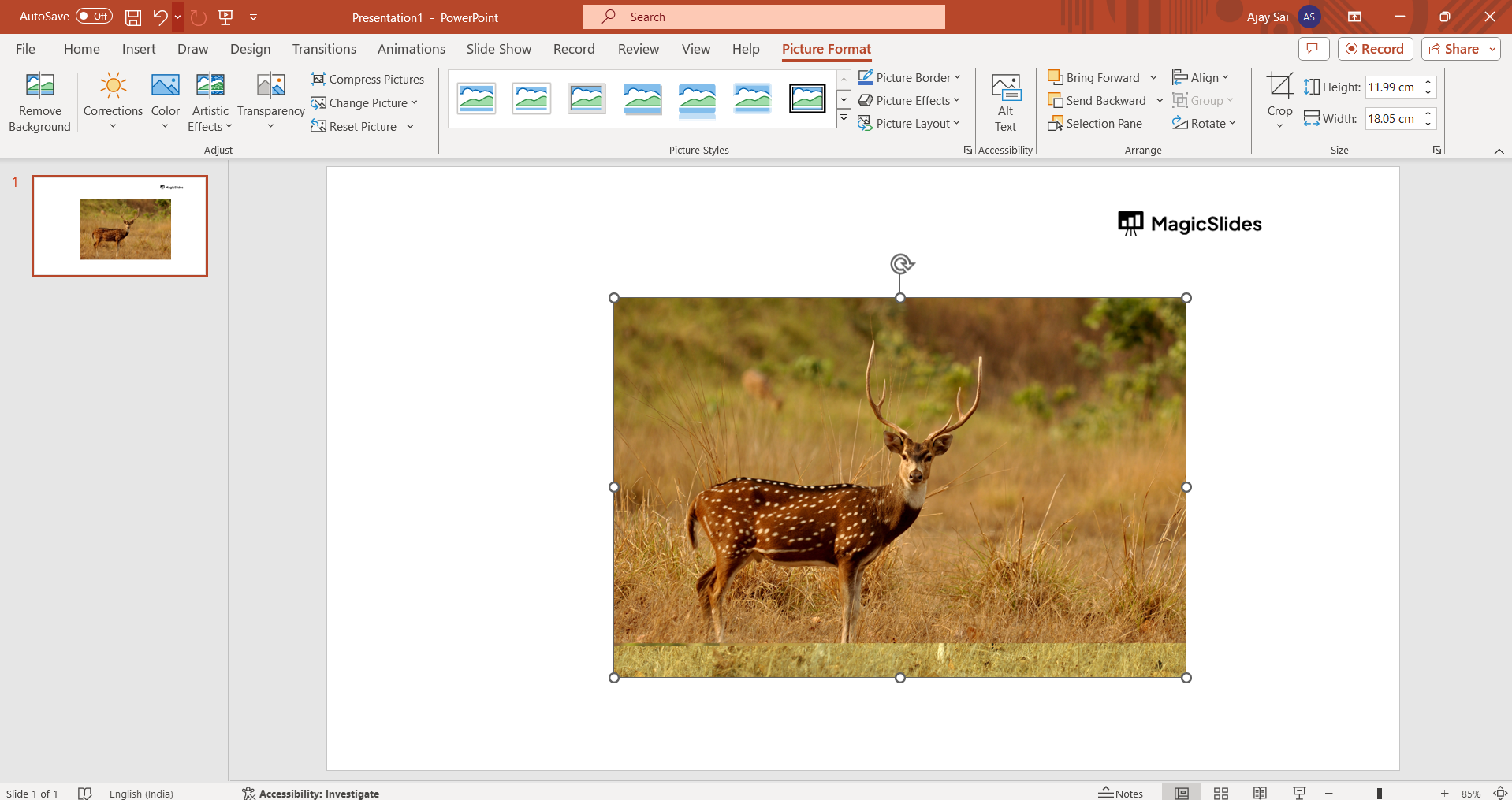
Step 3: Fine-Tune Selection:
If the automatic selection isn't precise, utilize the Mark Areas to Keep and Mark Areas to Remove buttons on the Format tab. Enhance accuracy by adjusting edges with the Refine tool.
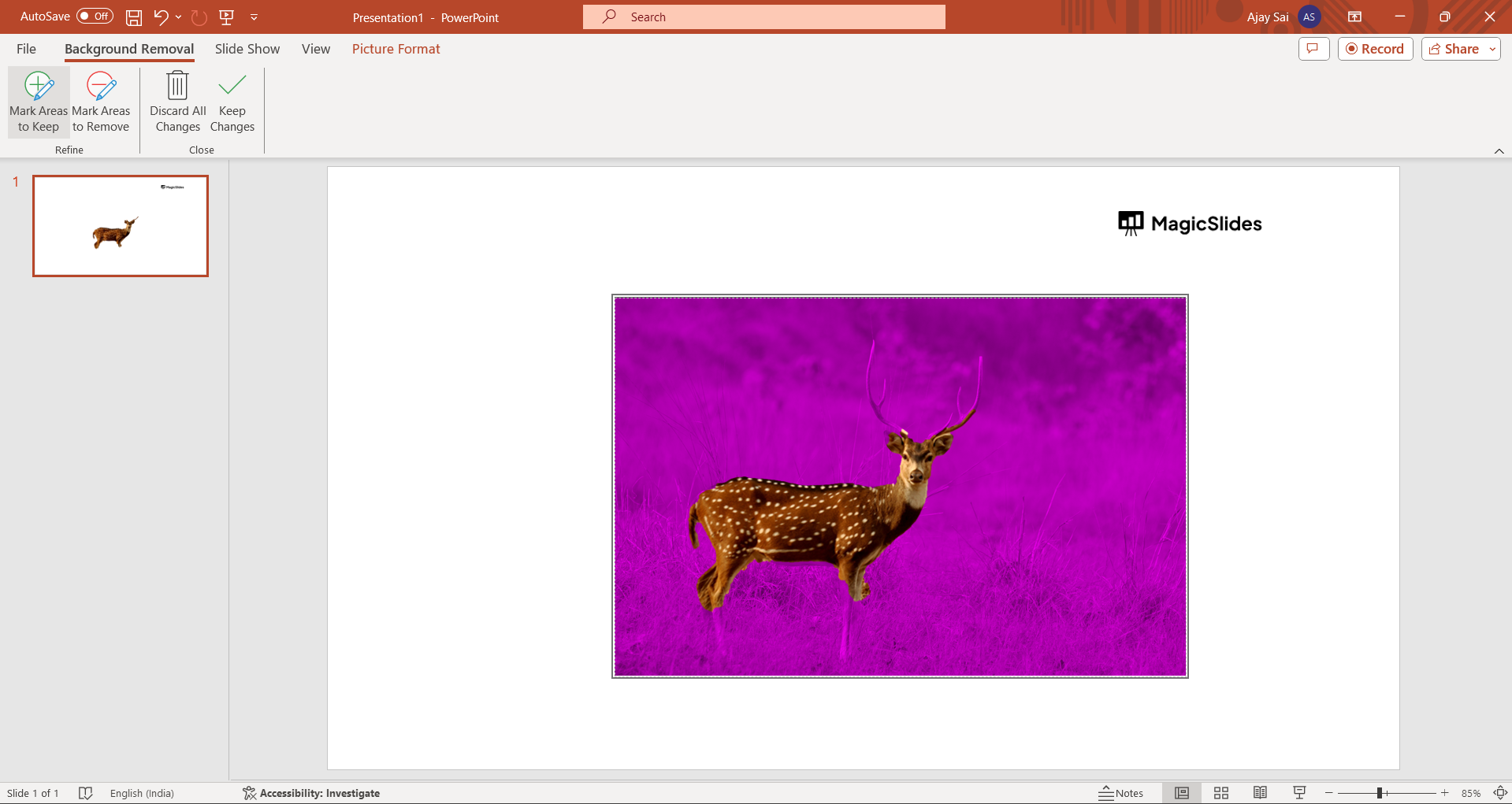
Step 4: Adjustments for Precision:
Use Mark Areas to Keep for essential elements and Mark Areas to Remove for unwanted portions, ensuring your selection aligns with your intentions.
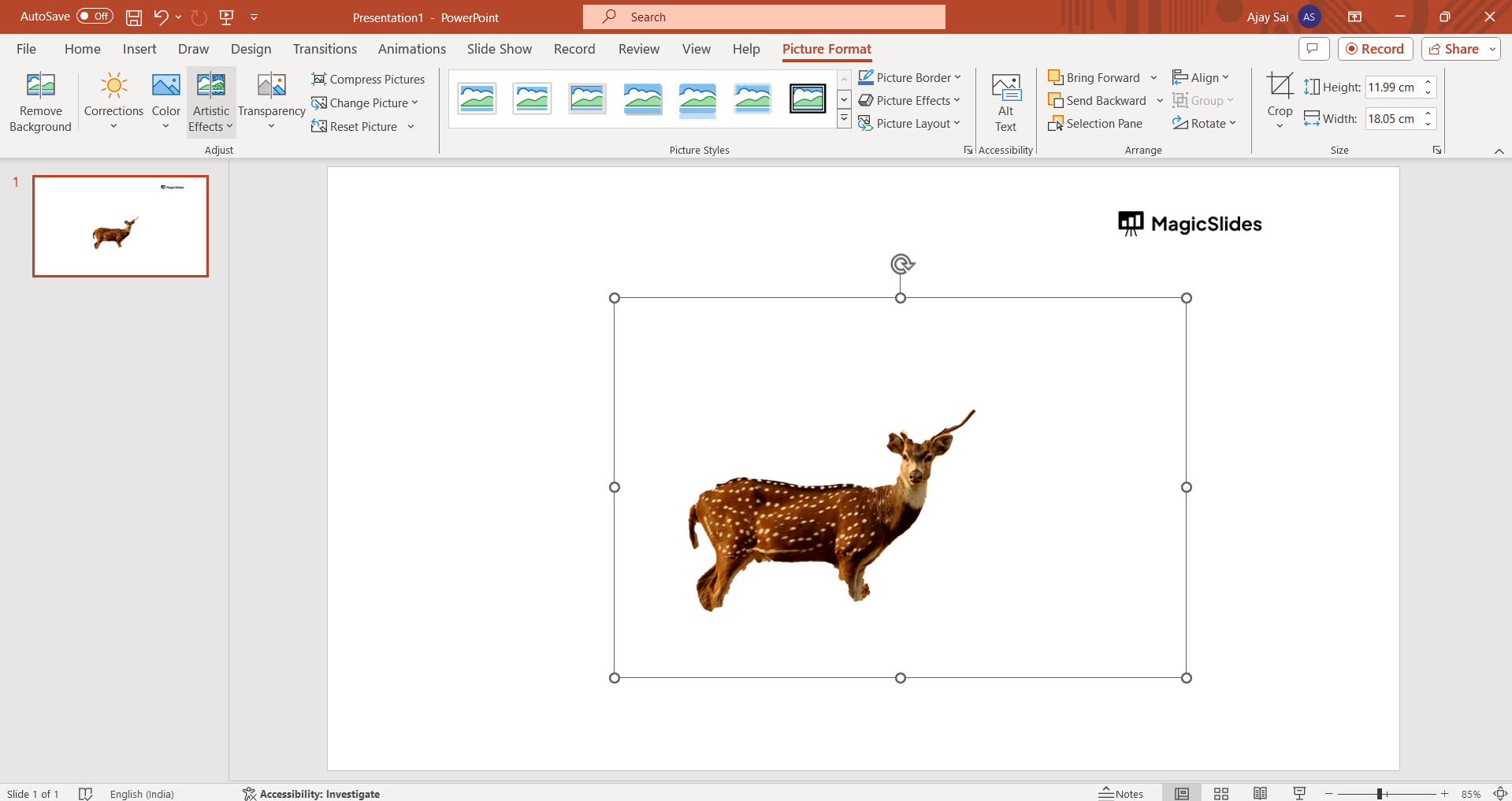
Step 5: Refine Edges with Precision:
Employ the Refine tool to meticulously adjust the edges of your selection, achieving a seamless and polished look for your image.
Step 6: Finalize Your Selection:
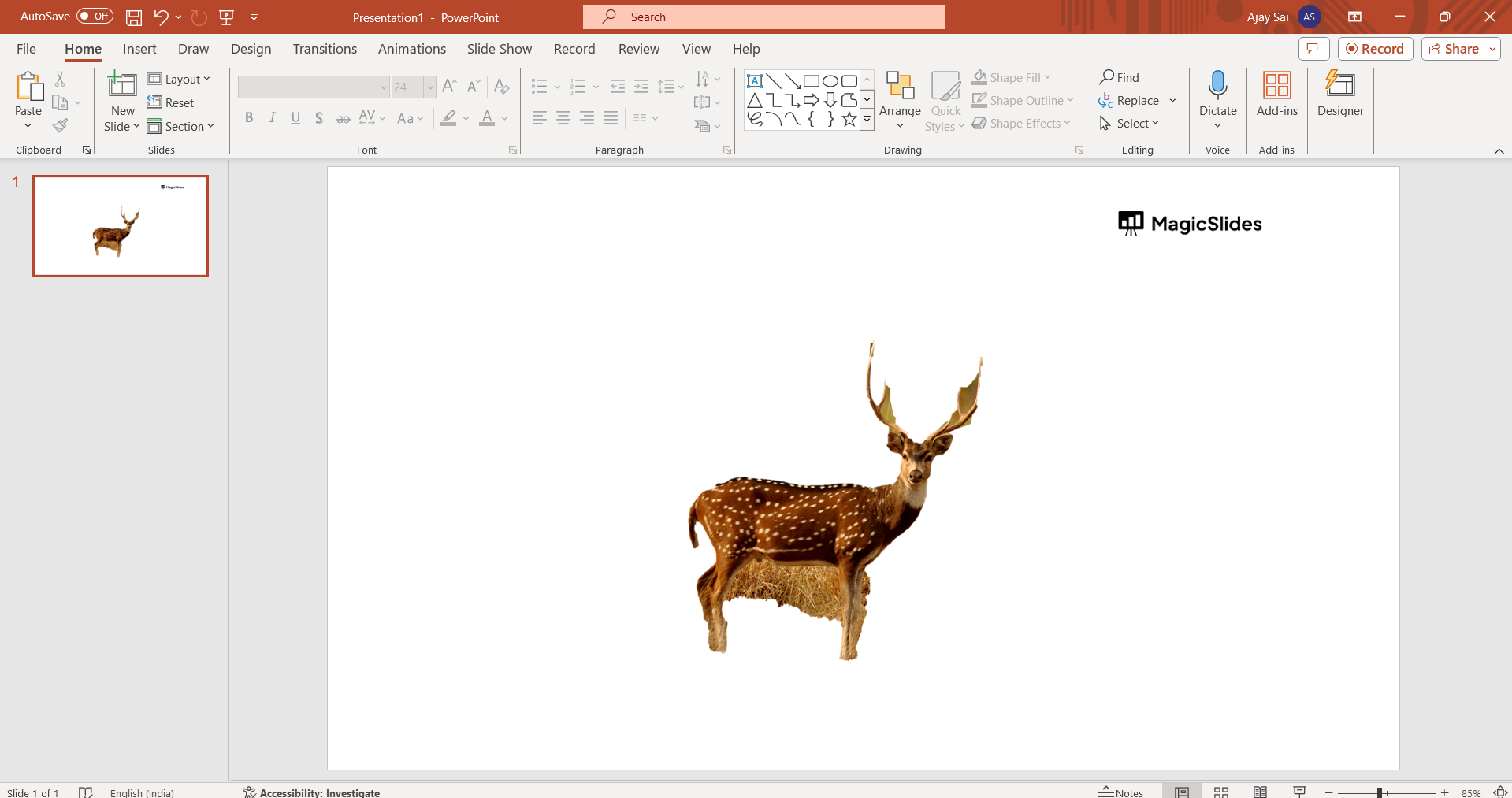
Once satisfied with your refined selection, click on Keep Changes to implement the transparent background effect to your image.
Conclusion:
As you conclude this journey into enhancing your PowerPoint prowess, you now possess a valuable skill to transform your visuals. The ability to effortlessly remove picture backgrounds brings a new level of sophistication to your presentations. So, go ahead, experiment with transparency, and watch as your slides become a canvas for engaging and visually compelling storytelling. Elevate your presentations with this newfound knowledge and captivate your audience like never before.
Frequently Asked Questions:
Q: Why should I bother making picture backgrounds transparent in PowerPoint?
Ans: Transparent backgrounds enhance visual appeal, seamlessly integrating images into your slides for a polished and professional look.
Q: Is the process of removing picture backgrounds complicated for someone new to PowerPoint?
Ans: Not at all. Our step-by-step guide simplifies the process, making transparency accessible even for beginners.
Q: Can I control the accuracy of the automatic background removal in PowerPoint?
Ans: Absolutely. PowerPoint provides tools like Mark Areas to Keep and Refine to ensure precise background removal.
Have a look @these info blogs:
how to make an image transparent in powerpoint: https://www.magicslides.app/blog/how-to-make-an-image-transparent-in-powerpoint
How To Insert A Word Document Into Powerpoint: https://www.magicslides.app/blog/How-to-insert-a-word-document-into-powerpoint
How To Conclude A Presentation | End Your Presentation On A Good Note: https://www.magicslides.app/blog/how-to-end-your-presentation
How To Open Google Slides In Powerpoint: https://www.magicslides.app/blog/How-to-open-google-slides-in-powerpoint
Share on socials
About the author
Sanskar Tiwari is the founder of MagicSlides and IAG Tech. Over the past 5 years, he has shipped 24+ products and taught 100k+ students how to code. His work focuses on AI‑assisted creation and developer education.
More from the blog
How to Insert Bitmoji into Google Slides? Complete Guide
19 March 2026
How to Open a Google Slides Presentation in 4 Steps
19 March 2026
How to Convert PPT to Google Slides - Complete 2026 Guide
19 March 2026
Top 12 PowerPoint Alternatives Compared – Find the Best Presentation Tool
17 March 2026
Genetics Topics for Presentation: 100+ Comprehensive Ideas
17 March 2026
Interesting Biology Topics for Presentations: 100+ Captivating Ideas
17 March 2026
How to add morph Transition in PowerPoint
15 March 2026
How to animate google slides
10 March 2026
50+ Funny Presentation Topic Ideas to Get You Started
5 March 2026
