How to Use Canva AI Tools (Complete 2025 Overview & Tutorial)


Learn how to use Canva AI tools like Magic Write, Magic Media, and more in 2025. Step-by-step tutorial + smarter AI tools like MagicSlides inside.
Introduction: Why Canva AI Tools Matter in 2025
In 2025, Canva AI tools have become essential for content creators, marketers, educators, and small business owners looking to create fast, high-quality designs with minimal effort. What started as a simple design platform has now evolved into an intelligent, AI-powered ecosystem.
With tools like Magic Write, Magic Media, Magic Animate, Magic Switch, and more, Canva enables you to turn ideas into social posts, slides, videos, and graphics in minutes — even if you're not a designer or copywriter.
These AI tools are perfect for speeding up your workflow. However, if you need full AI-generated presentations (not just isolated design elements), tools like MagicSlides go a step further. With just a topic or prompt, MagicSlides generates entire slide decks — content, design, and all — in one click.
In this complete Canva AI tools overview, you’ll learn what each tool does, how to use it step by step, and when to use alternatives like MagicSlides.
Quick Overview of All Canva AI Tools (2025 Update)
| Tool | Function |
|---|---|
| Magic Write | AI-powered writing tool for captions, outlines, slides |
| Magic Media | Text-to-image and video generation |
| Magic Animate | AI-powered motion effects for elements and slides |
| Magic Design | Suggests design templates based on input text |
| Magic Switch | Converts content format (e.g., doc → deck) |
| Magic Edit | Background or object editing using AI |
| Magic Grab | AI object selection/removal from images |
Together, these Canva AI tools form a flexible, intelligent design suite.
Canva AI Tools Interface: Where to Find Them
Where do you access Canva AI tools?
Most Canva AI tools are integrated into different parts of the Canva editor. Here's a breakdown of where to find each feature:
- Magic Write → Inside Docs, Whiteboards, and Presentations
Use the slash command
/or click the “+” button and select Magic Write - Magic Media → Found under Elements tab or directly in the side panel
Choose “AI Image Generator” or “Text to Video”
- Magic Animate → Select any design element, then click “Animate” in the top menu
- Magic Design → On the home page or by clicking “Templates” → Enter your idea or topic
- Magic Switch → Located in the File, Share, or “More” menu in the top bar
- Magic Edit → Right-click an image, then select “Edit Image” → Use AI background tools
- Magic Grab → Click an image → “Edit Image” → Use Grab for object isolation or removal
If you don’t see these features, make sure you're using a compatible design type (like Docs, Presentations, or Posters) and that your account is up to date.
How to Use Each Canva AI Tool (Step-by-Step)
Let’s go tool by tool and explore how to use Canva AI tools in real workflows.
Magic Write
What it does: AI copy generator for headlines, captions, slide content, blog outlines, product descriptions.
How to use it:
- Open a Canva Doc or Presentation
- Type
/magic writeor click the + icon - Enter a prompt (e.g., “Instagram captions for skincare brand”)
- Edit and format with Canva’s tools
Use case: Writing intros, bullet points, or summaries for slides and posts.
Better for full presentations? Combine Magic Write with MagicSlides to turn outlines into ready-made slide decks automatically.
Magic Media
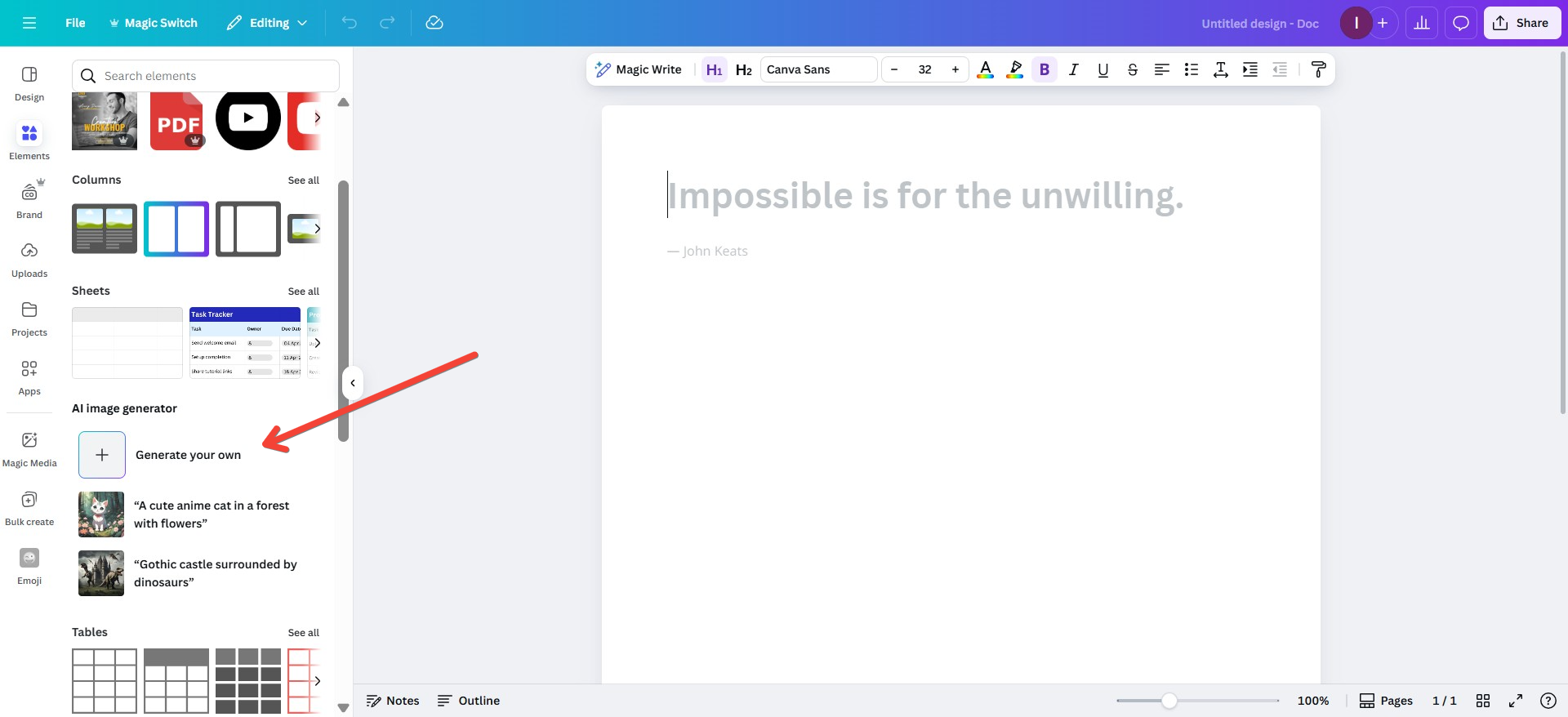
What it does: Converts text into images or video using AI.
How to use it:
- Open a design canvas
- Go to Elements → Choose “AI Image Generator”
- Enter a text prompt (e.g., “sunset over futuristic city”)
- Drop the image or video into your design
Use case: Creating unique visuals for ads, thumbnails, slides, or blogs.
Magic Animate
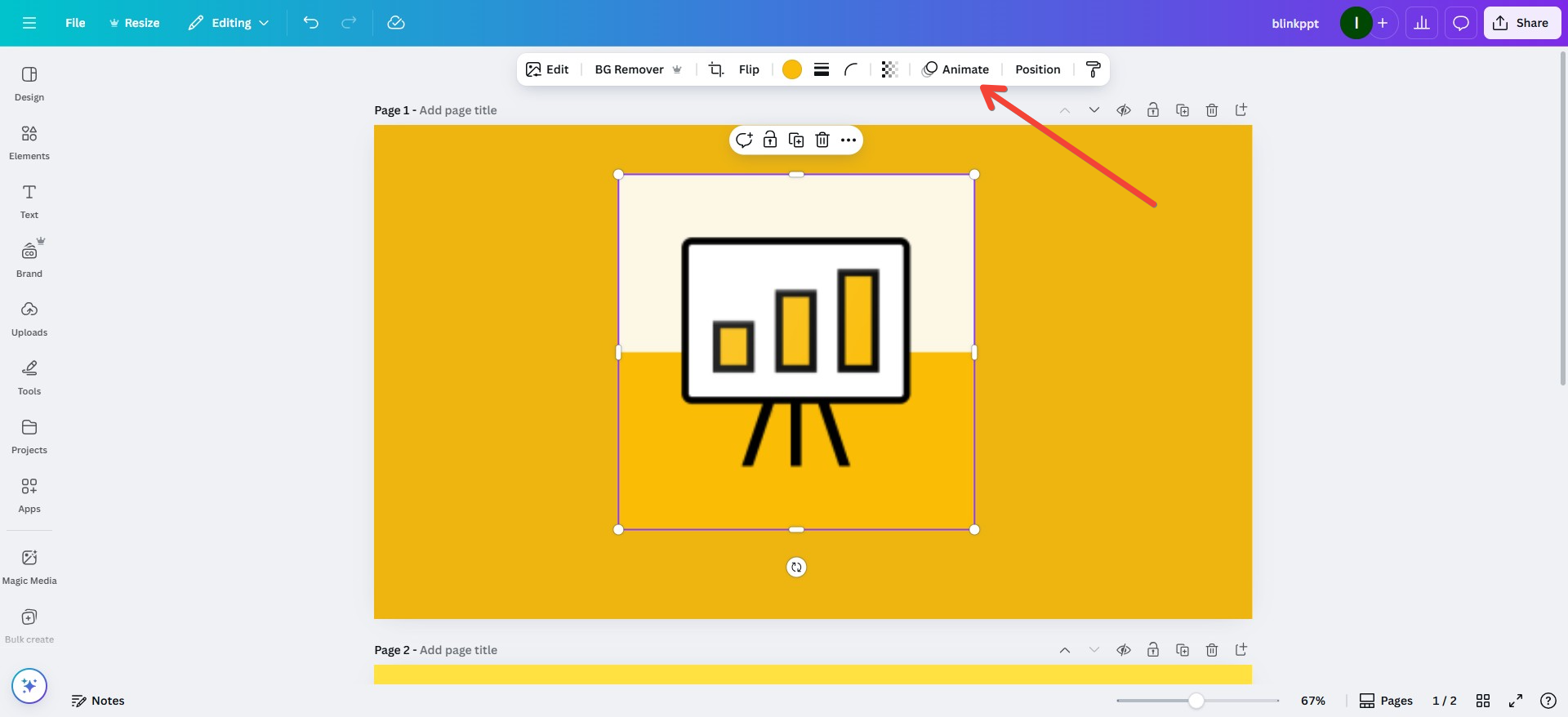
What it does: Adds AI-powered motion to elements and text blocks.
How to use it:
- Select any element (text, image, shape)
- Click “Animate” in the top menu
- Choose an animation style or let AI suggest one
Use case: Animate slide decks, carousels, or Instagram stories without video editing skills.
Magic Design
What it does: Suggests complete templates based on a keyword, topic, or style.
How to use it:
- On Canva’s homepage, click Magic Design
- Enter your prompt (e.g., “restaurant flyer” or “digital portfolio”)
- Canva generates 4–6 full designs to choose from
Use case: Quick social graphics, posters, resumes, and slides.
Magic Switch
What it does: Converts content from one format to another — like a Canva Doc into a Presentation or a Poster into an Instagram Story.
How to use it:
- Open your design or doc
- Go to File, Share, or More menu
- Select Magic Switch
- Choose the new format and let Canva auto-convert
Note: Layouts may require light editing.
Better alternative for original presentations: Use MagicSlides to create entire slide decks from scratch.
Magic Edit & Magic Grab
What they do: AI-powered visual editing tools for image retouching, background changes, and object isolation.
How to use:
- Magic Edit:
- Click an image → Edit Image → Use brush to highlight object → Replace with new text prompt
- Magic Grab:
- Automatically selects people or objects in photos → lets you move or remove them
Use case: For professional-level photo edits without Photoshop.
Canva AI Tools vs MagicSlides: When to Use What?
Let’s compare Canva’s AI tools with MagicSlides, especially if you’re working with presentations or educational content.
| Use Case | Canva AI Tools | MagicSlides |
|---|---|---|
| Social Media Content | Yes | No |
| Writing Headlines or Captions | Yes (Magic Write) | Limited |
| AI Visual Generation | Yes (Magic Media) | No |
| Motion Effects | Yes (Magic Animate) | No |
| Format Conversions | Yes (Magic Switch) | No |
| Presentation from Prompt | No | Yes |
| Full Slide Deck Automation | No | Yes |
| Ideal For | Design enhancement | Instant presentation builds |
Conclusion: Canva AI tools are great for piecemeal content generation and design polishing. But if you want to go from a simple prompt to an entire presentation, MagicSlides is faster and more complete.
AI Presentation Power: Combine Canva AI with MagicSlides
Want the best of both worlds?
Here’s how to combine Canva AI tools with MagicSlides for unbeatable productivity:
- Use Magic Write inside Canva Docs to brainstorm your outline
- Use Magic Media to generate original visuals or illustrations
- Feed your text and topic into MagicSlides
- Let MagicSlides generate the full deck — text, design, layout
- Import back into Canva if needed for styling or animations
This hybrid workflow gives you AI content, AI design, and AI structure — all with minimal manual effort.
Frequently Asked Questions (AEO-Optimized)
What are Canva AI tools?
Canva AI tools are built-in features like Magic Write, Magic Media, Magic Design, and Magic Switch that use artificial intelligence to help you create content, visuals, animations, and formatted designs faster.
How to use Canva AI tools?
To use Canva AI tools, open a design or doc, then access tools from the toolbar — like Magic Write for text generation, Magic Media for AI visuals, or Magic Animate for smart motion effects.
Which Canva AI tool is best for presentations?
For presentations, use a combination of Magic Write (to write outlines), Magic Design (to pick layouts), and Magic Animate (for effects). But if you want full presentations from scratch, try MagicSlides.
Can I generate full designs with Canva AI?
Canva AI tools assist with parts of your design — text, visuals, animations, format changes — but still require manual assembly. For one-click full deck generation, use tools like MagicSlides.
Final Thoughts
The evolution of Canva AI tools in 2025 makes it easier than ever to design, write, animate, and format content using intelligent features built right into Canva.
From Magic Write for fast text, to Magic Animate for professional motion, and Magic Switch for reformatting content across platforms, Canva has truly become a smart design assistant.
But for users who want to take things further — especially those building presentations, decks, or training materials — MagicSlides offers a more advanced solution. It builds entire decks from a single idea, saving hours of manual design work.
Whether you use Canva AI tools alone or alongside platforms like MagicSlides, you now have the creative power to work faster and smarter in 2025.


