How to Use Canva Magic Write – A Guide to Smart AI Writing


Learn how to use Canva Magic Write to create presentations, blogs, social posts, and more with AI. Step-by-step guide with tips, features, and use cases.
AI writing tools have taken over the creative world, and Canva Magic Write is one of the most beginner-friendly options available today. Whether you’re creating a Canva presentation, drafting a poster, or designing a social media post, Magic Write helps you brainstorm content ideas, generate headlines, and write short-form text in seconds — directly inside Canva.
If you’ve used tools like ChatGPT or Claude AI for copywriting, you’ll feel right at home. But the real advantage? Magic Write Canva is already baked into your favorite design platform. That means no switching tabs or copy-pasting — you can write and design in one place.
Quick Tip: If you’re looking for something more powerful — a tool that generates not just text but entire presentations with designs and slide content — try MagicSlides. It’s a smart AI-powered PPT Maker, an alternative built for full presentation workflows.
What Is Magic Write in Canva?
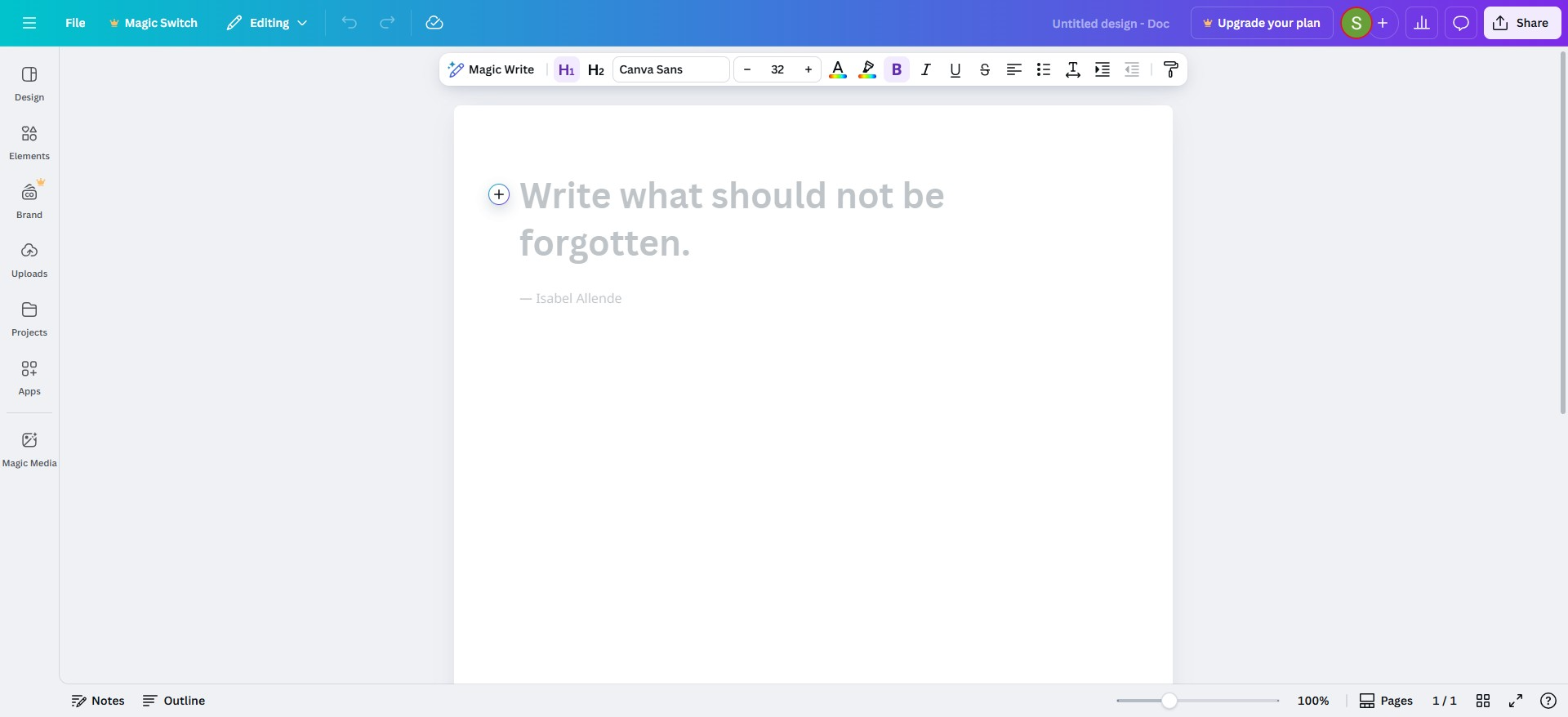
Magic Write in Canva is an AI writing assistant built directly into Canva Docs, Presentations, and Whiteboards. It’s designed to help you write faster — generating short, smart content for nearly any purpose.
Think of it as your built-in ChatGPT for Canva — but optimized for design-related content like:
- Social media captions
- Blog intros or outlines
- Slide bullet points
- Product descriptions
- Poster taglines
The Canva Magic Write feature is powered by OpenAI’s language models, meaning it uses the same advanced AI technology behind ChatGPT — but fine-tuned for creative, visual work inside Canva.
Where Is Magic Write in Canva?
Many users wonder: Where is Magic Write in Canva? or How to get Magic Write on Canva?
For ease of use, you can go to Canva Magic Write.
Here’s exactly how to find it in 2025:
Step-by-Step Guide to Use Magic Write
Step 1. Open Canva (Free or Pro account works)

Step 2. Go to one of these formats:
-
- Docs
- Whiteboard
- Presentation

Step 3. Click the “+” icon where you want to add content
→ Then choose “Magic Write.”
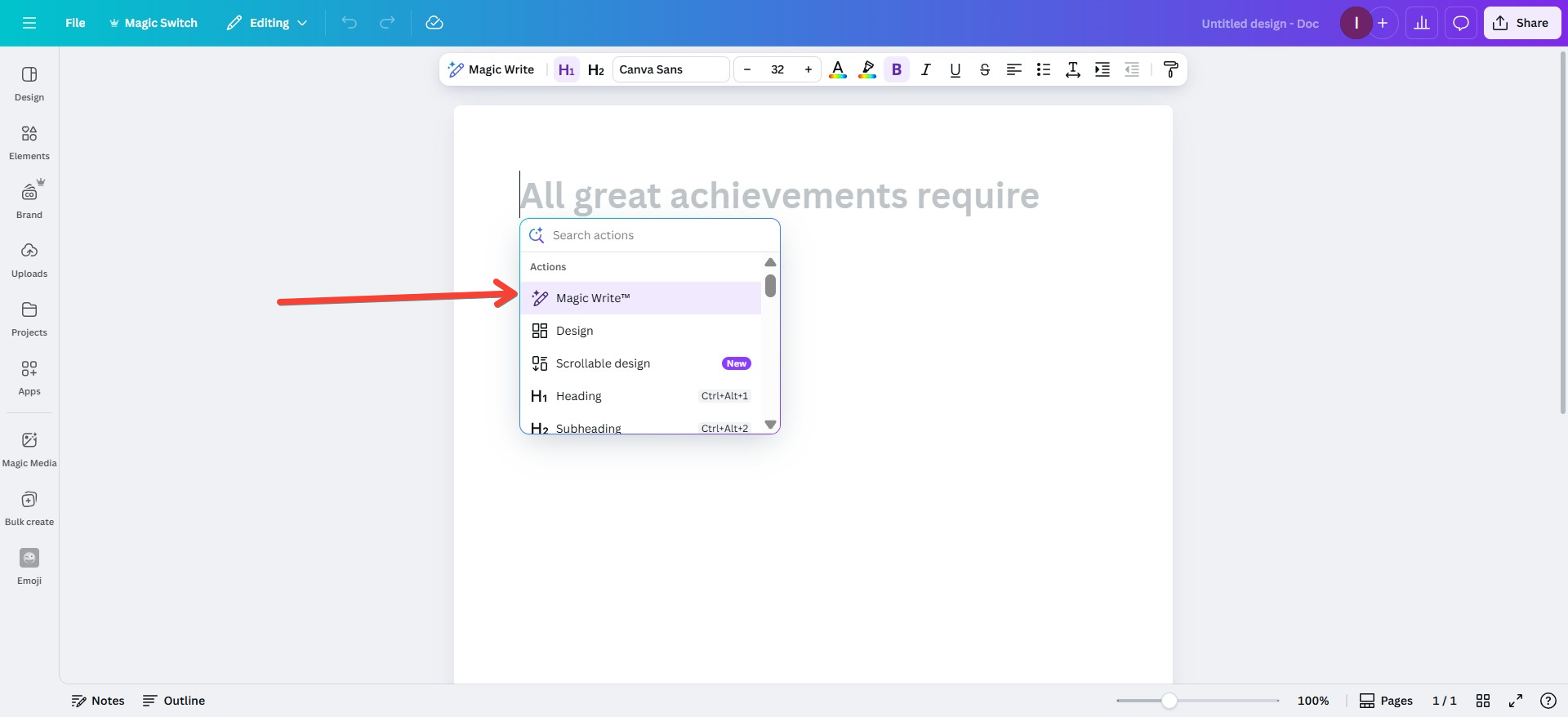
Step 4. Alternatively, type the “/” slash command and select Magic Write from the menu
That’s it. Now you’re ready to start writing!
Note: The Magic Write Canva feature is not available in every template type. It works best in Canva Docs, Presentations, and Whiteboards.
How to Use Magic Write in Canva (Beginner’s Walkthrough)?
Still unsure how to use Magic Write in Canva? Here’s a step-by-step beginner-friendly tutorial.
Step 1. Open a Compatible File
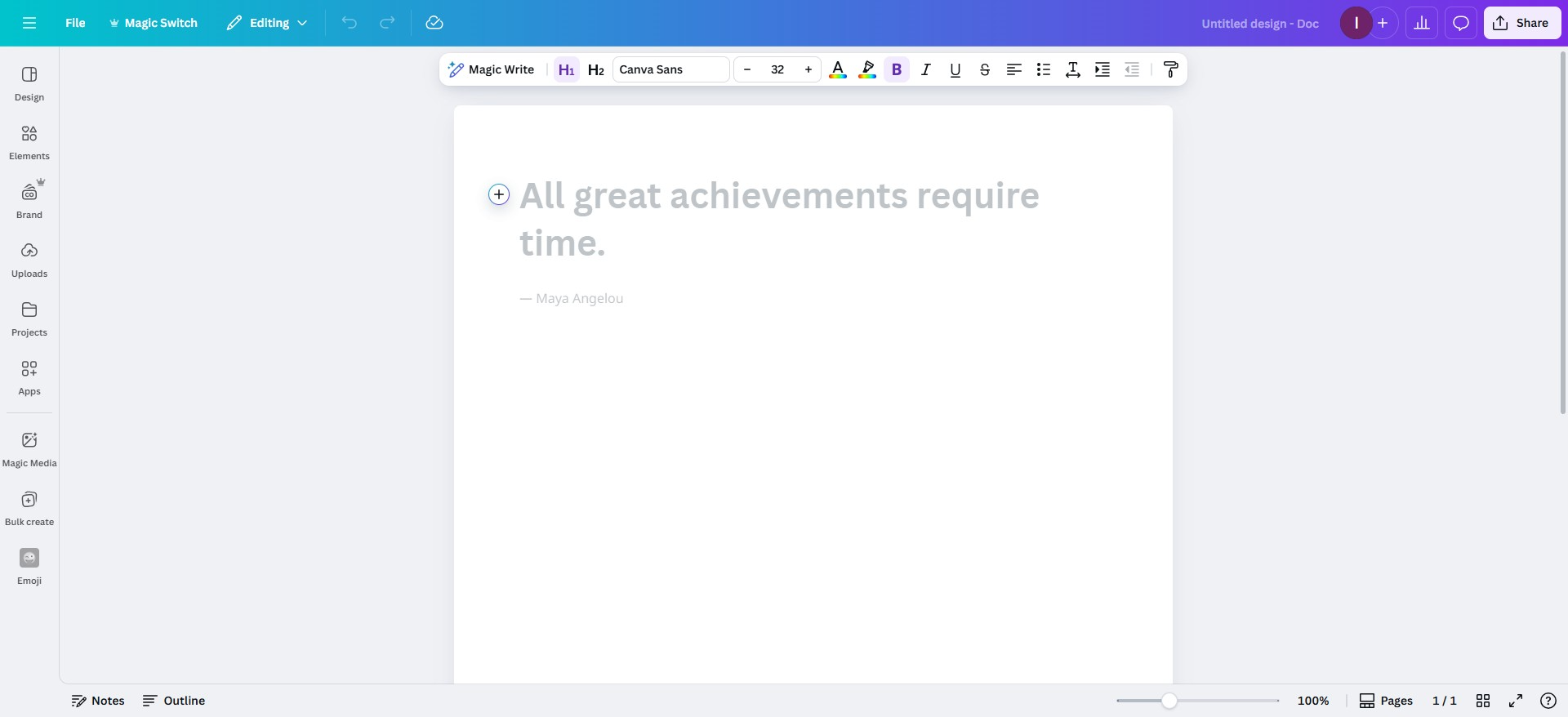
Create a Canva Doc, Presentation, or Whiteboard. Magic Write only works in these formats.
Step 2. Insert a Magic Write Block
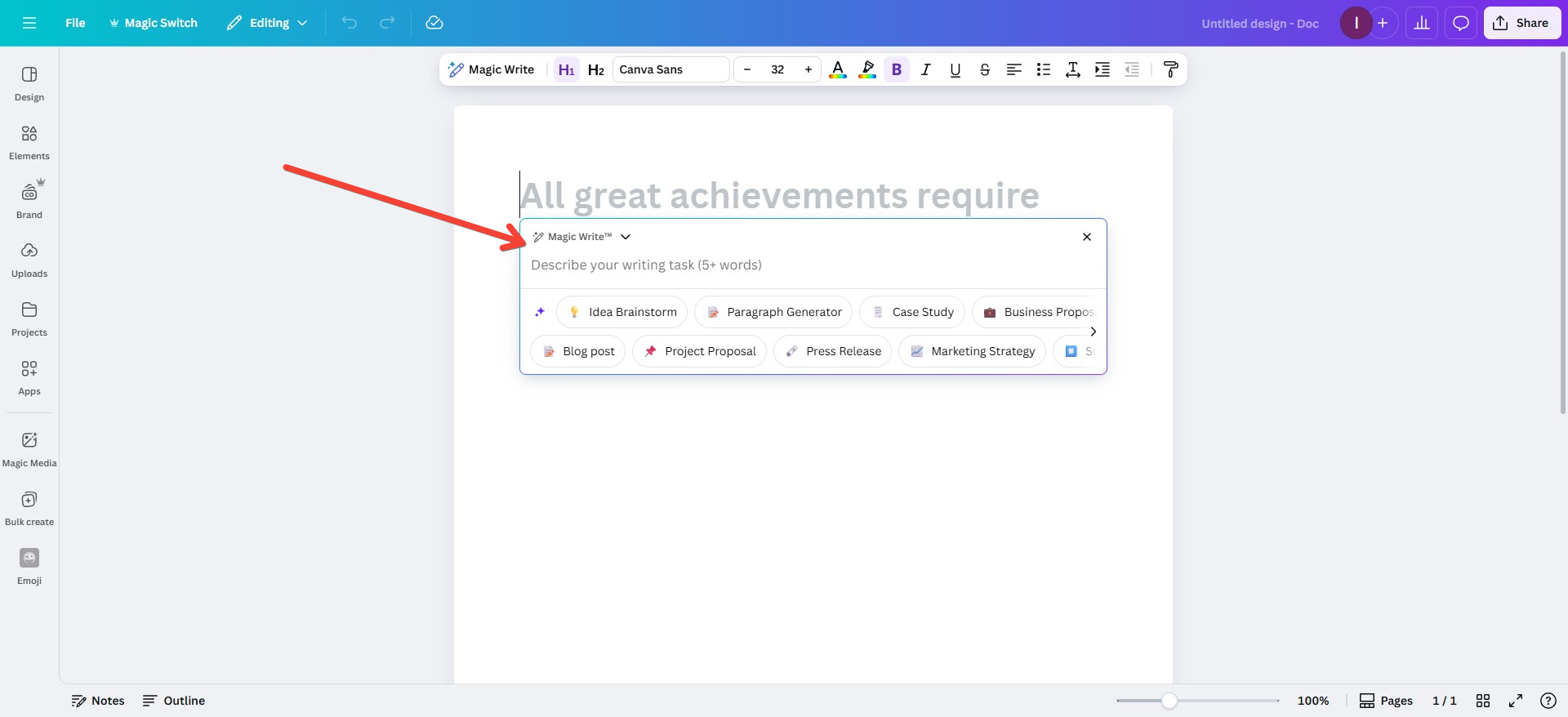
Click on the “+” icon or use “/” on your keyboard to trigger the Magic Write menu.
Step 3. Enter a Prompt
Type what you want. Some ideas:
- “Instagram captions for summer skincare launch”
- “Blog intro for digital nomad lifestyle”
- “5-slide outline for AI trends in 2025”
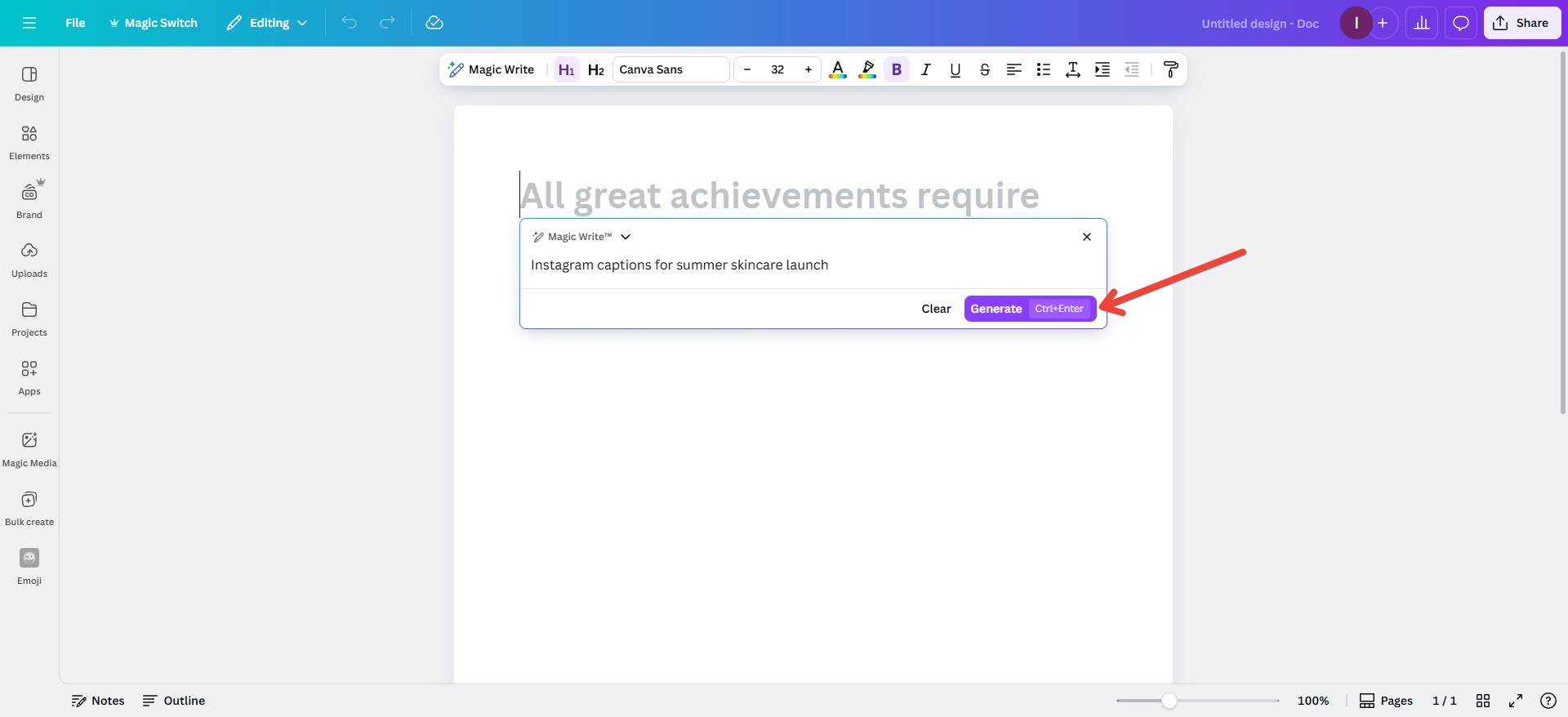
Step 4. Generate Content
Magic Write will instantly generate 2–3 versions of text. Choose one or edit it using Canva’s design tools.
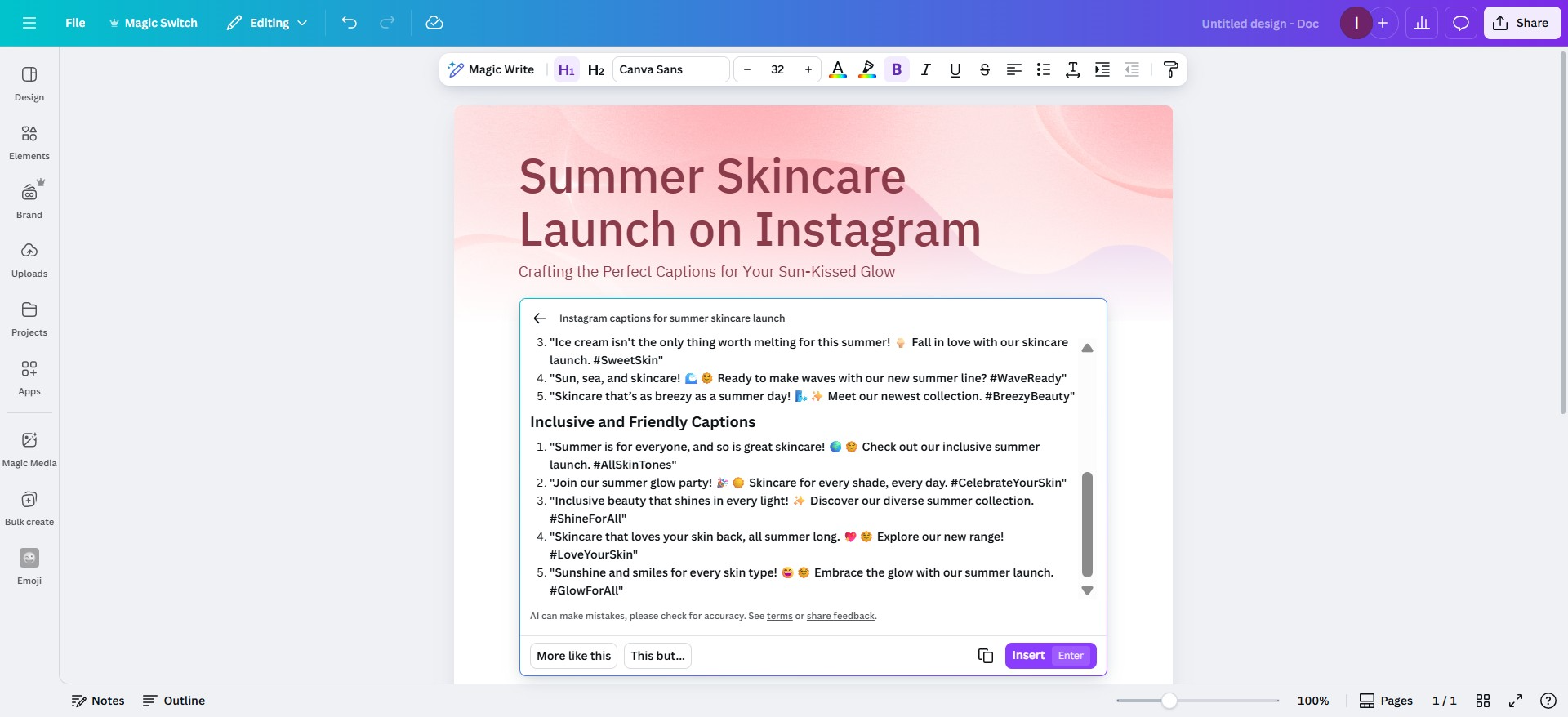
Step 5. Style and Customize
You can style the text, add it to your designs, or expand on it with more prompts.
Bonus Tip
Magic Write Canva is amazing for generating:
- Ad copy
- Email headlines
- Poster slogans
- Presentation hooks
Canva Magic Write for Presentations
You can use Canva Magic Write inside your presentations to:
- Generate slide titles
- Draft bullet points
- Create section headers
- Suggest ideas or quotes
Important: Magic Write doesn’t generate full slides or entire presentations. It only helps with the text part.
Want an AI that can generate an entire slide deck — content + visuals — from a single topic?
MagicSlides does exactly that.
Magic Write Use Cases: What You Can Create?
Wondering how to use Magic Write in Canva for real-life projects? Here are some top use cases:
1. Social Media
- Captions for Instagram, Facebook, LinkedIn
- Hashtag suggestions
- Carousel copy
2. Blogging
- Blog post introductions
- Article outlines
- Content hooks
3. E-commerce
- Product descriptions
- Taglines for banners
- Sale announcement copy
4. Education
- Lesson plan outlines
- Summary notes
- Class presentation copy
5. Presentations
- Slide headers
- Talking points
- Agenda breakdowns
Canva Magic Write vs Other AI Tools
Here’s how Magic Write stacks up against other popular AI tools:
If your goal is fast text and design generation — MagicSlides is the better all-in-one workflow.
Troubleshooting Canva Magic Write
If Magic Write isn’t showing up or working for you, here’s what to check:
Not Showing Up?
- Ensure you’re using Canva Docs, Presentation, or Whiteboard
- Use the “+” button or slash command “/”
- Try clearing the cache or logging out and back in
Free vs Pro Access
- Canva Free users have limited access to Magic Write
- Canva Pro gives full access with more usage credits
Template Limitations
- Magic Write doesn’t appear in static templates like Posters or Instagram Posts
- Stick to Docs or Presentation mode for best results
Final Thoughts
Canva Magic Write is the go-to writing assistant for creators who need quick, smart copy that’s ready to drop into their designs. Whether you’re planning a post, a pitch, or a product launch, it removes the mental blocks and lets you focus on creativity.
But if you’re looking for something even more powerful — a tool that writes your content and designs your slides — give MagicSlides a try. It’s like Magic Write, but for entire presentations.
Also read: How to Create a Presentation in Canva in Less Than 5 Steps
FAQs About Canva Magic Write
Q1. What is Magic Write in Canva?
A: It’s Canva’s built-in AI copywriting tool that helps you generate text content inside Docs, Whiteboards, and Presentations.
Q2. How to use Magic Write in Canva?
A: Open Canva Docs or Presentations → Click “+” or use slash “/” → Select Magic Write → Type your prompt.
Q3. Where is Magic Write in Canva?
A: It’s inside Docs, Presentations, and Whiteboards. Click the + icon or type the / command to find it.
Q4. How to get Magic Write on Canva?
A: You just need a Canva Free or Pro account → Open a compatible design file like Docs → Look for Magic Write.


