What is Canva Magic Switch and How to Use It (2025 Guide)


What is Canva Magic Switch? Learn how to use Canva’s new AI feature to convert docs into presentations, posts, and more — plus smarter tools like MagicSlides.
What Is Canva Magic Switch?
Canva Magic Switch is one of the most innovative AI features Canva has introduced in recent years. It allows you to instantly convert any design format into another — for example, turning a long-form Canva Doc into a polished presentation, an article into a carousel post, or a slide deck into a LinkedIn banner.
This feature builds on Canva’s growing AI toolkit, including Magic Write for AI copywriting and Magic Design for automated visuals. Now, with Magic Switch Canva, creators can repurpose existing content across formats faster than ever.
It’s especially helpful for marketers, educators, social media creators, and anyone who publishes across multiple platforms.
If you’re looking for something more powerful — a tool that not only switches formats but creates entire presentations from just a topic or brief — check out MagicSlides.app. It’s a smarter AI-powered alternative for hands-free slide creation.
Where to Find Magic Switch in Canva
Where is Magic Switch on Canva?
Many users ask, where is the Magic Switch on Canva or how to get Magic Switch on Canva. The feature is built directly into Canva’s design editor but may appear in different spots depending on the file type you’re using.
Step-by-Step: Finding Magic Switch
- Open a design
This could be a Canva Doc, a Presentation, or even a PDF file you’ve uploaded.
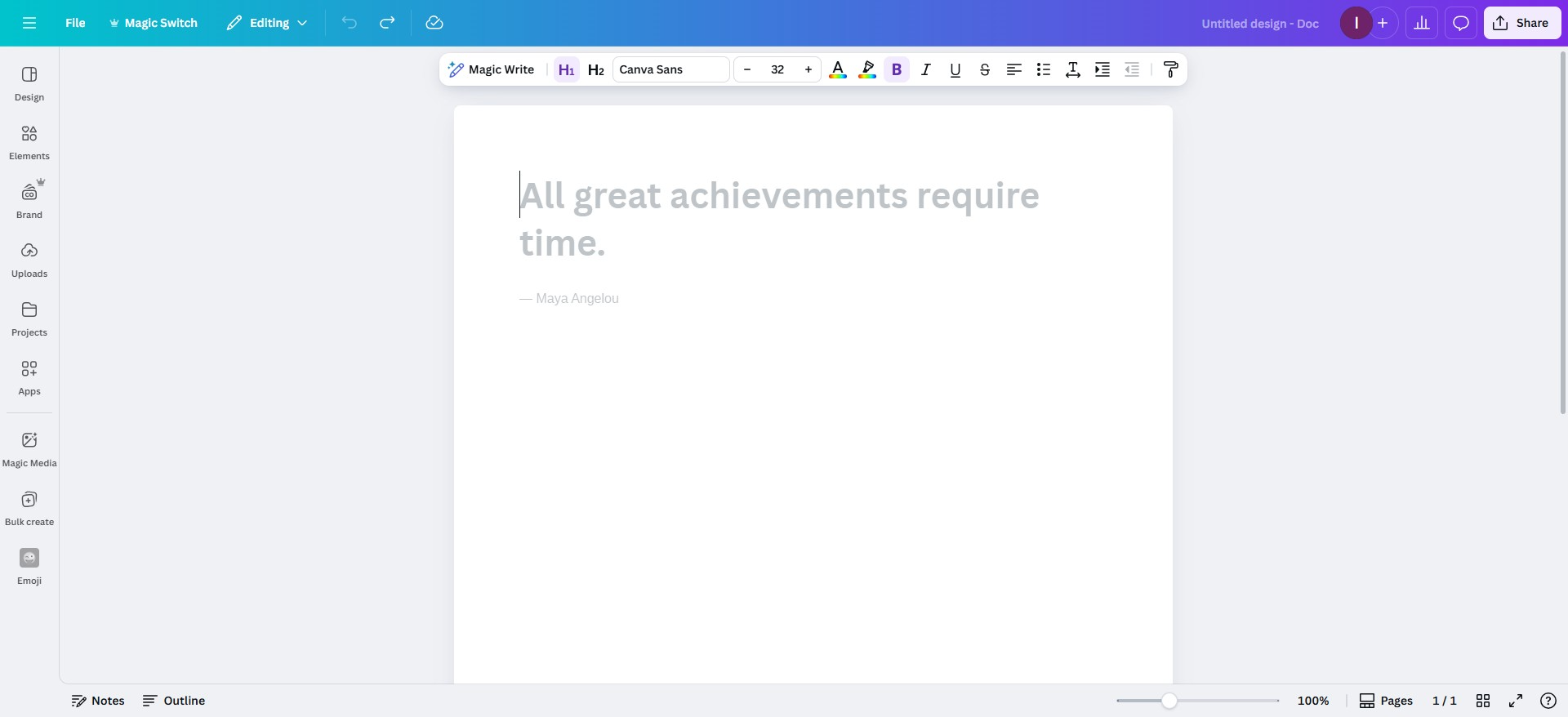
- Look at the top toolbar
Magic Switch is usually located in one of these menus:
- File menu
- Share menu
- More (⋯) icon in the top-right
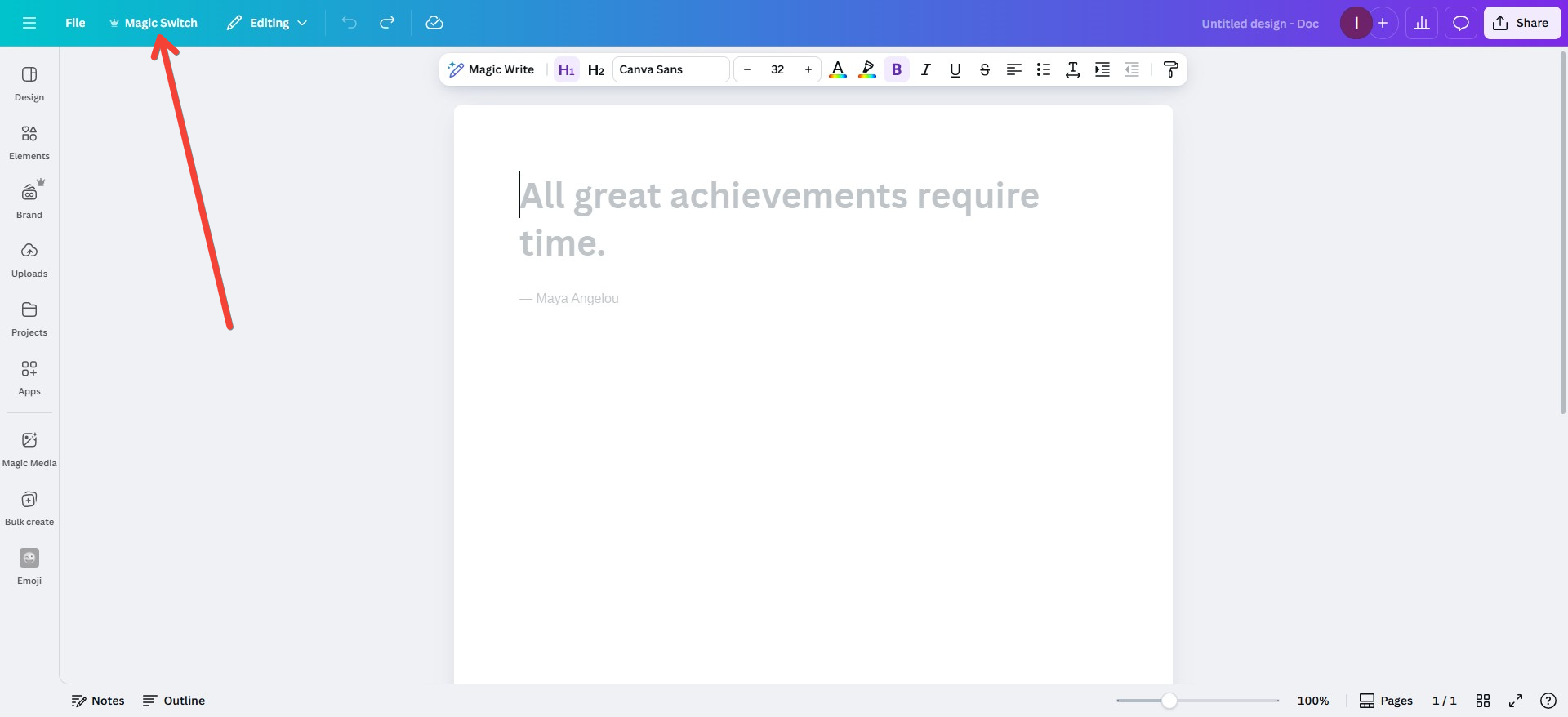
- Select “Magic Switch”
You’ll be presented with options to switch formats — like Doc to Presentation, or Poster to Instagram Post.
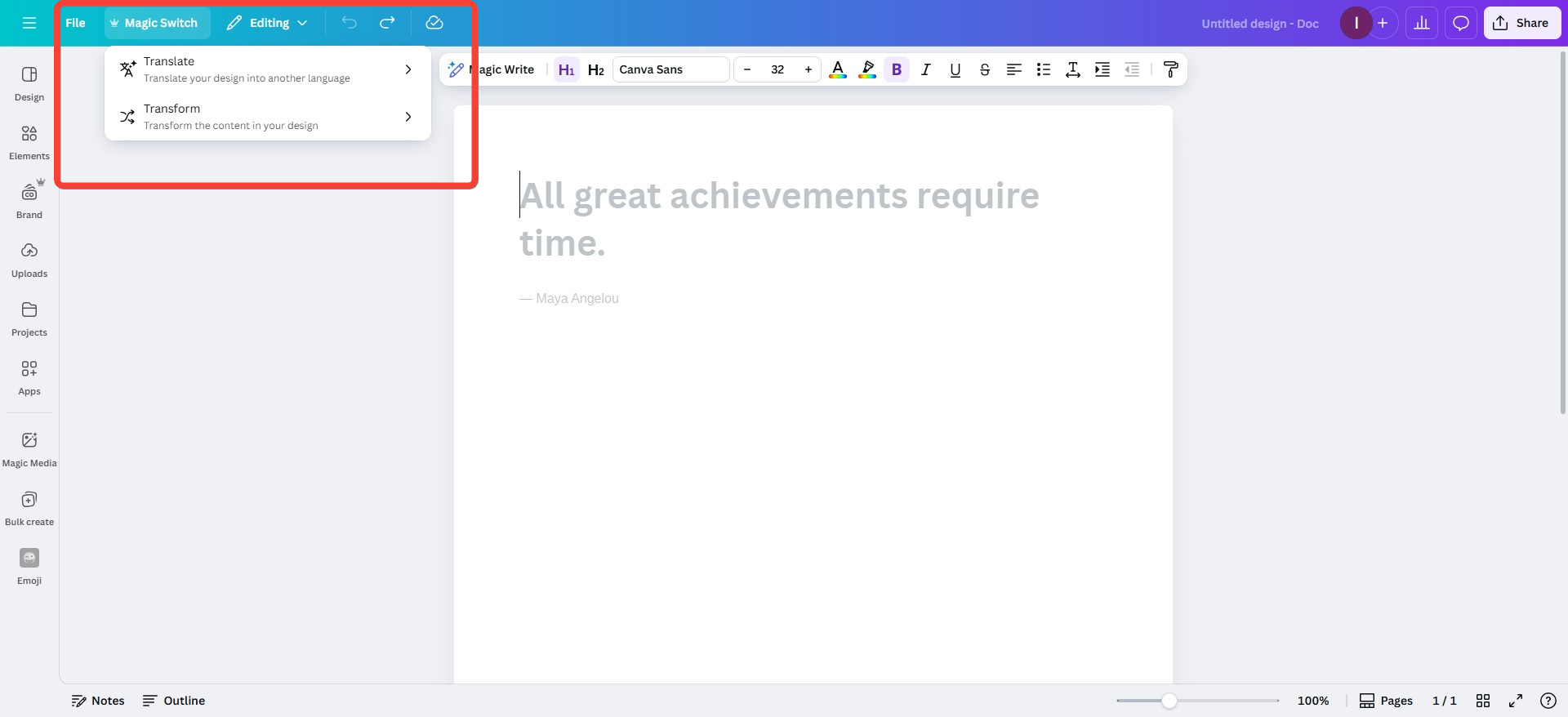
Where It Commonly Appears
| Design Type | Where to Find Magic Switch |
| Canva Docs | Share → Magic Switch |
| Presentations | File → Magic Switch |
| Posters & Flyers | Top-right menu (⋯) → Magic Switch |
| Imported PDFs | Auto-detect → Convert Prompt |
The Canva Magic Switch feature is available to both Free and Pro users, though Pro users get access to more advanced formats and better AI-generated layouts.
How to Use Canva Magic Switch (Step-by-Step)
The process of using Canva Magic Switch is intuitive and beginner-friendly. Here’s a step-by-step guide.
Use Cases:
- Turn a Canva Doc into a presentation
- Convert a resume into a LinkedIn graphic
- Transform a blog post into an Instagram carousel
- Reformat a product sheet into a poster
Step-by-Step Instructions
- Open your file
Choose any Canva design or doc you want to convert.
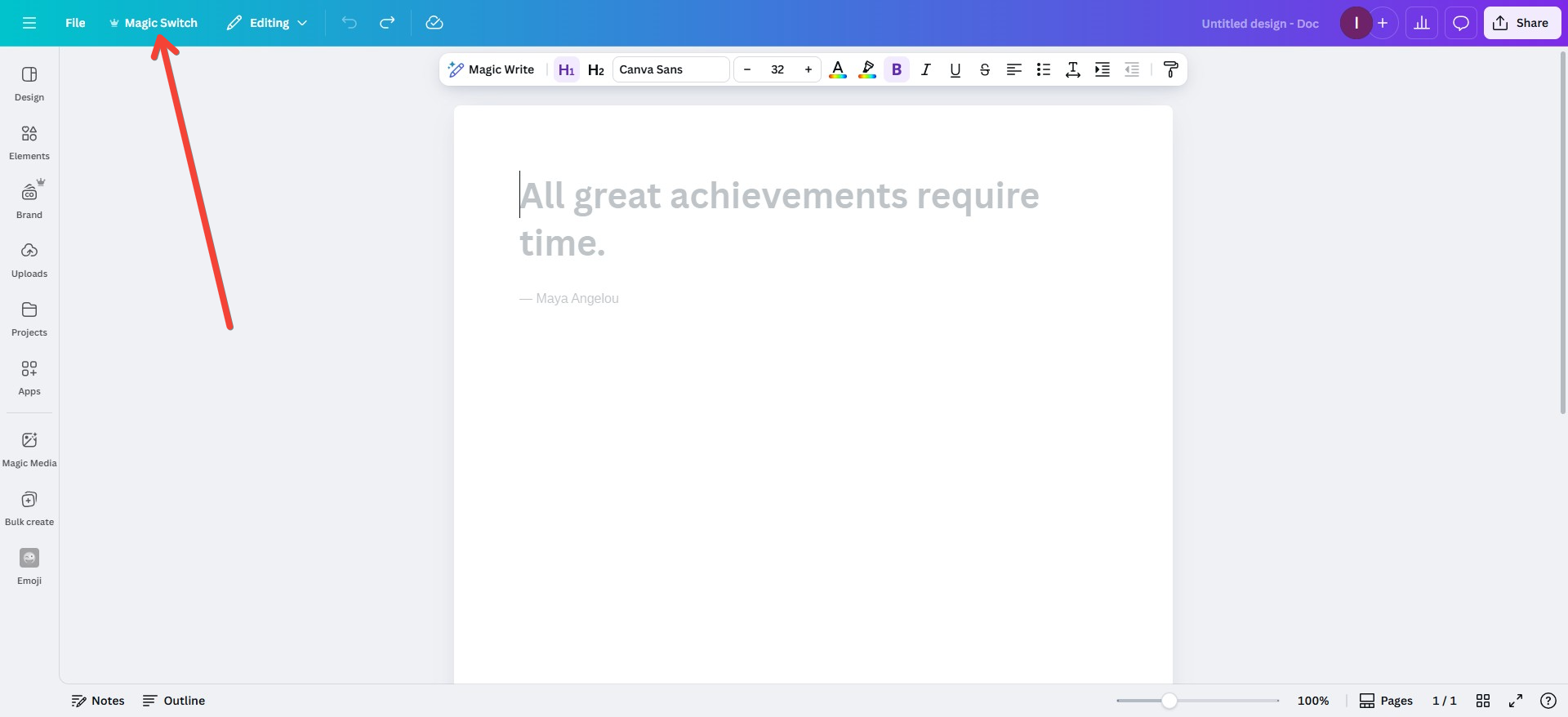
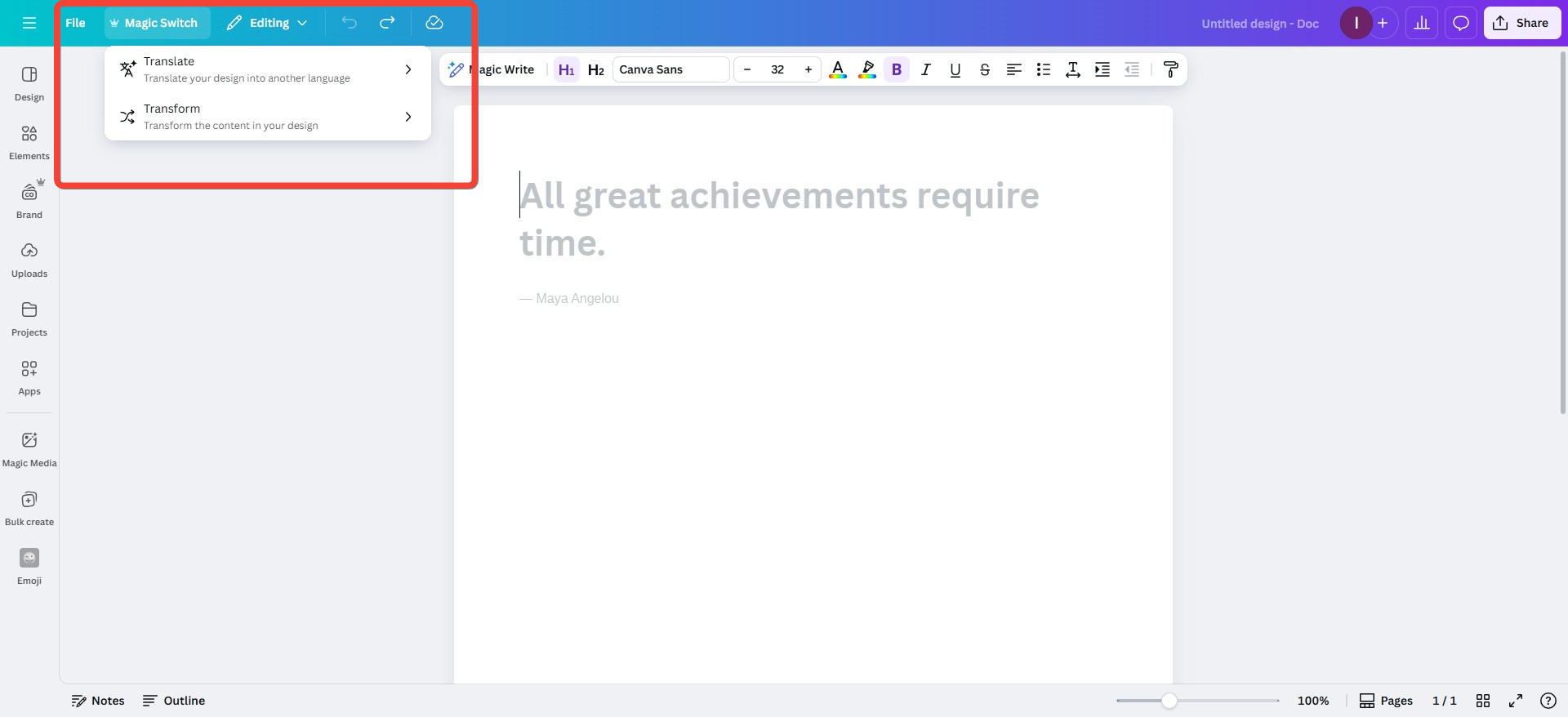
- Click Magic Switch
Navigate to the File, Share, or More menu and click on Magic Switch.
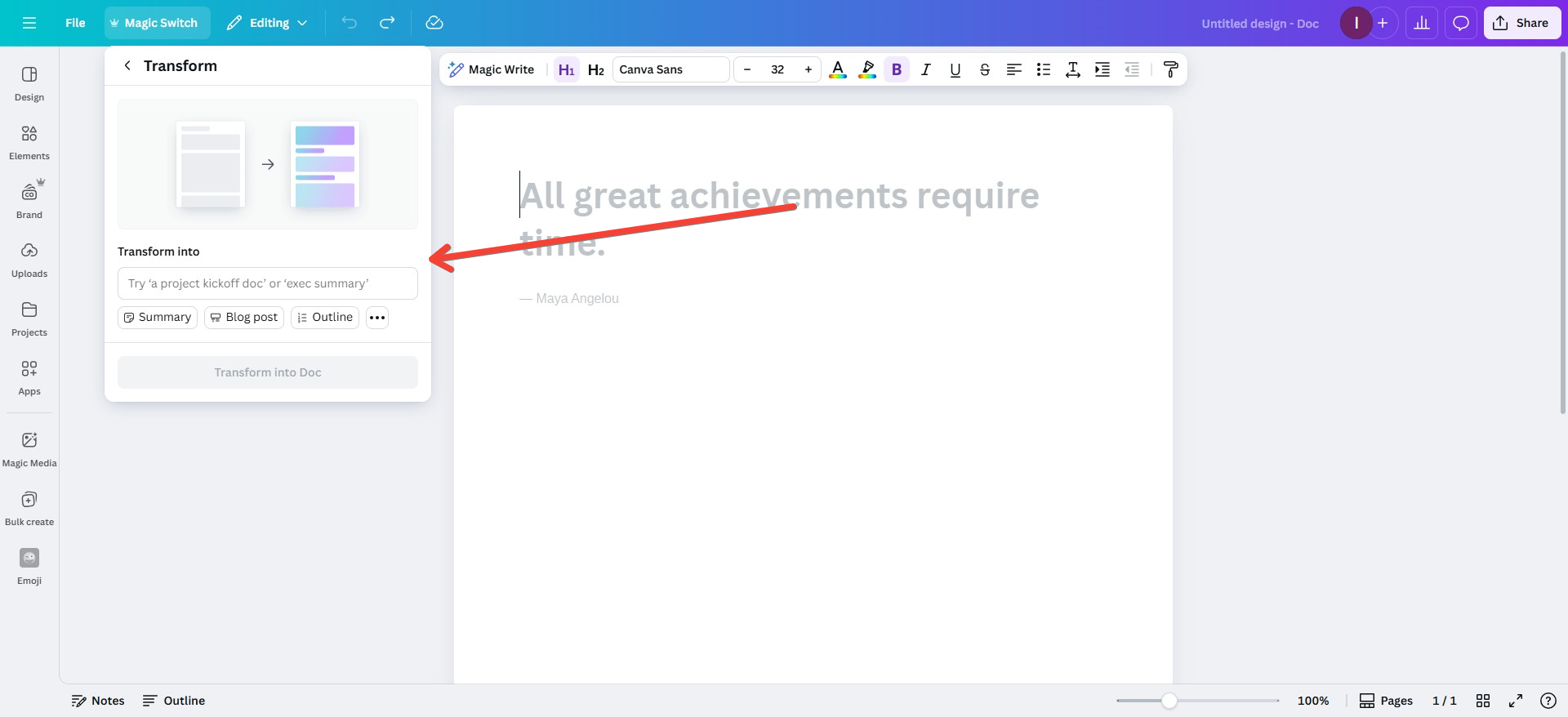
- Select your desired format
Options include Presentation, Instagram Post, Story, Poster, Flyer, Carousel, and more.
- Canva auto-generates the new design
The content is preserved, and Canva reflows it into the new layout format using design AI.
- Review and edit
Adjust the layout, fonts, images, or brand elements as needed.
The Canva Magic Switch feature makes it possible to transform content in seconds — without needing to rebuild everything from scratch.
Real Examples: Magic Switch in Action
Here are common scenarios where Magic Switch Canva is especially helpful.
Doc to Presentation
Convert blog articles, meeting notes, or summaries into full slide decks. Canva auto-generates slides with headers, bullets, and structure.
Blog to Carousel
Summarize a long-form article into a swipeable Instagram carousel with formatted text blocks and clean slide visuals.
Presentation to Instagram Story
Take key slides from a deck and turn them into vertical story slides suitable for Instagram or LinkedIn.
Resume to LinkedIn Post
Repurpose a visual resume or portfolio into a shareable post design.
PDF to Editable Canva File
Upload a PDF and use Magic Switch to turn it into a fully editable Canva Presentation or Poster.
Keep in mind: The Canva Magic Switch feature is excellent for layout suggestions, but results often need fine-tuning. Expect to make minor edits to text sizing, alignment, and branding.
Magic Switch vs MagicSlides: Which One Should You Use?
If your primary goal is to create presentations, it’s worth comparing Canva Magic Switch with MagicSlides.
Here’s a quick breakdown:
| Feature | Canva Magic Switch | MagicSlides |
| Converts existing content | Yes | Yes |
| Creates slides from scratch | No | Yes |
| Auto-generates both text & visuals | No | Yes |
| Fully customizable | Yes | Yes |
| Integrated with Canva | Yes | No (external tool) |
| Best use case | Format repurposing | Full presentation generation |
If you already have content — like a Doc or blog post — Magic Switch is ideal for turning it into a deck.
If you’re starting with just a topic or need a hands-free way to generate slides, MagicSlides.app offers a faster and more intelligent solution.
Limitations of Canva Magic Switch
While the Canva Magic Switch feature is powerful, it does have a few important limitations:
- No original content generation
It can only repurpose existing text or designs. For content generation, use Magic Write or external AI tools.
- Layouts require editing
- Limited control over templates
- Brand inconsistencies
Despite these limitations, Magic Switch Canva remains a great starting point for repurposing content quickly.
Who Should Use Magic Switch?
Social Media Creators
Turn articles, notes, or quotes into Instagram Posts, LinkedIn Carousels, and Stories.
Marketers
Convert blog posts into email banners, slide decks, or social promos to streamline campaigns.
Educators
Repurpose written material into presentation decks, summaries, or lesson visuals.
Freelancers and Designers
Reformat portfolios, resumes, or proposals into multiple presentation-ready formats.
Essentially, Canva Magic Switch is for anyone who wants to transform content across formats quickly — and doesn’t mind making light visual adjustments afterward.
Frequently Asked Questions (FAQs)
What is Magic Switch in Canva?
Magic Switch is an AI tool inside Canva that allows you to convert one design type into another. For example, you can turn a Canva Doc into a presentation, or a blog into an Instagram post.
Where is the Magic Switch on Canva?
You can find Magic Switch in the File, Share, or More (⋯) menu, depending on your design type. It’s available in Docs, Presentations, and other editable formats.
How to use Magic Switch in Canva?
Open a design → Click on Magic Switch → Select a new format → Canva will auto-generate the new version using your existing content.
Can Magic Switch create presentations from scratch?
No. Magic Switch can only reformat existing content. If you want to create a presentation from just a topic or prompt, try tools like MagicSlides.
Final Thoughts
The Canva Magic Switch feature is a powerful tool for anyone looking to repurpose and reformat content fast. Whether you’re a content creator turning a blog into a carousel, or a marketer transforming docs into decks, Magic Switch saves hours of manual design time.
However, for users who need full presentation automation — from content writing to slide design — MagicSlides.app is a better solution. It builds entire presentations from a single topic or summary, without needing you to convert formats or edit manually.
Use Magic Switch Canva when repurposing. Use MagicSlides when building from scratch.


