How to circle something in powerpoint in few simple steps


to highlight a word or a sentence or an object we might consider circling it or highlight here is a simple guide to do so.
To circle something in Microsoft PowerPoint, you can use shapes and drawing tools to create a circular shape around the object you want to highlight. Here's how you can do it:
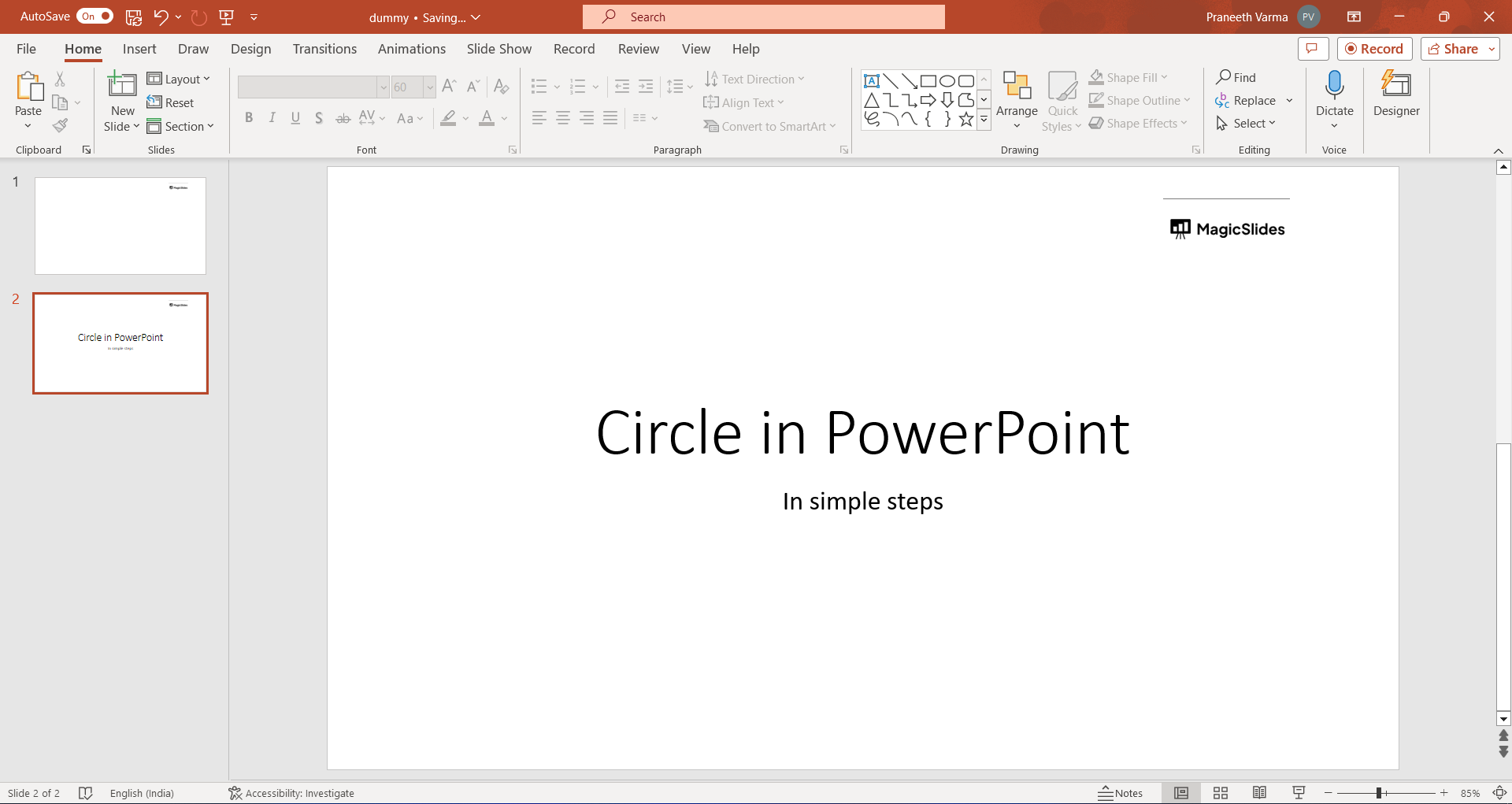
Step 1: Open the Presentation:
- Launch Microsoft PowerPoint and open the presentation that contains the object you want to circle.
Step 2: Insert a Shape:
- Go to the slide where you want to add the circular highlighting.
- Click on the "Insert" tab in the ribbon at the top of the PowerPoint window.
Step 3: Choose a Circle Shape:
- Click on the "Shapes" button in the "Illustrations" group.
- From the dropdown menu, select the "Oval" shape (which is used to draw circles).
Step 4: Draw the Circle:
- Click and drag on the slide to draw the oval shape. While dragging, hold down the "Shift" key to ensure you create a perfect circle instead of an ellipse.
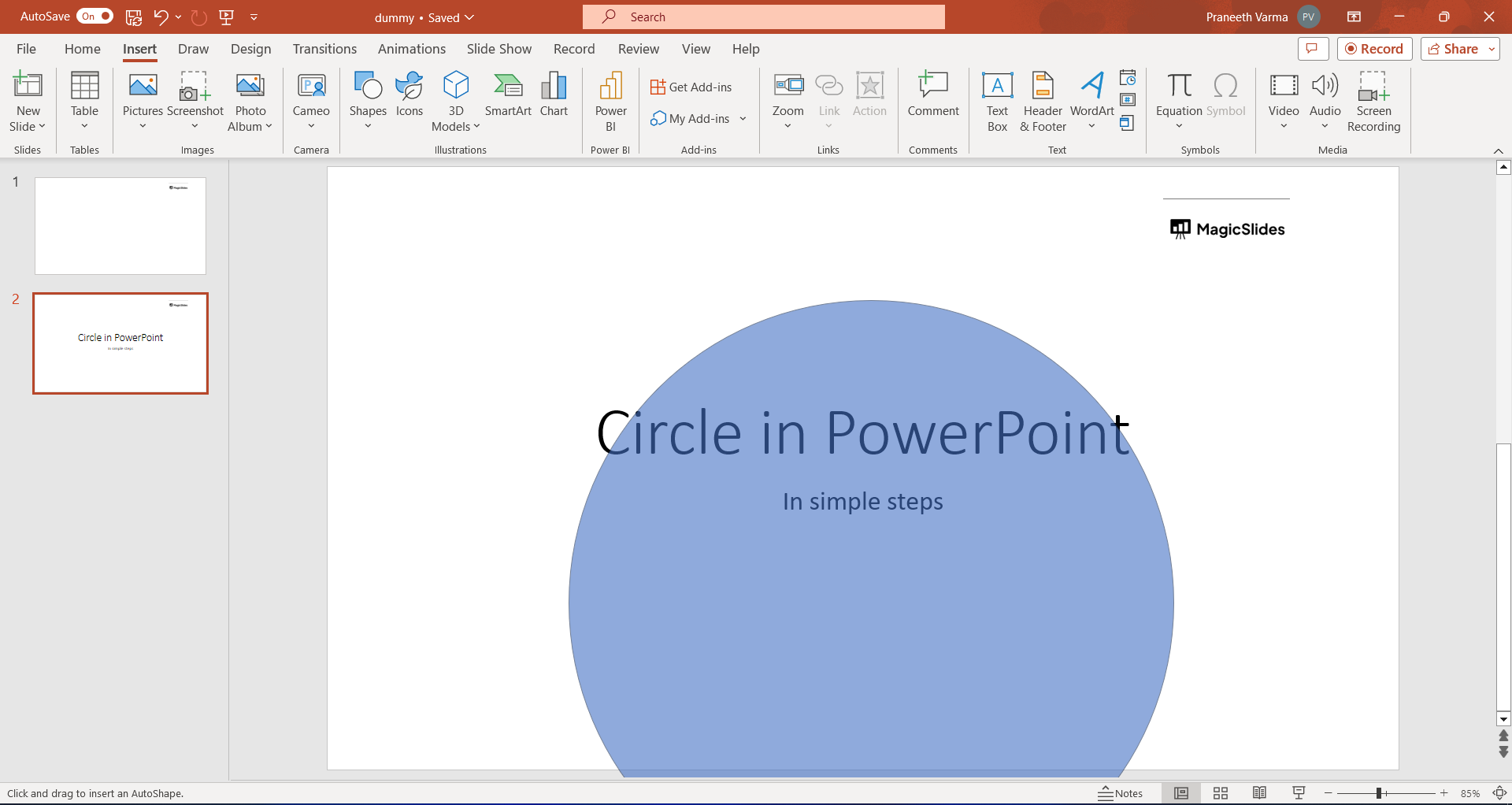
Step 5: Format the Circle:
- With the circle shape selected, you can customize its appearance:
- Right-click on the circle and choose "Format Shape" from the context menu to open the "Format Shape" pane.
- In the pane, you can adjust the line color, line style, fill color, and other properties to match your preferences.
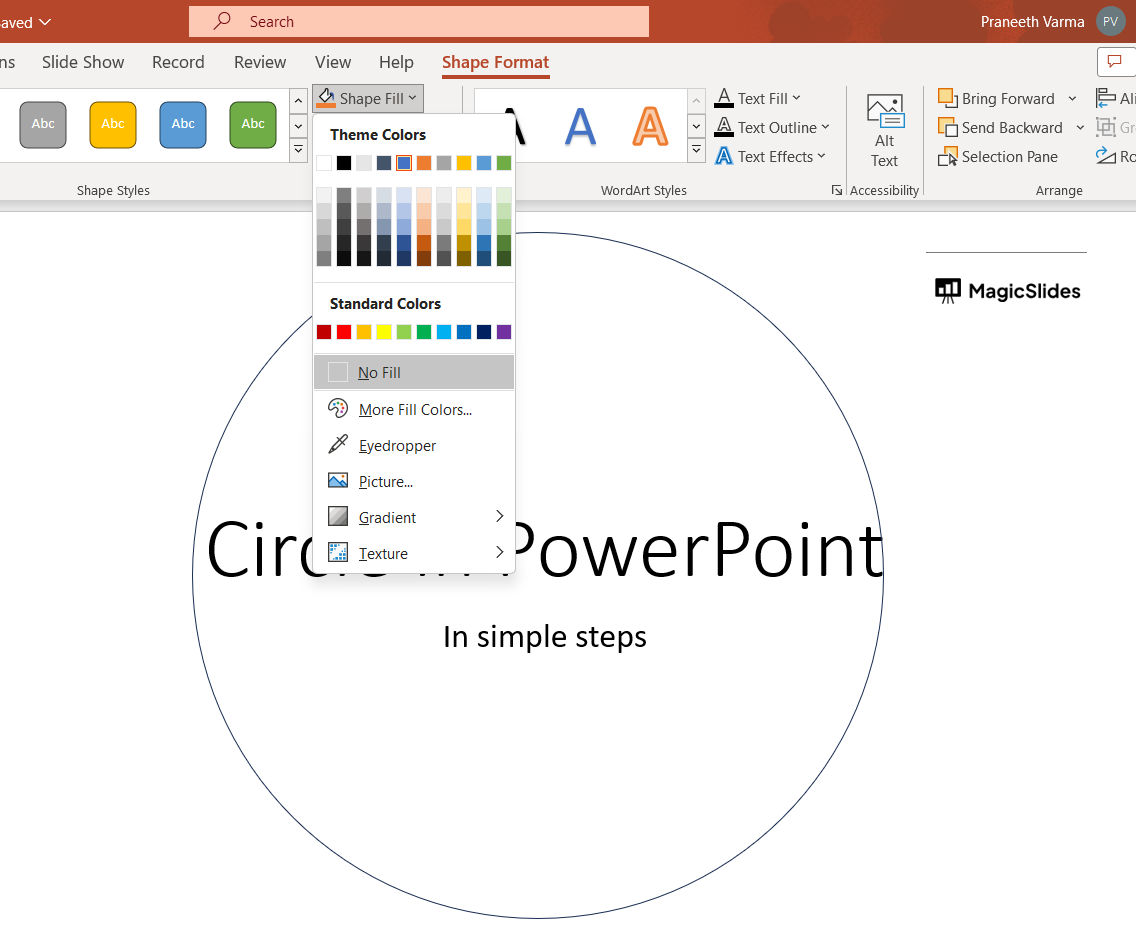
Step 6: Position and Resize:
- Move and resize the circle to encompass the object you want to highlight. To make it transparent you can choose to not fill any color to the shape which is added.
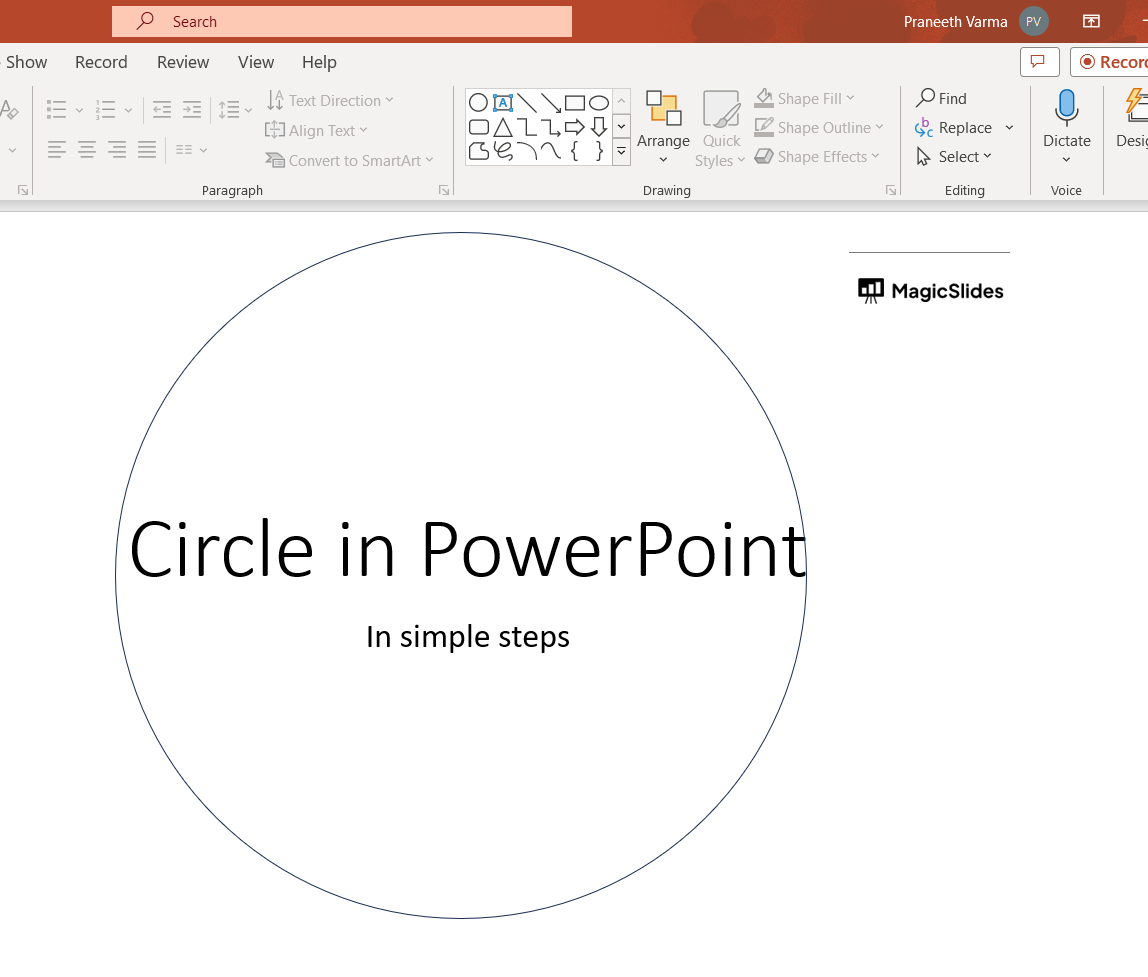
Step 6: Adjust Layering:
- If the circle is covering the object you want to highlight, you can right-click on the circle, go to "Order," and choose "Send to Back" to move it behind the object.
Step 7: Save Your Presentation:
- After you've added the circle to highlight the object, remember to save your presentation.


