How to Add a Template to PowerPoint


Adding a template to PowerPoint enhances your presentation’s design, ensuring a professional and polished look
Using templates in PowerPoint can save time and ensure your presentations have a consistent, professional look.
PowerPoint offers a wide range of templates for various purposes, from business presentations to educational slideshows.
This guide will walk you through how to add a template to PowerPoint step by step.
How to Add a Template to PowerPoint: A Step-by-Step Guide
Step 1: Open PowerPoint
Begin by opening PowerPoint on your computer. You can start from a blank presentation or add a template to an existing one.
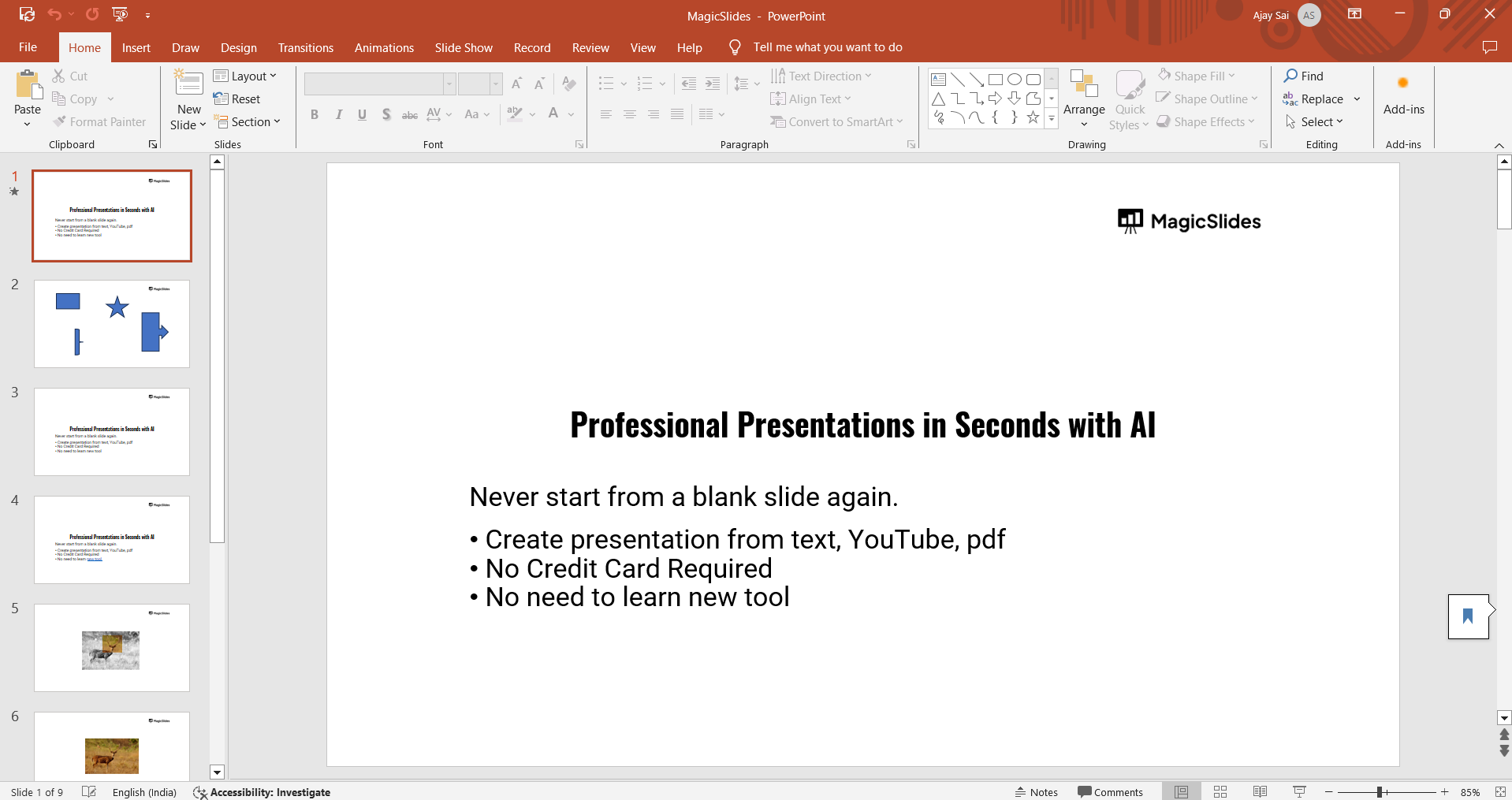
If you're starting from scratch, open PowerPoint and click on "File" in the upper-left corner to begin.
Step 2: Access the Templates Library
Once you are in PowerPoint, click "File" and select "New" from the dropdown menu.
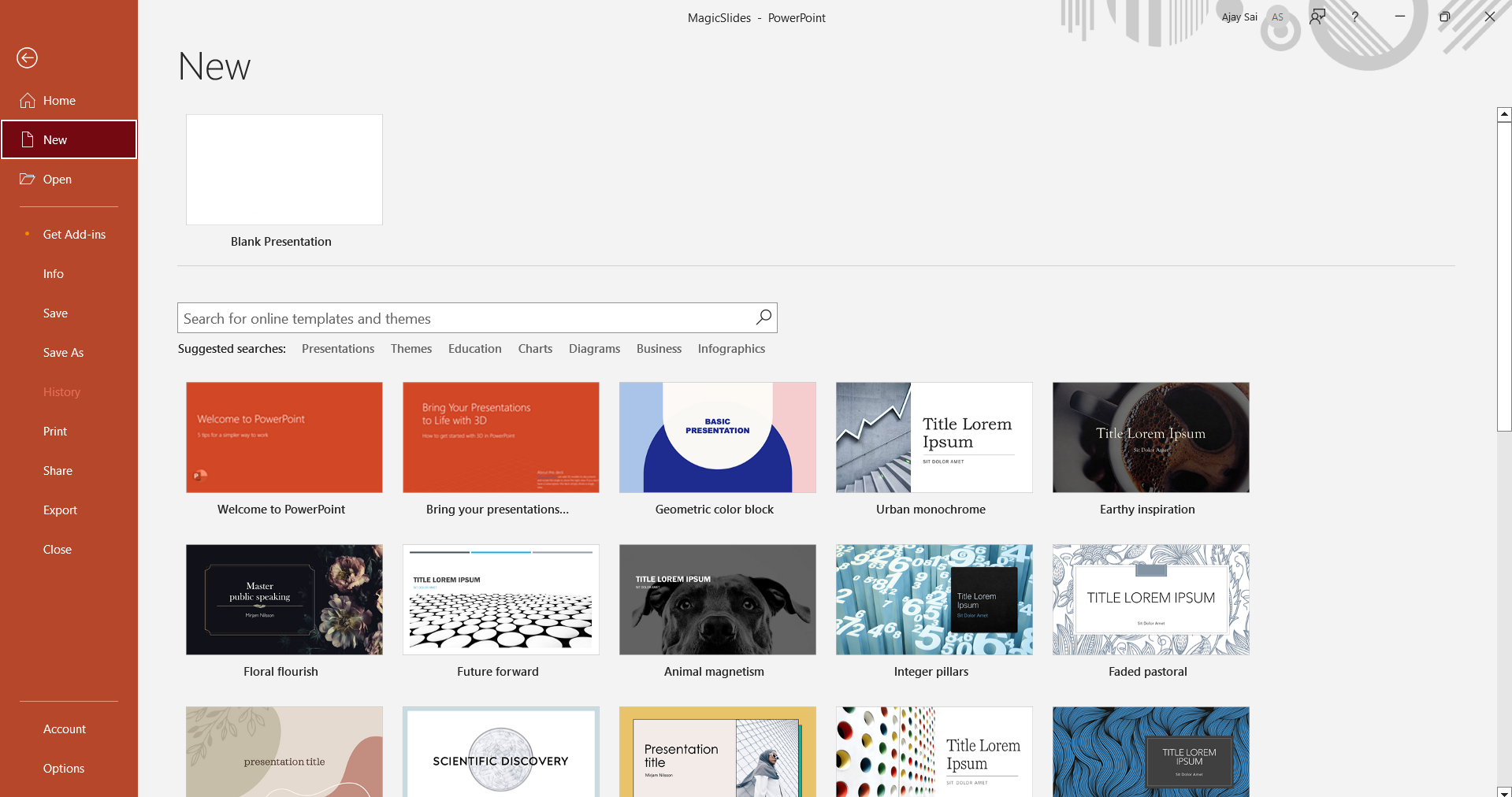
You will see a search bar where you can browse the available templates. Type in a keyword, such as "business," "education," or "creative," to find the most relevant templates.
Step 3: Choose a Template
Scroll through the template options and click on the one that best suits your needs.
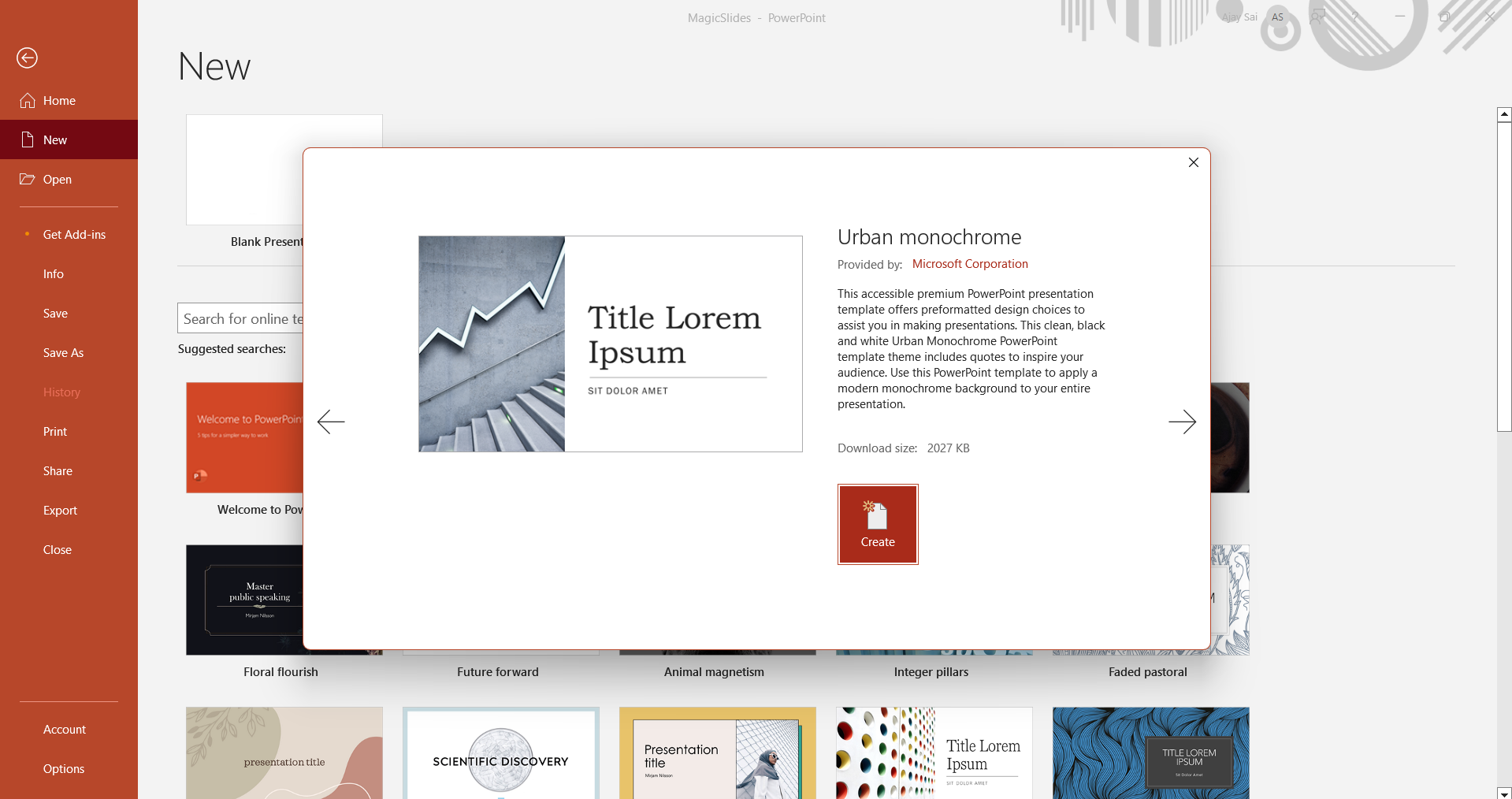
PowerPoint provides previews, so you can get a sense of the design before selecting it.
Once you’ve found the right one, click on it, and then click the “Create” button to apply it to your presentation.
Step 4: Customize the Template
After adding the template, PowerPoint will open it with default slides.
You can now start customizing the template by editing the text, adding images, and adjusting the design to fit your content.
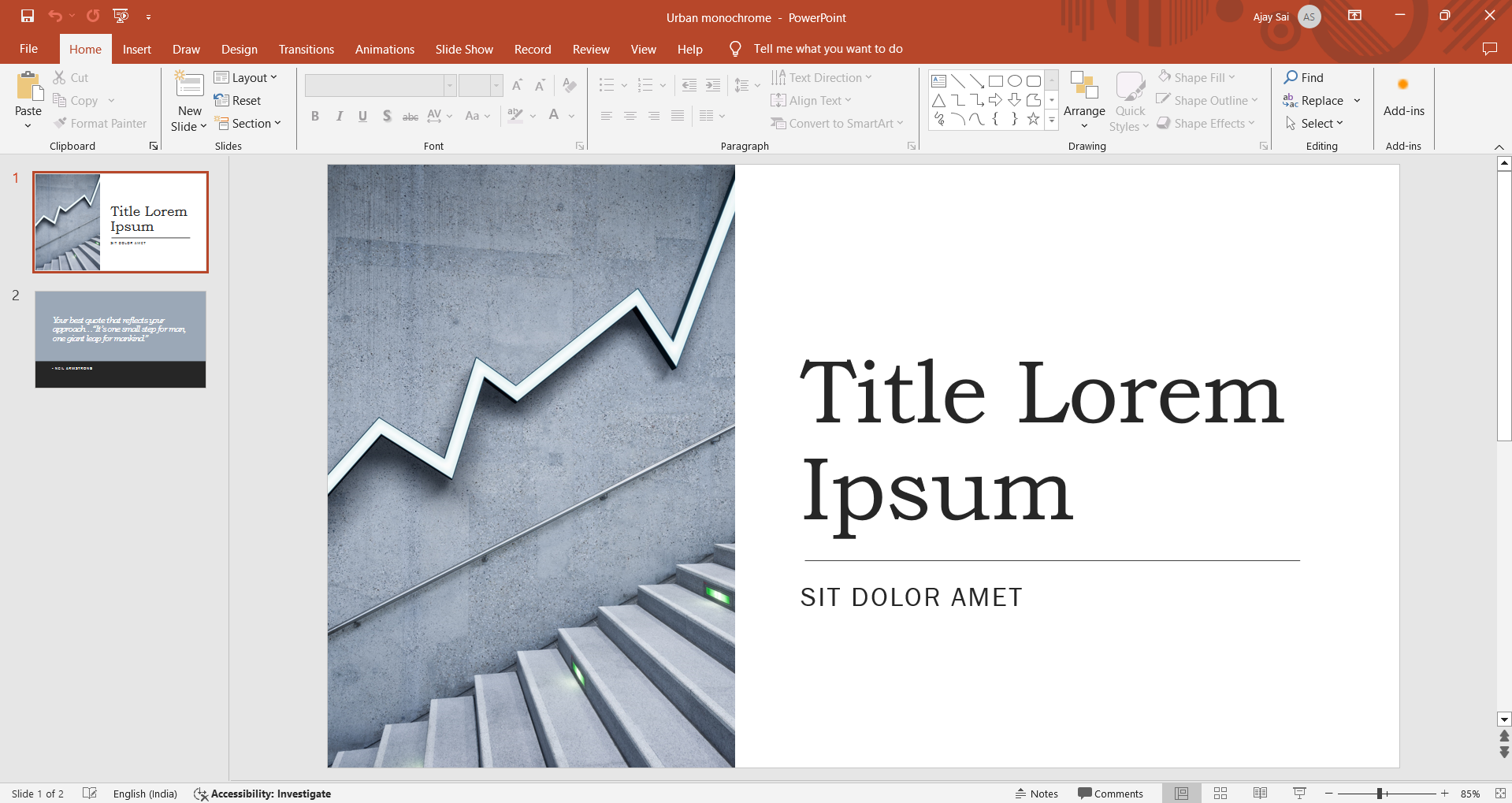
All the template layouts, fonts, and colors can be modified as needed.
Step 5: Save Your Presentation
Once you have added your content and made the necessary adjustments to the template, save your presentation by clicking "File" and selecting "Save As."
Choose a location on your computer or cloud storage, give your presentation a name, and save it in your preferred format, such as .pptx or PDF.
After adding templates, take a look at how to change the font on all slides in PowerPoint to ensure your presentation has a cohesive style throughout.
Conclusion
Adding a template to PowerPoint simplifies the design process, allowing you to focus on your content rather than layout.
With just a few clicks, you can access a wide range of professional templates that will elevate the look and feel of your presentations.
Templates offer flexibility, making them an essential tool for creating polished and visually appealing slideshows.
FAQs can come handy!
Where can I find templates in PowerPoint?
You can access templates from the "File" menu by selecting "New" and browsing through the template library.
Can I customize a template after adding it to my presentation?
Yes, you can fully customize any template by editing text, changing colors, and adjusting layouts.
Are PowerPoint templates free to use?
PowerPoint offers both free and premium templates, with premium options available via Microsoft 365 subscription.


