How to Insert Equations in Google Slides (Step-by-Step Guide)


Learn how to insert equations in Google Slides using the built-in equation editor. Follow this step-by-step guide for math, science, and classroom presentations.
Whether you’re creating a math lesson, science presentation, engineering report, or research proposal, adding equations to Google Slides helps explain complex concepts clearly. Google Slides includes a built-in equation editor that lets you insert mathematical symbols and expressions without leaving your presentation.
In this guide, you’ll learn how to insert equations in Google Slides step by step, along with tips, limitations, and alternative methods for more advanced mathematical notation.
Why Insert Equations in Google Slides?
Equations help make presentations more informative and easier to understand, especially for technical subjects. They’re commonly used in:
- Math lessons
- Science presentations
- Engineering lectures
- Research papers
- Business analytics presentations
- Academic conferences
Using properly formatted equations also makes your slides look more professional and improves readability.
How to insert equations in Google Slides
Quick Answer: To insert an equation in Google Slides, go to Insert → Equation, type your mathematical expression using the built-in editor, then format and position it on the slide. For advanced equations, use add-ons or external LaTeX tools.
Step 1. Open Google Slides
Begin by opening the Google Slides presentation where you want to insert equations. If you don’t have one yet, create a new presentation.

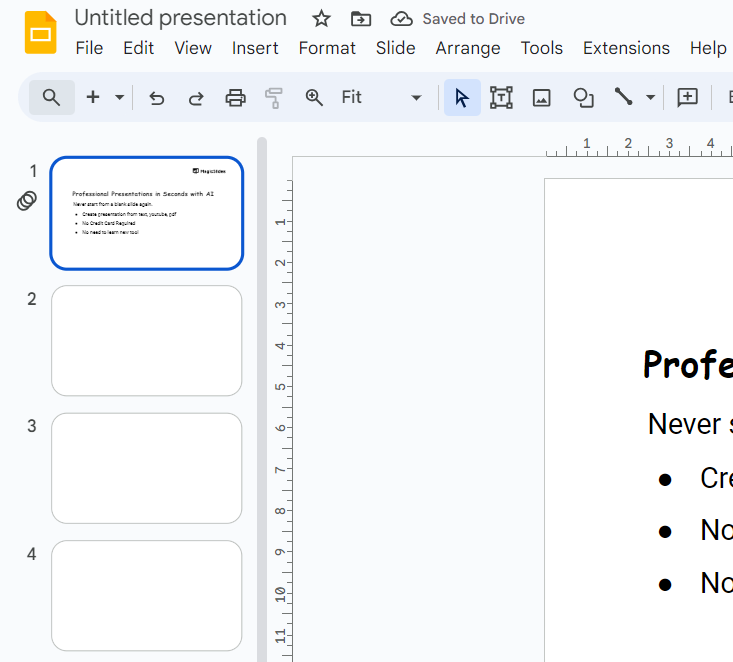
Step 2. Select the Slide
Choose the slide on which you want to insert the equation. Click on the slide in the left sidebar to make it the active slide.
Step 3. Go to the Insert Menu
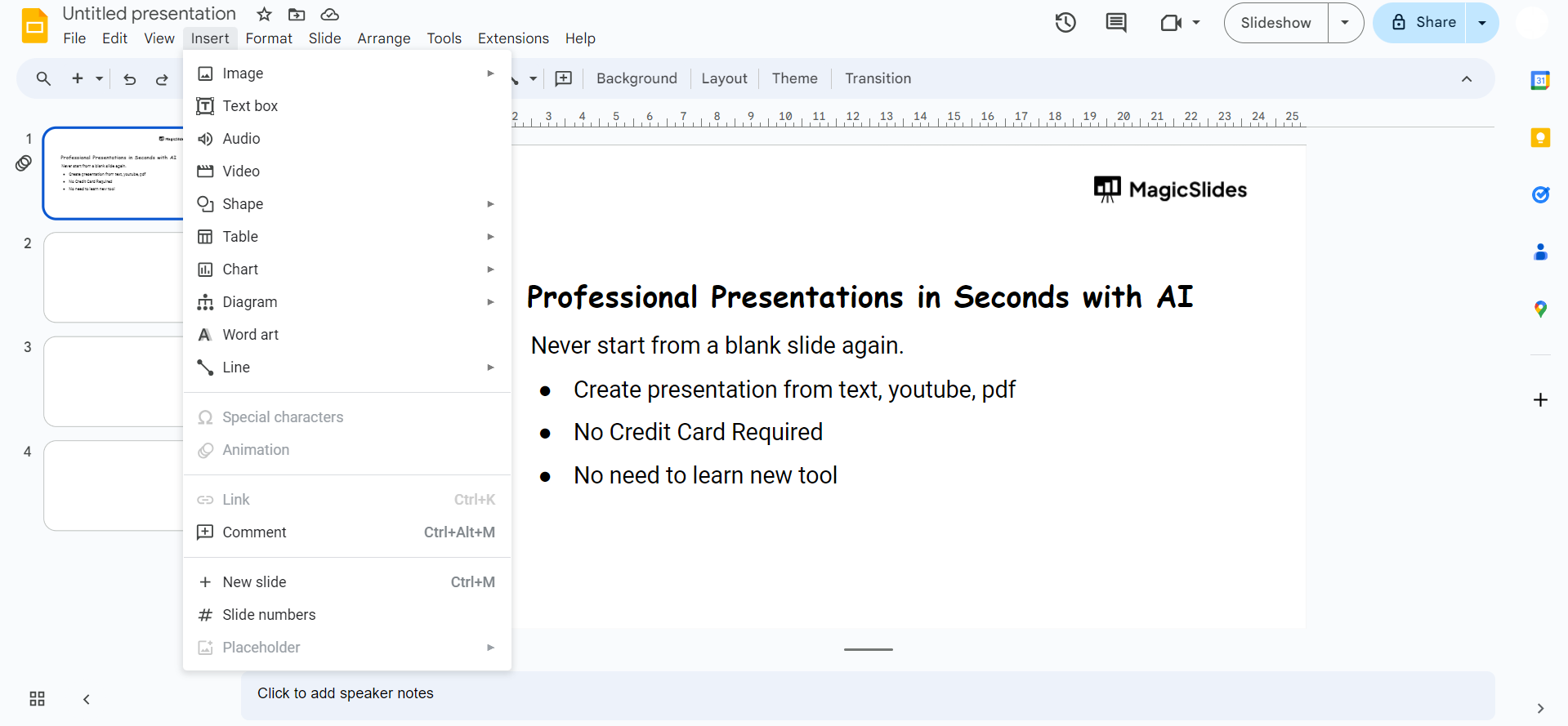
Navigate to the “Insert” menu at the top of the screen. Click on it to reveal a dropdown menu with various options.
Step 4. Choose Equation
From the dropdown menu, select “Equation.” This will open a text box where you can input your mathematical expression.
Step 5. Input Your Equation
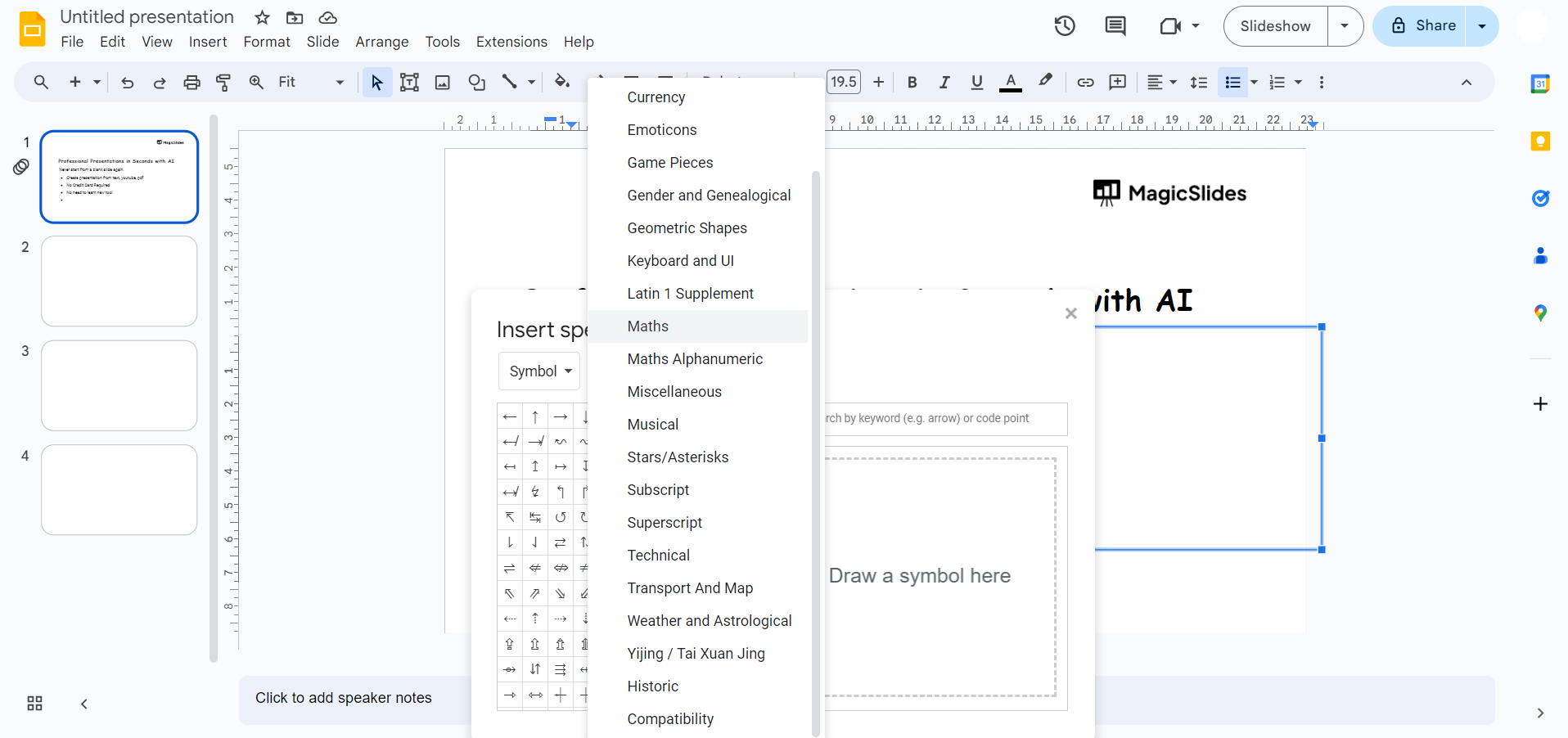
Type or paste your mathematical expression into the equation text box. Use the built-in equation toolbar to insert mathematical symbols and operators. If you need advanced LaTeX equations, you’ll need a third-party add-on or external equation generator.
Step 6. Format and Customize
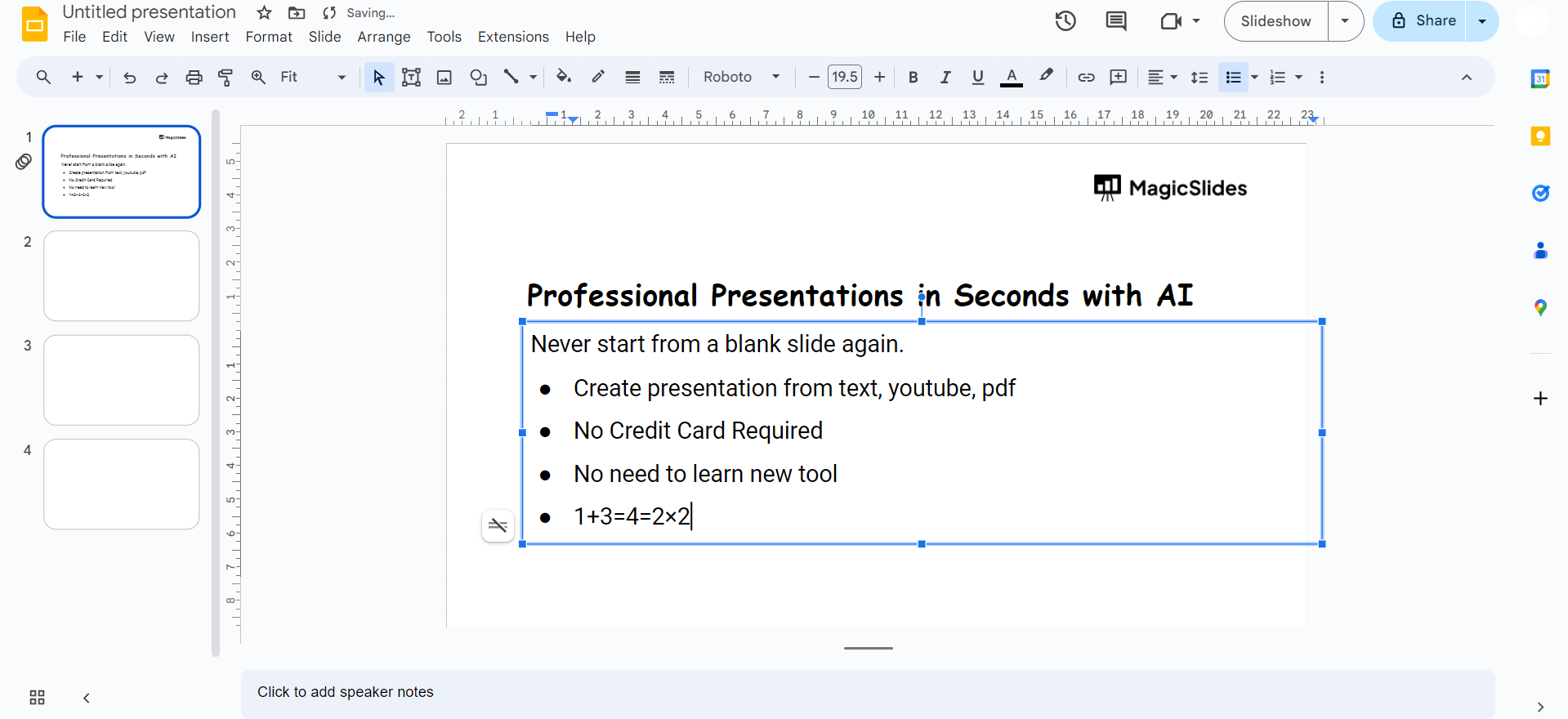
Once you’ve entered your equation, you can customize its appearance by adjusting the font size, color, and style. Use the toolbar options to format the equation to your liking.
Step 7. Position the Equation
Drag and drop the equation text box to the desired location on the slide. Resize it if necessary to ensure it fits well with the overall design.
Step 8. Save and Continue
Remember to save your Google Slides presentation regularly to secure your progress.
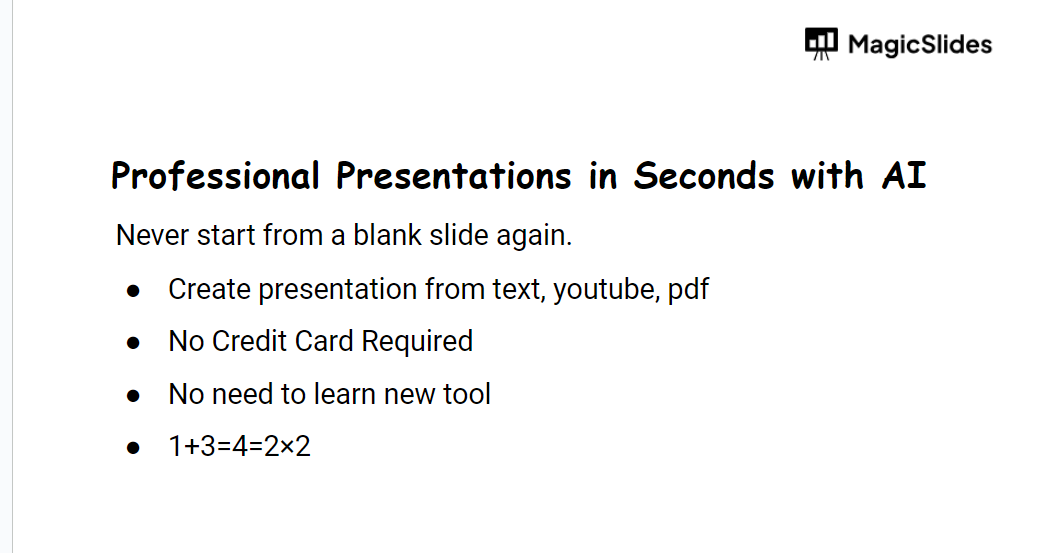
Equations make slides impactful, and MagicSlides.app makes the entire presentation process effortless. Create slides with equations and more instantly. Try MagicSlides.app today!
Limitations of Google Slides Equation Editor
Google Slides is suitable for basic mathematical expressions, but it has some limitations:
- Doesn’t support full LaTeX syntax
- Limited advanced formatting
- No automatic equation numbering
- Difficult to create complex matrices
- Limited editing compared to dedicated math software
Alternative Ways to Insert Equations in Google Slides
If the built-in equation editor doesn’t meet your needs, you can also:
- Copy equations from Google Docs.
- Use MathType or Equatio add-ons.
- Generate LaTeX equations and insert them as images.
- Use Unicode symbols for simple mathematical notation.
This helps users working with advanced mathematical expressions.
Create AI Presentations with Equations Using MagicSlides
Once you’ve added the equations you need, the next step is organizing them into a polished presentation. Rather than building every slide manually, MagicSlides.app, AI PPT Maker can generate a complete presentation from your notes, PDFs, research papers, or documents in just a few minutes.

With MagicSlides, you can:
- Generate presentations from text instantly.
- Convert PDFs into editable slides.
- Build presentations from YouTube videos.
- Create structured AI-powered slide outlines.
- Export to Google Slides or PowerPoint.
- Customize every slide before presenting.
Whether you’re preparing a classroom lecture, academic seminar, or technical presentation, MagicSlides helps you save hours of manual work.
Also read: 50+ Math Presentation Topics: Inspiring Ideas for All Levels
Conclusion
Inserting equations in Google Slides makes it easier to explain mathematical and scientific concepts clearly. Whether you’re creating educational materials, research presentations, or technical reports, properly formatted equations help your audience understand complex information more effectively.
If you’re looking to speed up presentation creation, MagicSlides.app can transform your documents, PDFs, or notes into professional presentations in just a few clicks.
Frequently Asked Questions
Q1. Does Google Slides have a built-in equation editor?
Yes. Google Slides includes a built-in equation editor that allows you to insert common mathematical symbols and expressions directly into your slides.
Q2. Can I use LaTeX in Google Slides?
Google Slides does not provide full native LaTeX support. For advanced LaTeX equations, you’ll need a third-party add-on or an external equation generator.
Q3. Can I edit an equation after inserting it?
Yes. You can click the equation and modify its contents or formatting at any time.
Q4. Can I copy equations from Google Docs into Google Slides?
Yes. In many cases, equations copied from Google Docs retain their formatting when pasted into Google Slides.
Q5. Can I add equations on mobile?
The mobile app has limited editing capabilities. It’s generally easier to insert and edit equations using Google Slides on a desktop browser.
Q6. How can I create an entire presentation with AI?
If you already have notes, documents, PDFs, or research material, MagicSlides.app can automatically convert them into professional Google Slides presentations in minutes.


