How to check the trash on Google Slides


Easily recover deleted Google Slides presentations by accessing the Trash folder through Google Drive
Google Slides allows you to recover deleted files through the "Trash" section in Google Drive.
This feature ensures that accidentally deleted presentations can be restored easily.
This guide explains how to locate, access, and restore files from the trash step-by-step.
How to Check the Trash on Google Slides | Steps to Check the Trash on Google Slides
Step 1: Open Google Drive
Visit Google Drive and log in with your Google account credentials.
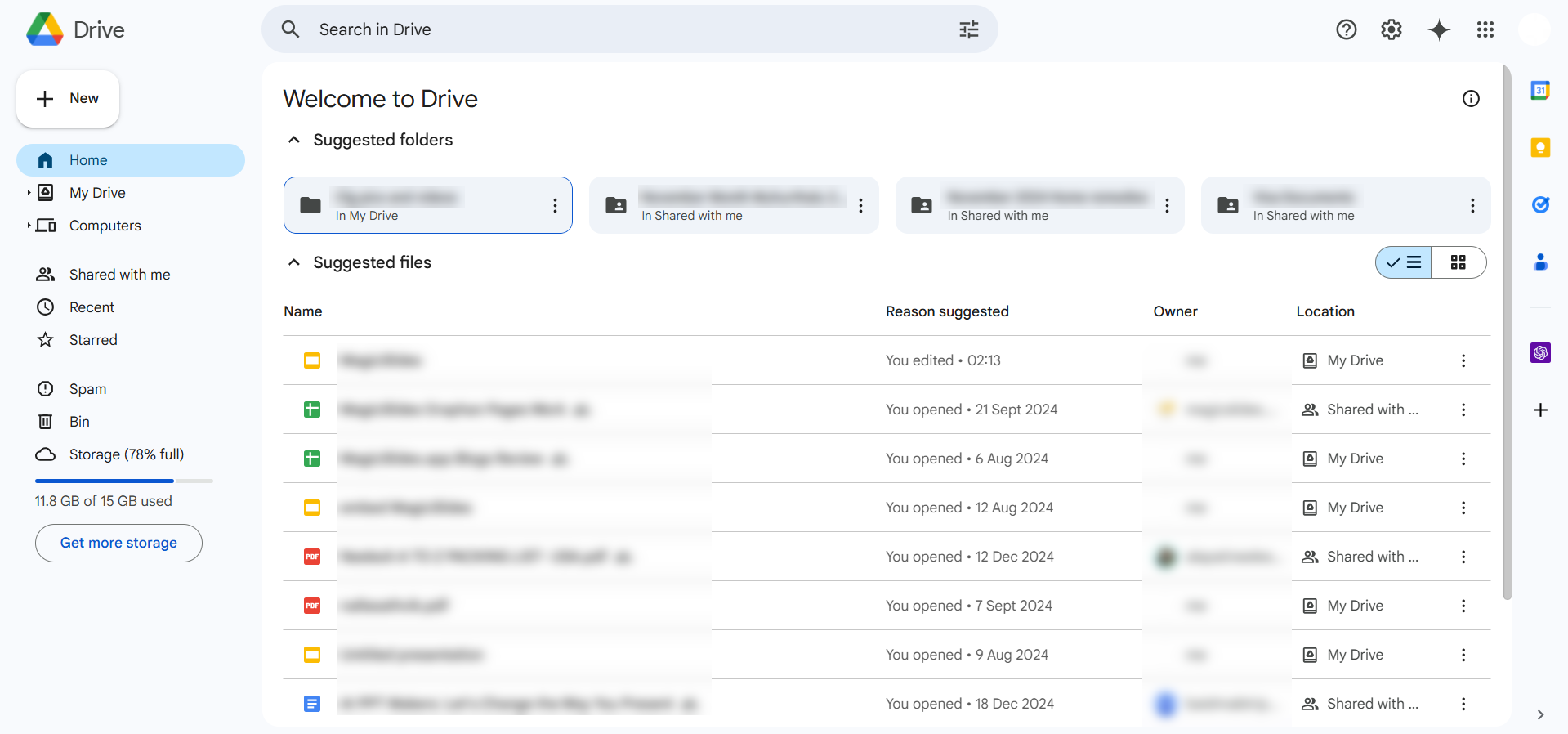
Google Slides files are stored within Google Drive, so you’ll need to access Drive to view deleted items.
Step 2: Navigate to the Trash Section
On the left-hand menu in Google Drive, locate and click on the “Trash” option.
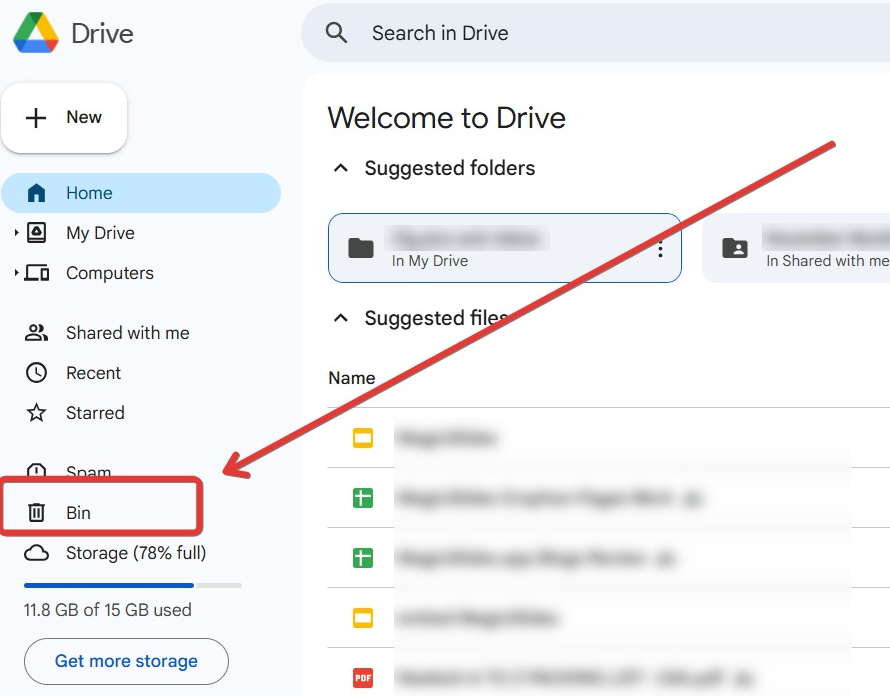
The Trash folder contains all files you have deleted, including Google Slides presentations.
Step 3: Search for Deleted Slides
Use the search bar at the top of the Trash folder to filter files.
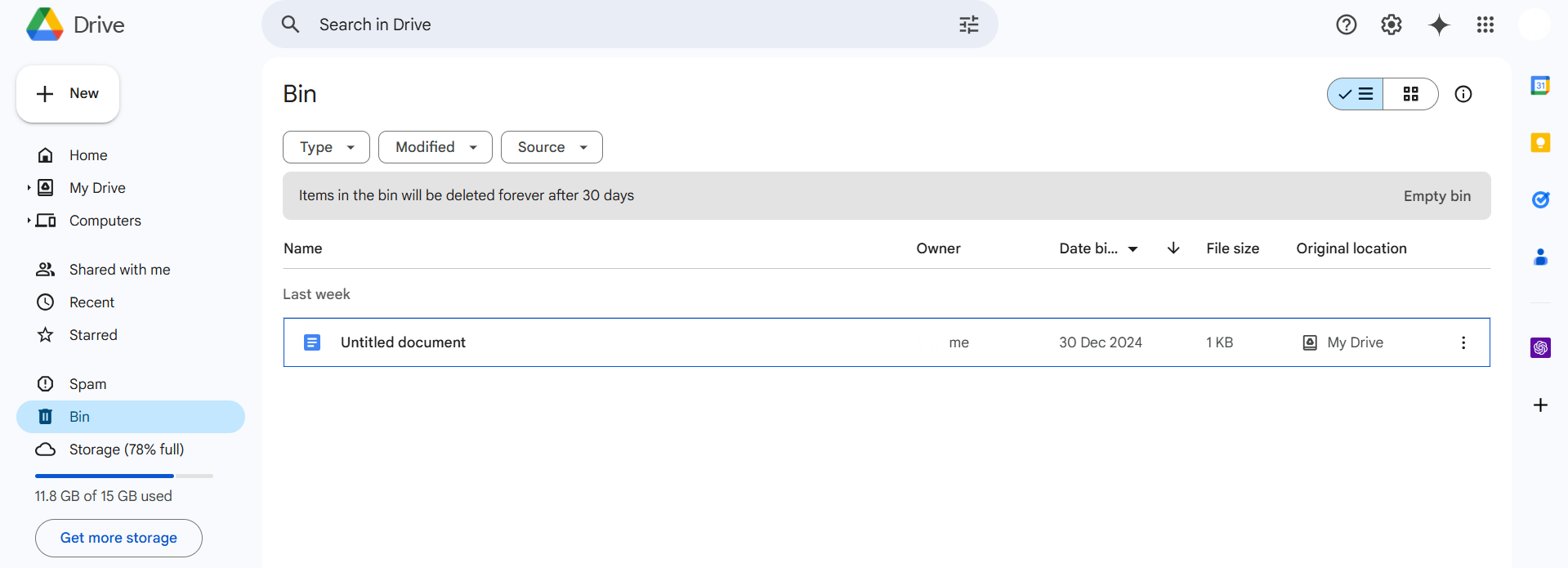
You can type “.slides” or the presentation's name to quickly find your deleted Google Slides file.
Step 4: Review and Restore the File
Click on the desired file to preview it.
Once confirmed, right-click on the file and select “Restore” to move it back to its original location in Google Drive.
Step 5: Permanently Delete (Optional)
If you no longer need the file, you can permanently delete it by right-clicking the file and selecting “Delete Forever.” Be cautious, as this action cannot be undone.
Now that you know how to check the trash on Google Slides, discover how to track changes in PowerPoint to maintain better version control for your presentations.
Conclusion
Checking the trash in Google Slides through Google Drive is an essential skill to recover deleted presentations effortlessly.
By following these steps, you can locate, restore, or permanently delete files from the Trash folder, ensuring control over your content.
FAQs on Checking the Trash on Google Slides
How long do files stay in the Trash folder?
Files remain in the Trash for 30 days before being automatically deleted permanently.
Can I recover a file after it has been permanently deleted?
Once a file is permanently deleted, it cannot be recovered through Google Drive.
Does restoring a file retain its original sharing permissions?
Yes, restoring a file returns it to its original location with the same sharing permissions as before.
By using these steps, managing deleted Google Slides files becomes a hassle-free experience, ensuring your work is never lost!


