How to Close Google Form (Step-by-Step Guide)


Learn how to close a Google Form quickly and stop responses. Follow this step-by-step guide to disable submissions, add a custom message, and manage your form efficiently.
How to Close Google Form (Stop Responses in Seconds)
Closing a Google Form is a crucial step in managing data collection, ensuring accuracy, and preventing any unintended responses. In this comprehensive guide, we’ll walk you through the steps to seamlessly close your Google Form, allowing you to conclude your survey or questionnaire with confidence and control.
Steps to Stop Google Form Submissions Instantly (Beginner Guide)
Access Google Forms:
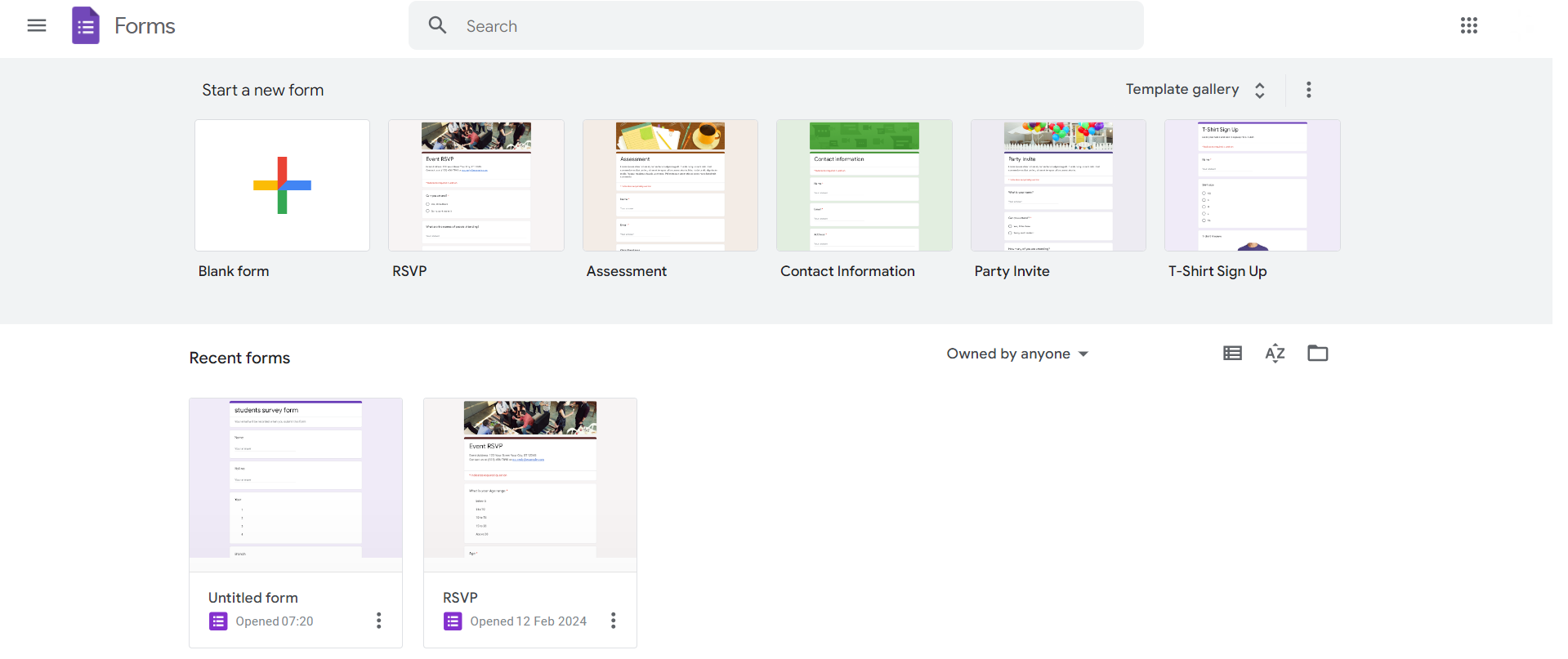
Open Google Forms by navigating to Google Drive, clicking on “+ New,” and selecting “Google Forms.”
Select the Form:
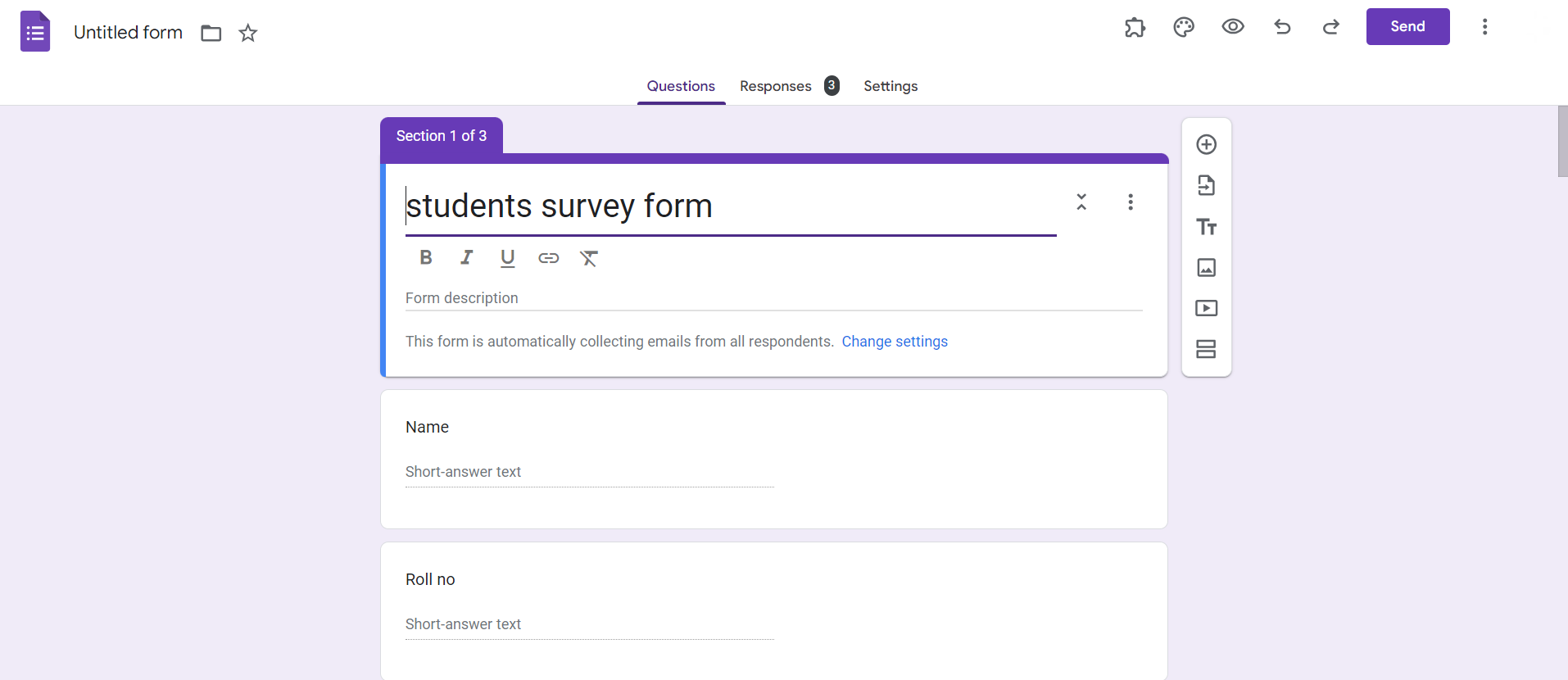
Choose the specific form you want to close from your Google Forms dashboard.
Click on Responses:
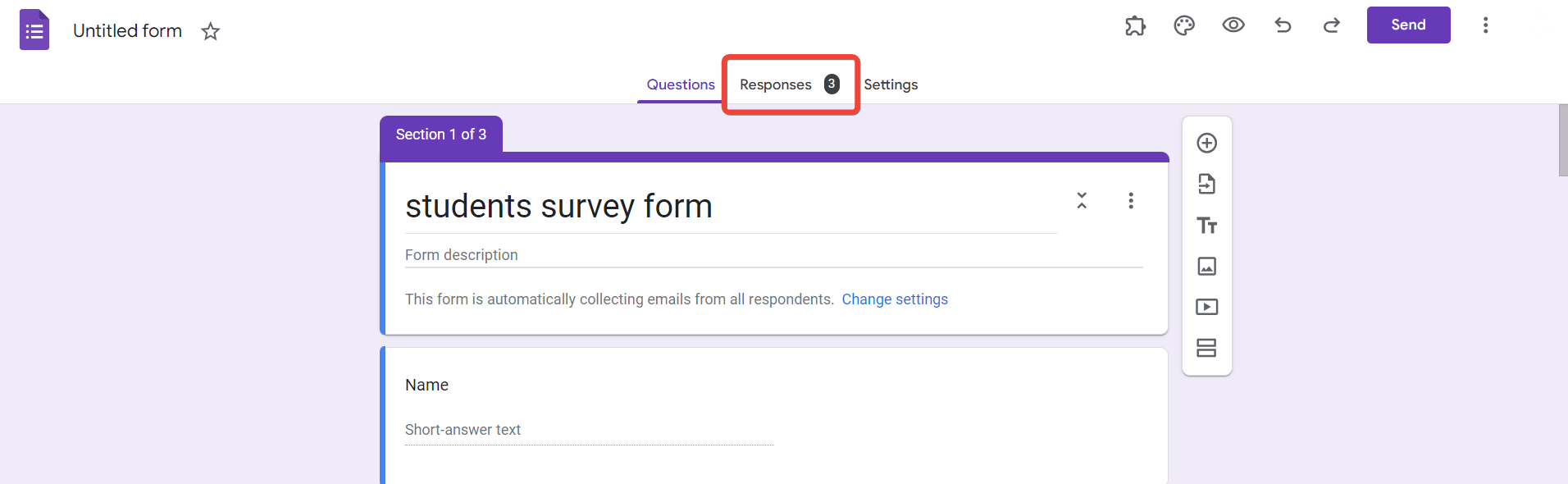
Inside your selected form, click on the “Responses” tab located on the upper toolbar.
Toggle Off Accepting Responses:
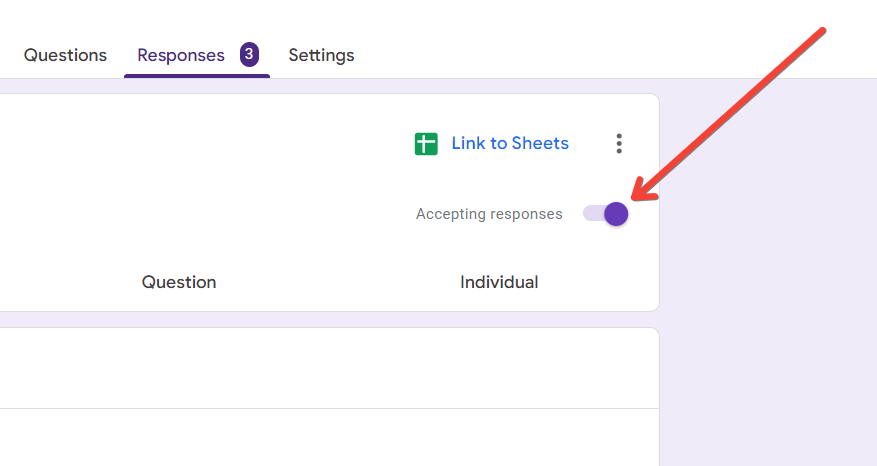
Find the green toggle switch labeled “Accepting responses.” Toggle it off to close the form for further submissions.
Optional: Display a Custom Message
If desired, you can display a custom message to participants once the form is closed. Click on the “Message” button and enter your message.
heading_4If you’re working with Google Forms and manually managing responses, it’s time to upgrade your workflow with MagicForm, an AI-powered quizz maker tool that helps you create, manage, and optimize forms effortlessly.
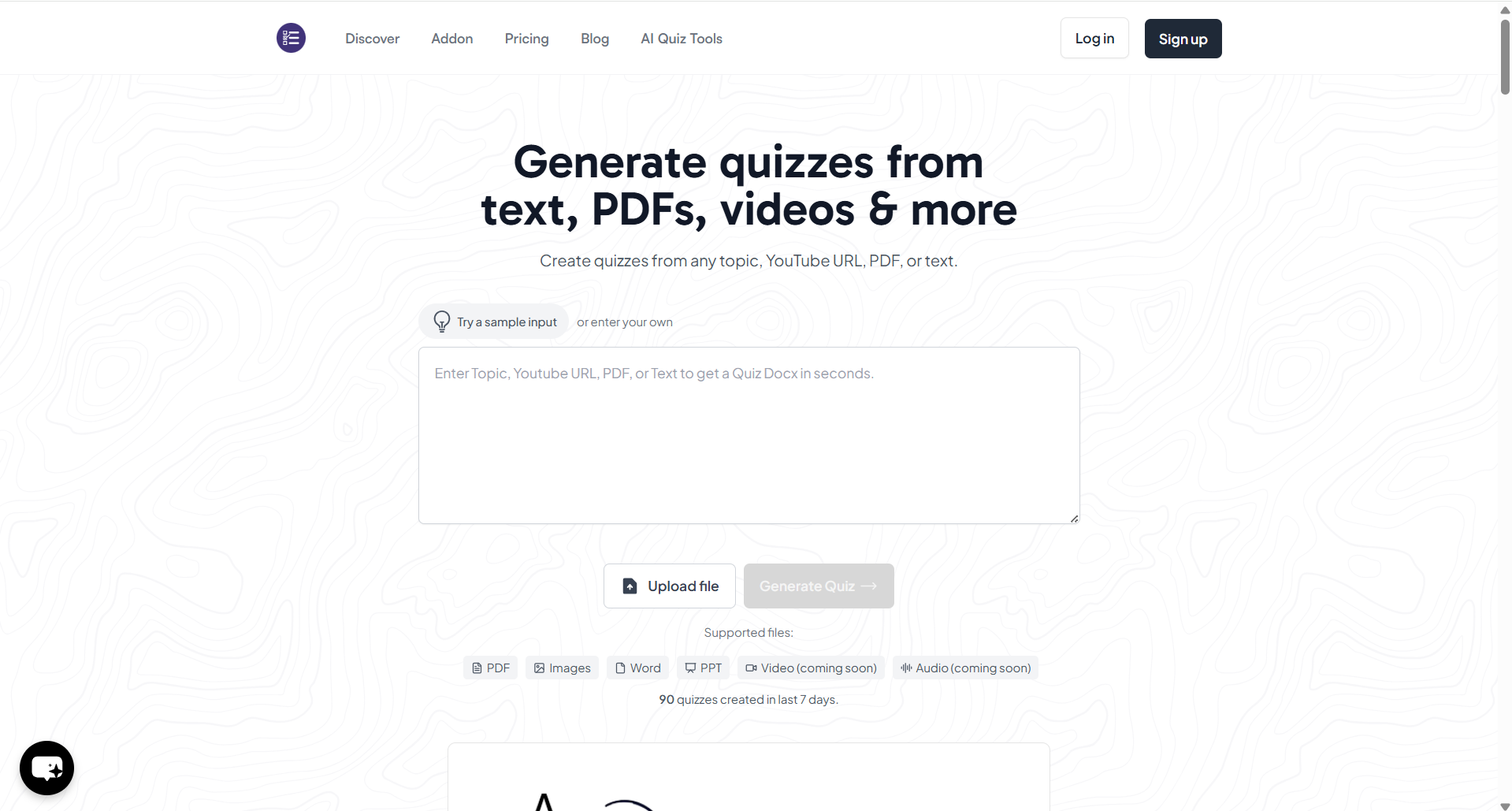
heading_4- Generate forms instantly from a prompt, topic, or document
- Smart response handling with better organization
- No manual setup needed AI does the heavy lifting
- Perfect for surveys, quizzes, and lead forms
heading_4Closing your Google Form is the final step in a successful data collection process. This guide empowers you to effortlessly conclude your surveys or questionnaires with precision, preventing any unintended responses and ensuring the integrity of your data.
By following these steps, you’ll master the art of form closure, making your Google Forms experience more organized and efficient. Ready to wrap up your data collection journey? Let’s get started!
heading_4Q1. Can I reopen a closed Google Form if needed?
Yes, you can reopen a closed form by toggling the “Accepting responses” switch back on.
Q2. What happens to existing responses when I close a Google Form?
Closing a form doesn’t affect existing responses. It only prevents new submissions once closed.
Q3. Is there a way to limit responses without closing the entire Google Form?
Yes, you can set response limits in the form settings to automatically close the form after reaching a specified number of responses.
Q4. Can participants view responses after a Google Form is closed?
Yes, participants can view summary charts and responses if you choose to share that information after closing the form.


