How to Condense PowerPoint file Size


Large PowerPoint files can slow performance and sharing. Learn how to efficiently reduce file size easily
How to Condense PowerPoint File Size
Large PowerPoint files can slow down performance, make sharing difficult, and take up unnecessary storage space.
Fortunately, you can reduce the file size without compromising quality. Follow this step-by-step guide to efficiently condense your PowerPoint file.
Step 1: Compress Images in PowerPoint
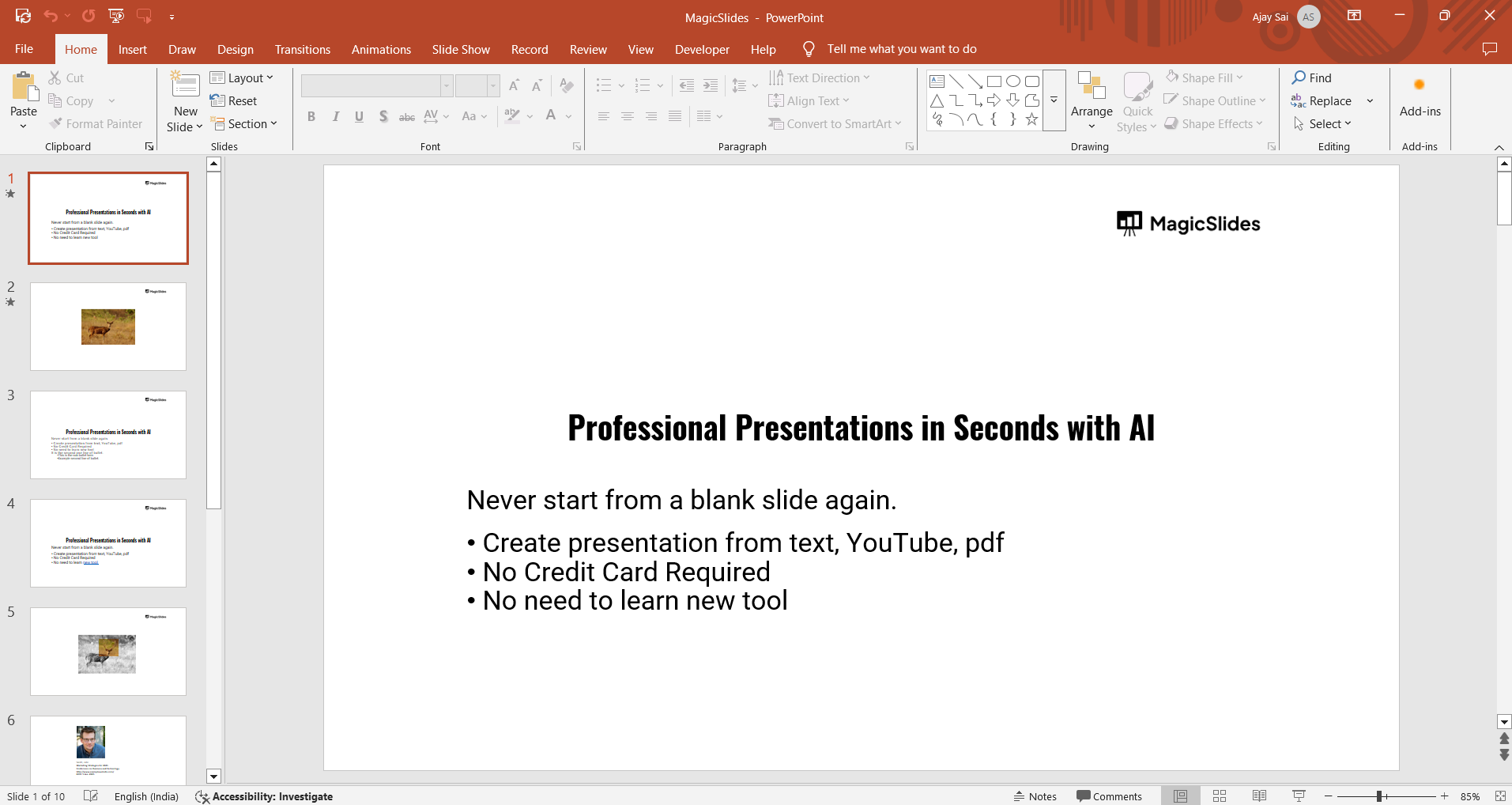
Open your PowerPoint presentation.
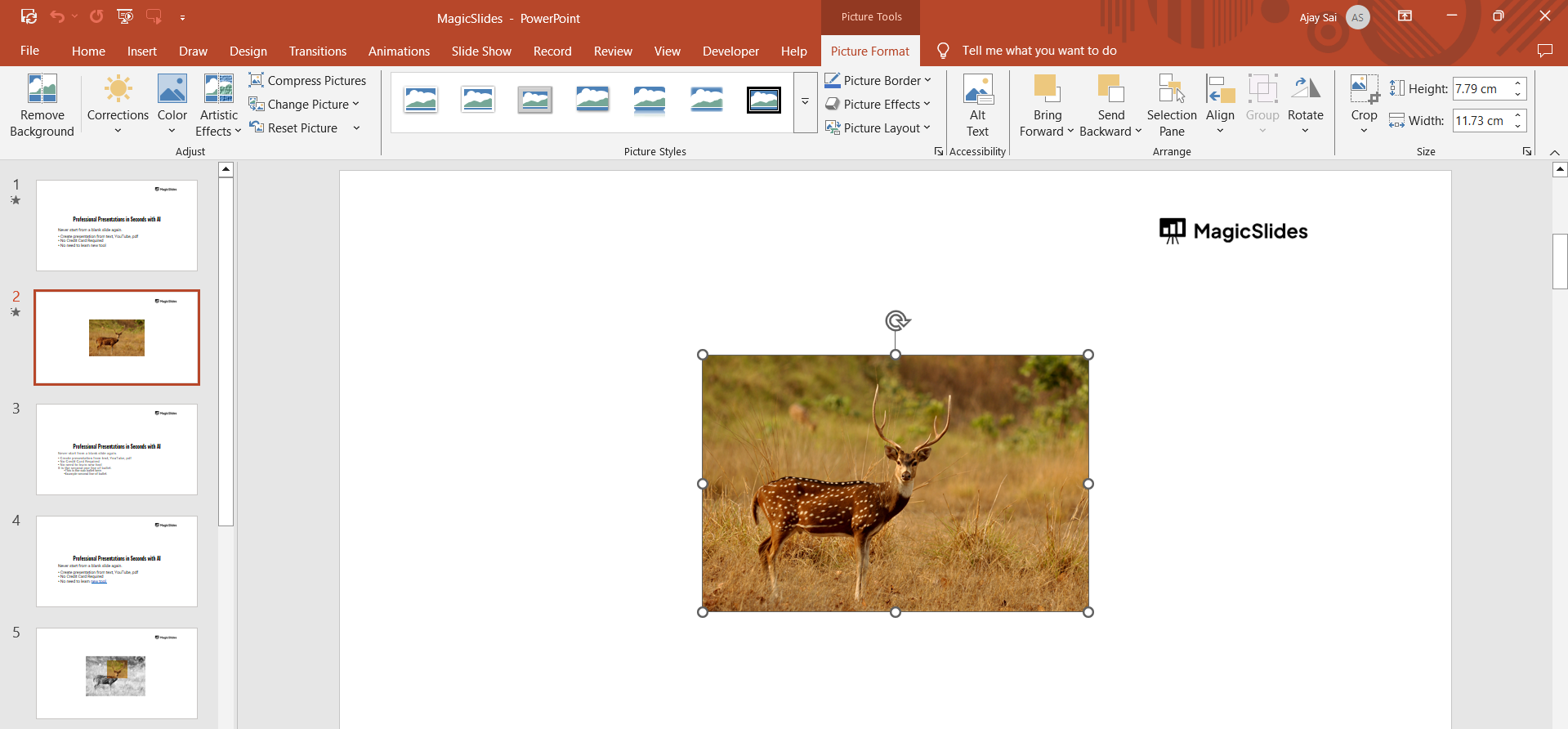
Click on any image in the file. Go to the "Picture Format" tab.
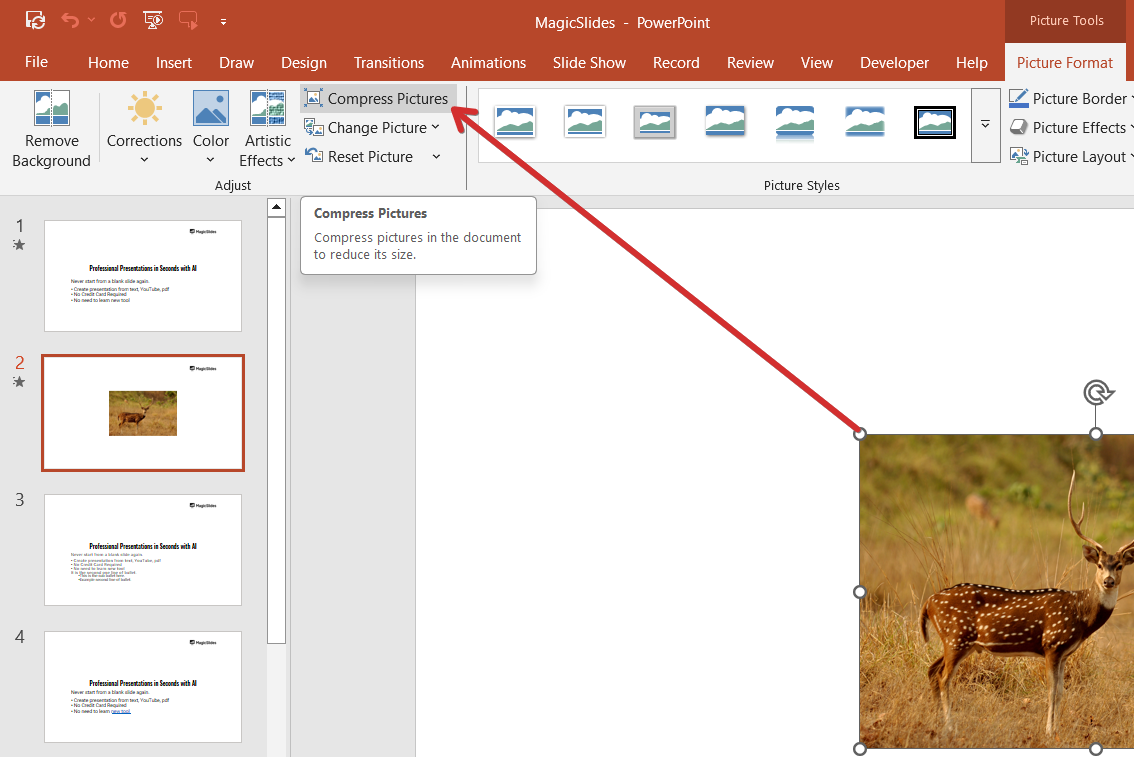
Click "Compress Pictures." Choose the desired resolution (e.g., Email (96 ppi) for maximum compression).
Uncheck "Apply only to this picture" if you want to compress all images. Click "OK" to apply the changes.
Step 2: Convert Images to JPEG Format
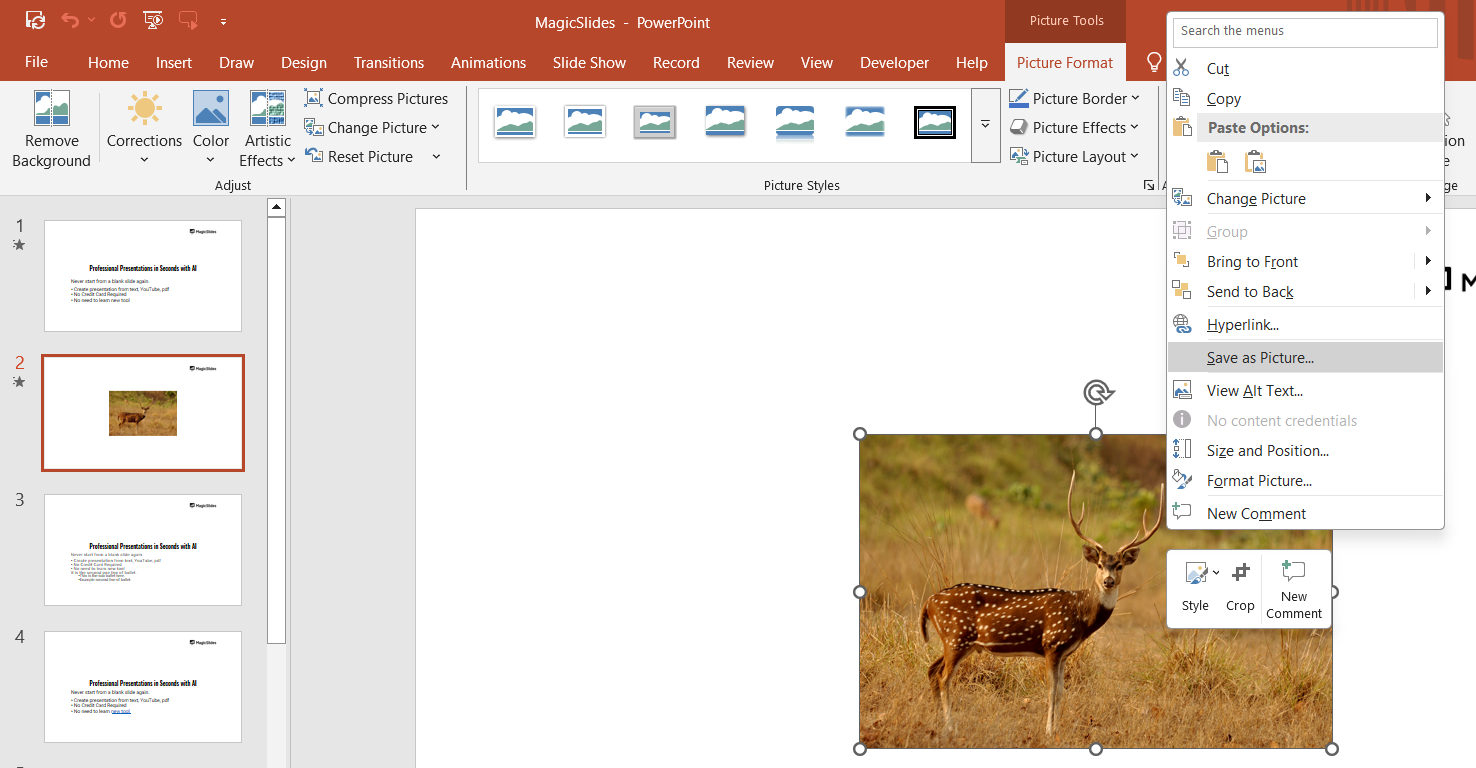
Right-click an image in your presentation. Select "Save as Picture."
Choose JPEG as the file format. Delete the original image and insert the compressed JPEG version.
Step 3: Remove Unused Slide Master Elements
Click on the "View" tab. Select "Slide Master." Delete any unnecessary master slides or layouts.
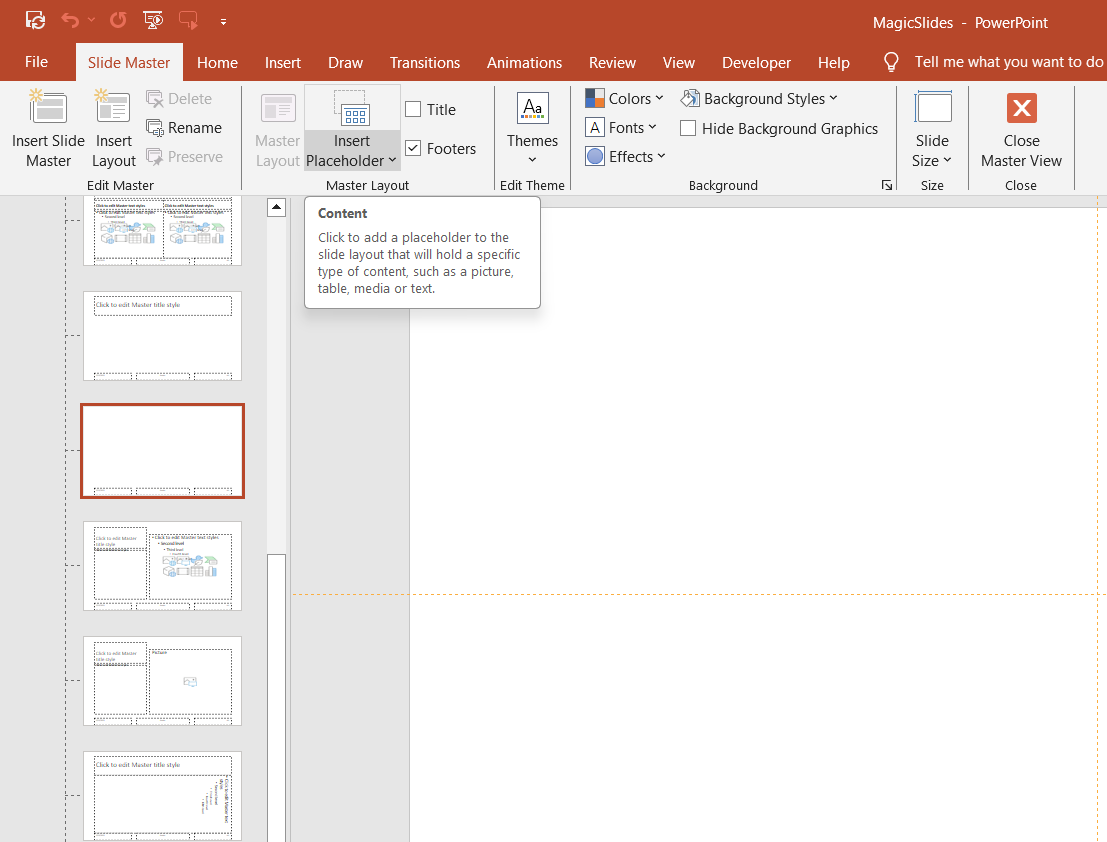
Close Slide Master View to save space.
Step 4: Reduce Embedded Media File Sizes
Click on "File" > "Info." Click "Compress Media." Choose a compression quality (e.g., "Low Quality (smallest file size)").
PowerPoint will compress all embedded videos and audio files.
Step 5: Convert to PPTX Format
Click "File" > "Save As." Ensure the file format is PPTX (not PPT).
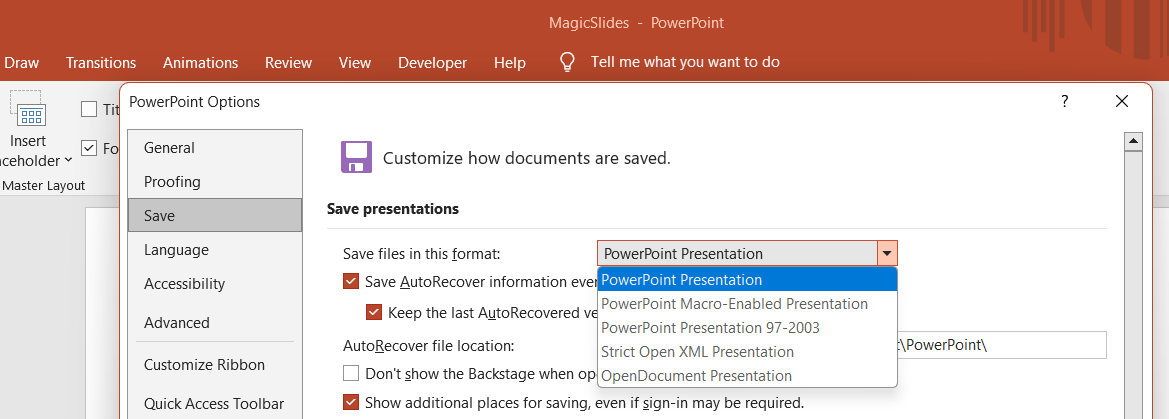
PPTX files are more optimized and take up less space than older PPT files.
Step 6: Remove Unused Fonts and Embedded Elements
Click "File" > "Options." Go to "Save" on the left panel. Under "Preserve fidelity when sharing this presentation," uncheck "Embed fonts in the file."
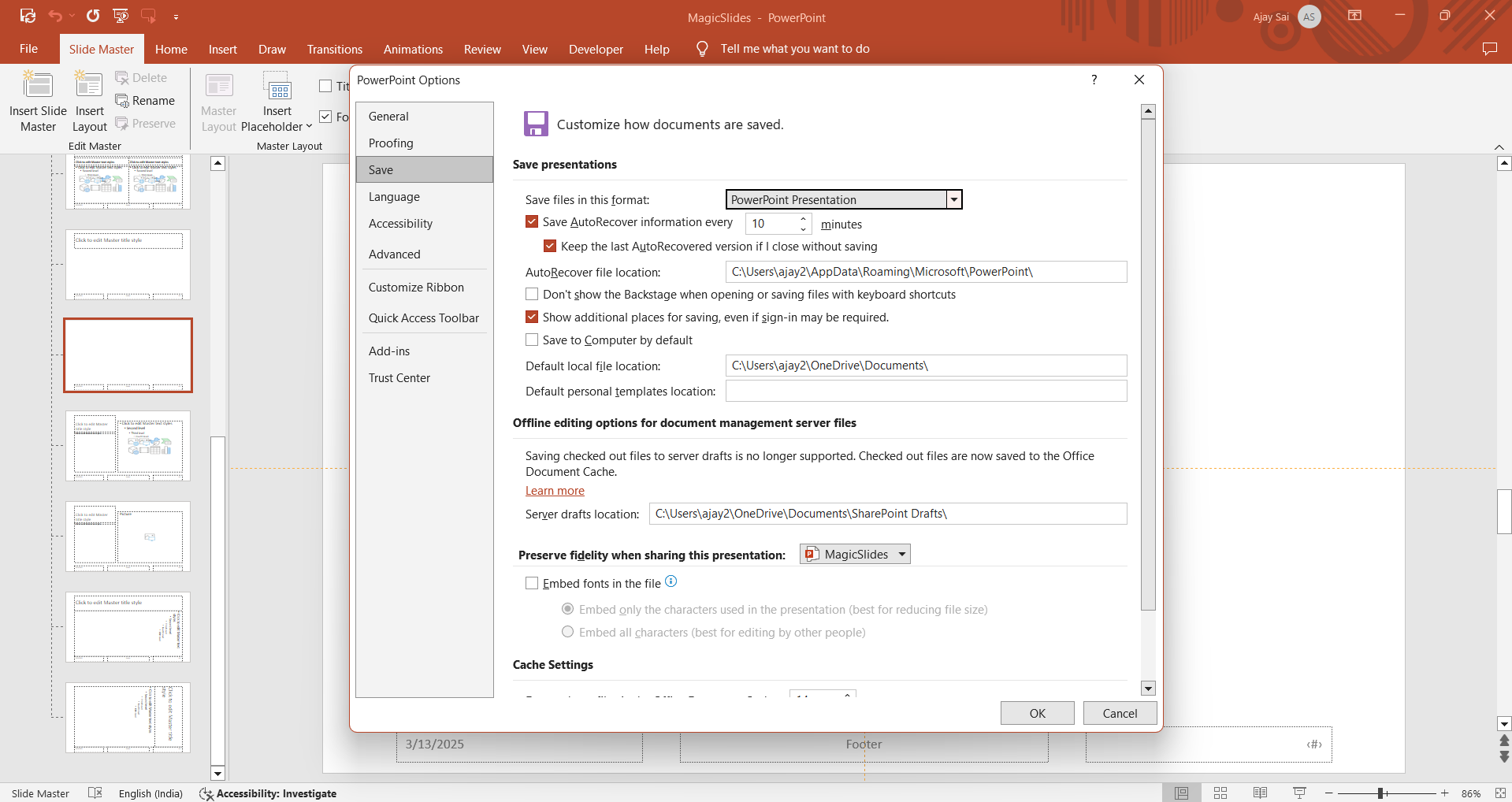
Click "OK" to apply the changes.
Step 7: Save as a Compressed PDF (Optional)
If you don’t need the file in PowerPoint format, save it as a PDF:
Click "File" > "Save As." Select PDF from the file format dropdown. Click "Options" and select "Minimum Size (Publishing Online)." Click "Save."
Conclusion
By following these steps, you can significantly reduce your PowerPoint file size while maintaining quality.
Whether it's compressing images, optimizing media, or removing unnecessary elements, these techniques will help you create lightweight, shareable presentations.
Frequently Asked Questions (FAQs)
Does compressing images in PowerPoint reduce quality?
Yes, but you can choose the compression level. Email (96 ppi) reduces quality significantly, while Print (220 ppi) maintains good clarity.
How can I check my PowerPoint file size?
Click "File" > "Info," and the file size will be displayed under Properties.
What is the best format for reducing PowerPoint file size?
Saving as PPTX or PDF (with compression enabled) offers the best file size reduction while maintaining quality.