How to Convert PDF to Google Slides Under 60 Seconds?


Learn how to convert PDF to Google Slides using AI, Adobe Acrobat, or Google Drive. Follow these simple methods to create fully editable presentations in minutes.
Need to convert a PDF into Google Slides for editing, presenting, or collaborating? While PDF files are excellent for sharing documents without altering their formatting, they aren’t designed for easy editing. Google Slides, on the other hand, is built for creating and modifying presentations, but it can’t directly edit PDF files.
To make changes to a PDF or present its content as slides, you’ll first need to convert it into a compatible presentation format, such as PPTX. Once converted, you can upload the file to Google Drive, open it in Google Slides, and edit, share, or present it just like any other presentation.
In this guide, you’ll learn the best ways to convert PDF to Google Slides, including the fastest AI-powered method using MagicSlides, as well as free alternatives like Adobe Acrobat and Google Drive. We’ll also cover common issues, tips to preserve formatting, and answers to frequently asked questions so you can choose the method that best suits your needs.
Can Google Slides Open PDF Files Directly?
The short answer is no. Google Slides can open presentation files such as PPTX, but it does not support directly importing or editing PDF files.
Although you can insert individual PDF pages into a slide as images, the text, graphics, and other elements within the PDF remain non-editable. This means you won’t be able to update content, rearrange layouts, or customize the design as you would with a standard presentation.
If you need to edit or present the contents of a PDF, the best approach is to convert it into a presentation format like PPTX. After conversion, simply upload the file to Google Drive and open it in Google Slides to edit, collaborate with others, and present your slides seamlessly.
Why Convert PDF to Google Slides?
Converting a PDF to Google Slides gives you far more flexibility than working with a static PDF file. Instead of simply viewing the document, you can edit its content, redesign the layout, collaborate with others, and present it directly from your browser.
Here are some of the biggest benefits of converting a PDF into Google Slides:
- Edit content with ease: Update text, replace images, rearrange slides, and customize layouts without recreating the presentation from scratch.
- Save time: Convert reports, proposals, ebooks, or lecture notes into presentation-ready slides in just a few clicks.
- Collaborate in real time: Share your presentation with teammates, classmates, or clients and work together simultaneously using Google Slides.
- Deliver more engaging presentations: Break lengthy PDF documents into well-structured, visually appealing slides that are easier for your audience to follow.
- Access your presentation anywhere: Since Google Slides is cloud-based, you can view, edit, and present your slides from any device with an internet connection.
- Share effortlessly: Send a single Google Slides link to collaborators instead of emailing multiple versions of a presentation.
Whether you’re a student, teacher, business professional, or content creator, converting PDFs into Google Slides makes it easier to update information, collaborate with others, and deliver polished presentations.
Best Ways to Convert PDF to Google Slides
There are several ways to convert a PDF into an editable Google Slides presentation. The right method depends on your needs, the complexity of the document, and how much editing you plan to do afterward.
| Method | Best For | Editing Support | Ease of Use |
|---|---|---|---|
| MagicSlides | Fast AI-powered conversion | Full | Easy |
| Adobe Acrobat | Professional documents | Full | Medium |
| Google Drive OCR | Text extraction | Partial | Medium |
| Manual Recreation | Custom presentations | Full | Difficult |
For most users, an AI-powered converter like MagicSlides is the fastest option because it automatically transforms PDF pages into editable presentation slides while preserving formatting.
Quick Answer: How to Convert PDF to Google Slides in 5 Easy Steps
Check out the five quick steps below to perform this task effortlessly using AI:-
- Step 1. Visit PDF to Google Slides tool.
- Step 2. Upload the PDF File.
- Step 3. Initiate the Conversion.
- Step 4. Download or Open in Google Drive.
- Step 5. Open the Converted File in Google Slides.
This process allows you to transform a static PDF into a fully editable presentation in just a few seconds. Now, let’s discuss them in detail in the coming section.
Convert PDF to Google Slides Using MagicSlides AI
If you’re looking for the quickest way to convert a PDF into an editable Google Slides presentation, an AI-powered PPT Tool like MagicSlides can automate the entire process. Instead of manually copying text or recreating slides, it analyses your PDF and converts the content into an editable PowerPoint presentation that can be opened in Google Slides.
This method works well for business reports, research papers, ebooks, study materials, proposals, and other text-based PDF documents. While most formatting is preserved during conversion, it’s always a good idea to review the presentation and make minor adjustments if your PDF contains complex layouts, custom fonts, or scanned pages.
Why Use MagicSlides?
MagicSlides offers a range of AI presentation tools that help you create and edit presentations more efficiently, including:
- AI PPT Maker – Generate presentations automatically.
- Text to PPT – Convert written content into slides.
- Topic to PPT – Turn any topic into a presentation.
- YouTube to PPT – Convert videos into slides.
- URL to PPT – Convert any link to slides,
These tools help students, educators, and professionals create high-quality presentations in seconds.
Convert PDF to Google Slides Using MagicSlides AI in Just 5 Steps
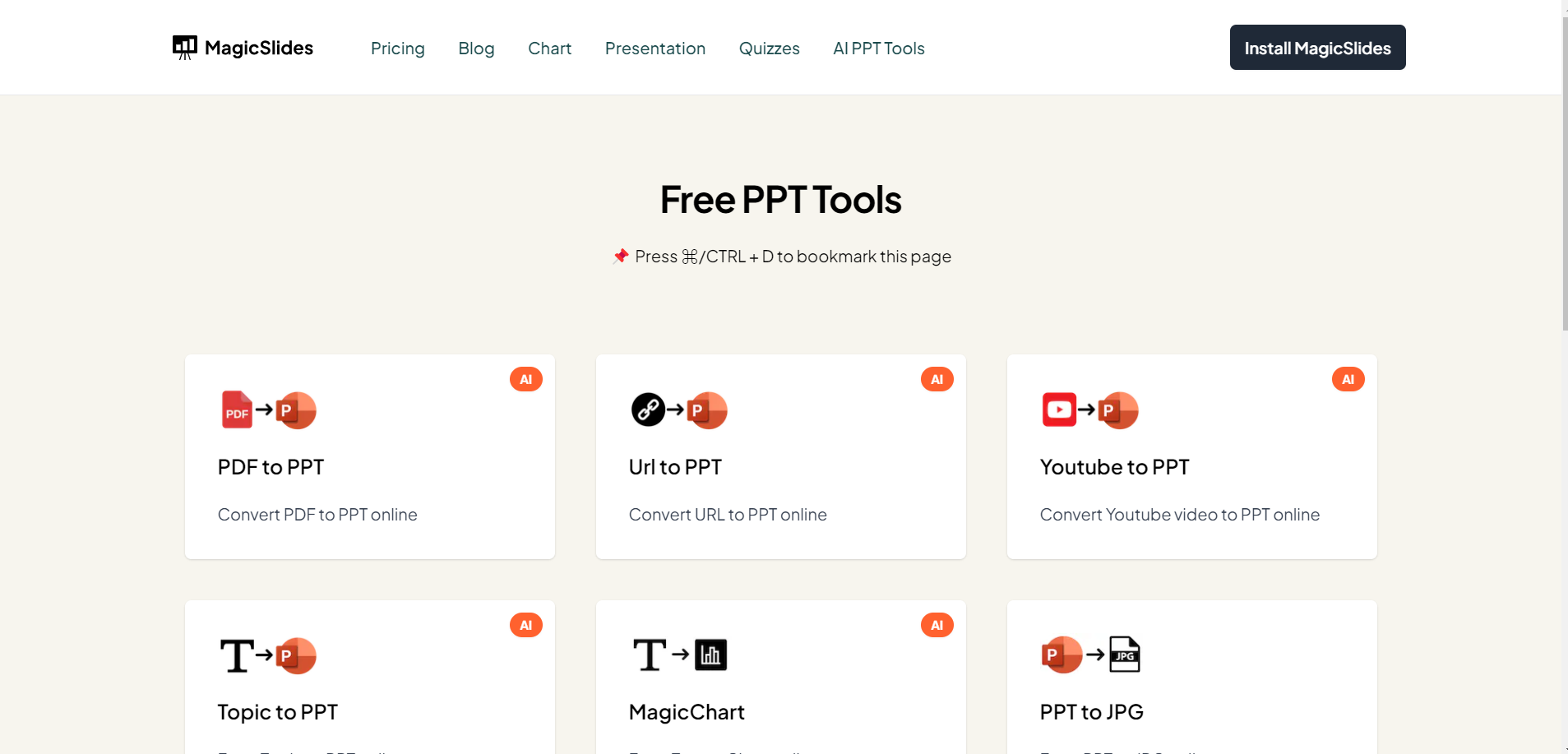
Step 1. Open the PDF to Google Slides Converter
Navigate to MagicSlides and open the tools page.
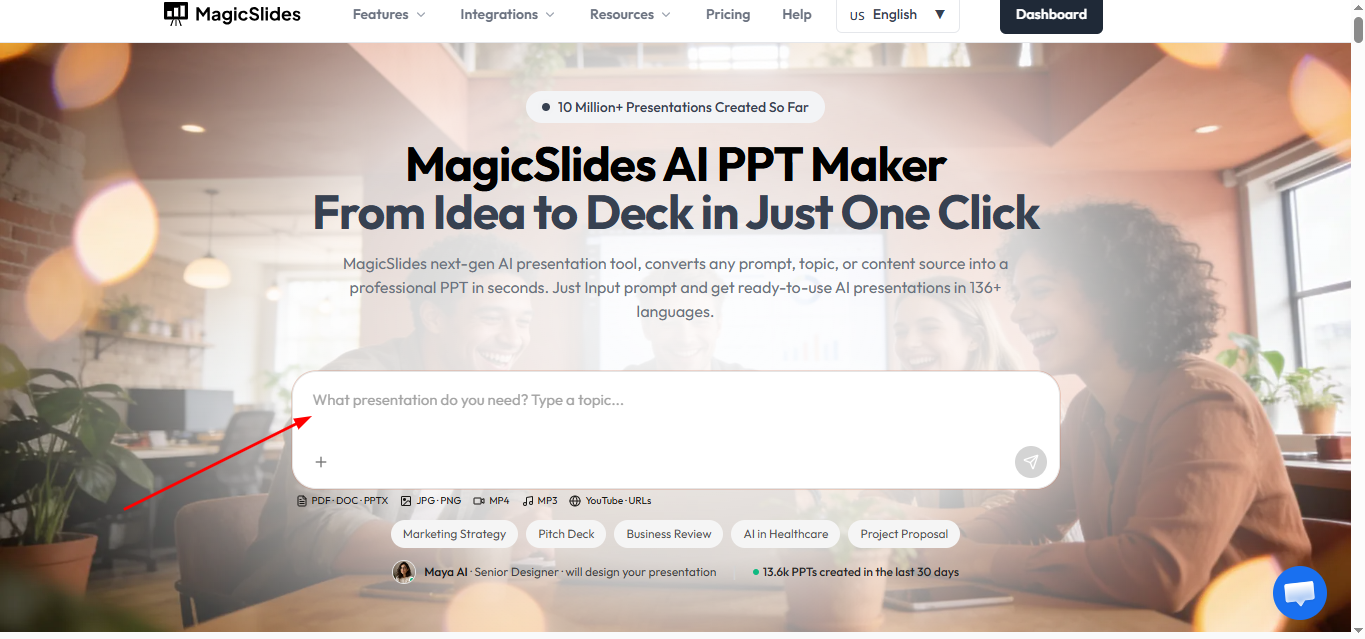
Begin by opening PDF to PPT Converter in your web browser. If you don’t have an account, you need to sign up for one.
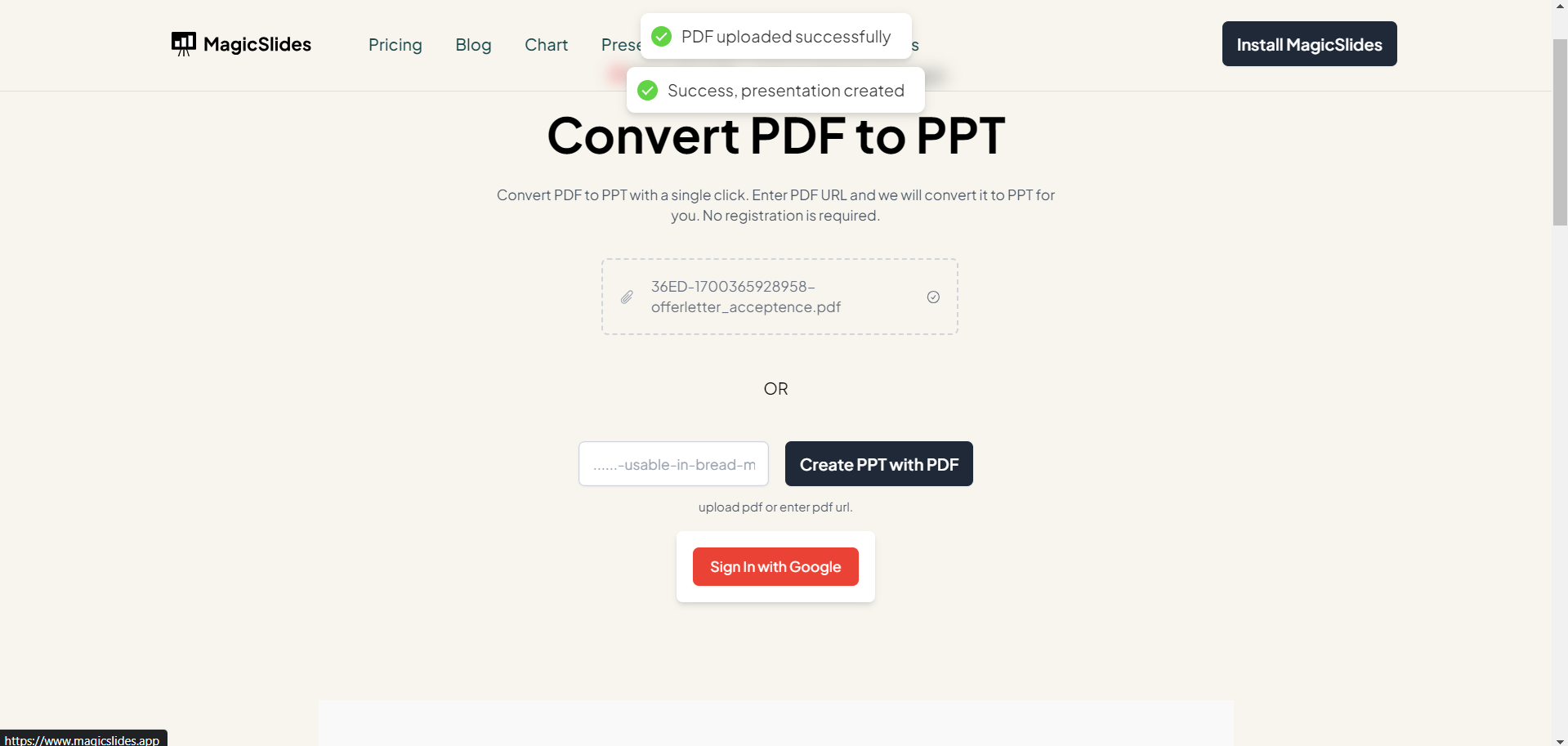
Step 2. Upload Your PDF File
Once on the webpage, locate and select the PDF file you wish to convert to Google Slides. You can usually do this by clicking on an “Upload” or “Select File” button.
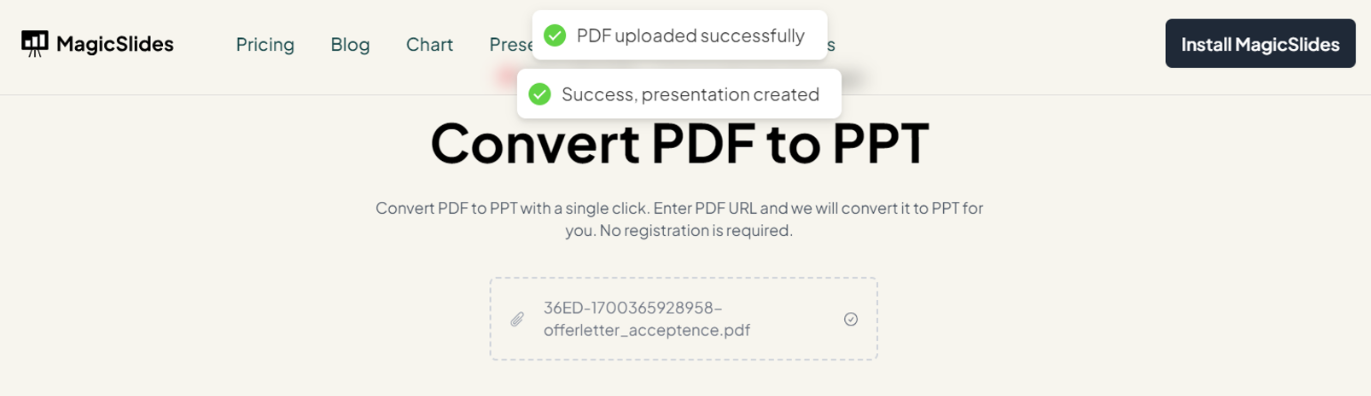
Step 3. Initiate the PDF to Google Slides Conversion
Click on the “Convert” button to start the conversion process. MagicSlides.app will begin converting your PDF into the chosen presentation format.
Step 4. Download or Open in Google Drive
Once the conversion is complete, you will be notified about the download to your local system.
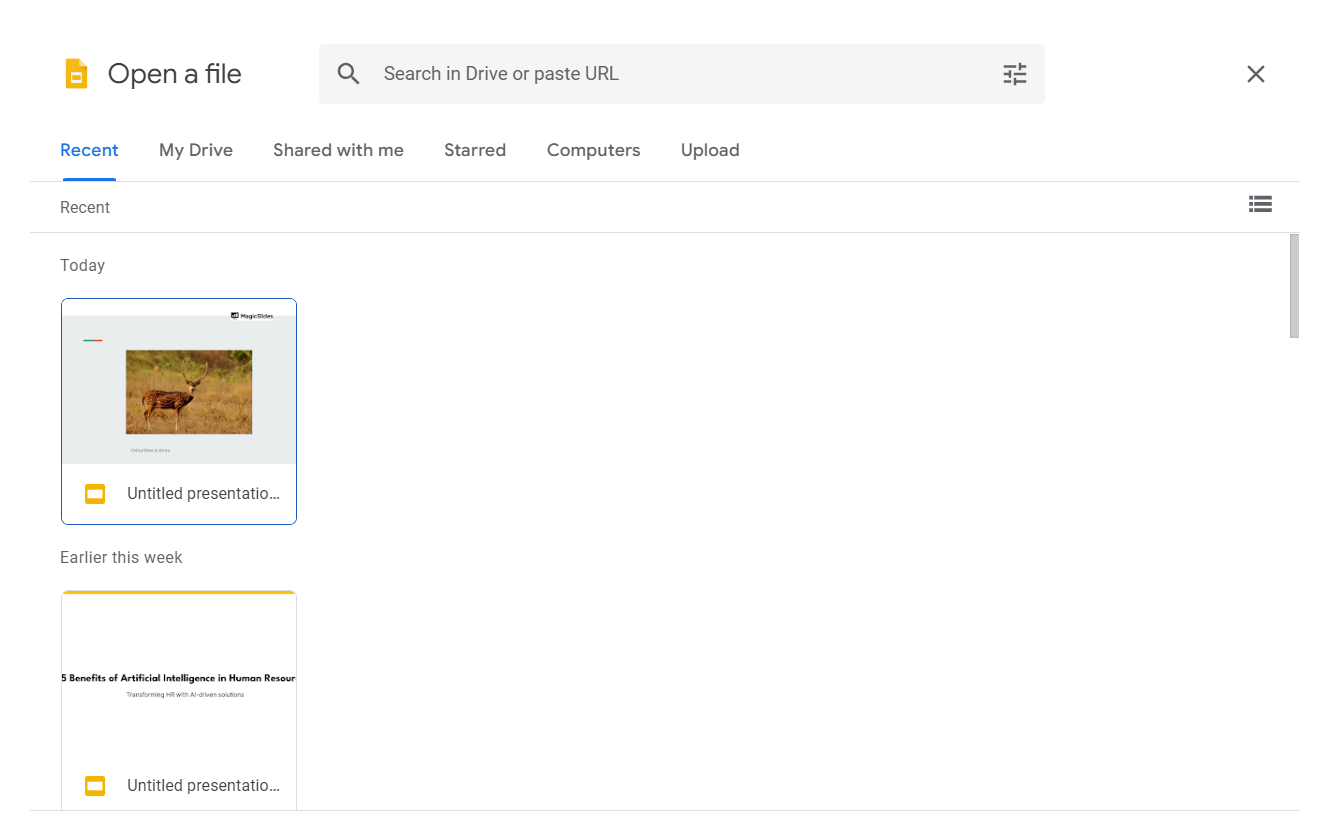
Step 5. Open the Converted File in Google Slides
Navigate to Google Drive, locate the converted file, and open it using Google Slides. You can now edit, present, or share the file as needed.
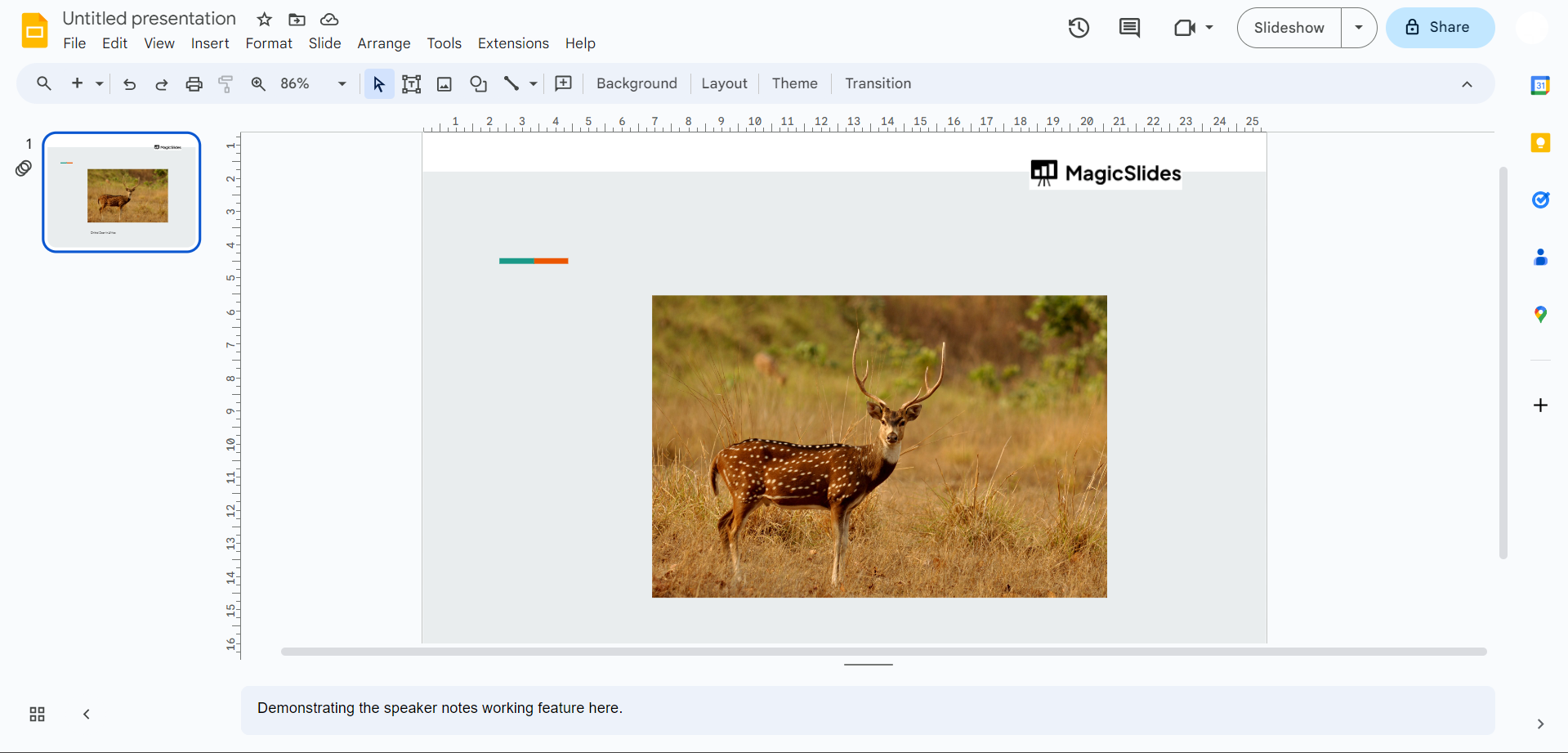
Method 2: Convert PDF to Google Slides Using Adobe Acrobat
Adobe Acrobat provides a reliable way to convert PDF documents into PowerPoint presentations that can later be opened in Google Slides.
- Step 1. Launch Adobe Acrobat and open the PDF file you want to convert.
- Step 2. Select Export PDF from the tools menu and choose Microsoft PowerPoint Presentation (.pptx) as the export format.
- Step 3. Choose a location on your computer and save the converted PowerPoint file.
- Step 4. Open Google Drive and upload the newly created PPTX file.
- Step 5. Right-click the uploaded file and select Open With → Google Slides. The presentation will now be editable online.
This method works particularly well for business reports, proposals, and presentation-style PDFs.
Method 3: Convert PDF to Google Slides for Free Using Google Drive
If you only need to extract content from a PDF and do not require perfect formatting, Google Drive offers a free alternative.
Step 1. Log in to your Google account and upload the PDF file to Google Drive.
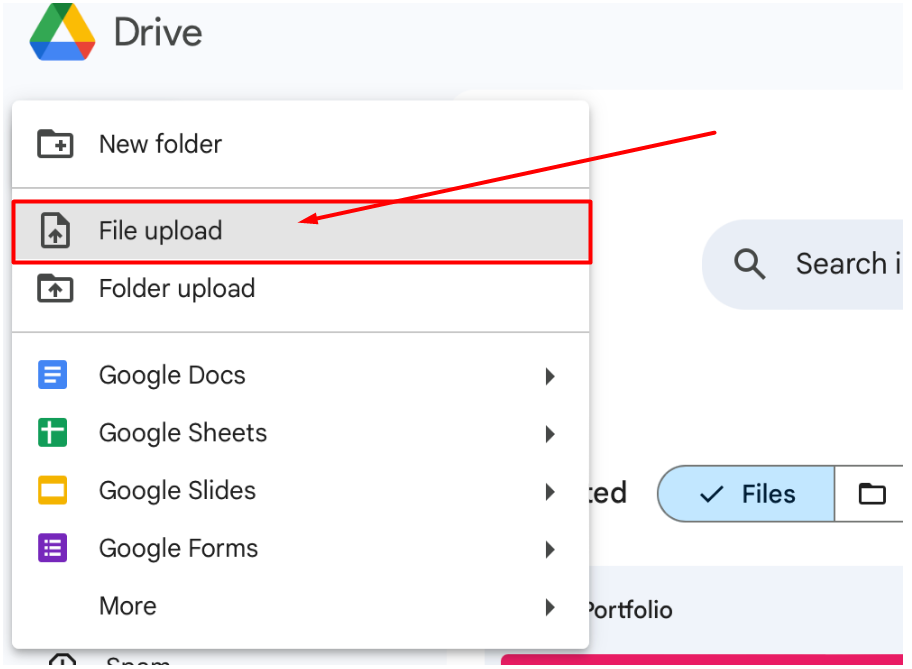
Step 2. Right-click the PDF and choose Open With → Google Docs. Google’s OCR technology will attempt to extract the text from the PDF.
Step 3. Review the extracted content and copy the text, images, and data you want to use.
Step 4. Open Google Slides and create a new presentation.
Step 5. Paste the extracted content into slides and adjust the layout as needed.
Although this method is free, it often requires manual formatting and may not preserve the original design accurately.
Conclusion
Converting a PDF to Google Slides is the easiest way to transform static documents into editable, presentation-ready slides. Whether you’re updating a business report, repurposing study materials, or creating a professional presentation, converting your PDF gives you the flexibility to edit content, collaborate with others, and present with ease.
The best conversion method depends on your needs. If you want the fastest and most accurate results, an AI-powered tool like MagicSlides can automatically convert PDFs into editable presentations while preserving much of the original formatting. If you prefer a free option, Adobe Acrobat or Google Drive can also help you convert PDF content, although they may require additional formatting afterward.
Choose the method that works best for your workflow, convert your PDF, and start creating polished Google Slides presentations in just a few minutes.
Frequently Asked Questions
Q1. Can I convert a PDF to Google Slides without losing formatting?
Yes, but the results depend on the conversion method you use. AI-powered tools and professional PDF converters generally preserve text, images, fonts, and layouts more accurately than free alternatives. Complex PDFs with custom fonts or intricate designs may still require minor formatting adjustments.
Q2. What is the easiest way to convert a PDF to Google Slides?
The easiest method is to use an AI-powered Presentation Tool. These tools automatically convert PDF pages into editable PowerPoint slides, which you can upload to Google Drive and open in Google Slides with minimal manual editing.
Q3. Is there a free way to convert a PDF to Google Slides?
Yes. You can upload your PDF to Google Drive, open it with Google Docs to extract the text using OCR, and then copy the content into Google Slides. While this method is free, it doesn’t always preserve the original formatting and may require manual adjustments.
Q4. Can I edit a PDF directly in Google Slides?
No. Google Slides cannot directly edit PDF files. You can insert PDF pages as images, but the text and graphics won’t be editable. To make changes, you’ll need to convert the PDF into an editable presentation format such as PPTX.
Q5. Can I convert scanned PDFs to Google Slides?
Yes. Scanned PDFs can be converted using Optical Character Recognition (OCR), which extracts text from scanned images and converts it into editable content. The accuracy depends on the quality of the scanned document.
Q6. Will images and charts be preserved during conversion?
Most modern PDF conversion tools retain images, tables, charts, and basic formatting. However, highly complex graphics, animations, or custom fonts may require some manual adjustments after conversion.
Q7. Can I convert PDF to Google Slides on my phone?
Yes. Many cloud-based PDF conversion tools work on Android and iPhone devices. After converting the file, you can open and edit it using the Google Slides mobile app.
Q8. Which file format should I use for Google Slides?
The best format is PPTX (Microsoft PowerPoint). Google Slides supports PPTX files natively, making it easy to upload, edit, collaborate, and present without recreating your slides.
Q9. Is my PDF secure when using online conversion tools?
Most reputable conversion tools encrypt uploaded files and automatically delete them after processing. If your PDF contains sensitive or confidential information, review the provider’s privacy policy before uploading your document.
Q10. Why isn’t my converted presentation formatting correctly?
Formatting issues can occur if the original PDF contains scanned pages, unsupported fonts, complex layouts, or interactive elements. Using a high-quality converter and reviewing the presentation after conversion will help ensure the best results.


