Addon google slides iconPPT with AISlide TemplatesPPT TemplatesPricingBlog
    PPT with AISlide TemplatesPPT TemplatesPricingBlog
    1. Home
    2. Blog
    3. How to mark Slack messages all as read


    How to mark Slack messages all as read

    magicslides app

    Published By

    magicslides app
    Mohit Kumar Jha

    Approved By

    Mohit Kumar Jha

    Published On

    January 17th, 2025

    Reading Time

    3 min read

    Optimize your Slack experience by mastering simple desktop methods to efficiently mark messages as read.

    Discovering efficient ways to manage your Slack messages is crucial for a streamlined workflow.
    In this guide, we'll explore two methods to mark messages as read on the desktop version.
    Whether you prefer utilizing the Channel List or the Message Pane, these step-by-step instructions will help you stay organized and focused.
     
    Before we begin, if you are looking to send Google form submissions directly to Slack, check SlackNotify.app. It will include all info submitted and sent directly to the Slack channel of your choice

    How to mark Slack messages all as read

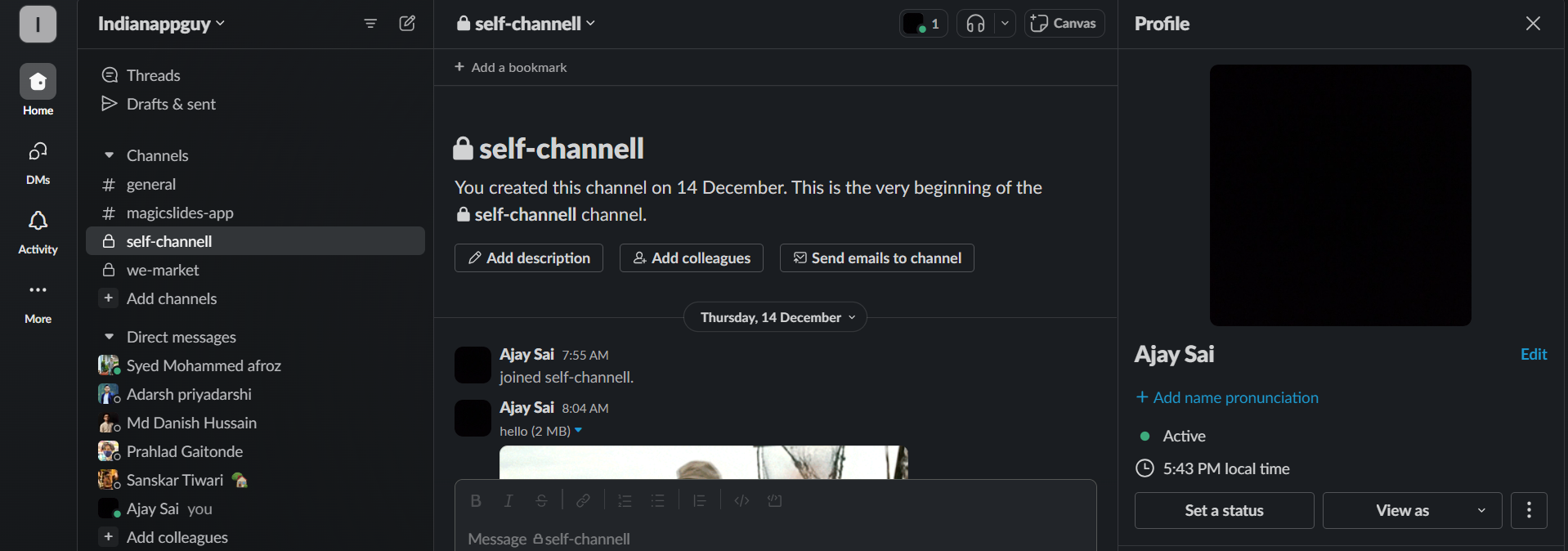
    Navigate to the Channel List:

    Open Slack on your desktop. Locate the left sidebar containing your channels and direct messages.
    notion image

    Right-Click on Each Channel or Direct Message:

    Right-click on each channel or direct message you want to mark as read.

    notion image

    Access the Context Menu:

    From the context menu that appears, find and select "Mark as Read."

    Repeat for Each Channel:

    Repeat these steps for every channel or direct message you want to mark as read.

    notion image

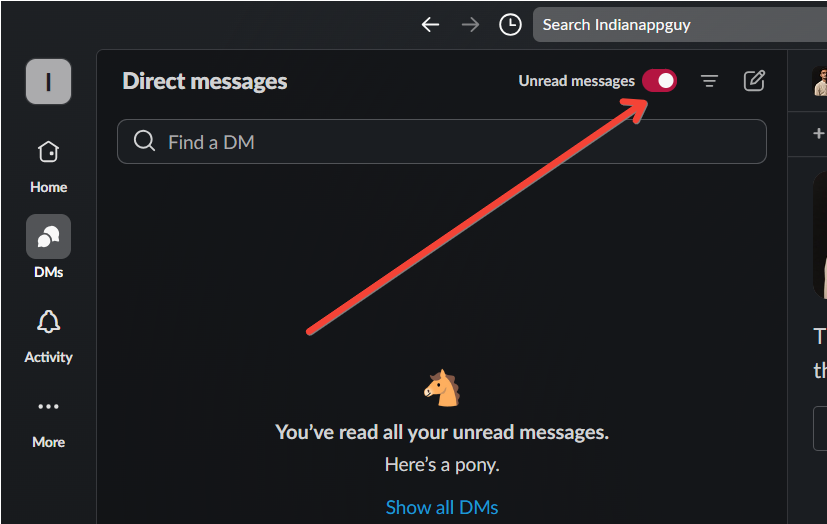
    Verify Messages are Marked as Read:

    Confirm that the channels or direct messages no longer display unread indicators.
    notion image
    When managing your unread messages in Slack, ensure your team receives real-time updates by setting up Google Form notifications. This way, you'll be instantly alerted every time someone submits a Google Form.

    Conclusion:

    Following these steps should help you mark messages as read on the desktop version of Slack. Please note that the steps might vary slightly depending on the version of Slack you are using.
    Whether you opt for the Channel List or the Message Pane, taking control of your unread messages is a small but impactful step toward optimizing your productivity within the Slack platform.
    Create stellar PowerPoint presentations from Medium articles.

    Frequently Asked Questions:

    Why is it important to mark messages as read in Slack?

    Marking messages as read in Slack is crucial for maintaining organization and staying on top of important communications.
    It helps prevent overlooking crucial information and ensures a streamlined workflow.

    Is there a quicker way to mark all messages as read in Slack on desktop?

    As of my last update in January 2022, Slack doesn't provide a direct "Mark all as read" button.
    However, manually marking each channel or direct message as read, as explained in the guide, is an effective way to achieve this.

    Can these methods vary in different versions of Slack?

    Yes, the user interface may evolve with updates, but the basic principles should remain similar.
    Always refer to the latest Slack documentation for any changes. As of my last knowledge update, these steps are applicable to the desktop version of Slack.
     

    Share on socials

    About the author

    Sanskar Tiwari profile photo
    Sanskar Tiwari— Founder at MagicSlides

    Sanskar is Founder at IAG Tech, For the past 3 years sanskar have build more than 24+ products, taught 100k students how to code.

    More from Sanskar

    More from the blog

      250+ Good Morning Messages for Her (Romantic, Deep, Cute & Sweet)

      30 January 2026

      200+ Heart Touching Birthday Wishes for Sister (Short, Funny and More)

      29 January 2026

      50+ History Presentation Topics For 2026

      28 January 2026

      How to Add Music to Your Canva Presentation: A Step-by-Step Guide

      27 January 2026

      15 Quick Tips To Use ChatGpt At Work

      22 January 2026

      11 Best AI Tools for Business in 2025

      22 January 2026

      How to Create an Infographic That Clearly Communicates Your Message

      20 January 2026

      How to Create a Sales Presentation Template in Google Sheets

      20 January 2026

      How to Make a Pie Chart on Google Slides in Simple Steps

      19 January 2026

    Table of Contents

    Create Presentations in Seconds

    Transform your ideas into professional presentations with AI. No design skills needed.

    Try MagicSlides Free

    Create Stunning Presentations with AI in Seconds ✨

    Transform any topic, text, YouTube video, PDF or URL into beautiful presentations instantly with MagicSlides AI.

    Try MagicSlides AI Presentation Maker
    MagicSlides AI Presentation

    Footer

    Solutions

    • MagicSlides App
    • Google Slides Add-on
    • MagicSlides in Chrome
    • MagicSlides in Figma
    • MagicSlides in ChatGPT
    • MagicSlides in Telegram
    • MagicSlides in Zapier
    • MagicSlides in Figma Slides

    Tools

    • AI PPT Tools
    • QR Code Generator
    • Design Tools
    • PPT Templates
    • Slide Templates
    • PDF Tools

    Examples

    • AI Presentations
    • PPT by MagicSlides
    • Quizzes
    • Charts
    • Coloring Pages

    Resources

    • Changelog
    • Documentation
    • API Docs

    Top Blogs

    • How to Create Presentation Using ChatGPT
    • 100+ Best Seminar Topics for Students in 2025

    Company

    • Help
    • MCP
    • Blog
    • Pricing
    • Affiliate Program
    • Manage Subscription
    • Privacy Policy
    • Contact Us
    • Terms & Conditions
    • Refund & Cancellation Policy

    We also built

    • SheetAI - GPT For Sheets
    • MagicForm - GPT For Google Forms
    • SecondBrain.fyi
    • BlogBee - Free Blogging Platform

    © 2026 IndianAppGuy Tech Pvt Ltd. All rights reserved.