How to create PPT from Medium articles


Transform your favorite Medium articles into captivating presentations effortlessly using MagicSlides.app a seamless content-to-PPT solution.
Embark on a journey to effortlessly turn insightful Medium articles into engaging PowerPoint presentations. In this guide, we'll explore the seamless process using MagicSlides.app, a game-changing tool that integrates with Google Slides. Follow these steps and witness the magic unfold as your favorite Medium content takes on a new visual life in your presentations.
How to create PPT from Medium articles
Step 1: Navigate to Google Slides
Begin your creative endeavor by visiting the Google Slides platform at slides.google.com. This is where your presentation magic will unfold.
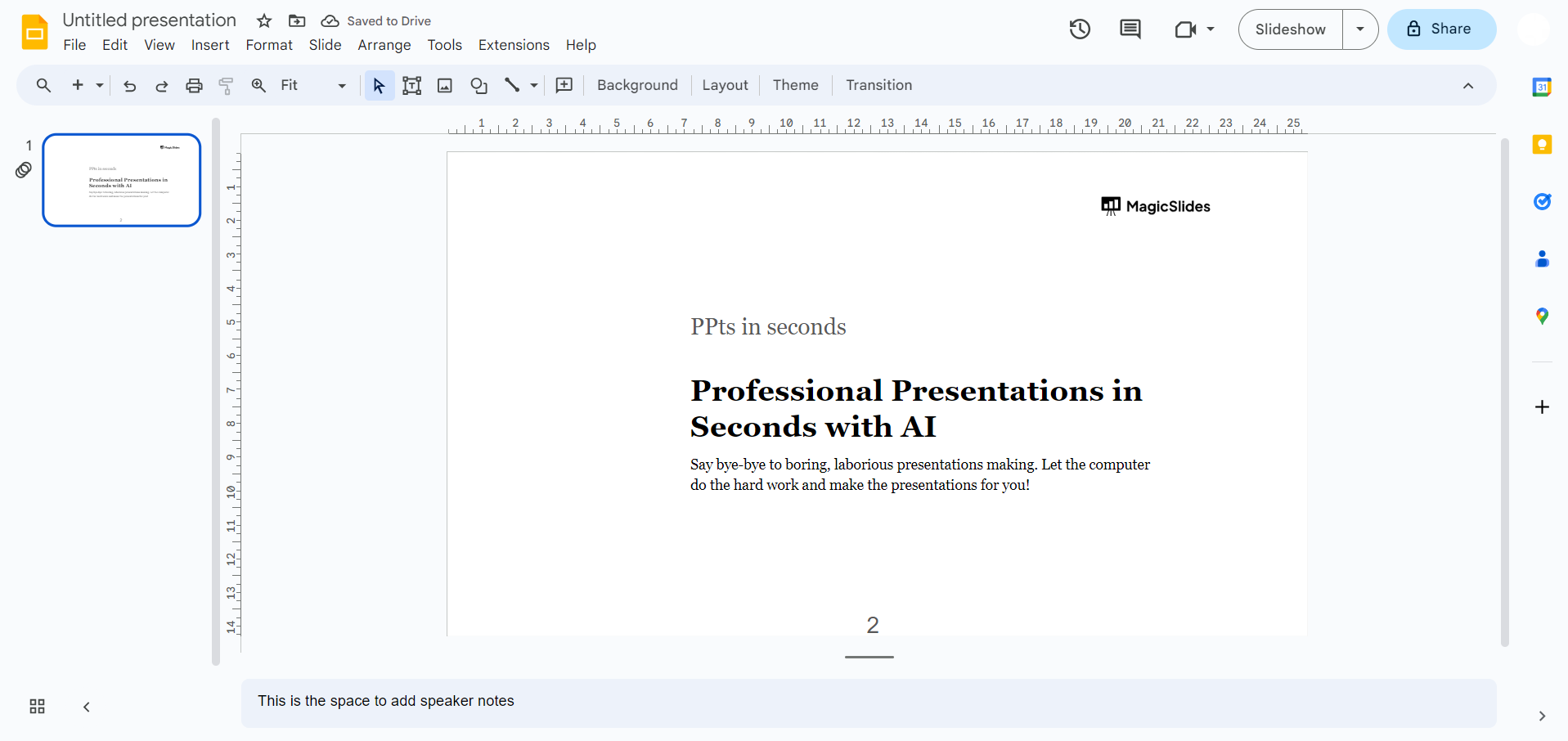
Step 2: Sign in with Google
Ensure a personalized and seamless experience by signing in with your Google account, granting access to the full suite of Google Slides features.
Step 3a: Open MagicSlides.app Extension Tab
If you're already equipped with the MagicSlides.app extension, simply open the extension tab in Google Slides, seamlessly integrating this powerful tool into your presentation environment.
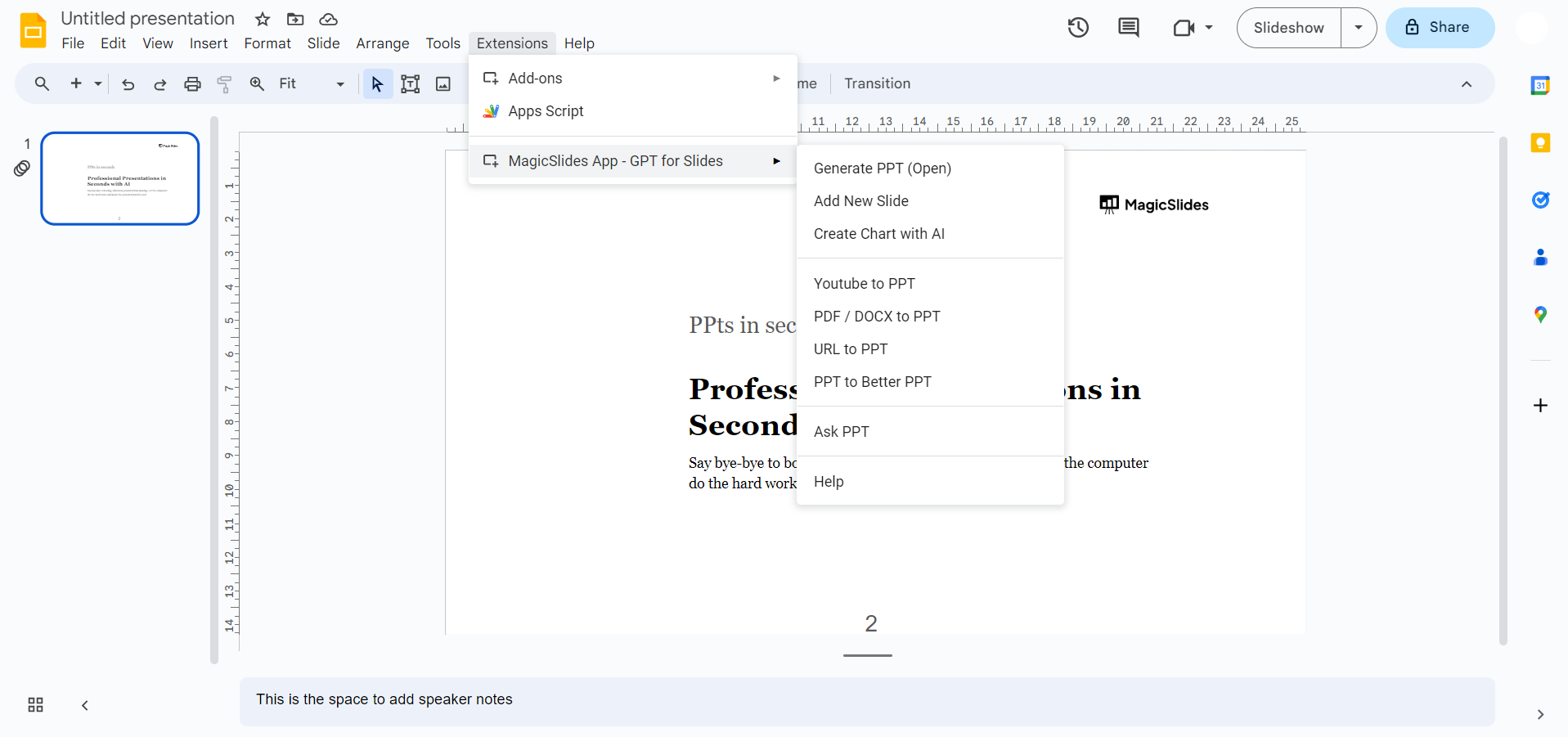
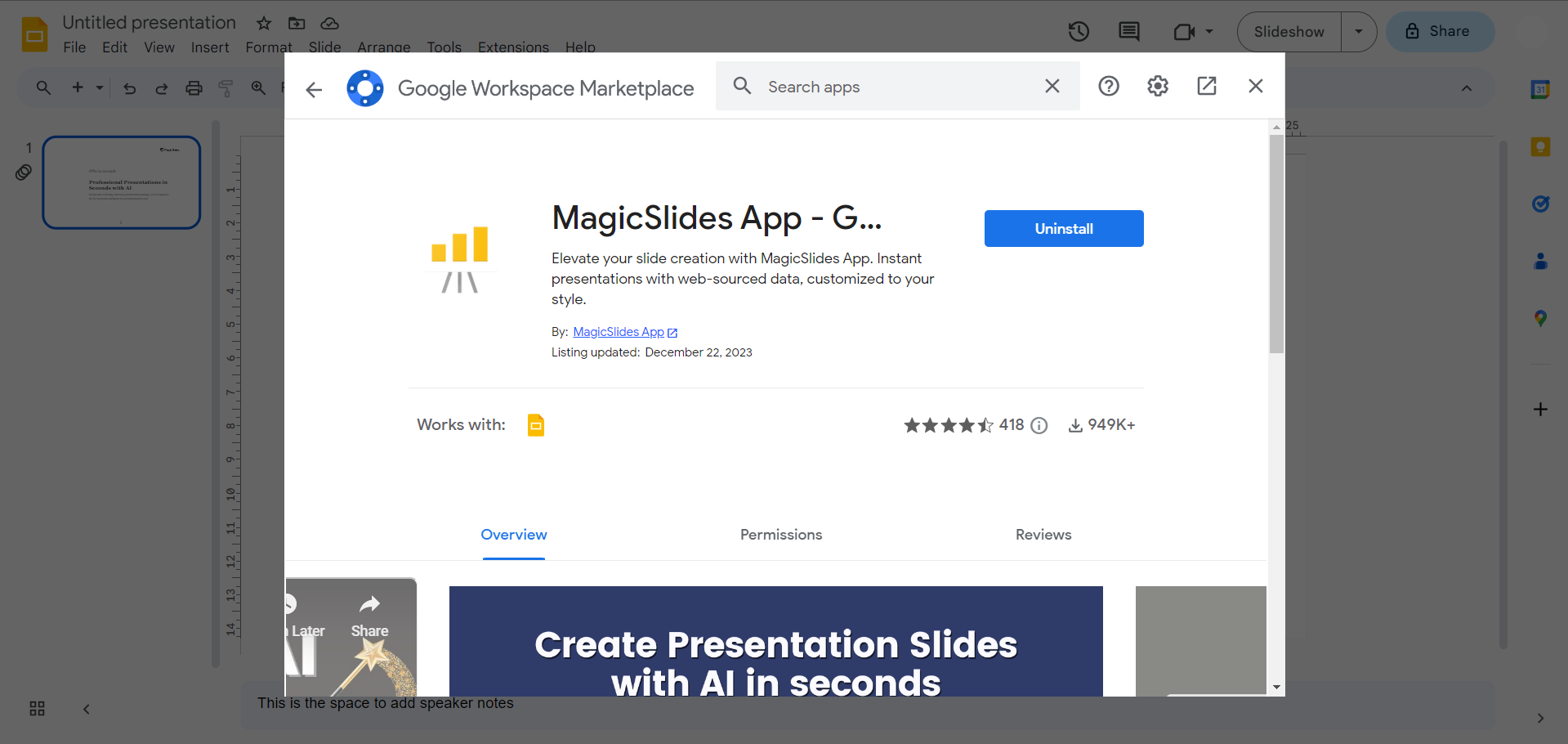
Step 3b: Download MagicSlides.app Extension
For those new to MagicSlides.app, visit the Extensions Marketplace within Google Slides. Search for MagicSlides.app, download the extension, and gear up for an enhanced presentation creation experience.
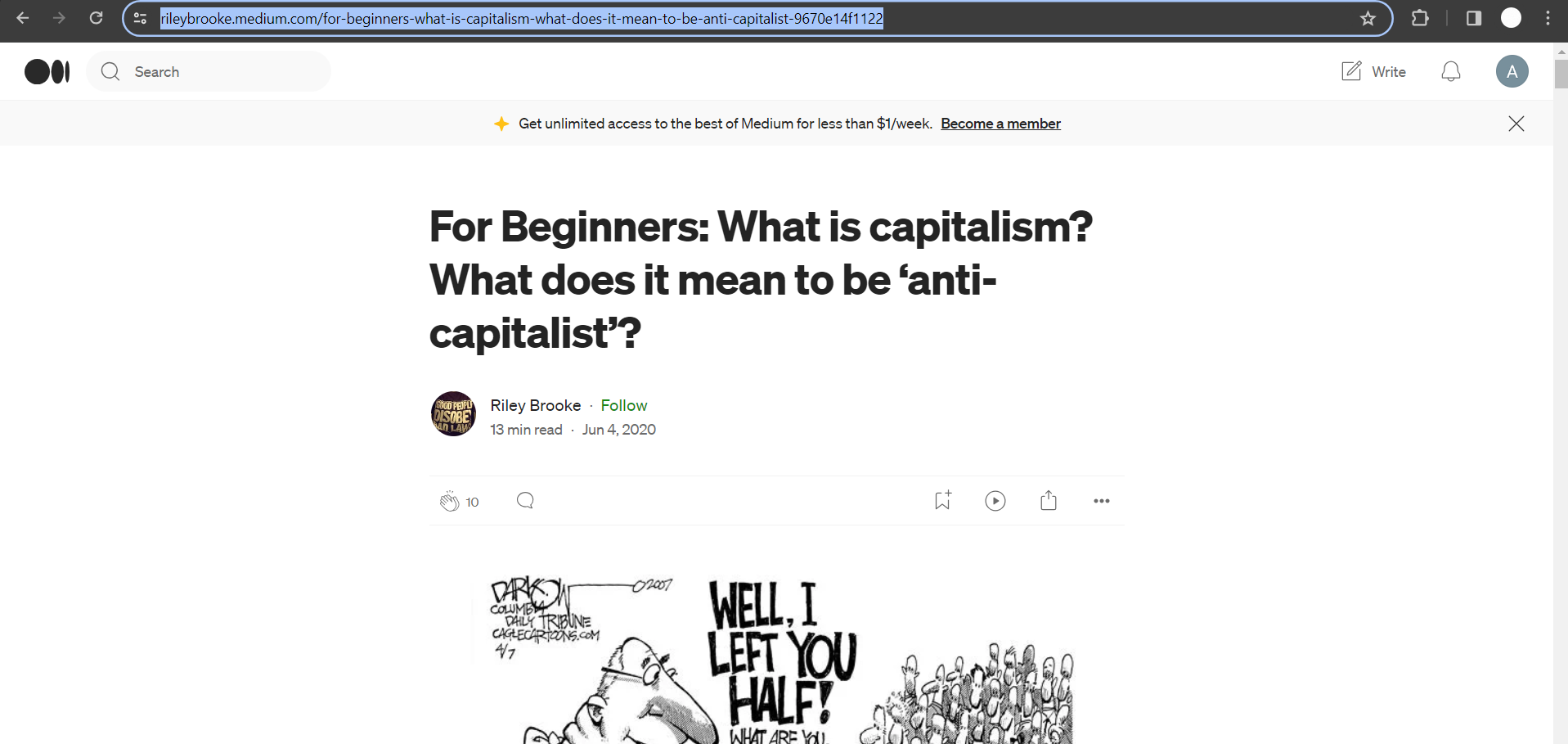
Step 4: Copy the Medium Article URL
Navigate to the Medium article you wish to transform into a presentation. Copy the article URL, setting the stage for the forthcoming conversion.
Step 5: Paste the URL into MagicSlides.app
In MagicSlides.app, paste the copied Medium article URL. This action signals the tool to work its transformative magic on your selected content.
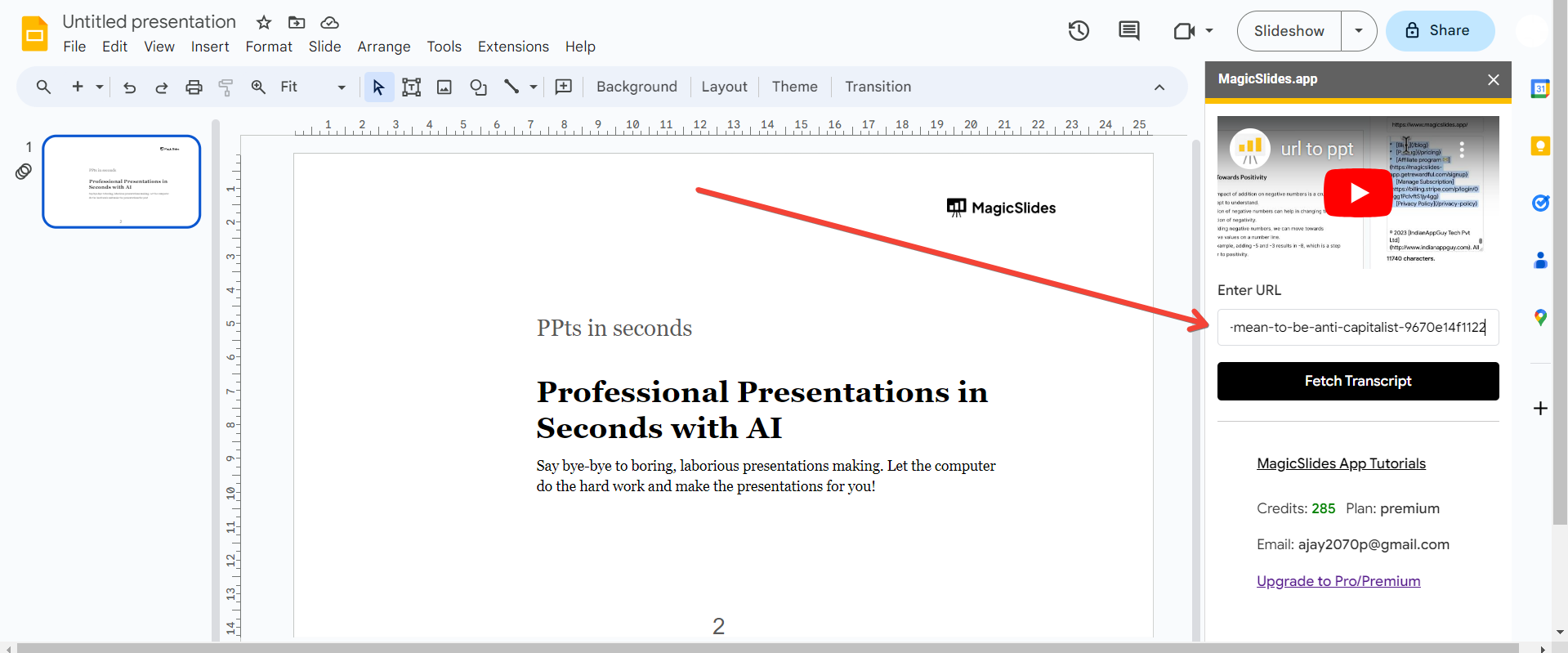
Step 6: Click on "Generate Presentation"
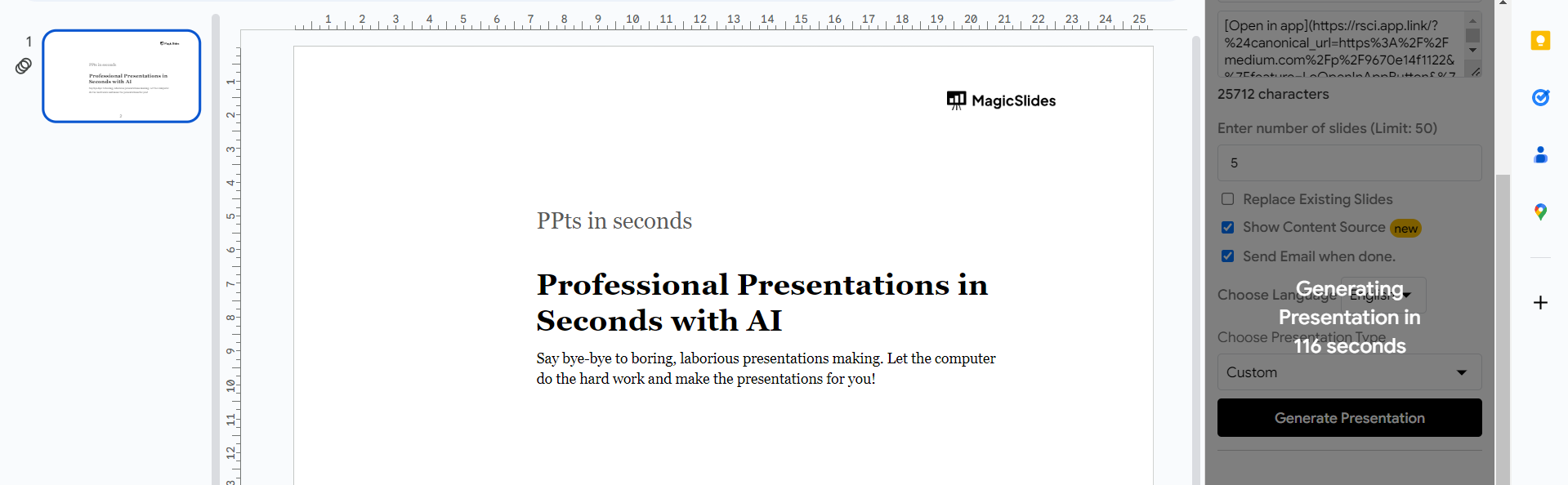
With a simple click, initiate the conversion process. Watch as MagicSlides.app intelligently translates the Medium article into a visually compelling PowerPoint presentation.
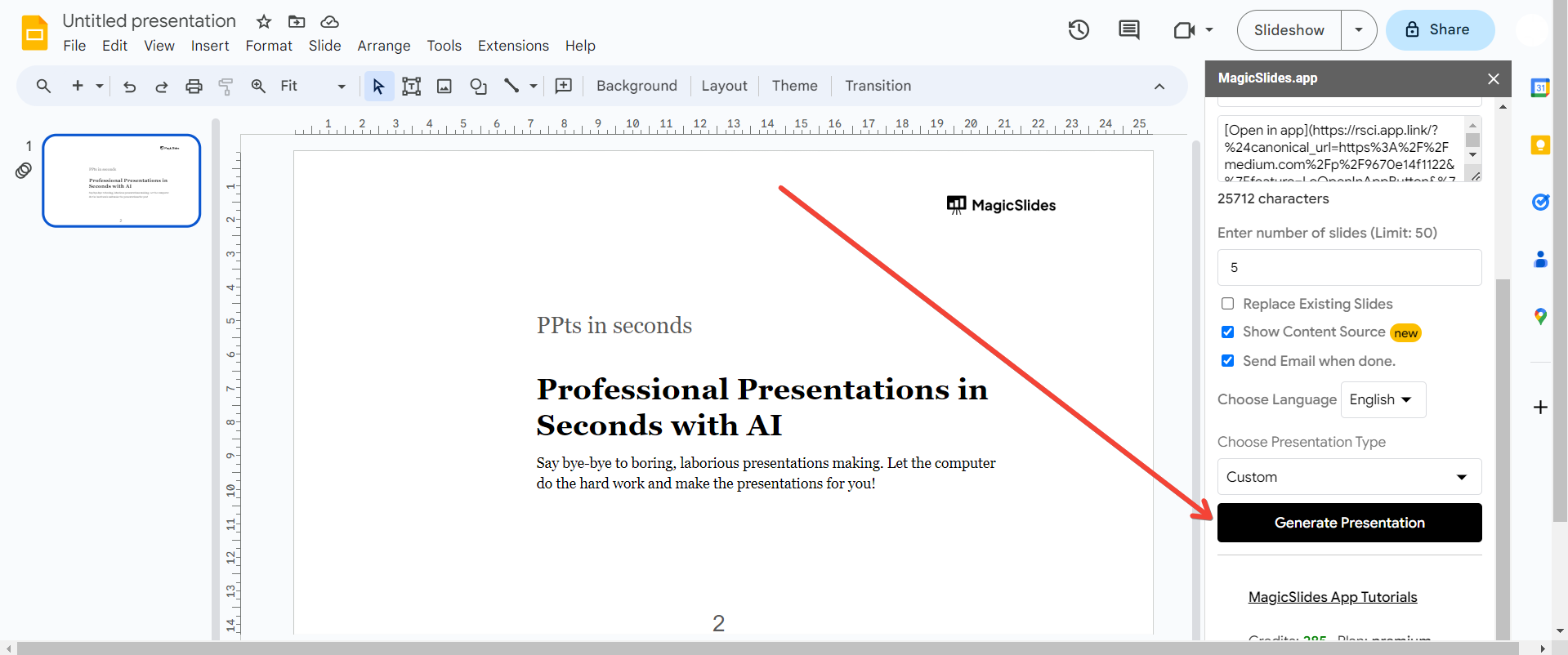
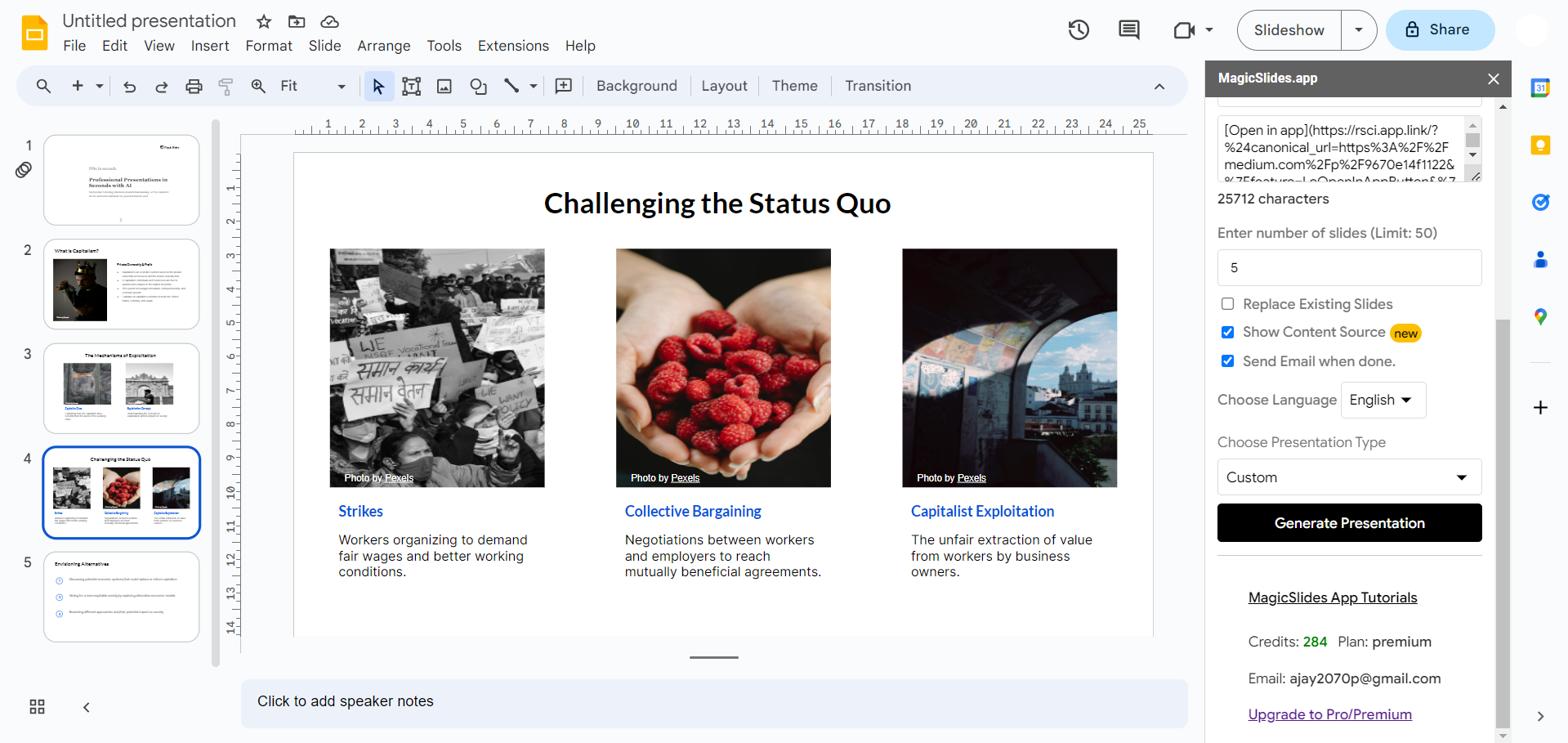
Step 7: Your Medium Article is Now a PPT
In a matter of moments, your Medium article has seamlessly transformed into a polished and dynamic PowerPoint presentation. Revel in the newfound creative possibilities and share your insights with a captivating visual touch.
Conclusion:
MagicSlides.app continues to prove its worth as a valuable tool for transforming diverse content into dynamic presentations. This guide has showcased how effortlessly Medium articles can evolve into engaging PowerPoint slides. Elevate your presentations, save time, and unlock a new level of creativity with MagicSlides.app. It's time to turn your favorite Medium reads into captivating visual stories.
Frequently Asked Questions:
Q: Can MagicSlides.app handle long-form Medium articles with multiple sections?
Ans: Absolutely! MagicSlides.app intelligently processes various sections of a Medium article, ensuring a seamless transition into a well-organized PowerPoint presentation.
Q: Are there specific formatting considerations for Medium articles to ensure a smooth conversion?
Ans: MagicSlides.app is designed to interpret and maintain the formatting of Medium articles, preserving the original structure and visual appeal in the converted presentation.
Q: Can I customize the design and layout of the PowerPoint presentation after using MagicSlides.app?
Ans: Yes, you have full control over the design and layout in Google Slides after the initial conversion. MagicSlides.app focuses on content translation, leaving room for creative customization.
Q: Is MagicSlides.app compatible with other platforms besides Google Slides?
Ans: Currently, MagicSlides.app is optimized for Google Slides. However, the team is actively exploring options for integration with other platforms to broaden accessibility.
Check out these info blogs by us:
- How To Use Microsoft Dictate In Desktop PowerPoint: https://www.magicslides.app/blog/how-to-use-microsoft-dictate-in-desktop-powerpoint
- How To Rename A Slack Channel On Desktop: https://www.magicslides.app/blog/how-to-rename-a-slack-channel-on-desktop
- How To Change Layout Of A Powerpoint Presentation: https://www.magicslides.app/blog/how-to-change-layout-of-a-powerpoint-presentation
- How To Reset A Presentation In Powerpoint: https://www.magicslides.app/blog/how-to-reset-a-presentation-in-powerpoint


