How to change layout of a powerpoint presentation


Dive into PowerPoint’s creative realm: Transform your presentations with ease using the artful magic of layouts.
In this blog post, we unravel the intricacies of this indispensable feature, guiding you through the steps that breathe versatility into your presentation design. Join us on a tour of PowerPoint's layout options and discover how this tool can elevate your storytelling prowess.
Open Your Presentation:
Begin by launching Microsoft PowerPoint and opening the specific presentation you wish to modify.
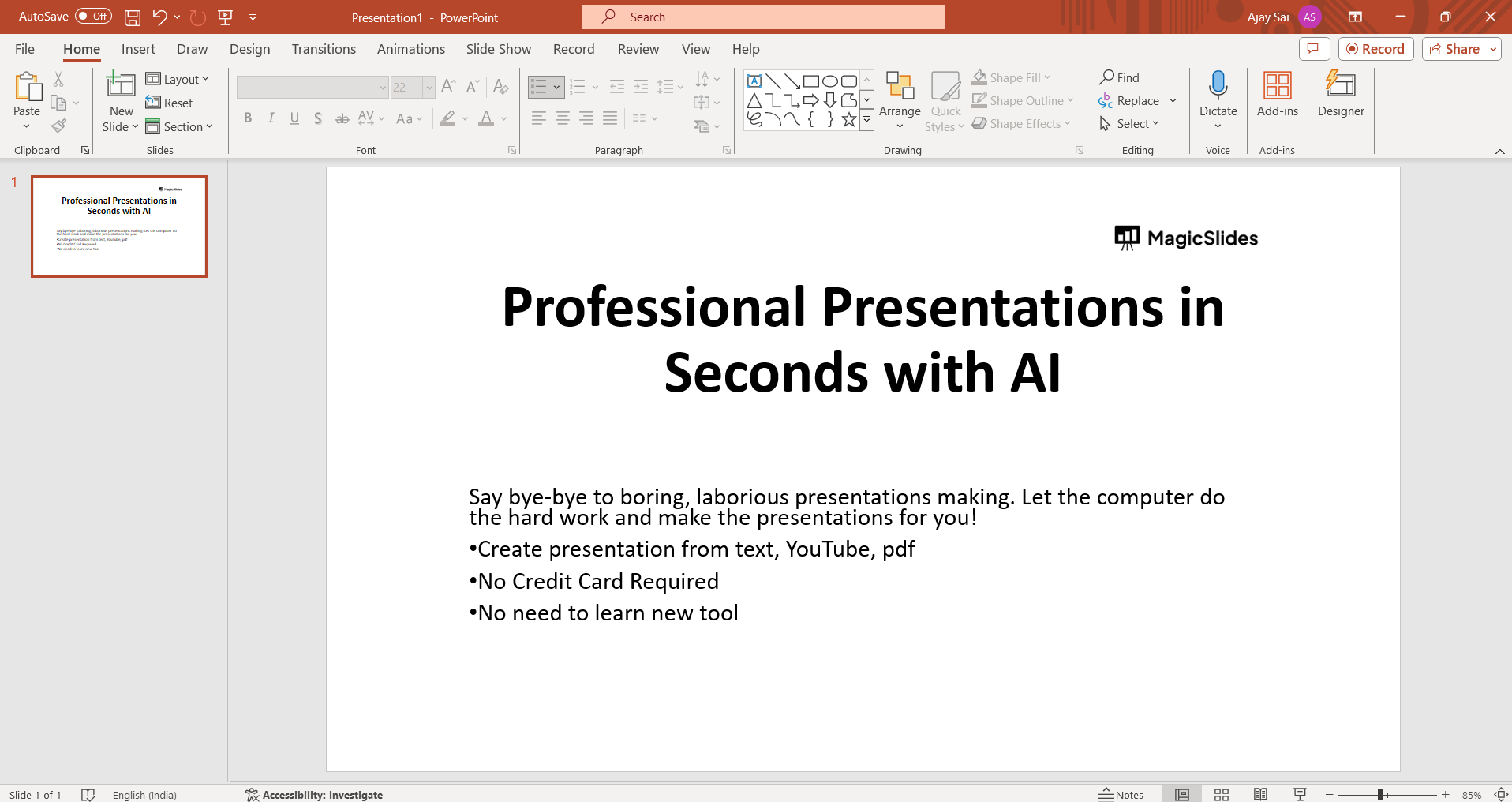
Select the Slide:
In the left-hand slide pane, where all your slides are listed, click on the slide that you want to alter. This will ensure that changes are applied to the selected slide.
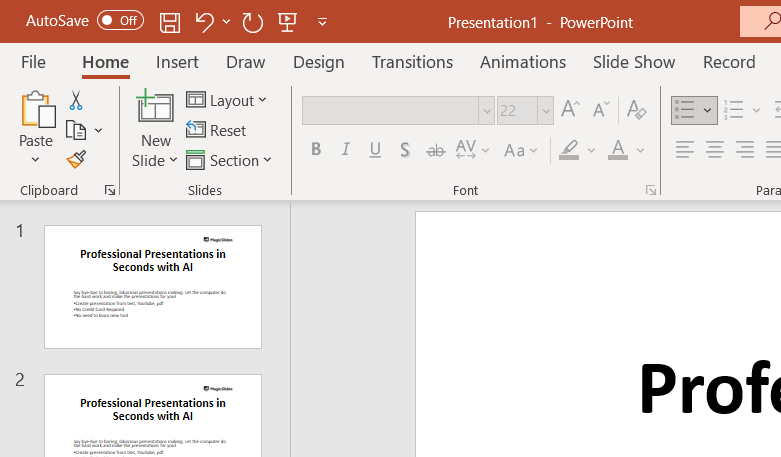
Go to the Slide Layout Options:
Navigate to the "Home" tab, located in the PowerPoint ribbon at the top of the screen. This is where you'll find a range of tools and options for editing your presentation.
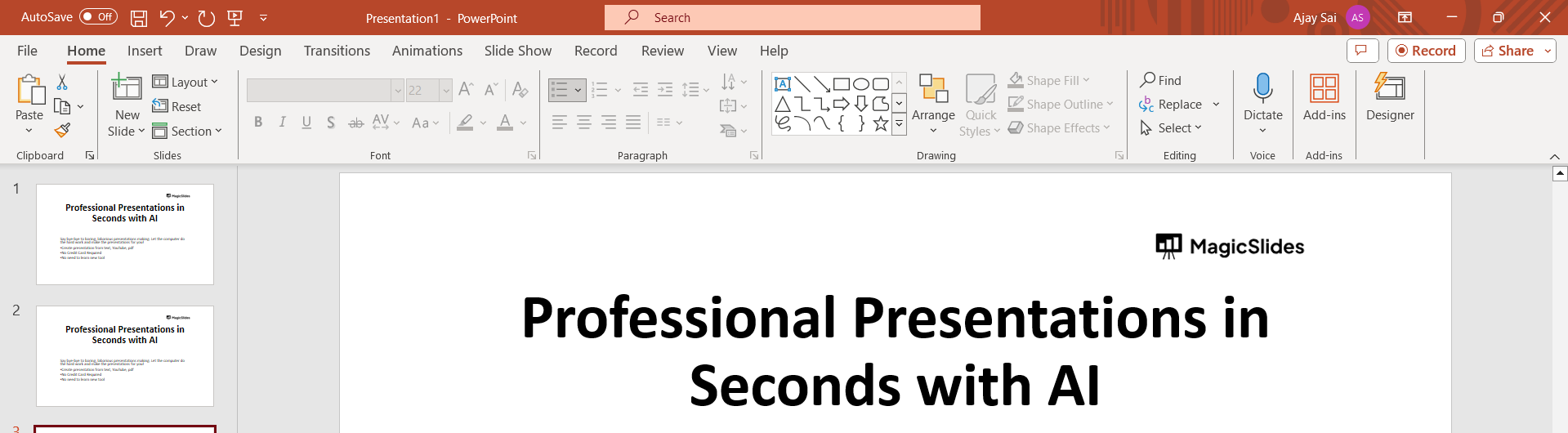
Choose the Layout Option:
Within the "Home" tab, locate the "Layout" option. Depending on your PowerPoint version, you might find it in the Slides group or a similar section. Click on it to reveal layout options.
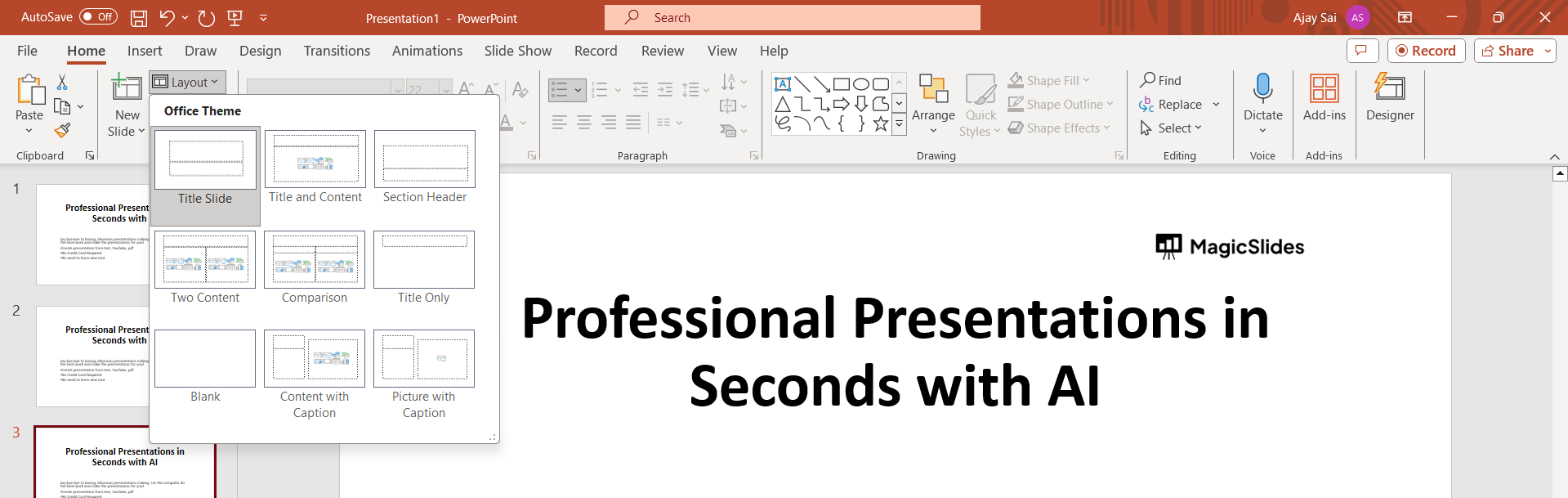
Select a New Layout:
Click the drop-down arrow next to "Layout." A menu will appear, presenting you with various layout options such as Title Slide, Title and Content, Two Content, etc. Choose the layout that best suits the content and design you have in mind for the selected slide.
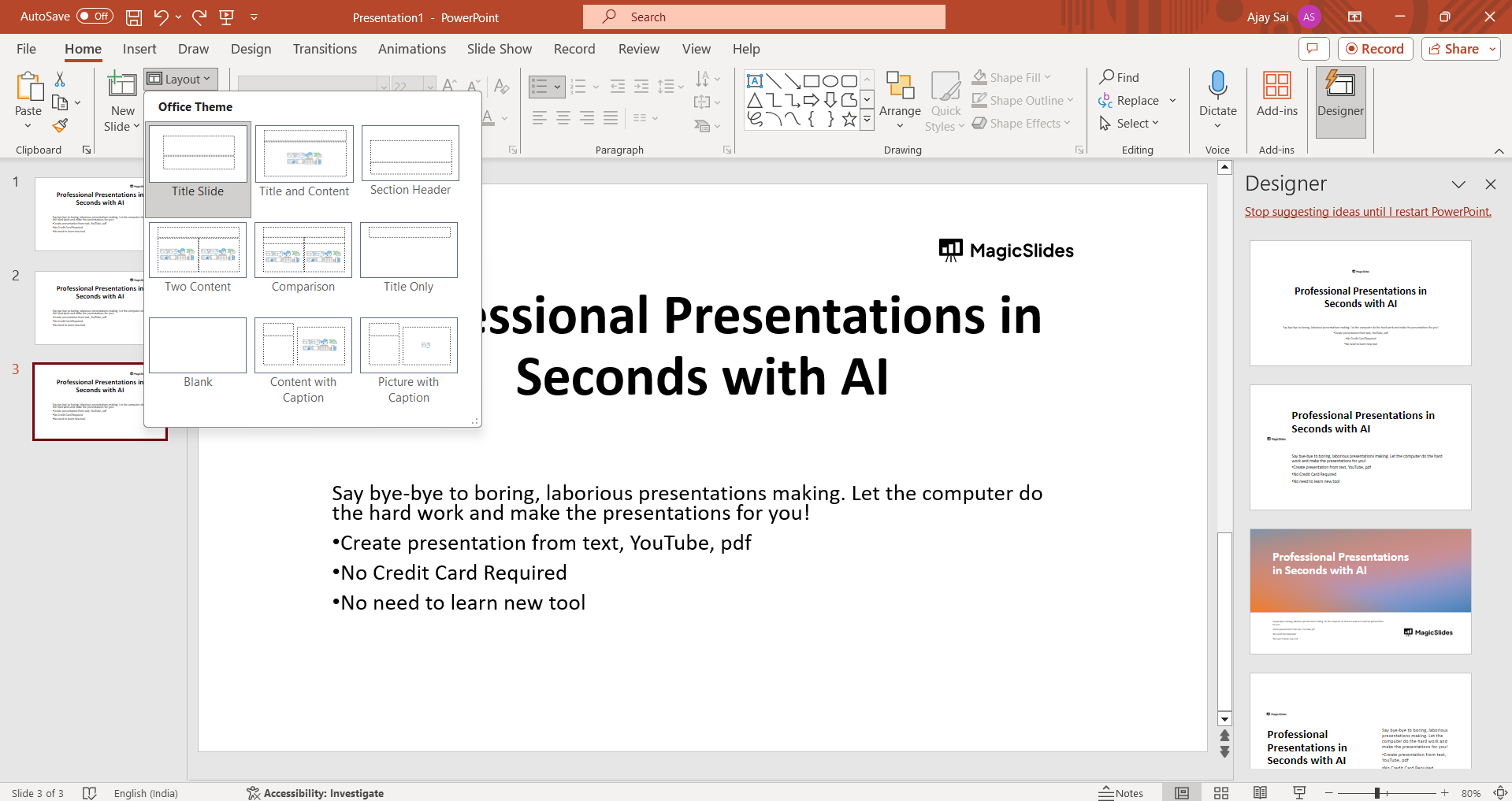
Observe Changes:
As you make your selection, observe how the slide layout transforms. Different layouts provide distinct arrangements of placeholders for titles, text, images, and other content elements.
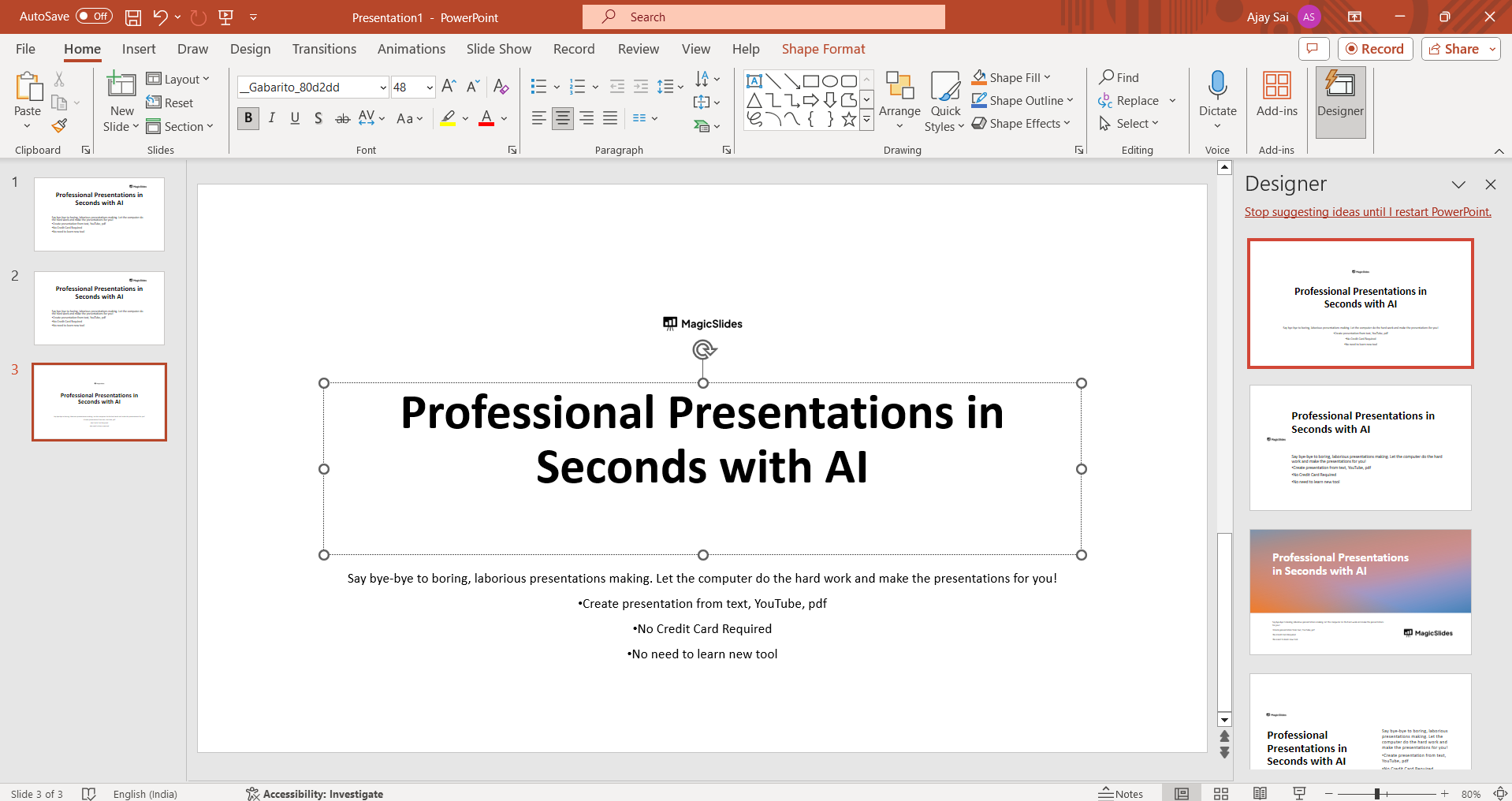
Review and Adjust:
Take a moment to review the slide with the new layout. You may need to adjust the placement and formatting of text boxes, images, or other elements to ensure they align properly with the chosen layout.
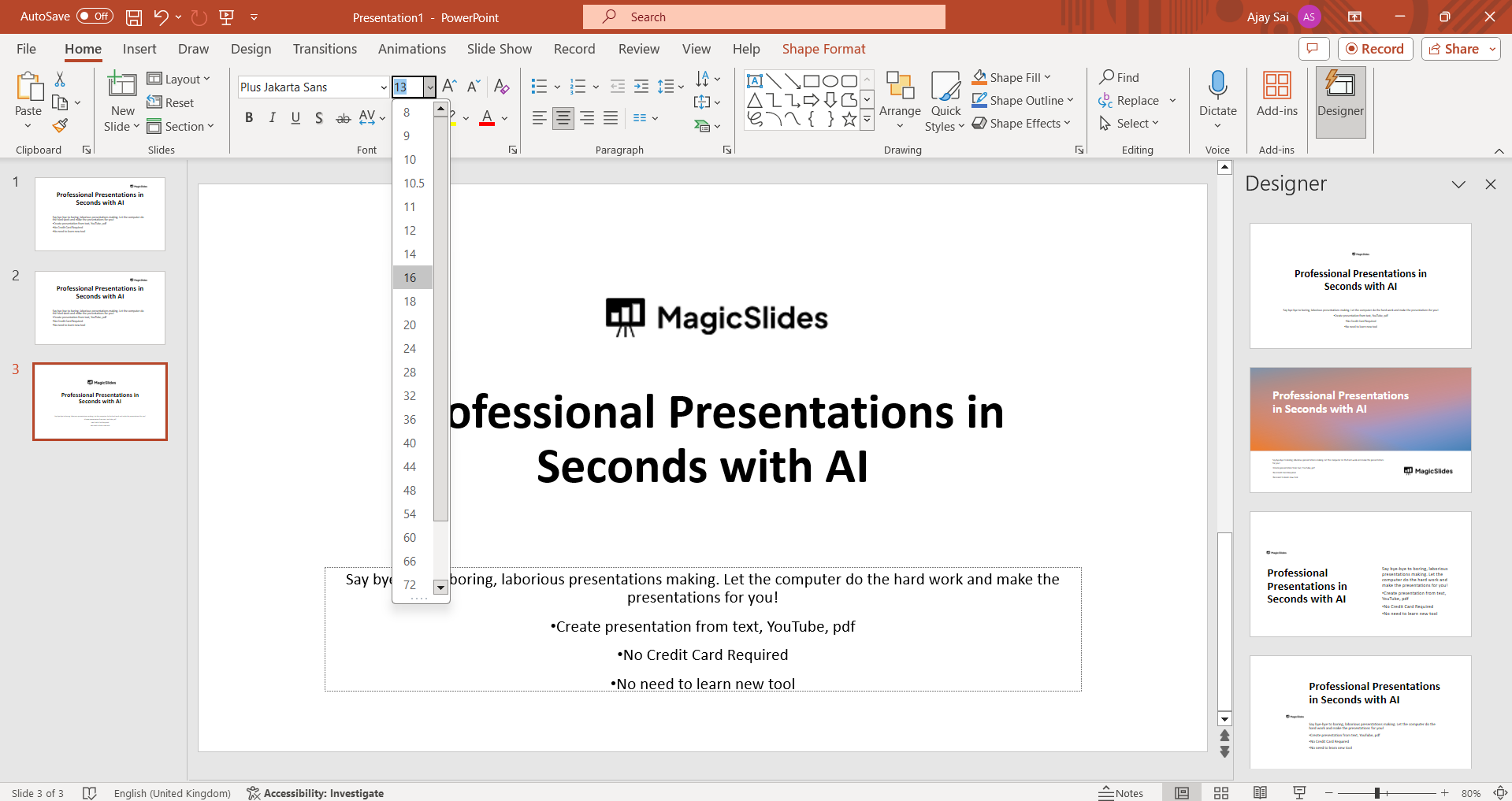
Repeat if Necessary:
If you need to apply the same or different layout to other slides, repeat the process for each slide individually. This flexibility allows you to tailor each slide to its specific content.
Save Your Changes:
Once you are satisfied with the changes, don't forget to save your presentation. This ensures that your modifications are preserved and can be accessed in future sessions or when sharing the file.
Conclusion:
By following these comprehensive steps, you can navigate PowerPoint's layout options effectively, customizing each slide for a more polished and professional presentation. Each slide becomes a canvas, and each layout a stroke of the brush, contributing to a masterpiece that communicates, captivates, and leaves a lasting impression. So, embrace the artistry of PowerPoint's layout options, and let your presentations tell stories that linger in the minds of your audience.
Frequently Asked Questions:
Why should I bother changing slide layouts in PowerPoint?
Ans: Slide layouts aren't just about aesthetics; they structure your content for maximum impact, ensuring clarity and engagement.
Can I customize a slide layout to fit my unique content?
Ans: Absolutely! PowerPoint offers flexibility. After selecting a layout, customize it to align perfectly with your message.
Will changing layouts affect my existing content and formatting?
Ans: Changing layouts won't erase content but may impact formatting. Review and adjust elements for consistency.
Have a look @these blogs which you might find helpful:
- How To Add Gifs To Powerpoint: https://www.magicslides.app/blog/how-to-add-gifs-to-powerpoint
- How To Draw On Powerpoint Slides: https://www.magicslides.app/blog/how-to-draw-on-powerpoint-slides
- How To Change Slack Account Email Id: https://www.magicslides.app/blog/how-to-change-slack-account-email-id
- How To Convert PPT To MP4 Online: https://www.magicslides.app/blog/How-to-convert-PPT-to-MP4-online


