How to draw on powerpoint slides


Elevate your PowerPoint presentations: Learn how to draw and annotate for dynamic and engaging slides.
In the realm of presentations, visual elements hold immense power. Unleash your creativity and captivate audiences by mastering the art of drawing in PowerPoint. This guide walks you through the steps to infuse your slides with dynamic annotations and illustrations, transforming your presentations into interactive and engaging experiences.
How to draw on powerpoint slides
Open PowerPoint:
Launch PowerPoint and open the presentation where you want to add drawings.
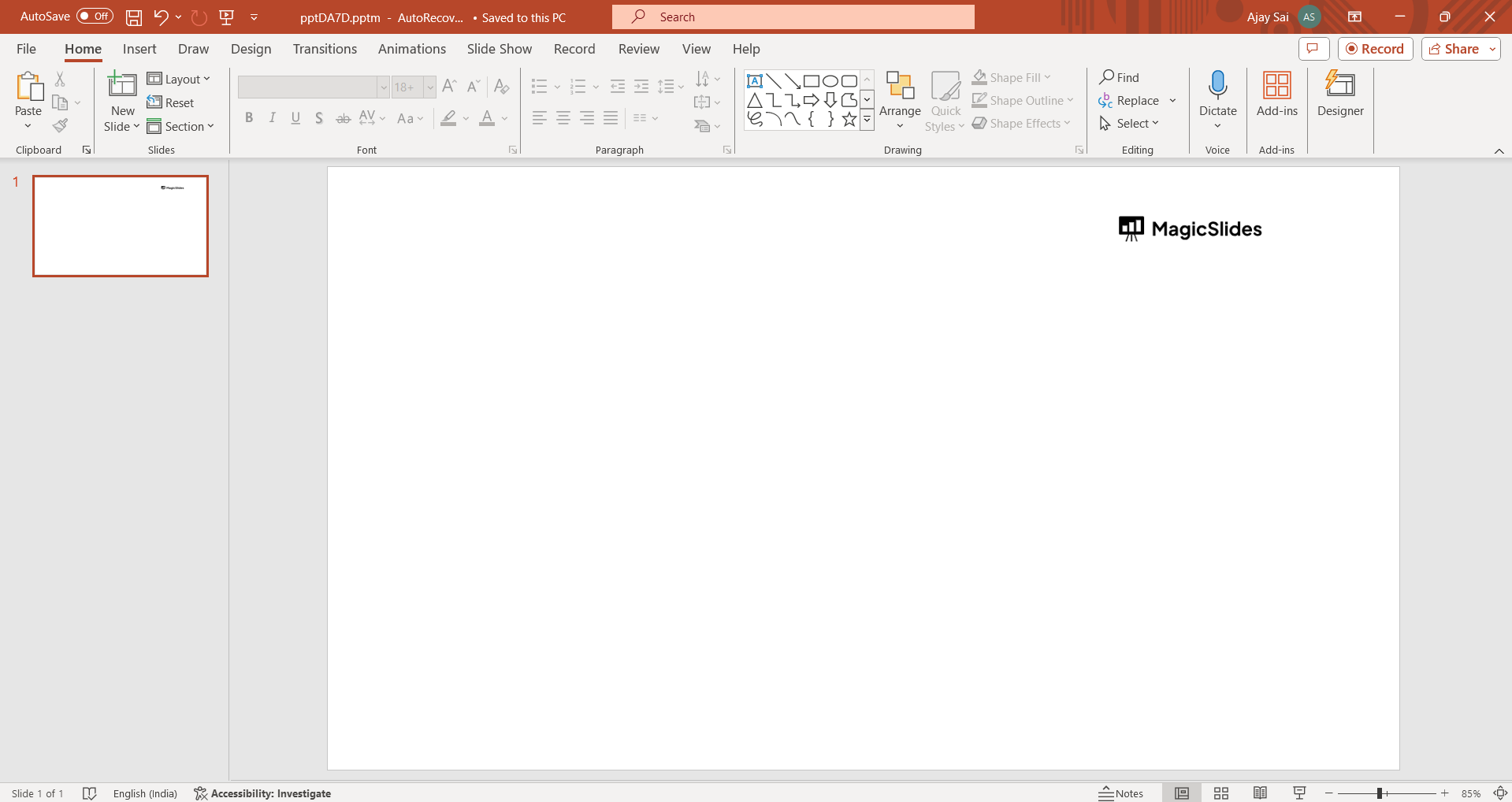
Access Drawing Tools:
Click on the "Insert" tab in the top menu.

Choose Drawing:
In the "Illustrations" group, select "Shapes." From the dropdown, choose the type of drawing you want (e.g., "Scribble" for freehand drawing).

Draw on the Slide:
Your cursor will turn into a pencil icon. Click and hold the left mouse button to draw freehand on the slide.
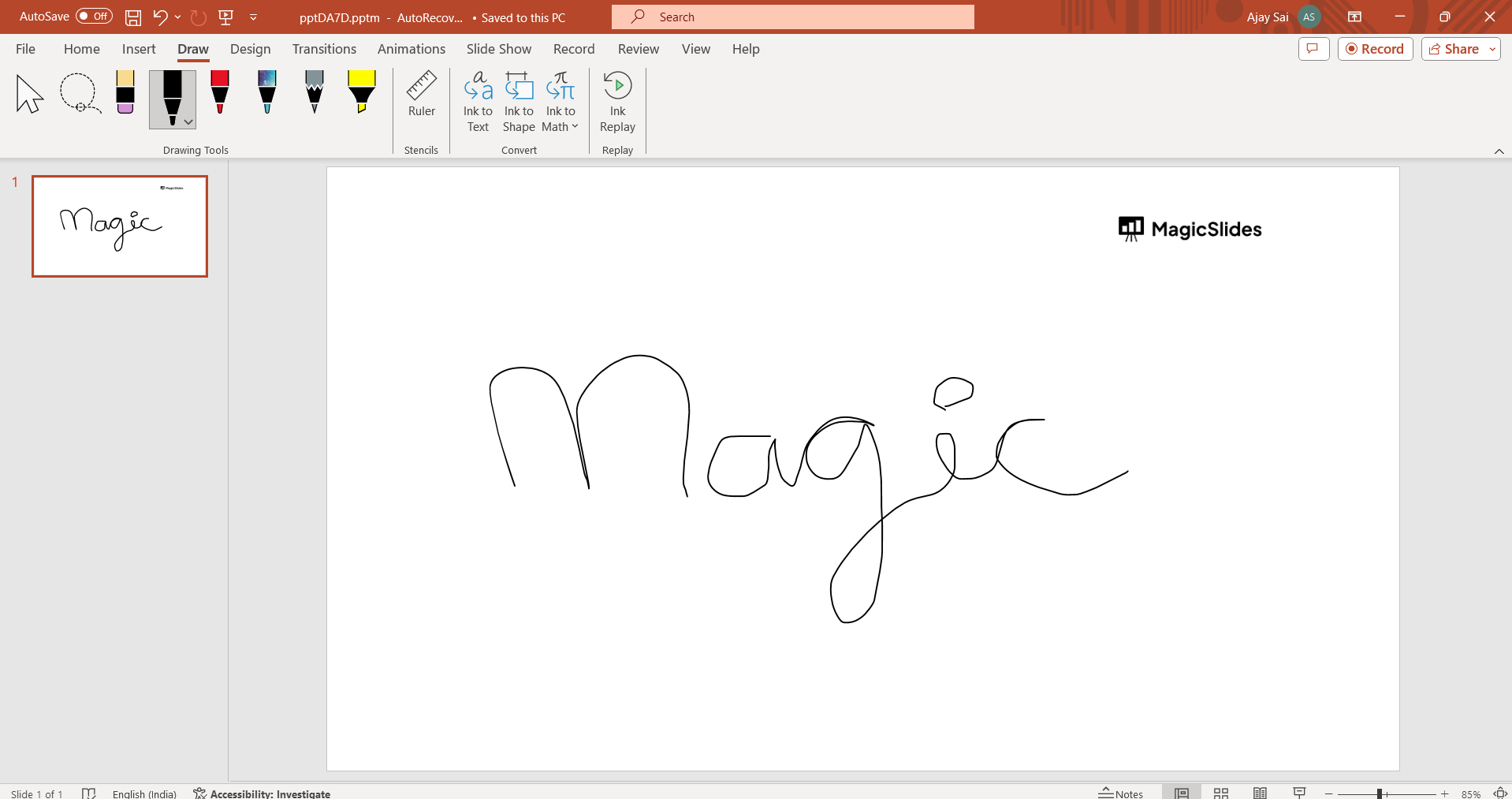
Customize Drawing:
Use the "Format" tab that appears when the drawing is selected to customize the color, thickness, and style of your drawing.
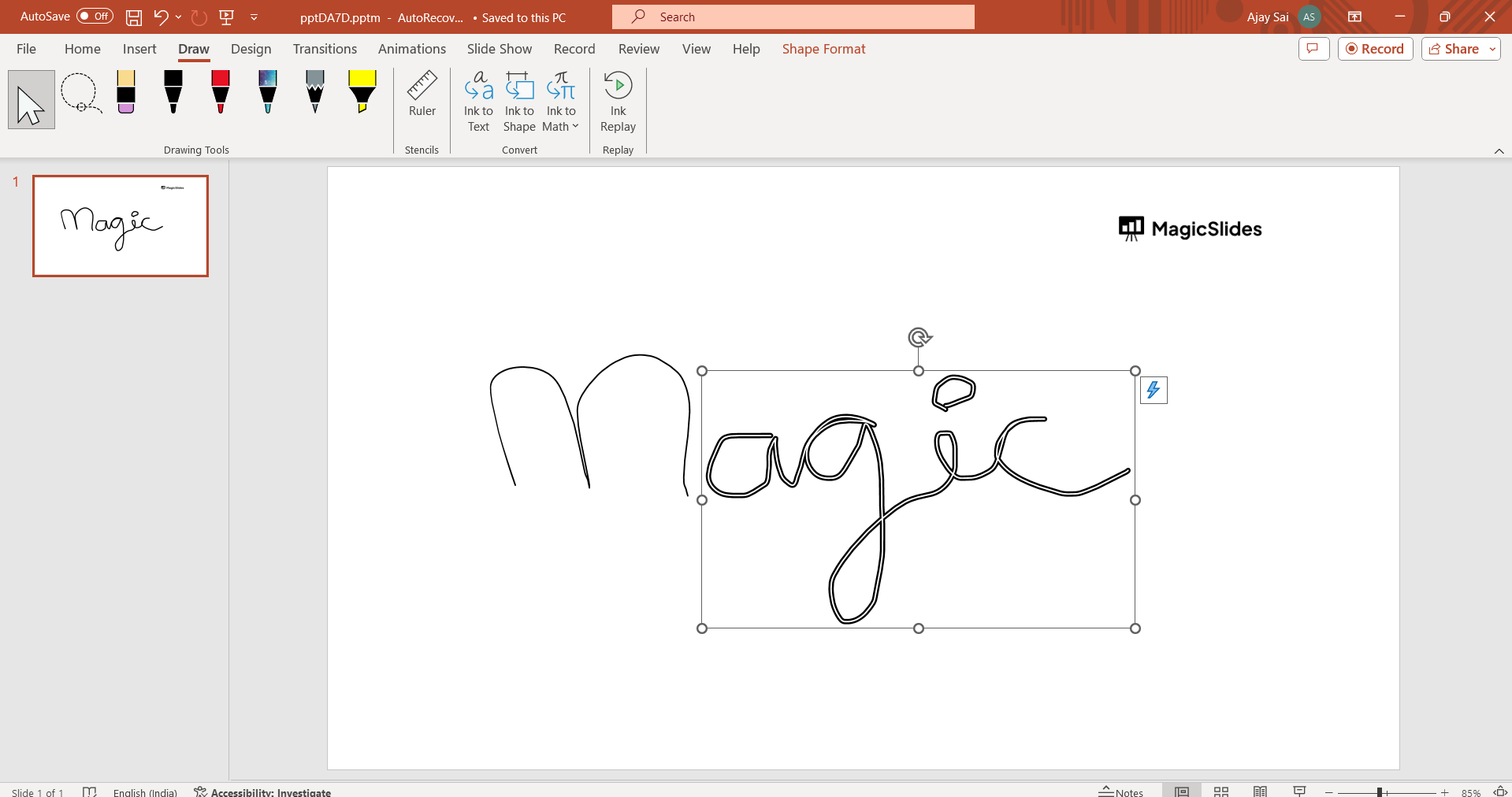
Edit or Delete:
To edit or delete a drawing, click on it to select it. You can then modify its properties or press the "Delete" key to remove it.
Save and Present:
Save your PowerPoint presentation. Your drawings will be part of the slides, ready to be presented or shared.
Conclusion:
By following these steps, you can easily add drawings and annotations to your PowerPoint slides, making your presentations more engaging and interactive. As you navigate the drawing tools, your slides become a canvas for creativity, fostering audience engagement and understanding. Elevate your presentations by embracing the versatility of drawing, turning ordinary slides into captivating visual narratives.
Frequently Asked Questions:
Q1: Can I draw on specific slides or throughout the entire PowerPoint presentation?
Ans: You can draw on individual slides or across the entire presentation, offering flexibility for emphasis.
Q2: Is it possible to animate or sequence drawn elements for a dynamic presentation?
Ans: Certainly! Utilize PowerPoint's animation features to bring drawn elements to life, enhancing your presentation's dynamism.
Q3: Can I save a PowerPoint presentation with drawn annotations as a standalone image or PDF?
Ans: Yes, simply save or export your presentation as an image or PDF to retain drawn annotations for sharing or printing.
Check out these AI Blogs by us:
- How AI Tool For Book Summaries Is Revolutionizing The Way We Absorb Information: https://www.magicslides.app/blog/how-ai-tool-for-book-summaries-is-revolutionizing-the-way-we-absorb-information
- The Future Of Web Analytics: Exploring The Role Of AI: https://www.magicslides.app/blog/the-future-of-web-analytics-exploring-the-role-of-ai
- 3 Surprising Benefits Of Artificial Intelligence In The Workplace: https://www.magicslides.app/blog/3-Surprising-Benefits-of-Artificial-Intelligence-in-the-Workplace


