How to Open VBA in PowerPoint


Learn to access VBA in PowerPoint for automating tasks and customizing your presentations effectively
Visual Basic for Applications (VBA) in PowerPoint allows you to automate tasks, customize features, and create advanced macros to enhance your presentations.
Whether you’re a beginner or an experienced user, learning how to open
VBA in PowerPoint is the first step to leveraging its powerful capabilities. Follow this step-by-step guide to access VBA in PowerPoint.
How to Open VBA in PowerPoint | Steps to Open VBA in PowerPoint
Step 1: Enable the Developer Tab
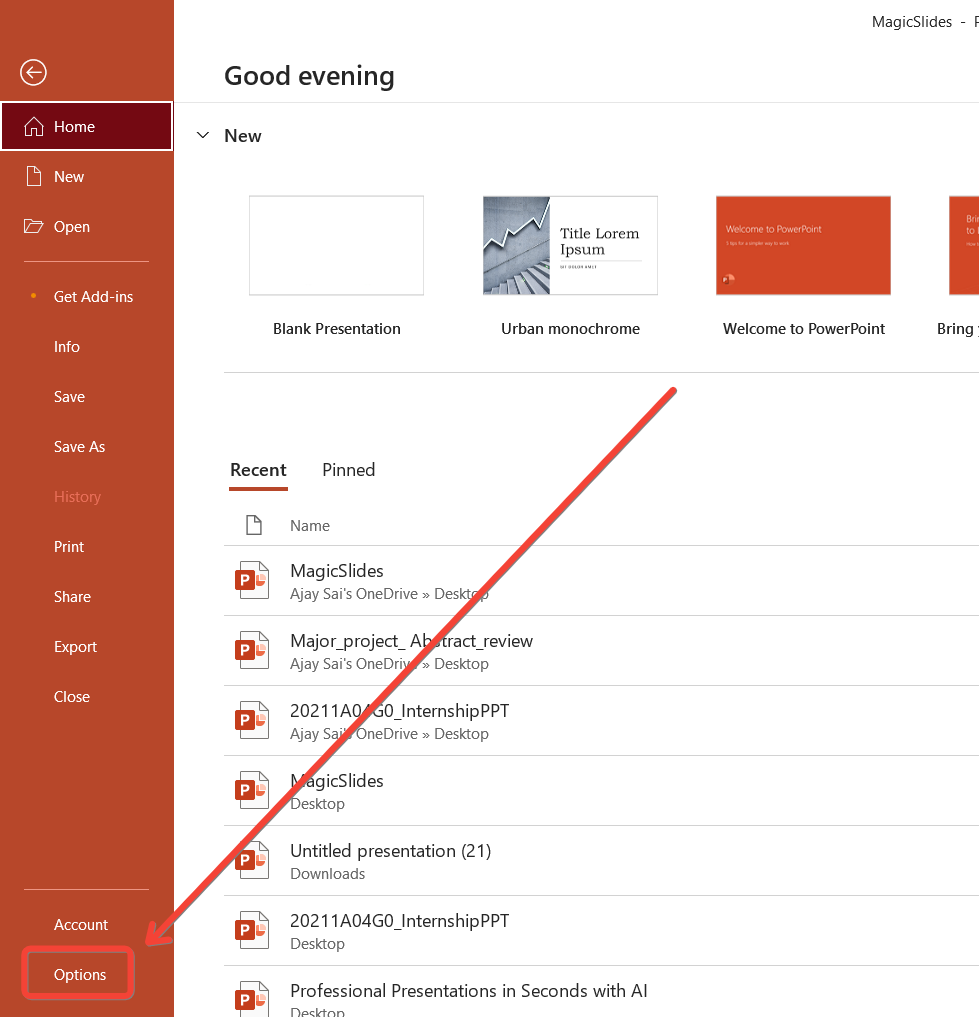
Open PowerPoint and go to the File tab. Click Options at the bottom of the menu to open the PowerPoint Options window.
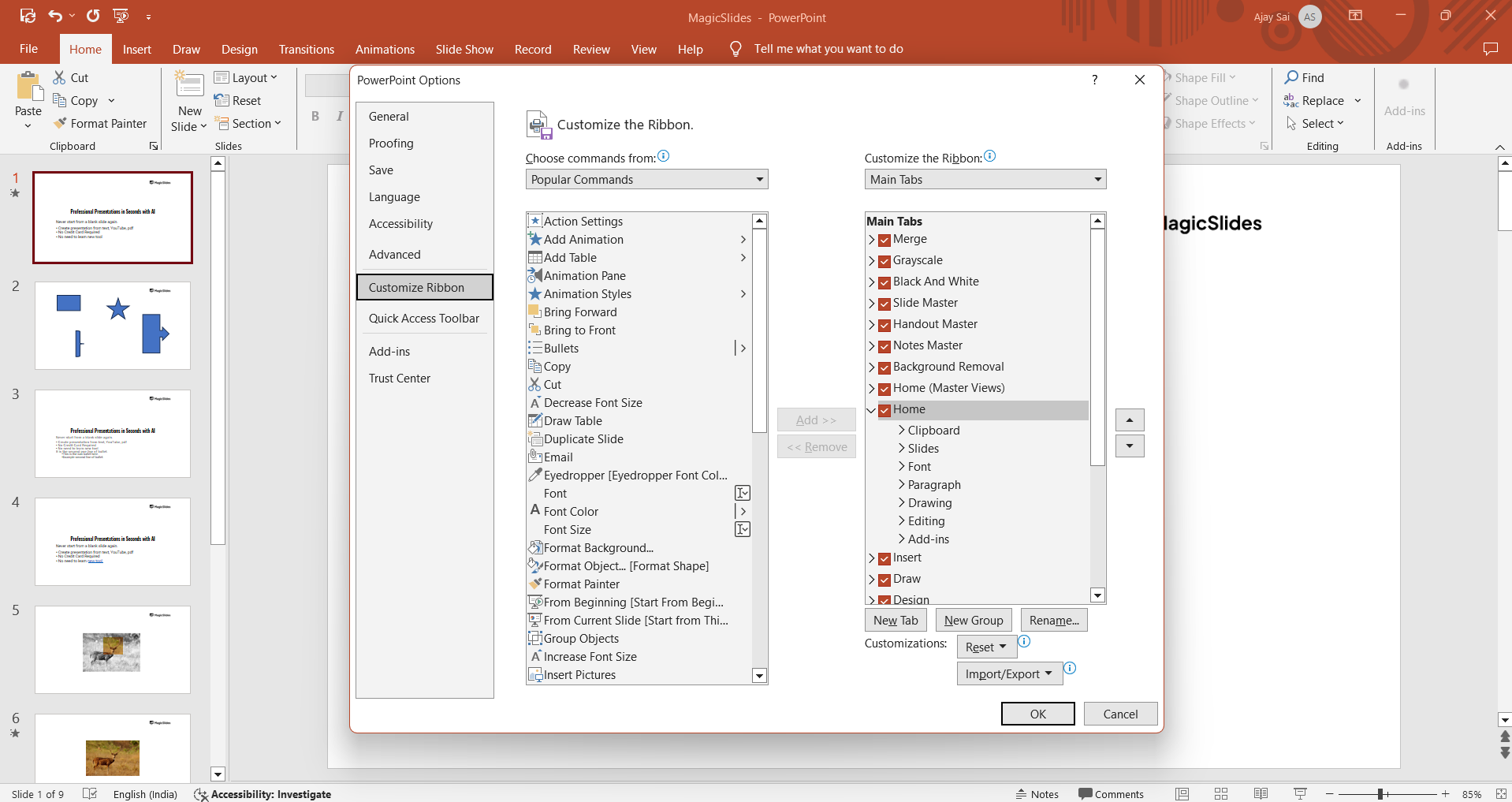
Navigate to Customize Ribbon on the left panel. In the right-hand panel, find the Main Tabs list and check the box for Developer.
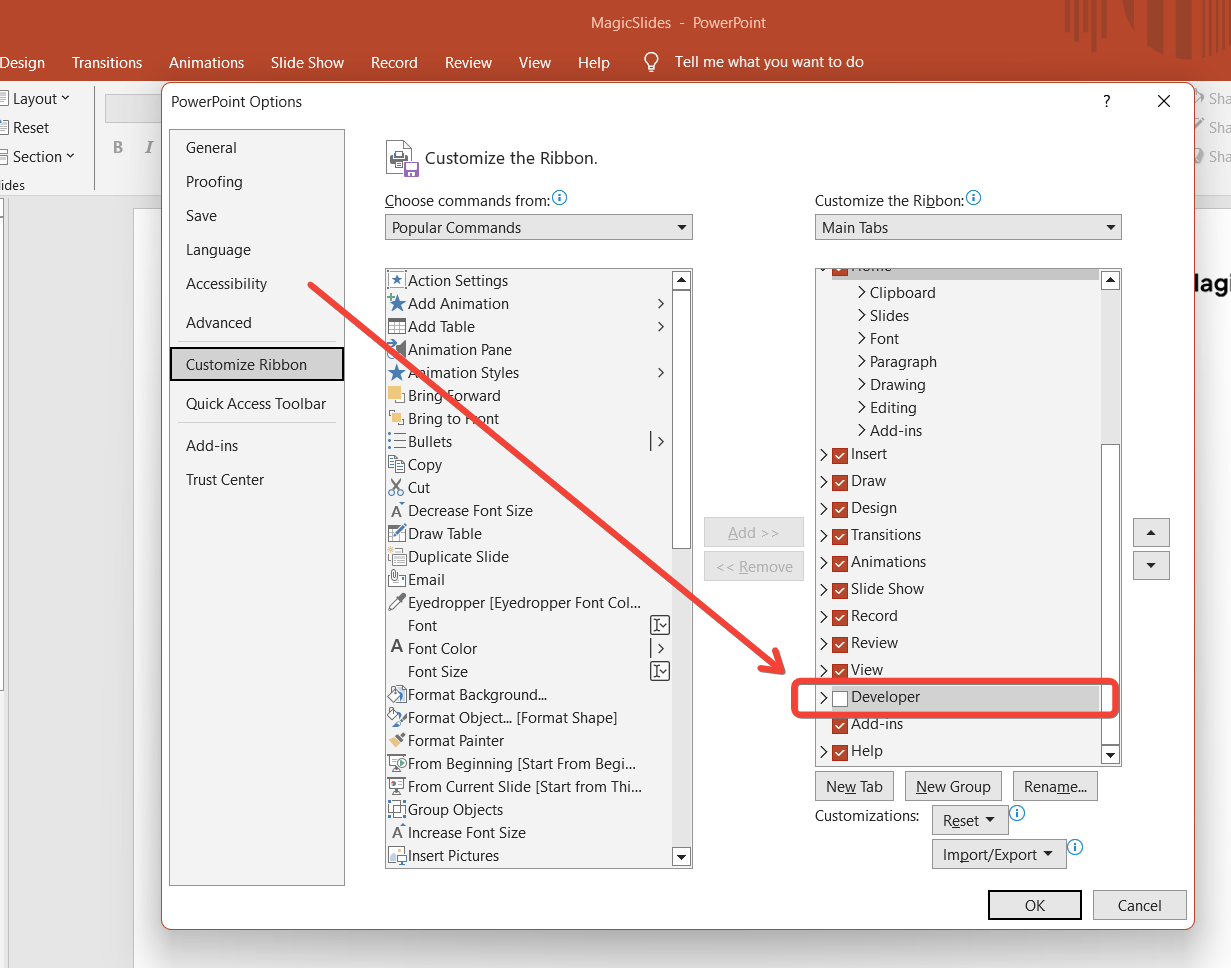
Click OK to add the Developer tab to your ribbon.
Step 2: Access the VBA Editor
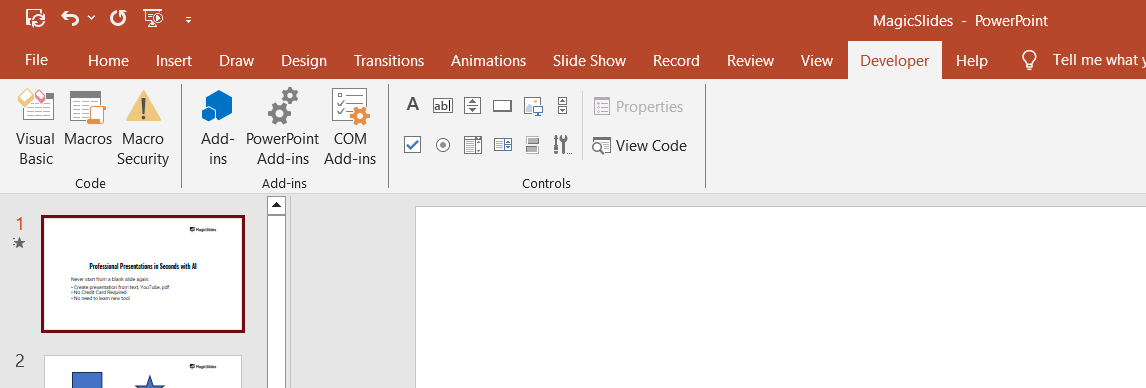
Go to the Developer tab now visible in the ribbon. In the Code group, click on Visual Basic to open the VBA editor.
Alternatively, use the keyboard shortcut Alt + F11 to directly launch the VBA editor.
Step 3: Explore the VBA Interface
Once the VBA editor opens, you’ll see different sections:
- Project Explorer: Lists your open PowerPoint projects.
- Code Window: Where you write and edit your VBA code.
- Immediate Window: For debugging and testing code.
If the Project Explorer is not visible, click View > Project Explorer in the VBA editor menu.
Step 4: Insert a New Module
In the Project Explorer, select your PowerPoint file (e.g., Presentation1).
Right-click and choose Insert > Module to create a blank module for your VBA code.
Double-click the module to open it in the Code Window.
Step 5: Start Writing or Importing VBA Code
Begin by writing your VBA code in the Code Window. For example, type:
Sub HelloWorld()
    MsgBox "Hello, World!"
End Sub
Save your code by clicking File > Save in the VBA editor.
Close the editor and return to PowerPoint.
Step 6: Run Your VBA Code
In the Developer tab, click on Macros in the Code group.
Select your macro from the list and click Run.
Test the functionality of your VBA code in PowerPoint.
→ Now that you’ve opened VBA in PowerPoint, enhance your workflow by creating a PowerPoint template with your company logo for a consistent brand presence.
Conclusion
Opening VBA in PowerPoint unlocks a world of possibilities for automating tasks and enhancing your presentations.
By following these steps, you can access the VBA editor, write code, and execute macros with ease.
With practice, you’ll be able to use VBA to streamline your workflow and add unique functionality to your PowerPoint projects.
FAQs on Opening VBA in PowerPoint
Do I need to enable macros in PowerPoint to use VBA?
Yes, to run VBA code, ensure that macros are enabled. Go to File > Options > Trust Center > Trust Center Settings > Macro Settings and select Enable all macros.
Can I open VBA in PowerPoint for Mac?
Yes, you can open VBA on PowerPoint for Mac by enabling the Developer tab and using Alt + F11 or Tools > Macro > Visual Basic Editor.
What can I automate with VBA in PowerPoint?
You can automate repetitive tasks, customize slide layouts, manage objects, and create interactive presentations using VBA.
By following this guide, you’ll be ready to dive into the world of VBA and take your PowerPoint skills to the next level!


