How to Summarize Blog Posts text into Visual Slideshows


Transform lengthy blog posts into engaging visual slideshows effortlessly with our step-by-step guide on effective summarization techniques. Elevate your content!
In today’s fast-paced digital world, the ability to convert lengthy blog posts into visually appealing slideshows is a valuable skill for content creators, educators, and business professionals. This step-by-step guide will take you through the process using the MagicSlides GPT extension on Google Slides.
How to Summarize Blog Posts text into Visual Slideshows
To begin this creative journey, let’s start with the basics.
Visit Google Slides
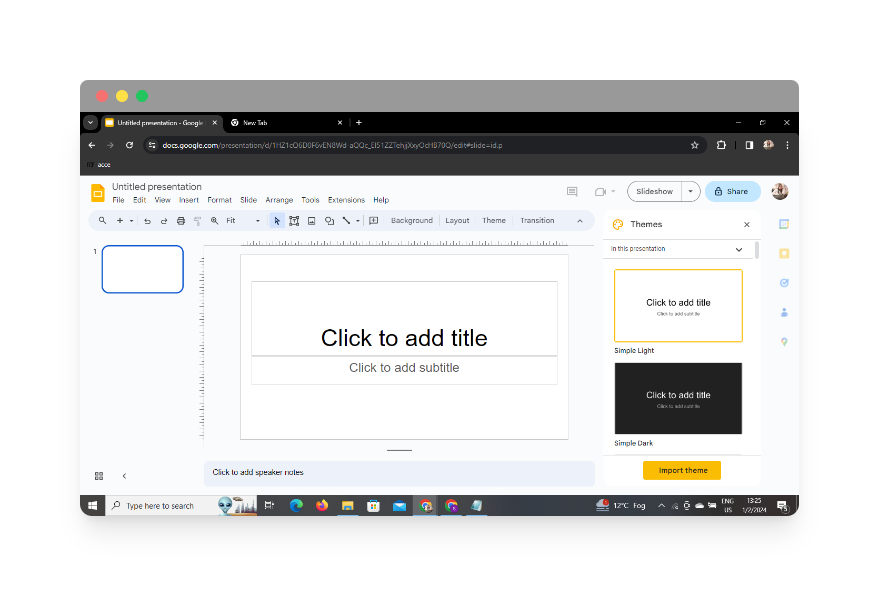
Navigate to Google Slides, a user-friendly cloud-based presentation tool provided by Google. If you don’t have a Google account, you’ll need to sign up to access this powerful platform.
Sign In with Google to Google Slides
Once on the Google Slides homepage, sign in with your Google account. This step is crucial for saving and accessing your work seamlessly.
Using MagicSlides GPT Extension
If you’ve already downloaded the MagicSlides GPT extension, follow these steps. If not, don’t worry – we’ve got you covered.
In Extensions, Click on MagicSlides GPT
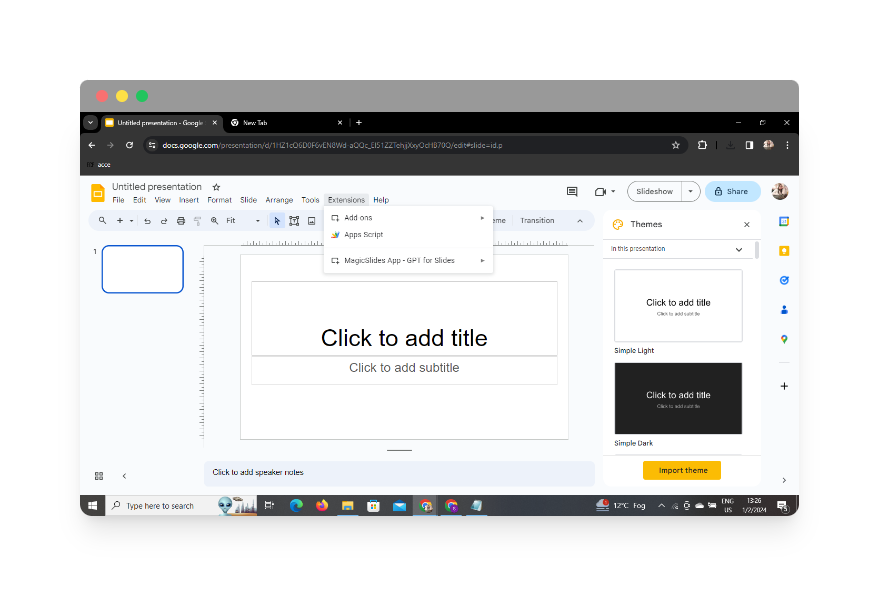
Locate the “Extensions” menu on your Google Slides interface. Click on “MagicSlides GPT” to activate this powerful tool.
If Not Downloaded, First Download as an Extension, Then Open
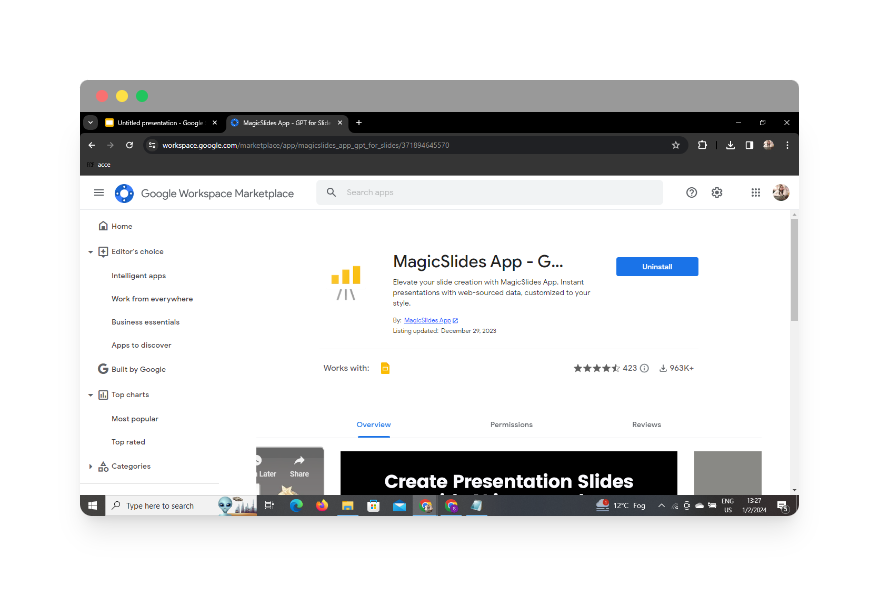
If you haven’t downloaded the MagicSlides GPT extension yet, navigate to the Google Workspace Marketplace, find MagicSlides GPT, and add it to your extensions. Once installed, open the extension.
Click on ‘Generate PPT’ in MagicSlides GPT
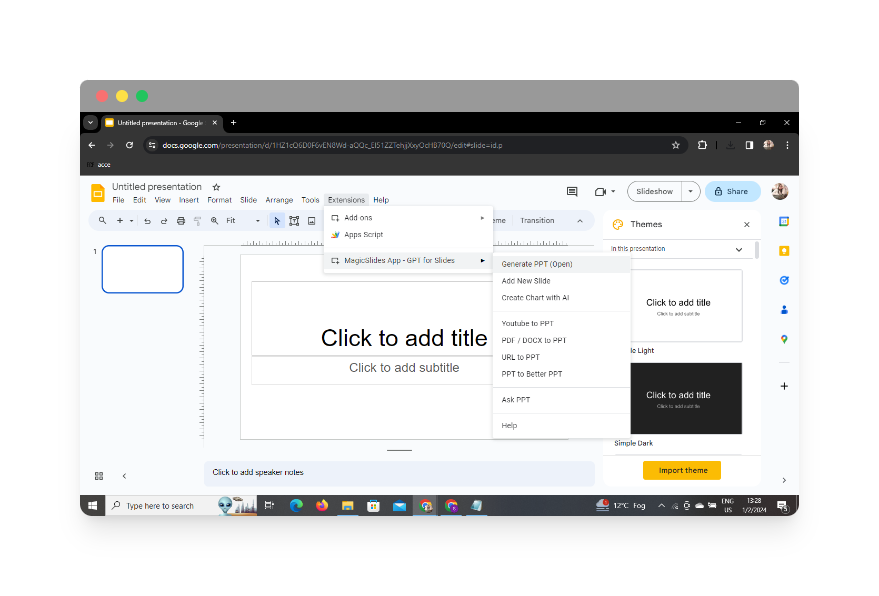
Within the MagicSlides GPT extension, locate and click on the “Generate PPT” option. This sets the stage for transforming your blog post into a visually appealing presentation.
Click on ‘Summarize’ Option
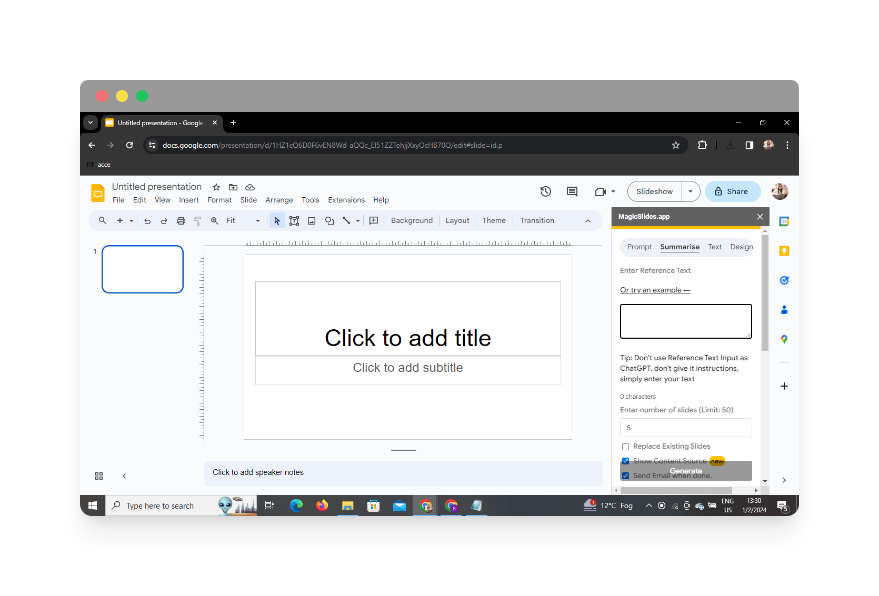
Among the MagicSlides GPT features, choose the “Summarize” option. This function enables the tool to condense the key points of your blog post into concise and impactful slides.
Paste Your Blog Post
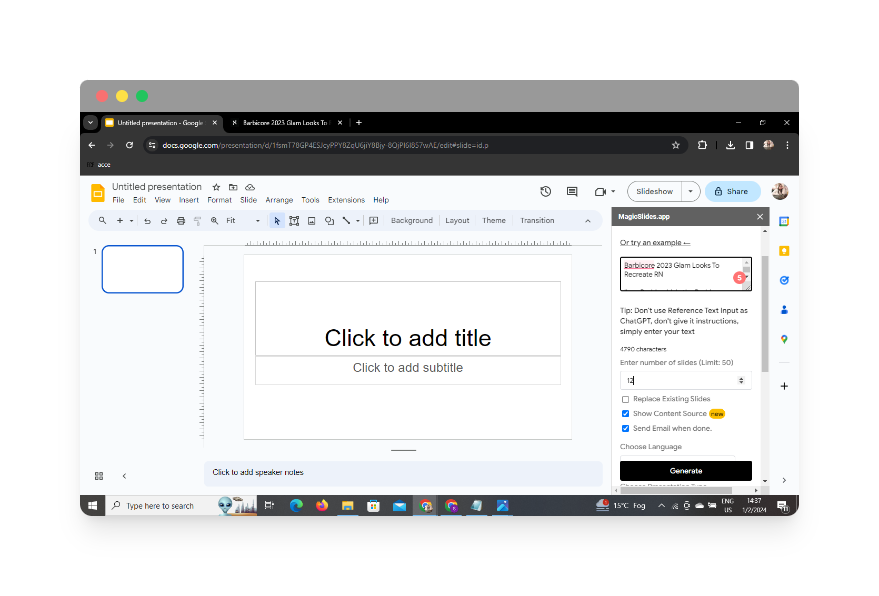
Copy the text from your blog post and paste it into the designated area within the MagicSlides GPT extension. This is the content that will be summarized and transformed into slides.
Select the Number of Slides
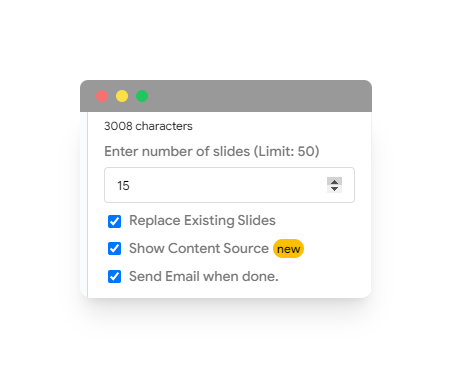
Specify the desired number of slides for your presentation. This allows you to control the granularity of information on each slide and tailor it to your audience.
Click on ‘Generate Presentation’
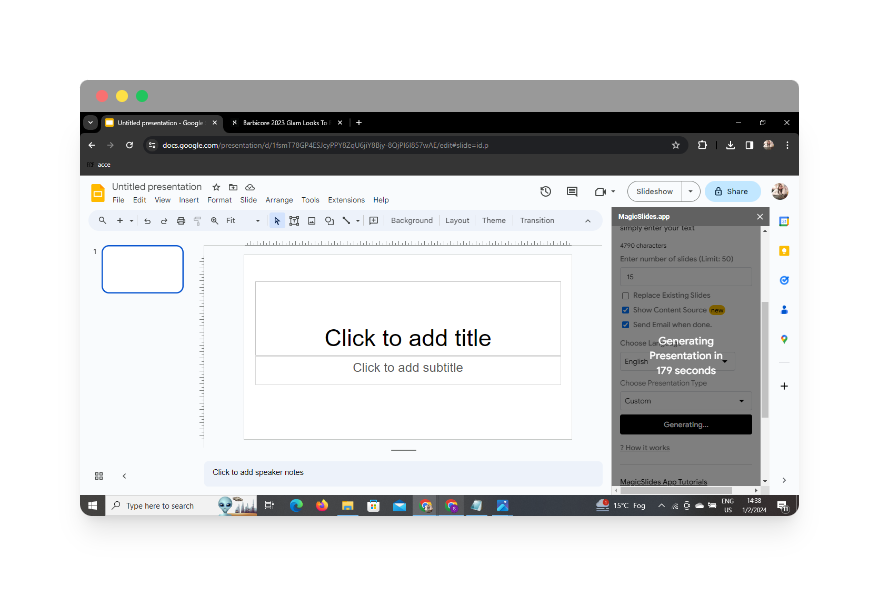
Once you’ve configured the settings, click on the “Generate Presentation” button. MagicSlides GPT will work its magic, summarizing your blog post and creating a visually engaging presentation.
Your Presentation Is Ready!
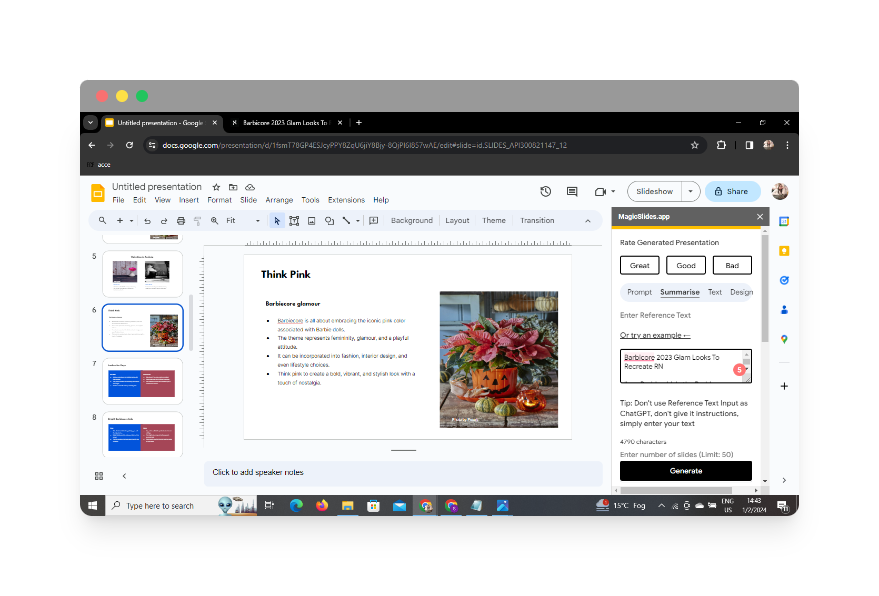
Congratulations! Your presentation is now ready to be viewed, shared, or incorporated into your content strategy. Leverage the power of visual storytelling to captivate your audience and convey information effectively.
Conclusion
Turning lengthy blog posts into visually appealing slideshows has never been easier, thanks to the innovative combination of Google Slides and MagicSlides GPT. This process not only saves time but also enhances the impact of your content.
Frequently Asked Questions (FAQs)
Can I use MagicSlides GPT with any type of blog post?
Yes, MagicSlides GPT is designed to summarize and transform text from various sources, including blog posts, articles, and more.
Is it necessary to download the MagicSlides GPT extension?
Yes, to utilize the MagicSlides GPT features, you need to download and activate the extension within Google Slides.
Can I customize the design of the generated slides?
Absolutely! After generating the presentation, you can further customize the slides within Google Slides to align with your branding or personal style.
What if I want to add additional information to the generated slides?
No problem. After the initial generation, you have full control over the slides. You can add, edit, or remove content as needed.
Is MagicSlides GPT compatible with other presentation software?
Currently, MagicSlides GPT is designed to work seamlessly with Google Slides. Compatibility with other platforms may vary.
Explore the possibilities of transforming your textual content into dynamic visual presentations with MagicSlides GPT and elevate your communication to new heights!
Have a look @these informative blogs by us:
• How To Create PPTs For Seminar Topics From Website URL: https://www.magicslides.app/blog/how-to-create-ppts-for-seminar-topics-from-website-url • How To Convert A Research Paper PDF To PowerPoint Slides?: https://www.magicslides.app/blog/how-to-convert-a-research-paper-pdf-to-powerpoint-slides • How To Remove An App From Slack: https://www.magicslides.app/blog/how-to-remove-an-app-from-slack • How To Convert Blog Post To Presentations: https://www.magicslides.app/blog/how-to-convert-blog-post-to-presentations


