How to Convert JPEG to PPT Online?


Convert JPEG to PPT using MagicSlides’ powerful AI tool. Make your JPEG files into editable PowerPoint slides instantly.
How to Convert JPEG to PPT Online Using AI?
Have a JPEG file you'd like to turn into a polished PowerPoint presentation? Whether it’s a flyer, poster, infographic, or even a scanned handwritten note, converting .jpeg files into editable slides can save time and effort.
Fortunately, with MagicSlides’ Image to PPT Converter tool, the process is super simple and powered by AI! This tool intelligently analyzes your JPEG files and builds an editable PPT file you can customize. Here's a complete step-by-step guide to help you use it like a pro.
Step-by-Step: Convert JPEG to PPT with MagicSlides
Step 1: Visit MagicSlides Tool Page
Go to the tool’s page, MagicSlides lets you convert any image file, such as JPEG, PNG, etc., into a PowerPoint presentation.
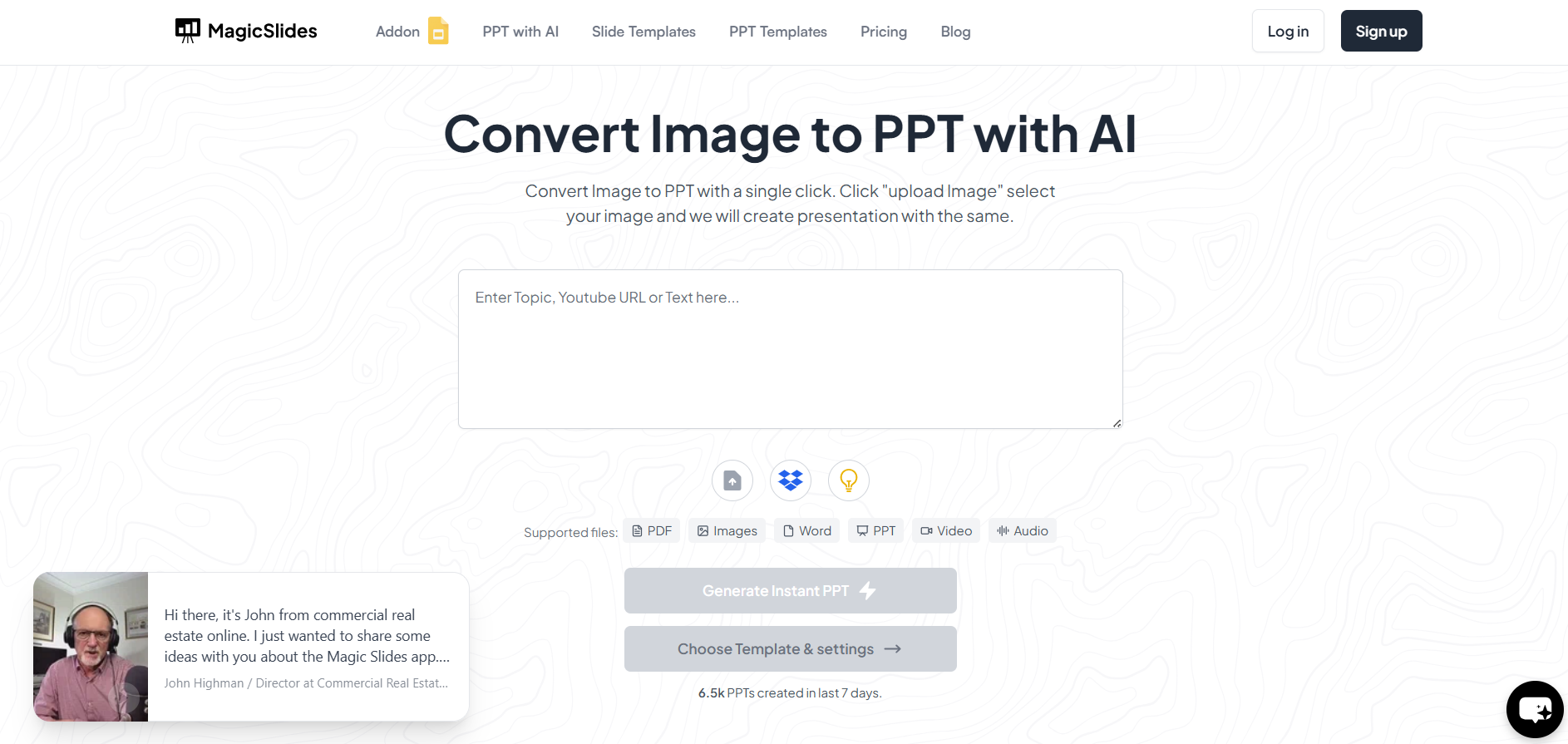
Step 2: Upload Your JPEG File
Click on the "Upload Image" button. Select the JPEG file you want to convert from your device. The tool accepts the most common file formats, including .jpeg, .jpg, and .png.
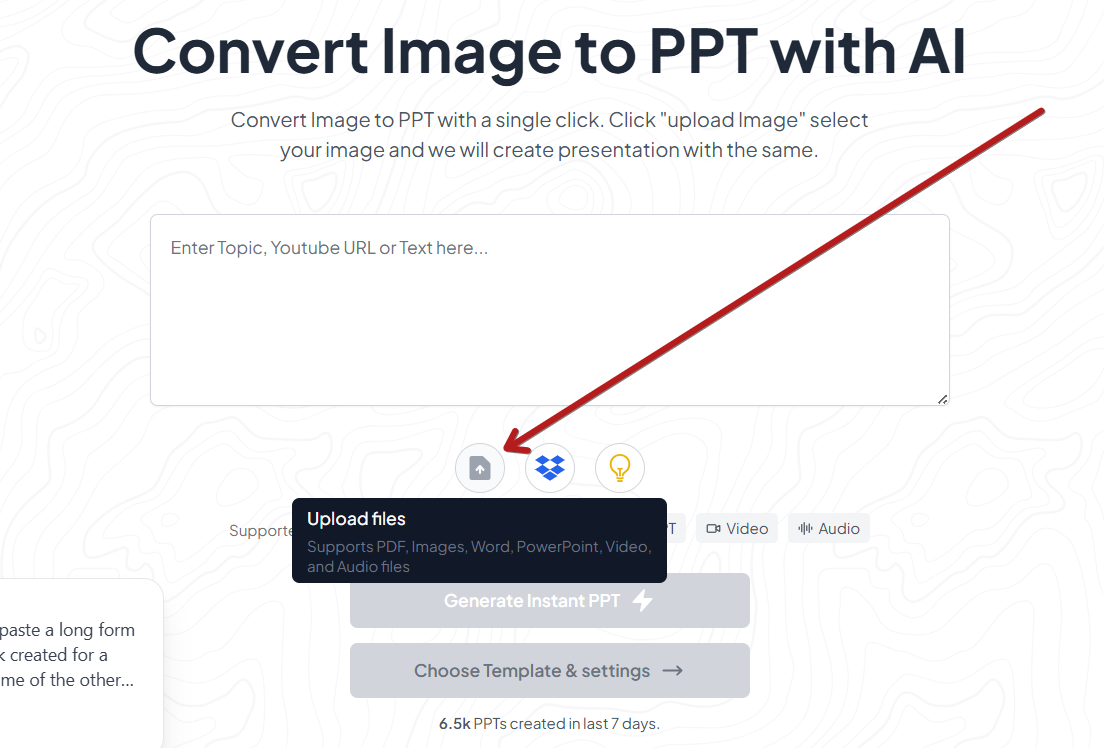
💡 Tip: Make sure your .jpeg has clear text and visuals for the best conversion results.
Step 3: Let the AI Do Its Magic
Once uploaded, MagicSlides will automatically analyze the file using AI to extract key information like headings, content, and layout. It then recreates this as editable slide content in a PowerPoint-compatible format.
The processing takes just a few seconds, depending on the size and detail of your JPEG file.
Step 4: Download Your Editable PPT
After the AI finishes generating your slides, you’ll get a Download PPT button. Click on it to download your file, and you’re good to go! The resulting PowerPoint file will open with your original JPEG file content laid out on editable slides. In this way, you can easily convert JPEG to PPT in just four steps.
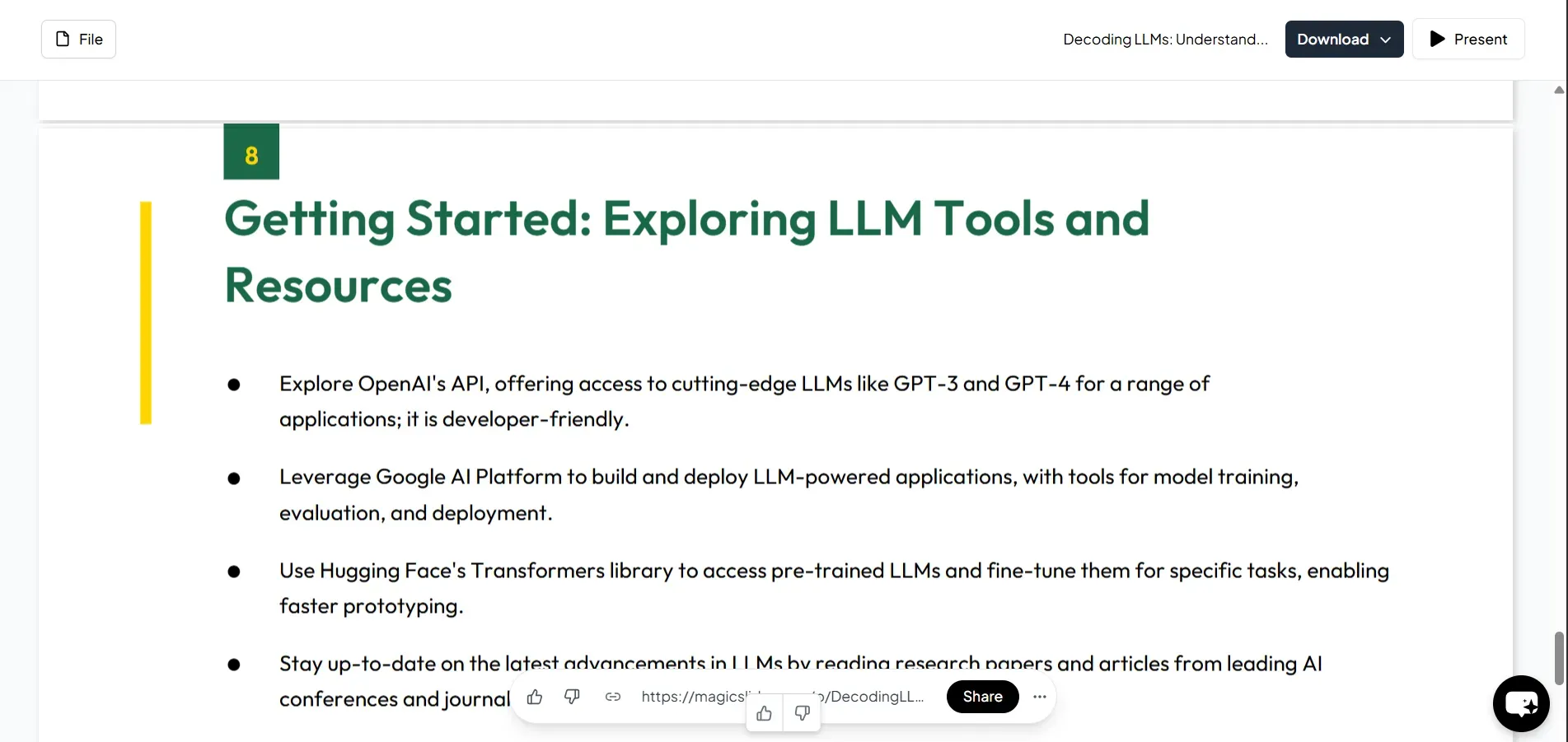
Step 5: Customize Your Slides
Once you've downloaded the PPT, open it using Microsoft PowerPoint or Google Slides. You can now edit text, reposition elements, add animations, or change the theme as needed.
Conclusion
Converting JPEGs to PowerPoint presentations doesn’t need to be manual or time-consuming.
With MagicSlides’ tool, you can turn static visuals into editable, professional slides in just a few clicks.
This is perfect for designers, educators, marketers, and anyone looking to reuse JPEG content in presentations. Give it a try and elevate your presentation game!
FAQs
Q1. Can I convert multiple JPEG files at once using MagicSlides?
Currently, the tool supports one JPEG file per conversion. You can repeat the process for each file and combine them into a single PPT afterward.
Q2. Does it work with PNG or only JPEG?
Yes, it supports various file formats, including .jpeg, .jpg, and .png.
Q3. Is it free to use the JPEG to PPT tool?
MagicSlides offers limited free conversions. For frequent or high-volume use, consider subscribing to a premium plan for enhanced features and access.


