How to Use Gemini Deep Research to Analyze Documents


Want to analyze PDFs, research papers, or business reports in minutes — not hours? Learn how to use Gemini Deep Research from Google Gemini AI to summarize, extract, and simplify documents with precision.
Whether it’s a 90-page financial report, a dense academic paper, or a legal contract full of jargon, manually analyzing documents takes time, focus, and patience.
Traditional document review methods — skimming for highlights, Ctrl+F hunting, or copying notes — often lead to:
- Missed insights
- Human error
- Mental burnout
That’s where AI tools like Gemini Deep Research come in.
Gemini AI — Your Document Analysis Copilot
Google Gemini’s Deep Research mode is designed to deeply understand, summarize, and extract information from large documents like PDFs, Word files, and online content.
Whether you’re in legal, academia, business, or policy, this tool can turn complex information into clear takeaways in seconds.
What Is Gemini Deep Research?
Gemini Deep Research is a premium feature within Google Gemini Advanced, part of Google’s next-gen Gemini AI suite.
What makes it special?
Unlike regular AI chat tools, Gemini Deep Research is optimized for:
- Source-grounded responses
- Long-document summarization
- Multi-document comparison
- Deep factual accuracy
It’s particularly powerful for:
- Research papers
- Legal documents
- Technical reports
- Strategic memos
So if you’re looking to analyze documents using Gemini at a high level — this tool is tailor-made for you.
Step-by-Step: How to Use Gemini Deep Research to Analyze Documents
Let’s walk through exactly how to use Gemini Deep Research to analyze your documents:
Step 1: Open Gemini with Your Google Account

- Go to https://gemini.google.com
- Log in with your Google Account
- Upgrade to Gemini Advanced (required to access Deep Research tools)
- A free trial is often available for first-time users!
💡 Note: Gemini Advanced is part of Google One’s AI Premium Plan, which also unlocks Gemini features in Gmail, Docs, and Sheets.
Step 2: Upload or Paste Your Document
You can:
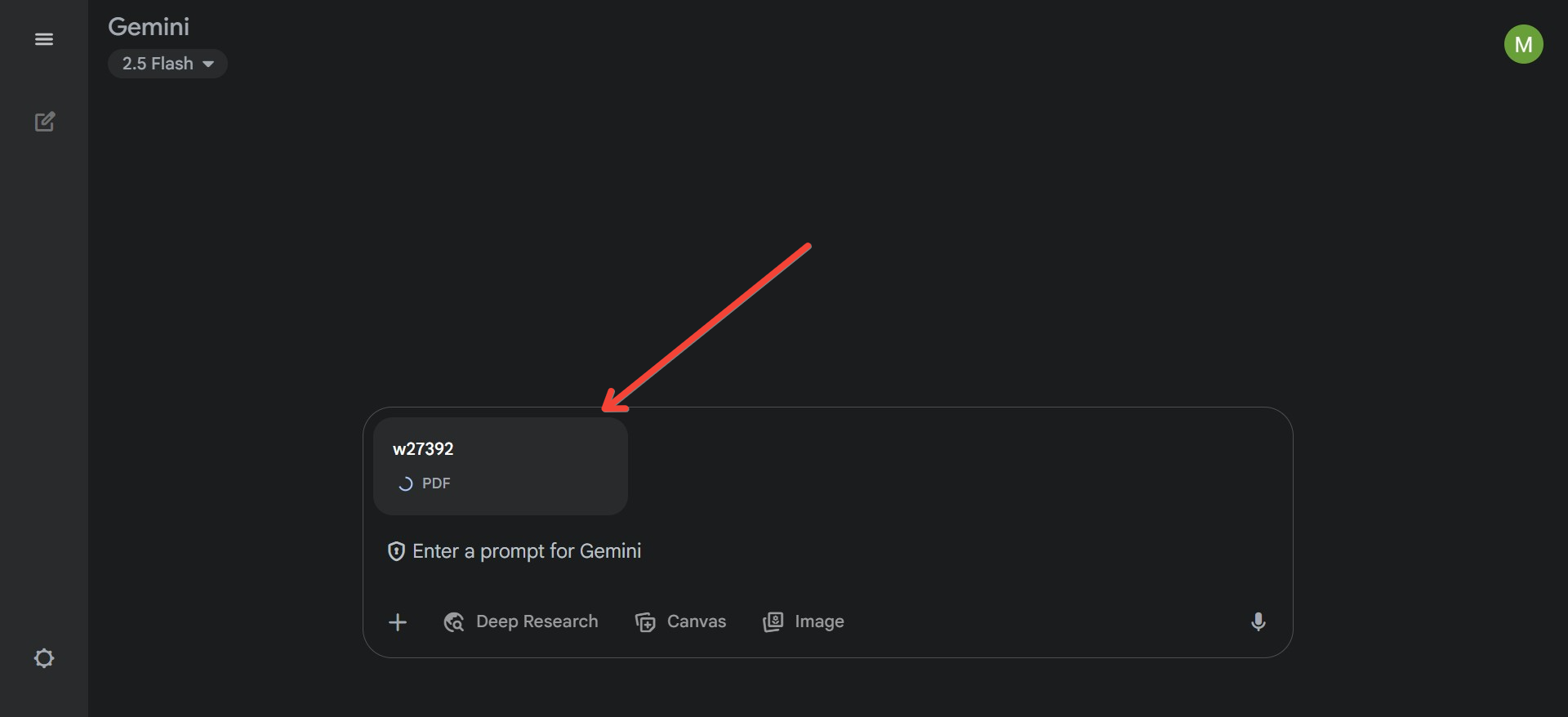
- Upload a PDF or .docx
- Paste text directly into the chat
- Insert a Google Doc link (ensure link sharing is enabled)
📌 Tips:
- Best results for PDFs under 50 pages
- Use clear section headers in the document for smarter analysis
- Gemini handles text-based PDFs best (scanned images may require OCR)
Step 3: Use Prompts for Research Assistance
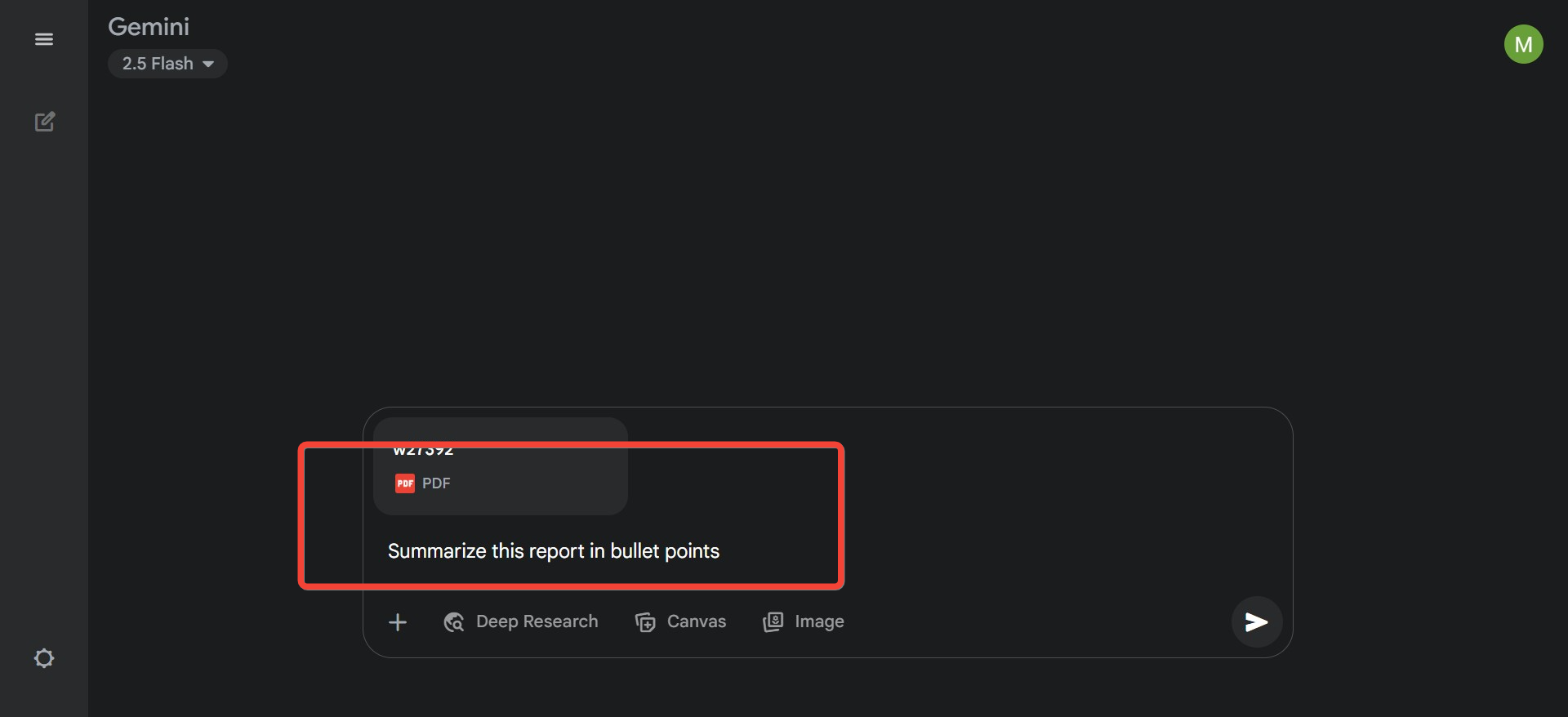
Once uploaded, use the Gemini AI research assistant to dig into the content.
Try prompts like:
- “Summarize this report in bullet points.”
- “Extract all dates, deliverables, and responsible parties.”
- “What are the risks and mitigation plans in this strategy doc?”
- “Turn this into a 5-slide presentation outline.”
💡 Once you have a rough outline from Gemini, you can instantly turn it into a full editable deck using MagicSlides.app — just paste the outline and let it generate Google Slides or PPTX instantly.
How to Turn Gemini Outputs into Presentations Using MagicSlides.app
Once you’ve extracted a summary or outline using Gemini Deep Research, you can instantly transform it into a polished presentation using MagicSlides.app.
Here’s how:
Step 1: Go to www.MagicSlides.app

- Open the site in your browser
- Sign in with your Google account to connect Google Slides
- No installation required — works directly from your browser
Step 2: Choose a Mode
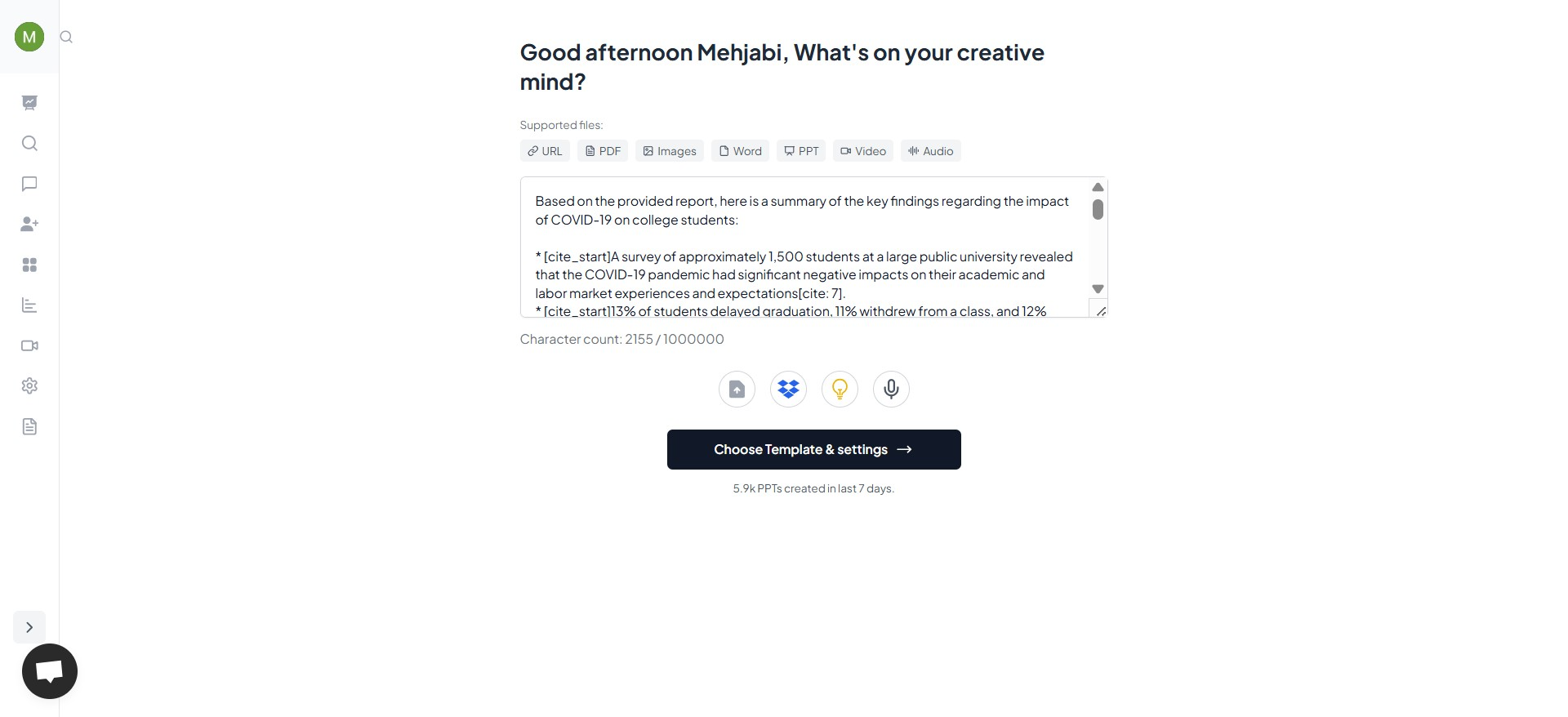
MagicSlides offers multiple creation modes:
- Outline to Slides – paste your outline or summary from Gemini
- Prompt to Deck – enter a topic and let MagicSlides research and create
- Document Upload – Upload research to auto-generate slides
For Gemini users, Outline to Slides is the fastest and most direct option.
Step 3: Paste the Outline or Summary from Gemini
- Copy the output you got from Gemini (key points, headings, summary bullets)
- Paste it into the “Outline” box on MagicSlides
- Edit or rearrange the structure as needed
Step 4: Choose a Design Style
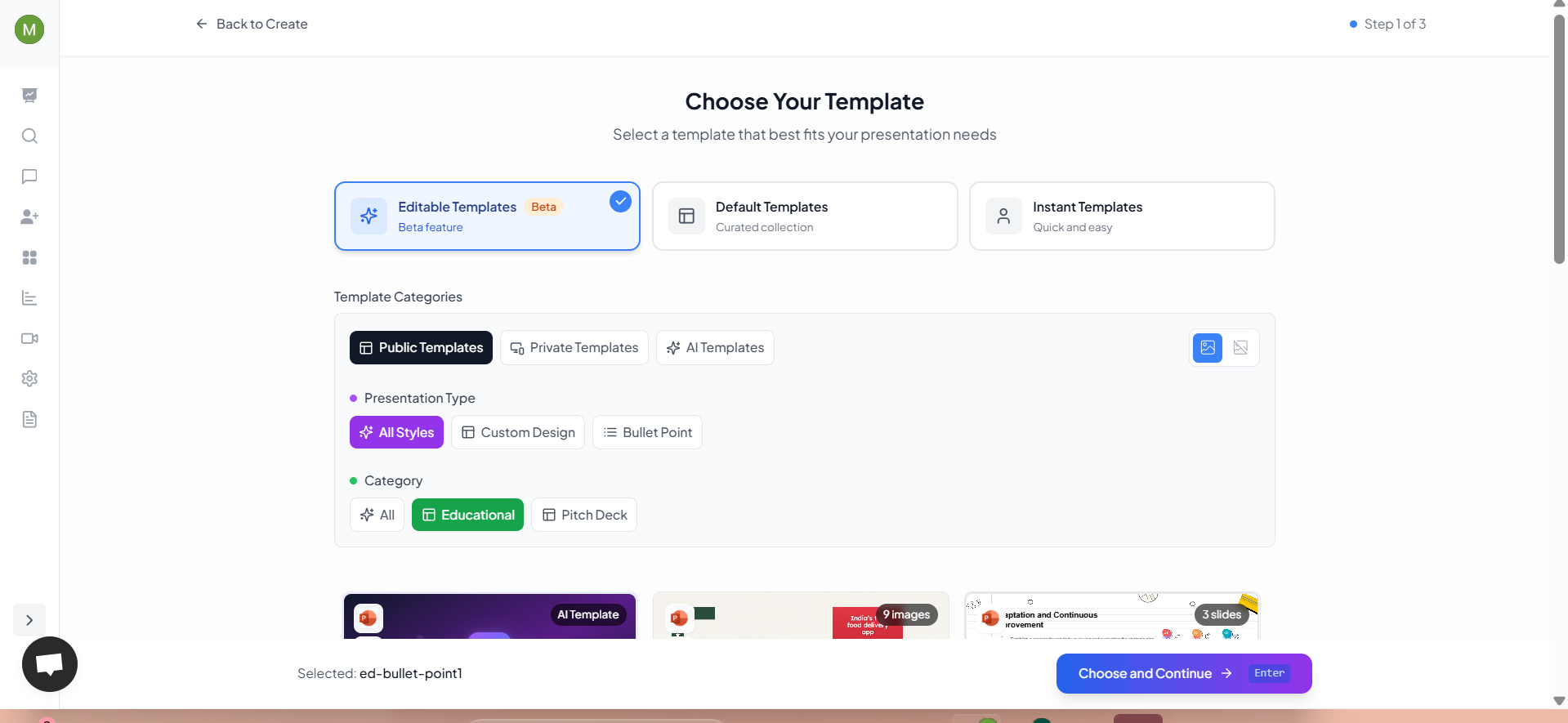
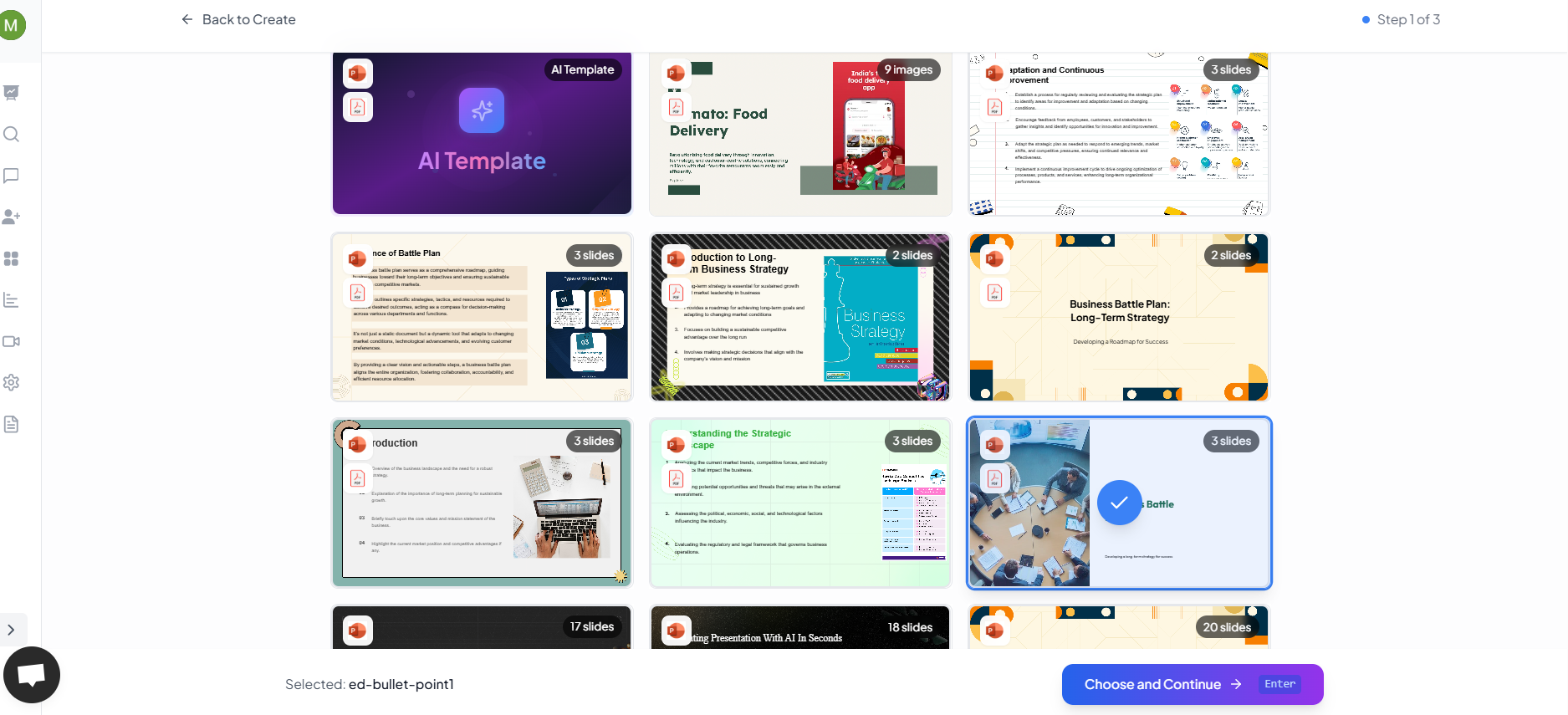
- Select from professional themes like corporate, modern, minimalist, or dark
- Customize fonts, colors, and layout before slide generation
Step 5: Generate Your Presentation
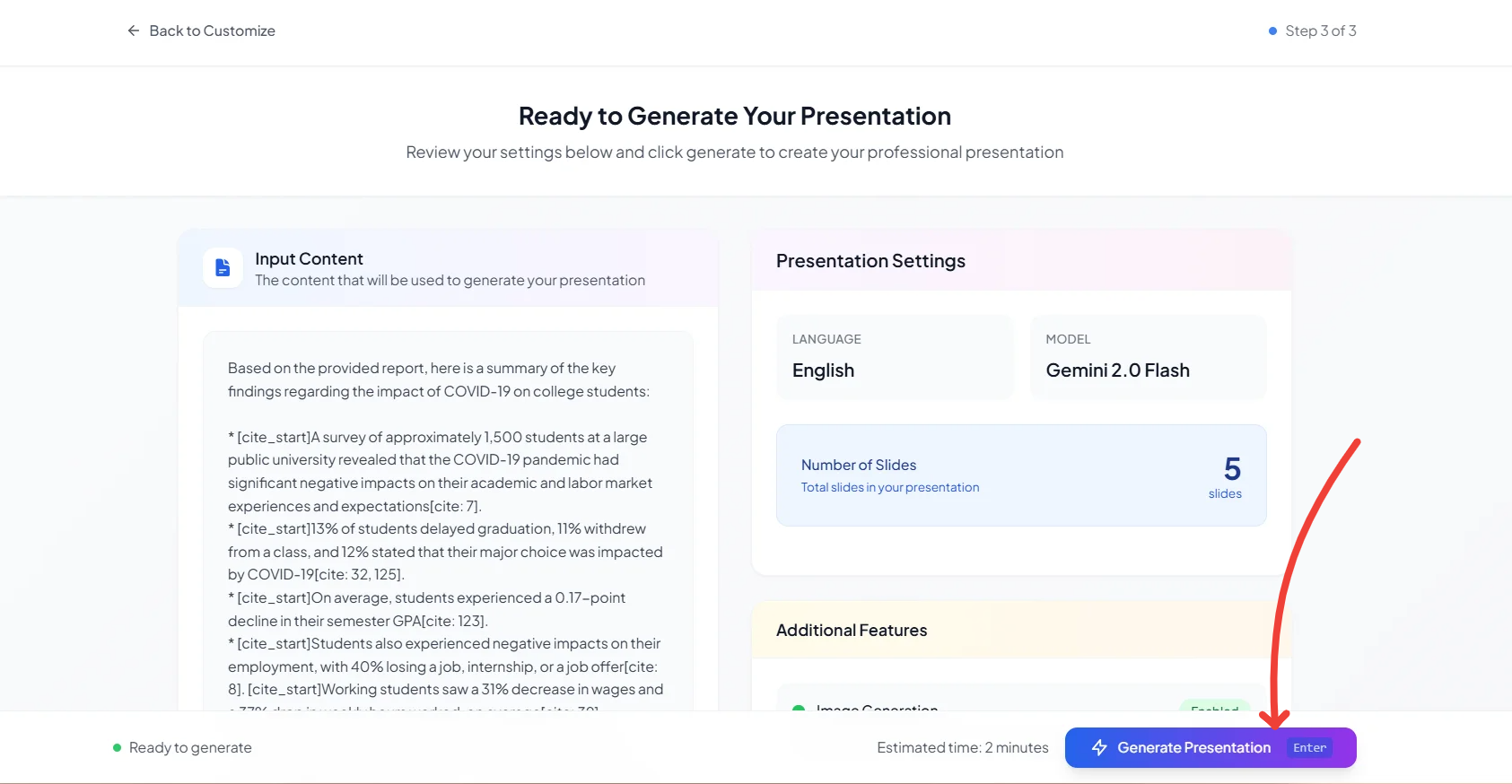
- Click “Generate Slides”
- In a few seconds, your Google Slides deck or downloadable PowerPoint file is ready
- Edit directly in Google Slides or export as PPTX or PDF
MagicSlides supports multi-format export: Google Slides, PowerPoint (.pptx), and PDF.
Step 6: Edit and Share
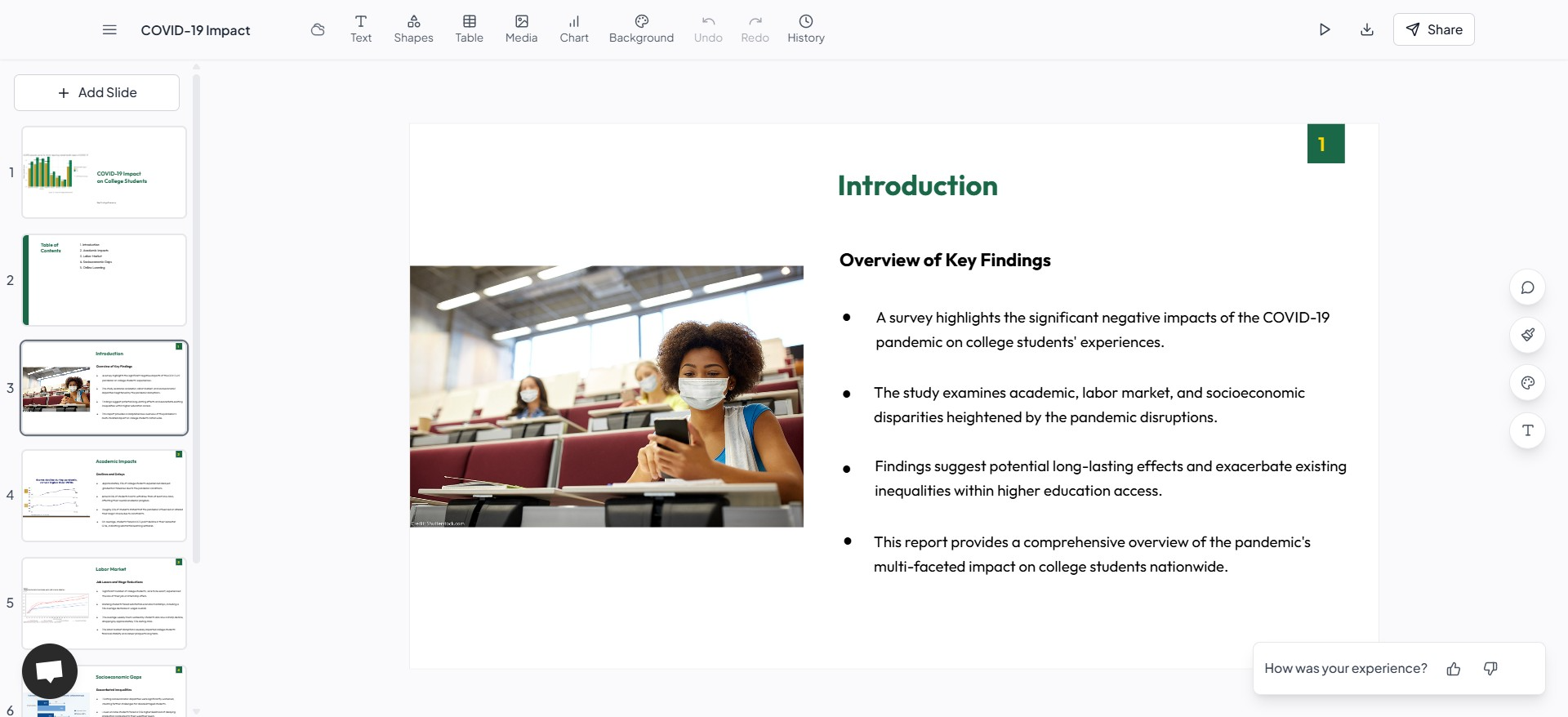
- Add speaker notes, charts, visuals, or additional slides as needed
- Share via link, export to PDF, or present live
Bonus Tip
You can also combine multiple Gemini outputs—like summaries, insights, and action items—into a multi-section presentation using MagicSlides’ multi-slide outline feature.
Let me know if you’d like this formatted as a collapsible section, downloadable guide, or visual workflow chart.
Step 4: Use Follow-Up Prompts to Go Deeper
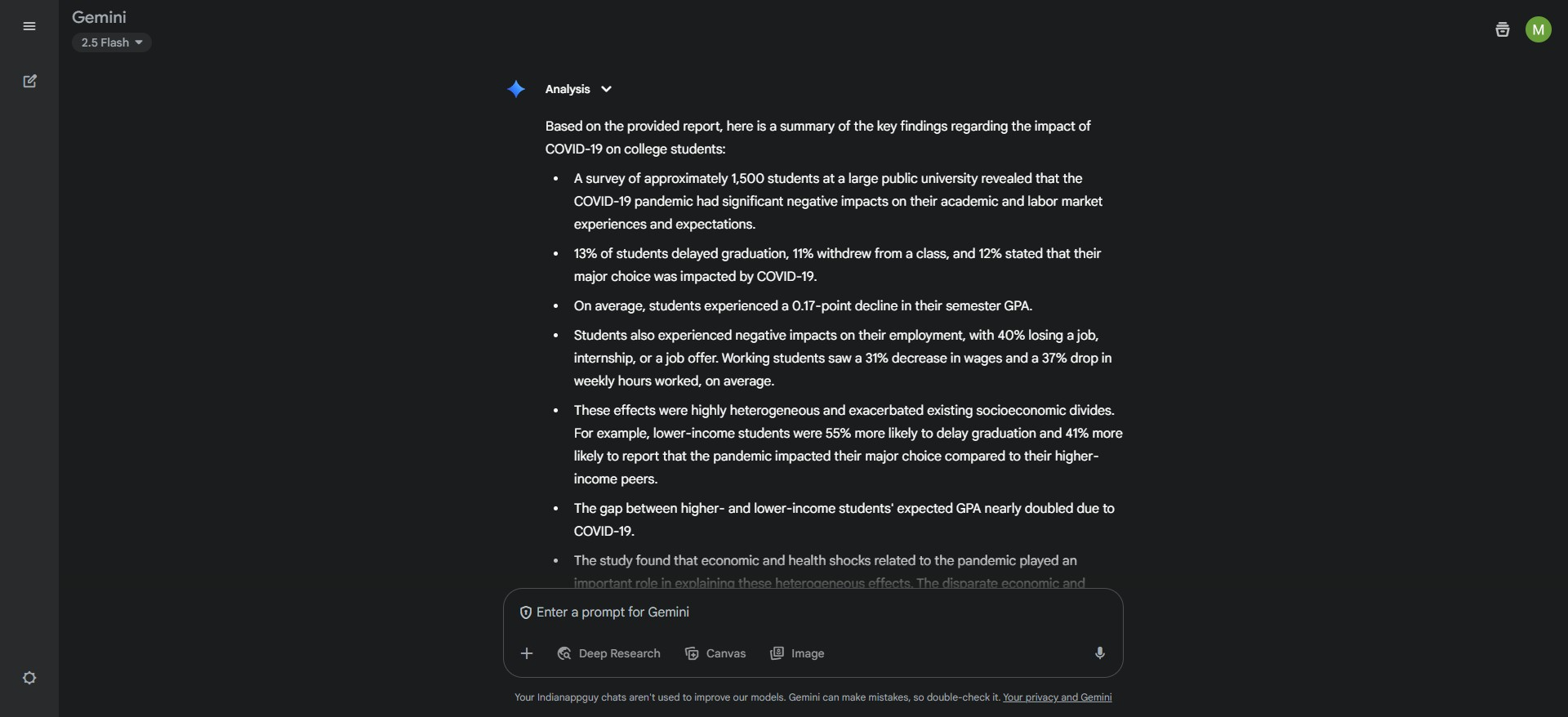
Gemini Deep Research shines in layered interactions. Ask:
- “Simplify this paragraph for an 8th grade reader.”
- “What’s the difference between this policy and the previous one?”
- “Highlight contradictions or inconsistencies.”
- “Extract action items with deadlines.”
You can even compare two PDFs by uploading them both and asking:
“Compare document A and B for overlapping objectives.”
Best Use Cases for Gemini Deep Research
Here’s where the Gemini AI Deep Research tool truly excels:
- 📑 Legal Analysis: Extract legal clauses, obligations, or summarize judgments
- 🎓 Academic Research: Summarize papers, highlight research gaps
- 🧾 Business & Financial Reports: Extract KPIs, risks, projections
- 📝 Grant or Policy Review: Compare eligibility, highlight changes
- 💼 Investor or Board Prep: Simplify internal updates or business plans
- 📊 Presentations from Research: Use Gemini for insight extraction, then plug the summary into MagicSlides.app to auto-generate a client-ready deck
✅ 5. Gemini Deep Research vs ChatGPT vs Claude
| Feature | Gemini Deep Research | Claude 3 | ChatGPT 4 |
|---|---|---|---|
| Document Upload | ✅ PDF, Docs | ✅ Yes | ✅ Yes |
| Source Grounding | ✅ Strong (Google-native) | ✅ High | ⚠️ Medium (context-based) |
| Multi-file Comparison | ✅ Yes | ✅ Yes | ⚠️ Limited |
| Response Tone | Neutral, concise | Thoughtful, human | Flexible, creative |
| Best For | Legal/Academic/Business | Research & Analysis | Brainstorming & Writing |
Pro Tips to Maximize Gemini’s Deep Research Capabilities
To get the most out of Gemini document summarizer, try these tips:
- Ask specific, narrow prompts:
“List financial risks only,” or “Extract stakeholder roles.”
- Use Gemini’s integration with Docs/Sheets to export results
- Convert meeting transcripts into actionable to-do lists
- Use Gemini for writing SOPs, trip reports, business plans, resumes
For more polished, multi-format decks (Google Slides, PowerPoint, or PDF), MagicSlides.app lets you create AI presentations in seconds using outlines, prompts, or research summaries — perfect after using Gemini.
FAQs (Gemini AI Deep Research)
Q: Is Gemini Deep Research free?
A: It’s available under Gemini Advanced, which is a paid plan. However, Google often offers a free trial for new users.
Q: Can I upload large documents to Gemini?
A: Yes. Gemini handles long-form content, though performance is better under 50 pages or when structured into smaller chunks.
Q: Does Gemini work better than ChatGPT or Claude for document analysis?
A: Yes — especially for structured, factual extraction with source citations. Gemini is highly grounded and works best with business, legal, or academic documents.
Q: Can Gemini extract action items from meeting notes or reports?
A: Absolutely. Try prompts like:
“Extract all to-dos, deadlines, and responsible persons from this meeting note.”
Q: Can I use Gemini to turn a PDF into a presentation?
A: Yes! Ask:
“Create a 5-slide outline of this document for executives.”
Final Thoughts: Should You Use Gemini Deep Research?
If you’re serious about speeding up document analysis, extracting meaning faster, or turning complex content into clear output — Gemini Deep Research is a top-tier choice.
It’s more than just a summarizer — it’s a full-scale AI research assistant that saves time across every industry.


