How to Install Fonts on PowerPoint: Enhancing Your Presentations


Learn how to install custom fonts on PowerPoint to enhance your presentations with a unique and professional visual appeal.
When crafting a PowerPoint presentation, the visual impact is just as crucial as the content itself. A unique and appealing font can set your slides apart, making them more engaging and memorable for your audience. However, not everyone is aware that they can customize the fonts used in their presentations beyond the default options.
In this post, we'll guide you through the process of installing new fonts on PowerPoint, ensuring your presentations truly reflect your style and professionalism.
Understanding Font Compatibility
Before diving into the installation process, it's essential to understand that not all fonts work across different operating systems. When you use a custom font in PowerPoint, make sure it's compatible with the operating systems of all presentation viewers. This ensures that the font displays correctly, regardless of whether your presentation is viewed on Windows, macOS, or another platform.
Finding the Right Font
Choosing the right font is about more than just aesthetics. The font you select should align with your presentation’s theme and must be legible to ensure that your message is clearly conveyed.
Websites like Google Fonts, DaFont, and Adobe Fonts offer a wide range of free and paid fonts that you can explore. These sites often feature fonts that are not only visually diverse but also optimized for web and print use, ensuring good display across various devices.
Installing Fonts on Windows
To install a new font on a Windows machine for use in PowerPoint, follow these steps:
- Download the Font: Start by downloading the font file, which typically comes in .ttf or .otf formats.
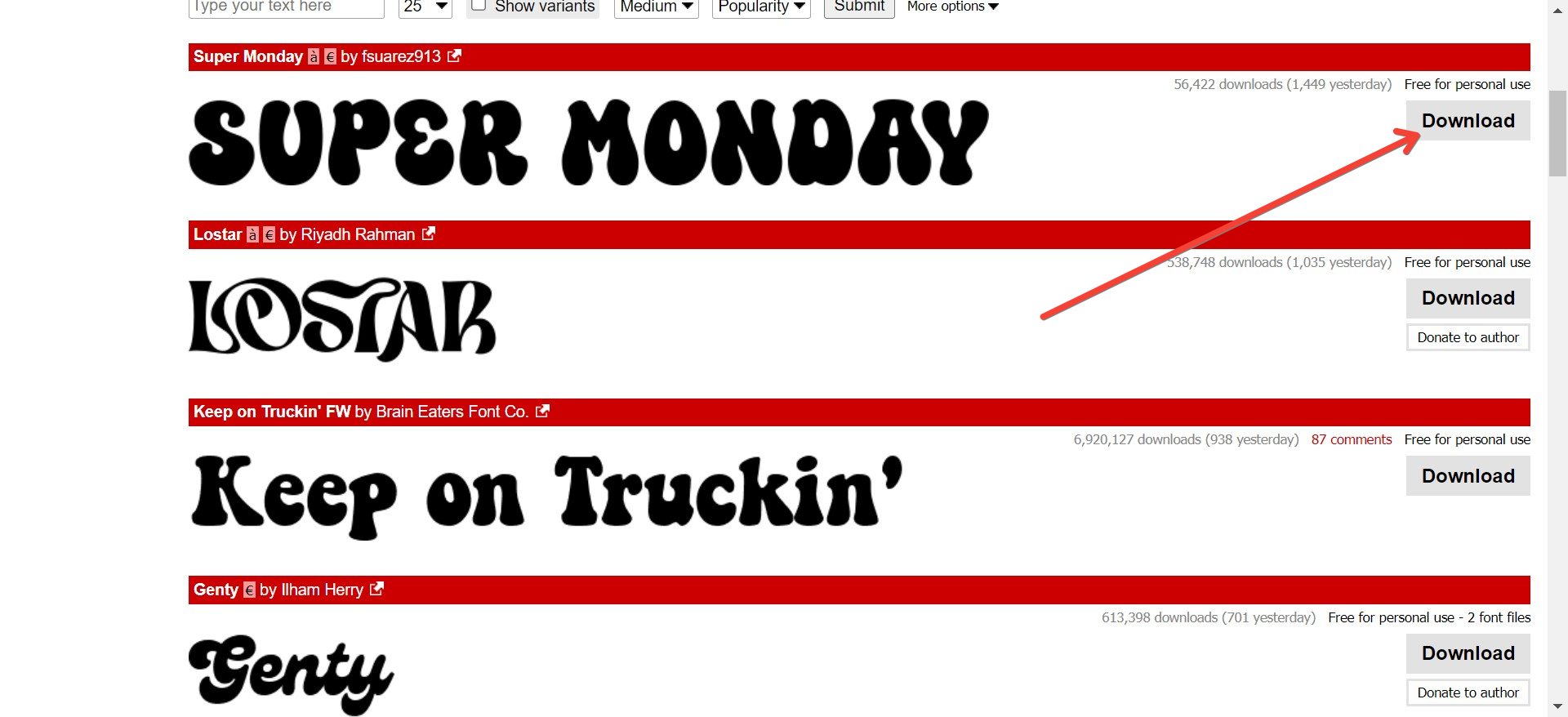
- Install the Font: Right-click on the downloaded font file and select 'Install'. Alternatively, you can open the Control Panel, go to 'Appearance and Personalization', select 'Fonts', and then drag your downloaded font file into this folder.
- Using the Font in PowerPoint: Open PowerPoint and find the font in the drop-down font menu. It should appear alongside the standard fonts.
Installing Fonts on macOS
For macOS users, the font installation process involves a few similar steps:
- Download the Font: Just like with Windows, you will download a .ttf or .otf font file.
- Install the Font: Double-click the font file to open it in the Font Book. Click on 'Install Font' at the bottom of the preview window.
- Using the Font in PowerPoint: When you open PowerPoint, your newly installed font will be available in the font menu.
Ensuring Font Availability in Shared Presentations
If you're sharing your PowerPoint presentation, the custom fonts you installed might not appear on other devices if they don't have the same fonts installed. To avoid this issue:
- Embed Fonts in Your Presentation: In PowerPoint, you can embed fonts into your presentation file. Go to 'File', then 'Options', select 'Save', and check the box that says 'Embed fonts in the file'. This option makes the presentation size larger but ensures your fonts display as intended on any computer.
- Convert Text to Images: For critical slides where font rendering is crucial, consider converting text into images. This can be done by saving your slides as images and then inserting these images back into your presentation. This method preserves the visual layout but prevents editing of the text.
- Use PDF Format: Another reliable method to maintain your formatting is to save your presentation as a PDF. This way, viewers can see the document as intended without having PowerPoint installed.
Enhancing Presentations with MagicSlides.app
While customizing fonts is a great way to enhance your PowerPoint presentations, MagicSlides.app offers additional tools and features that can elevate your entire presentation design. From professional templates to dynamic layouts and interactive elements, MagicSlides.app helps streamline the presentation creation process, making it easier and quicker to produce compelling presentations. It’s a perfect tool for those looking to add a professional touch to their presentations without extensive design experience.
Conclusion
Installing new fonts on PowerPoint can dramatically change the appearance and feel of your presentation. By following the steps outlined above, you can expand your creative options and ensure your presentations stand out. Remember, the goal is to enhance your message’s clarity and impact, so choose fonts that are not only beautiful but also readable and appropriate for your audience. With these tips and tools like MagicSlides.app, you're well on your way to creating visually stunning and effective presentations.


