How to Convert a PDF to PPT (With AI or Without)

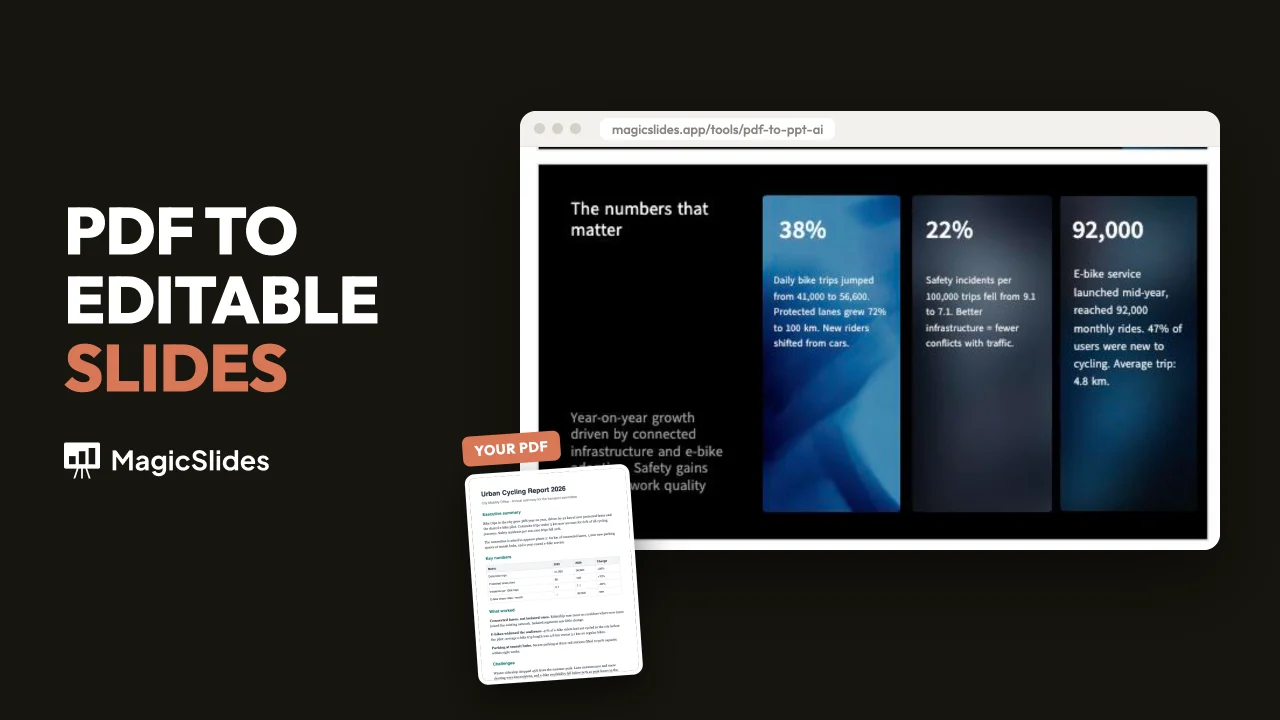
How to convert a PDF to PPT or PowerPoint. Without AI, each page becomes a slide in seconds. With AI, you get an editable presentation.
How to convert a PDF to PPT in MagicSlides: open the PDF to PowerPoint converter and pick a mode. Without AI turns each page into a slide and gives you a PPTX to download in seconds. With AI reads the PDF and builds an editable presentation: a new structure, a template, and the key numbers pulled out.
Use Without AI when the slides should look like the PDF. Use With AI when you need a presentation you can edit and present. The steps below run on a 3-page report we wrote for the test.
What you need
- A PDF. Portrait or landscape both work.
- A MagicSlides account for the With AI mode. An AI conversion uses 1 presentation credit from your plan.
Step 1: Open the PDF to PowerPoint converter
Go to the PDF to PowerPoint converter. At the top are two modes: With AI (selected by default) and Without AI.
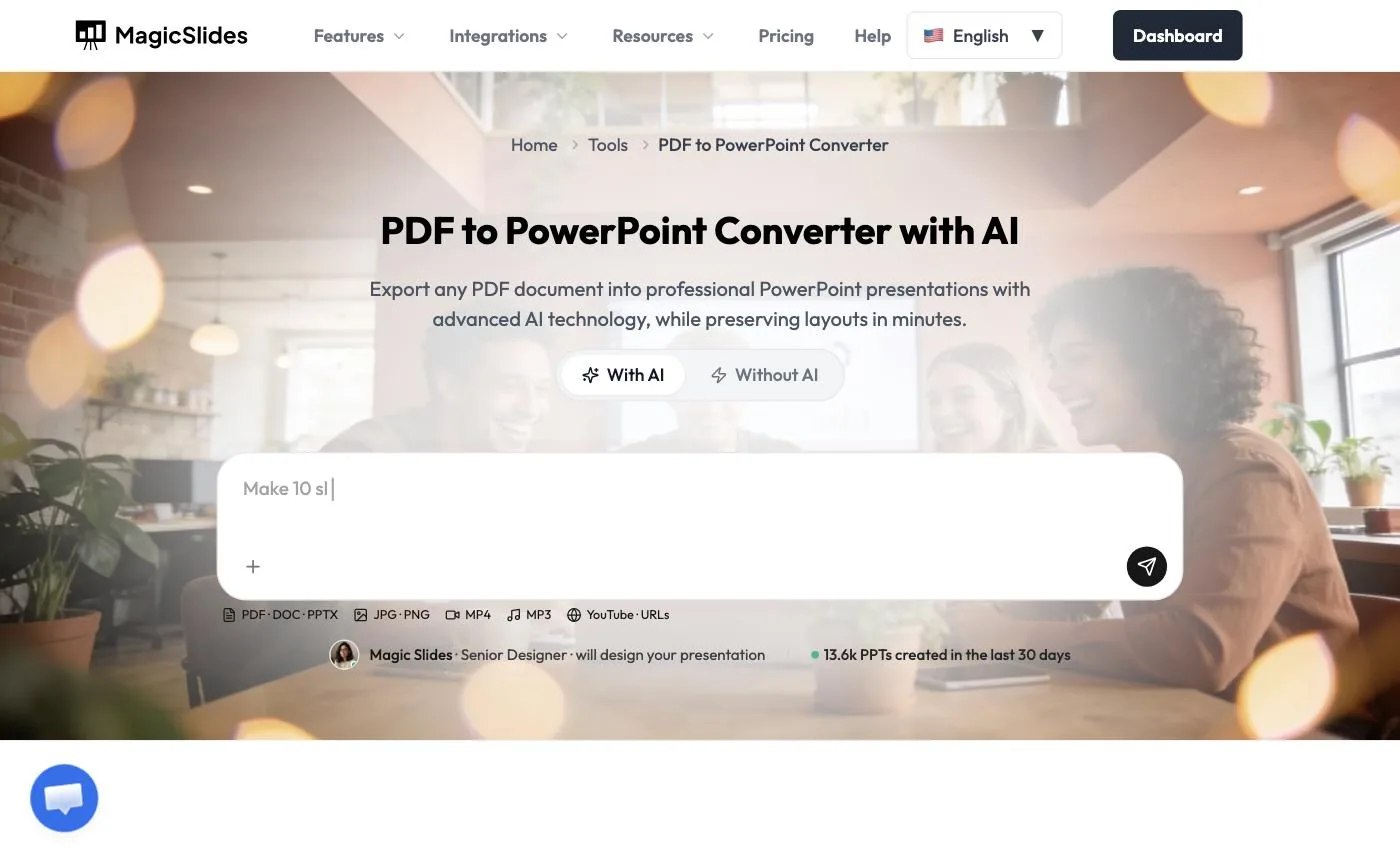 Pick With AI for an editable deck, or Without AI for an exact copy.
Method 1: Convert a PDF to an editable presentation with AI
Step 2: Attach the PDF
Leave With AI selected and click + to attach your file. MagicSlides opens the create page with the PDF attached. The chip shows the file type and how many words it read. Ours said PDF · 293 words.
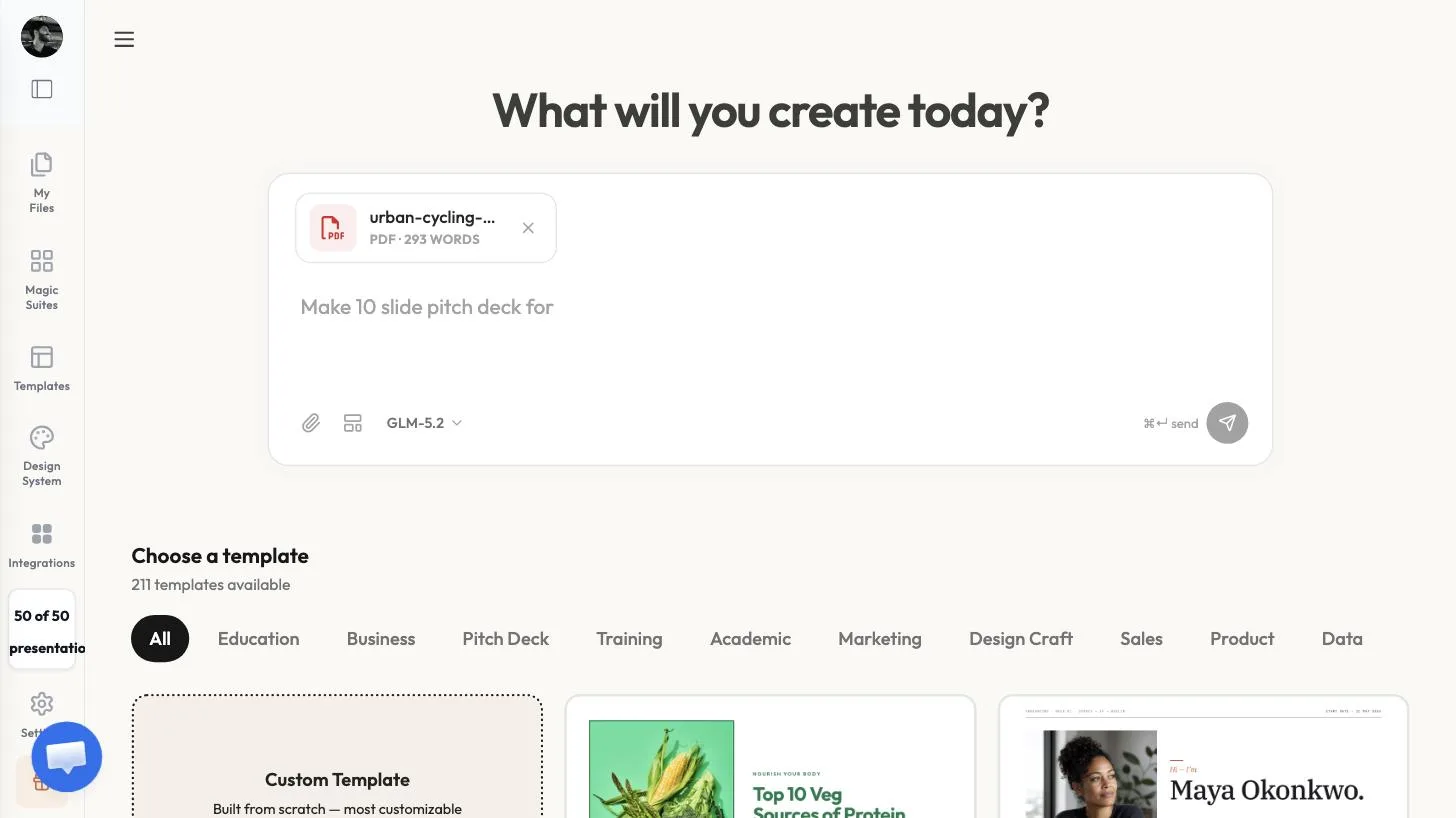 MagicSlides reads the PDF text before it builds anything.
Step 3: Write a short instruction
Type that instruction under the file. Name the audience, the length, and anything that must stay in. Ours: Turn this report into a 7-slide presentation for the transport committee. Keep the key numbers and end with the recommendation.
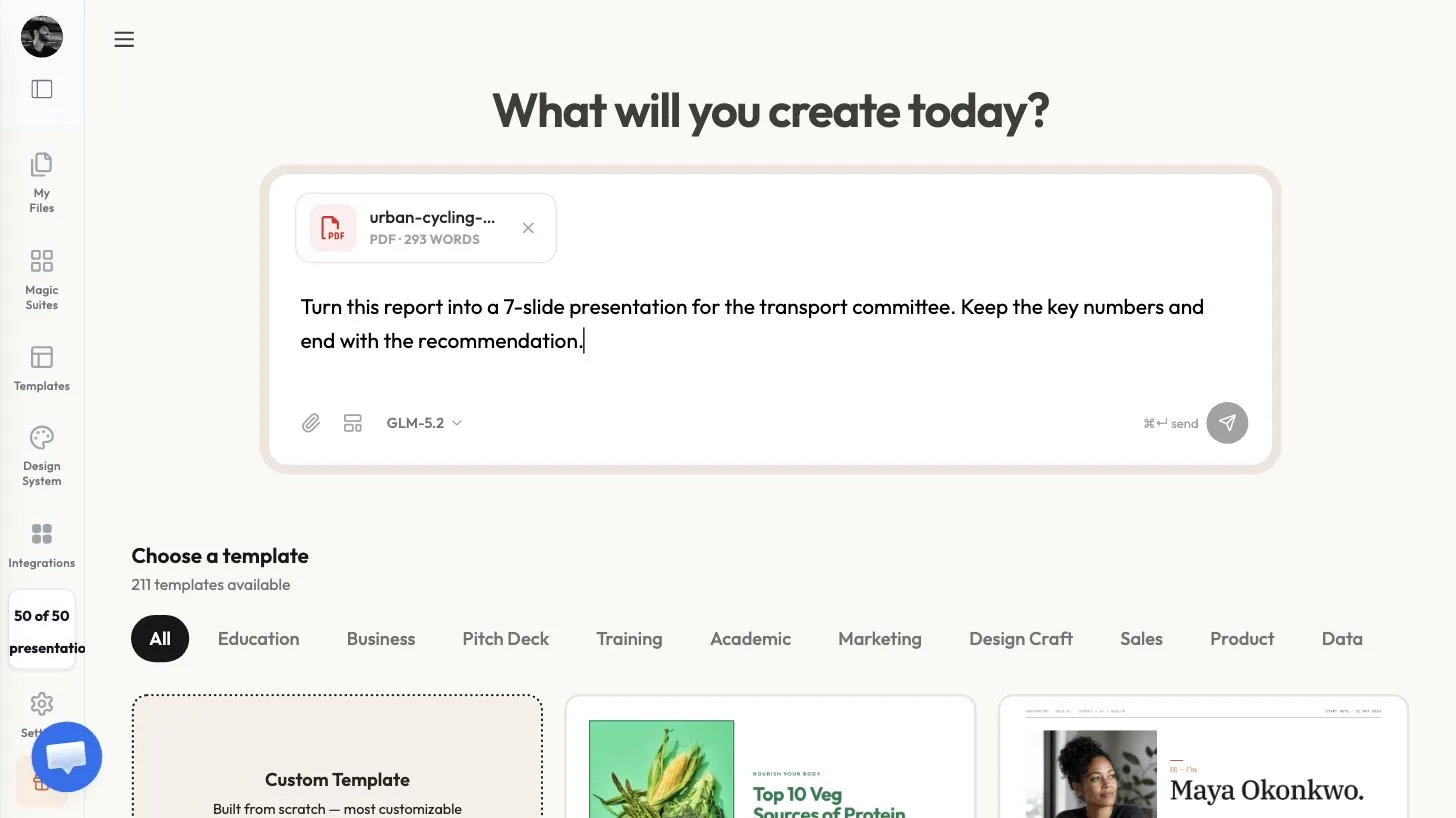 One or two sentences is enough.
Step 4: Choose a template
Scroll to Choose a template and click one. A preview opens so you can flip through its slides. Click Use this template. We used Pitch Deck Template 1.
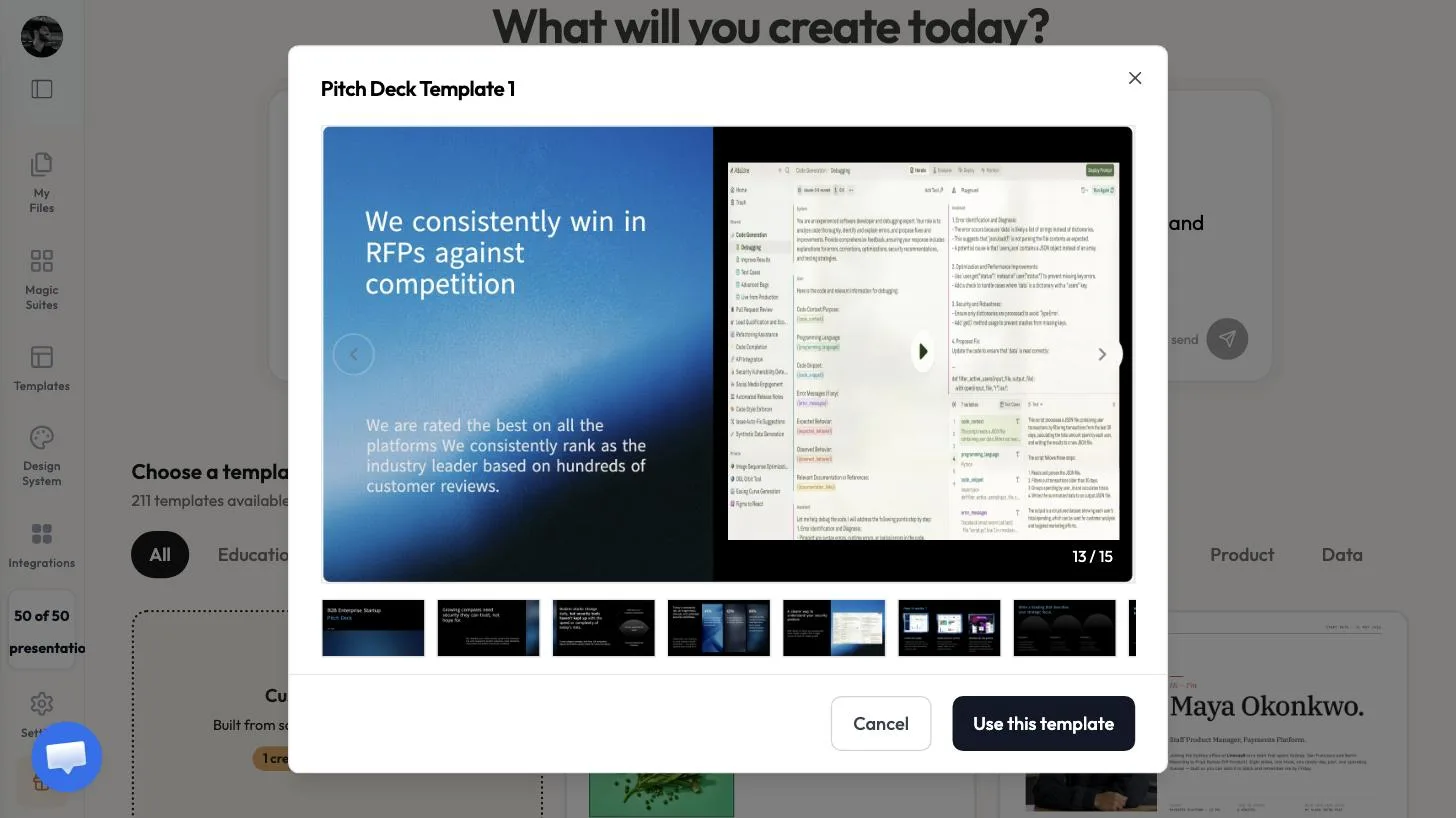 Preview every slide in a template before you use it.
Step 5: Send it
The PDF, your instruction, and the template chip now sit in the prompt box. Click send.
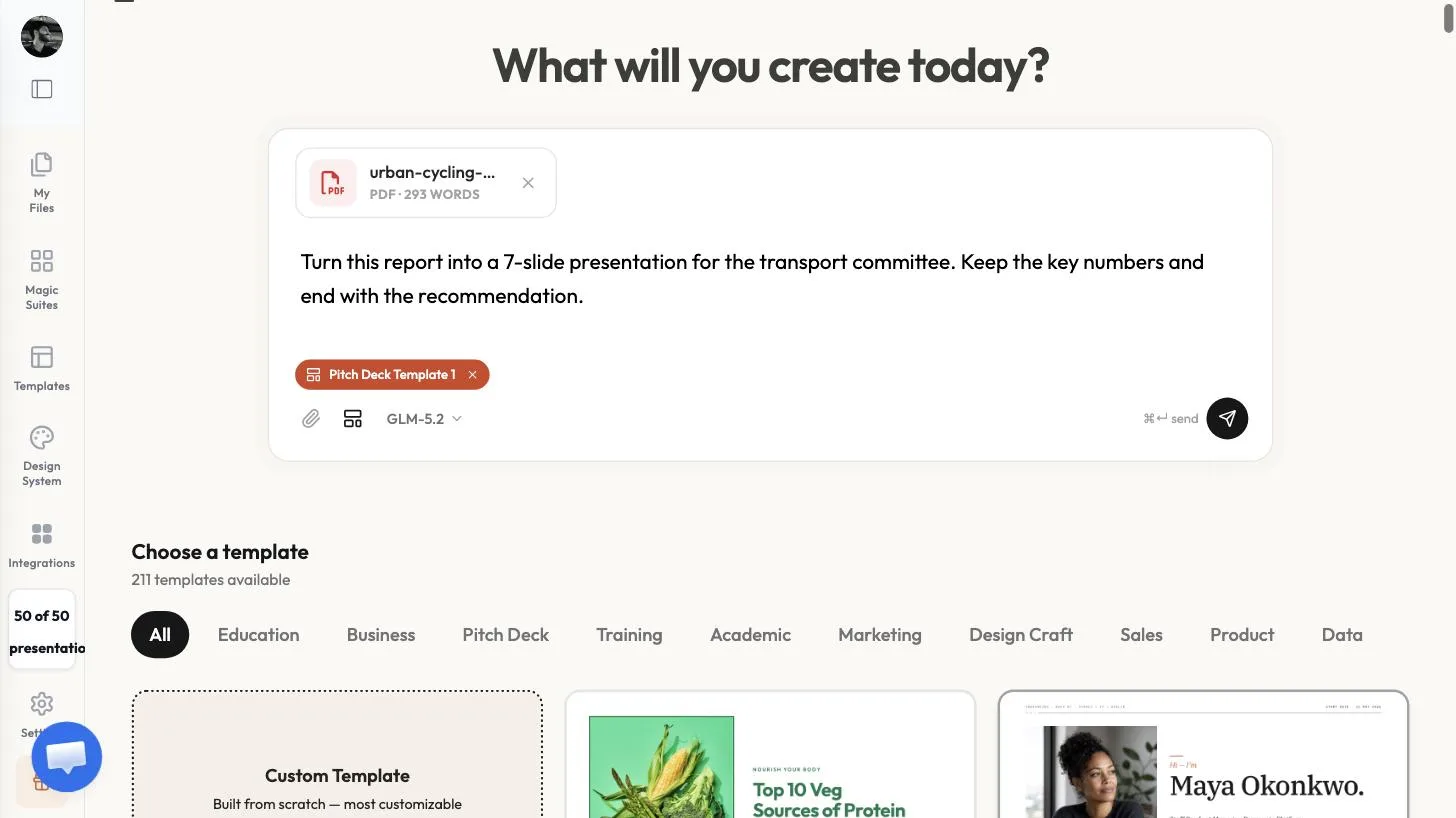 File + instruction + template.
Step 6: Answer the questions about your PDF
MagicSlides asks a few quick questions based on your PDF. For our cycling report it offered a success story, a business case, or an implementation roadmap as the angle, and asked whether the audience was city councillors or transport planners. We picked Business case and City councillors. You can click Decide for me on any question.
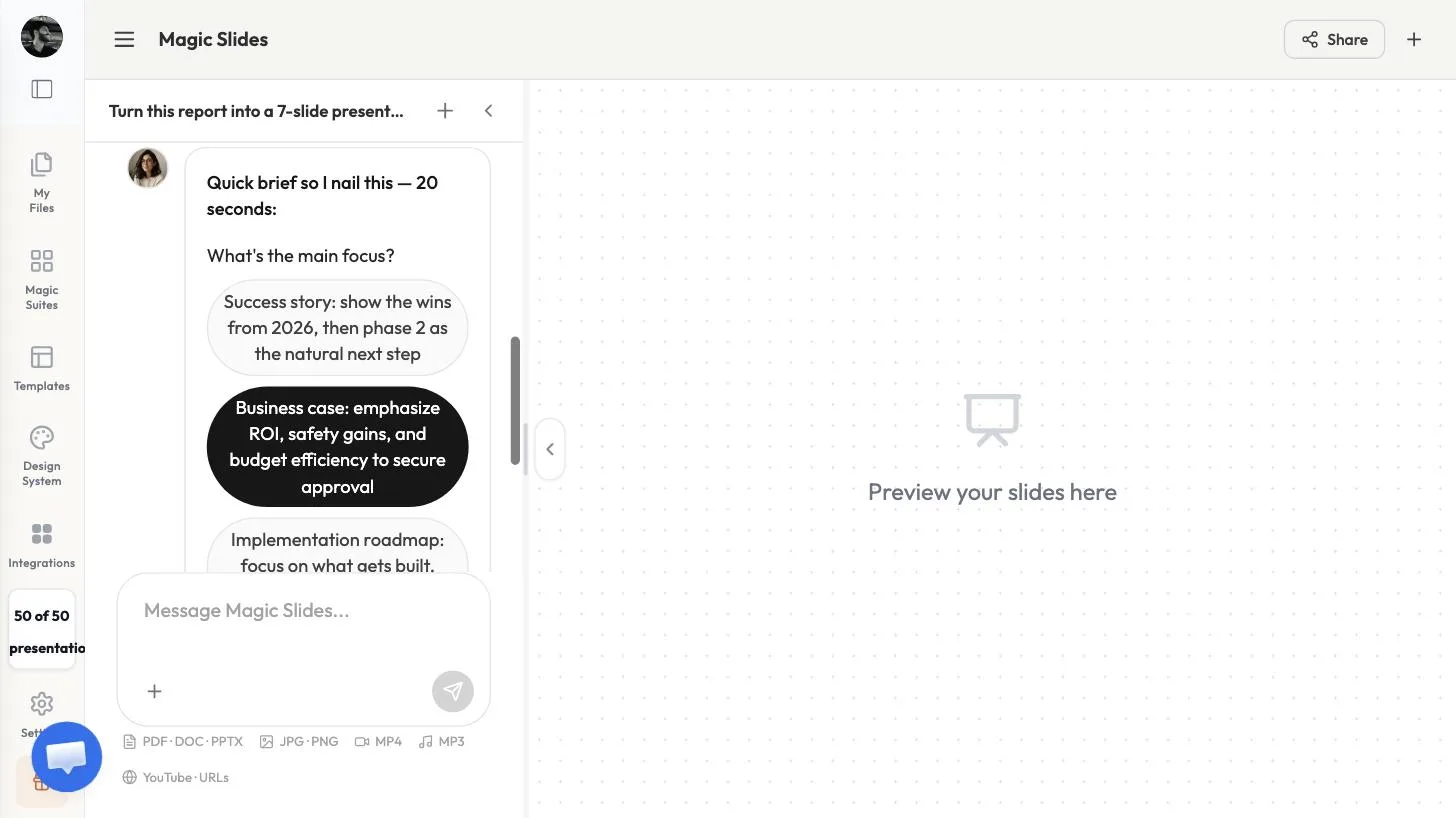 The questions come from your document, not a generic list.
Step 7: Review the plan and approve it
A slide-by-slide plan shows up before anything is built. Edit anything that's off, then click Approve & build.
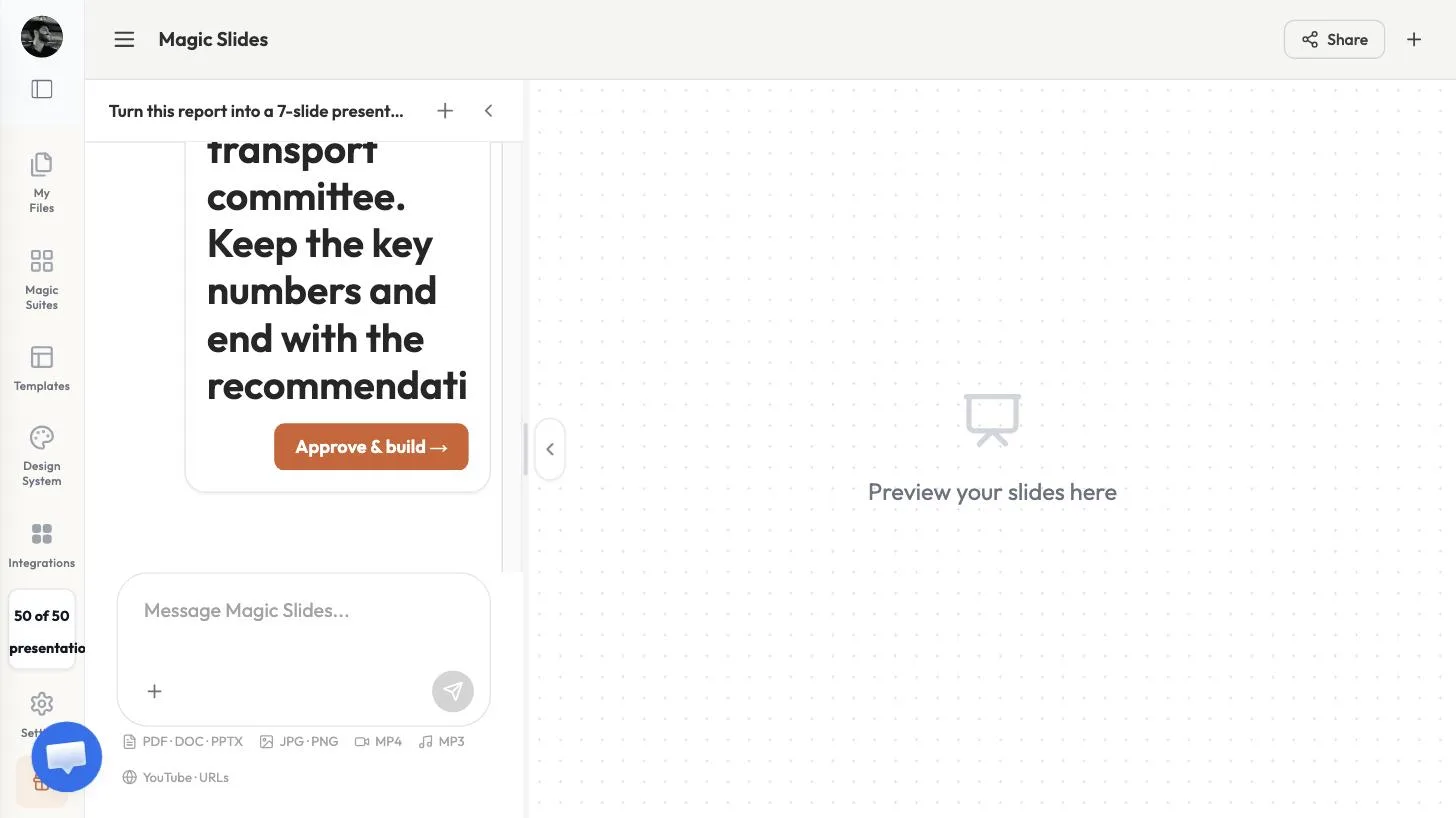 Check the outline before you build.
Step 8: Check the new presentation
About 40 seconds later we had 7 slides generated: a title slide, One year of growth: 38% more riders, The numbers that matter, What drove success, Phase 2: closing gaps, a budget slide, and the recommendation. The report's key figures (38% growth, 22% fewer incidents, 92,000 e-bike rides a month, 60 km of lanes, 1,200 parking spaces) all made it onto slides.
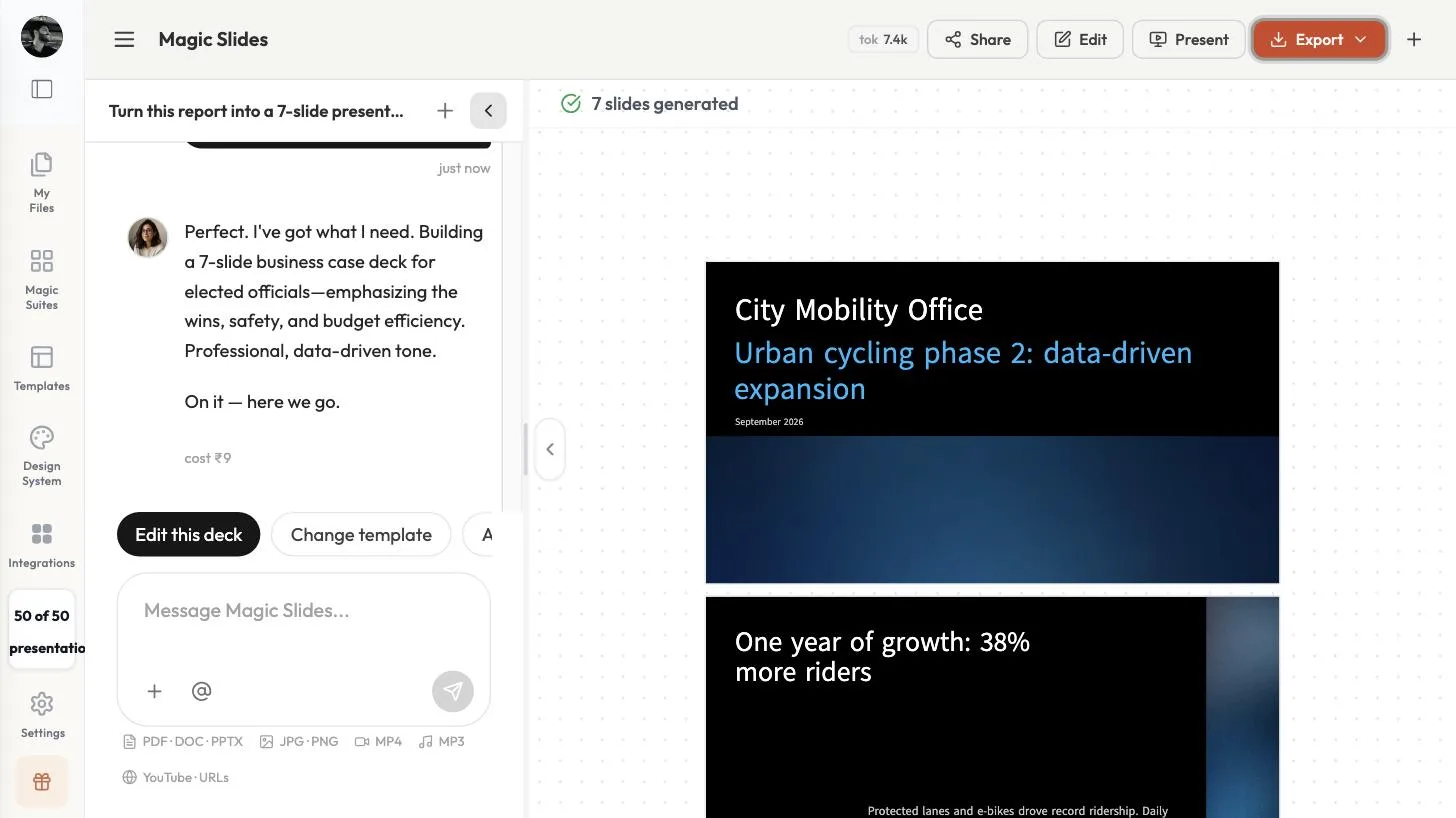 A 3-page report became a 7-slide deck.
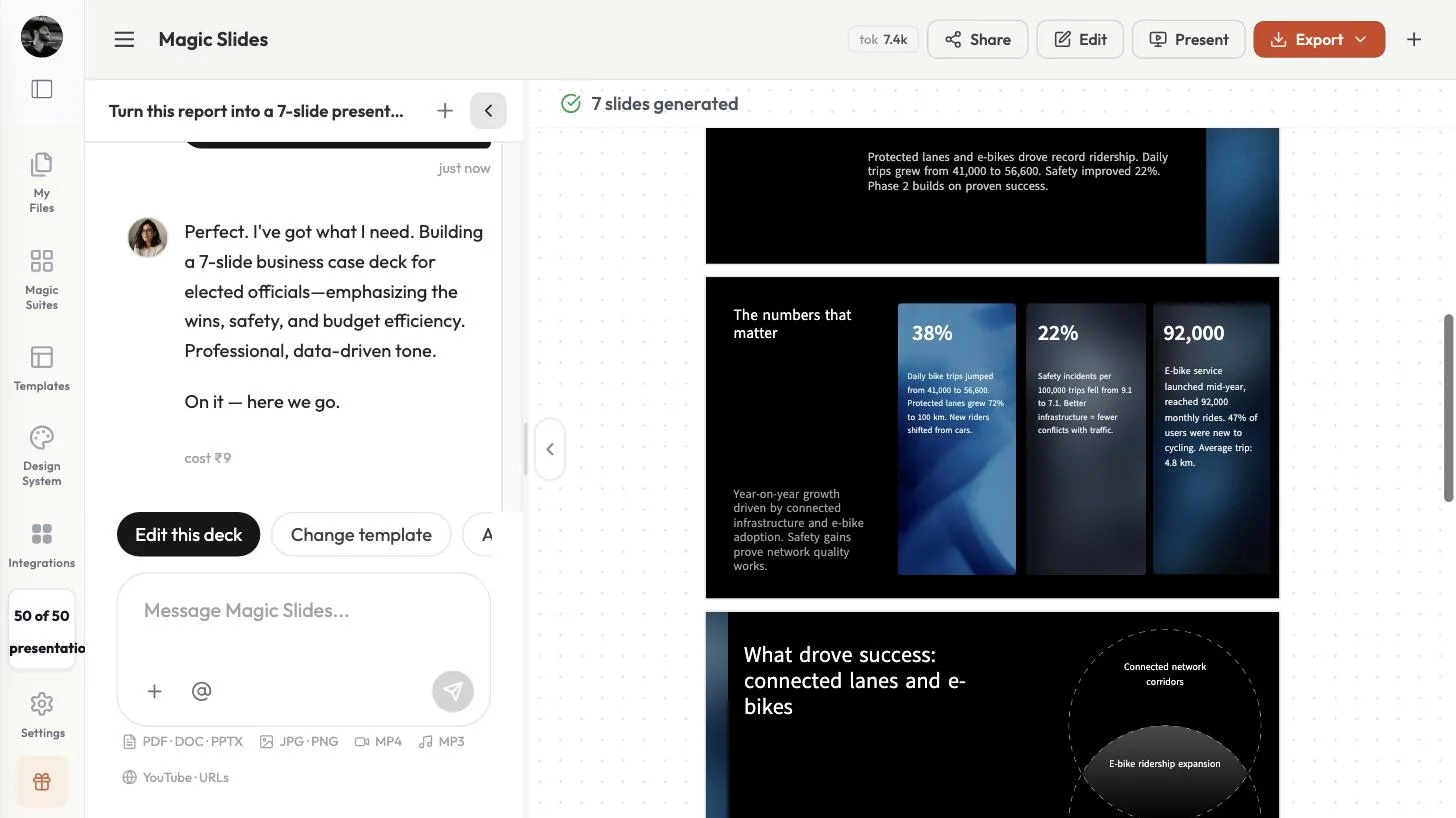 Key numbers pulled out of the PDF onto their own slide.
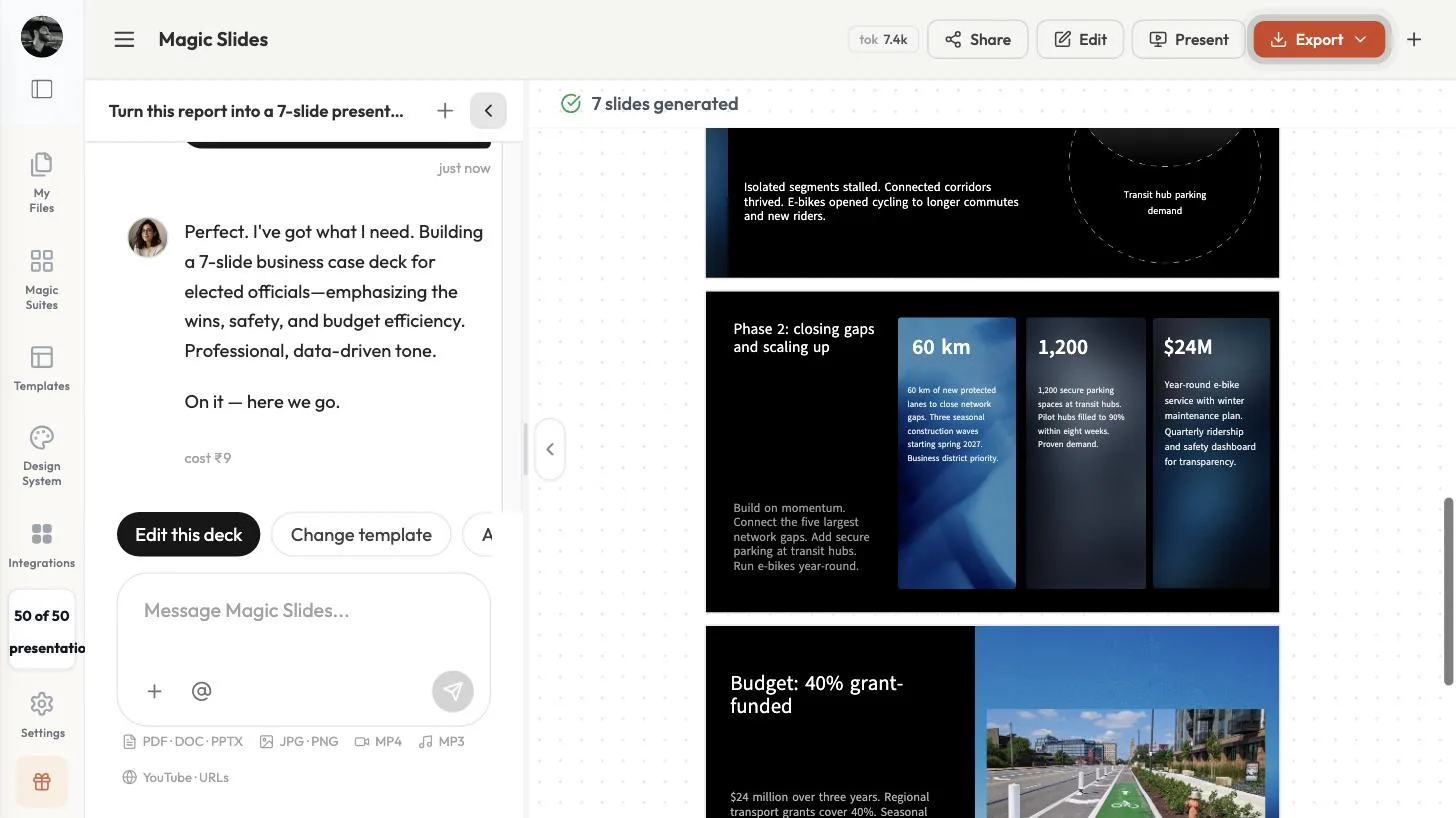 The proposal and budget, restructured as slides.
Check the numbers against your PDF. Our report said the budget was "24 million" without a currency. The AI wrote "$24M". You can fix that in the editor. Read every figure before you present.
Click Edit to change any slide, or Export for PowerPoint (.pptx, marked Plus), PDF or Google Slides.
Method 2: Convert a PDF to PowerPoint without AI
Step 2: Switch to Without AI and upload the PDF
On the same converter page, click Without AI. The page shows Direct format conversion — zero AI and a drop zone. Click it or drag your PDF in. The upload area says it supports any PDF, portrait or landscape.
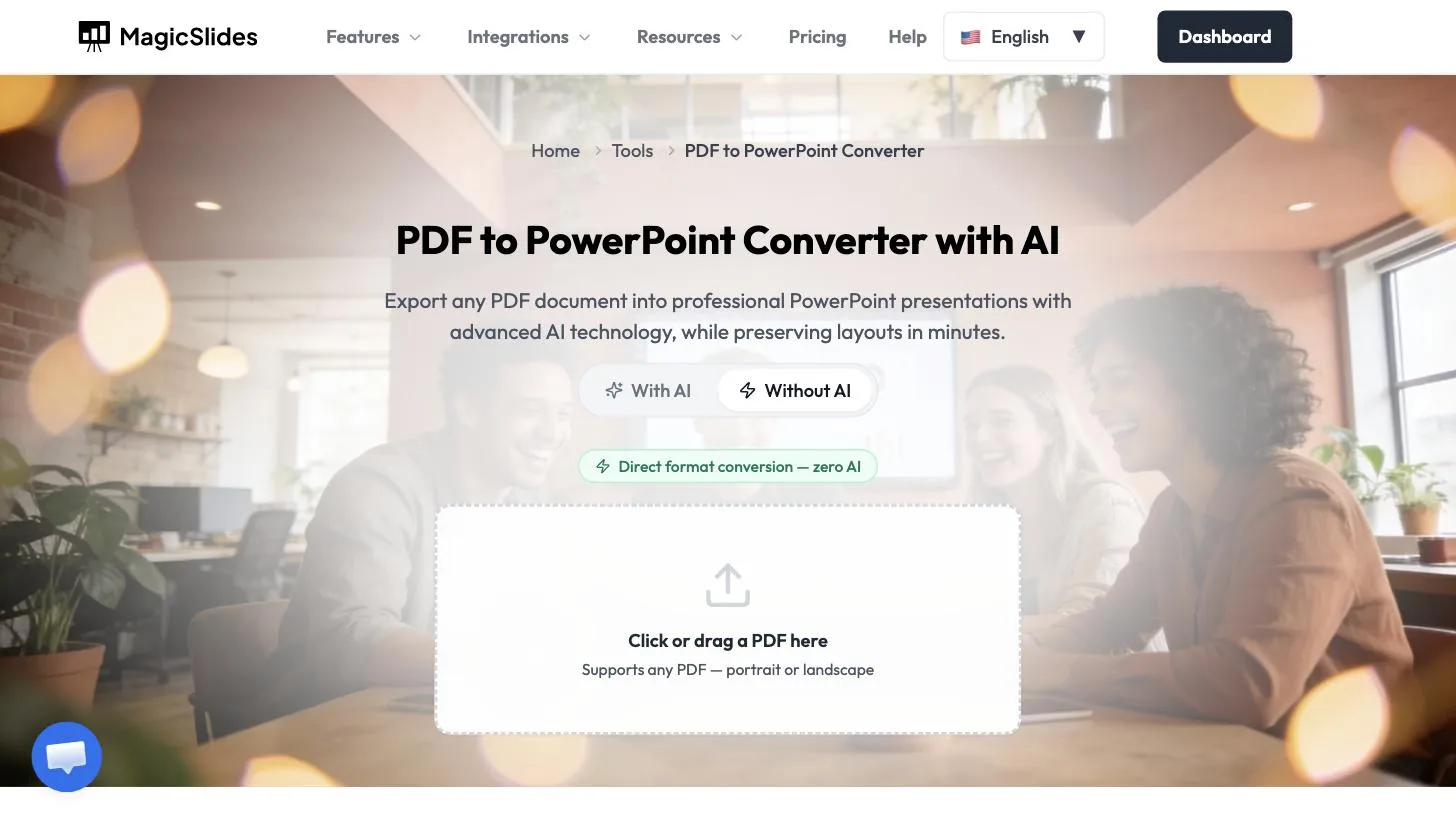 Without AI: a straight page-to-slide conversion.
Step 3: Download the PPTX
The conversion is instant. Ours showed 3 slides ready · Portrait, one slide per PDF page. Click Download PPTX, or Convert another PDF.
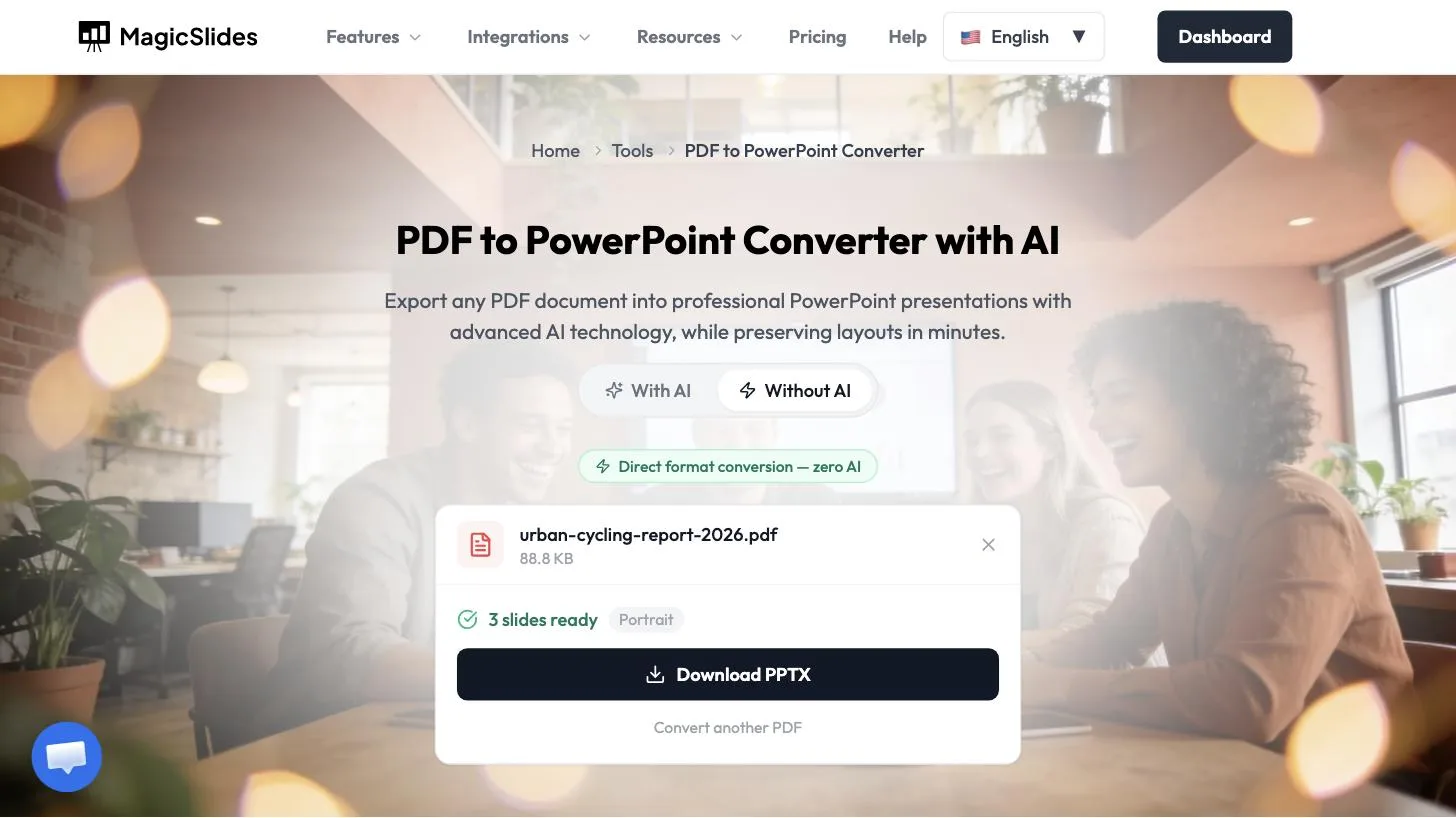 One slide per page, ready to download.
This mode keeps each page looking exactly like the PDF. It places the page as an image, so the text is not editable in PowerPoint. To change the words, use With AI.
With AI or without
| You want… | Use |
|---|---|
| Slides that look exactly like the PDF pages | Without AI |
| A presentation you can edit, restructure and present | With AI |
| The key numbers and points pulled out of a long report | With AI |
| The fastest possible conversion | Without AI |
Tips
- Tell it the audience. We named the transport committee in the prompt and picked Business case in the questions, and got a deck aimed at a decision, not a summary.
- Say what must stay. We asked it to keep the key numbers, and the main figures from the report appeared on slides. Still check them against the PDF.
- Check units and currencies. The AI can add a currency or a unit your PDF did not state.
- Watch the word count. The file chip shows how many words MagicSlides read from your PDF. Ours showed PDF · 293 words. If the number is much lower than your document, the AI has less text to work from.
FAQ
How do I convert a PDF to PPT without AI? Choose Without AI on the PDF to PowerPoint converter, upload the PDF, and click Download PPTX. You get one slide per page. The With AI mode uses 1 presentation credit from your plan.
Can I edit the PowerPoint after converting a PDF? With AI, yes. Every slide is editable in the MagicSlides editor before you export (we didn't test editing the exported file in PowerPoint). Without AI places each page as an image, so the text is not editable.
Does it keep the layout of my PDF? Without AI keeps each page exactly as it looks in the PDF. With AI rebuilds the content into a new template design.
How long does it take to convert a PDF to a presentation? Without AI is instant. With AI took about 40 seconds to build a 7-slide deck from a 3-page PDF, after you approve the plan. Answering the questions and reviewing the plan take a little extra time.
Can I convert a PDF to Google Slides? Yes. Convert with AI, then use Export → Google Slides to open the deck in Google Slides.


