How to Make a Presentation with AI (PPT, 2026)


How to make a presentation with AI. Pick a template, answer three questions, approve the plan, then edit and export a PPT, PDF, or Google Slides file.
To make a presentation with AI in MagicSlides, open the dashboard, click Start with AI, type the topic, pick a template, and send it. MagicSlides researches the topic, asks up to three quick questions, and shows a slide plan for you to approve. It then builds the deck. Edit any slide, and export to PowerPoint, PDF, or Google Slides.
It takes about two minutes. The screenshots are from the live app. For this guide we made an 8-slide deck on running better weekly meetings for remote teams.
What you need
- A MagicSlides account. Each new presentation uses 1 presentation credit from your plan. The sidebar shows how many you have left this month.
- A topic. One or two sentences is enough. You can attach a PDF, Word file, PowerPoint, image, video, audio file, YouTube link, or web page if you want the deck built from your own material.
How to make a presentation
Decide what the deck has to do before you choose a template. Use this order:
- Hook. Why this audience should care.
- Problem. What is going wrong, in their words.
- Solution. What you want them to do differently.
- Proof. A number, a short example, or a result.
- Next step. What they should do after the last slide.
More slides are fine when each one still does one of those jobs. If a slide is doing something else, cut it.
Put that order in the prompt. The meeting prompt in this guide does: common problems, a simple agenda, then a 30-day rollout.
Step 1: Click Start with AI
On the dashboard, click Start with AI. There are two options. Choose Start with (marked New). This is the Studio flow: smarter generation and richer templates. Legacy AI Slide is the older, classic mode.
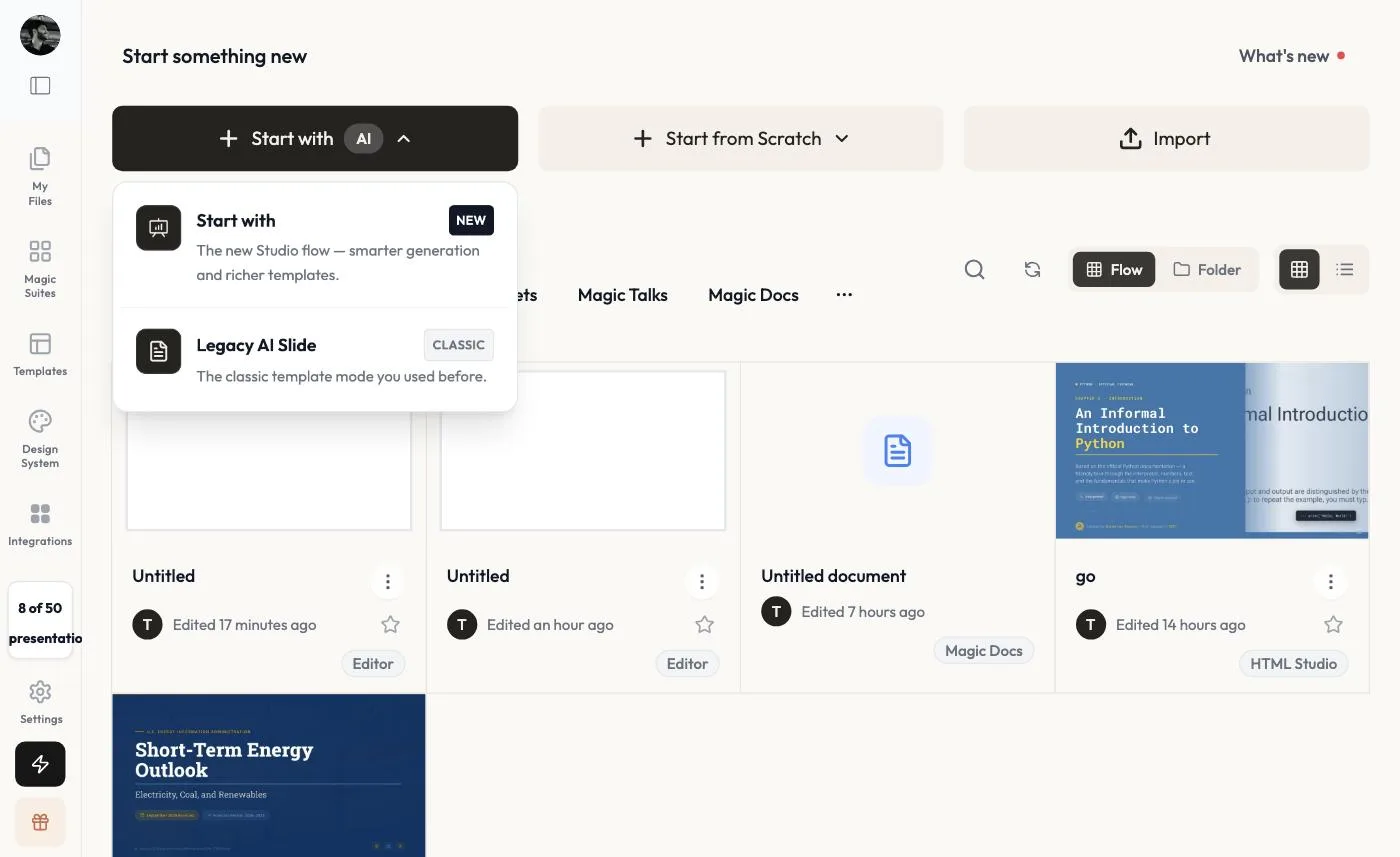 Start with AI → Start with (New).
Step 2: Describe your presentation
The What will you create today? page opens. Under What do you want to create?, make sure Slide Decks is selected, then type the topic in the prompt box.
Say who it is for and what the deck should cover. A specific prompt produces a more useful plan.
Our prompt: Make 8 slides on how remote teams can run better weekly meetings: common problems, a simple agenda, async updates, tools, and a 30-day rollout plan.
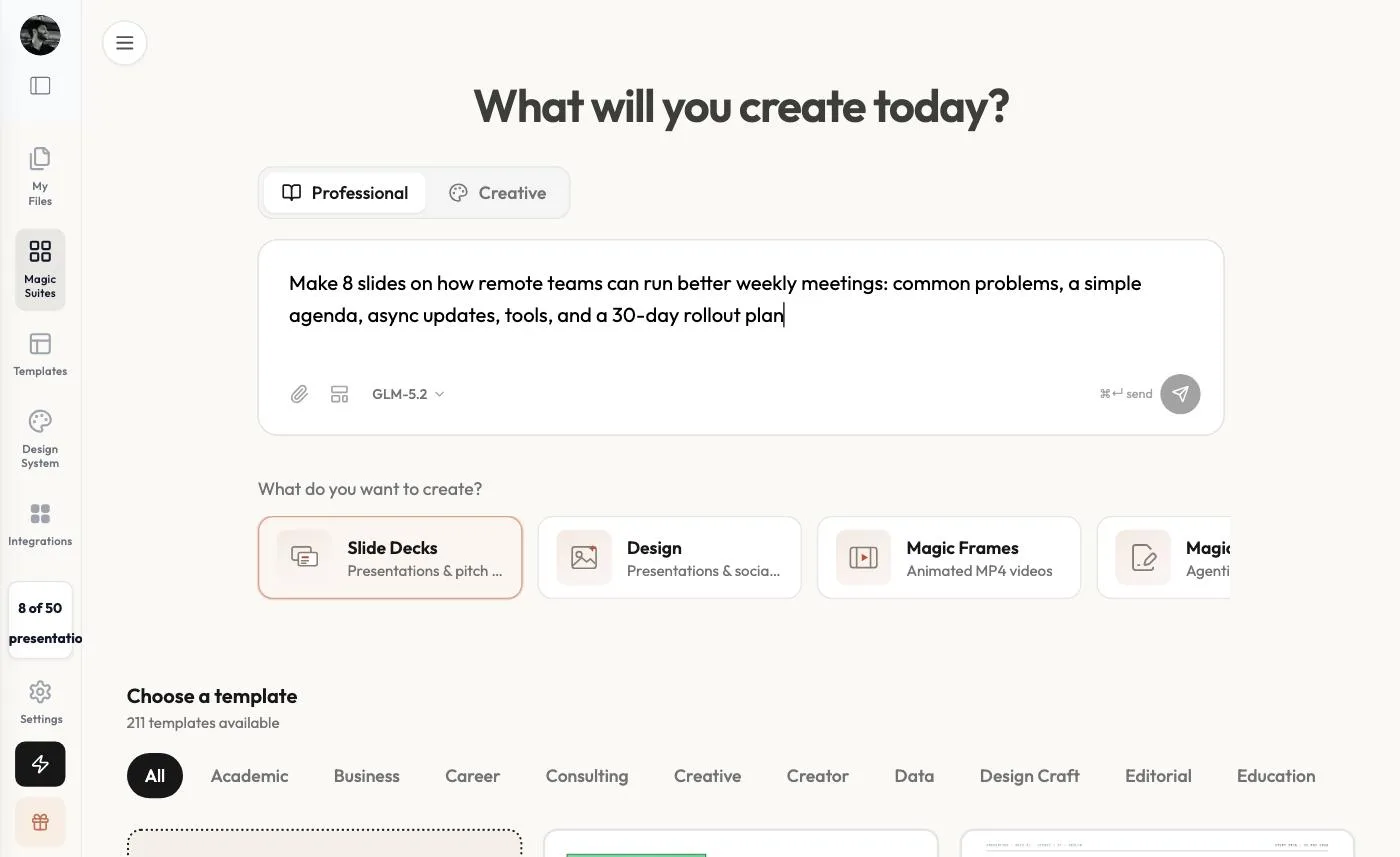 Type your topic. The paperclip lets you attach files or links.
Step 3: Pick a template
Scroll down to Choose a template. There are 211 templates, filtered by category (Academic, Business, Career, Consulting, Data, Education, and more). Click one to select it. The card shows a tick and previews its slides.
The first card, Custom Template, does not follow a fixed design. The AI designs every slide from scratch. It costs the same 1 credit.
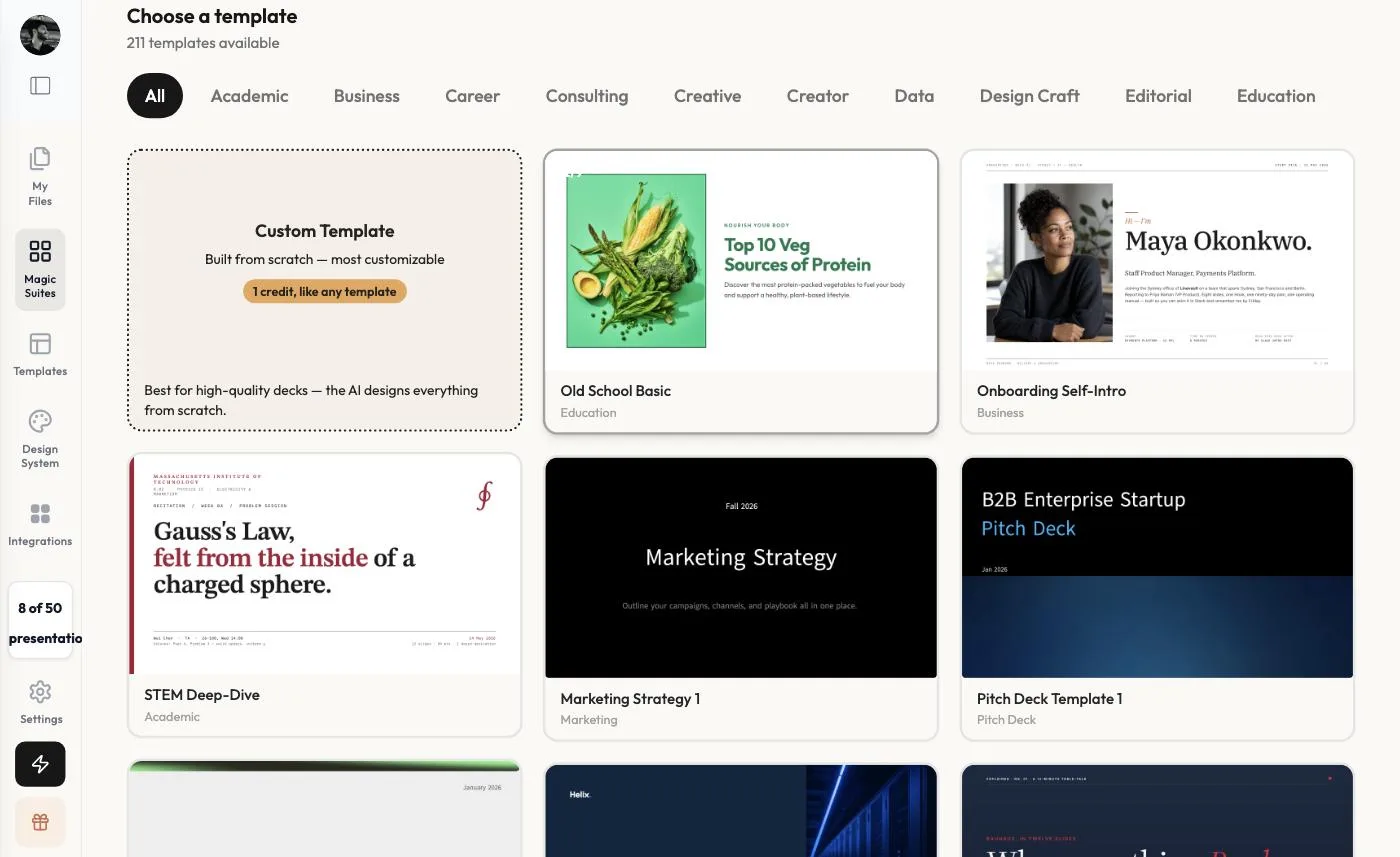 211 templates, plus Custom Template for a fully AI-designed deck.
We picked Marketing Strategy 1.
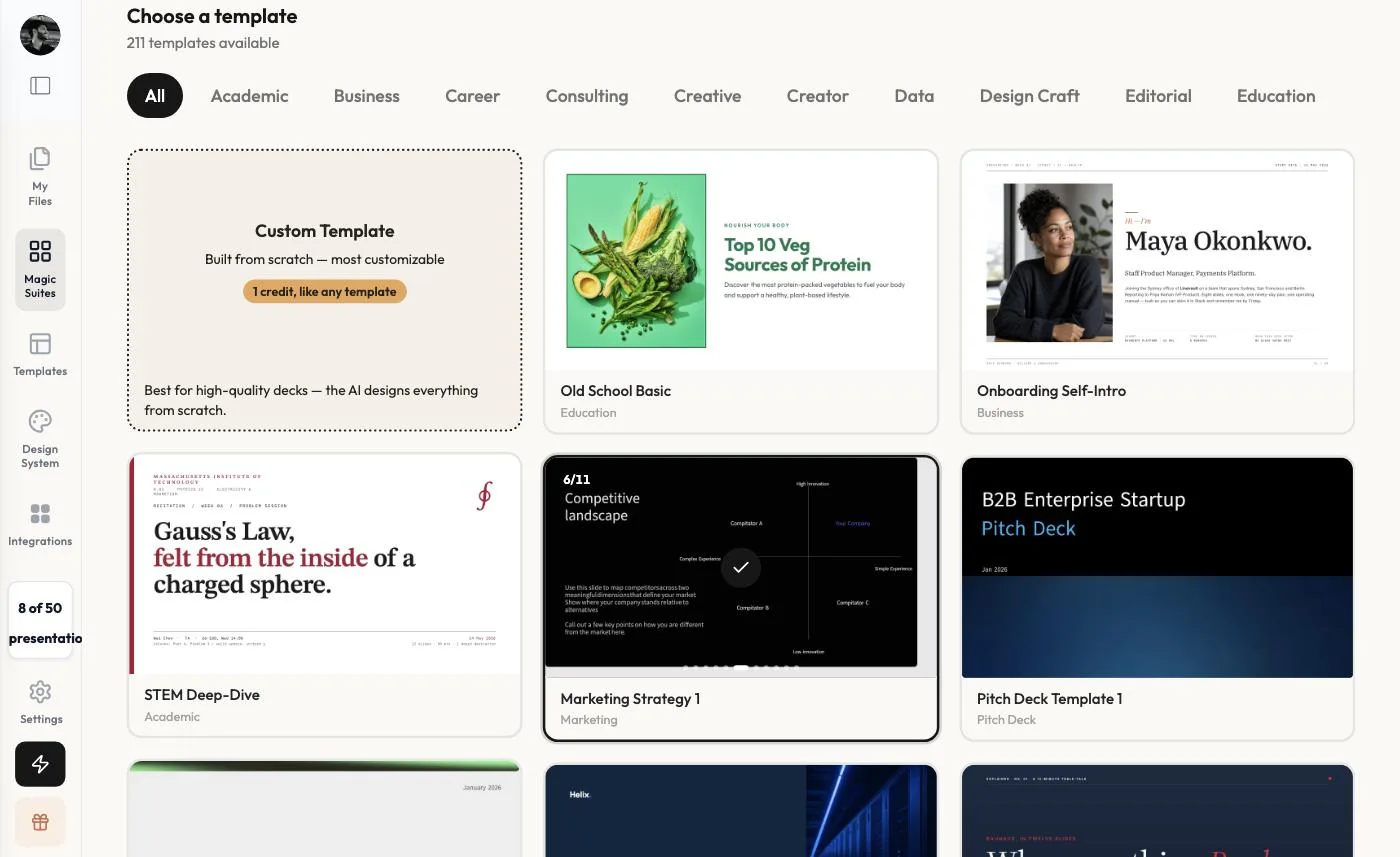 A selected template shows a tick and cycles through its slides.
Step 4: Send the prompt
Scroll back up. The template now appears as a chip under the prompt. Click the send button, or press ⌘ + Enter.
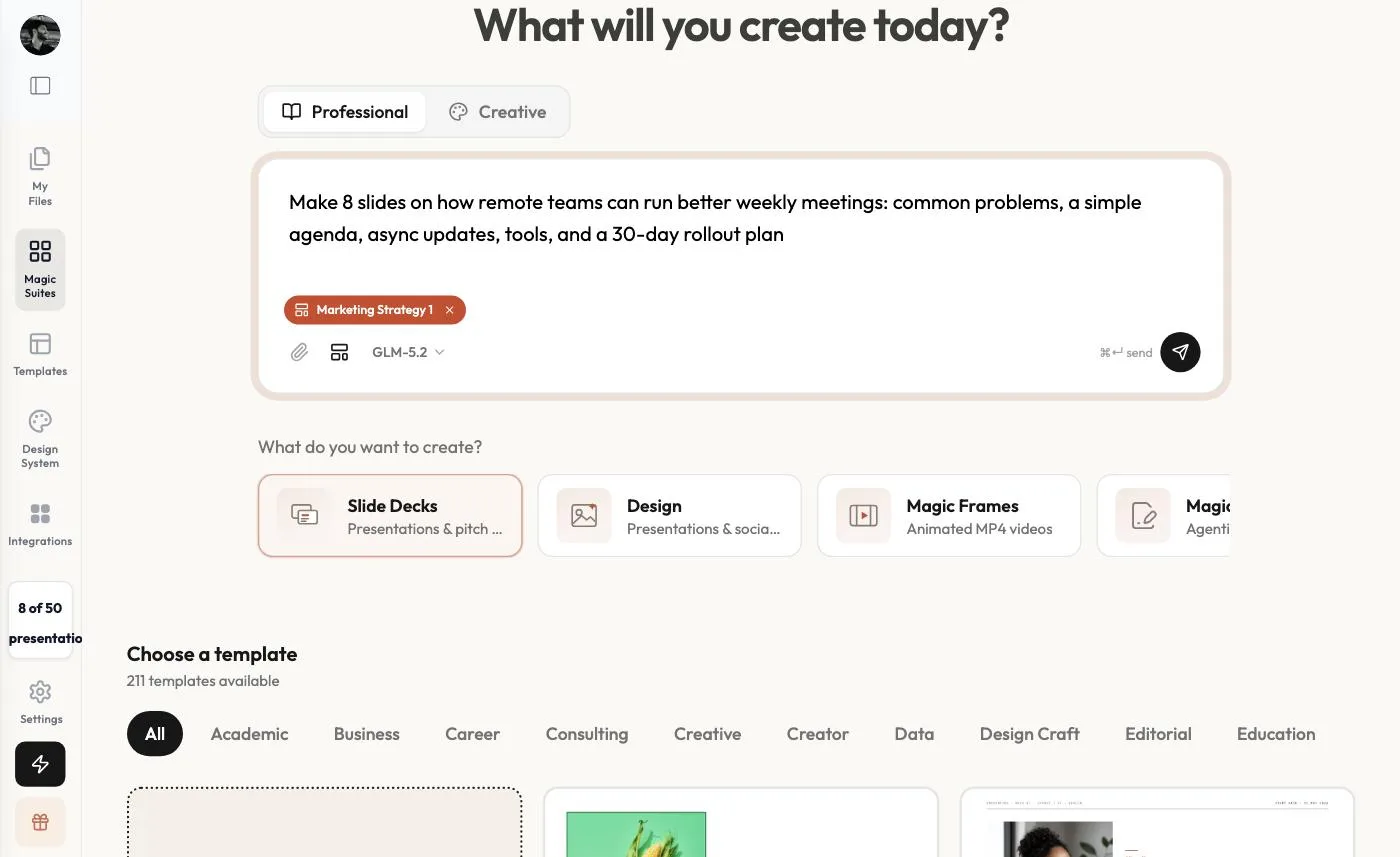 Prompt + template, ready to send.
Step 5: Answer the questions
MagicSlides researches the topic on the web first and shows the sources it read. Then it asks up to three questions:
- What's the main focus? For example, fixing common problems, or teaching one proven format.
- Who's this for? Team leads, executives, HR, and so on.
- How many slides?
If you're not sure, click Decide for me on any question. You can also paste a website link for it to research, or add notes. Then click Send.
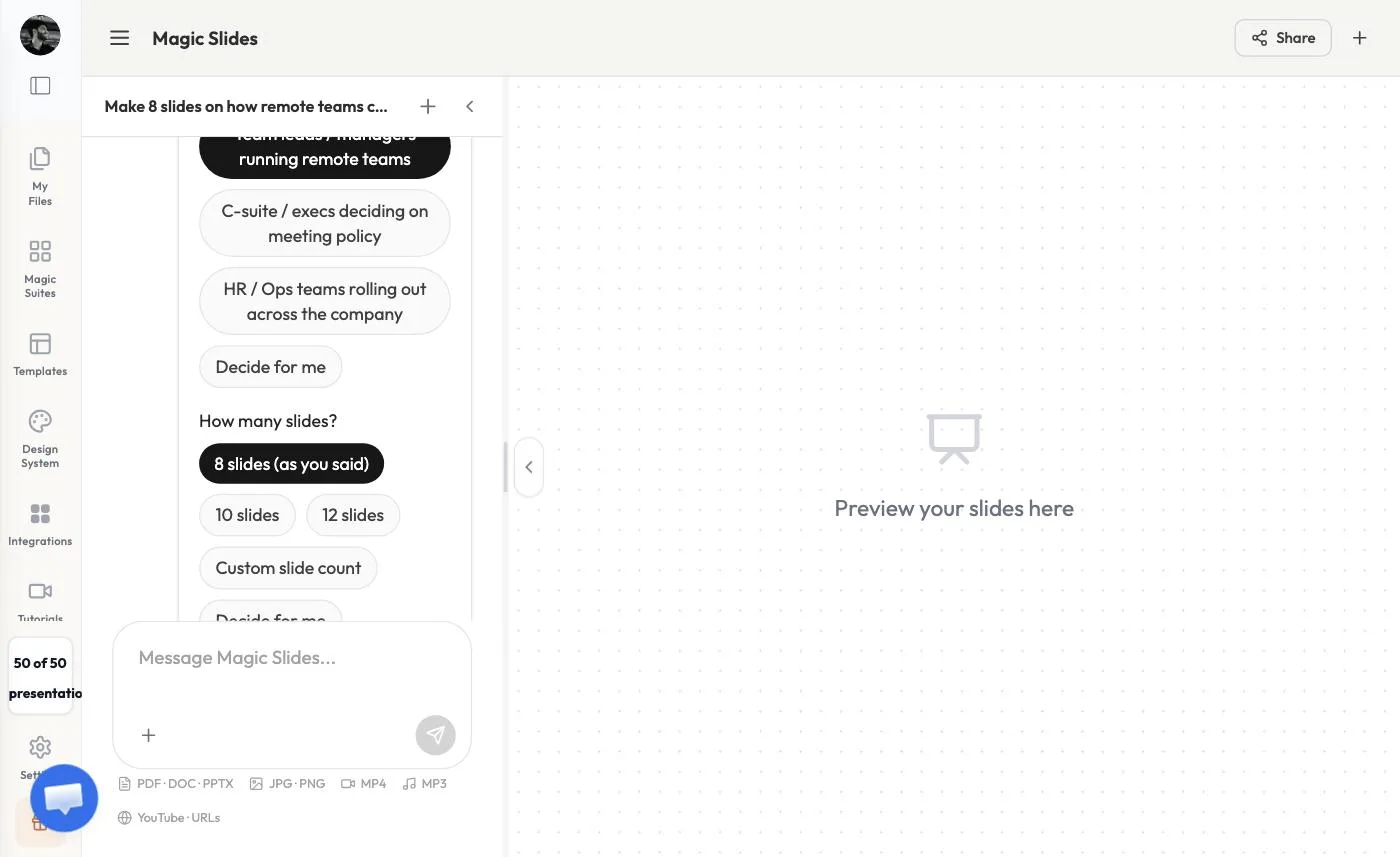 Three quick questions — or let MagicSlides decide.
Step 6: Review the plan and approve it
MagicSlides shows Your deck plan before it builds anything: a research summary with numbered sources, key statistics it found, and a slide outline that maps every slide to a layout in your template. Click Edit to reword or reorder anything.
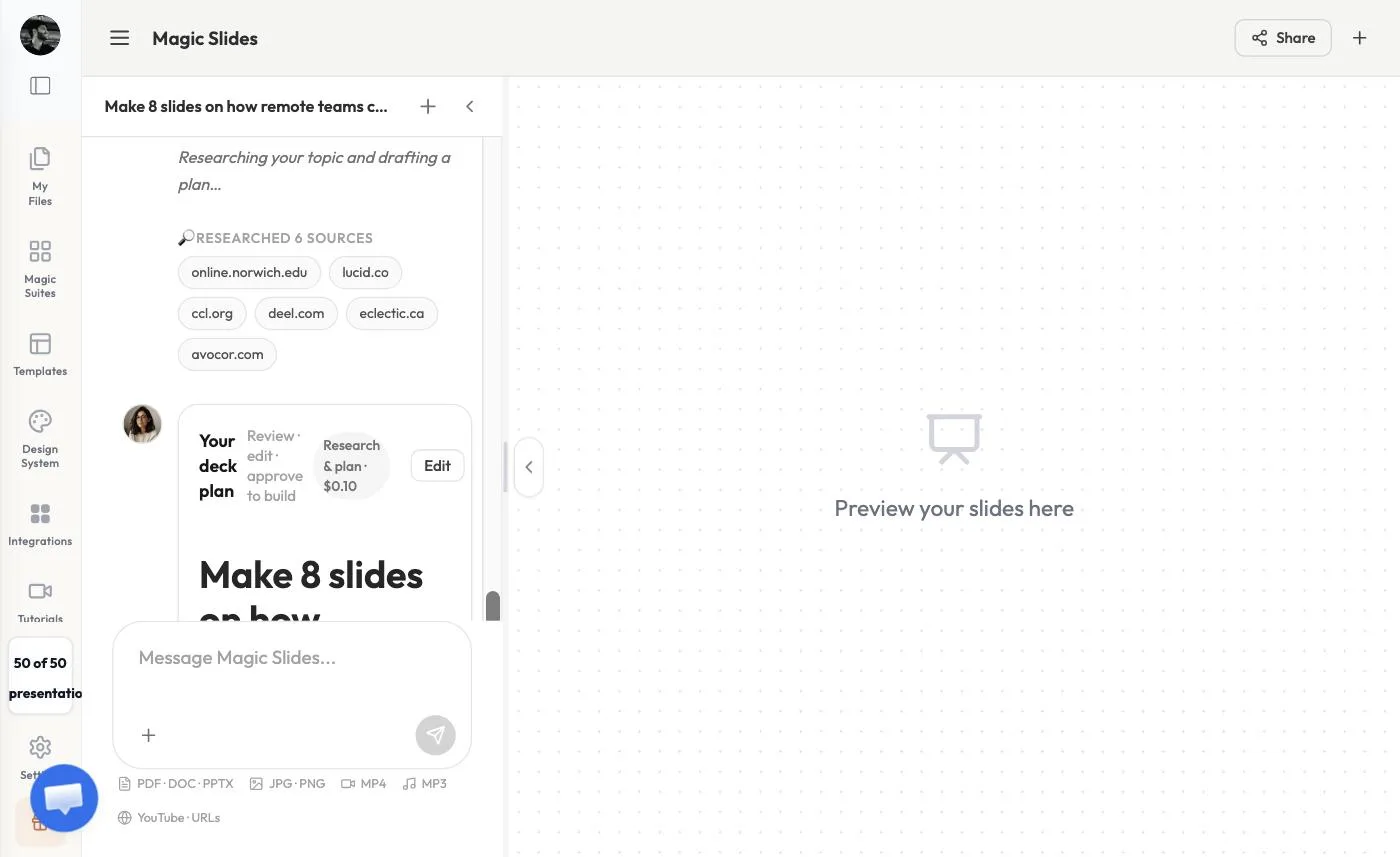 The plan is built from real sources you can check.
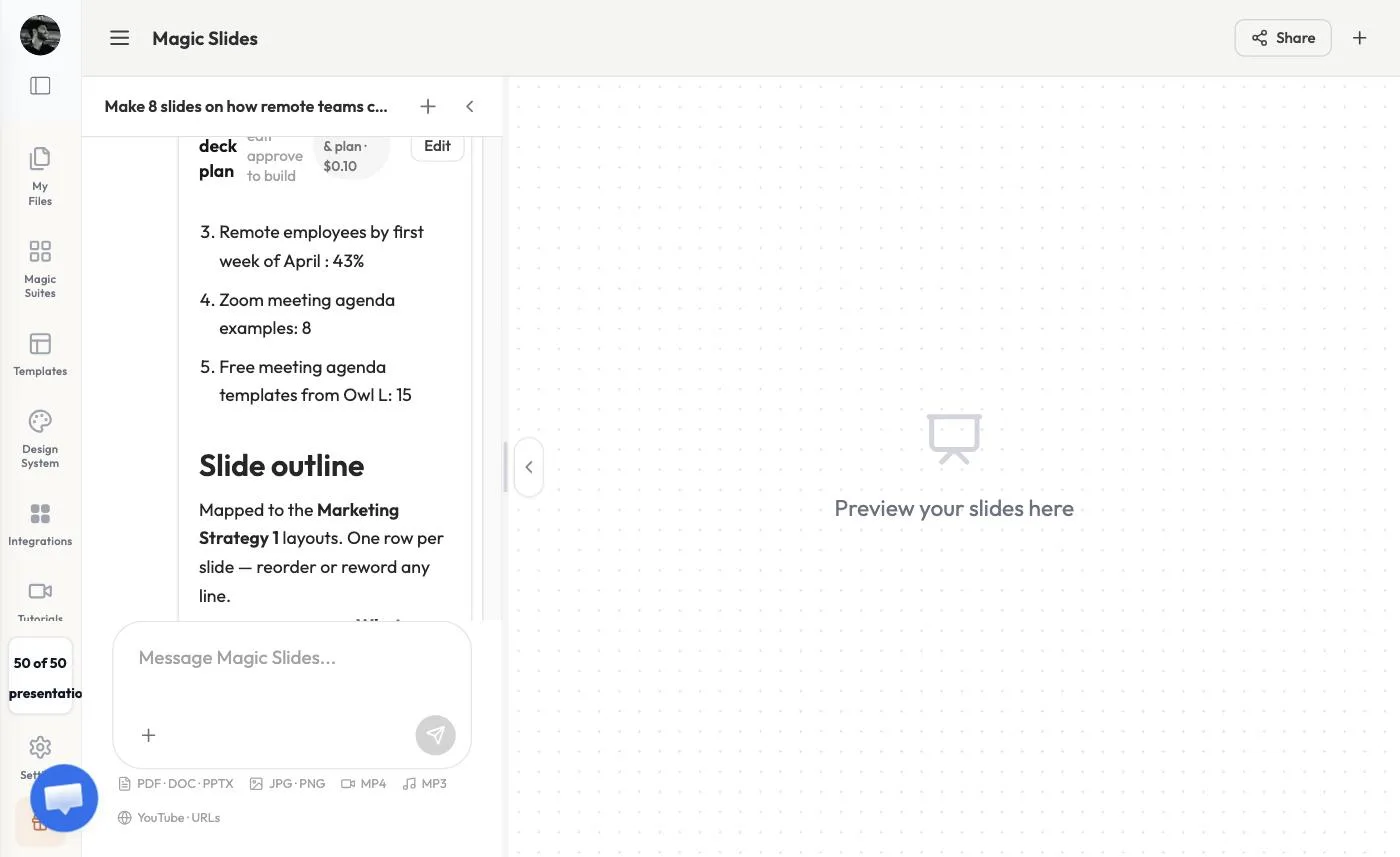 One row per slide — edit before you build.
When the plan looks right, click Approve & build →.
Step 7: Check the generated deck
In about 30 seconds you'll see 8 slides generated, with the deck in the preview. The buttons at the top are Share, Edit, Present, and Export.
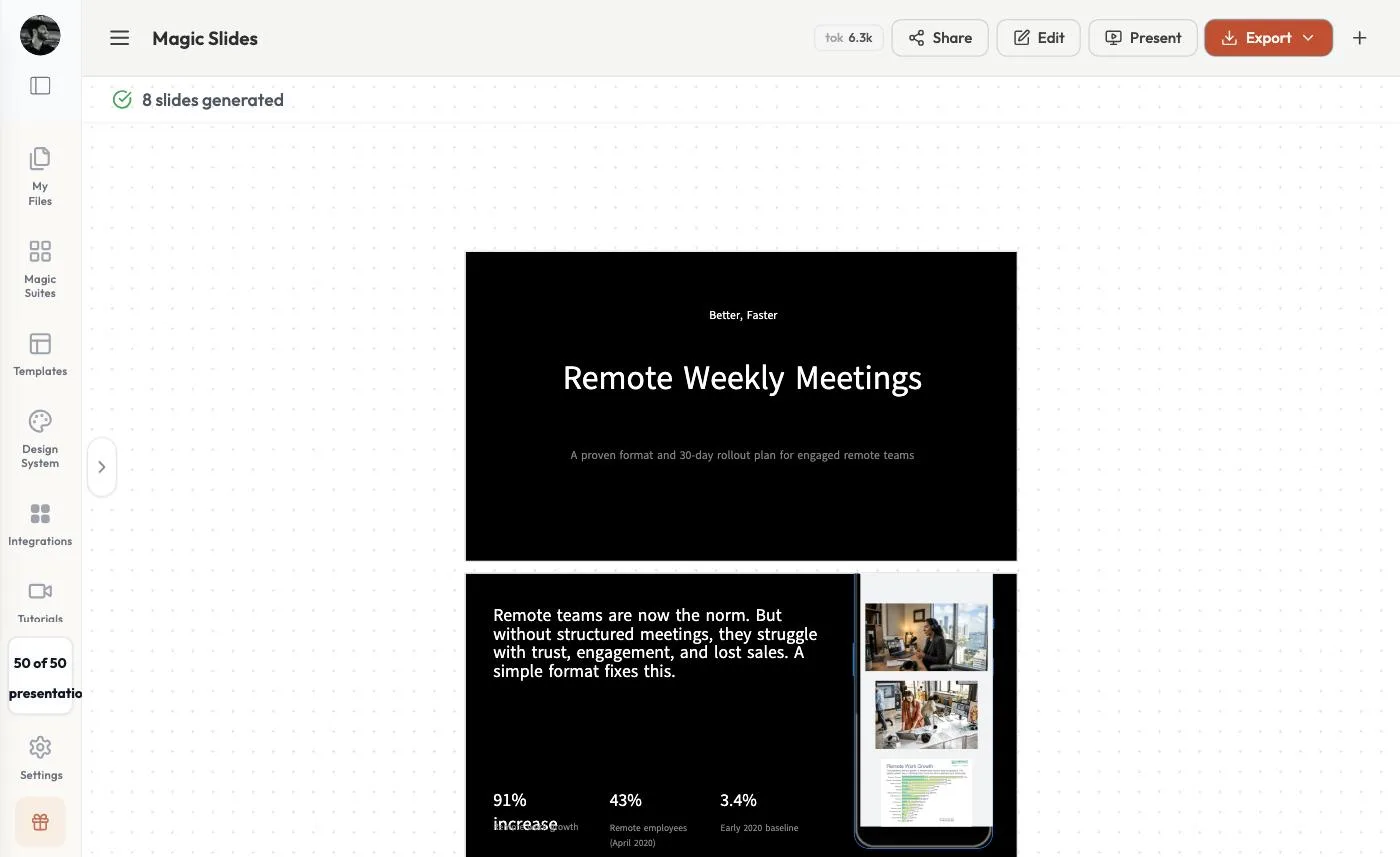 The finished deck, ready to edit or export.
Step 8: Edit any slide
Click Edit to open the MagicSlides editor. Changes save automatically. From the toolbar you can Insert text and elements, add Shapes and Media, Remix a slide into a new layout, change the Background, switch the Theme, and roll back with History. Click any text on a slide to rewrite it.
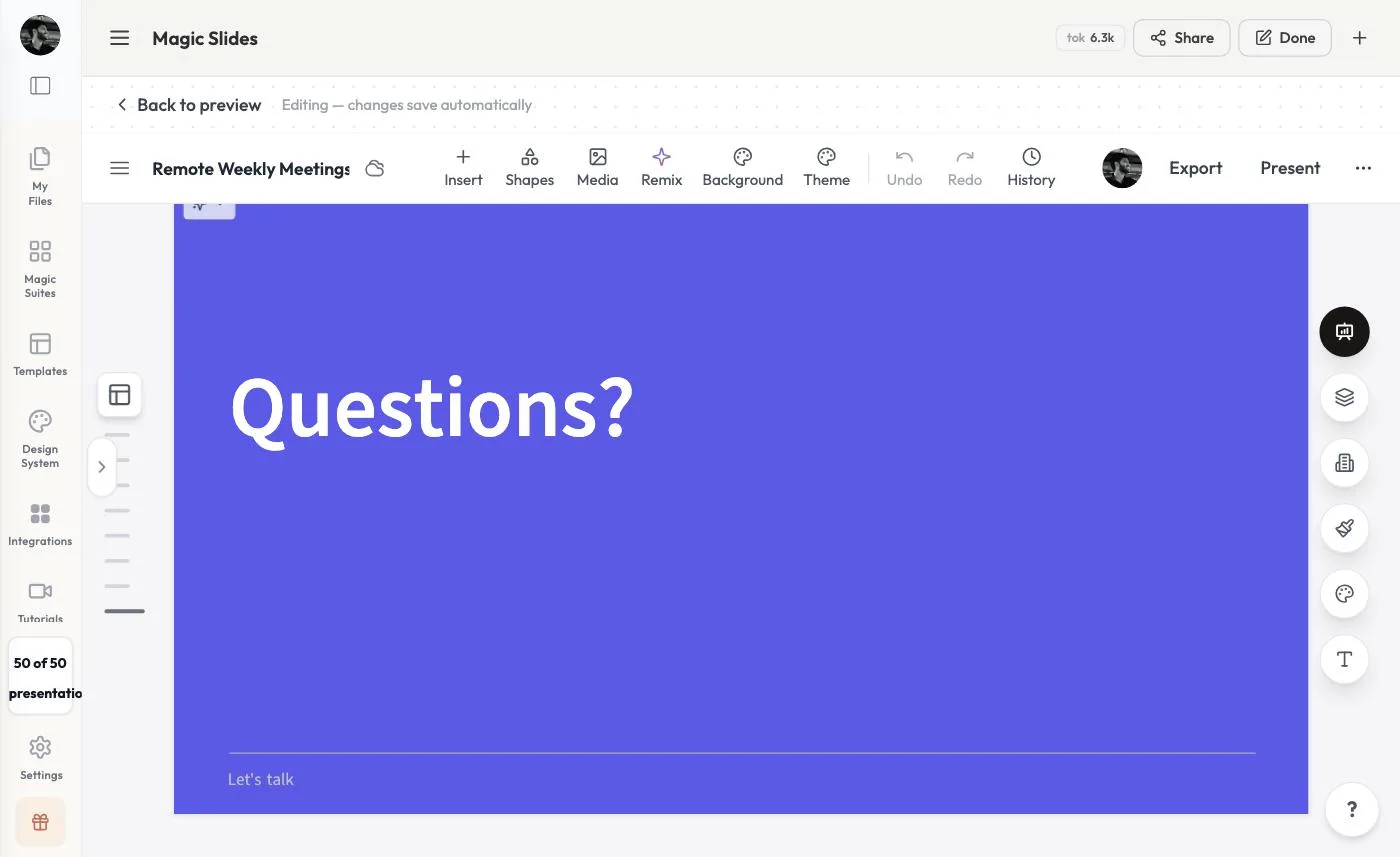 The editor. Changes save automatically.
To restyle the whole deck at once, click Theme and pick one from the Change Theme panel, or create your own under Custom. The panel includes White Corporate, Gray Enterprise, Gray Finance, and Gray Investor.
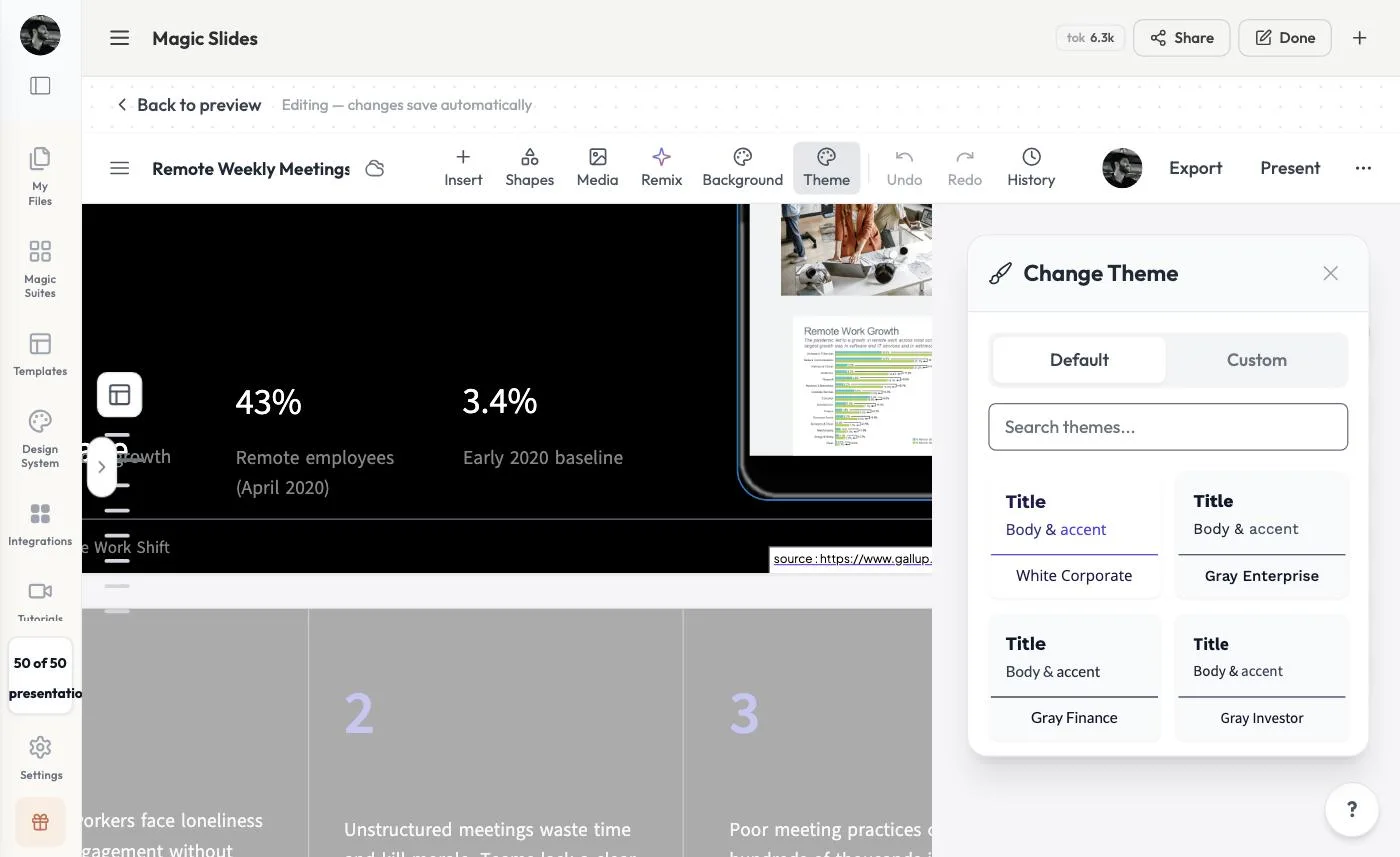 Pick a theme from the Change Theme panel.
Step 9: Export a PPT, PDF, or Google Slides
Click Export and choose a format:
- PDF document (1920 × 1080)
- PowerPoint (.pptx), marked with a Plus badge
- Image (3840 × 2160)
- Google Slides, which opens the deck in Google Slides
- LinkedIn post, Instagram post, X post, and Animated GIF
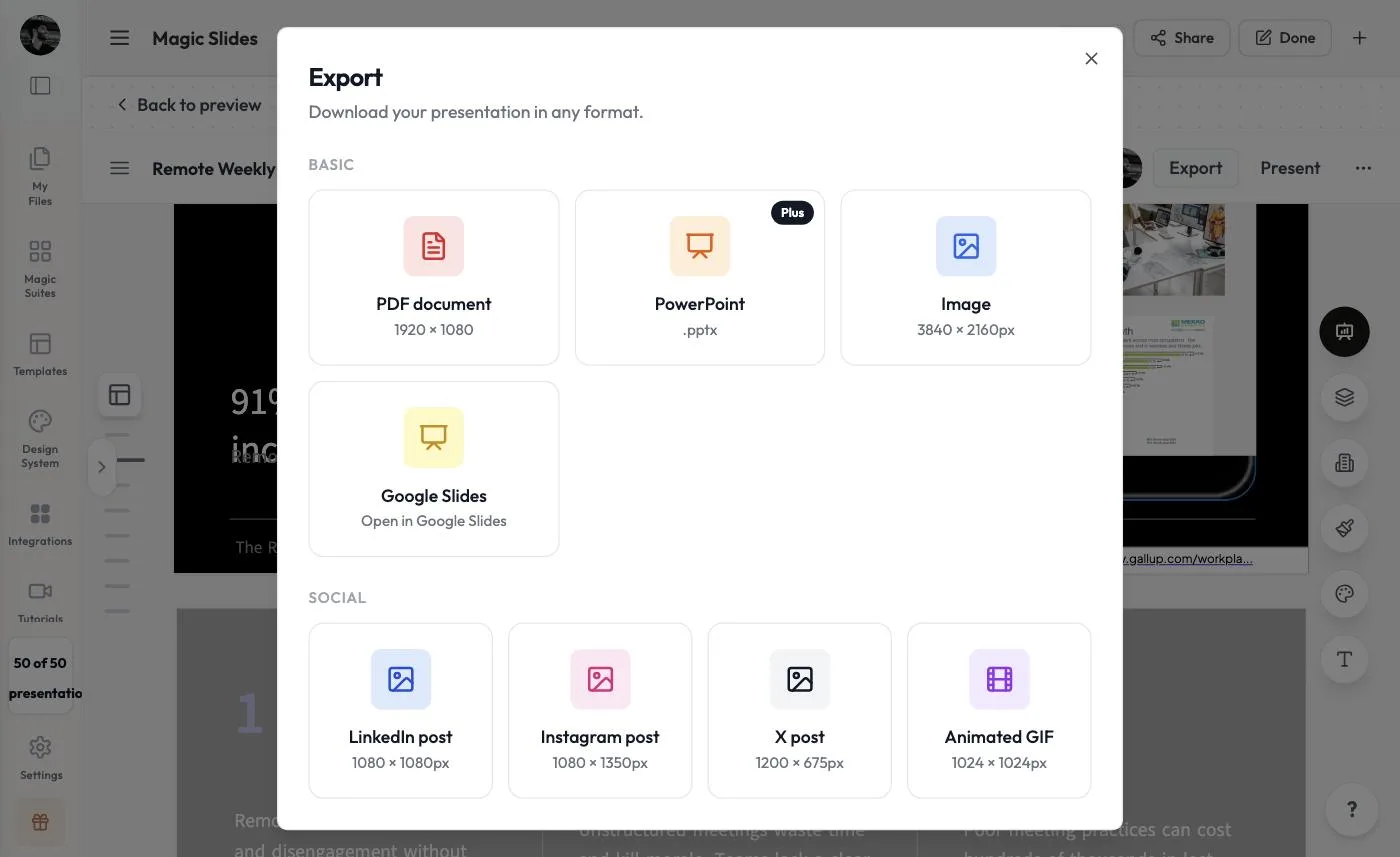 Pick a format, or click Present to present from the browser.
Tips
- Name the audience and what they should do after. "For team leads, ending with a 30-day plan" beats "about meetings".
- Give it your material. Attach a PDF, doc, or link so the deck draws on your own material.
- Review the plan before you build. Fixing the outline first is faster than fixing slides after.
- Check every slide. In our test, one statistic's text ("91% increase") overlapped its label. Fix issues like this in the editor.
- Keep one idea per slide. If a slide feels crowded, use Remix or split it with New slide.
FAQ
How long does it take to make a presentation with AI? About two minutes: roughly 20 seconds of research and questions, a moment to review the plan, and about 30 seconds to build an 8-slide deck.
Can I edit the presentation after it's generated? Yes. Click Edit to open the full editor. Every text box, image, and shape can be changed. You can switch themes, remix slides, or add new ones.
How do I create a PPT using AI? Generate the deck as shown above, then click Export and choose PowerPoint (.pptx), which is marked with a Plus badge. You can also export a PDF or images, or open the deck in Google Slides.
How many slides can MagicSlides make? You choose. Pick a number in the questions (8, 10, 12, or a custom count), or click Decide for me.
Can I make a presentation from a PDF or document instead of a prompt? Yes. Click the paperclip in the prompt box and attach a PDF, Word document, PowerPoint, image, video, audio file, YouTube link, or URL.


