How to Convert Word to PowerPoint (PPT, 2 Ways)

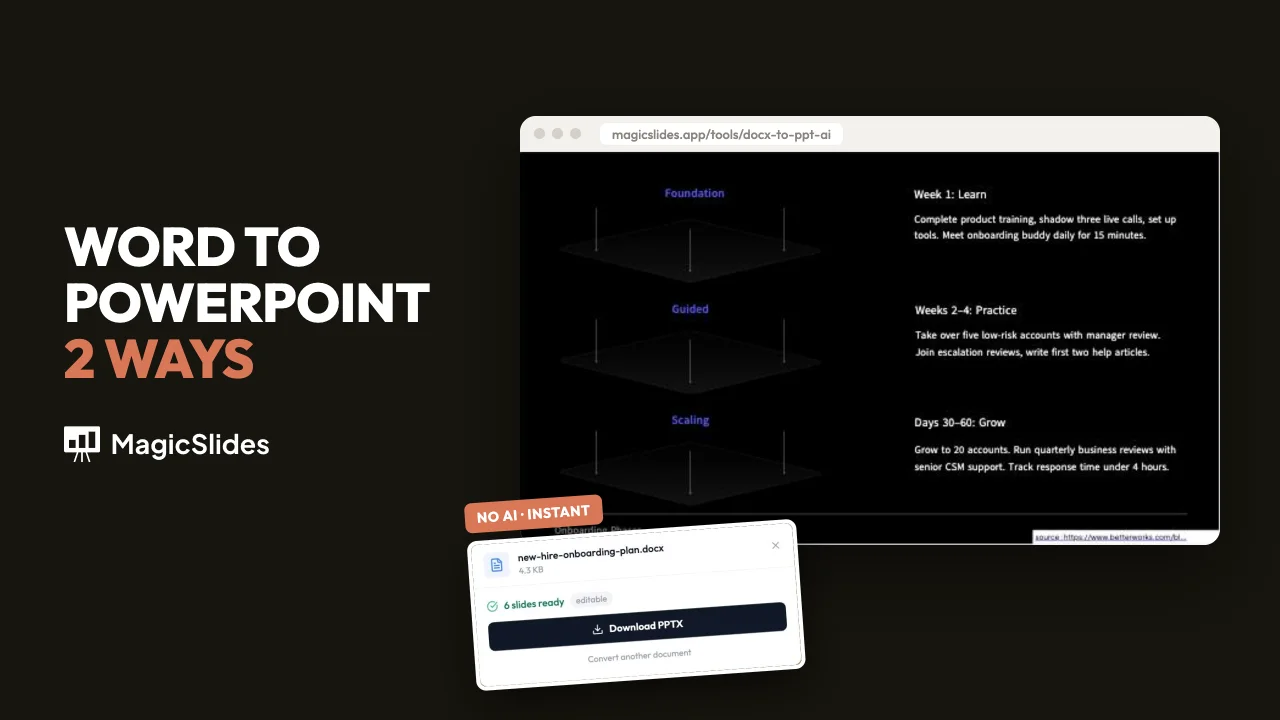
How to convert Word to PPT or PowerPoint: headings become editable slides in your browser, or AI builds a designed presentation you can edit and export.
To convert Word to PPT with MagicSlides, open the Word to PPT converter and drop in your .docx file. Without AI, each heading becomes an editable slide, and you download a PowerPoint file (PPTX) in seconds. The Word file never leaves your browser. With AI, MagicSlides reads the document and builds a designed presentation you can edit and export.
We ran both on a real file: a one-page onboarding plan for new hires (198 words, a heading for each phase, and a check-in table).
What you need
- A Word document saved as .docx. If you have an old .doc file, open it in Word and save it as .docx first.
- Headings in the document. Without AI uses them to decide where each slide starts.
- A MagicSlides account for With AI. An AI conversion uses 1 presentation credit from your plan.
Method 1: Convert Word to PPT without AI
Step 1: Open the converter and drop in your .docx
Go to the Word to PPT converter. Without AI is selected by default, with the note 100% in your browser — your file is never uploaded. Click the drop zone or drag your Word file onto it.
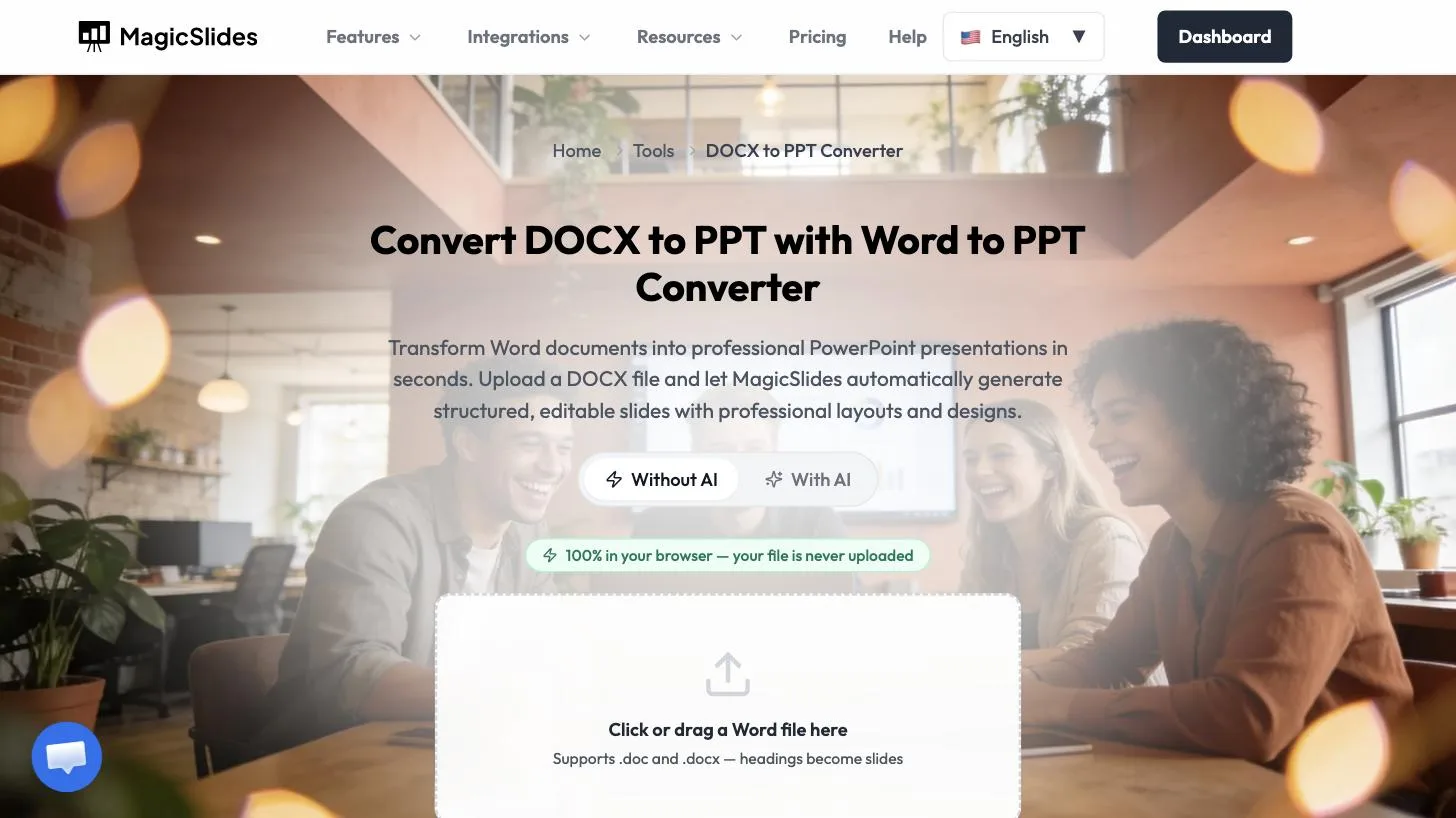 Without AI runs in your browser. Headings become slides.
Step 2: Let it read the document
A short progress bar runs while it reads the document and builds the slides.
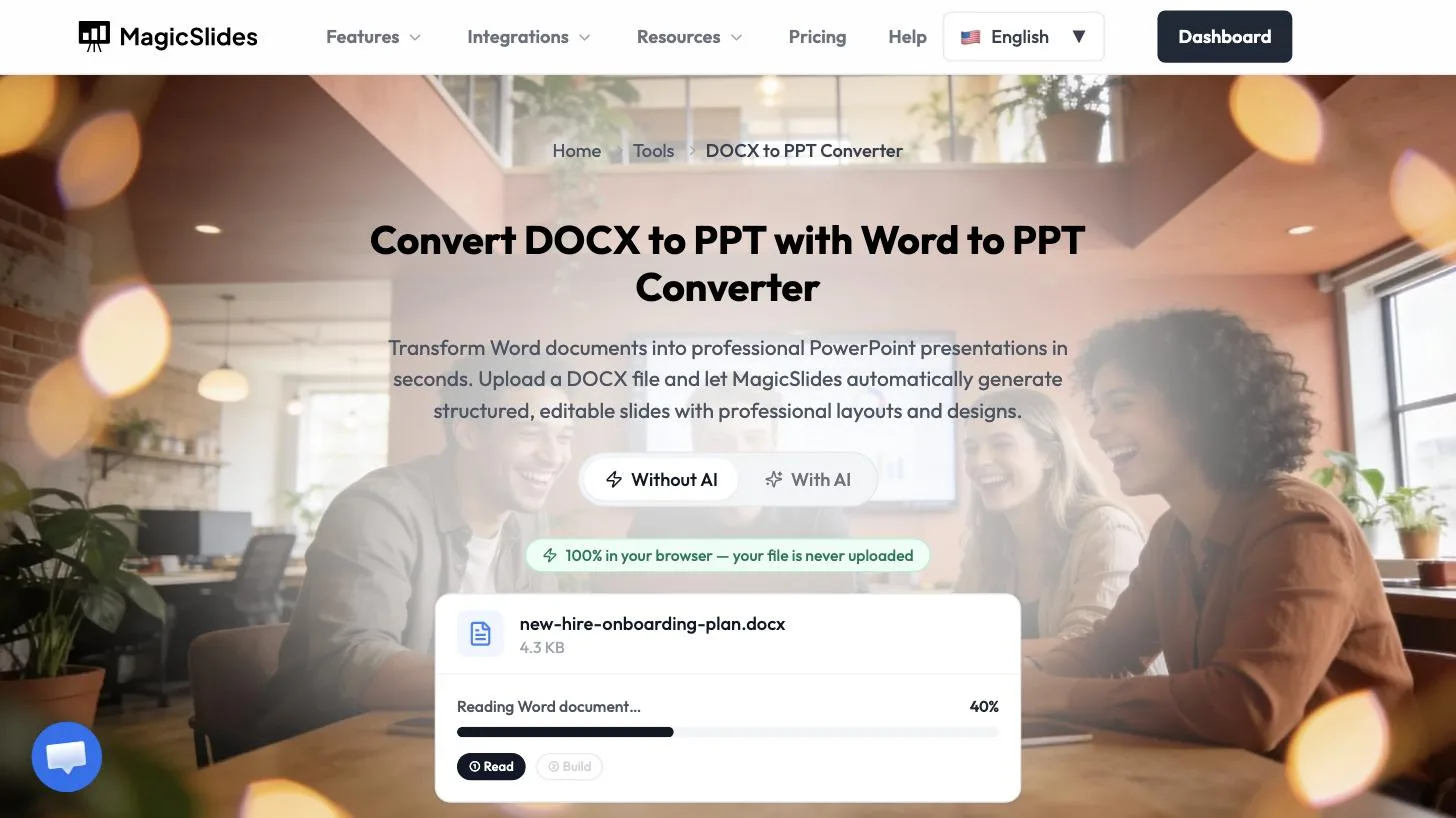 Read, then build. It takes a few seconds.
Step 3: Download the PPTX
Ours finished with 6 slides ready · editable, one slide per heading. Click Download PPTX, or Convert another document if you have another file.
 Six headings, six editable slides.
Use this mode when your document is already well organised and you want its structure as slides.
Method 2: Convert Word to a designed presentation with AI
Step 1: Switch to With AI and attach the document
On the same page, click With AI, then + to attach your file. MagicSlides opens the create page with the document attached. The chip shows what it read. Ours said DOCX · 198 words.
 With AI builds a new, designed deck from your document.
Step 2: Add an instruction and pick a template
Type what the presentation is for. Ours: Turn this onboarding plan into a 6-slide presentation for new managers. One slide per phase, plus the check-in schedule. Then choose a template. Click one to open a preview, then click Use this template. We used Marketing Strategy 1. Click send.
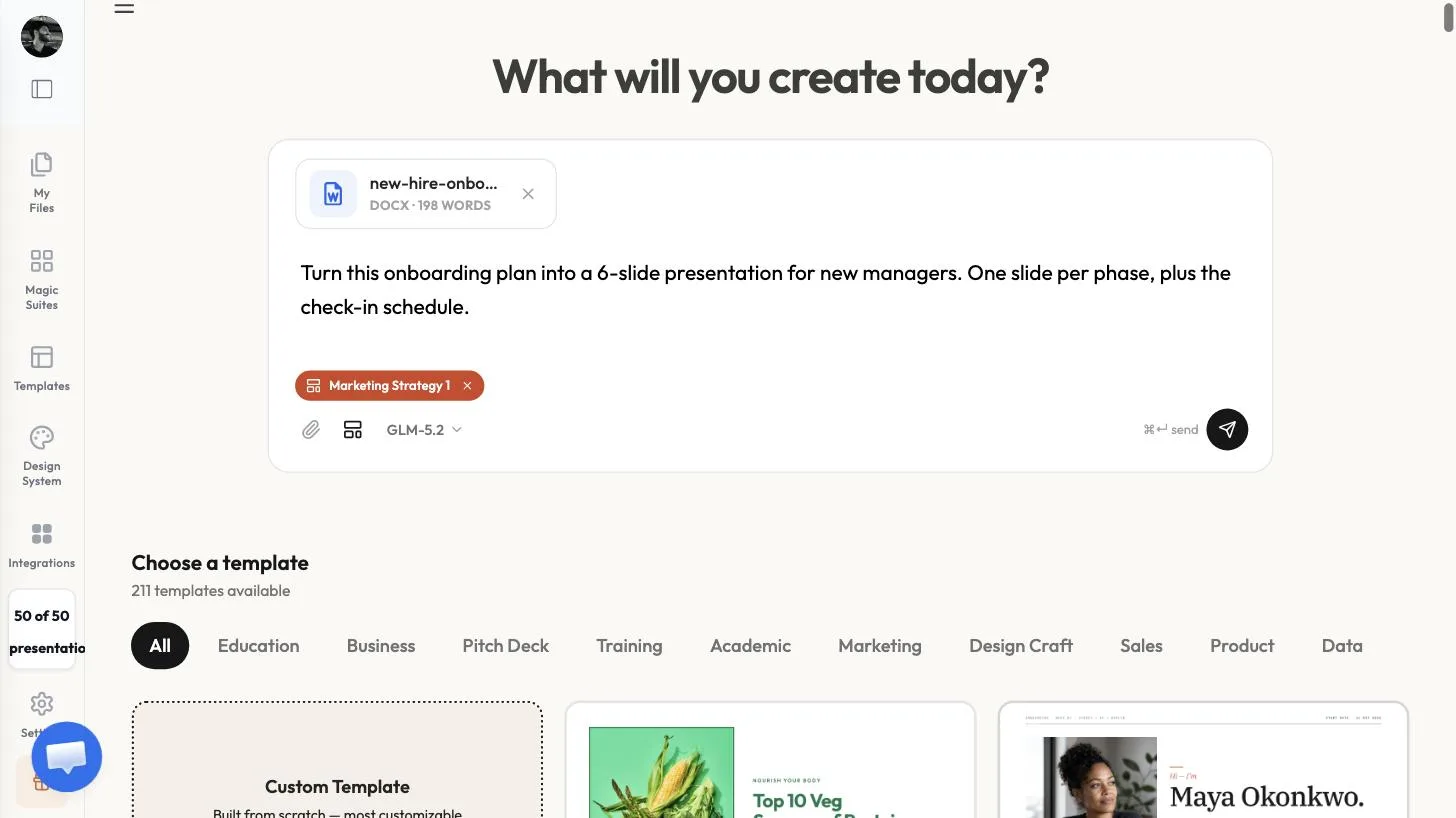 Document + instruction + template.
Step 3: Answer the questions and approve the plan
MagicSlides asks a few questions about focus, audience, and length. We clicked Decide for me on all of them. It then shows a slide-by-slide plan. Click Approve & build.
Step 4: Check the presentation
We got 6 slides generated. The content came from the document: a 90-Day Plan — New Manager Onboarding title slide, the three 60-day goals (20 customer accounts, a 4.5/5 satisfaction score, one help-center improvement), the onboarding phases with the Week 1, Weeks 2–4 and Days 30–60 details, full ownership by day 90, and the check-in schedule from the document's table.
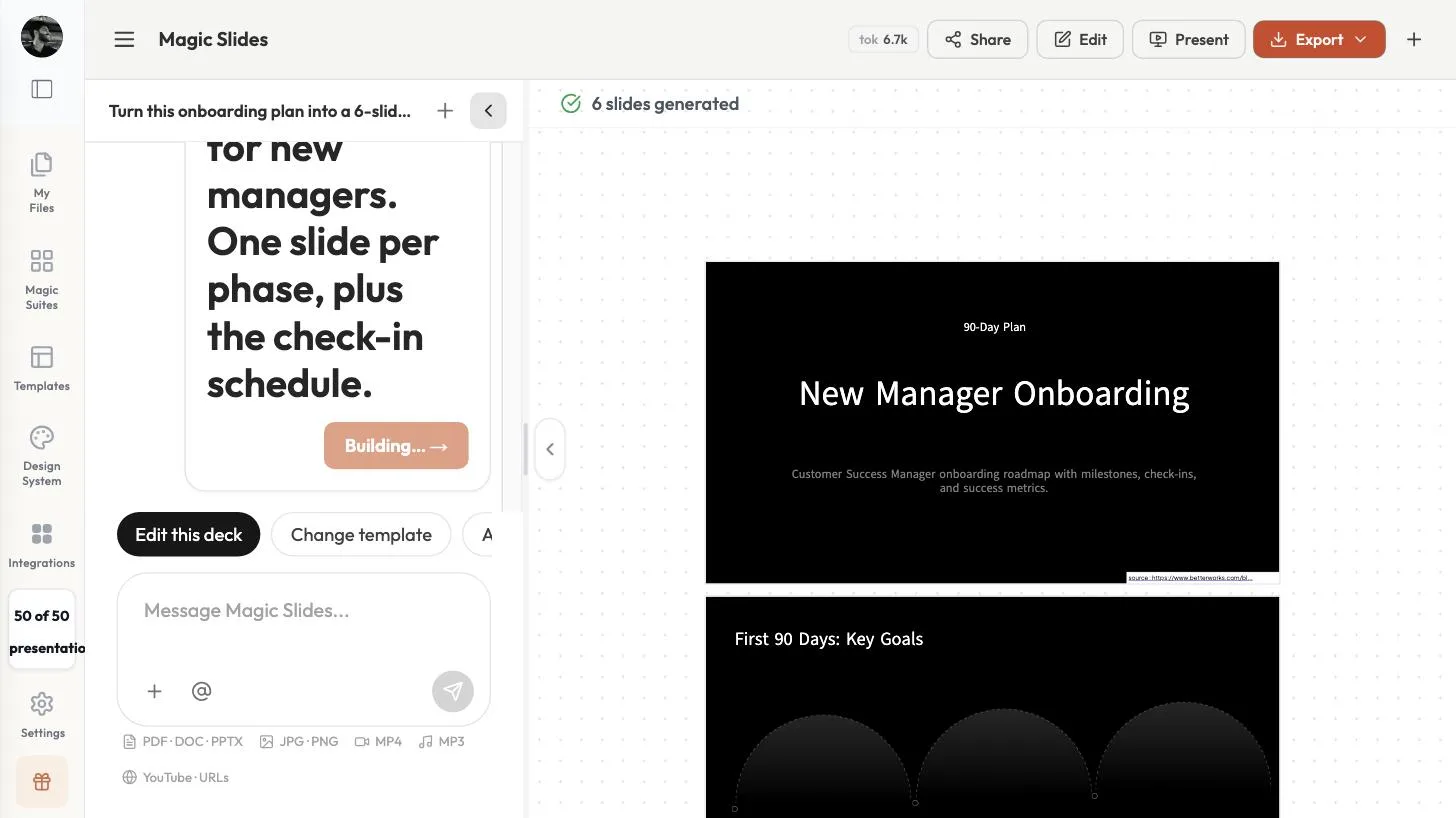 The Word document, rebuilt as a presentation.
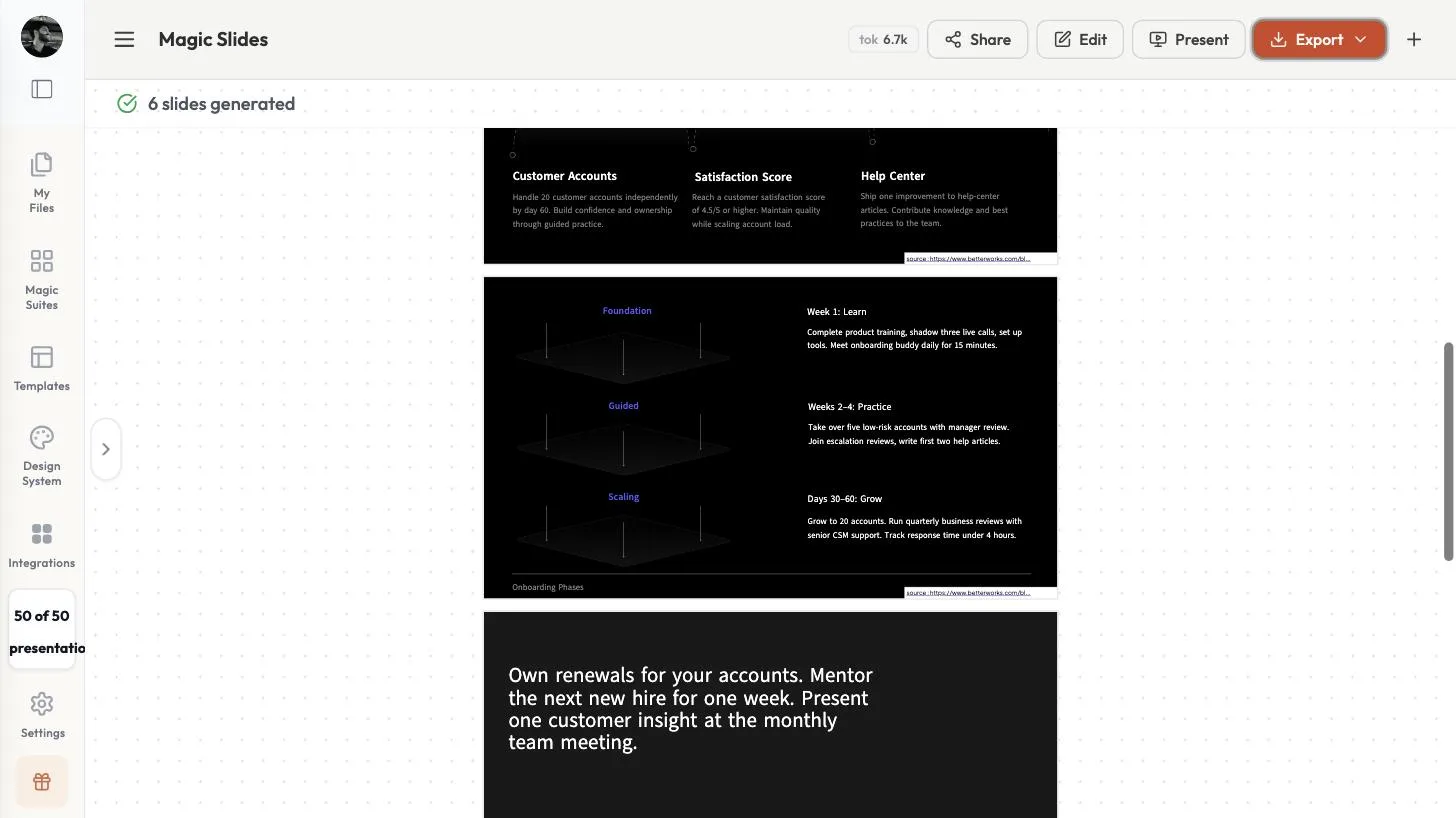 Each phase from the document became a visual step.
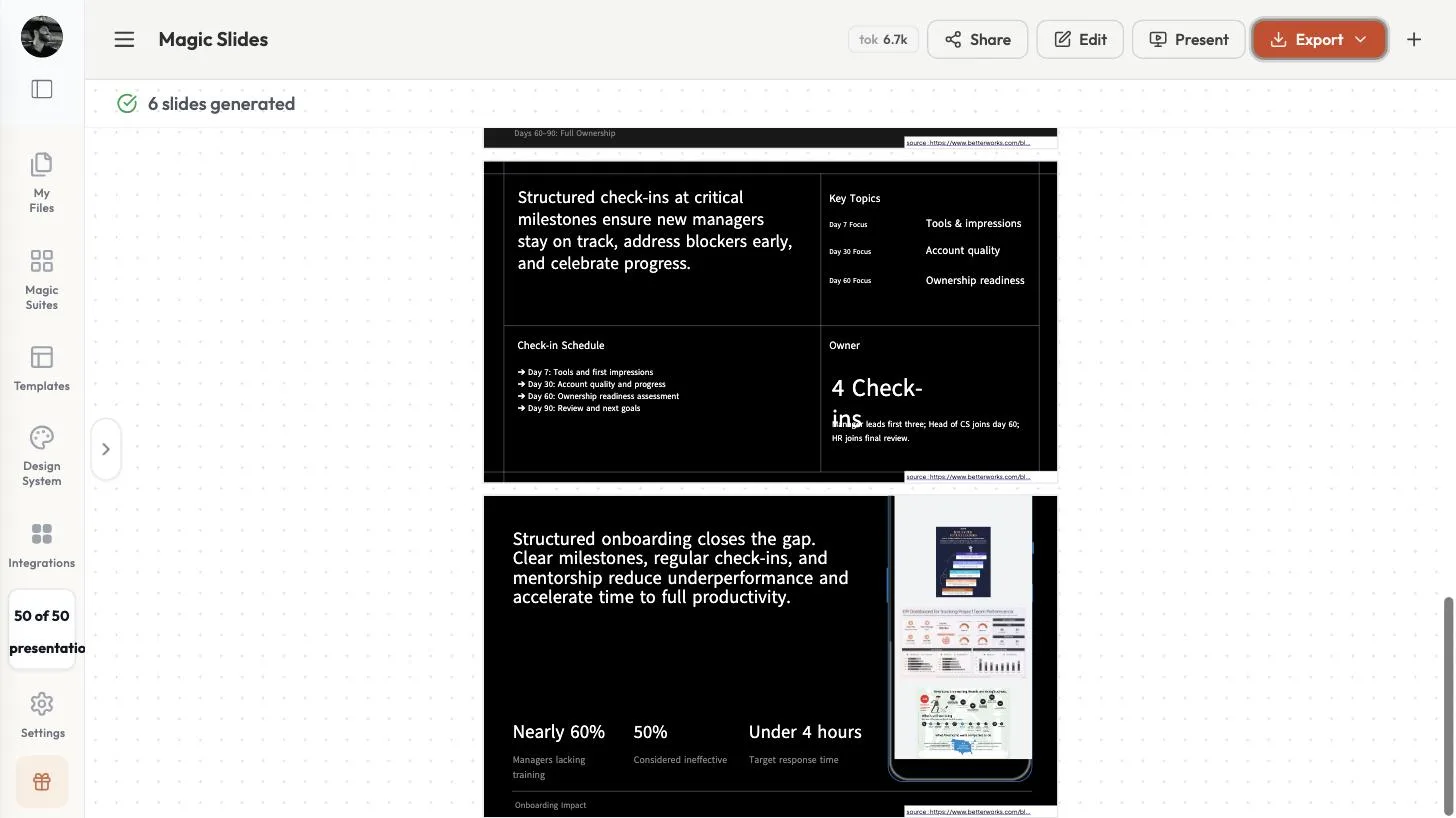 The check-in table, turned into a slide.
Check two things before you present:
- It can add outside research. Our last slide included statistics about manager training that were not in the document, with a small source link on the slide. If you want only your document's content, delete them in the editor.
- Look for overlapping text. On one slide, a heading overlapped the paragraph below it. Click Edit and move it.
When it looks right, use Export for PowerPoint (.pptx, marked Plus), PDF or Google Slides.
Without AI or with AI: which should you use?
| You want… | Use |
|---|---|
| Your document's headings as slides, in seconds | Without AI |
| The file to stay in your browser | Without AI |
| A designed deck with visuals and a clear story | With AI |
| A restructured deck, not a copy of the doc's layout | With AI |
Tips
- Use real headings. In our test, each heading in the document became a slide.
- Keep sections short. A slide holds a heading and a few lines. Long sections are easier to read if you split them in two.
- Tell the AI what to keep. We asked for one slide per phase plus the check-in schedule. It grouped the phases on one slide and gave the check-ins their own slide, so review the structure and adjust.
- Review every number. Compare figures on the slides with your document before you present.
FAQ
How do I convert a Word document to PowerPoint? Open the Word to PPT converter, drop in your .docx, and click Download PPTX. Each heading becomes a slide. For a designed presentation, switch to With AI.
Can I edit the slides after converting? Yes. The Without AI result is marked editable. The With AI deck can be edited in the MagicSlides editor before you export it.
Is my Word file uploaded? Not in Without AI. The page says the conversion runs 100% in your browser and the file is never uploaded. With AI uses the document you attach on the create page to build the deck.
Does it work with .doc files? Save the file as .docx first. We tested .docx.
How long does it take to convert Word to PPT? Without AI takes a few seconds. We didn't time the With AI run. It asks questions and shows a plan for you to approve before it builds.


