How to Translate in PowerPoint


Globalize your PowerPoint presentations with ease! Learn step-by-step translation to connect with diverse audiences effortlessly.
Enhance your PowerPoint presentations by seamlessly translating text to break language barriers. Follow these steps to unlock a global audience.
How to Translate in PowerPoint
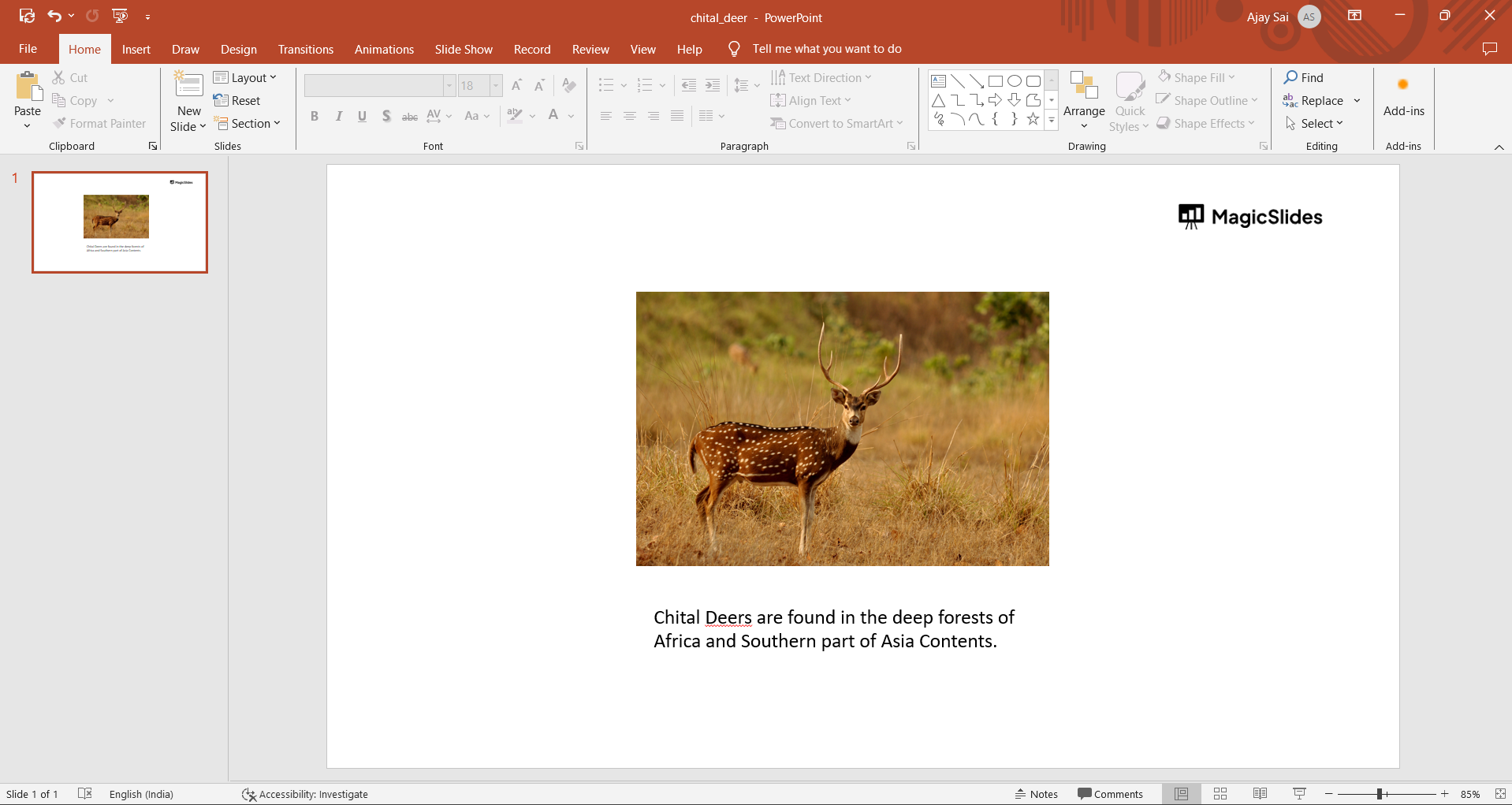
Step 1: Navigate to the Translator Tool
Open your PowerPoint presentation and go to the "Review" tab in the ribbon. Locate and click on the "Translate" option to access the Translator tool.
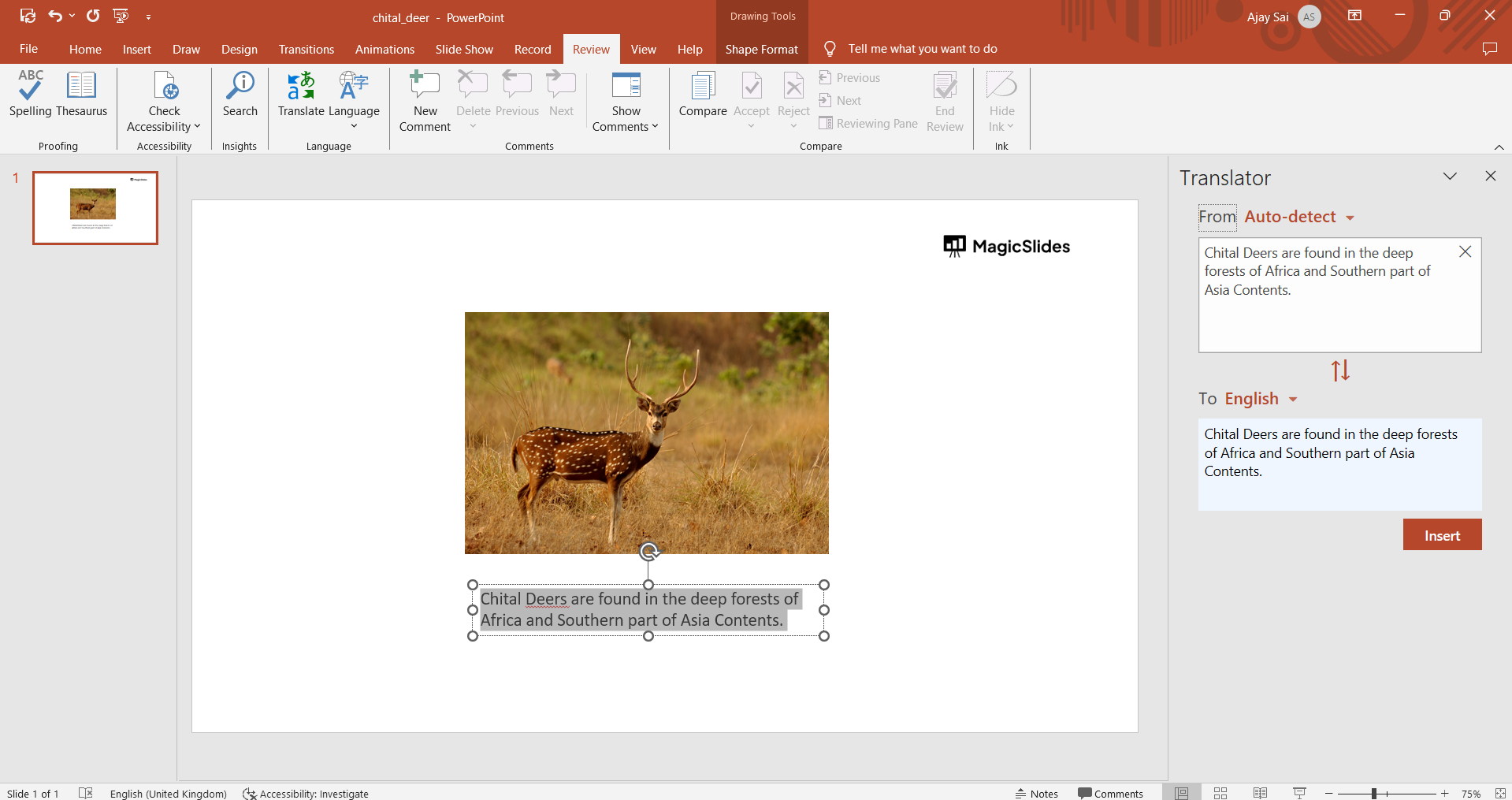
Step 2: Choose the Target Language
In the Translator menu, select the language you want to translate your text into. PowerPoint should automatically detect the source language, streamlining the translation process.
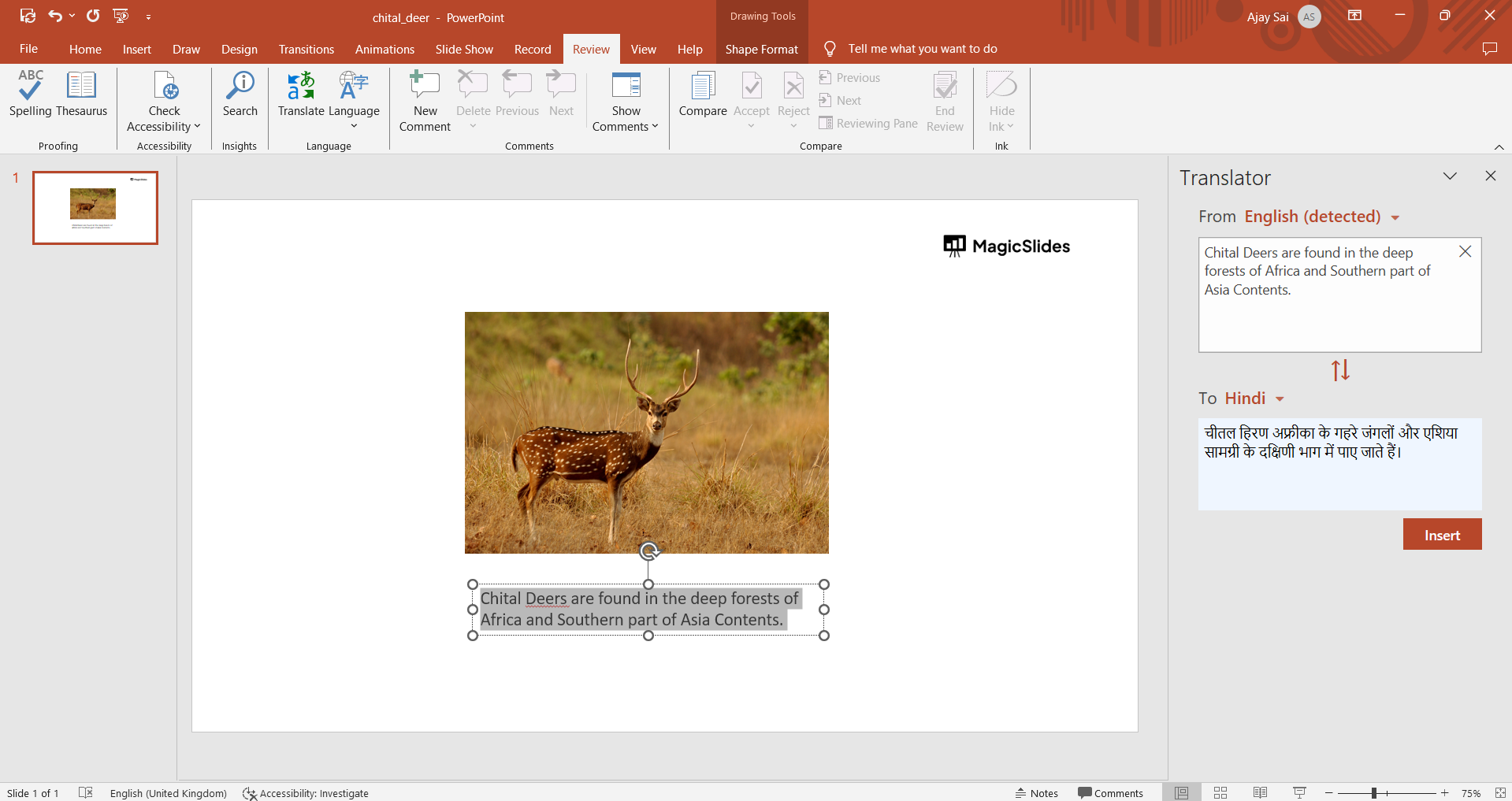
Step 3: Select the Text for Translation
Identify the text box containing the content you wish to translate. Highlight the text, and the Translator tool will promptly display the translated version in the chosen target language.
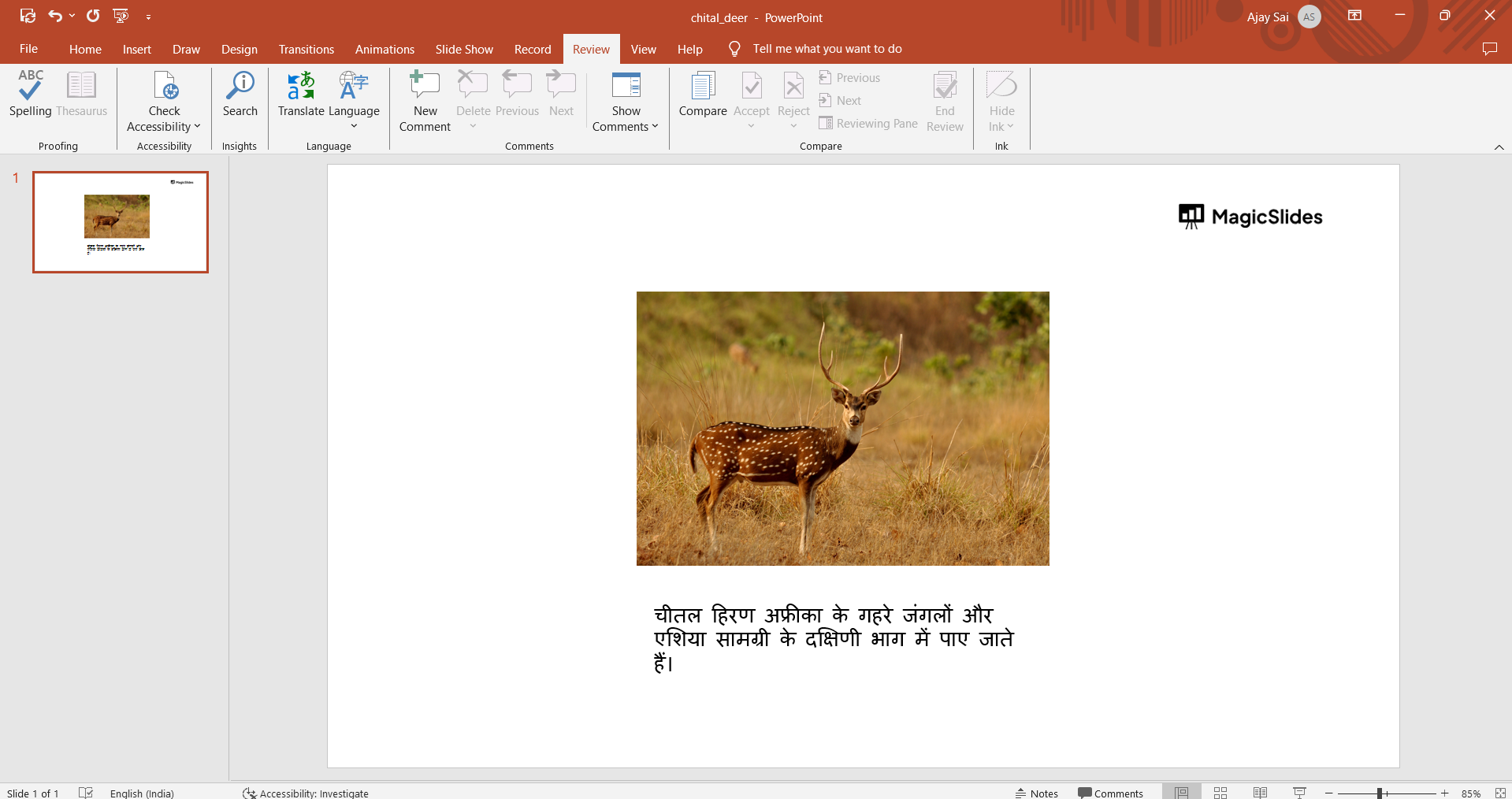
Step 4: Customize and Insert the Translation
If you wish to modify the translated text or make adjustments to the original content, simply click on the "Insert" button. This action seamlessly integrates the translation into your PowerPoint presentation.
Conclusion:
Breaking language barriers in PowerPoint has never been easier. By following these simple steps, you can effortlessly translate text and make your presentations more accessible to a global audience. Expand your reach and impact with multilingual presentations that resonate with diverse viewers.
Frequently Asked Questions:
Can I translate my entire PowerPoint presentation using the Translator tool?
The Translator tool in PowerPoint primarily focuses on translating text within text boxes rather than entire presentations. You'll need to translate individual text elements.
Is the Translator tool in PowerPoint available in multiple languages, and how accurate is the translation?
Yes, the Translator tool supports various languages. Accuracy depends on the complexity of the text, but it generally provides reliable translations for effective communication.


