Mastering PowerPoint Transitions and Animations: A Complete Tutorial


Elevate your presentations! Learn to seamlessly blend PowerPoint transitions and animations for maximum impact
Introduction:
In this blog post, we'll walk you through a streamlined five-step process to seamlessly integrate both transitions and animations, turning your static slides into dynamic and engaging presentations. Let's dive in and discover how to elevate your PowerPoint game.
Mastering PowerPoint Transitions and Animations
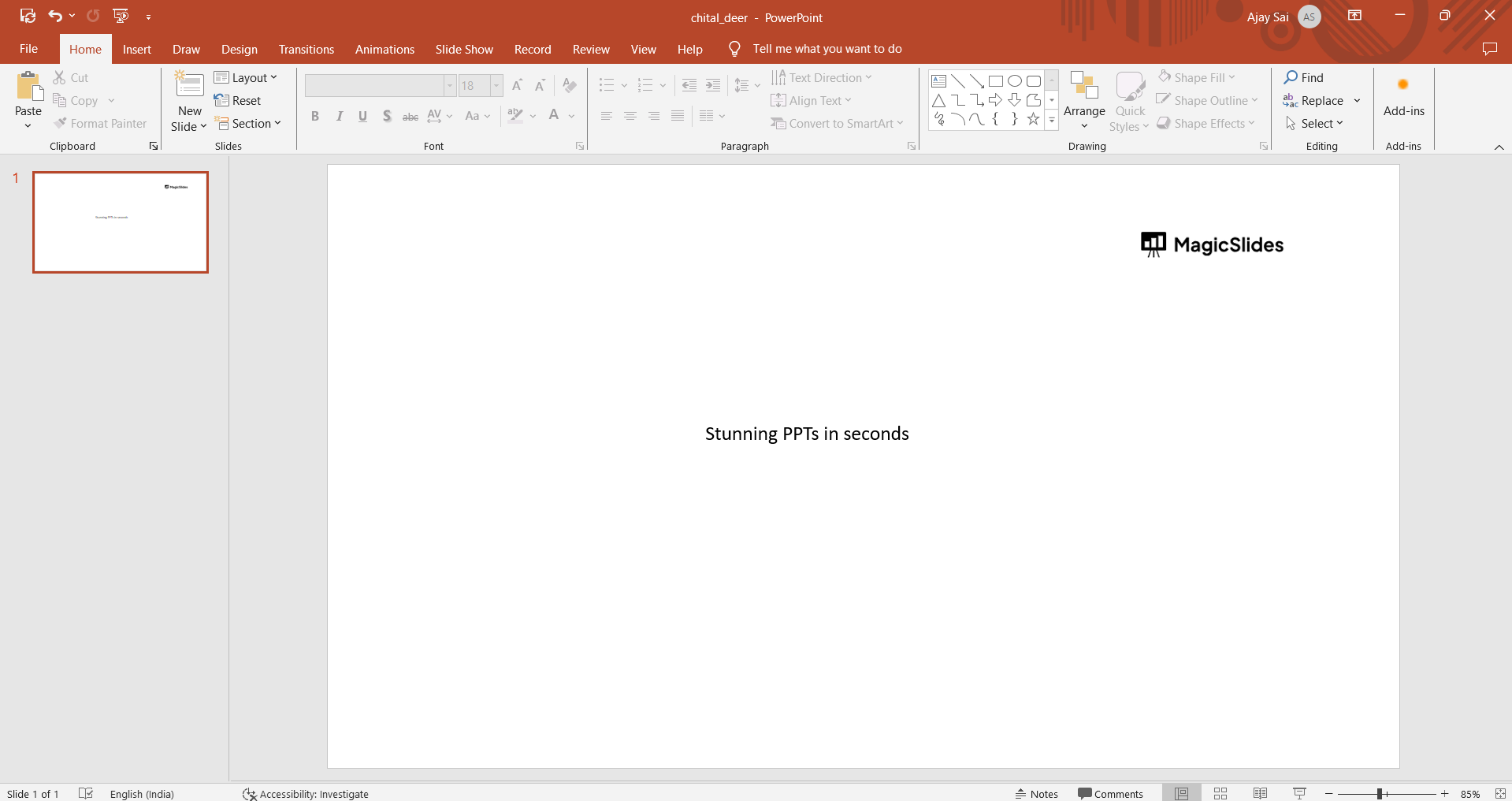
Open PowerPoint and Select a Slide:
Launch PowerPoint and open the presentation. Click on the slide where you want to apply animations and transitions.
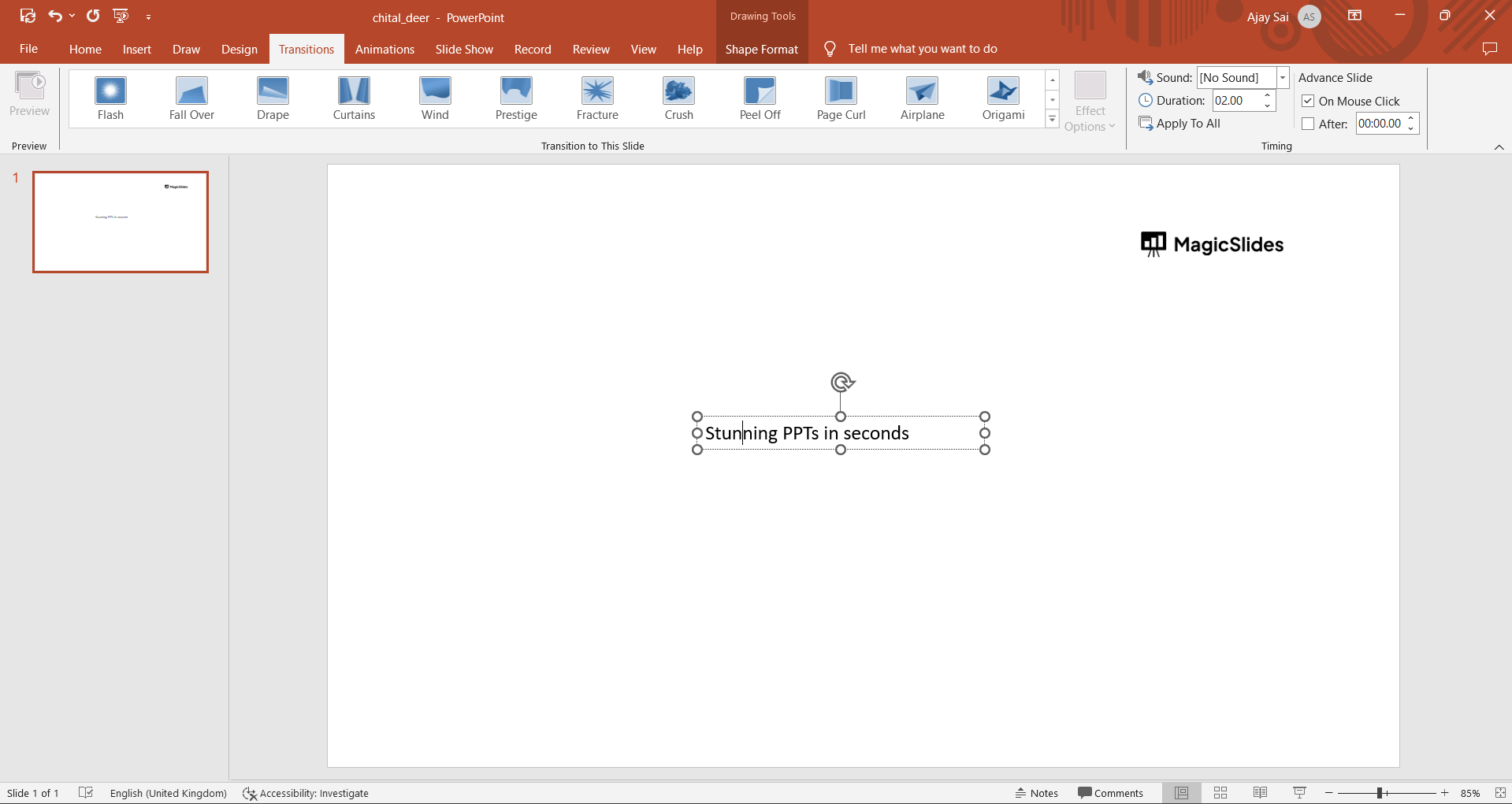
Apply a Transition:
Go to the "Transitions" tab and choose a transition effect for the slide. Adjust any transition options if needed.

Select an Object for Animation:
Click on the object (text, image, etc.) you want to animate on the slide.
Apply Animation:
Navigate to the "Animations" tab and choose an animation effect for the selected object. Adjust animation options as necessary.
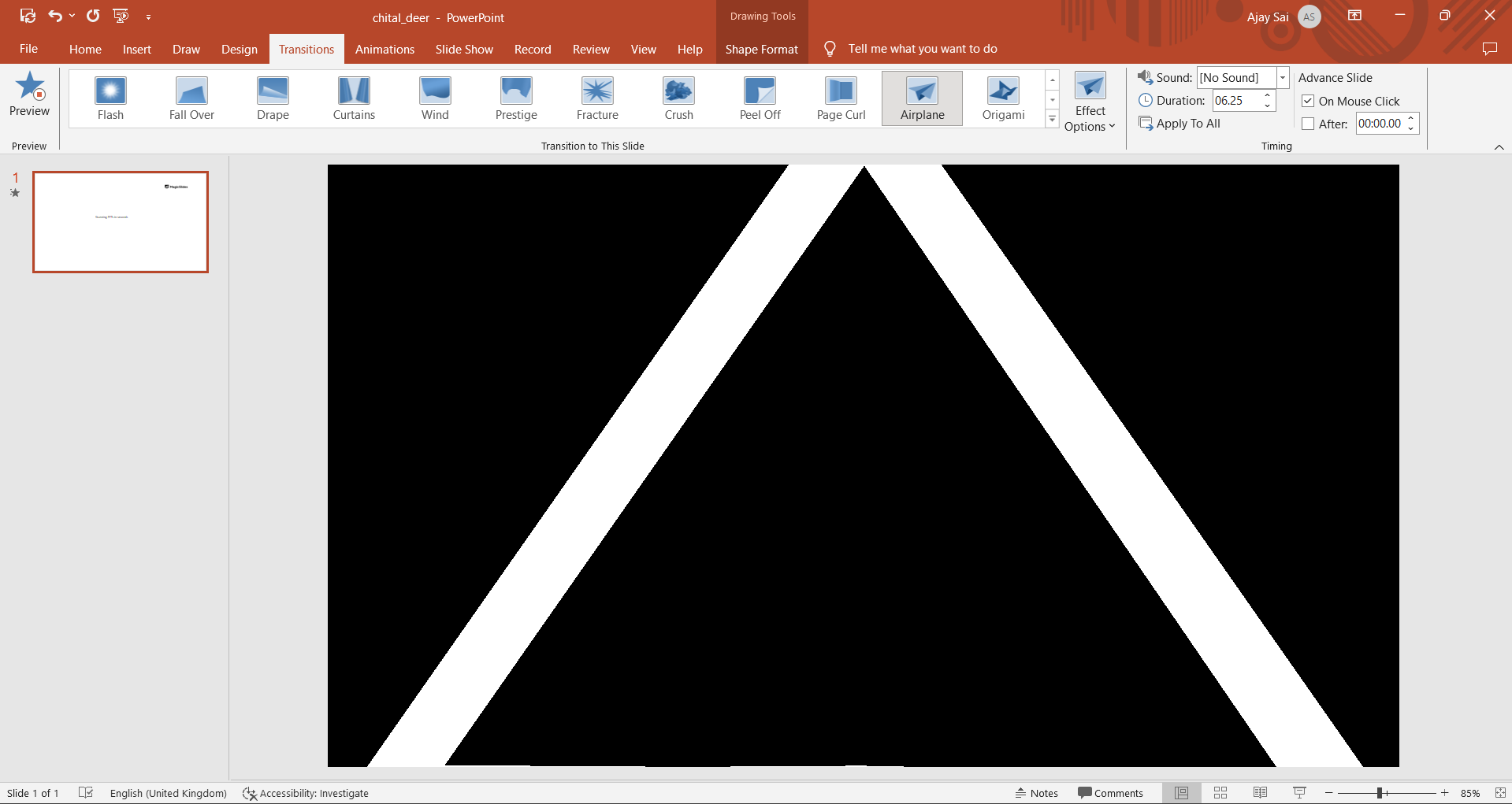
Preview and Save:
Click on the "Preview" button in the "Transitions" and "Animations" groups to review how the slide looks with both transition and animation. Once satisfied, save your presentation.
Conclusion:
By following our five-step guide, you can effortlessly blend transitions and animations, adding a layer of sophistication to your slides without overwhelming your message. So, the next time you create a presentation, remember to consider the visual impact of transitions and animations. Happy presenting!
Frequently Asked Questions:
Q: Why use both transitions and animations?
A: Combining them adds dynamism, keeping your audience engaged and enhancing the overall visual appeal.
Q: How can I avoid overdoing it?
A: Moderation is key; use transitions and animations strategically to complement your message, not overshadow it.
Other blogs:
→ How to Translate in PowerPoint: https://www.magicslides.app/blog/How-to-Translate-in-PowerPoint
→ How To Make A PowerPoint Presentation Into A Video: https://www.magicslides.app/blog/How-to-make-a-PowerPoint-presentation-into-a-video
→ How To Create Charts With Just A Prompt: https://www.magicslides.app/blog/How-to-create-charts-with-just-a-prompt


