Best Presentation Hacks for Corporate Slide Decks


Boost your corporate presentations with these expert presentation hacks and learn how MagicSlides.app can instantly generate professional slide decks with AI.
Creating an impactful corporate slide deck is an essential skill in today’s business world. A well-structured and visually appealing presentation can help communicate ideas effectively, engage your audience, and leave a lasting impression. However, designing a compelling presentation from scratch can be time-consuming and challenging.
In this blog, we’ll cover the best presentation hacks to make your corporate slide decks stand out. We’ll also introduce MagicSlides.app, an AI-powered tool that can generate professional PowerPoint presentations instantly, saving time and effort.
Top Presentation Hacks for Corporate Slide Decks
To make your presentation more engaging and effective, follow these expert hacks:
1. Keep It Simple and Concise
- Use minimal text per slide. Stick to 5-7 words per bullet point.
- Avoid clutter—each slide should convey one key idea.
- Use white space to make your content more readable.
2. Use a Consistent Design
- Choose a professional color scheme that aligns with your brand.
- Use consistent fonts throughout your slides (sans-serif fonts like Arial or Calibri work best).
- Stick to one or two font sizes for titles and content.
3. Leverage High-Quality Visuals
- Replace text-heavy slides with infographics, charts, and images.
- Use high-quality images (avoid blurry or pixelated visuals).
- Incorporate icons to illustrate key points visually.
4. Structure Your Content Effectively
- Follow the 10-20-30 rule (no more than 10 slides, 20 minutes, and 30-point font size).
- Use the rule of thirds to structure elements on your slides aesthetically.
- Organize your slides in a logical sequence: Introduction → Problem → Solution → Call to Action.
5. Make Your Data Stand Out
- Instead of raw numbers, use charts and graphs.
- Highlight key takeaways using bold or different colors.
- Keep charts simple and easy to read.
6. Engage Your Audience with Storytelling
- Structure your presentation like a story with a clear beginning, middle, and end.
- Use real-life examples, case studies, or personal experiences.
- Ask rhetorical questions or include short interactive moments to maintain engagement.
7. Use AI Tools to Save Time
- Manually creating presentations can take hours. Use AI-powered tools like MagicSlides.app to generate professional slides in seconds.
- AI tools can format your slides, suggest designs, and structure content efficiently.
How to Use MagicSlides.app for Instant Corporate Presentations
MagicSlides is an AI-powered tool that generates PowerPoint presentations instantly. Follow these steps to create a polished corporate slide deck effortlessly:
Steps to Generate a Presentation Using MagicSlides.app
- Visit MagicSlides.app
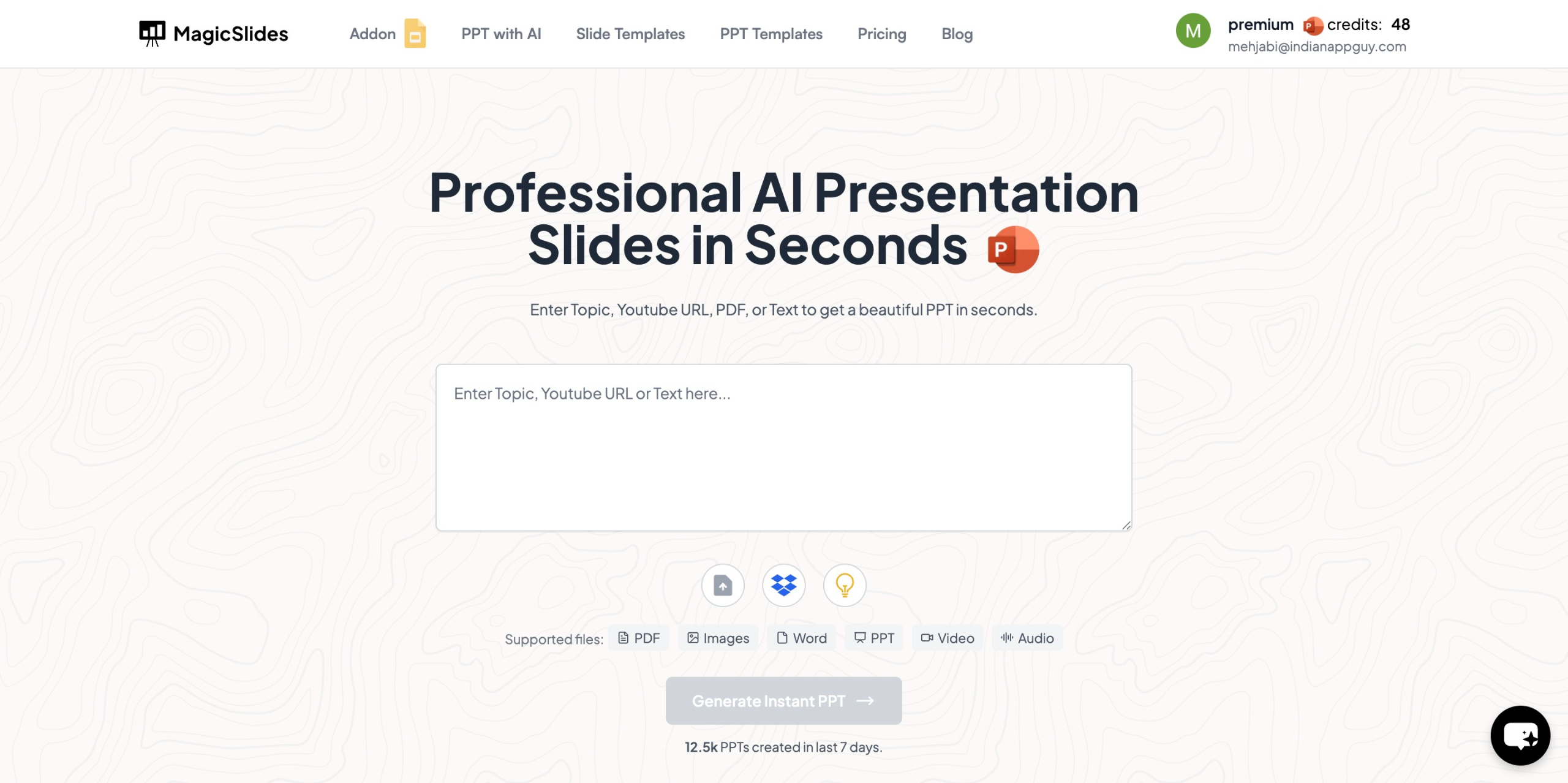
- Enter your topic in the provided input field.
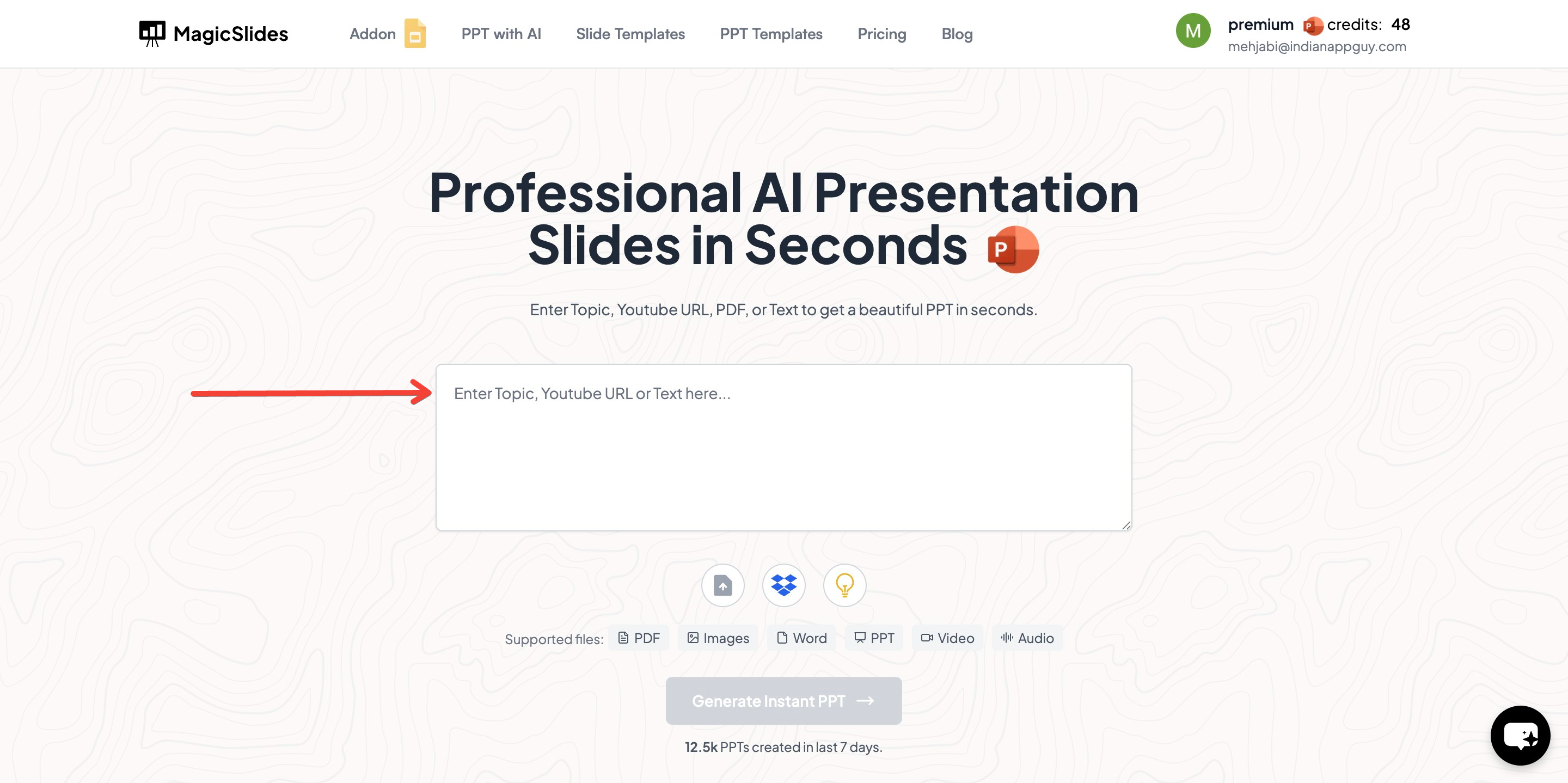
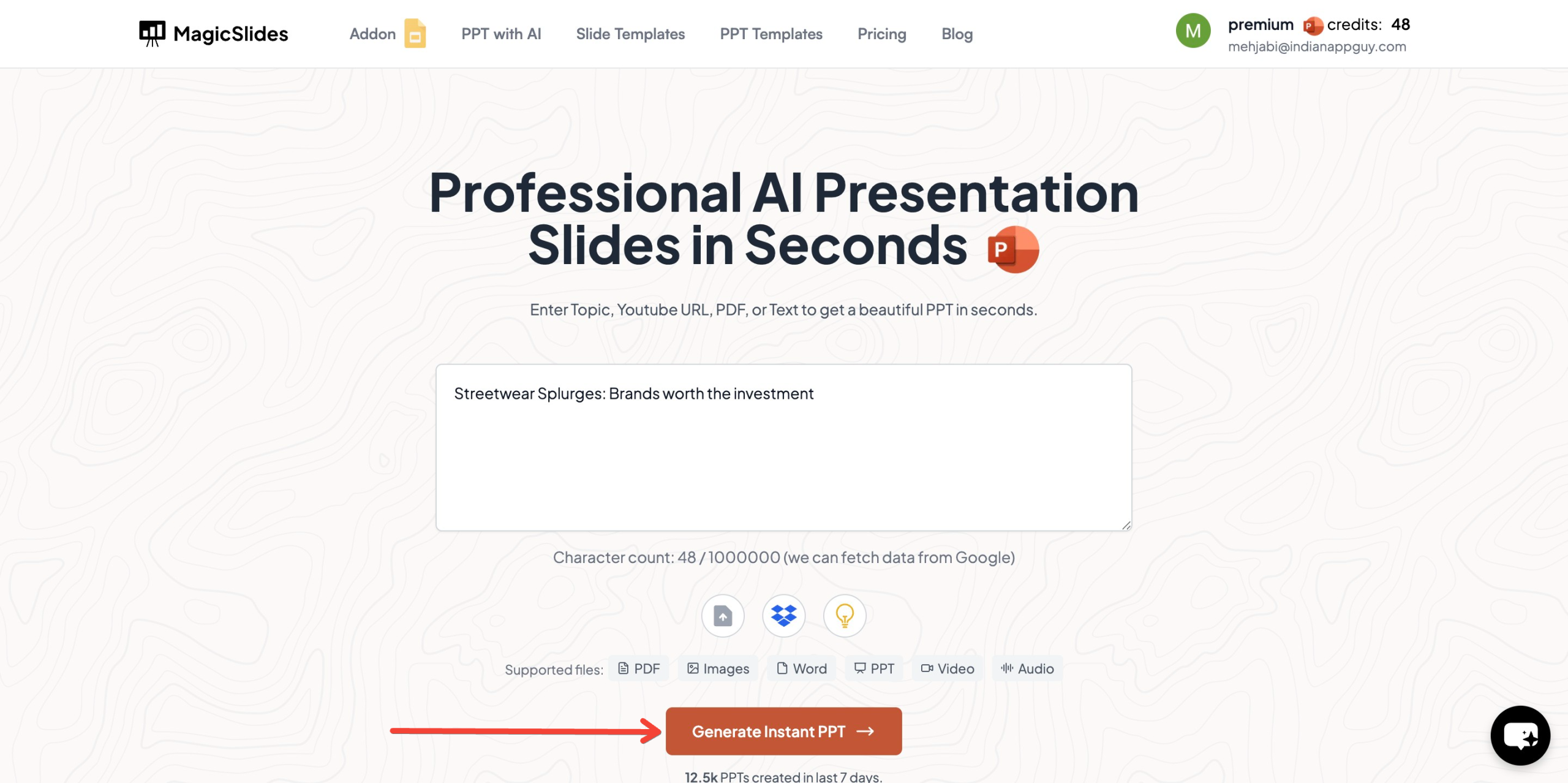
- Click on “Generate Instant PPT”.
- Choose your template and select the number of slides as prompted.
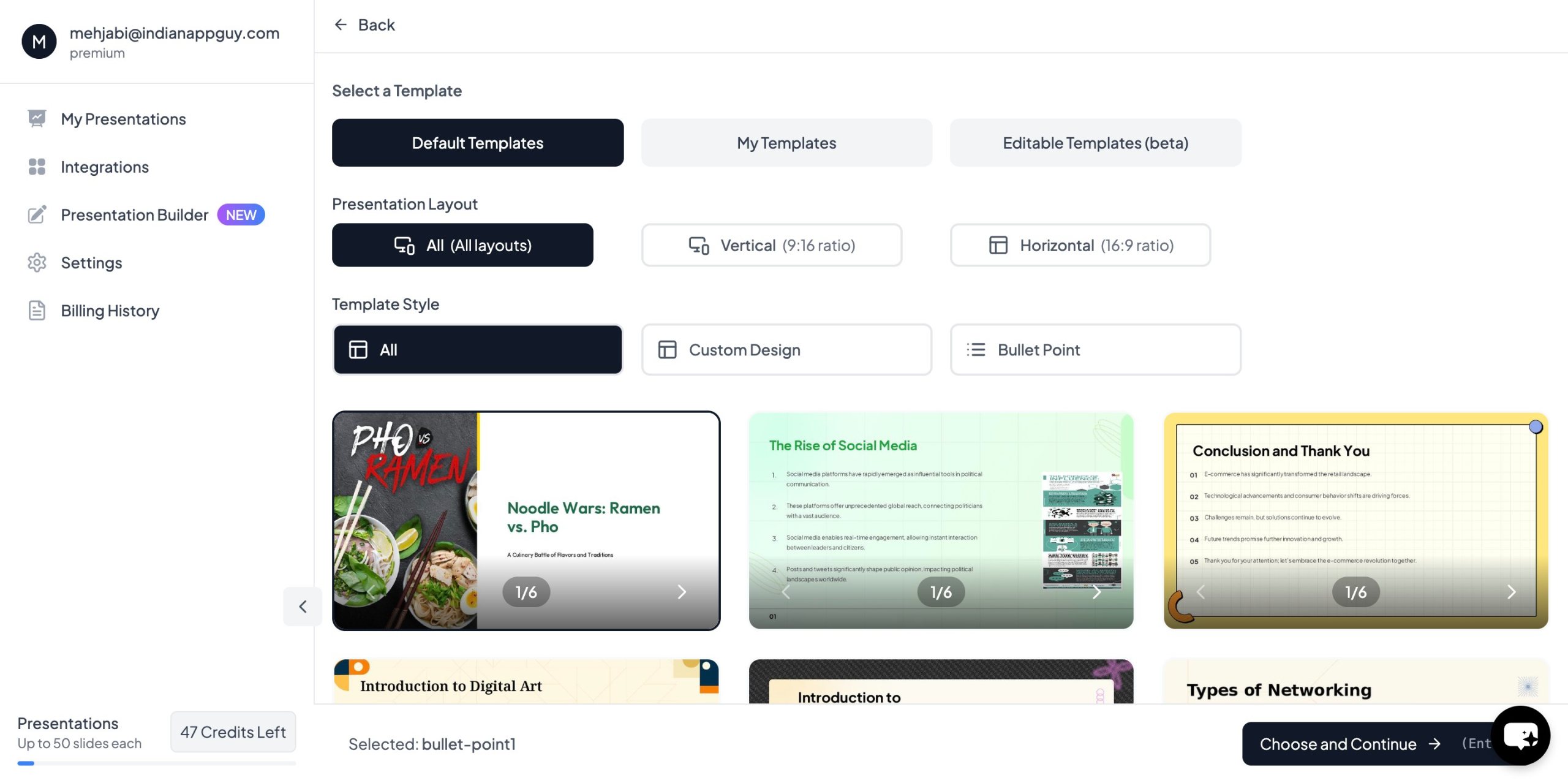
- Once all details are filled in, click on “Generate Instant PPT”.
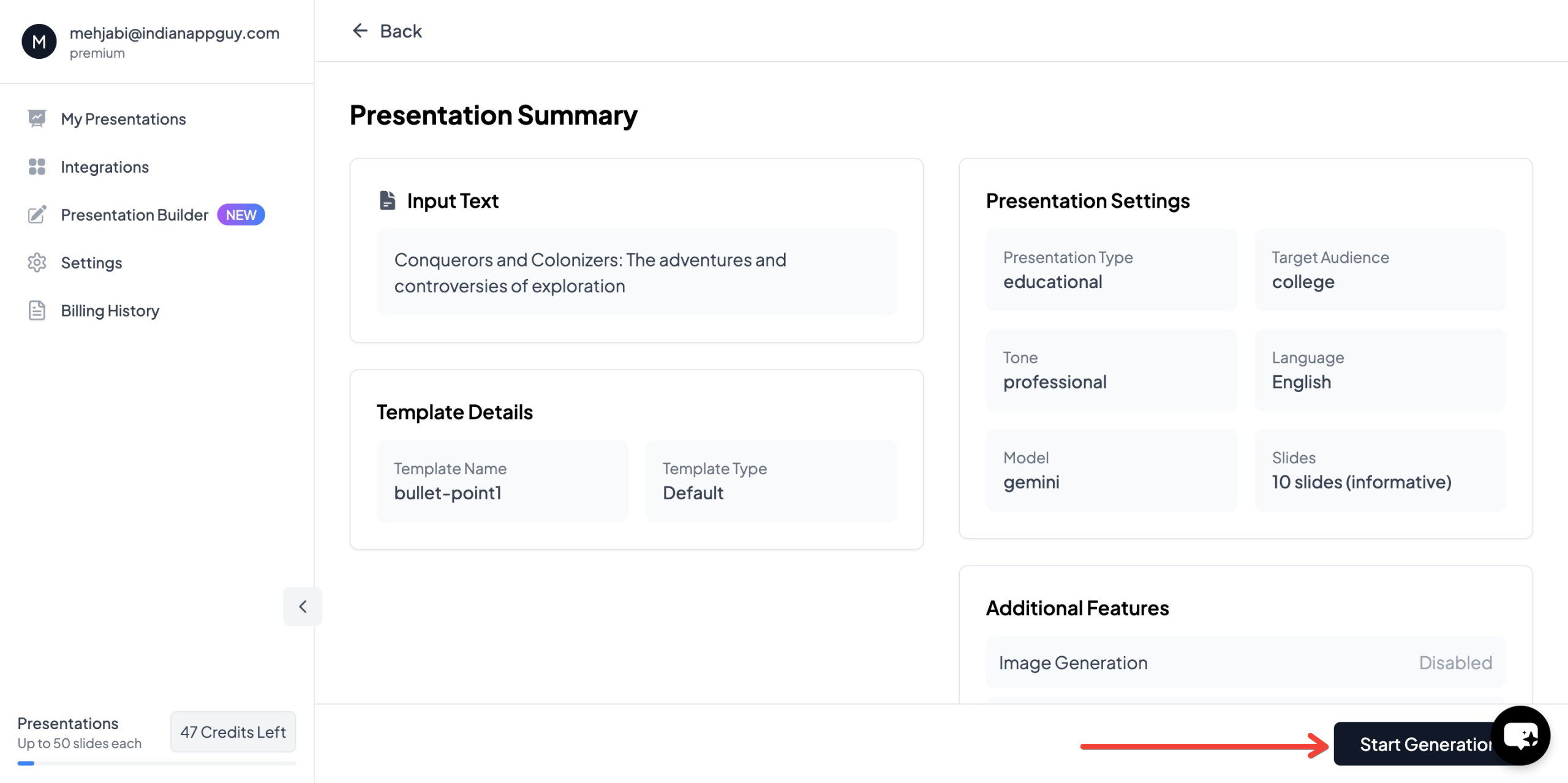
- Your PowerPoint presentation will be ready in seconds! Download and customize it as needed.

MagicSlides Features
- AI-powered content generation for slide decks.
- Professional templates for corporate presentations.
- Google Slides & PowerPoint integration.
- YouTube and PDF conversion for better content accessibility.
- Supports 100+ languages.
- Zapier integration for workflow automation.
MagicSlides Pricing Plans
While MagicSlides is an incredibly efficient tool, it also offers flexible pricing to meet different user needs:
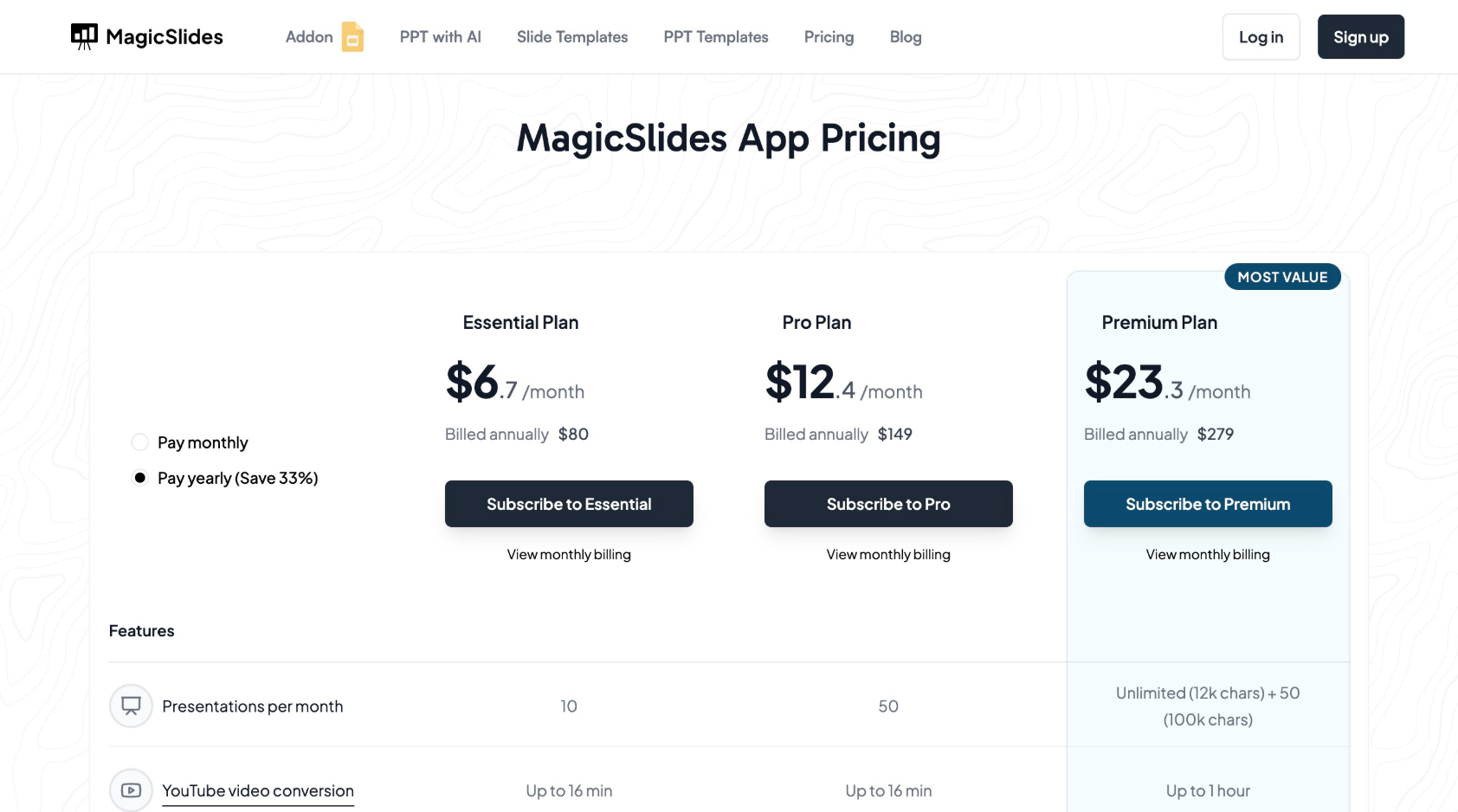
For businesses and professionals looking for a faster, AI-powered presentation tool, MagicSlides is a cost-effective solution that helps save time and improve productivity.
Final Thoughts
Creating a corporate slide deck doesn’t have to be a tedious process. By applying these presentation hacks, you can make your slides more engaging, professional, and impactful.
For those who want to save time and generate high-quality presentations instantly, MagicSlides.app is a great AI-powered tool to consider. Whether you’re preparing for a business pitch, a company meeting, or a webinar, MagicSlides helps you create stunning slides with minimal effort.
Try MagicSlides today and enhance your corporate presentations effortlessly!


