Can MS PowerPoint design ADs for an Office TV


Create dynamic, professional ads for your office TV using Microsoft PowerPoint’s powerful design features
Microsoft PowerPoint is not just for presentations; it’s also a versatile tool for designing advertisements for an office TV.
Its user-friendly interface, wide range of design features, and animation tools make it an excellent choice for creating engaging and professional ads.
In this guide, you’ll learn step-by-step how to design ads in PowerPoint specifically tailored for an office TV.
Can MS PowerPoint Design Ads for an Office TV? | Steps to Design Ads for an Office TV Using PowerPoint
Step 1: Determine the Screen Dimensions
Identify the resolution and aspect ratio of the office TV (e.g., 1920×1080 for Full HD).
Open PowerPoint and go to the Design tab.
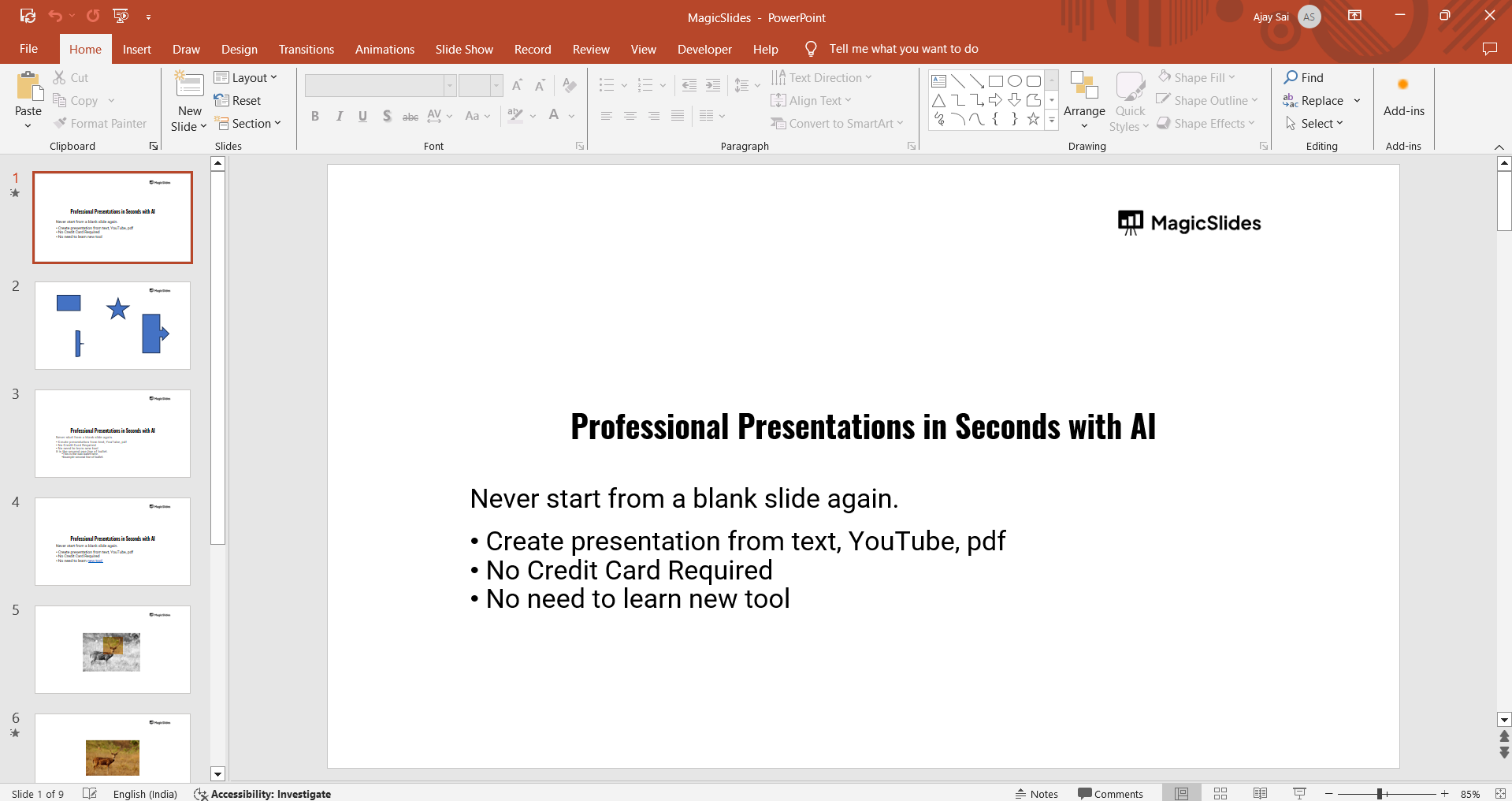
Click Slide Size, then Custom Slide Size, and set the dimensions to match the TV's screen.
Step 2: Plan Your Ad Content
Decide on the purpose of the ad (e.g., promoting events, showcasing achievements, or announcements).
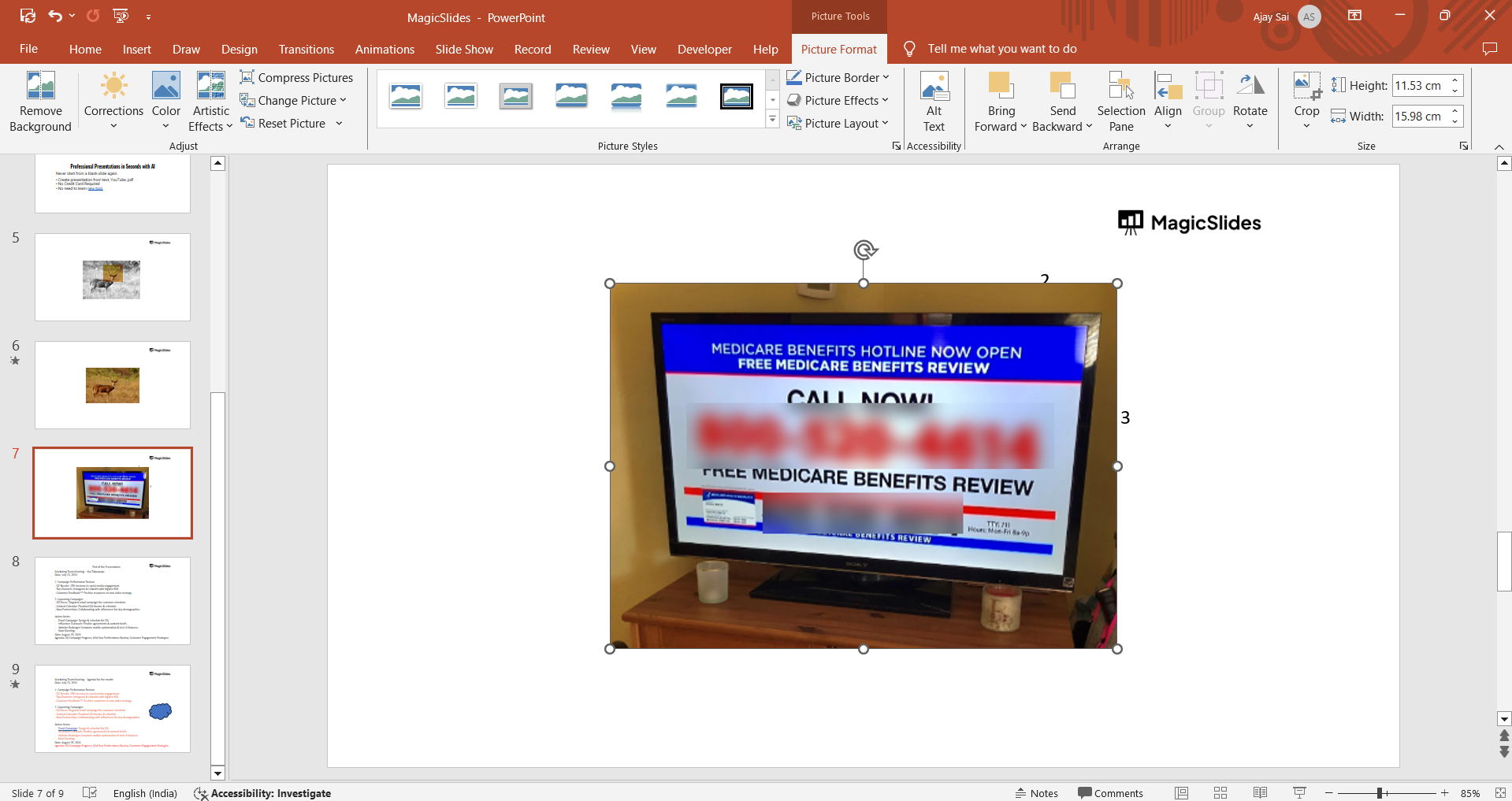
Gather high-quality images, logos, and text for your ad.
Step 3: Design the Ad Layout
Use the Insert tab to add text boxes, images, and shapes to the slide. Select a cohesive color scheme that aligns with your brand or message.
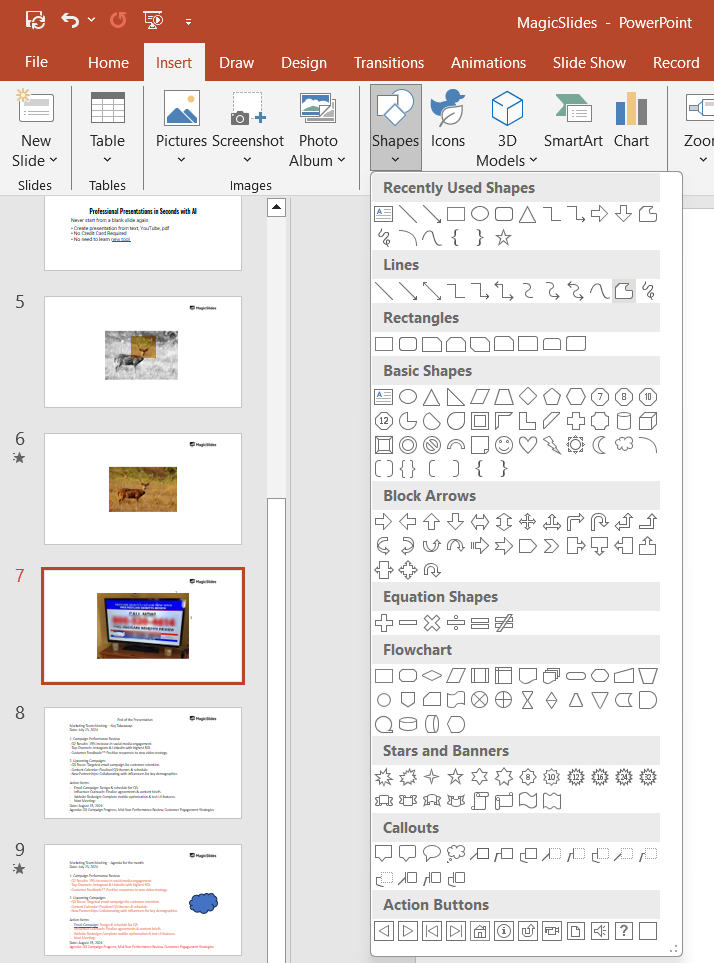
Use PowerPoint’s pre-made templates or design your own layout for a polished look.
Step 4: Add Animations and Transitions
Highlight specific elements to make your ad dynamic by adding animations from the Animations tab.
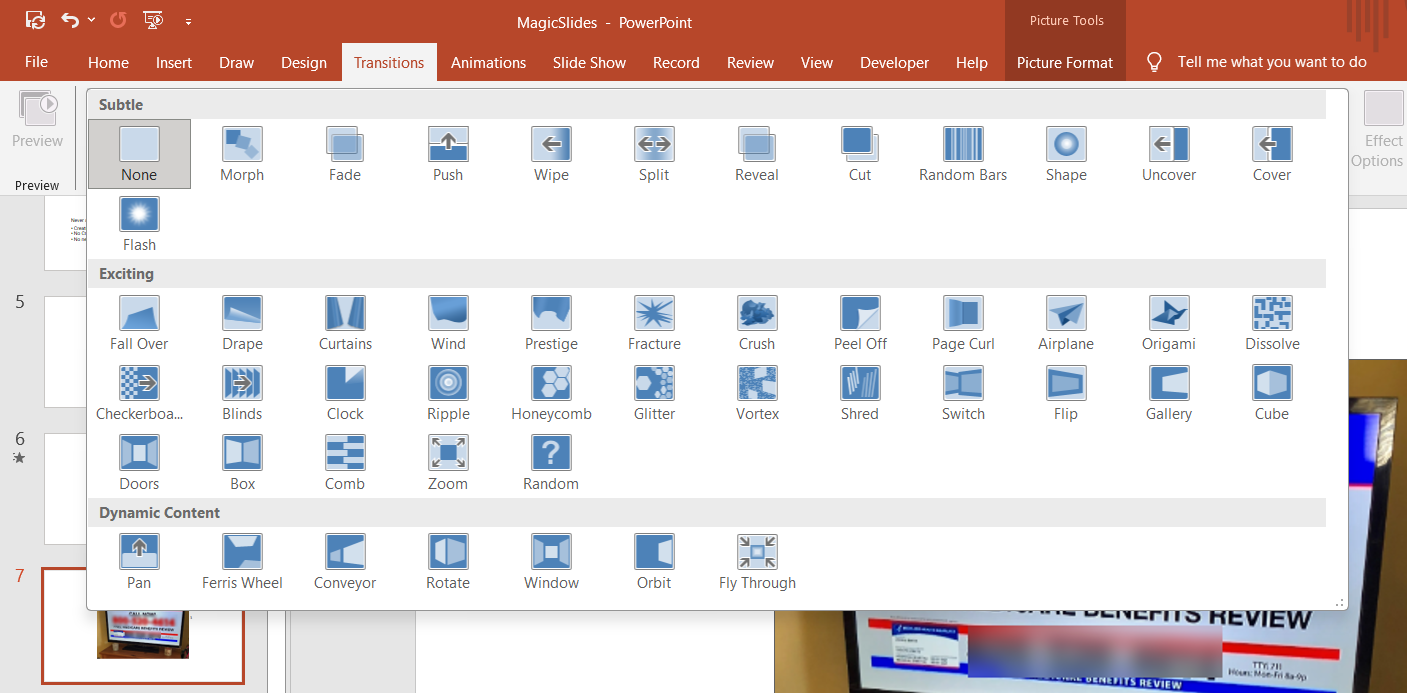
Use Transitions to create smooth effects between multiple slides if your ad spans more than one slide.
Step 5: Preview and Adjust Your Design
Click Slide Show to preview how the ad will appear on the TV.
Make adjustments to text size, image placement, or animations for better visibility.
Step 6: Export the Ad for TV Display
Go to File > Export and select the desired format:
- MP4 for animated ads.
- JPEG/PNG for static ads.
Transfer the file to the office TV using a USB drive or any compatible display method.
Conclusion
Microsoft PowerPoint is a powerful tool for creating visually appealing and professional ads for office TVs.
Its customization options, animations, and export formats make it easy to tailor your ads to specific business needs.
With these steps, you can quickly design impactful ads that capture attention and convey your message effectively.
FAQs on Designing Ads for Office TV Using PowerPoint
Can PowerPoint ads be displayed on all office TVs?
Yes, as long as the TV supports the ad format (e.g., MP4, JPEG, or PNG).
What is the best file format for animated ads?
MP4 is ideal for animated ads as it preserves animations and transitions.
Can I use PowerPoint templates for creating ads?
Yes, PowerPoint offers templates that can be customized for professional and visually appealing ads.
By following this guide, you can effectively design and display PowerPoint ads that enhance your office TV’s communication and branding efforts.


