Can MS PowerPoint Slides Automatically Flip on a Timed Sequence


Learn how to set up automatic timed transitions in PowerPoint for a seamless, hands-free presentation
Can MS PowerPoint Slides Automatically Flip on a Timed Sequence?
Yes, Microsoft PowerPoint offers a feature that allows slides to automatically transition based on a set time sequence, which is great for presentations where you want to control the flow of slides without manual intervention.
This feature is particularly useful for kiosk displays, automated presentations, or when you want to set a timed presentation for events.
In this blog post, we’ll guide you through the steps to set up automatic slide transitions with a timed sequence in PowerPoint.
Steps to Automatically Flip Slides on a Timed Sequence in PowerPoint
Step 1: Open Your PowerPoint Presentation
Launch PowerPoint and open the presentation in which you want to set automatic slide transitions.
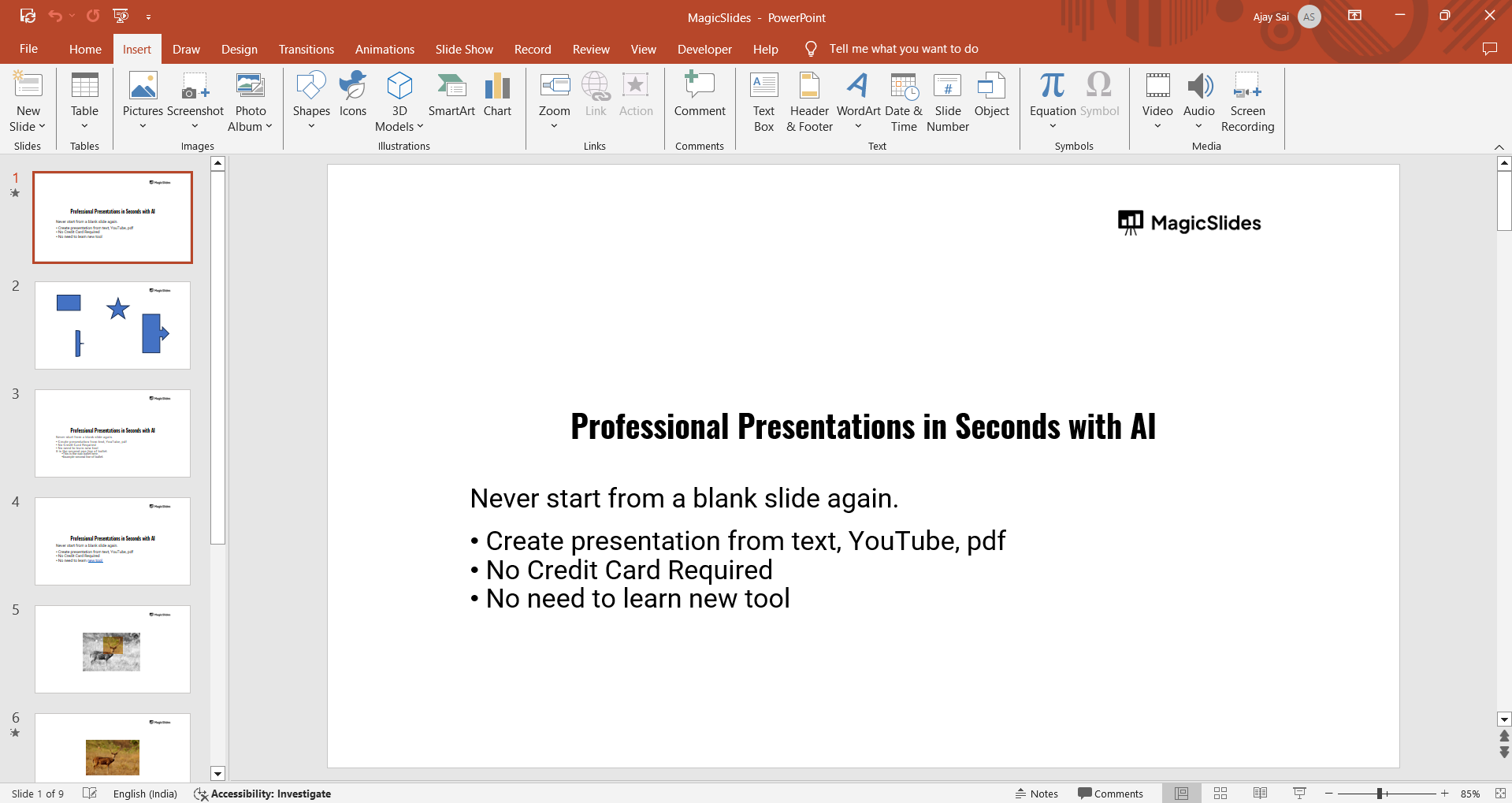
Ensure that your slides are in the order you want for the automatic flip to happen.
Step 2: Go to the "Transitions" Tab
In the PowerPoint ribbon, click on the "Transitions" tab.
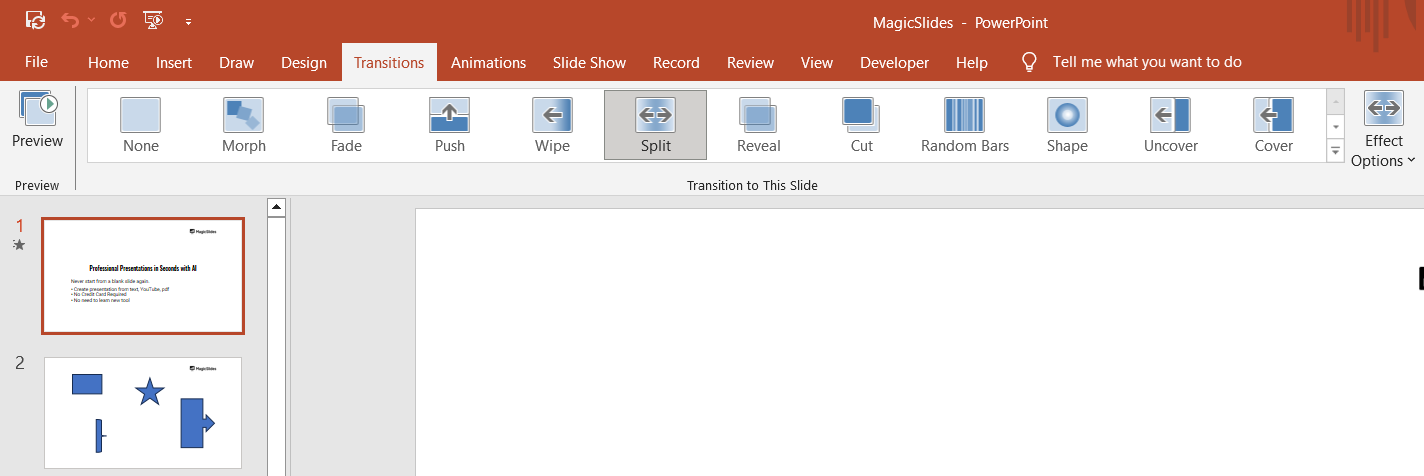
This will open a range of transition effects that can be applied to your slides.
Step 3: Select a Transition Effect
Choose a transition effect that suits the style of your presentation. For automatic flipping, you might want to use simple transitions like Fade or Push for a smooth flow.
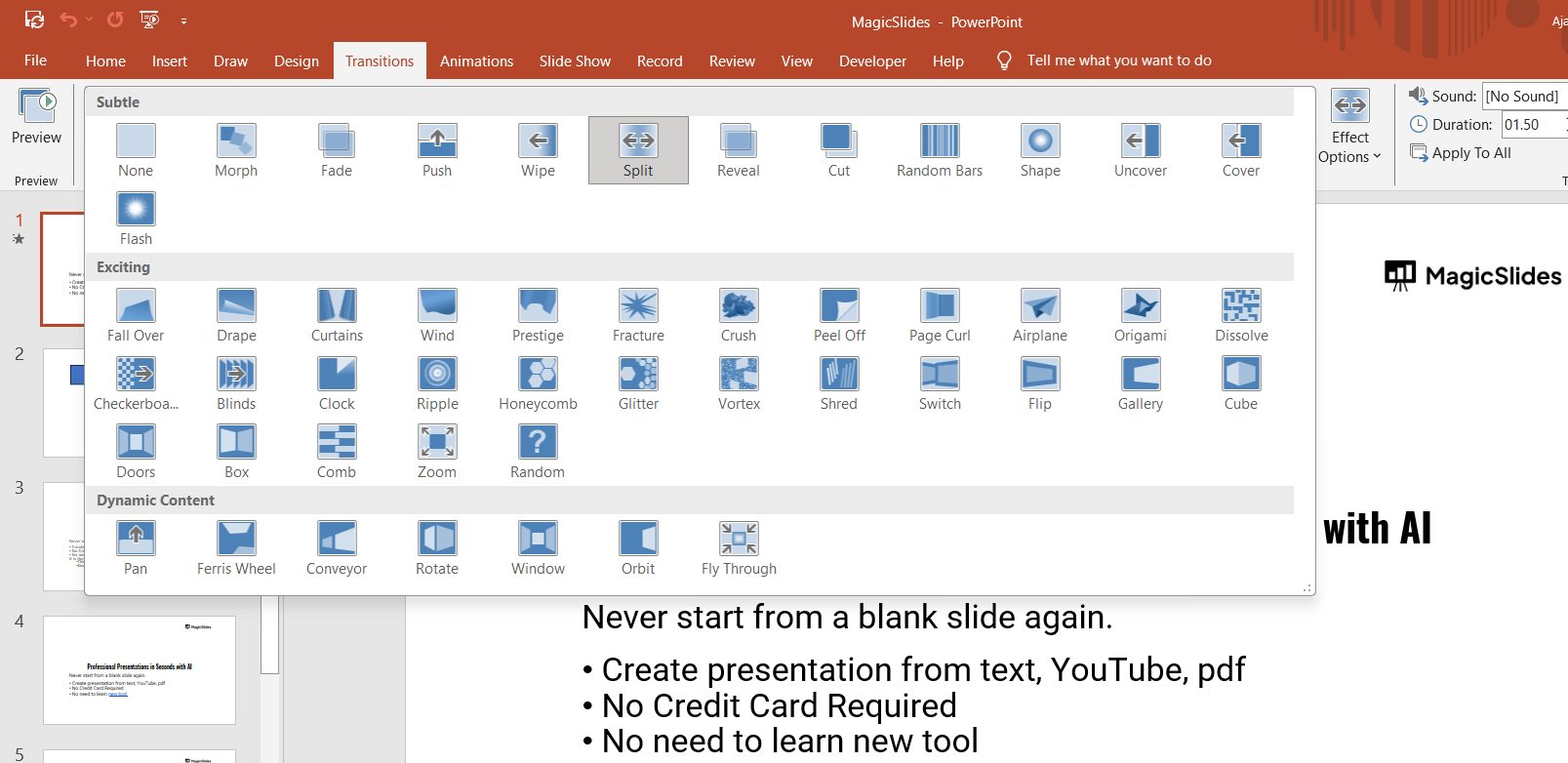
Click on the transition to apply it to the selected slide.
Step 4: Set Automatic Timing for Slide Transitions
In the "Timing" section of the "Transitions" tab, look for the "Advance Slide" area.
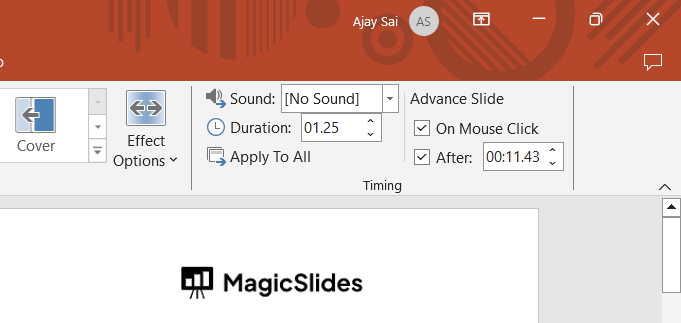
Uncheck the “On Mouse Click” box if it is selected.
Check the “After” box and set the desired time for how long you want each slide to remain on the screen before automatically flipping to the next.
Use the up/down arrows to adjust the time to your preference (e.g., 10 seconds).
Step 5: Apply Timing to All Slides (Optional)
If you want all slides to flip automatically on the same time sequence, click the “Apply To All” button.
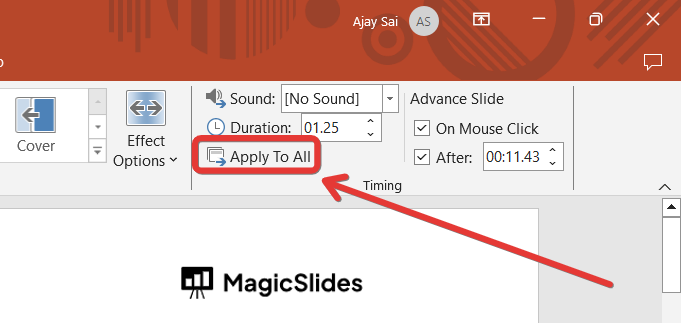
This will ensure that all slides transition automatically after the set time without requiring individual adjustments for each slide.
Step 6: Preview the Timed Transition
To test your settings, click on the “Slide Show” tab.
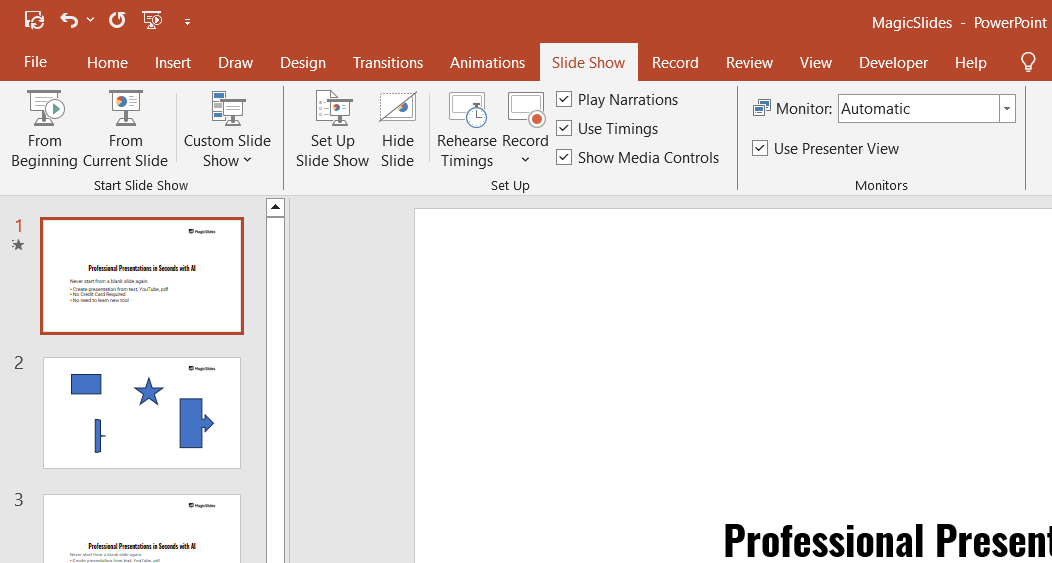
Click “From Beginning” or “From Current Slide” to preview how the slides flip automatically based on your timing settings.
Adjust the timing if needed by going back to the "Transitions" tab and modifying the "After" time for each slide.
Conclusion
With PowerPoint’s automatic slide transition feature, you can create presentations that flip through slides on a timed sequence, perfect for unattended shows or creating a seamless experience for your audience.
By following these simple steps, you can easily configure your slides to transition automatically, enhancing your presentations with a smooth, professional flow.
FAQs on Automatically Flipping Slides in PowerPoint
Can I set different times for each slide?
Yes, you can set individual timings for each slide by adjusting the “After” time in the "Timing" section.
Will the slides flip automatically during the presentation without me clicking?
Yes, once you set the timing and uncheck “On Mouse Click”, the slides will flip automatically at the set intervals.
Can I add automatic transitions while editing the presentation or only during the slideshow?
You can add automatic transitions during the editing phase, and they will remain active when you run the slideshow.
By following these steps, you'll be able to easily set up a PowerPoint presentation that flips through slides automatically, providing a professional and hands-off presentation experience.


