How to Make a PowerPoint Presentation from Text?


Learn how to quickly turn text into a PowerPoint presentation using an AI-powered tool, enhancing clarity and engagement effortlessly.
Creating a PowerPoint presentation from a simple text input might sound like something straight out of a futuristic movie, but with advancements in AI technology, this is not only possible today but also incredibly efficient. MagicSlides.app offers a powerful tool that simplifies this process, allowing anyone to convert their text into a professional-looking PowerPoint presentation in a matter of minutes. Here’s a detailed guide on how you can use this innovative tool to enhance your presentation creation process.
Visit MagicSlides.app
Start by going to MagicSlides.app. This website is designed to make it easy for anyone to create presentations using advanced AI tools. It's user-friendly, meaning you won't have to struggle to find what you need.
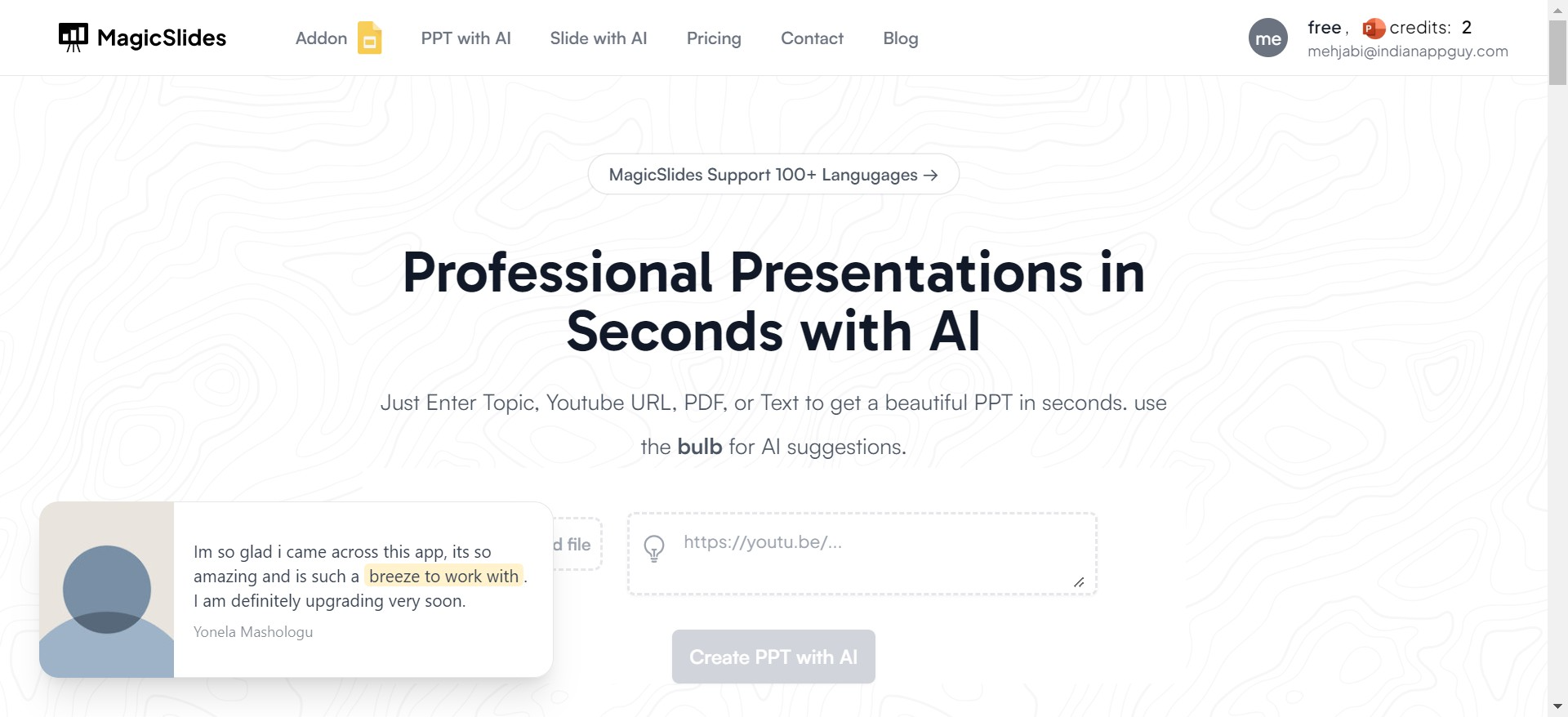
Open the AI PowerPoint Tools
On the MagicSlides homepage, look for a section called "AI PPT Tools." This area contains different tools that use artificial intelligence to help you build your presentation. Click on this to move to the next step.
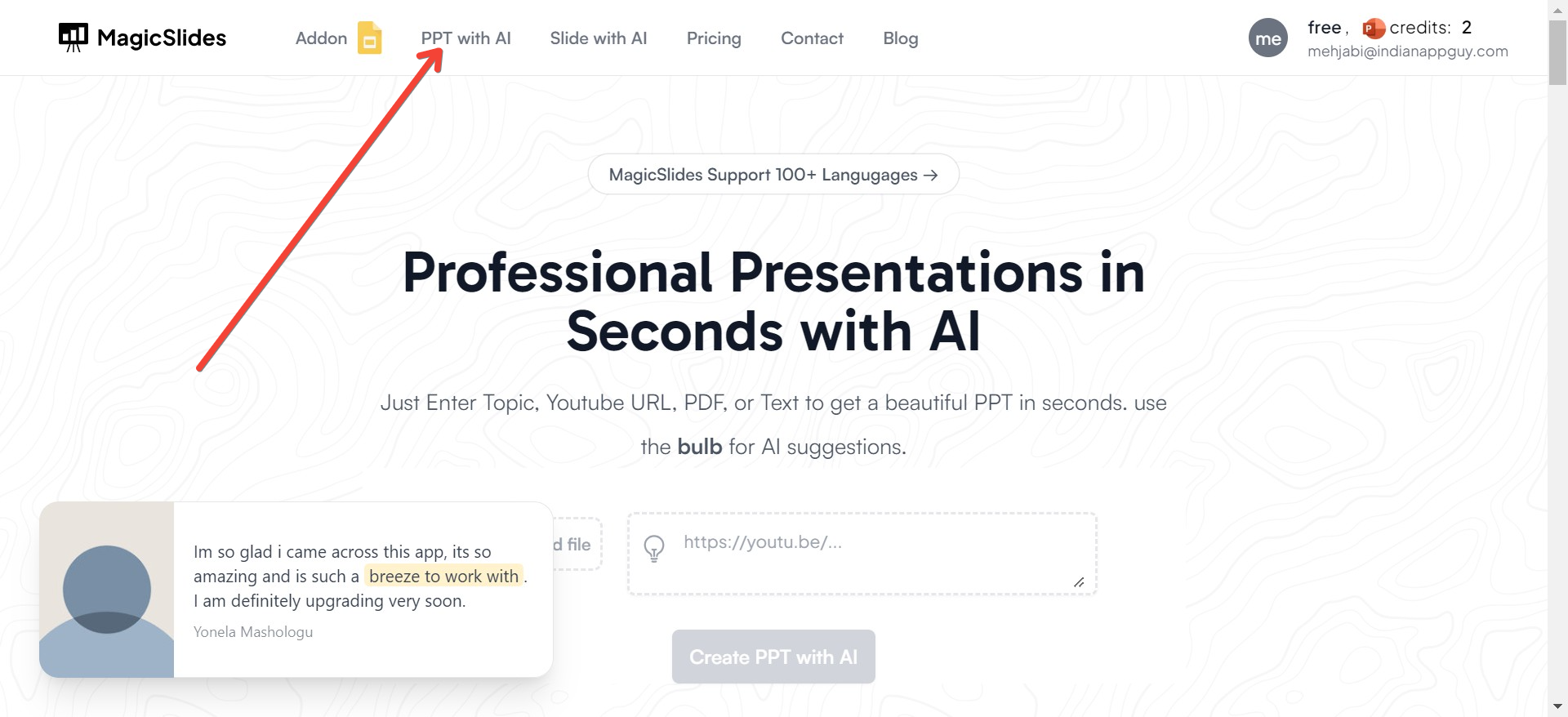
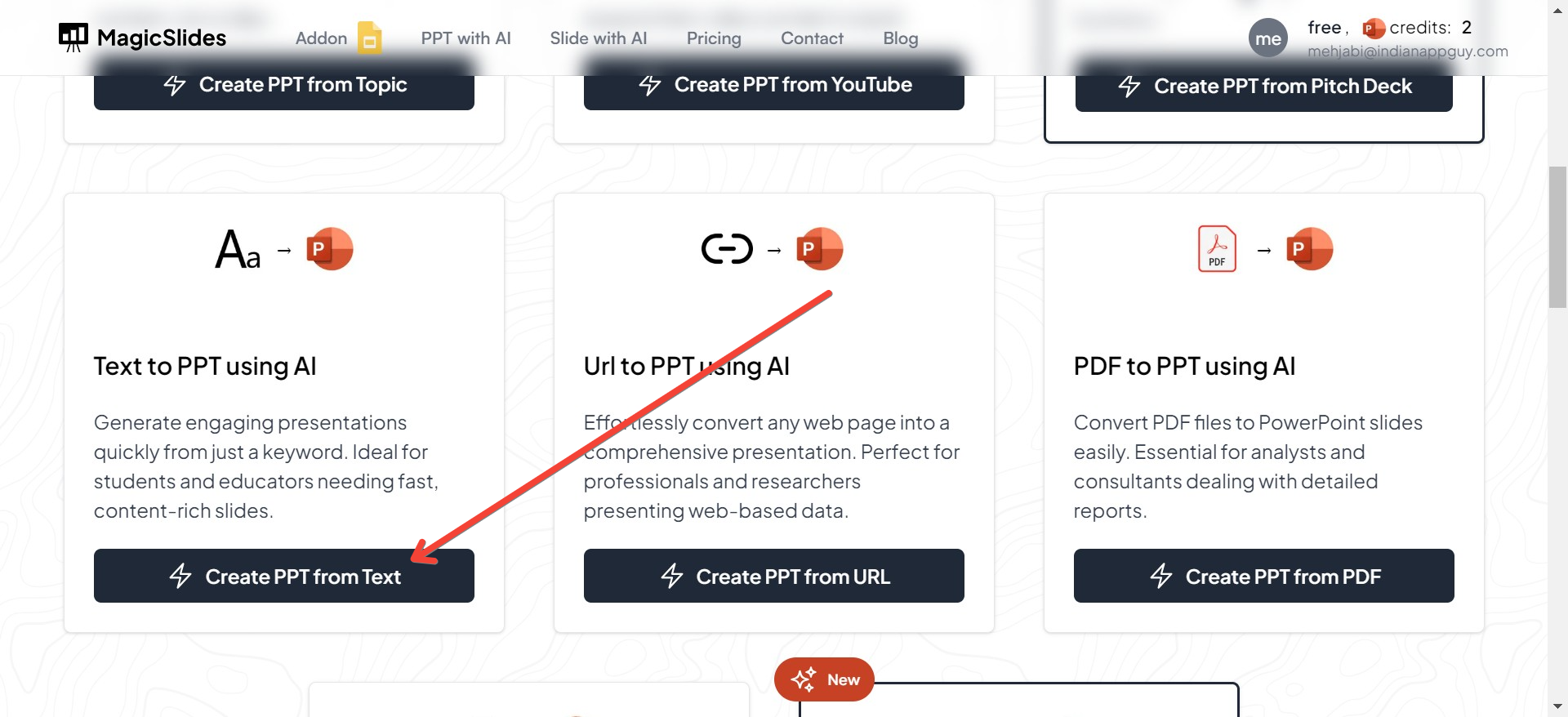
Choose 'Text to PPT'
Inside the AI PPT Tools, you will find the "Text to PPT" option. This tool takes the text you provide and turns it into a PowerPoint presentation. It’s perfect for converting your written notes or any important points into slides.
Input Your Text
After selecting "Text to PPT," you'll see a box where you can type or paste your text. Put the text for your presentation here. The tool can understand various formats, so you can include headings and important details just as you want them to appear on the slides.
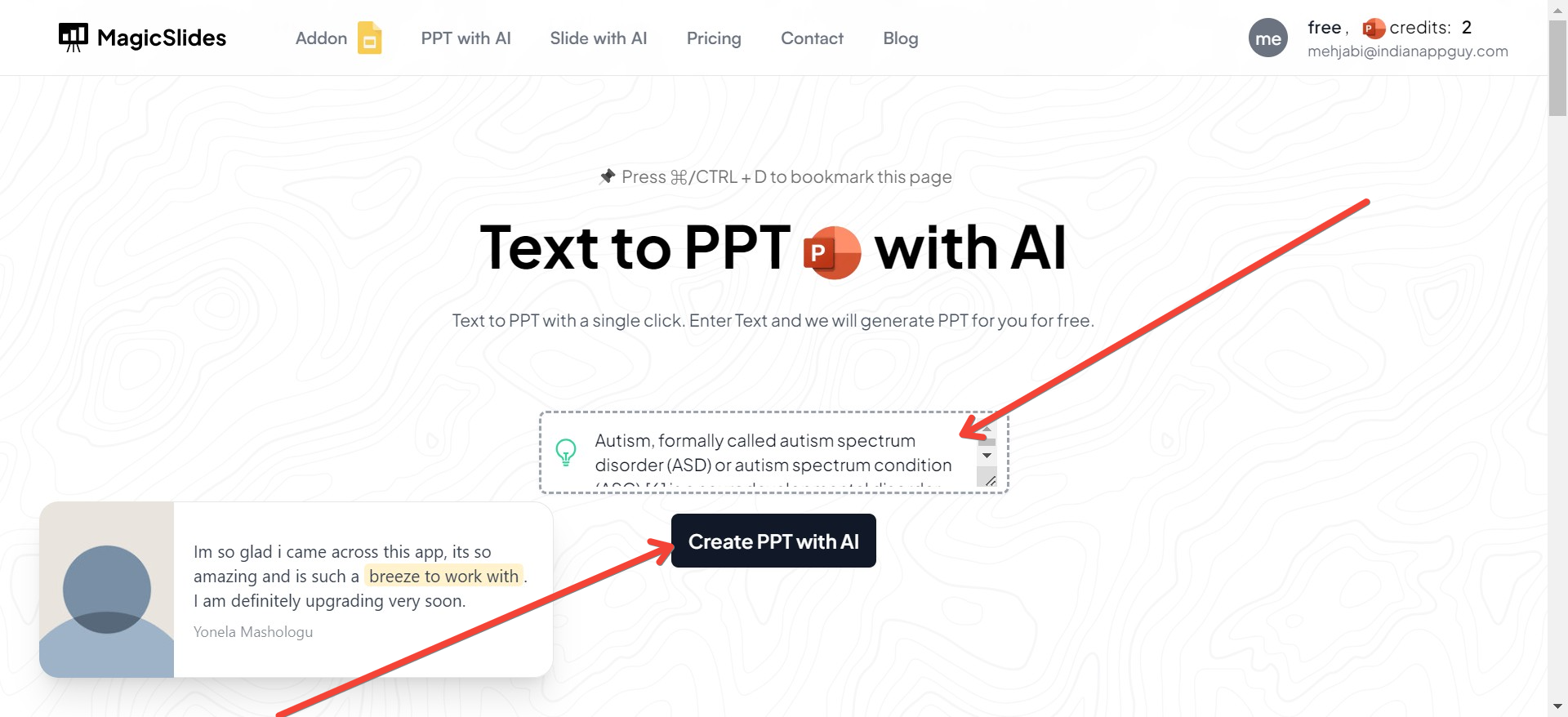
Generate Your Presentation
Click the "Generate PPT" button after you enter your text. MagicSlides.app will analyze your text and organize it into a PowerPoint presentation. This includes choosing a layout and style that makes your information clear and engaging.
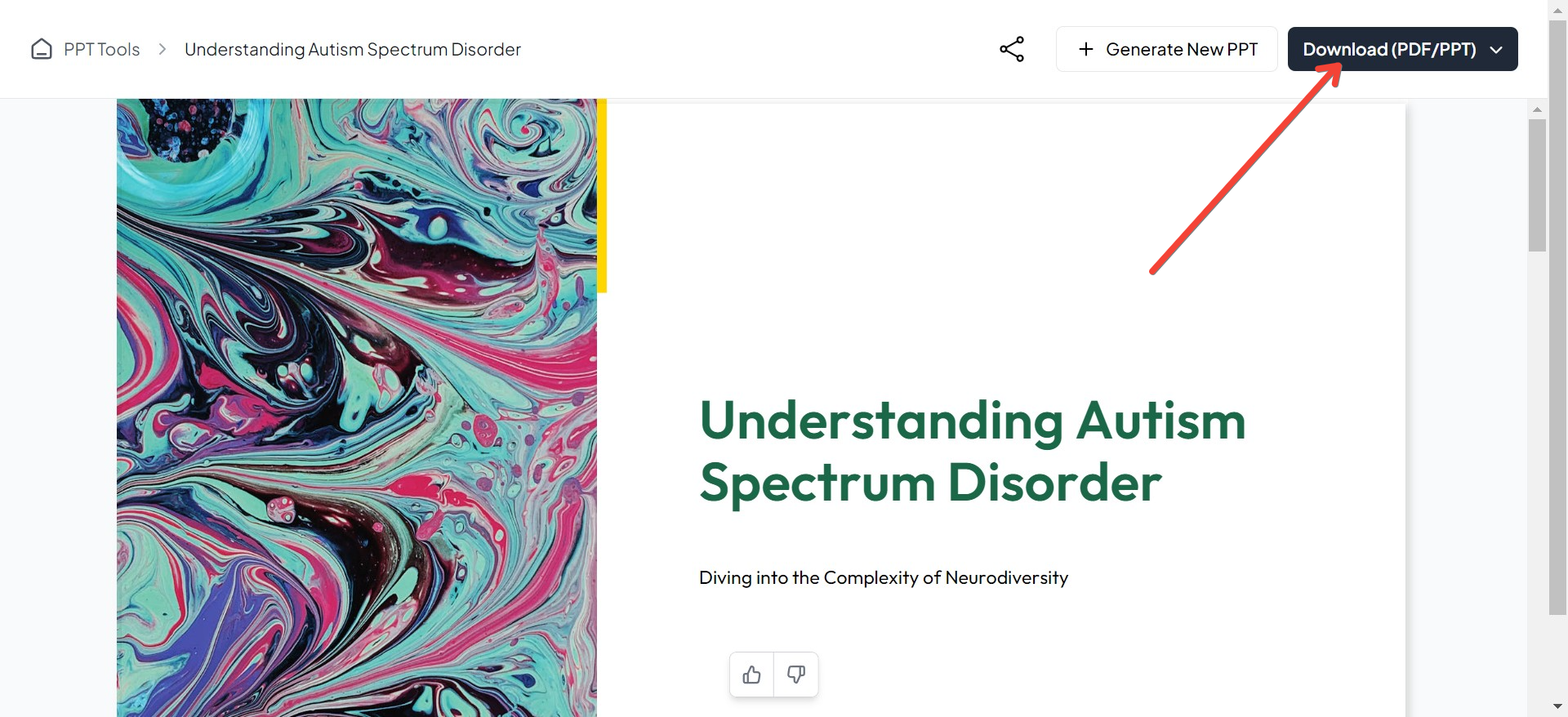
Review and Tweak Your Slides
When MagicSlides.app is done, it’s a good idea to look over your new presentation. You might want to change the design a bit or tweak how the information is shown. Even though the AI sets up your slides, adding your personal touch can make them even better.
Final Touches
Go through your presentation one last time to make sure everything looks perfect. This step is crucial to ensure that your presentation not only looks good but also conveys your message effectively.
Using MagicSlides.app to create a PowerPoint from text saves time and lets you focus on perfecting your content and presentation skills. The tool does the heavy lifting by organizing and designing your slides, but always remember to add your personal touches to make the presentation truly yours. With MagicSlides.app, professional presentations are just a few clicks away!
Final Thoughts
MagicSlides.app significantly streamlines the process of creating PowerPoint presentations from text. This tool is especially beneficial for professionals and students who need to quickly prepare presentations but also want to ensure they are high-quality and visually appealing. By reducing the time and effort required to create presentations, MagicSlides.app allows users to focus more on refining their content and delivery.
While MagicSlides.app offers a robust solution for presentation creation, remember that the final touches and a thorough review are what will set your presentation apart. Make sure to take the time to personalize and review your slides to deliver a powerful and effective presentation.


