Get Free Icons for PPT


Make your PowerPoint slides stand out by using free icons to enhance design and communication
How to Get Free Icons for PPT
PowerPoint presentations can look dull without the right visuals. Icons are a simple yet powerful way to make your slides more engaging, professional, and easier to understand.
The good news? You don’t have to spend a dime! In this blog post, you’ll discover the best ways to get free icons for your PowerPoint presentations and how to supercharge your deck using free templates from MagicSlides PPT Templates.
Step-by-Step: How to Get Free Icons for PPT
Step 1: Use PowerPoint’s Built-In Icons
PowerPoint itself offers a free icon library:
- Go to Insert > Icons.
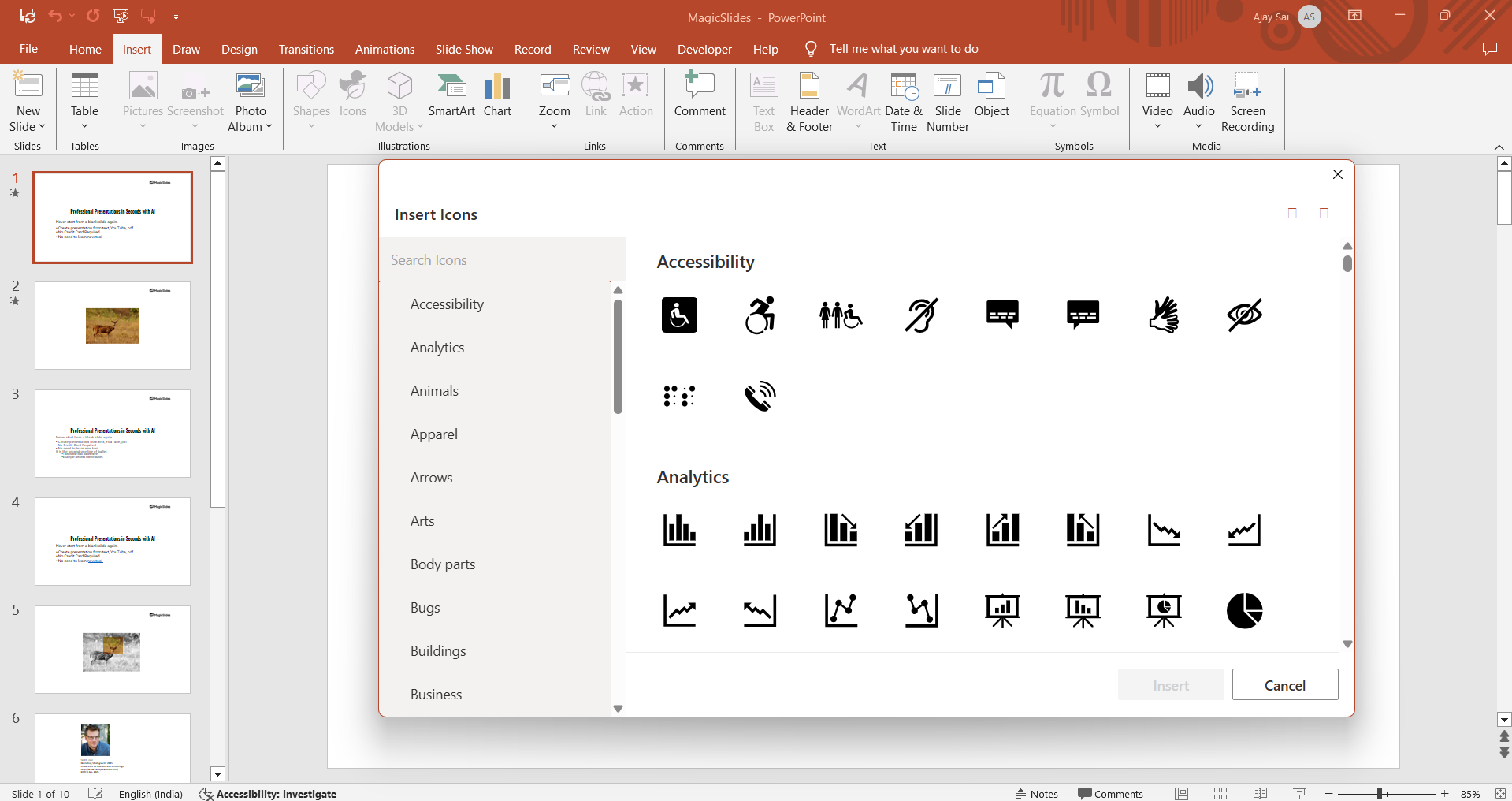
- A pop-up will appear with a collection of editable icons.
- Search and select the icons you need.
- Click Insert and resize or recolor as needed.
These are vector-based, meaning they stay sharp even when resized!
Step 2: Download Icons from Free Icon Sites
There are several websites that offer high-quality icons for free:
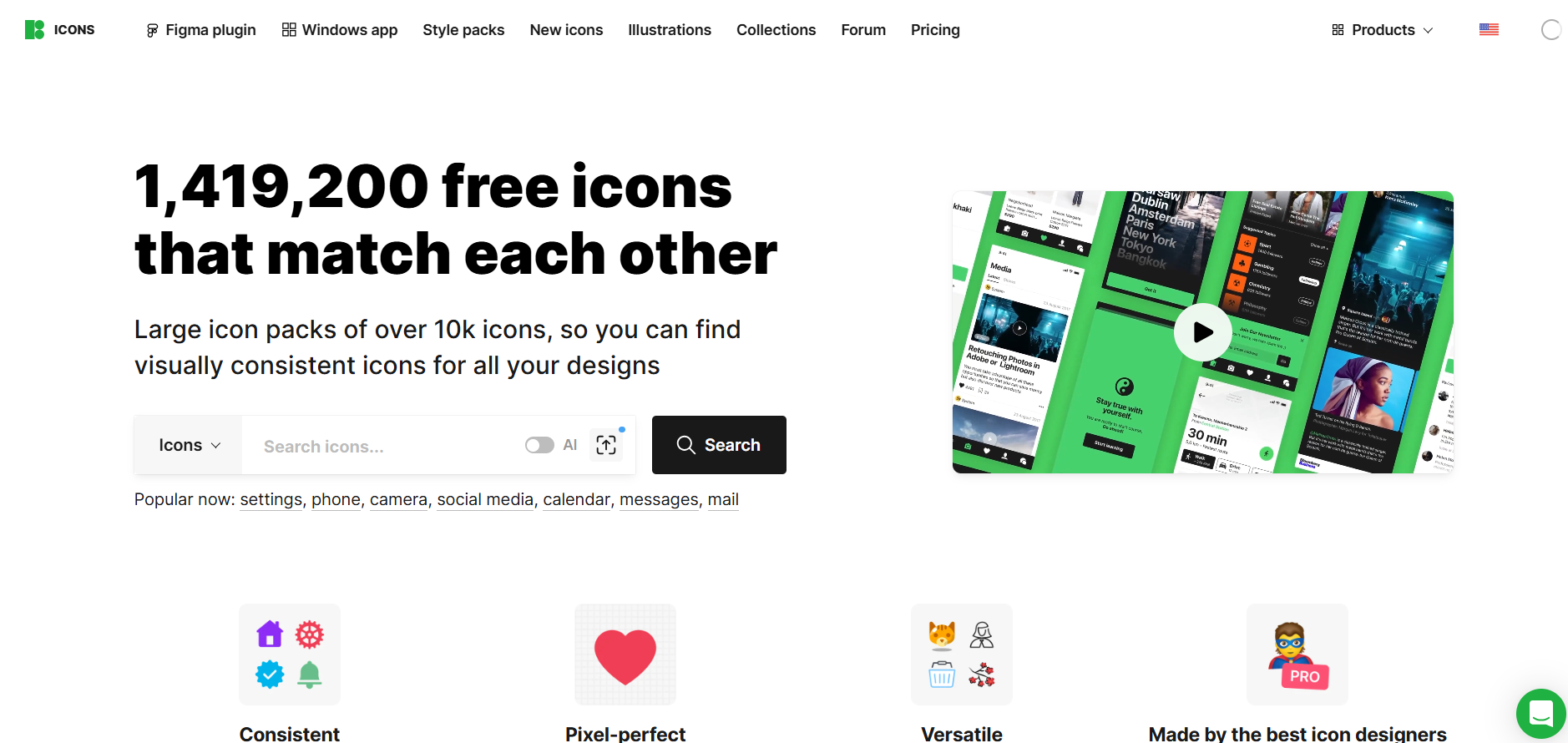
How to use:
- Search for the desired icon.
- Download in PNG or SVG format.
- Insert into your PowerPoint slides via Insert > Pictures or Insert > Icons (SVG only).
Make sure to check licensing. Most are free for personal or educational use with attribution.
Step 3: Use Canva for Icons (Free Plan Available)
If you’re already using Canva for slide design:
- Search “Icons” in the Elements tab.
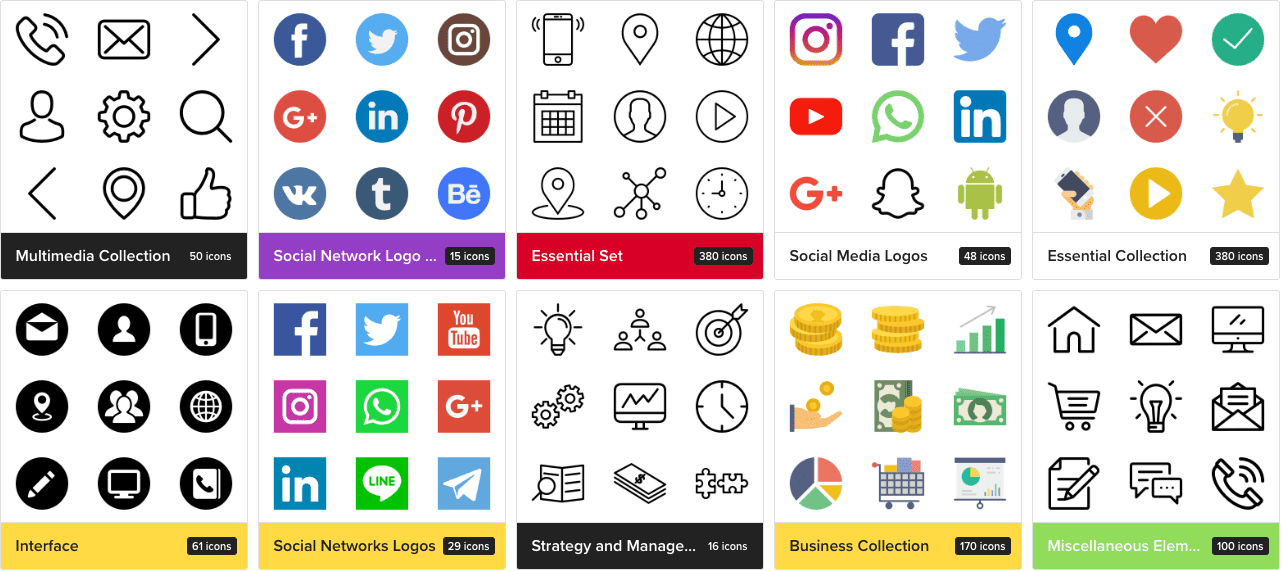
- Most icons can be downloaded as transparent PNGs.
- Upload them into your PowerPoint deck.
This is especially useful if you're designing visual slides outside PowerPoint and want consistent aesthetics.
Step 4: Use MagicSlides Free Templates with Pre-Designed Icons
Instead of hunting for icons one-by-one, use pre-designed slides that already include professionally selected icons. Head over to MagicSlides Free PPT Templates.
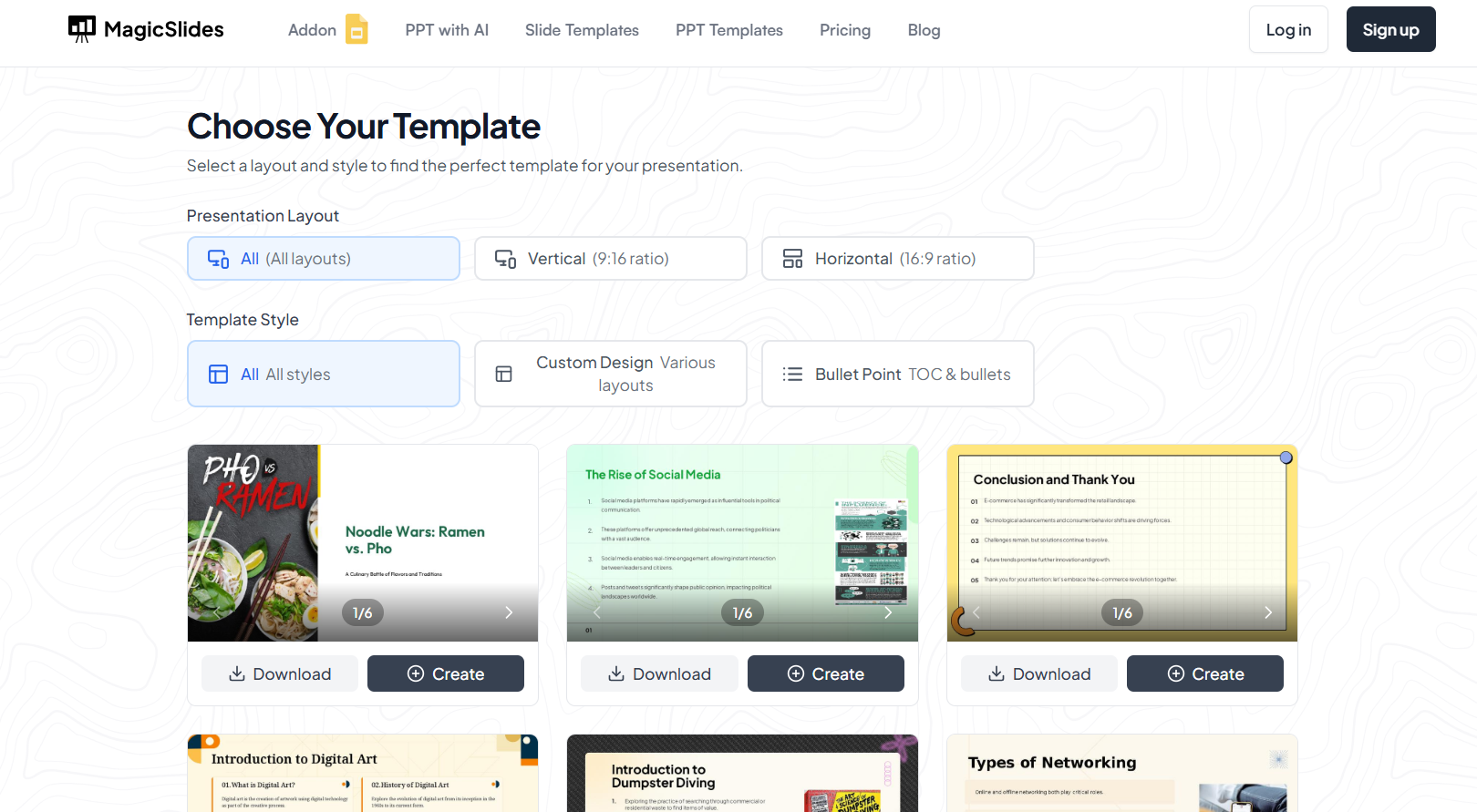
Here’s what you get:
- Ready-to-edit PowerPoint templates
- Modern layouts with smart icon placement
- Saves time and gives you a design edge
Whether you're designing for business, education, or marketing, these templates will make your deck shine with minimal effort.
Step 5: Customize and Reuse Icons
After inserting your icons:
- Use Format > Graphics Fill to recolor.
- Group icons with text or shapes to maintain layout.
- Save frequently used icons into a "Master Slide" or reusable template.
This helps you maintain consistency across your brand or project slides.
Conclusion
Icons are essential tools for creating impactful and modern presentations. From using PowerPoint’s built-in options to leveraging external resources and free design templates from MagicSlides, you now have all the tools to take your slides to the next level without spending a penny.
FAQs are here to help!
Can I use Flaticon or Icons8 icons in commercial presentations?
Yes, but check their license terms. Many require attribution or a premium plan for commercial use.
Can I recolor the icons after inserting them in PowerPoint?
Yes! Most SVG icons are editable in PowerPoint change fill color, outline, and size easily.
What’s the benefit of using MagicSlides templates with icons already included?
You save time, ensure design consistency, and get access to modern layouts with thoughtfully placed icons no hunting or guessing needed.


