How can you customise Transitions in Google Slides


Learn how to customize transitions in Google Slides for smoother, more engaging presentations with ease
Transitions in Google Slides enhance the flow of your presentation by adding movement between slides.
Customizing these transitions allows you to control their style, speed, and consistency, creating a visually engaging experience for your audience.
This guide will show you step-by-step how to customize transitions effectively in Google Slides.
How Can You Customize Transitions in Google Slides?
Step 1: Access the Transition Menu
Open your Google Slides presentation.
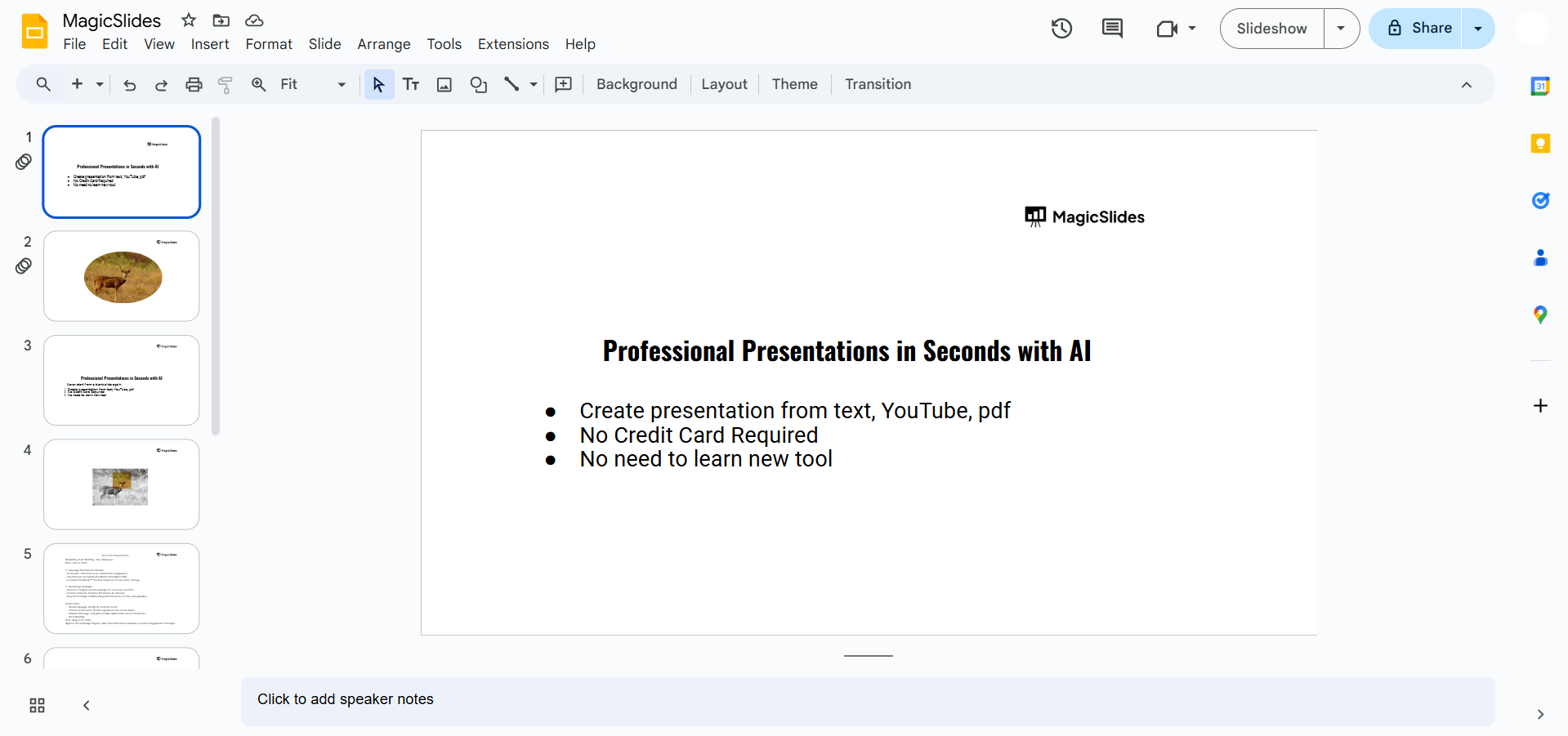
Select the slide where you want to apply a transition.
Click on “Slide” in the top menu and select “Transition” from the dropdown.
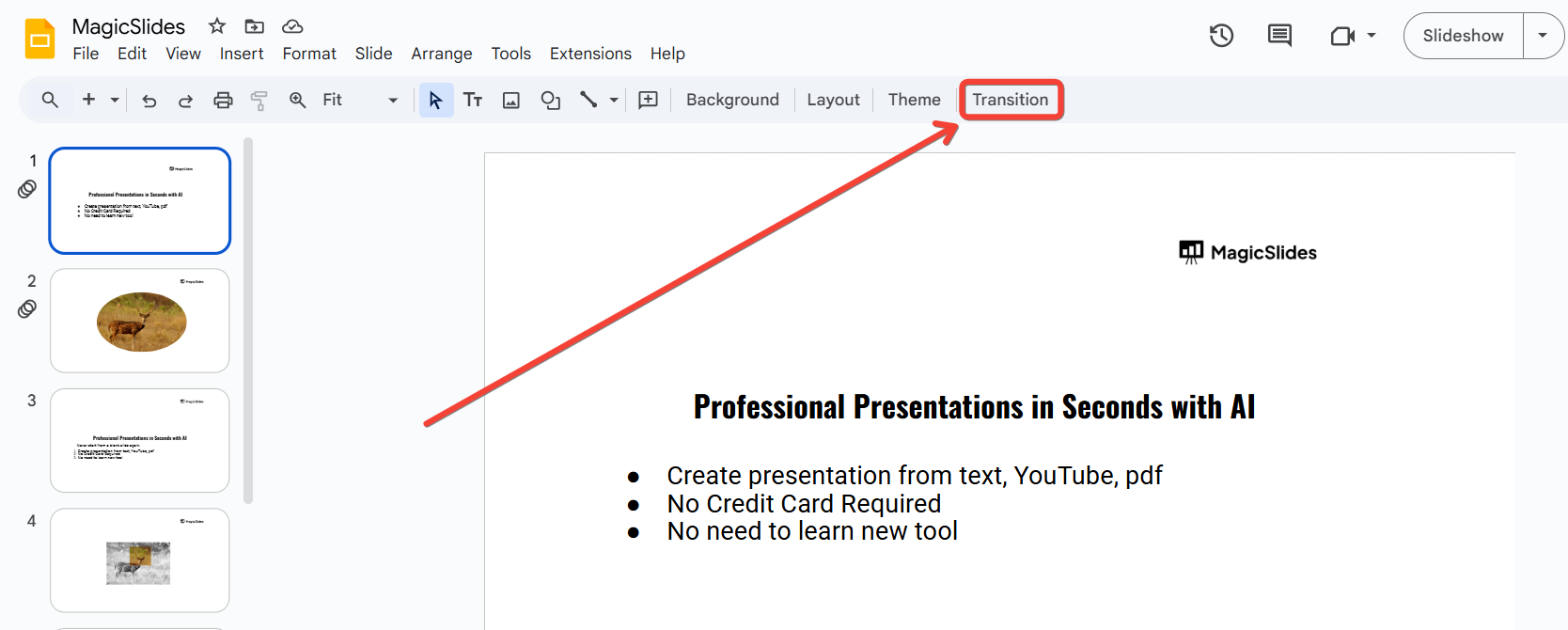
A panel will appear on the right side of your screen, allowing you to manage transitions.
Step 2: Choose a Transition Effect
In the Transition panel, click the dropdown menu to view available effects, such as “Fade,” “Slide from Right,” or “Flip.”
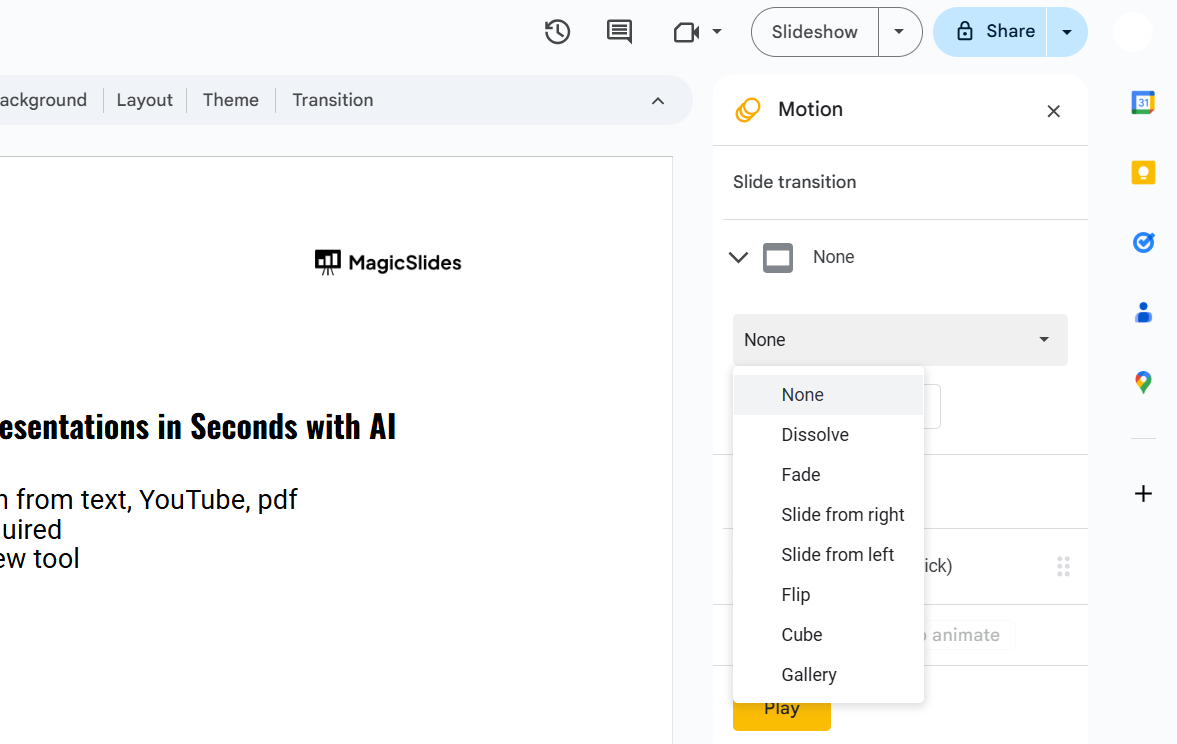
Select the transition effect you want for the chosen slide. Preview the effect by clicking the “Play” button.
Step 3: Adjust the Transition Speed
Below the effect selection, you’ll find a slider to control the transition speed.
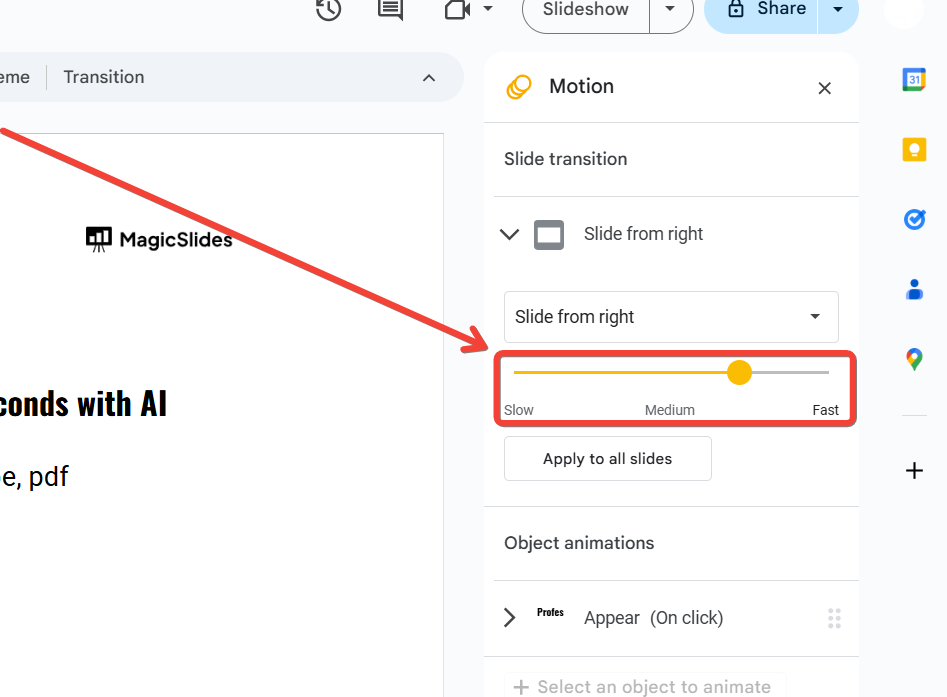
Move the slider to the left for a slower transition or to the right for a faster one.
Preview the adjusted speed to ensure it aligns with your presentation style.
Step 4: Apply the Same Transition to All Slides
If you want consistent transitions throughout the presentation, click “Apply to all slides” in the Transition panel.
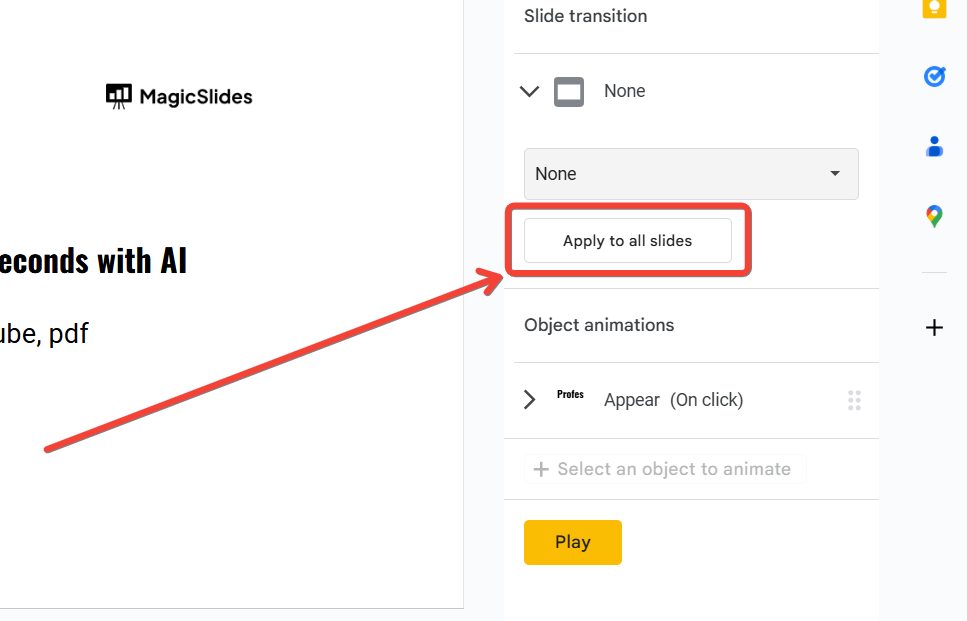
This will apply the selected transition effect and speed to every slide in your presentation.
Step 5: Add Object Animations (Optional)
To make your slides more dynamic, you can animate individual elements like text or images.
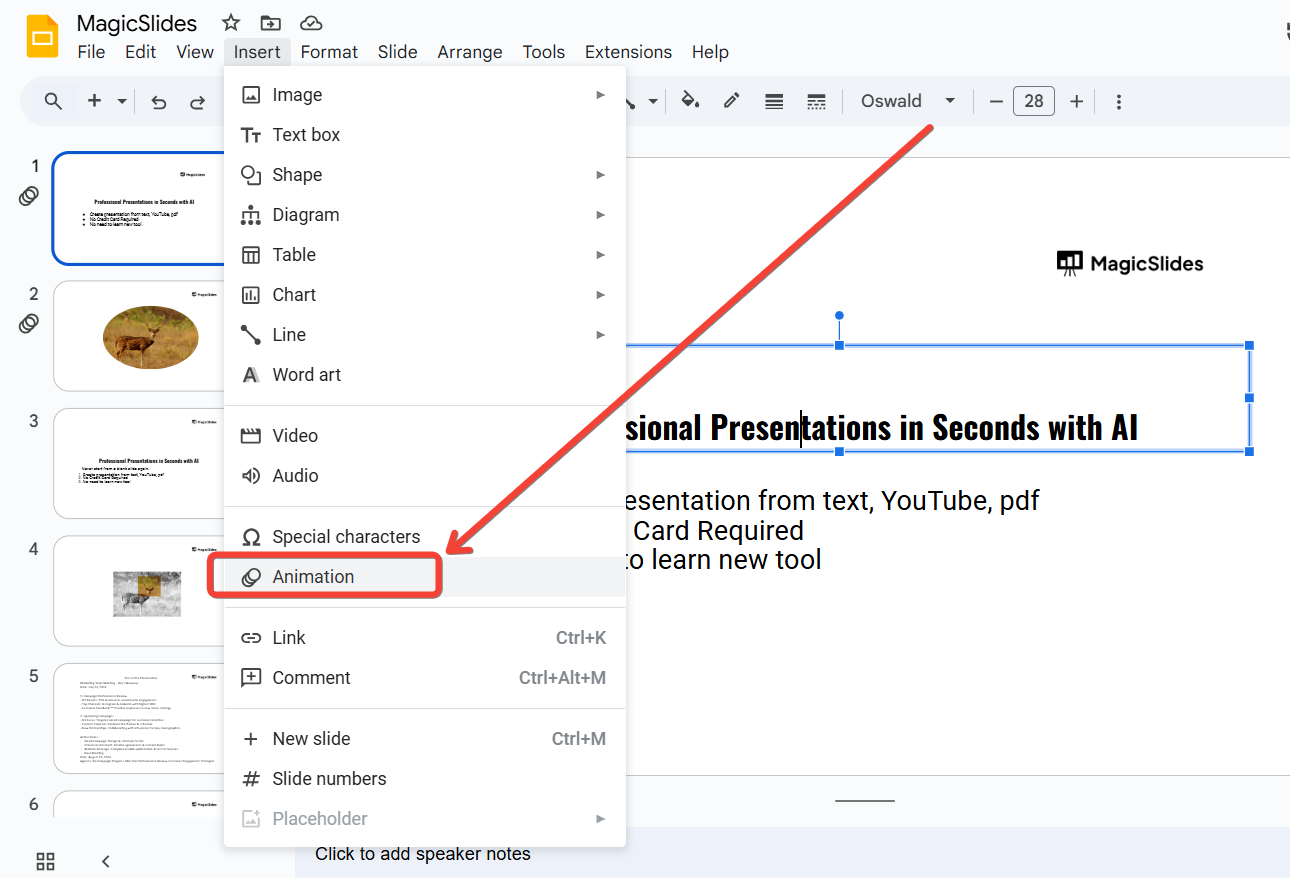
Select the object, then click on “Insert” > “Animation.”
Choose an animation style, adjust its speed, and preview how it interacts with the slide transition.
Step 6: Finalize and Preview the Presentation
After customizing transitions, go through your entire presentation in “Present” mode.
Check for smooth flow and ensure the transitions align with the content's tone and pacing. Make any adjustments if necessary.
→ Once you've customized transitions in Google Slides, enhance your presentation further by learning how to apply a theme to your Google Slides presentation for a cohesive design
Conclusion
Customizing transitions in Google Slides adds a professional touch to your presentations, helping you engage your audience and maintain a seamless flow.
By selecting appropriate effects, adjusting speed, and ensuring consistency, you can create a polished and impactful presentation.
Experiment with transitions to find the best style for your message!
FAQs on Customizing Transitions in Google Slides
Can I apply different transitions to each slide?
Yes, you can customize transitions individually for each slide to match its content and context.
Are there advanced transition options available in Google Slides?
Google Slides offers a basic set of transition effects. For more advanced options, consider exporting to tools like PowerPoint.
How do transitions impact presentation performance?
Transitions are lightweight and won’t significantly affect performance, but overusing them can distract your audience.
By following these steps, you can make your presentations visually appealing and audience-friendly with customized transitions!


