How do I enable design ideas in PowerPoint?


Discover how to enable Design Ideas in PowerPoint to create visually stunning presentations effortlessly.
Design Ideas in PowerPoint is a powerful feature that helps you create visually appealing slides with ease. This tool analyzes the content of your slides and offers design suggestions that can enhance the overall look and feel of your presentation. Whether you're creating a professional business presentation or a creative project, Design Ideas can save you time and effort while ensuring your slides look polished and engaging.
In this blog post, we'll walk you through the steps to enable and use Design Ideas in PowerPoint, so you can make the most of this fantastic feature.
Step-by-Step Guide to Enabling Design Ideas in PowerPoint
Step 1: Open PowerPoint
First, open Microsoft PowerPoint on your computer. You can do this by searching for "PowerPoint" in your Start menu or by clicking on the PowerPoint icon if it's pinned to your taskbar.
Step 2: Create or Open a Presentation
Once PowerPoint is open, you can either create a new presentation or open an existing one.
To create a new presentation, click on "Blank Presentation" or select a template from the available options.
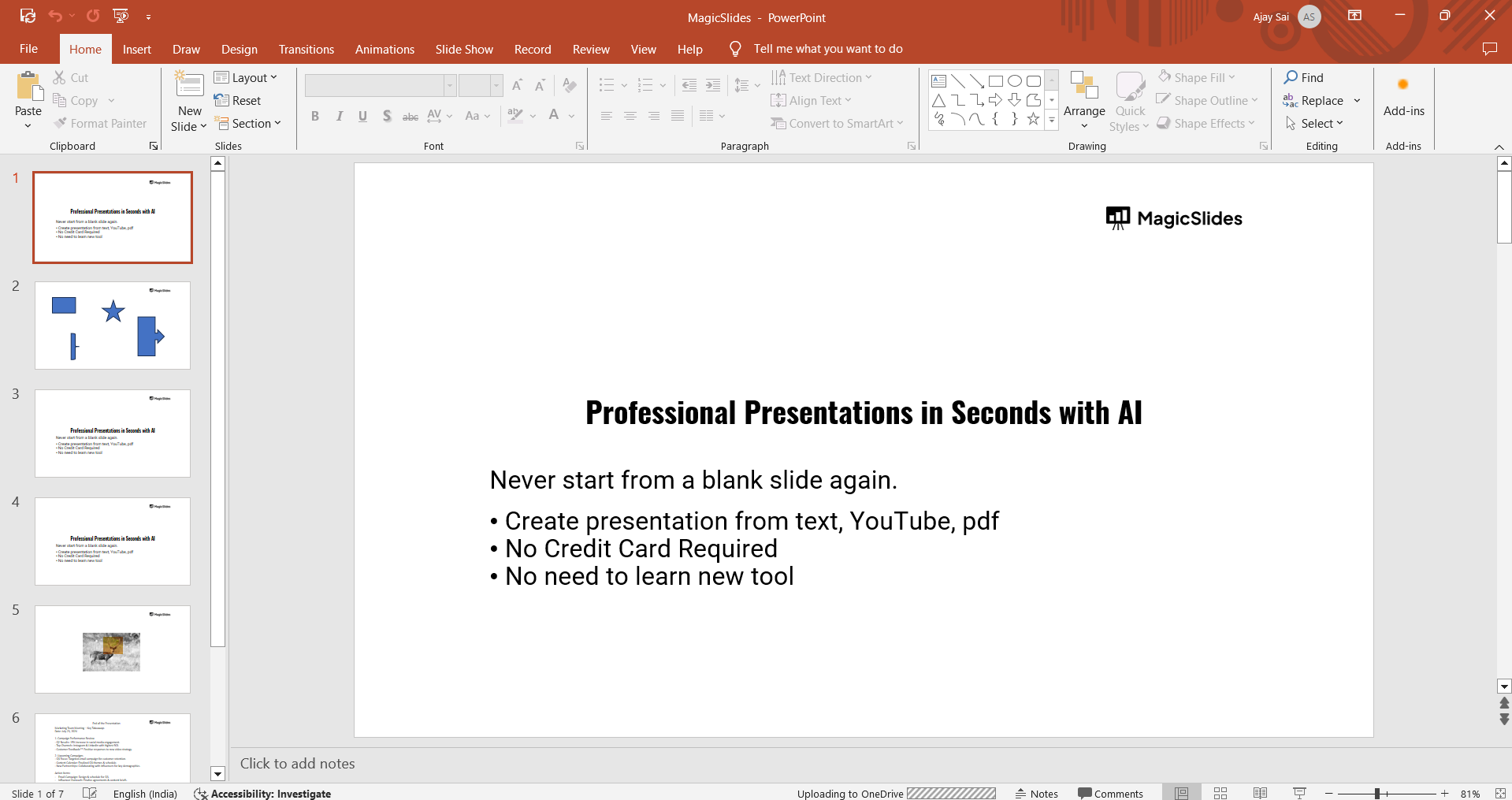
To open an existing presentation, click on "File" in the top-left corner, select "Open," and choose the presentation you want to work on.
Step 3: Insert Content on a Slide
To use Design Ideas, you need to have some content on your slide. This could be text, images, charts, or any other type of content.
Click on a slide or create a new one by clicking on "New Slide" in the "Home" tab. Add the content you want to the slide.
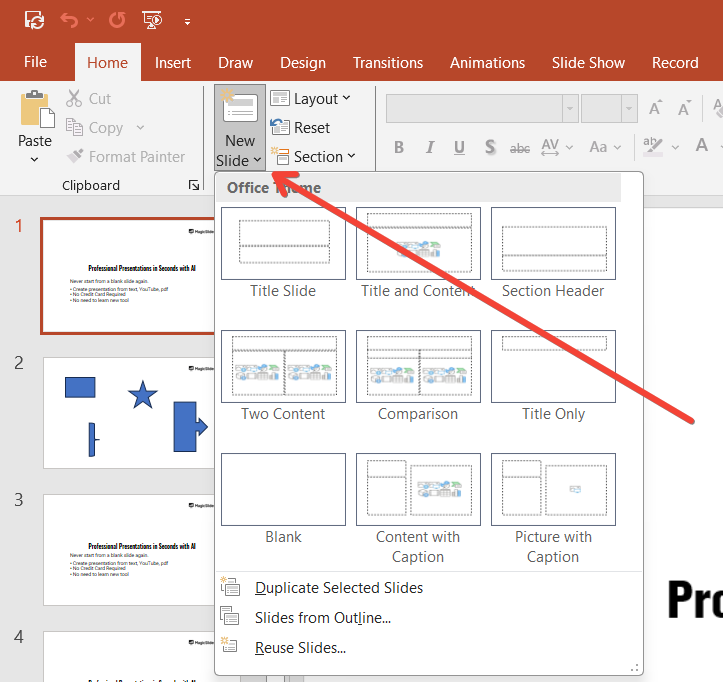
Step 4: Enable Design Ideas
With content on your slide, you can now enable Design Ideas. Go to the "Design" tab on the PowerPoint ribbon.
On the right side of the ribbon, you will see the "Design Ideas" button. Click on it to open the Design Ideas pane on the right side of the window.
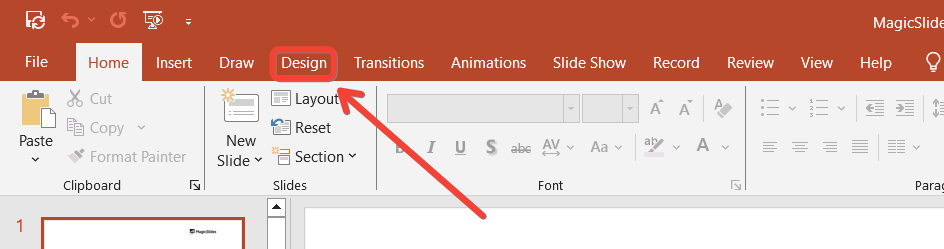
Step 5: Select a Design Idea
The Design Ideas pane will display a variety of design suggestions based on the content of your slide. Scroll through the options and click on the design that you like best.
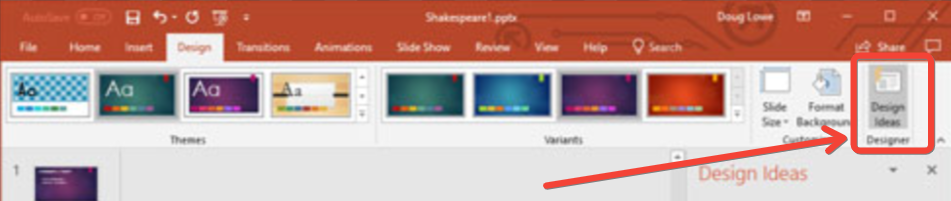
PowerPoint will automatically apply the selected design to your slide.
Step 6: Customize Your Design
After selecting a design idea, you can further customize your slide if needed. You can adjust the layout, change colors, fonts, or add additional elements to enhance your design.
Use the formatting options available in the "Home" and "Design" tabs to make these changes.
Step 7: Repeat for Other Slides
Repeat the above steps for each slide in your presentation where you want to use Design Ideas.
This will help you maintain a consistent and visually appealing design throughout your entire presentation.
Conclusion
Using Design Ideas in PowerPoint is a simple yet effective way to create professional and engaging presentations. By following these steps, you can easily enable and use Design Ideas to enhance your slides.
This feature not only saves you time but also helps you create visually appealing presentations that can captivate your audience. Give it a try in your next PowerPoint project and see the difference it can make!
Some FAQs that might help!
Why can't I see the Design Ideas button in PowerPoint?
The Design Ideas button might not be visible for several reasons:
Reason #1: PowerPoint Version: Design Ideas is available in PowerPoint for Office 365 subscribers. If you're using an older version of PowerPoint, this feature might not be available.
Reason #2: Slide Content: The feature works best with slides that have clear, simple content. If your slide is too complex or empty, Design Ideas might not generate suggestions.
Reason #3: Add-ins or Settings: Certain add-ins or settings might interfere with the feature. Ensure your PowerPoint is updated and try disabling any add-ins to see if the button appears.
Can I use Design Ideas for all types of content?
Design Ideas works best with text, images, and simple graphics. While it can handle various types of content, more complex elements like embedded videos or intricate diagrams might not generate as many design suggestions.
For best results, use clear, straightforward content that Design Ideas can easily analyze and enhance.
Is there a way to disable Design Ideas if I don’t want to use it?
Yes, you can disable Design Ideas if you prefer not to use it:
- Go to Options: Click on "File" in the top-left corner, then select "Options."
- Navigate to General Settings: In the PowerPoint Options dialog box, go to the "General" tab.
- Disable Design Ideas: Uncheck the box that says "Automatically show me design ideas." This will turn off the automatic suggestions, and you can re-enable it anytime by checking the box again.


