How do you make your Google Slide have Comic Strips


Create engaging comic strips in Google Slides using panels, speech bubbles, images, and fun layouts easily
How to Make Your Google Slide Have Comic Strips
Want to create a fun and engaging comic strip using Google Slides?
Whether for a school project, storytelling, or a presentation, Google Slides offers simple tools to design your own comic strips with speech bubbles, images, and creative layouts.
Follow this step-by-step guide to create a comic strip in Google Slides.
Step-by-Step Guide to Making a Comic Strip in Google Slides
Step 1: Open Google Slides
Go to Google Slides.
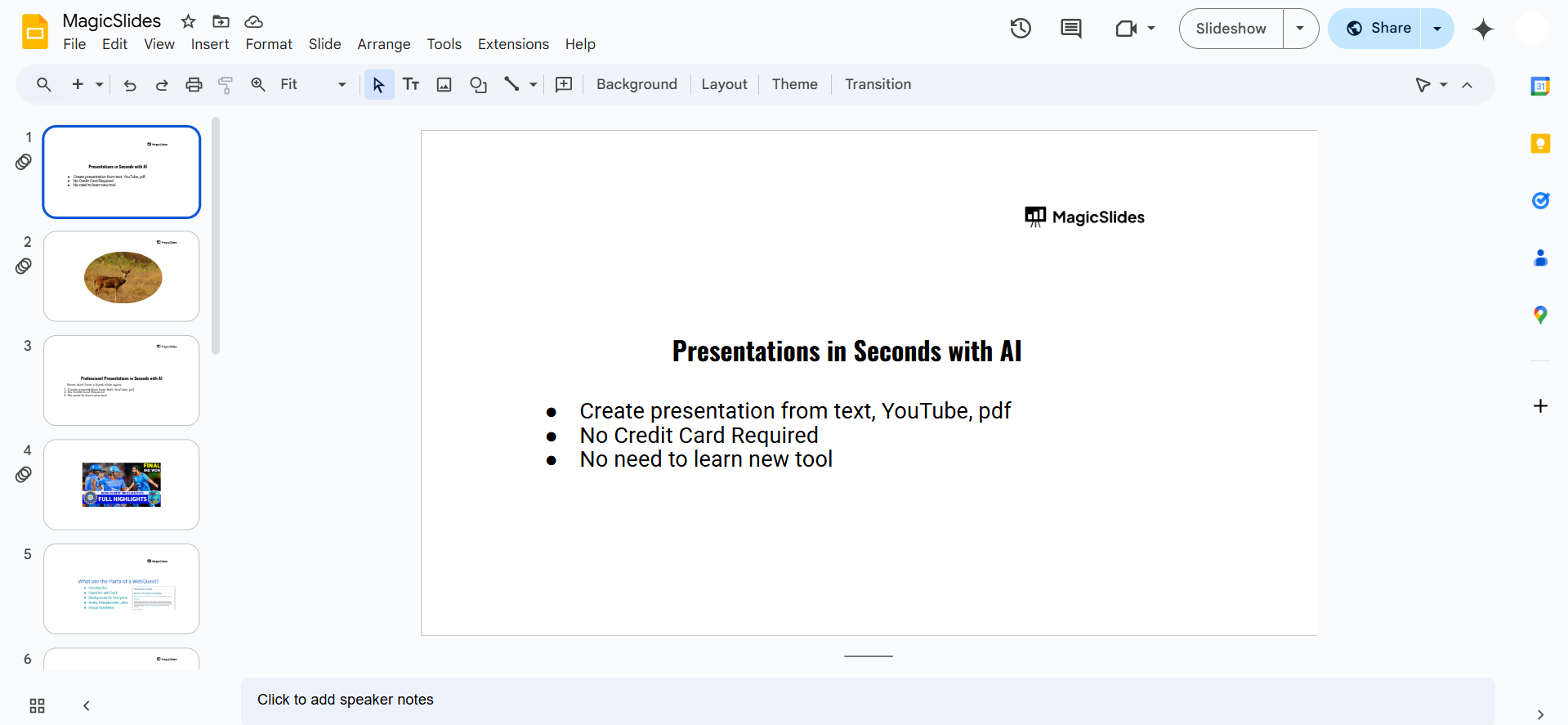
Create a new presentation by clicking the Blank option or use an existing slide deck.
Step 2: Change the Slide Layout for a Comic Strip Format
Click on File > Page Setup.
Select Custom and set the dimensions (e.g., 11 x 8.5 inches for a comic-style layout).
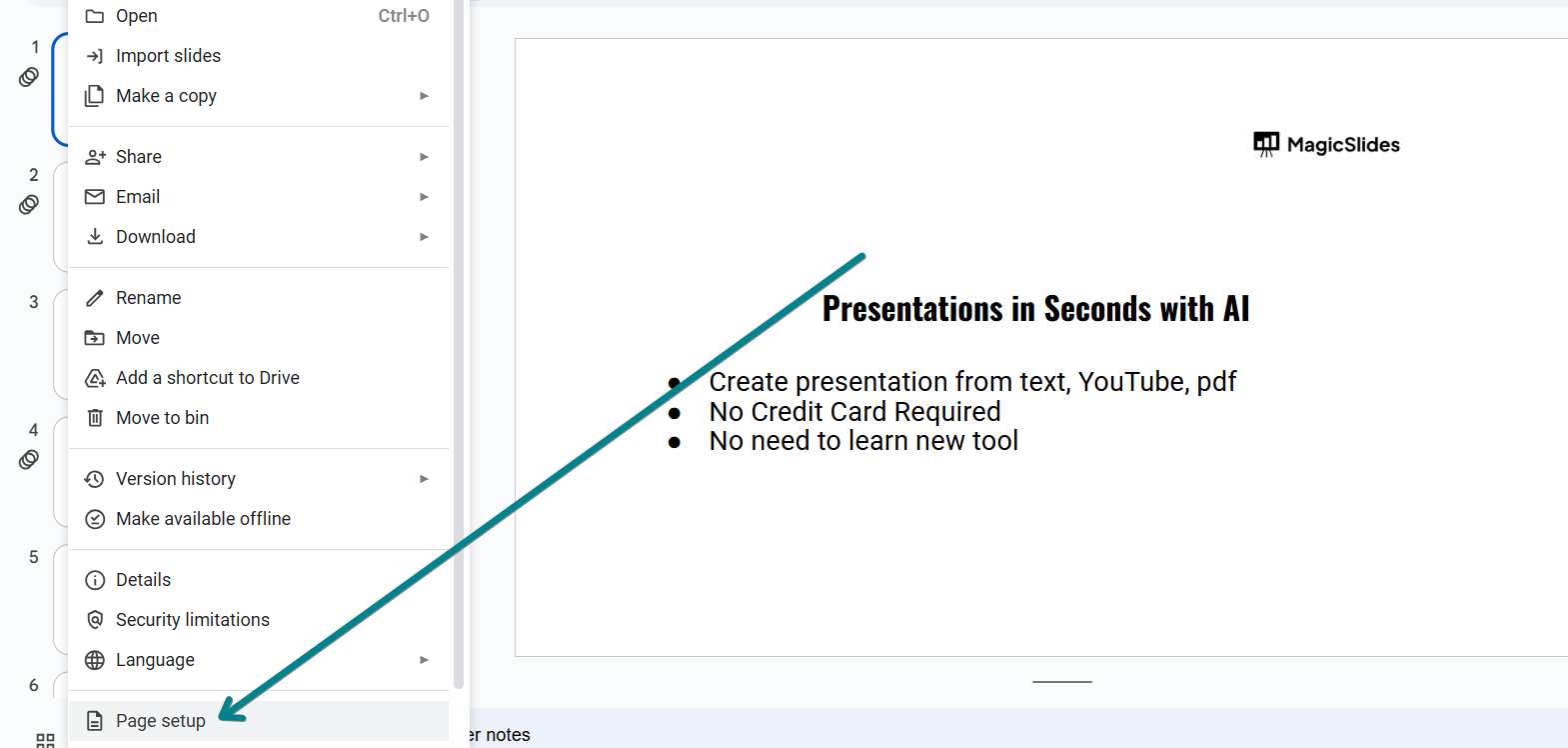
Click Apply to adjust the slide size.
Step 3: Add a Grid for Comic Panels
Click Insert > Table and choose the number of rows and columns for your comic strip.
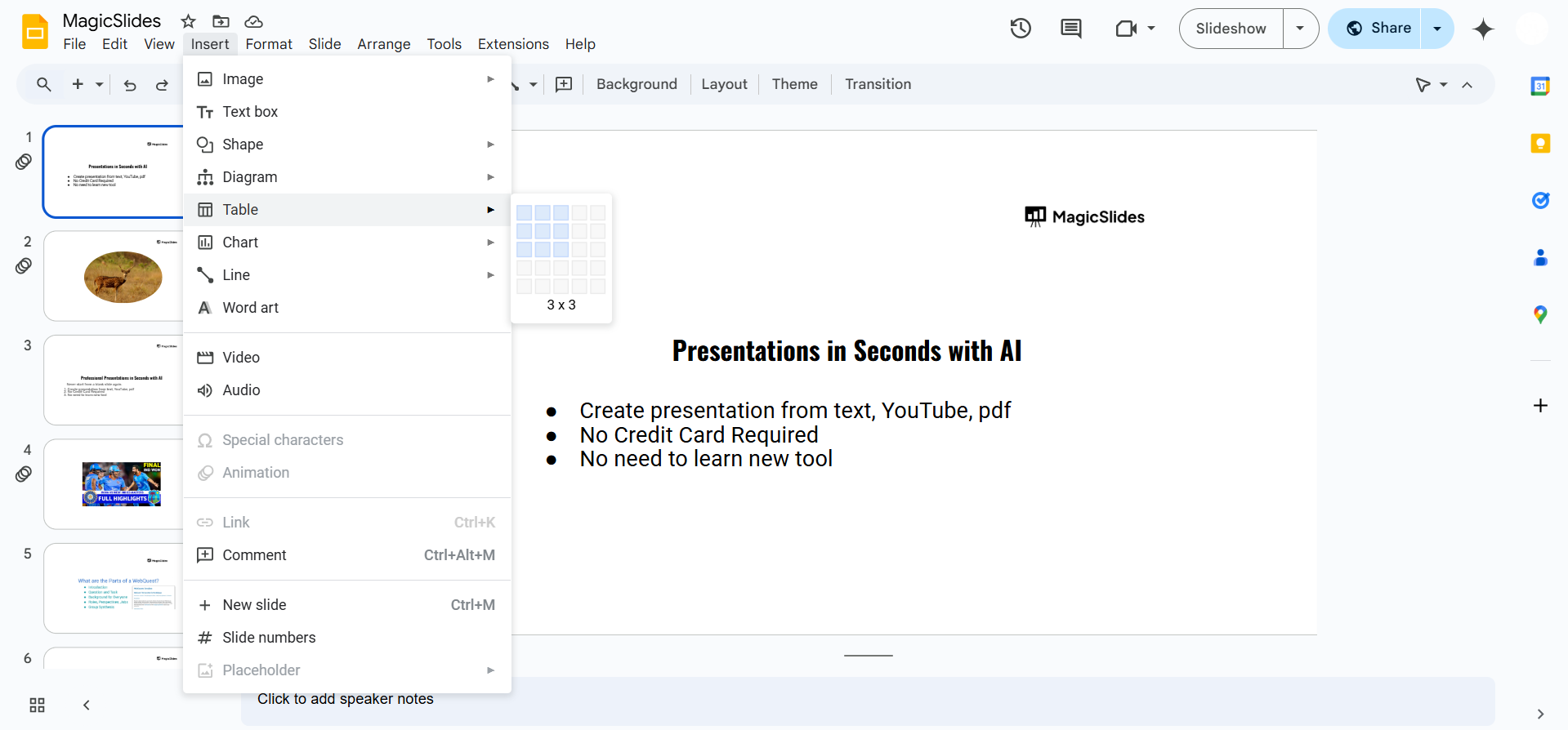
Resize the table by dragging the edges to fit the slide.
Customize the table’s borders by clicking Border color and Border weight in the toolbar.
Step 4: Insert Images or Characters
Click Insert > Image to add characters from your computer, the web, or Google Drive.
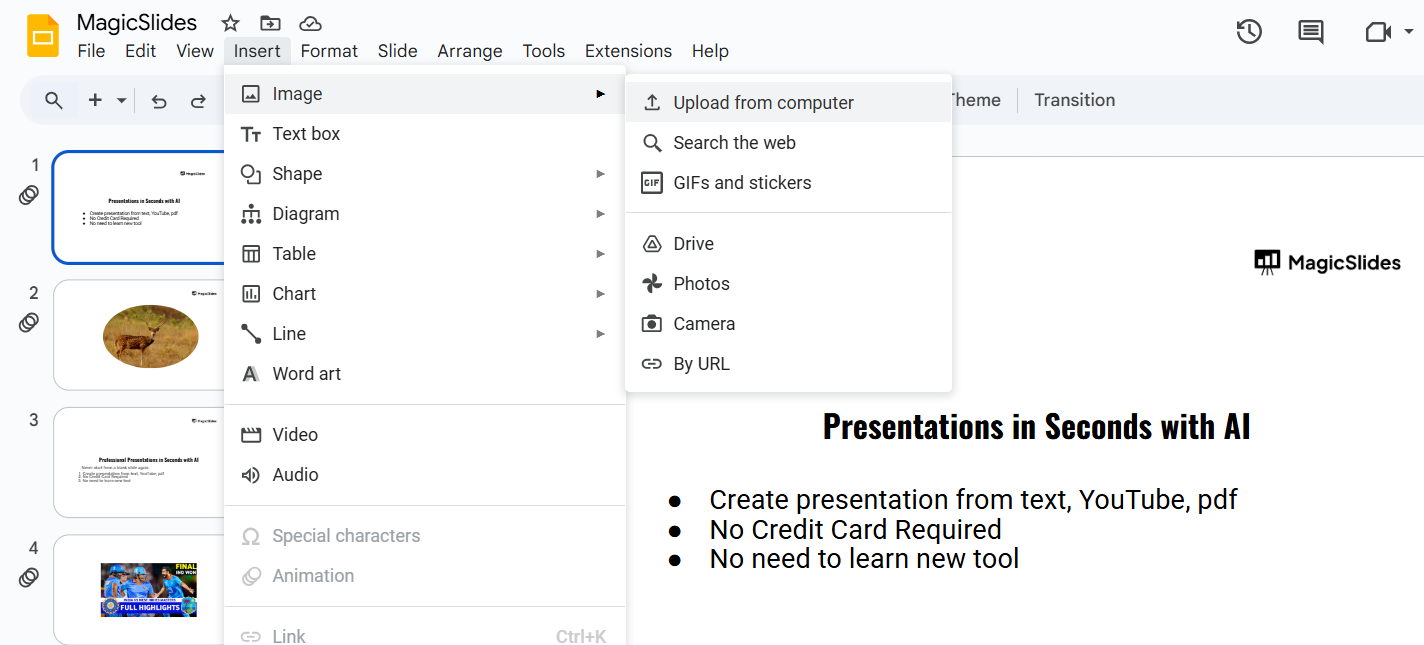
Resize and position images inside the comic panels.
For hand-drawn effects, use Scribble Tool:
- Click Insert > Line > Scribble to draw freehand characters or objects.
Step 5: Add Speech and Thought Bubbles
Click Insert > Shape > Callouts to choose a speech or thought bubble. Type text inside the bubble to add dialogue.
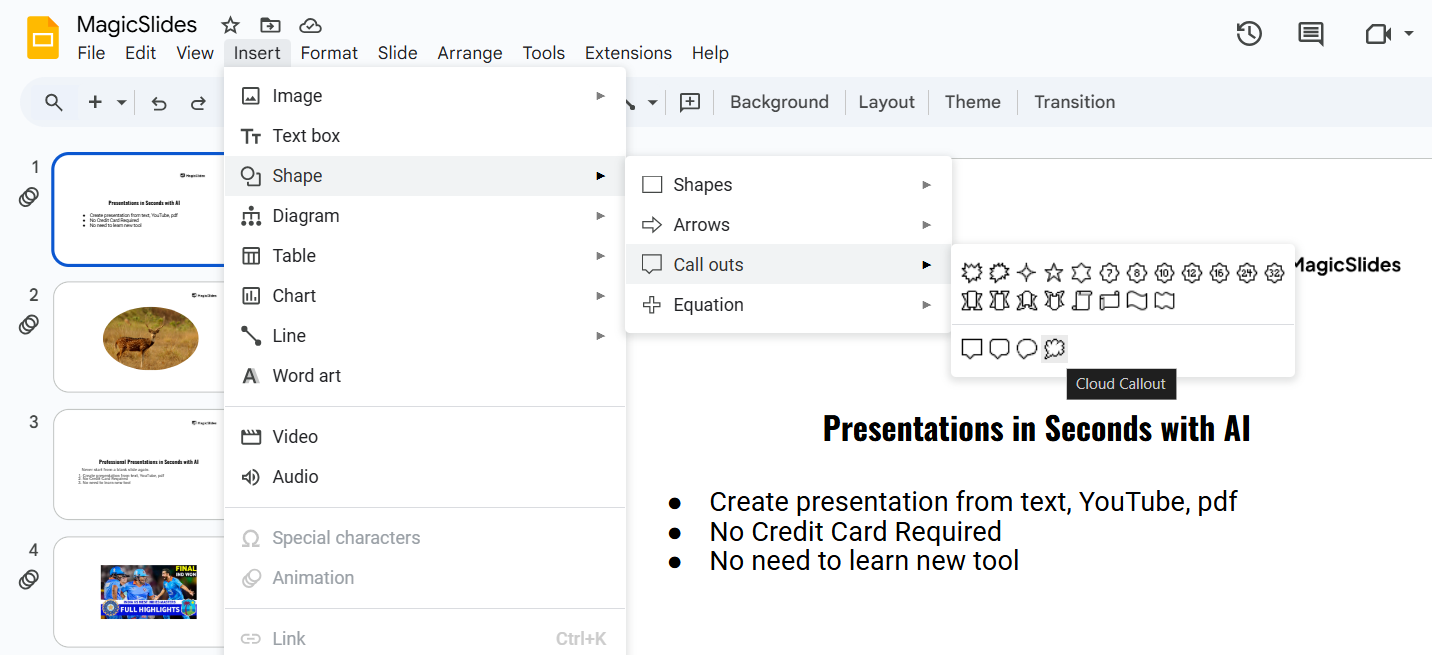
Resize and adjust the bubble to fit the character’s position.
Step 6: Customize the Comic Strip
Change background colors for different panels by clicking Background.
Adjust text font and size for a comic book style:
- Click Format > Font and choose a playful font like Comic Sans.
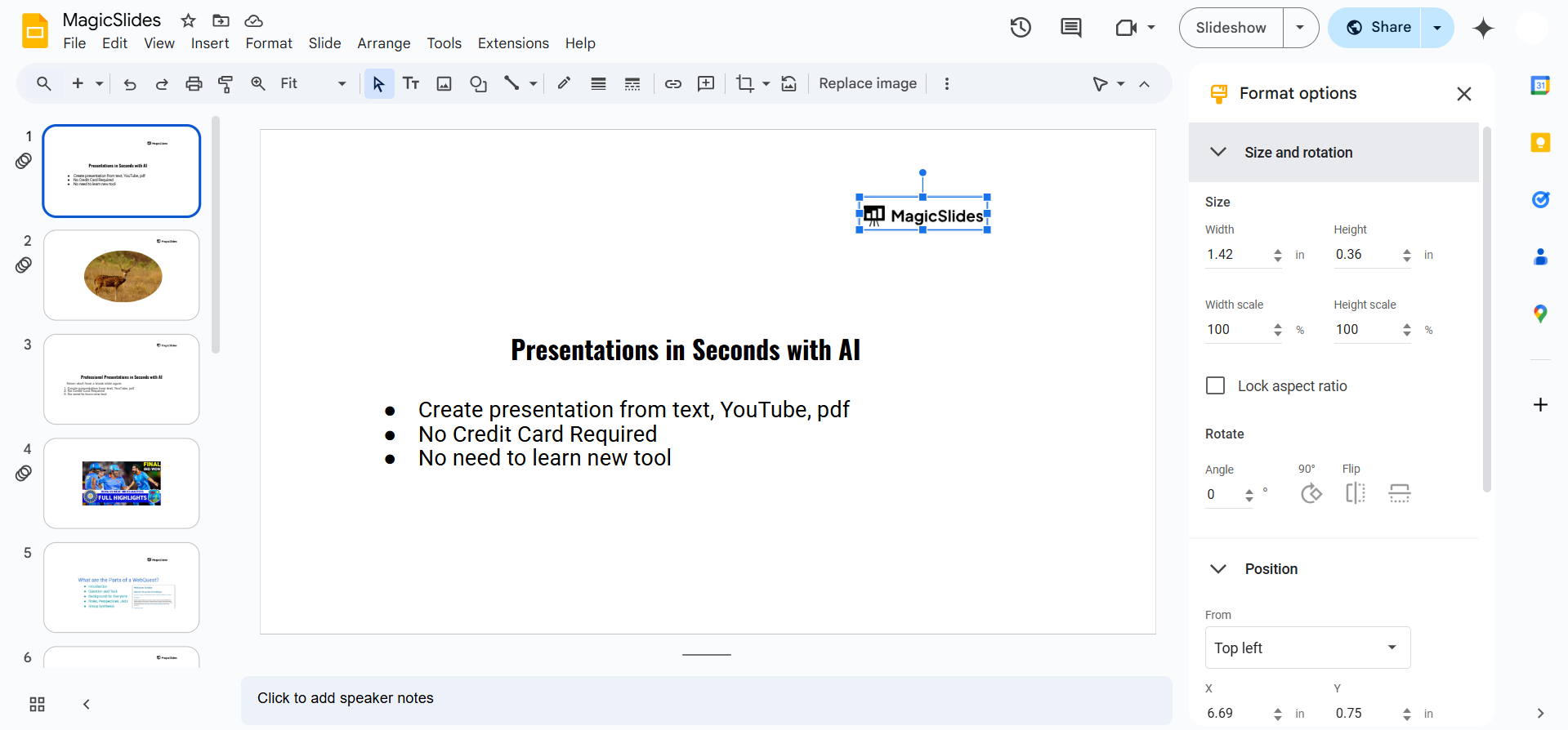
Use Animations to add movement to slides:
- Click Insert > Animation and choose effects for objects or text.
Step 7: Save and Share Your Comic Strip
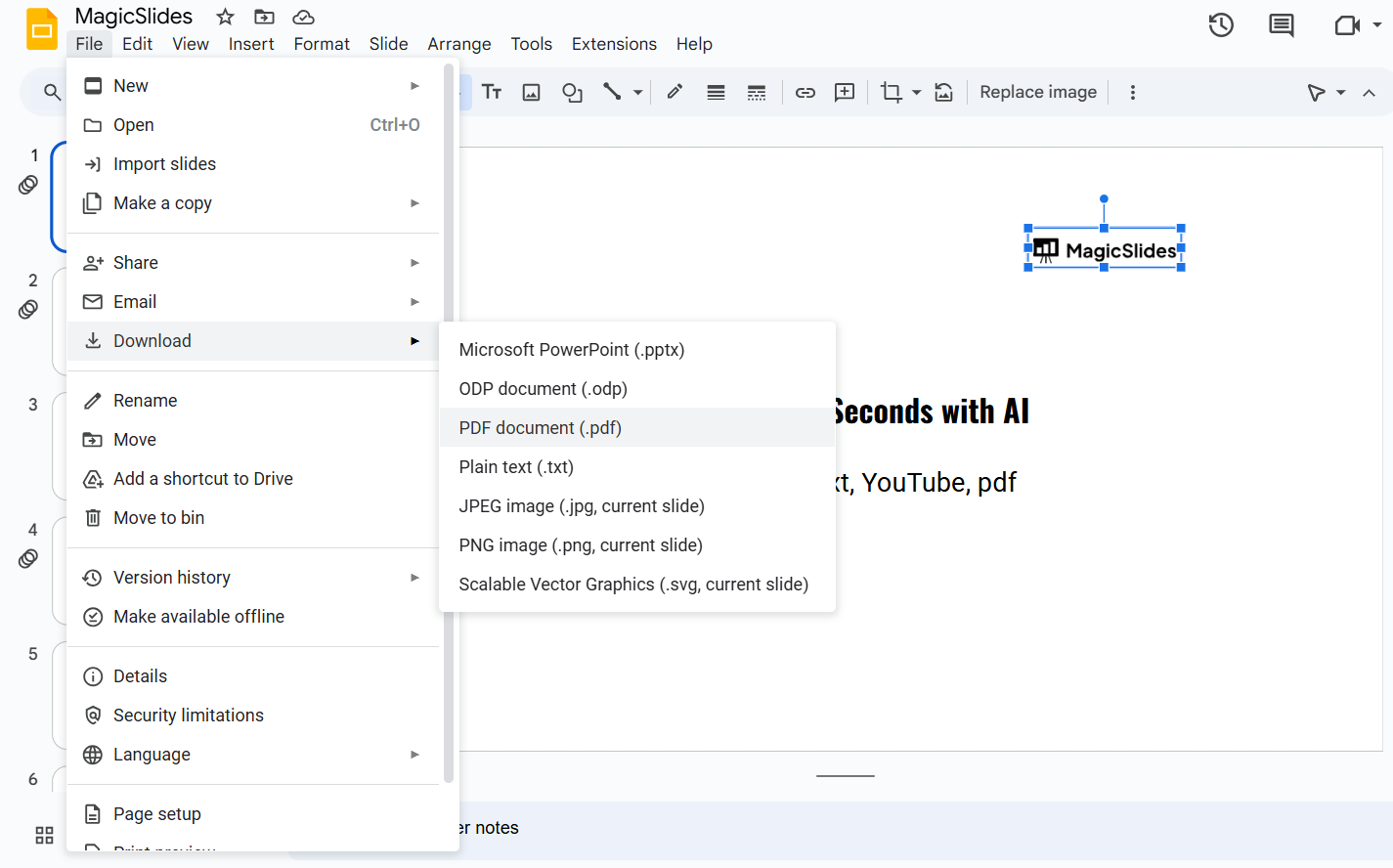
Click File > Download to save your comic as a PDF or PNG. Share with others by clicking Share and entering their email addresses.
Conclusion
Google Slides is a powerful and free tool for creating comic strips.
By using tables, images, speech bubbles, and creative formatting, you can design engaging comics for storytelling or educational purposes.
Try experimenting with different layouts and styles to make your comic strip stand out!
Creating comic strips in Google Slides adds creativity to presentations. For an even faster way to design engaging slides, check out MagicSlides.app AI-generated presentations with custom layouts in just a few clicks!
FAQs can come handy!
Can I add animations to my comic strip in Google Slides?
Yes! Use the Animations feature to make speech bubbles or images appear dynamically on each slide.
How do I make my comic strip look more professional?
Use high-quality images, consistent fonts, and well-structured panels. Adjust colors and borders to improve the overall design.
Can I print my Google Slides comic strip?
Yes! Download it as a PDF and print it for a physical comic strip version.


