How to Add image in Canva Template


Learn how to effortlessly add and customize images in Canva templates for professional-quality designs
Adding images to Canva templates can elevate your designs and make them more visually appealing.
Canva’s user-friendly interface allows you to insert, customize, and style images with ease.
Whether you’re creating social media posts, presentations, or invitations, follow these simple steps to add images to your Canva templates like a pro.
How to Add an Image in a Canva Template
Step 1: Open Canva and Select a Template
Log in to your Canva account. From the homepage, browse or search for a template that suits your needs.
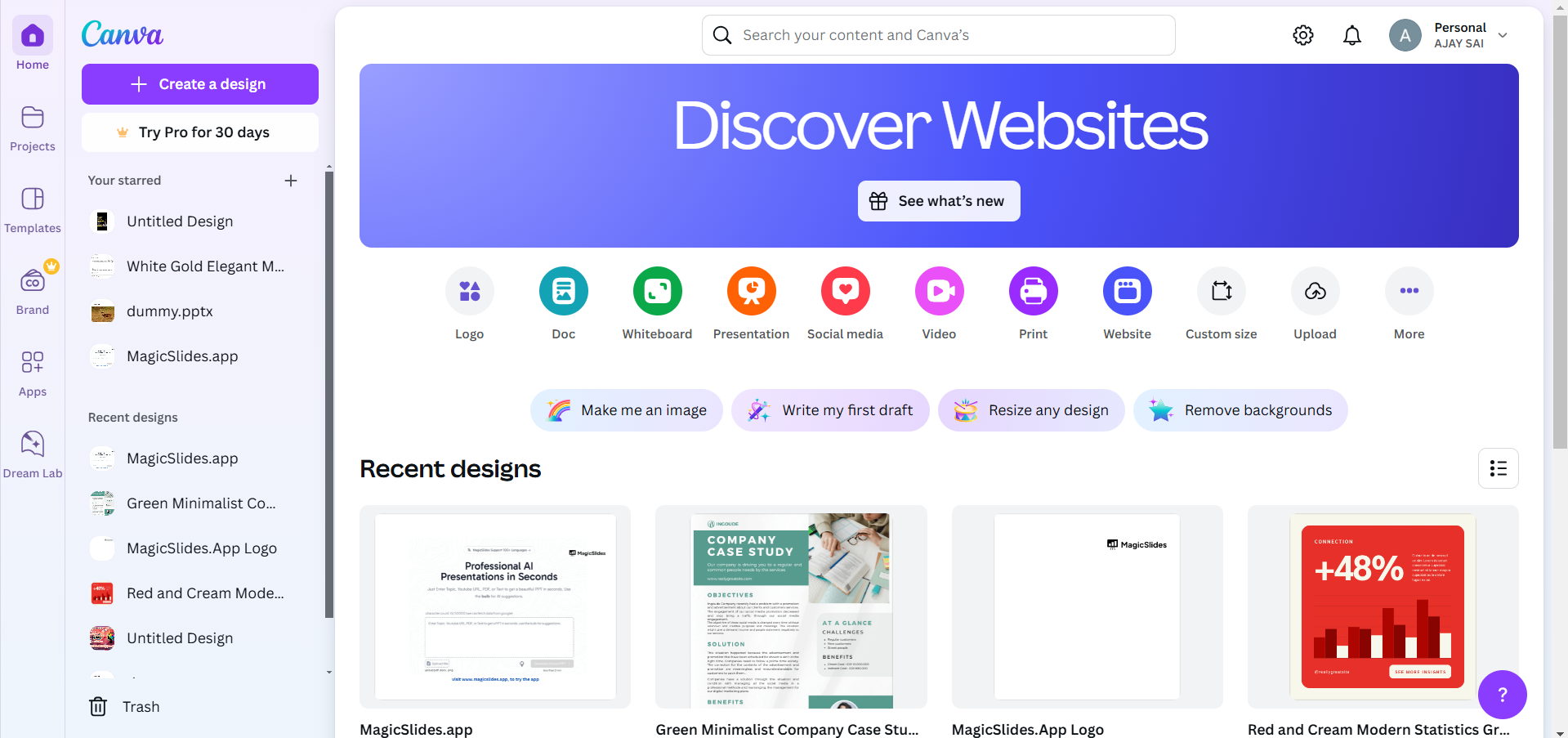
Click on the chosen template to open it in the Canva editor.
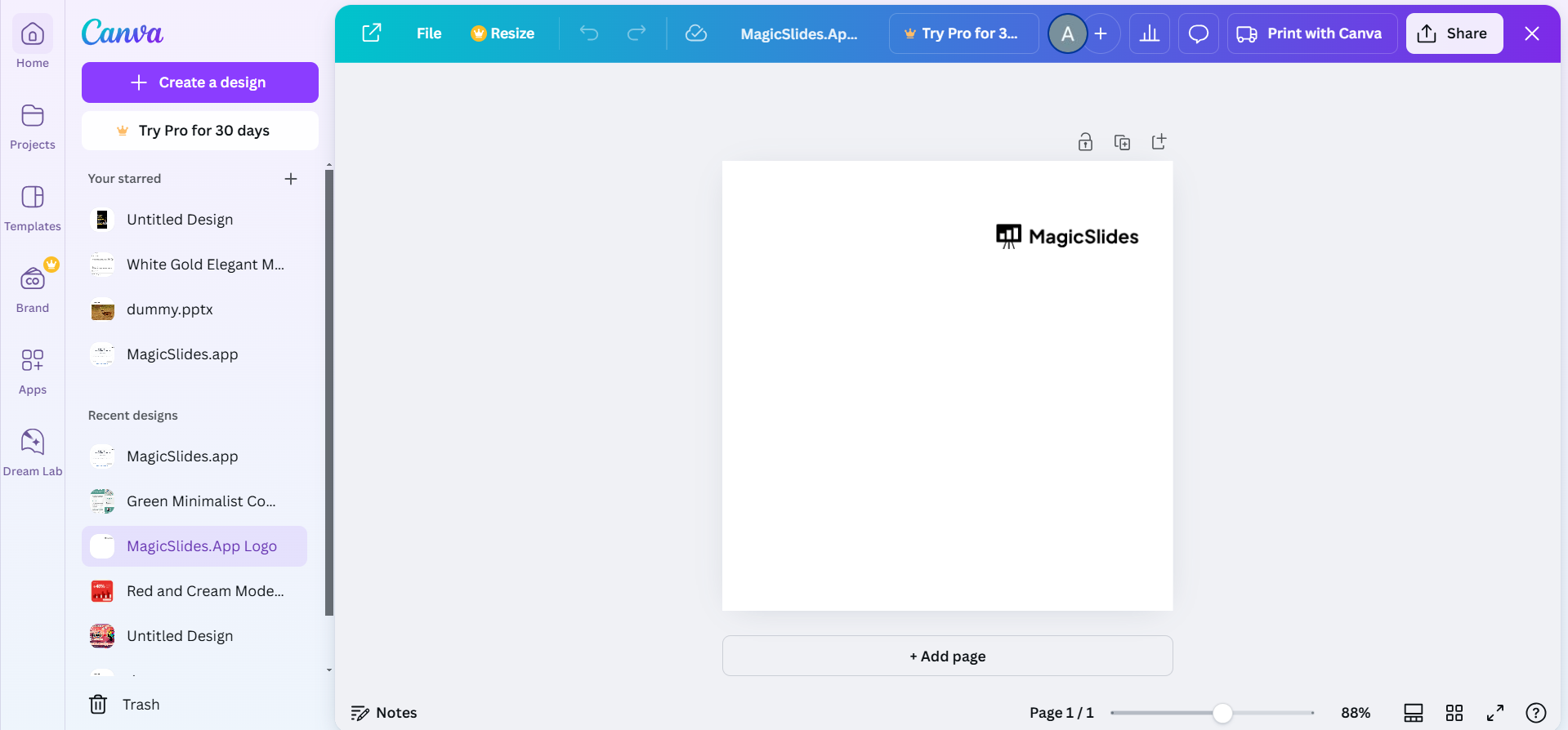
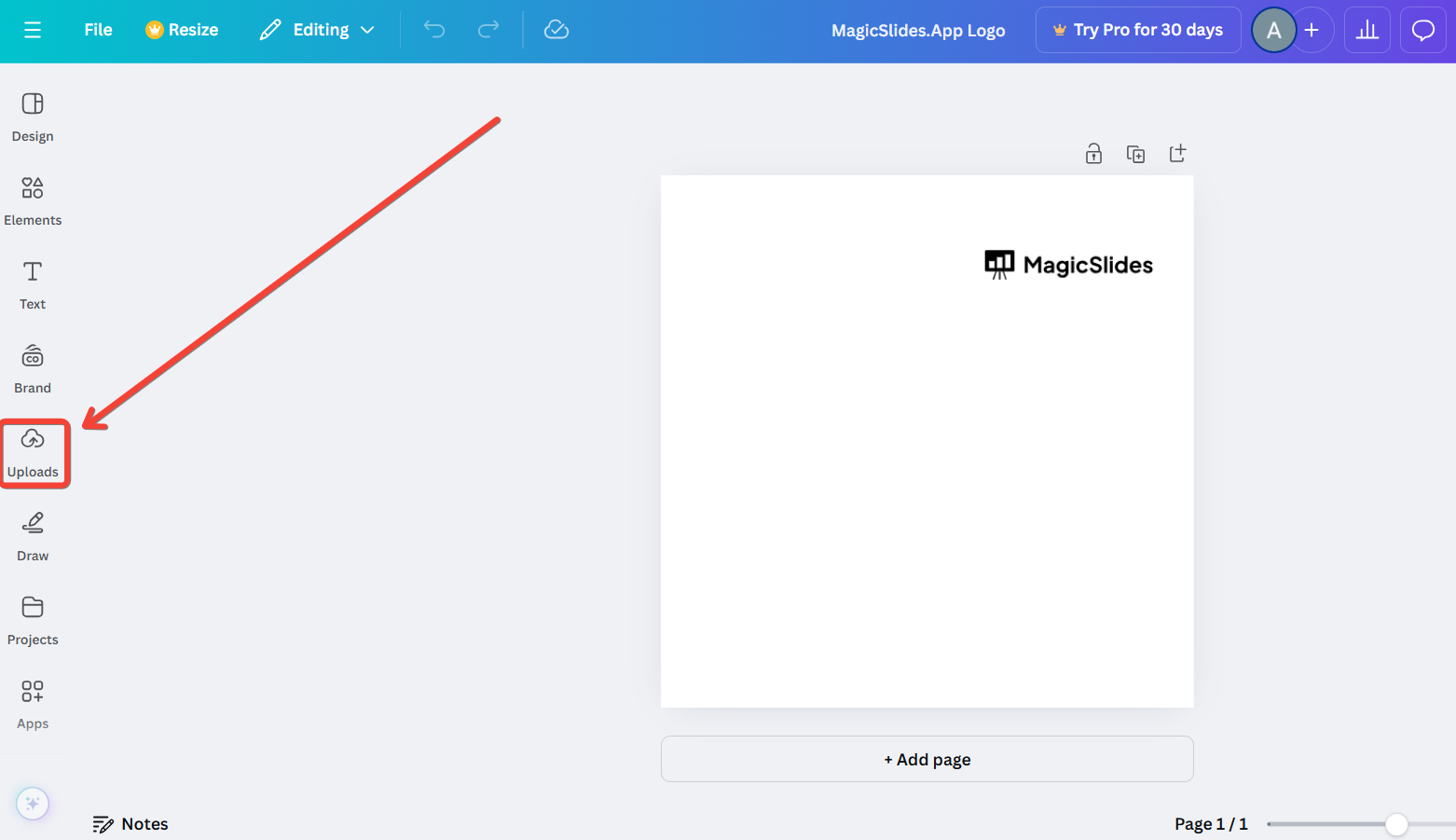
Step 2: Access the Uploads Panel
On the left-hand toolbar, click on “Uploads.”
If the image you want to add isn’t already uploaded, click the “Upload Files” button and select an image from your device.
Once uploaded, the image will appear in the Uploads library.
Step 3: Drag and Drop the Image into the Template
Drag the uploaded image from the Uploads panel and drop it onto the canvas.
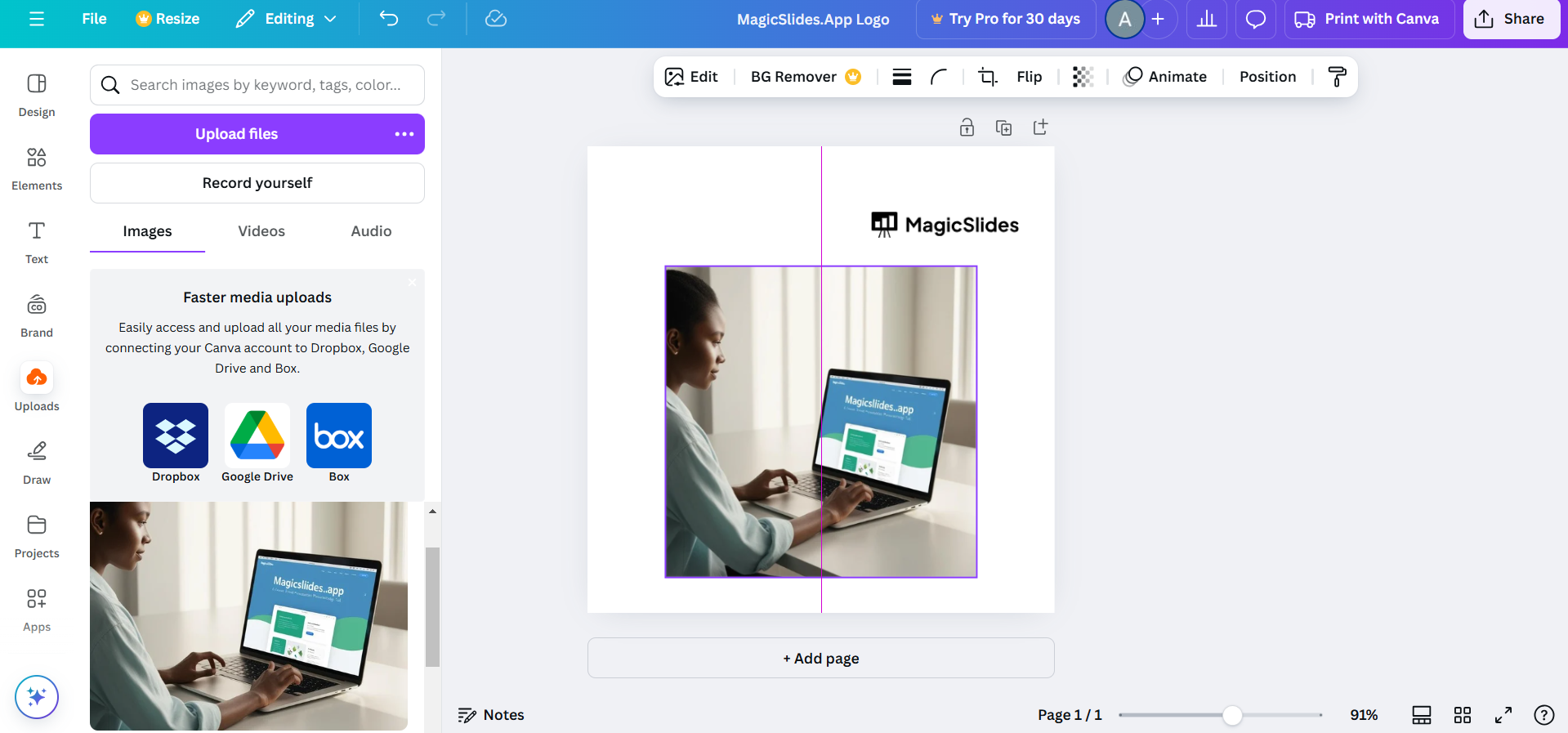
Position the image over an existing image placeholder or anywhere on the template.
- If dropped into a placeholder, the image will automatically resize and fit into the frame.
Step 4: Save Your Design
After making all adjustments, click the “Share” or “Download” button in the top-right corner.
Choose your preferred file format and save your design.
Conclusion
Adding images to Canva templates is a straightforward process that empowers you to create eye-catching designs effortlessly.
By following these steps, you can seamlessly incorporate images into any template, ensuring your creations stand out.
Experiment with Canva’s customization options to make your designs truly unique.
FAQs on Adding Images to Canva Templates
Can I add images directly from Canva’s library instead of uploading my own?
Yes, Canva offers a vast library of free and premium images. Use the “Elements” or “Photos” tab to browse and add images.
Why doesn’t my image fit properly in the placeholder?
If the image doesn’t fit, double-click the placeholder to adjust the position or resize the image within the frame.
Can I replace an existing image in the template?
Yes, simply drag a new image over the placeholder, and it will automatically replace the existing one.
With these tips, you’re ready to master the art of adding images in Canva templates!


