How to add theme to Google Slides


Elevate your Google Slides presentation instantly by following these simple steps to add captivating themes.
A well-designed presentation can significantly impact how your audience perceives your content. Google Slides offers a range of themes to help you create visually appealing and cohesive presentations. In this step-by-step guide, we'll explore how to effortlessly add themes to your Google Slides presentation, elevating your slides from mundane to memorable.
How to add theme to Google Slides
Step 1: Open Your Google Slides Presentation
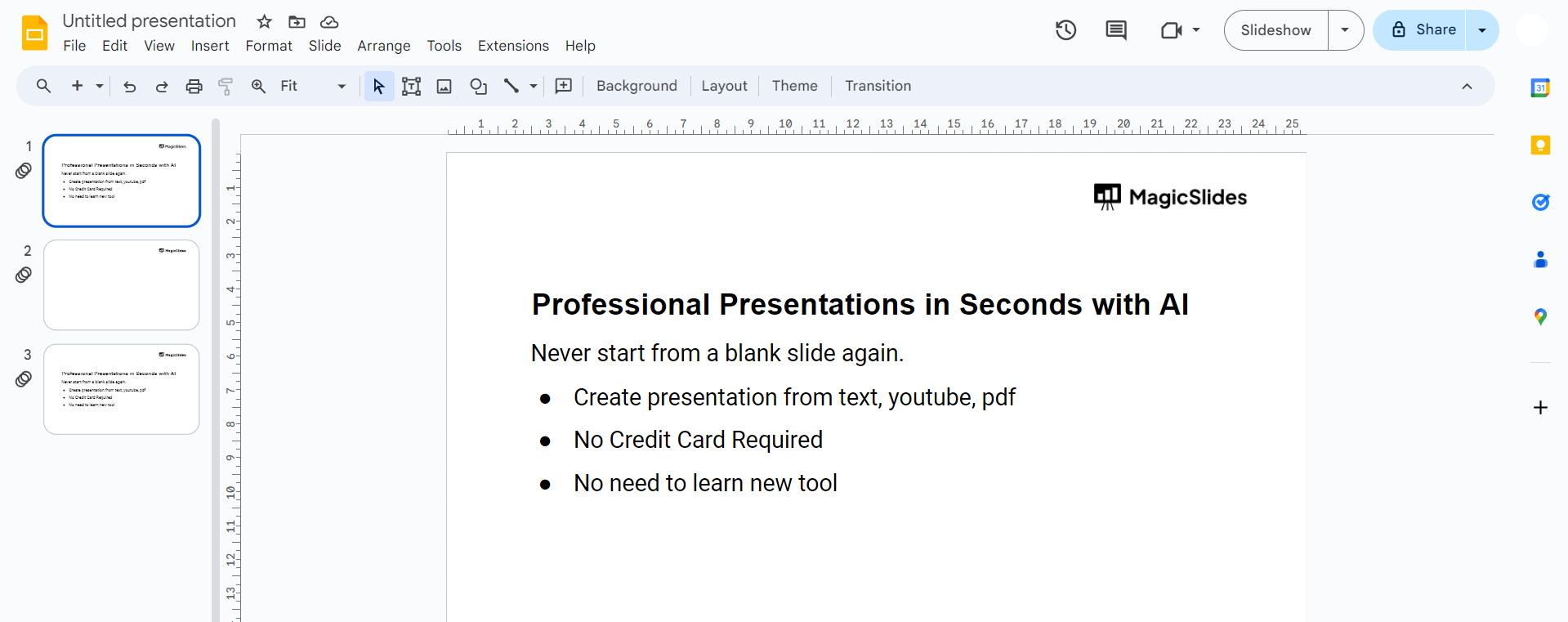
Begin by opening the Google Slides presentation you want to enhance with a theme. If you're starting a new presentation, create one to get started.
Step 2: Access the Slide Menu
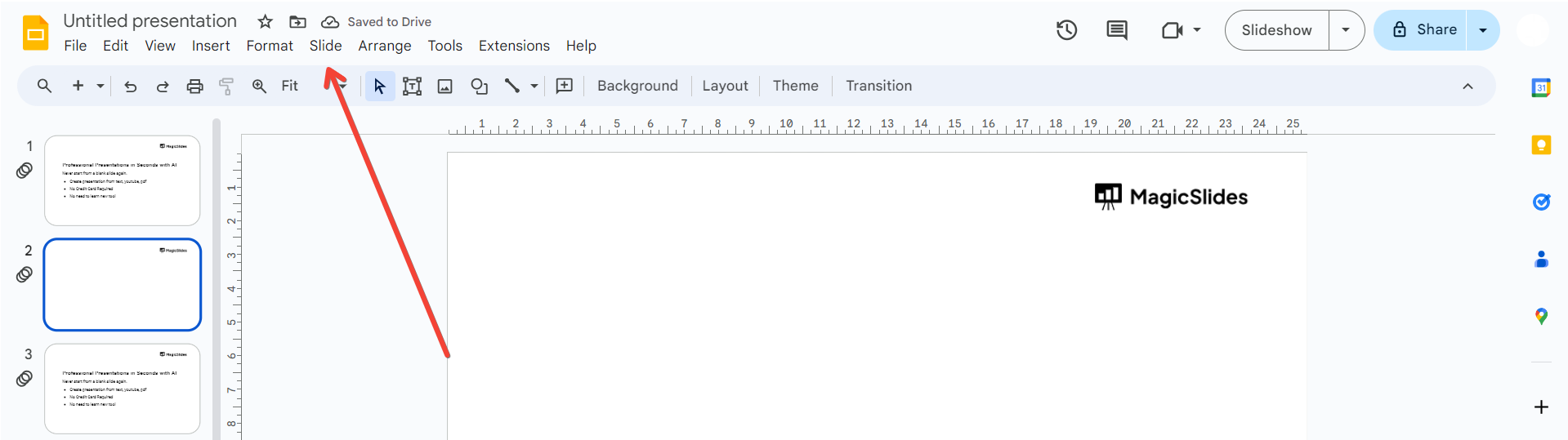
Navigate to the top of your screen and click on the "Slide" menu.
Step 3: Choose "Change Background"
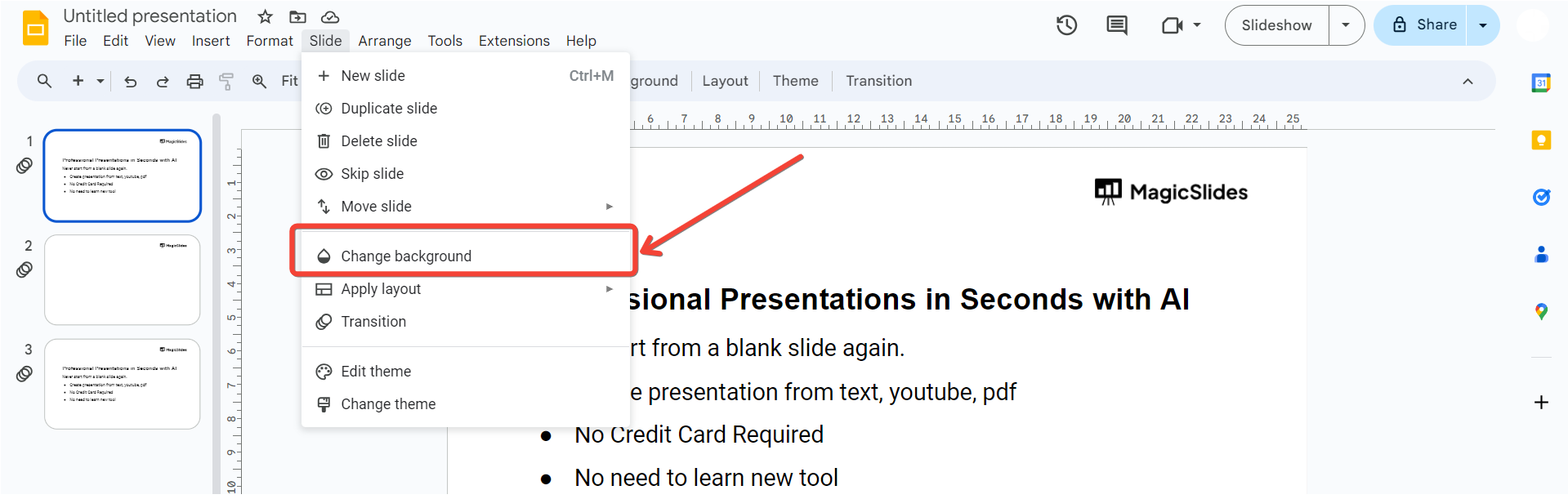
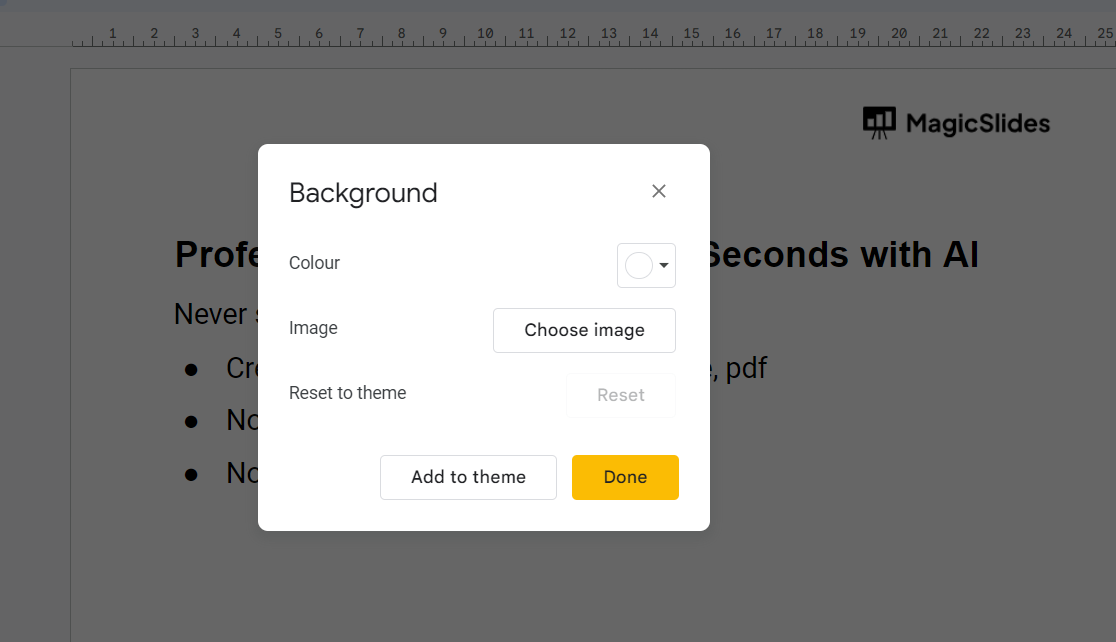
From the drop-down menu, select "Change background." This will open the customization options for your slides.
Step 4: Explore Theme Options
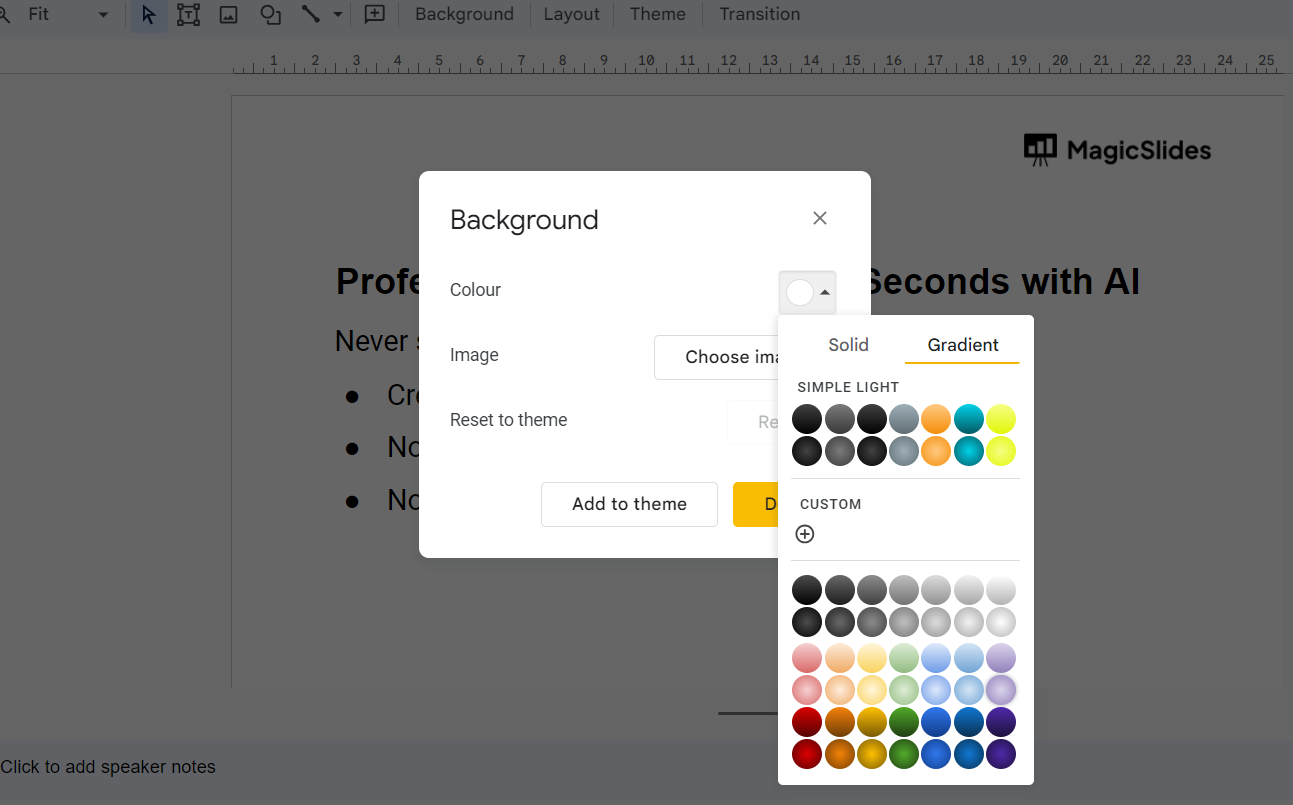
Within the "Change background" panel, you'll find a selection of pre-designed themes. Scroll through these options and click on the one that aligns with the visual style you envision for your presentation.
Step 5: Apply the Selected Theme
Click on the chosen theme, and Google Slides will apply it to your entire presentation. Instantly, your slides will take on a cohesive and professionally designed look.
Step 6: Customize Theme Colors (Optional)
If you want to further personalize your chosen theme, you can click on the "Customize" button. Here, you can adjust the color scheme to better match your branding or personal preferences.
Step 7: Save Your Changes
Once satisfied with the chosen theme and any customization, click "Done" to save your changes.
Conclusion:
Adding a theme to your Google Slides presentation is a quick and effective way to enhance its visual appeal. Whether you're crafting a business presentation, a school project, or a creative pitch, a cohesive theme can tie your content together and leave a lasting impression on your audience. Experiment with different themes to find the one that best suits your message and style, and don't forget to customize colors for that extra touch. With these simple steps, you'll transform your slides into a polished and professional presentation that captivates your audience.
Frequently Asked Questions:
Can I customize themes in Google Slides to match my brand colors and style?
Absolutely! After selecting a theme, click "Customize" to adjust colors, ensuring a personalized touch.
Will adding a theme change the font and layout of my existing Google Slides?
Applying a theme may adjust fonts and layouts, but you can customize them further as needed.
Can I revert to the default theme if I'm not satisfied with my choice?
Yes, simply go back to the "Change background" panel and choose the "Reset" option to revert.
Are themes compatible with Google Slides' collaborative features for team presentations?
Yes, themes are collaborative-friendly, making it easy for teams to maintain a cohesive visual identity.


