How to block someone on Slack application


Promote a positive Slack environment: Learn how to block users with this step-by-step guide.
Slack has become an essential hub for seamless communication, but sometimes, maintaining a positive workspace means taking necessary steps. Blocking someone on Slack ensures a healthy environment for collaboration.
Before we begin, if you are looking to send Google form submissions directly to Slack, check SlackNotify.app
In this guide, we'll walk you through the simple steps to block a user on the Slack application, helping you foster a more focused and positive workspace.
How to block someone on Slack application
Step 1: Open the Slack Application
Launch the Slack application on your desktop or mobile device and log in to your workspace.
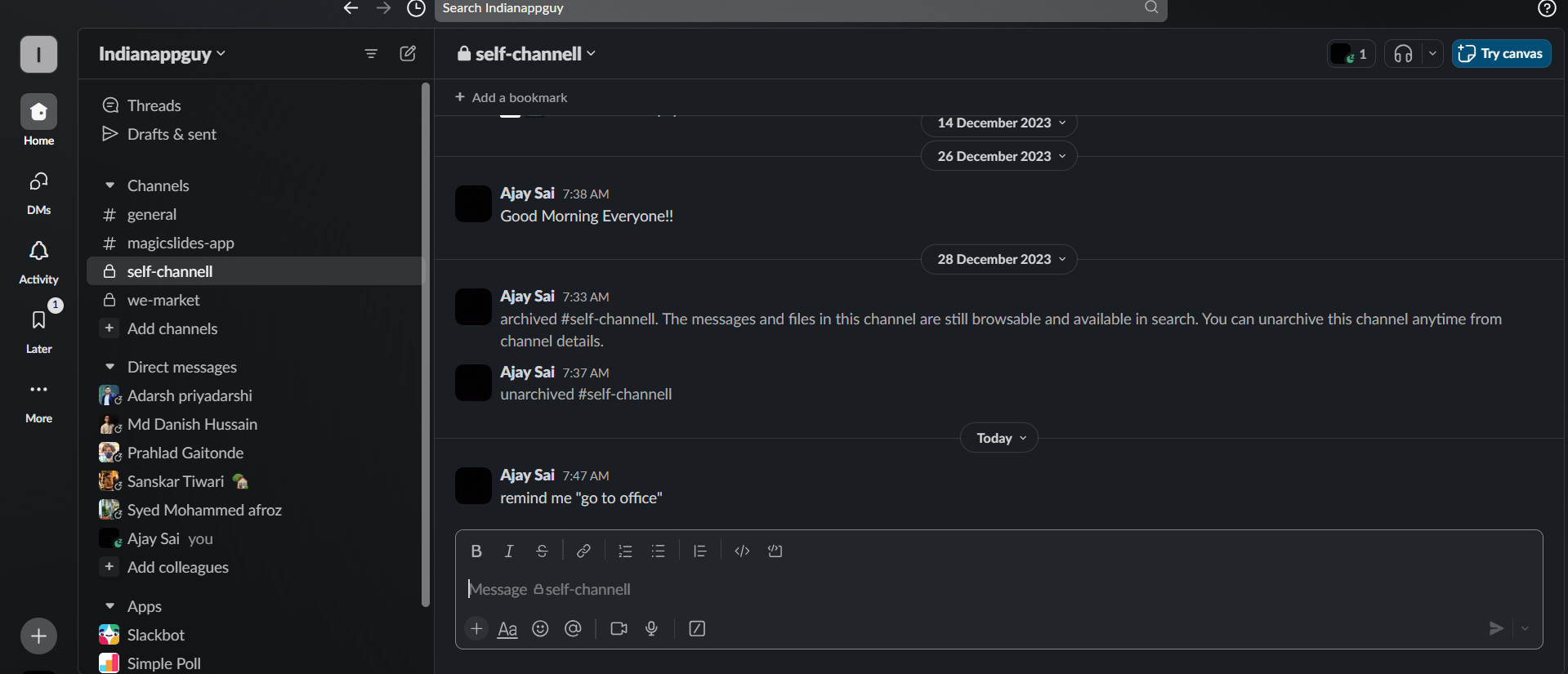
Step 2: Locate the User's Profile
Navigate to the direct message or channel where the person you want to block is active. Find their profile picture or name.
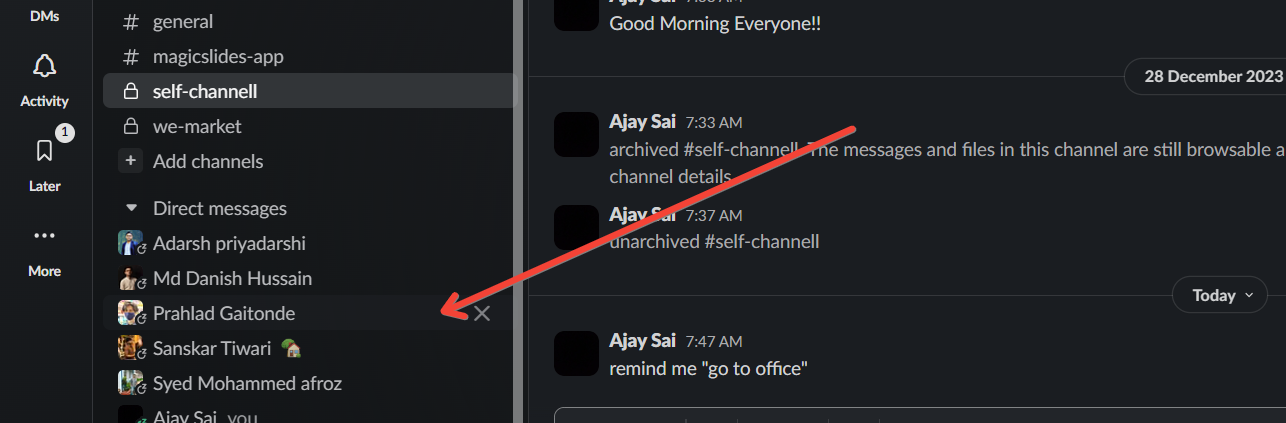
Step 3: Access User Options
Click on the three dots or gear icon next to the person's name to access a dropdown menu with various options.
Step 4: Choose "Block/Hide"
In the dropdown menu, select the "Block/Hide" option. Slack will prompt you to confirm your decision.
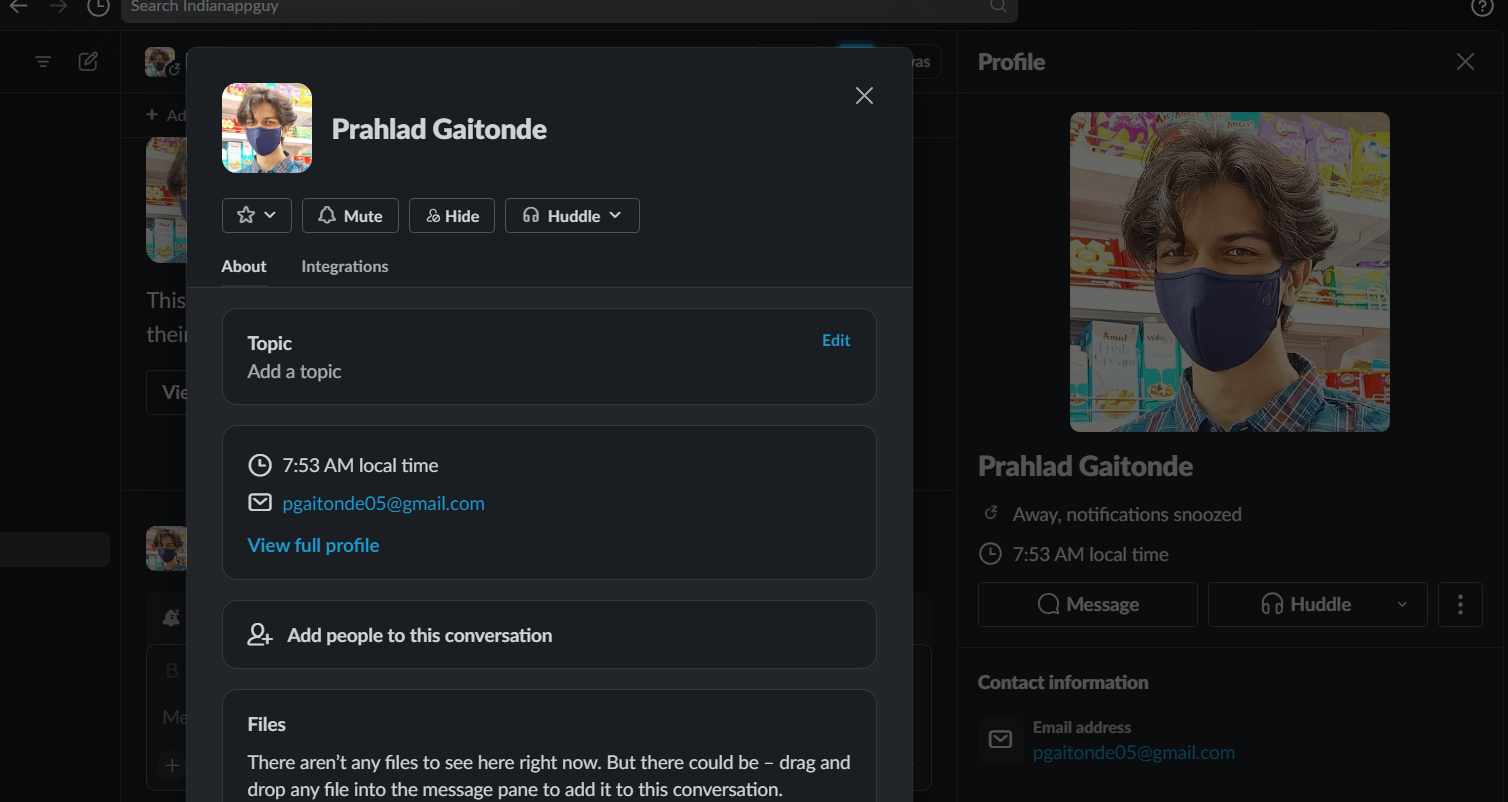
Step 5: Confirm the Block/Hide
Once you've chosen to block the user, Slack will ask for confirmation. Confirm again to complete the blocking process.
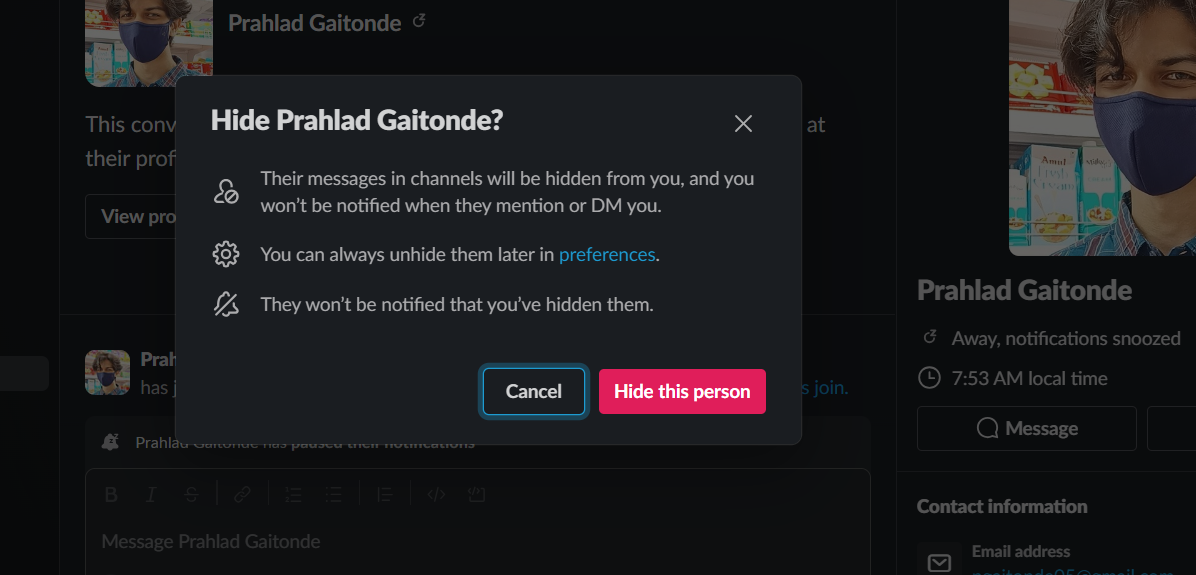
Step 6: Verify the Block
Check the user's profile to ensure the blocking process is successful. You'll notice that the option to unblock the user replaces the block option.
While managing blocked contacts in Slack, consider setting up Google Form notifications to Slack. This way, whenever a Google Form is submitted, your team receives real-time notifications, ensuring you never miss important updates
Conclusion:
Blocking someone on Slack is a straightforward process that can contribute to maintaining a positive and focused workspace.
By following these steps, you can take control of your communication environment, ensuring that interactions are conducive to productive collaboration.
Remember, fostering a healthy workspace is crucial for effective teamwork, and blocking someone on Slack is a tool to help achieve just that. Keep your virtual collaboration space positive and efficient!
Frequently Asked Questions:
Can the blocked user still see my previous messages in shared channels or messages?
Yes, blocking someone on Slack doesn't retroactively remove your past messages from shared channels or messages.
Can a blocked user know that they have been blocked on Slack?
No, Slack does not notify users when they have been blocked by someone in the workspace.
Can I unblock someone later if needed?
Yes, you have the option to unblock a user later. Locate their profile, and the option will appear.
Will blocking someone affect their access to shared channels or files?
No, blocking someone on Slack doesn't restrict their access to shared channels, files, or other shared content.


