How to change a Slack Channel name in Desktop App


Elevate your Slack experience by mastering the art of channel name changes in the desktop app
Efficiency in team collaboration is crucial, and Slack has become a staple for seamless communication.
If you're looking to keep your workspace organized or adapt to evolving project needs, knowing how to change a channel name is a valuable skill.
In this step-by-step guide, we'll walk you through the process of renaming a Slack channel directly in the desktop app, ensuring you stay in control of your team's communication landscape.
Before we begin, if you are looking to send Google form submissions directly to Slack, check SlackNotify.app
How to change a Slack Channel name in Desktop App
Step 1: Open the Slack Desktop App
Launch the Slack desktop app on your computer and log in to your workspace.
Ensure you have the necessary permissions to manage channels, as this is typically a function reserved for admins or channel owners.
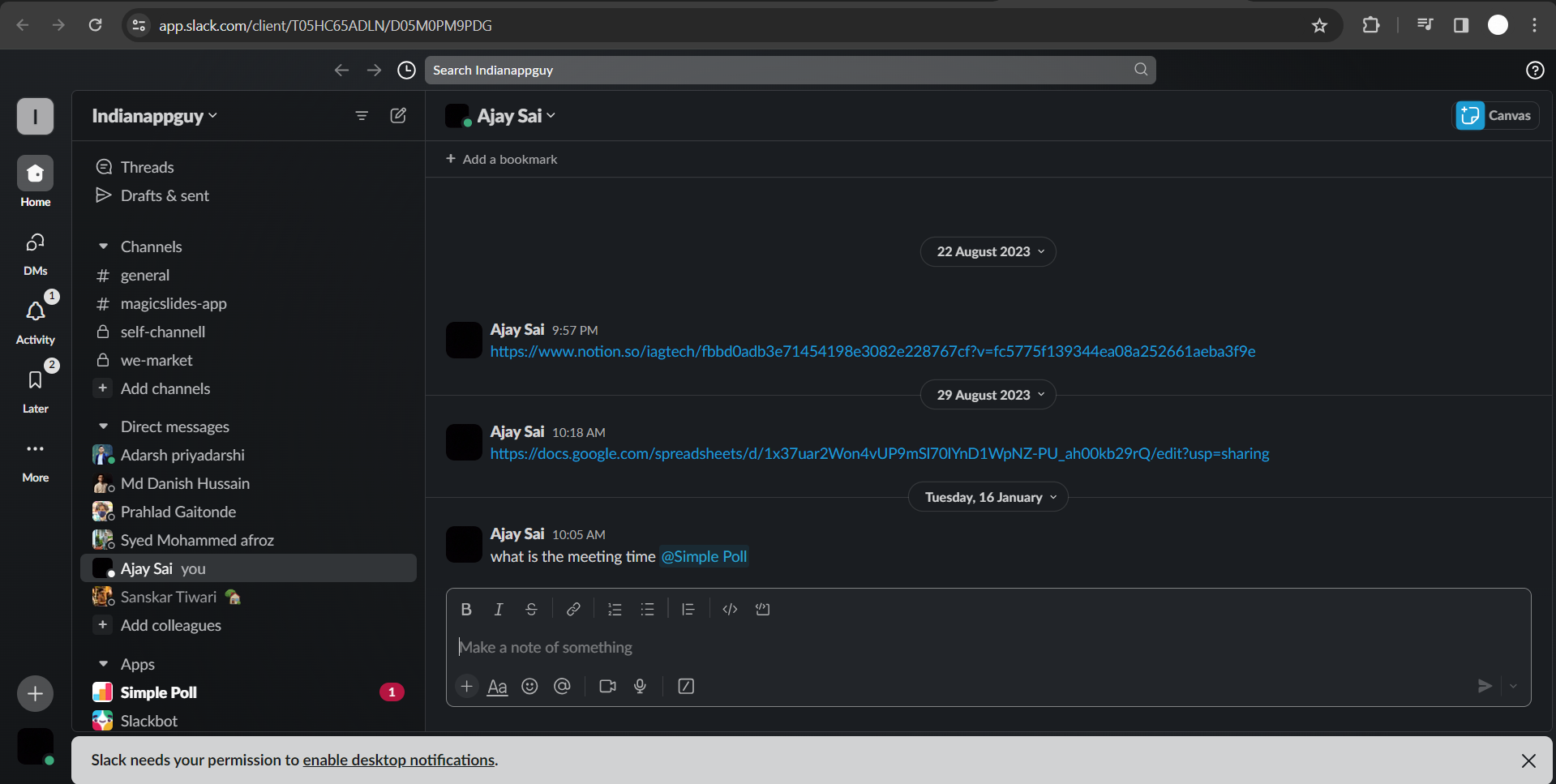
Step 2: Locate the Channel
Navigate to the channel you wish to rename within the Slack desktop app.
Click on the channel name at the top of the conversation window to access the channel details.

Step 3: Click on "More" (Three Vertical Dots)
In the top-right corner of the channel details, look for the three vertical dots (more options).
Click on this icon to reveal a drop down menu with additional channel settings.
Step 4: Select "Settings & administration" and then "Channel settings"
From the dropdown menu, choose "Settings & administration," and then select "Channel settings." This will open a new window with various options related to channel management.
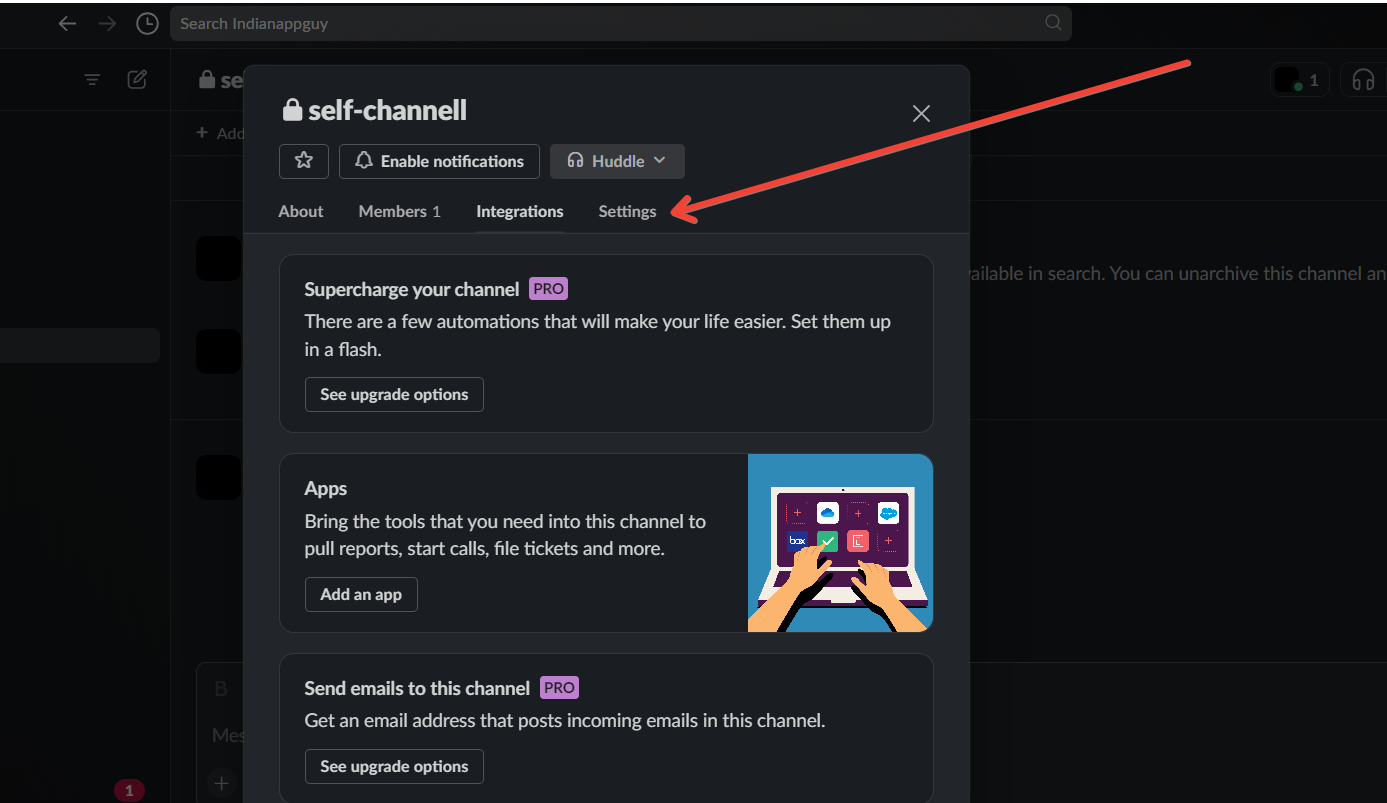
Step 5: Edit Channel Name
Within the "Channel settings" window, locate the option to edit the channel name.
Click on the current channel name, make the desired changes, and then press "Save" to confirm your new channel name.
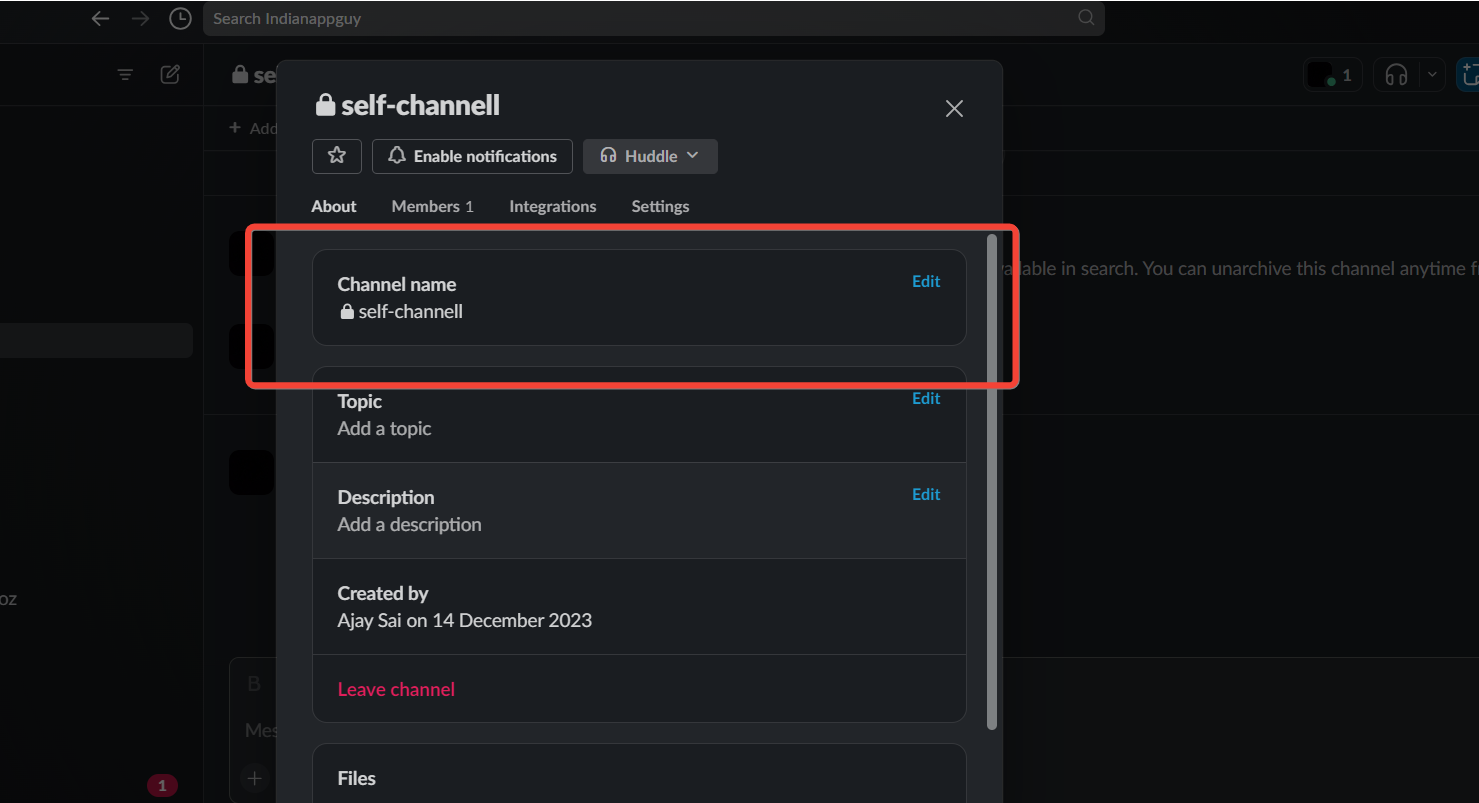
As you're organizing your Slack channels, consider using Google Form notifications to keep your team updated. Every Google Form submission will trigger an alert in your newly renamed channel, ensuring smooth communication.
Conclusion:
Maintaining an organized and adaptable workspace is key to effective collaboration, and Slack empowers users to customize their channels to fit their evolving needs.
By following these simple steps within the desktop app, you can effortlessly change channel names, ensuring your team's communication stays agile and focused.
Stay in control of your collaboration environment with this quick and easy process, making Slack even more tailored to your team's unique requirements.
Frequently Asked Questions:
Can any team member change a Slack channel name, or is this restricted to admins?
Typically, only admins or channel owners have the permission to change channel names in Slack.
Will changing a channel name affect its previous conversations or shared files?
No, renaming a Slack channel won't impact existing conversations or shared files; it's purely cosmetic.
Is there a character limit or specific format for new channel names in Slack?
Slack imposes a character limit for channel names, ensuring conciseness and clarity; adhere to guidelines.
Can I revert to the previous channel name after making changes in Slack?
Yes, you can revert to a previous channel name if needed by following the same steps.


