How to change Global Font in PowerPoint


Quickly update the font across all PowerPoint slides using the Slide Master for a consistent look
How to Change Global Font in PowerPoint
Tired of manually changing fonts on every slide in PowerPoint? You can change the font across your entire presentation using the Slide Master feature.
This ensures consistency and saves time, especially for large presentations. Follow these simple steps to update the font globally in PowerPoint.
Step-by-Step Guide to Changing Global Font in PowerPoint
Step 1: Open Your PowerPoint Presentation
Launch Microsoft PowerPoint on your computer. Open an existing presentation or create a new one.
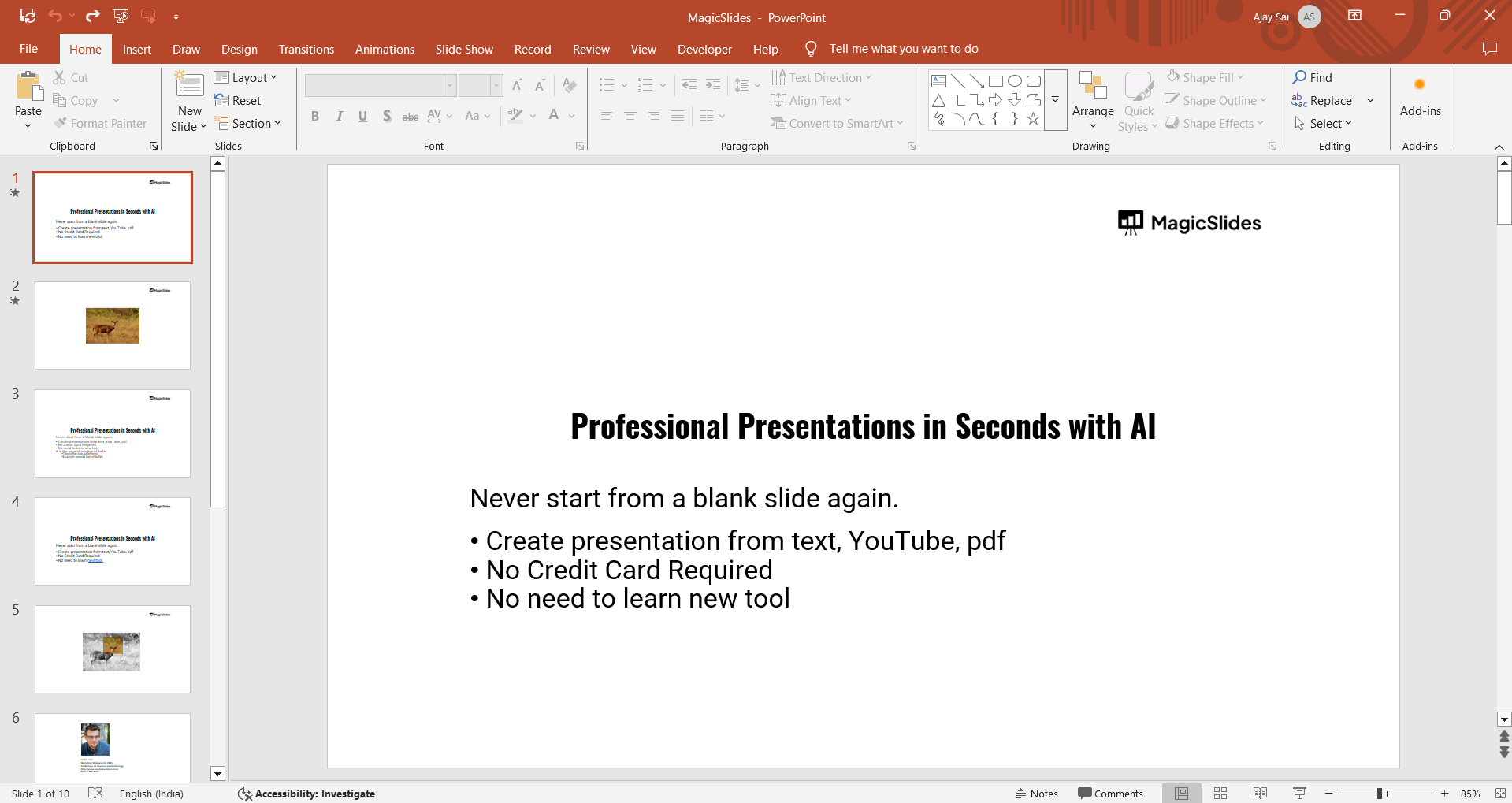
Step 2: Access the Slide Master
Click on the View tab in the top ribbon. Select Slide Master from the menu.
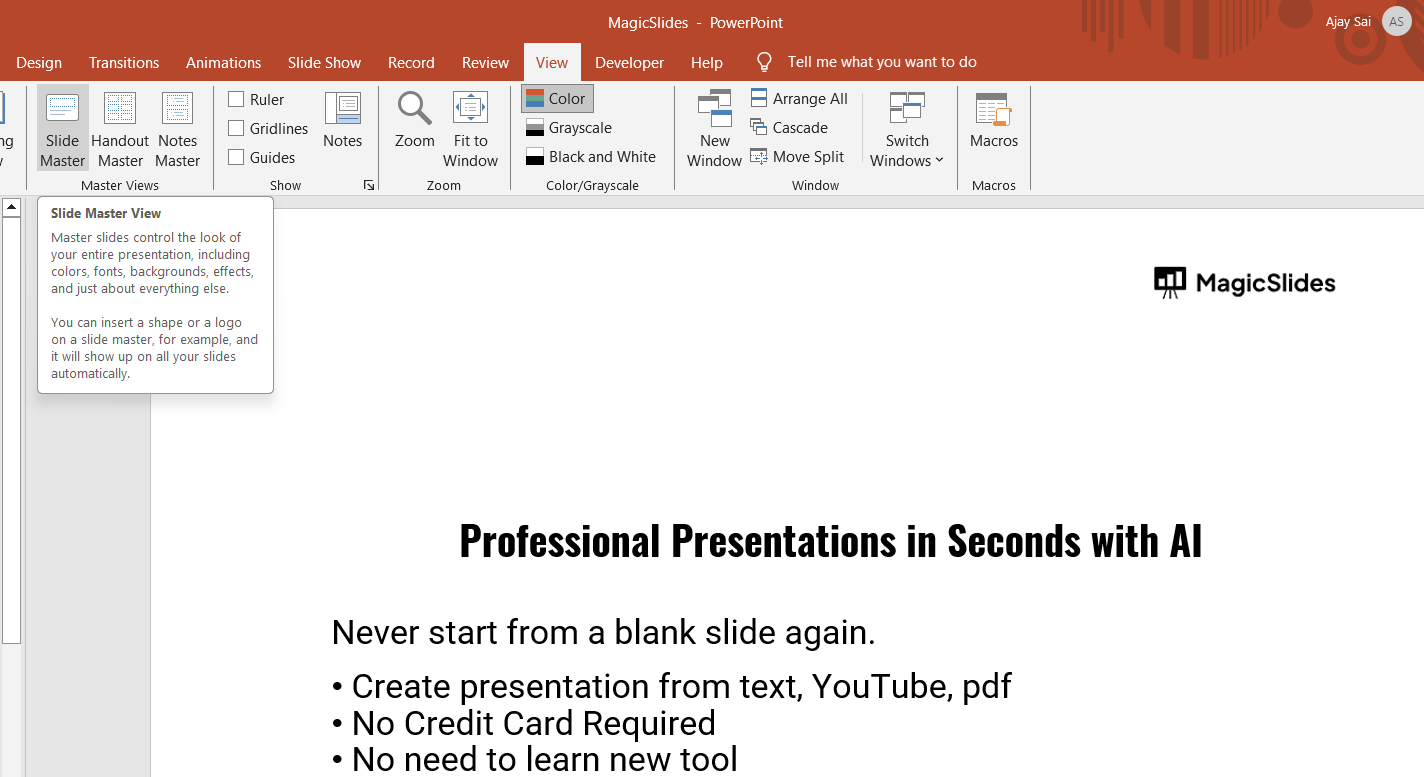
This will open the Slide Master view, where you can edit the default styles for all slides.
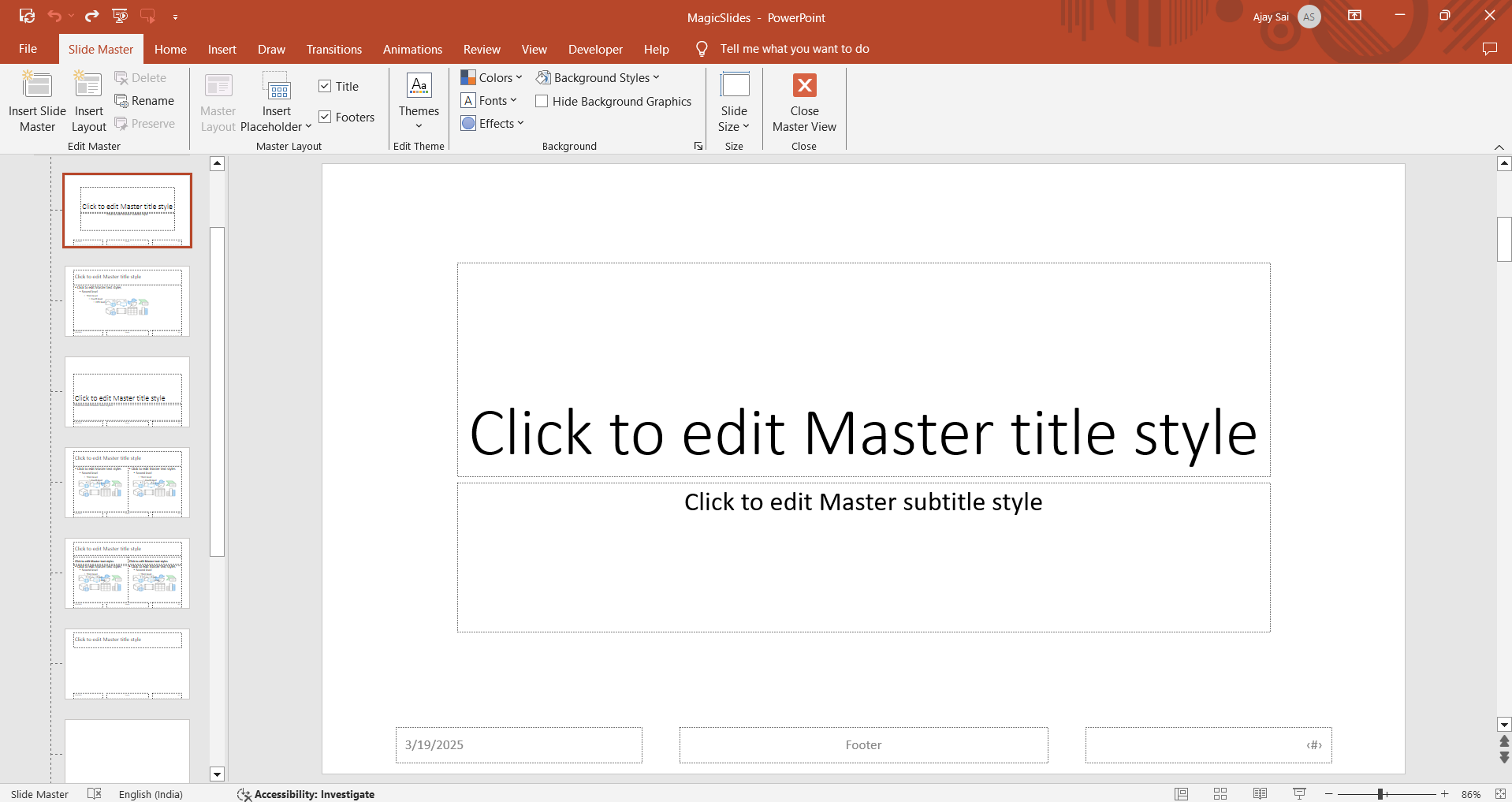
Step 3: Select the Master Slide
In the left panel, click on the top-most slide (the Master Slide). Any changes made here will apply to all slides in your presentation.
Step 4: Change the Font
Click on the Home tab while still in Slide Master view. Select the Fonts drop-down menu.
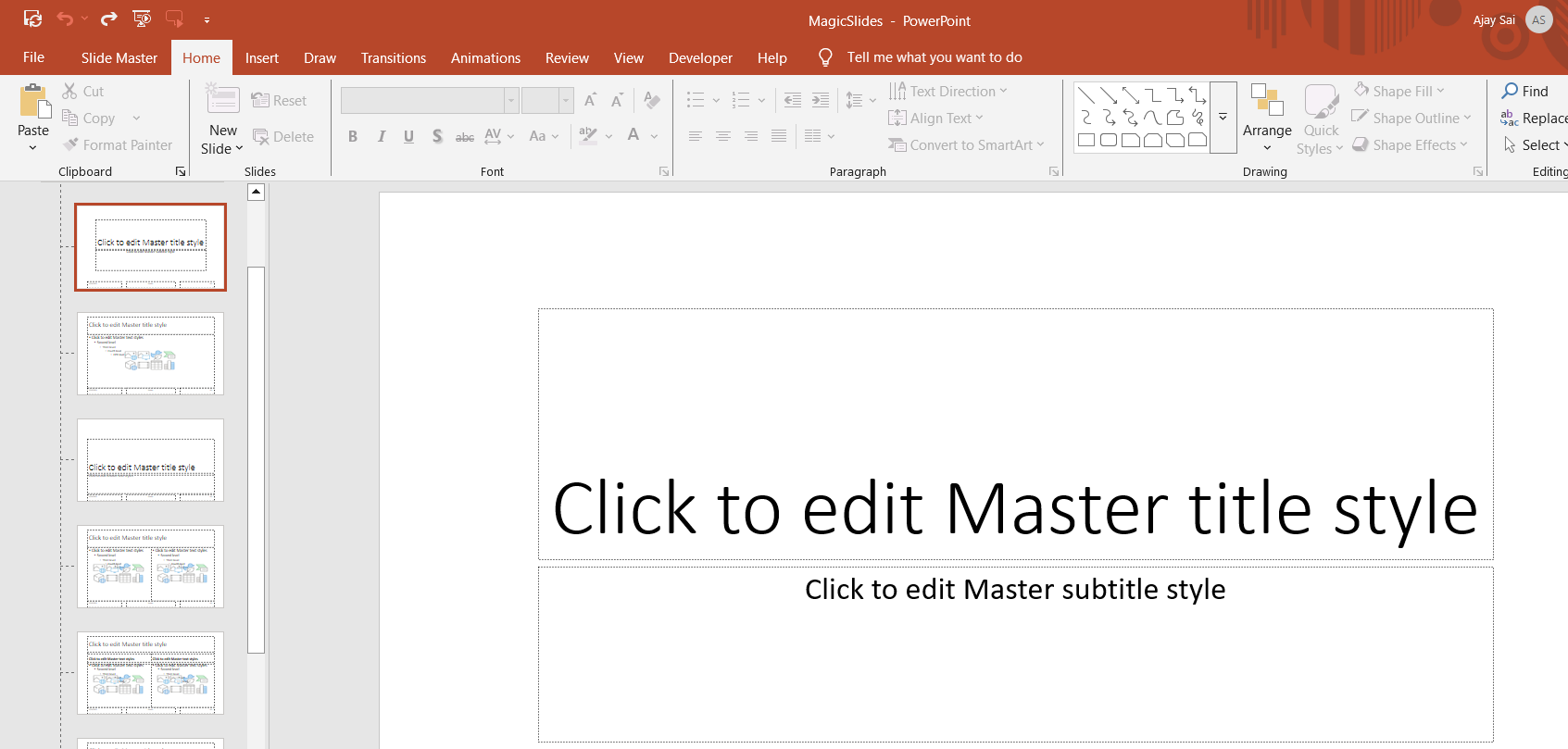
Choose a new font from the list, or click Customize Fonts to create a custom font pairing. The font change will now apply to all slide layouts in the presentation.
Step 5: Exit Slide Master View
After selecting your preferred font, click the Close Master View button in the Slide Master tab.
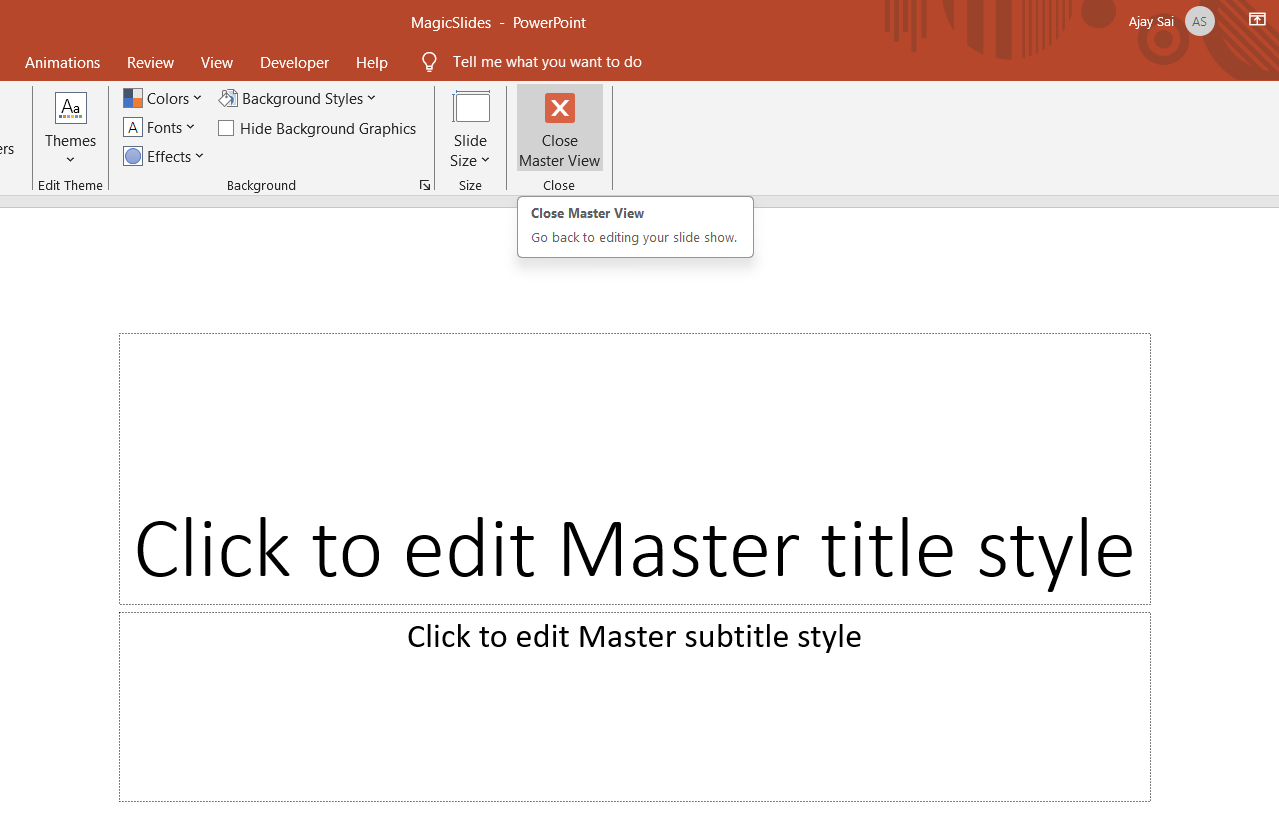
Your new font will now be applied globally to all slides.
Step 6: Check Your Presentation
Go through your slides to ensure that the font update applied correctly.
If any slides still have the old font, manually update them or check if they use different text boxes.
Adjusting fonts can make your slides look more professional, but why stop there? Try MagicSlides.app to generate AI-powered presentations with beautifully formatted text and layouts in seconds!
Conclusion
Changing the global font in PowerPoint using Slide Master is an efficient way to maintain a consistent and professional look in your presentation.
By following these steps, you can quickly update the font across all slides without manually changing each one.
FAQs can come handy!
Can I apply different fonts to different slide layouts?
Yes! In Slide Master View, you can change fonts for specific slide layouts by selecting individual layout slides instead of the Master Slide.
Will my font settings remain if I apply a new theme?
No, applying a new theme may override your font settings. You may need to reapply your preferred font after changing the theme.
What if my font changes don’t apply to all slides?
Ensure you’re editing the Master Slide, not just individual slides. If some text boxes have manually assigned fonts, update them separately.


