How to change the page color or add a background in Google Docs?


Learn how to customize your Google Docs by changing page color or adding backgrounds easily with these step-by-step instructions.
Google Docs is a versatile tool for creating documents, but did you know you can customize the background or page color to enhance the visual appeal of your document? Adding a splash of color or a background can make your document stand out and convey your message more effectively. In this guide, we’ll walk you through the simple steps to change the page color or add a background in Google Docs.
How to change the page color or add a background in Google Docs?
Before we dive into the steps, make sure you have a Google account. If you don’t have one, you can easily create it for free. Once you have your Google account ready, follow these steps:
- Sign in with Google: Open your web browser and navigate to Google Docs. Sign in with your Google account credentials.
- Create a New Document: Click on the "Blank" option to create a new document. You'll be directed to a blank page where you can start typing or editing your content.
Now that you have your Google Docs document ready, let’s proceed with changing the page color or adding a background.
1. Open Google Docs
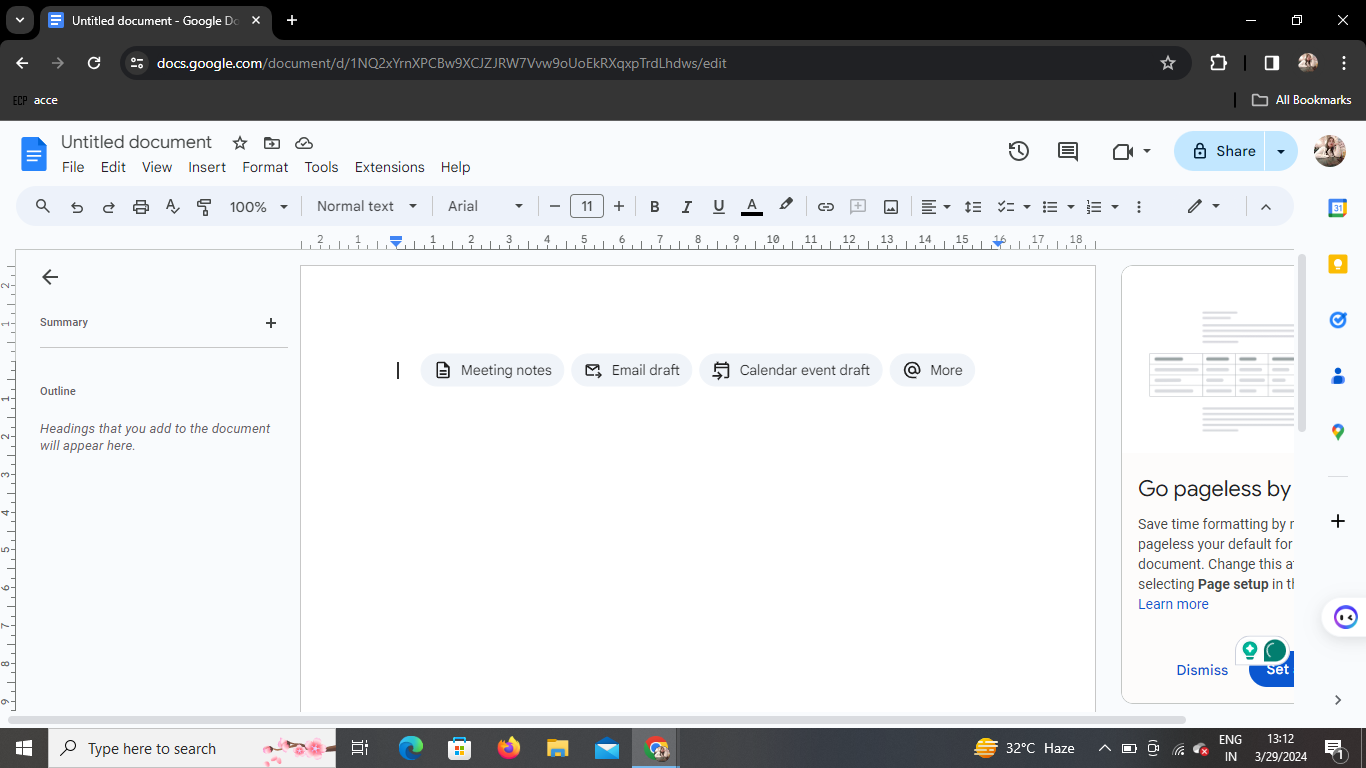
First, open Google Docs in your web browser. If you’re not already logged in, sign in with your Google account.
2. Click on the "File" Tab
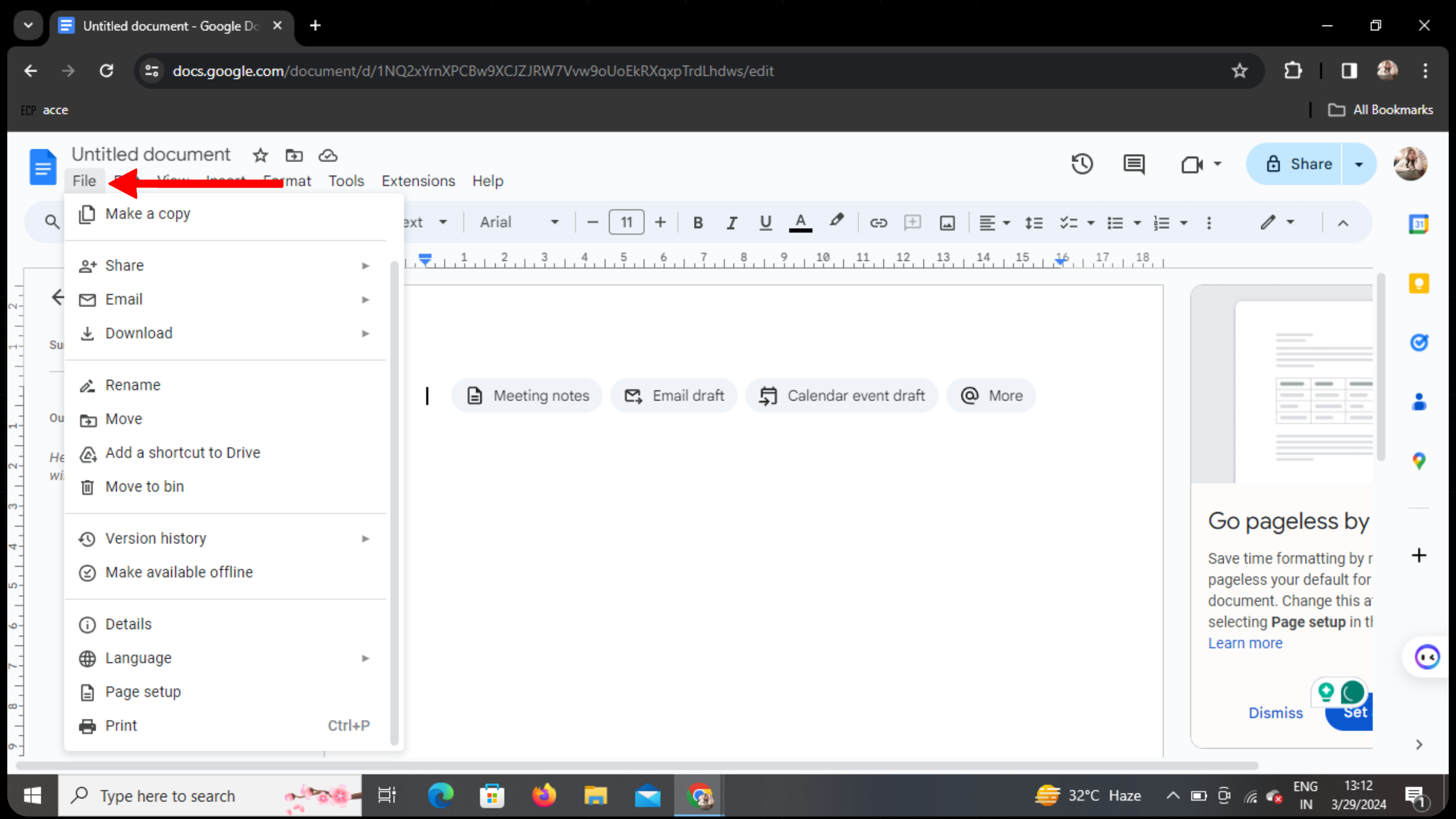
In the menu bar at the top of the page, locate and click on the "File" tab.
3. Select "Page Setup" from the Dropdown
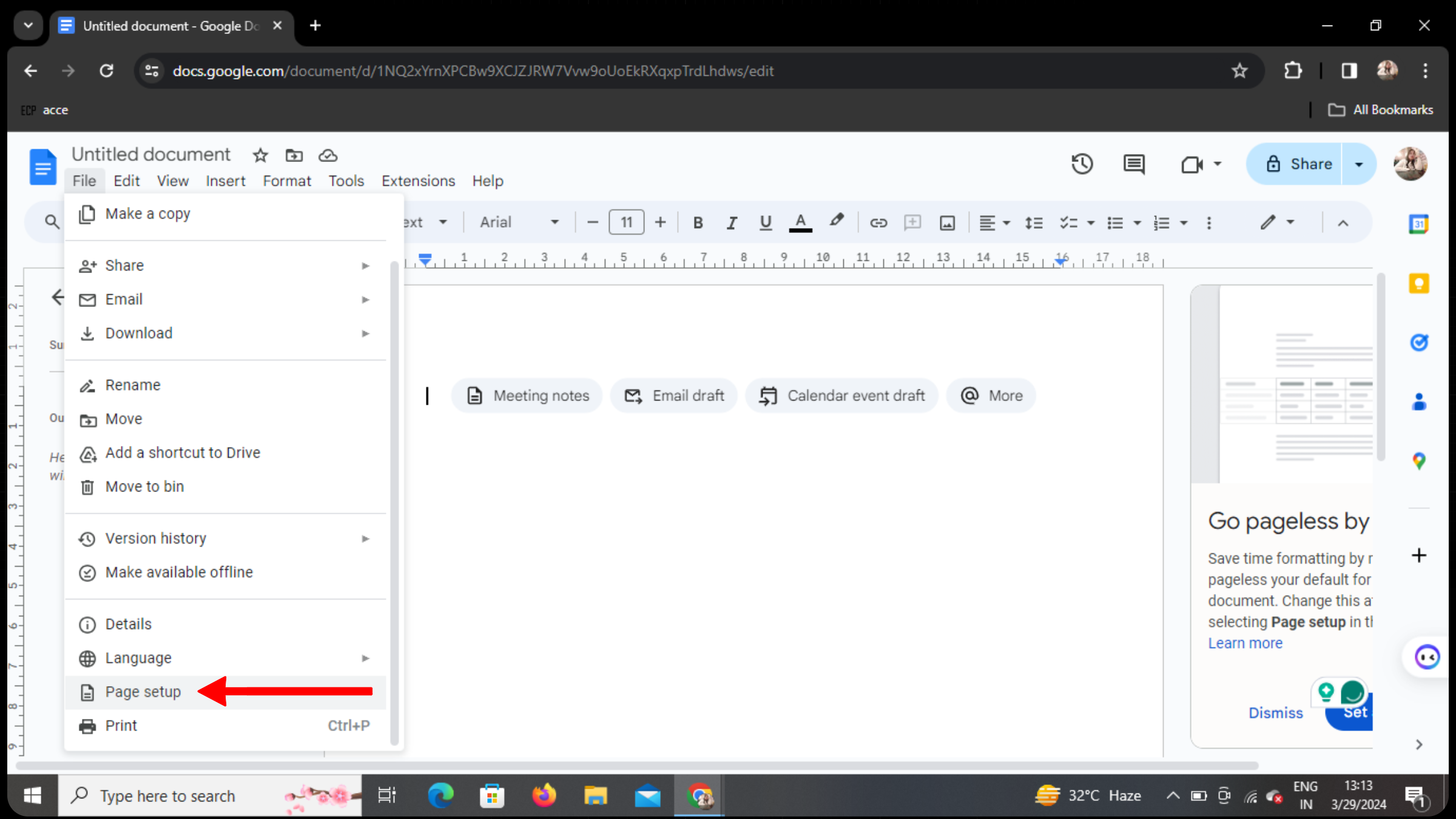
Once you click on the "File" tab, a dropdown menu will appear. From this menu, select "Page setup."
4. Access Page Color Options
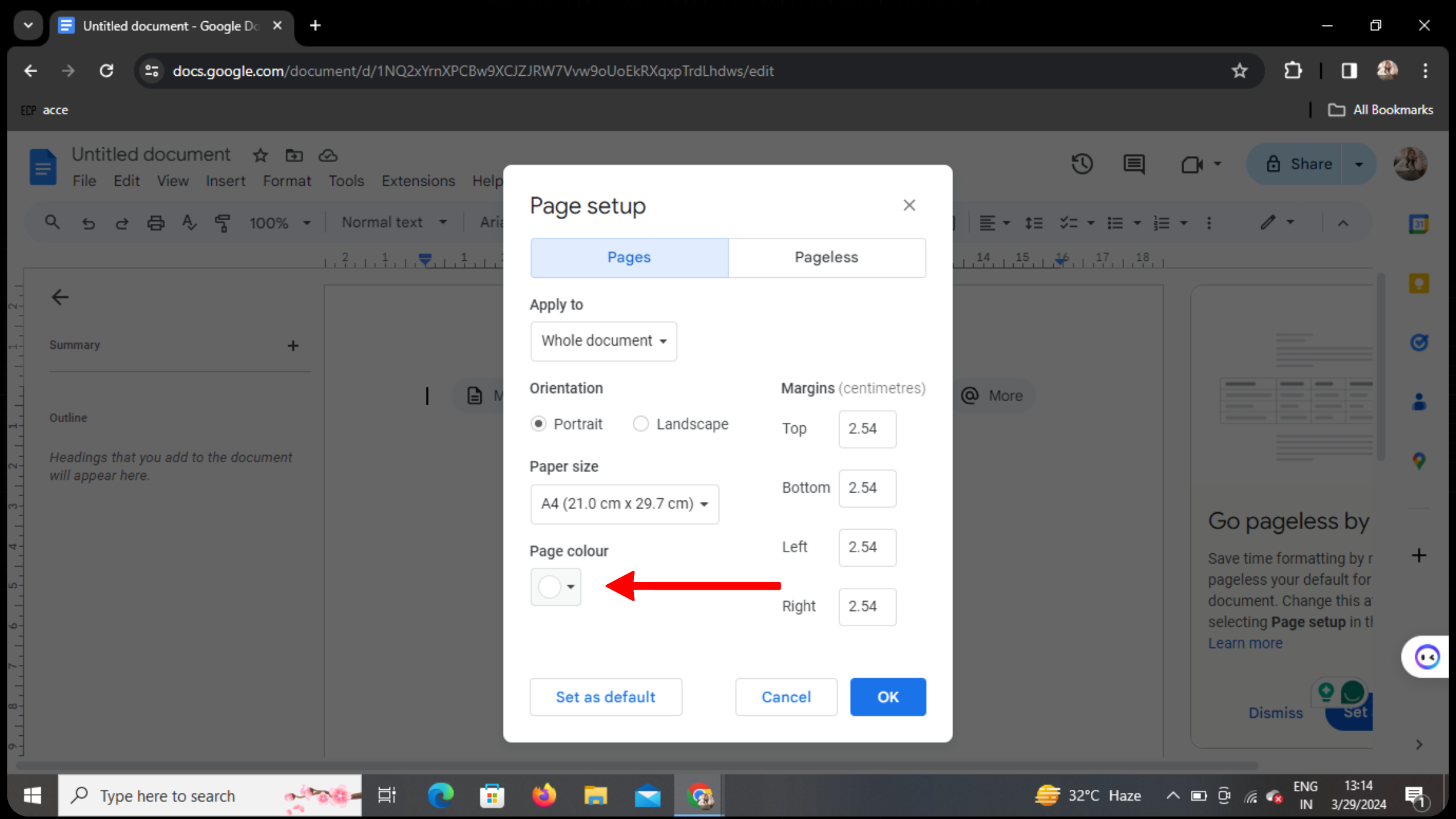
After selecting "Page setup," a menu box will appear with various options. Look for the "Page color" section within this menu box.
5. Choose Your Preferred Color
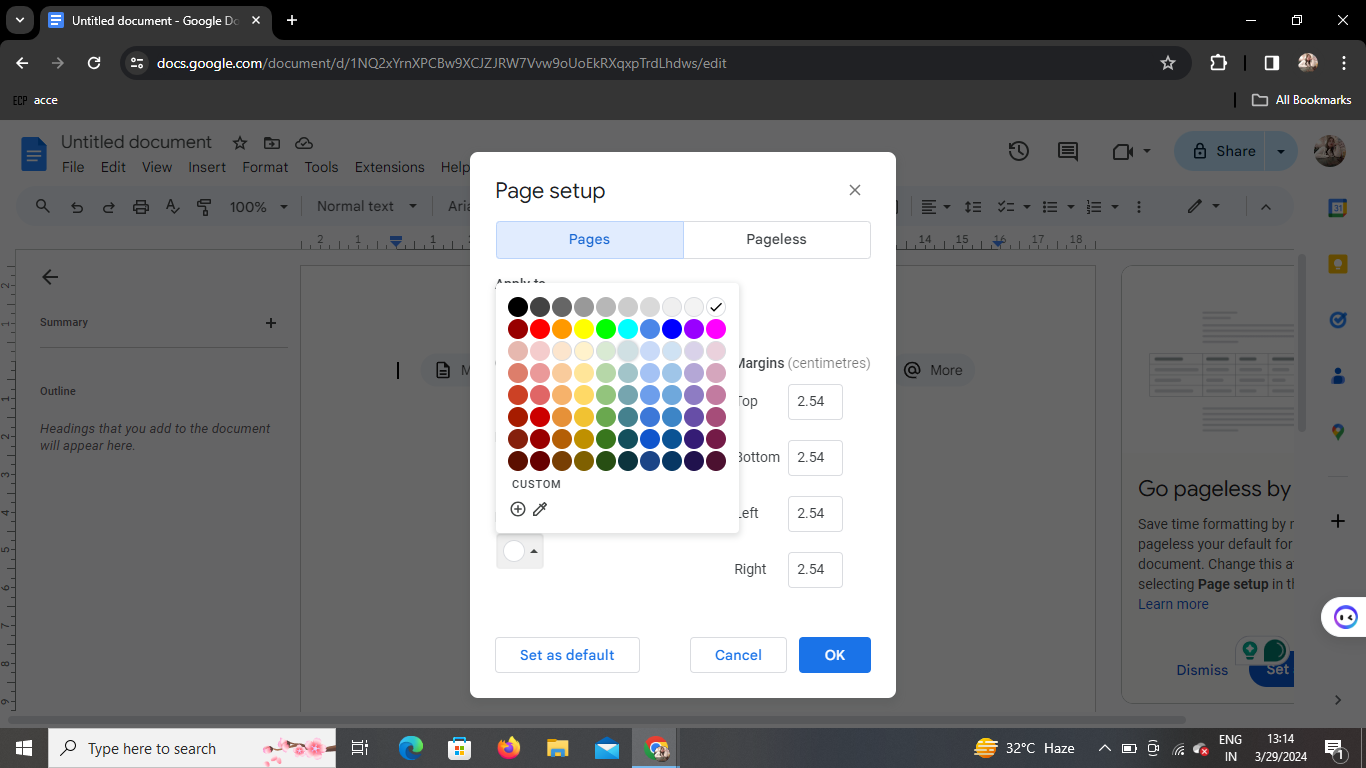
In the "Page color" section, click on the dropdown menu to view available color options. Select your preferred color from the dropdown list.
6. Apply the Color
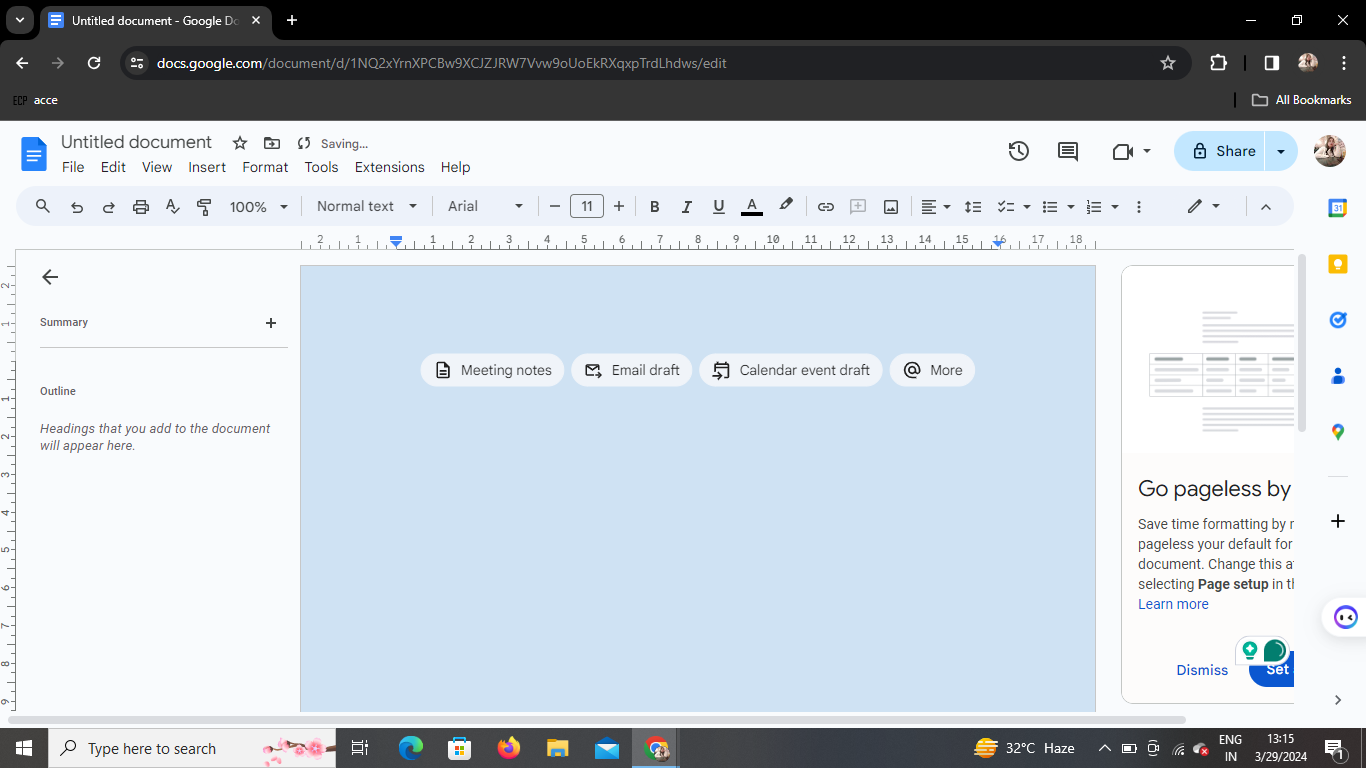
Once you’ve chosen your desired color, the page will automatically be colored accordingly. You can now continue editing your document with the newly customized background.
Conclusion
Changing the page color or adding a background in Google Docs is a simple yet effective way to personalize your documents and make them visually appealing. With just a few clicks, you can transform the look of your document to better suit your style or branding.
Frequently Asked Questions (FAQs)
How many colors can I choose from?
Google Docs offers a wide range of colors to choose from. You can select from standard colors, custom colors, or even use an image as a background.
Can I revert to the default white background?
Yes, if you wish to revert to the default white background, simply follow the same steps outlined above and select the white color option from the dropdown menu.
Will the background color or image affect printing?
No, the background color or image you set in Google Docs will not affect the printing of your document. It will only be visible on the screen.
Can I add my own custom background image?
Yes, you can add your own custom background image by selecting the "Image" option from the "Page color" dropdown menu. You can then upload an image from your computer or choose from Google’s image library.
Does changing the page color affect formatting?
No, changing the page color does not affect the formatting of your text or other elements within the document. It simply changes the background color of the page.
With these simple steps, you can enhance the visual appeal of your Google Docs documents and make them more engaging for your audience. Experiment with different colors and backgrounds to find the perfect fit for your content.


