Addon google slides iconPPT with AISlide TemplatesPPT TemplatesPricingBlog
    PPT with AISlide TemplatesPPT TemplatesPricingBlog
    1. Home
    2. Blog
    3. How to change theme color in Google Slides


    How to change theme color in Google Slides

    magicslides app

    Published By

    magicslides app
    Mohit Kumar Jha

    Approved By

    Mohit Kumar Jha

    Published On

    July 23th, 2024

    Reading Time

    2 min read

    Elevate your Google Slides game: Learn how to change theme colors for visually stunning presentations!

    Adding a personal touch to your Google Slides presentation goes beyond content customizing the theme colors can make your slides visually striking. In this detailed guide, we'll take you through the simple steps of changing theme colors in Google Slides, empowering you to create presentations that leave a lasting impression.

    How to change theme color in Google Slides

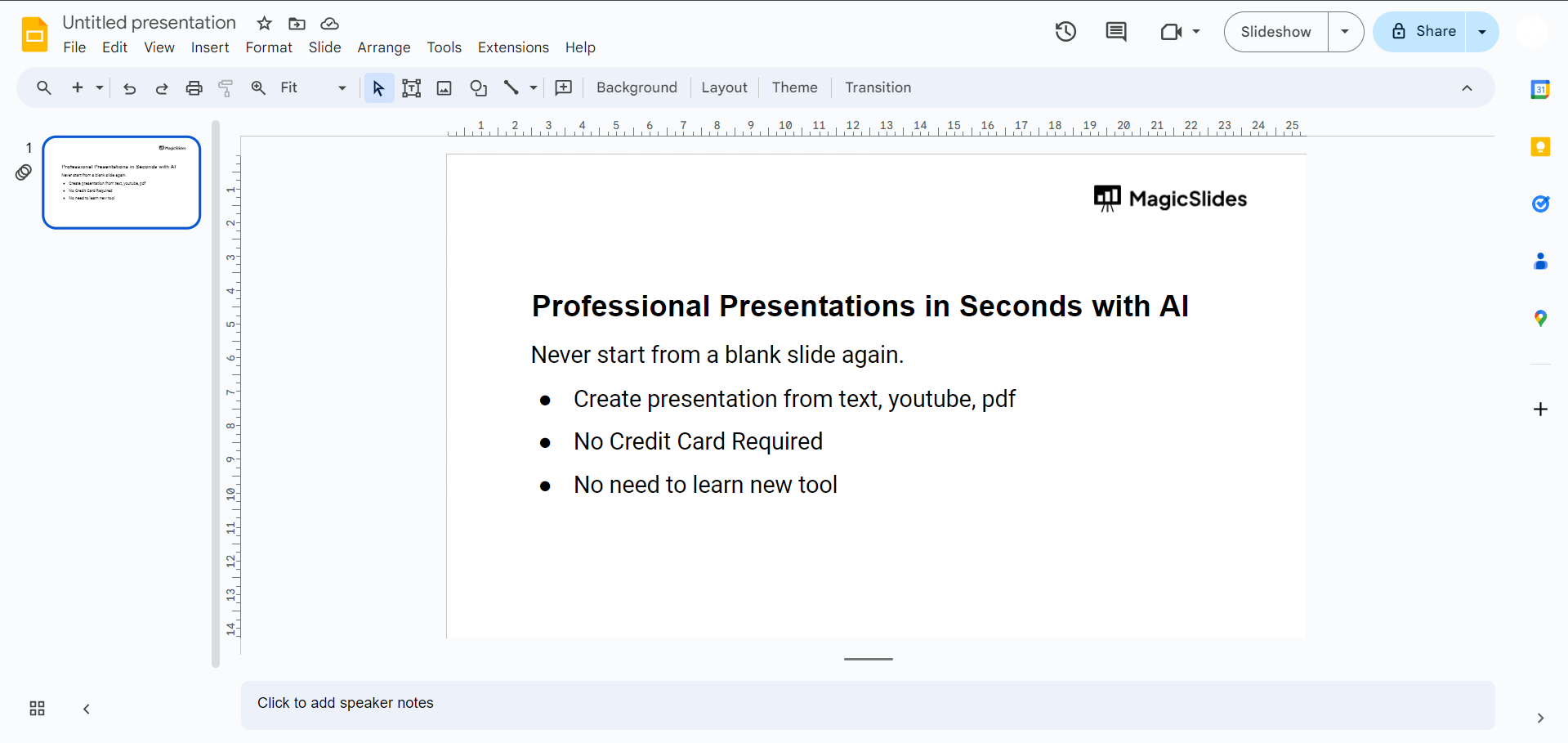
    Step 1: Open Your Google Slides Presentation

    Start by opening the Google Slides presentation you want to customize. If you're creating a new presentation, choose a theme template to begin.
    notion image

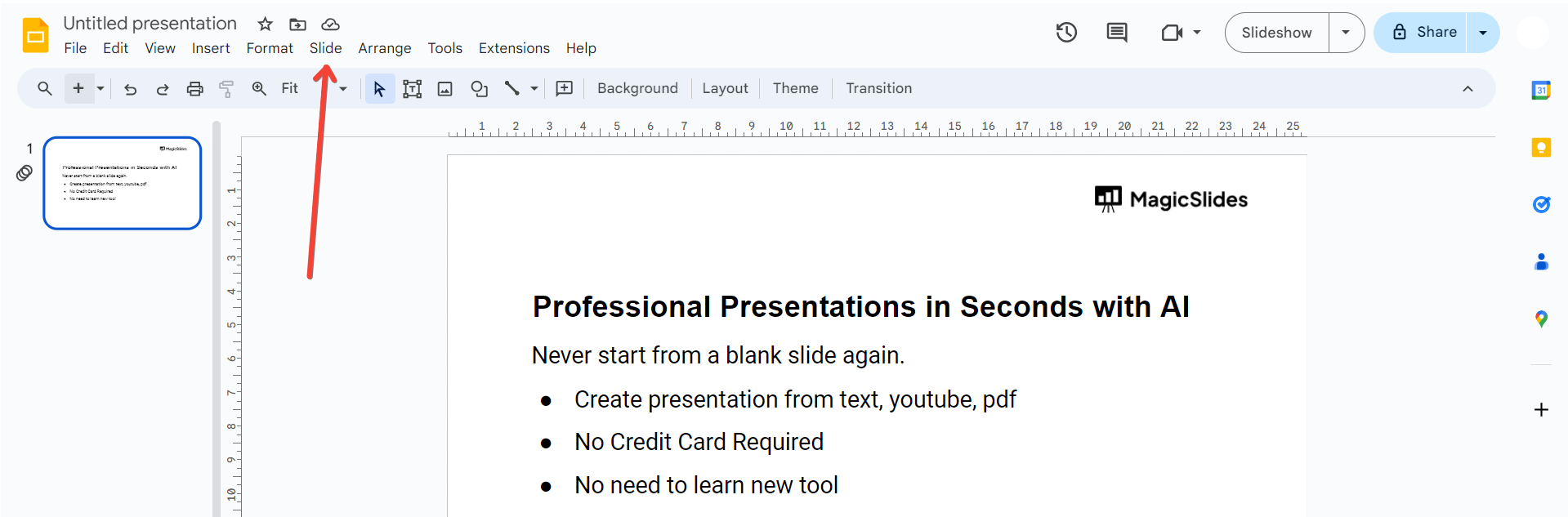
    Step 2: Click on "Slide" in the Top Menu

    Once your presentation is open, navigate to the top menu and click on "Slide." This will open a dropdown menu with various options.
    notion image

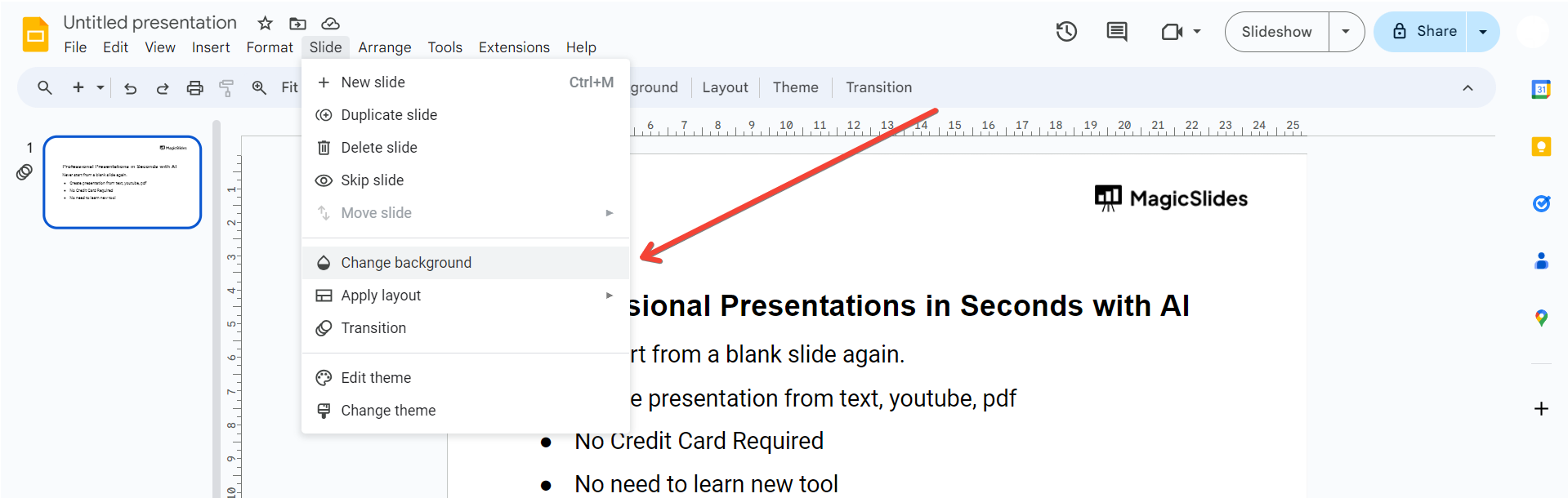
    Step 3: Select "Change Background"

    From the "Slide" dropdown menu, select "Change background." This will open the "Slide background" pane on the right side of your screen.
    notion image

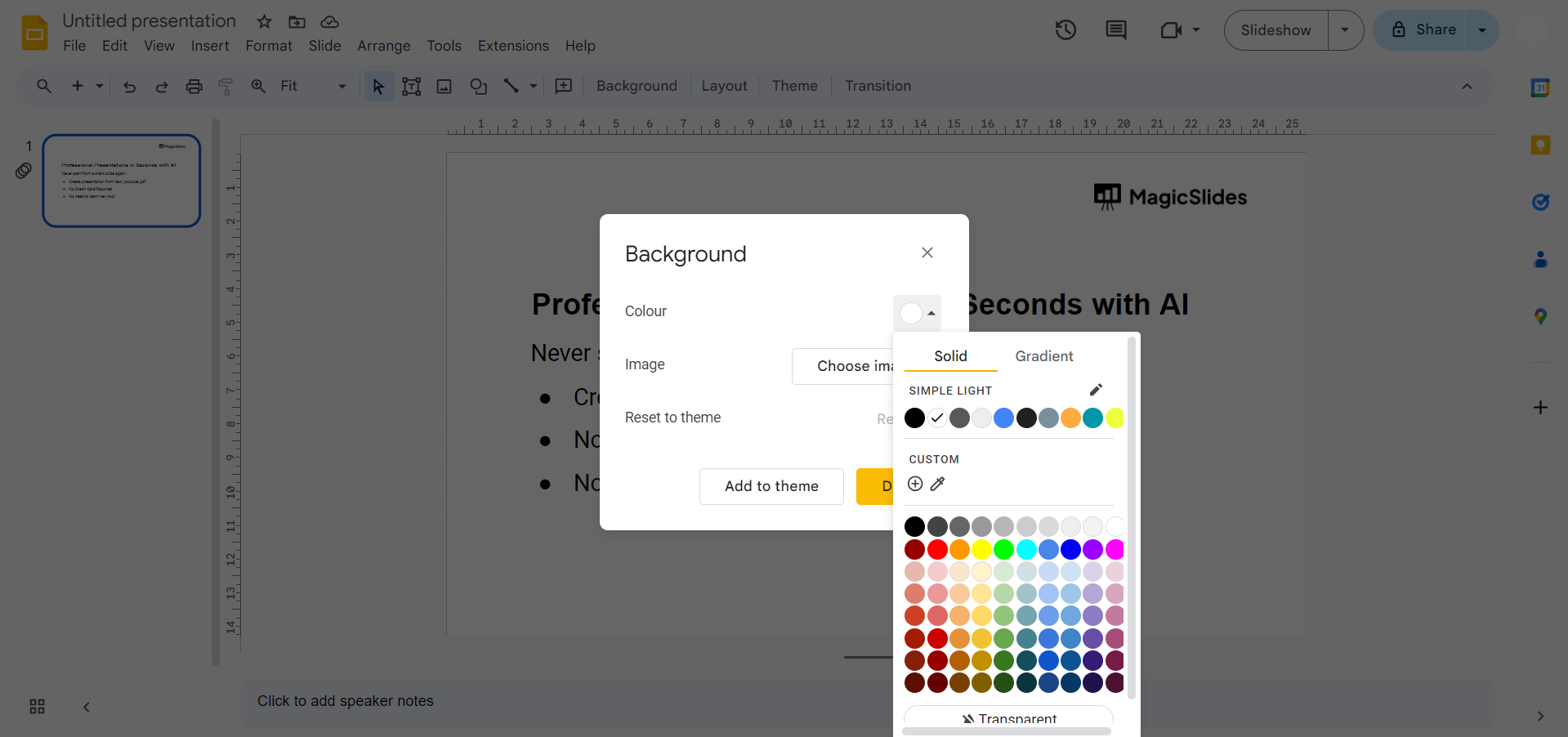
    Step 4: Choose "Theme Colors"

    Within the "Slide background" pane, you'll find the "Theme Colors" option. Click on it to reveal a selection of color palettes.
    notion image

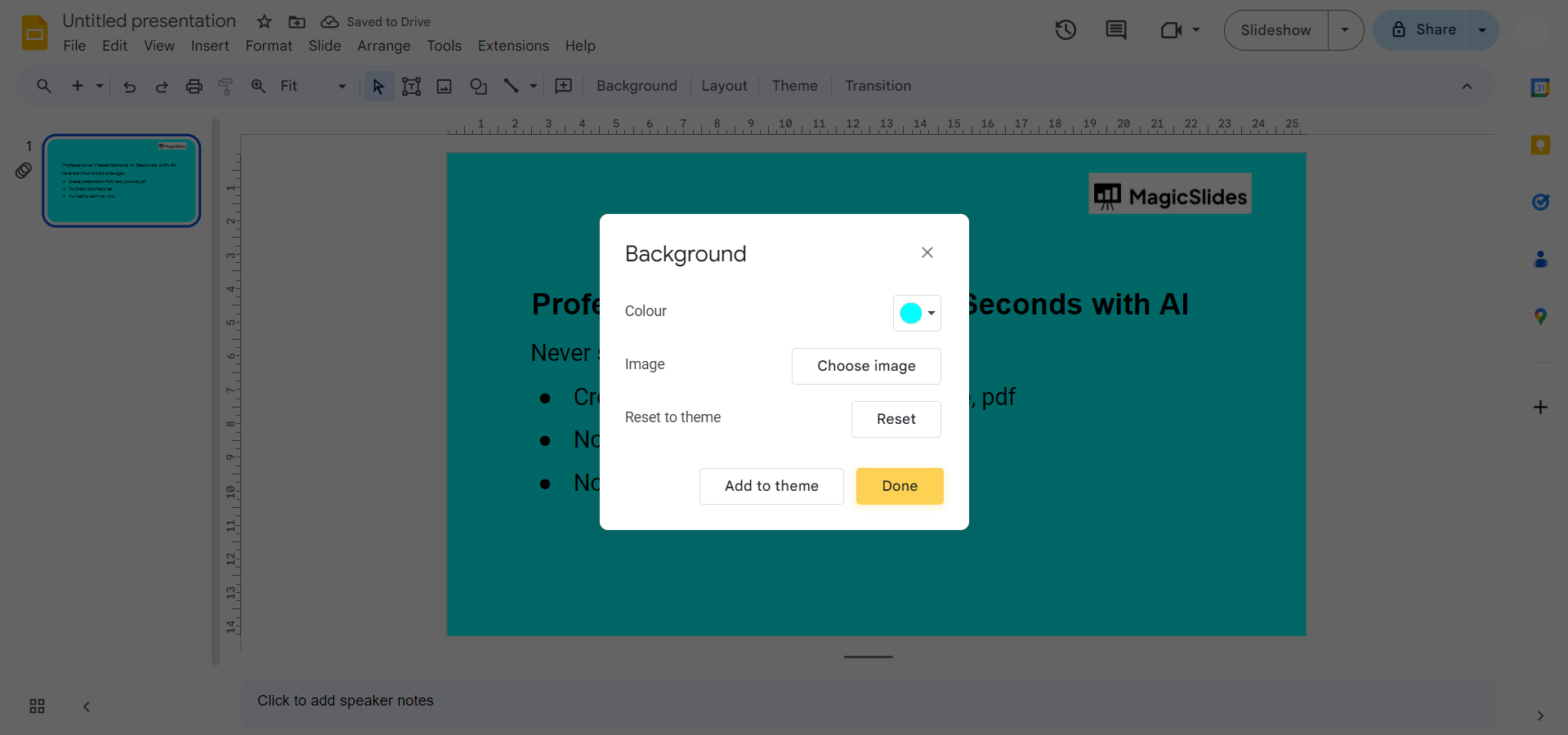
    Step 5: Pick Your Preferred Theme Color

    Explore the available color palettes and choose the one that suits your presentation style. Click on your desired color palette to apply it to your slides.
    notion image

    Conclusion:

    Transform the look and feel of your Google Slides presentation effortlessly by changing the theme colors. With this step-by-step guide, you have the tools to infuse your slides with a personalized touch, making your content not only impactful but visually captivating. Elevate your presentations and engage your audience with a palette that reflects your unique style and message.

    Frequently Asked Questions:

    Can I customize theme colors for each slide individually in Google Slides?

    No, theme colors are applied globally, ensuring consistency across all slides for a cohesive design.

    Is it possible to create my own custom color palette for the theme?

    Unfortunately, Google Slides currently doesn't provide a feature to create entirely custom color palettes.

    Will changing theme colors affect the text and content on my slides?

    Yes, changing theme colors will apply to text, shapes, and other elements, maintaining a cohesive color scheme.

    Can I revert to the original theme colors if I change my mind?

    Absolutely, revisit the "Theme Colors" option and select the original palette to revert to the default colors.

    Share on socials

    About the author

    Sanskar Tiwari profile photo
    Sanskar Tiwari— Founder at MagicSlides

    Sanskar is Founder at IAG Tech, For the past 3 years sanskar have build more than 24+ products, taught 100k students how to code.

    More from Sanskar

    More from the blog

      250+ Good Morning Messages for Her (Romantic, Deep, Cute & Sweet)

      30 January 2026

      200+ Heart Touching Birthday Wishes for Sister (Short, Funny and More)

      29 January 2026

      50+ History Presentation Topics For 2026

      28 January 2026

      How to Add Music to Your Canva Presentation: A Step-by-Step Guide

      27 January 2026

      15 Quick Tips To Use ChatGpt At Work

      22 January 2026

      11 Best AI Tools for Business in 2025

      22 January 2026

      How to Create an Infographic That Clearly Communicates Your Message

      20 January 2026

      How to Create a Sales Presentation Template in Google Sheets

      20 January 2026

      How to Make a Pie Chart on Google Slides in Simple Steps

      19 January 2026

    Table of Contents

    Create Presentations in Seconds

    Transform your ideas into professional presentations with AI. No design skills needed.

    Try MagicSlides Free

    Create Stunning Presentations with AI in Seconds ✨

    Transform any topic, text, YouTube video, PDF or URL into beautiful presentations instantly with MagicSlides AI.

    Try MagicSlides AI Presentation Maker
    MagicSlides AI Presentation

    Footer

    Solutions

    • MagicSlides App
    • Google Slides Add-on
    • MagicSlides in Chrome
    • MagicSlides in Figma
    • MagicSlides in ChatGPT
    • MagicSlides in Telegram
    • MagicSlides in Zapier
    • MagicSlides in Figma Slides

    Tools

    • AI PPT Tools
    • QR Code Generator
    • Design Tools
    • PPT Templates
    • Slide Templates
    • PDF Tools

    Examples

    • AI Presentations
    • PPT by MagicSlides
    • Quizzes
    • Charts
    • Coloring Pages

    Resources

    • Changelog
    • Documentation
    • API Docs

    Top Blogs

    • How to Create Presentation Using ChatGPT
    • 100+ Best Seminar Topics for Students in 2025

    Company

    • Help
    • MCP
    • Blog
    • Pricing
    • Affiliate Program
    • Manage Subscription
    • Privacy Policy
    • Contact Us
    • Terms & Conditions
    • Refund & Cancellation Policy

    We also built

    • SheetAI - GPT For Sheets
    • MagicForm - GPT For Google Forms
    • SecondBrain.fyi
    • BlogBee - Free Blogging Platform

    © 2026 IndianAppGuy Tech Pvt Ltd. All rights reserved.