How to Convert language learning materials from Word to PowerPoint?


Effortlessly transform language learning materials from Word to PowerPoint with our step-by-step guide. Enhance your lessons visually and engage learners effectively!
Are you looking to transform your language learning materials from a mundane Word document into an engaging and dynamic PowerPoint presentation? In this step-by-step guide, we'll walk you through the process using the user-friendly MagicSlides GPT extension.
How to Convert language learning materials from Word to PowerPoint
Before we dive into the conversion process, ensure you have a Google account. If you don't, sign up for one. Once you're ready, follow these steps to seamlessly convert your language learning materials.
Visit Google Slides
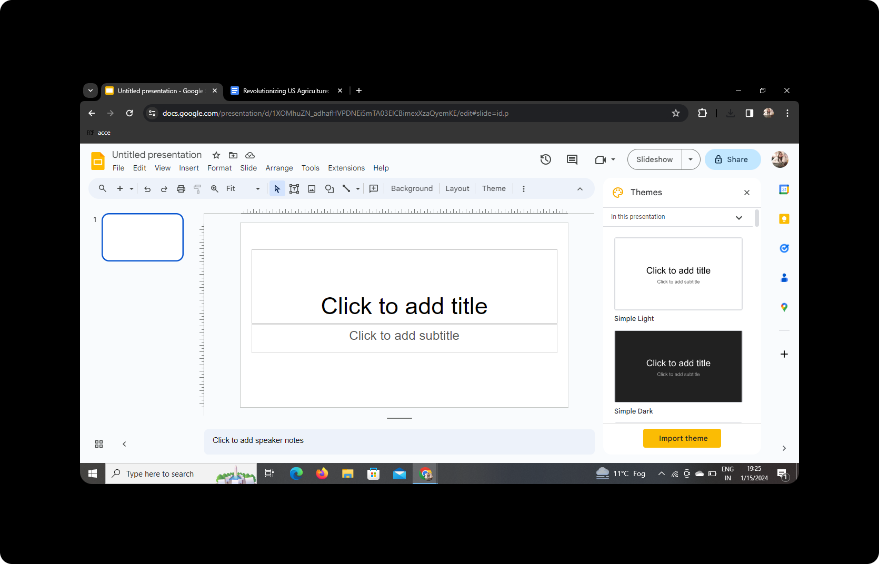
Begin by navigating to Google Slides. If you're not already signed in, use your Google account credentials to log in.
Sign In with Google to Google Slides
Ensure you're signed in with your Google account to access the full suite of features in Google Slides.
In Extensions, Click on MagicSlides GPT If Downloaded
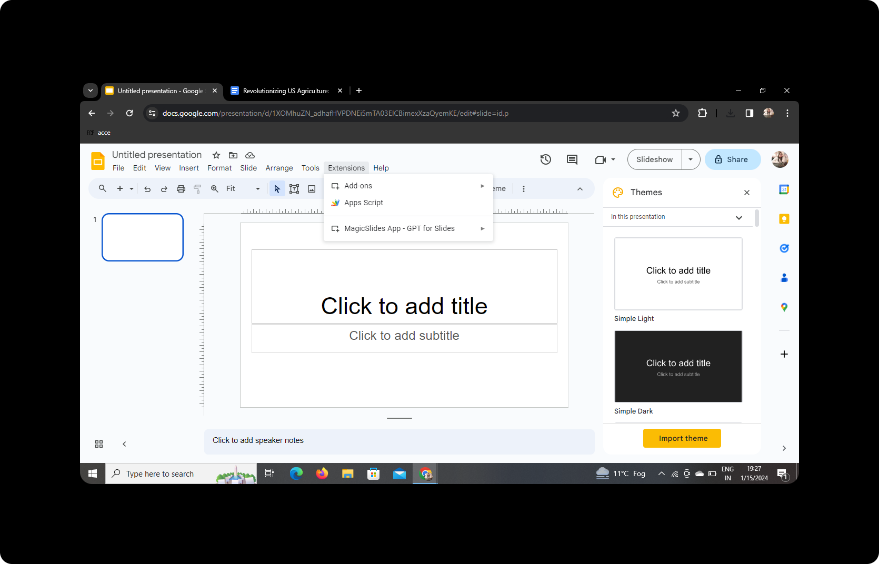
If you've already downloaded the MagicSlides GPT extension, head to the extensions tab in your browser and click on MagicSlides GPT to activate it.
If Not Downloaded, First Download as an Extension, Then Open
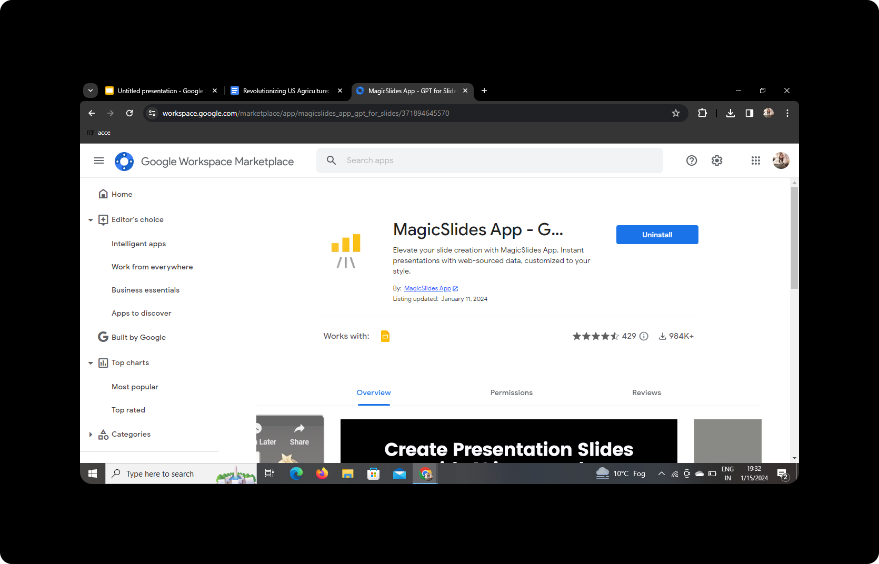
If you haven't downloaded MagicSlides GPT yet, no worries! Simply download it as a browser extension, and once installed, open it to integrate it with Google Slides.
Click on PDF/DOCX to PPT in MagicSlides GPT
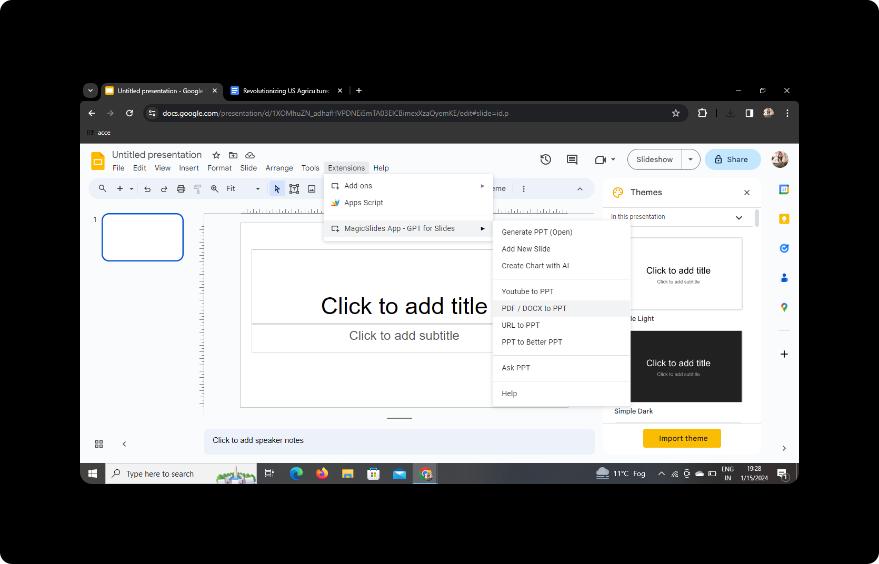
With MagicSlides GPT activated, locate the PDF/DOCX to PPT option within the extension. Click on it to begin the conversion process.
Click on 'Upload PDF/DOCX' Option and Upload Your Content
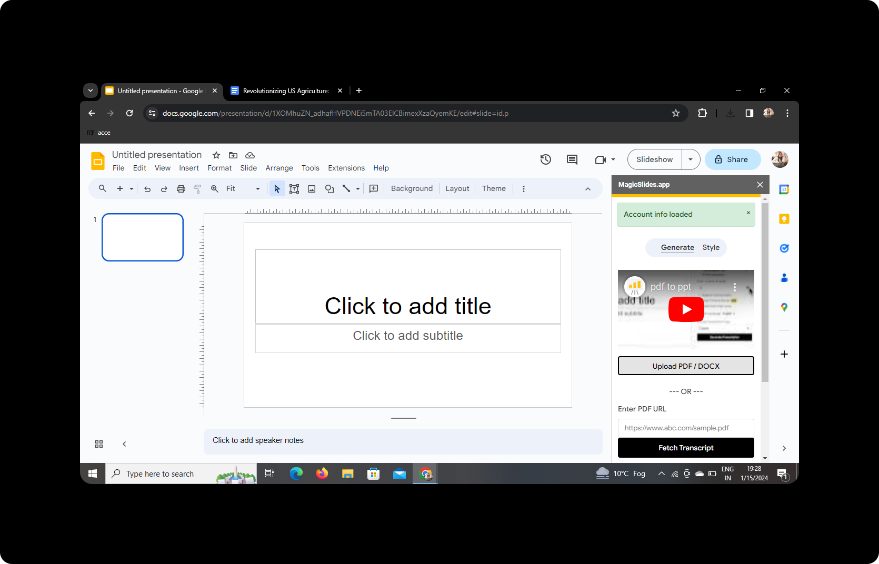
Select the 'Upload PDF/DOCX' option and upload your language learning material in Word document format.
Upload Your Word Content
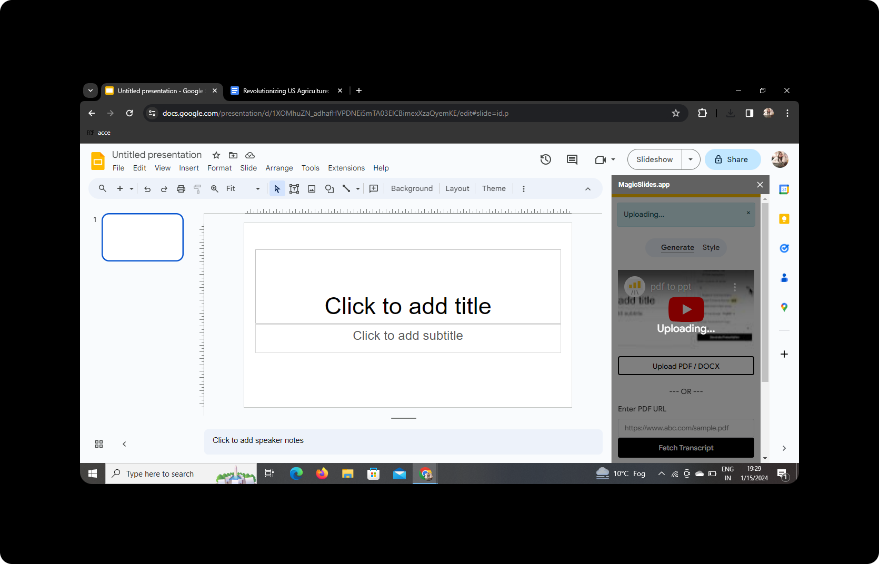
Choose the Word document you want to convert into a PowerPoint presentation and upload it using the interface.
Select the Number of Slides
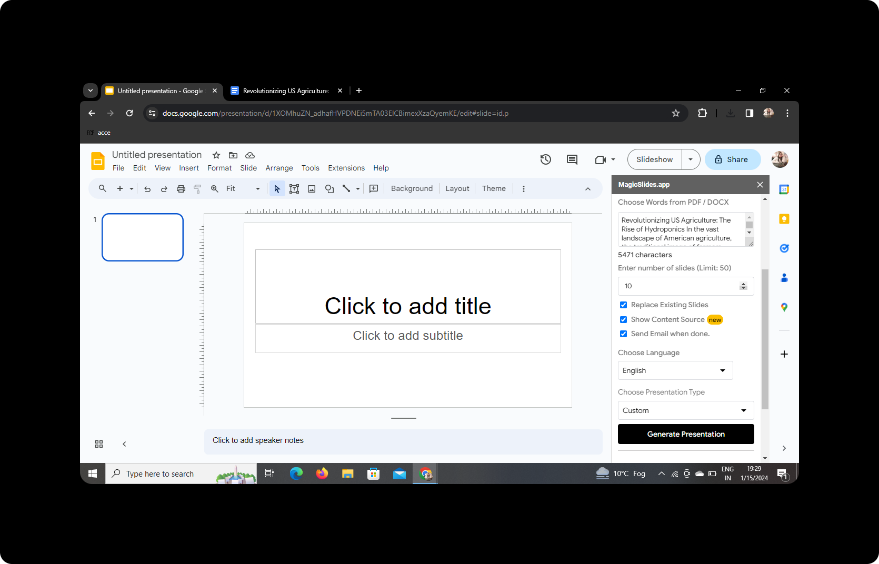
Customize the number of slides you want in your presentation. This step allows you to control the granularity of your content.
Click on Generate Presentation
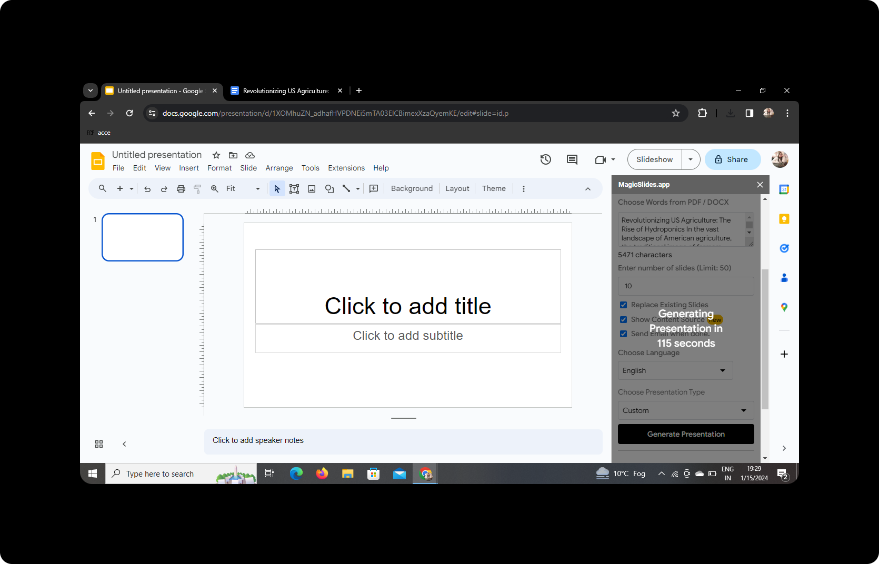
Once you've made your selections, click on 'Generate Presentation' to let MagicSlides GPT work its magic.
Your Presentation Is Ready
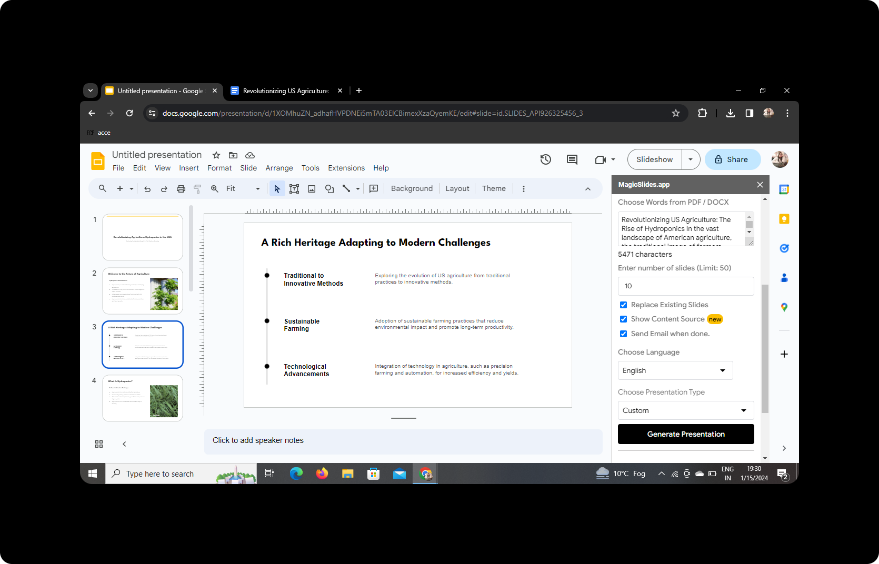
In no time, your presentation will be ready. Download it, review it, and make any necessary adjustments to ensure it aligns with your language learning objectives.
Conclusion
Converting language learning materials from Word to PowerPoint has never been easier. MagicSlides GPT streamlines the process, enabling you to create visually appealing presentations effortlessly. Enhance your teaching or learning experience with dynamic and interactive content.
Frequently Asked Questions
Is MagicSlides GPT free to use? Yes, MagicSlides GPT offers a free version with basic features. However, there may be premium features available with a subscription.
Can I customize the design of my slides? Absolutely! Google Slides provides extensive customization options, allowing you to tailor the design to your preferences.
What file formats does MagicSlides GPT support? MagicSlides GPT primarily supports PDF and DOCX file formats for conversion into PowerPoint presentations.
Can I edit the slides after conversion? Yes, you can edit the slides within Google Slides after the conversion process. Simply make the necessary adjustments to meet your requirements.
Is an internet connection required for this process? Yes, as MagicSlides GPT is a browser extension, an internet connection is necessary for both the download and conversion processes.


