How to Convert user manual PDF to PowerPoint for training


Elevate training sessions by seamlessly converting user manual PDFs to engaging PowerPoints with Google Slides.
In the realm of training and presentations, the ability to convert a user manual PDF into a dynamic PowerPoint is a game-changer. Google Slides, with the help of a handy extension called Magicslides, offers a seamless solution for this transformation. In this guide, we'll walk you through the simple steps to breathe new life into your user manuals and turn them into engaging presentations for effective training sessions.
How to Convert user manual PDF to PowerPoint for training
Step 1: Visit Google Slides
Begin by opening your browser and navigating to slides.google.com. If you're not already signed in with your Google account, make sure to do so.
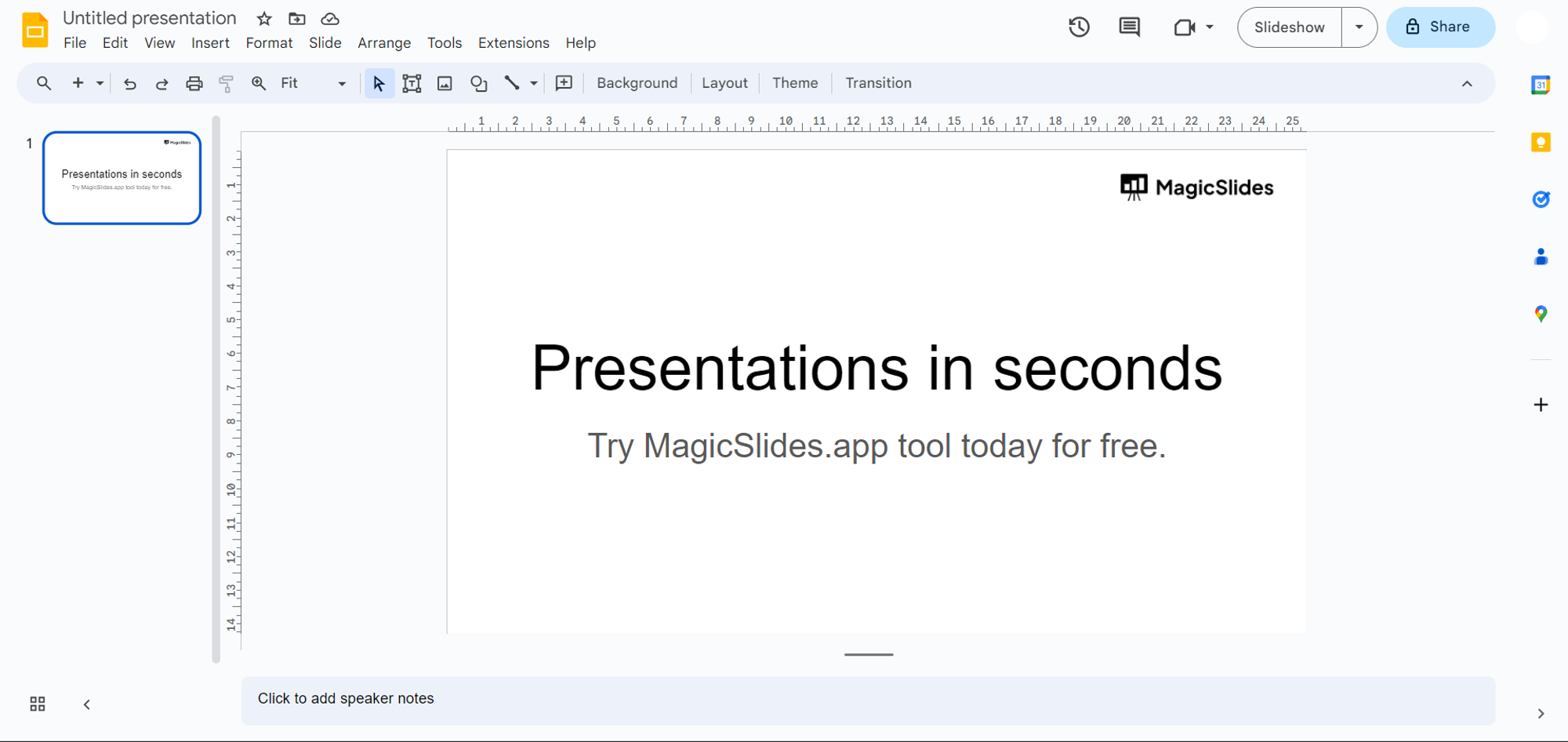
Step 2: Sign In or Download Magicslides Extension
If you've already downloaded the Magicslides extension, simply open Google Slides and proceed to the next step.
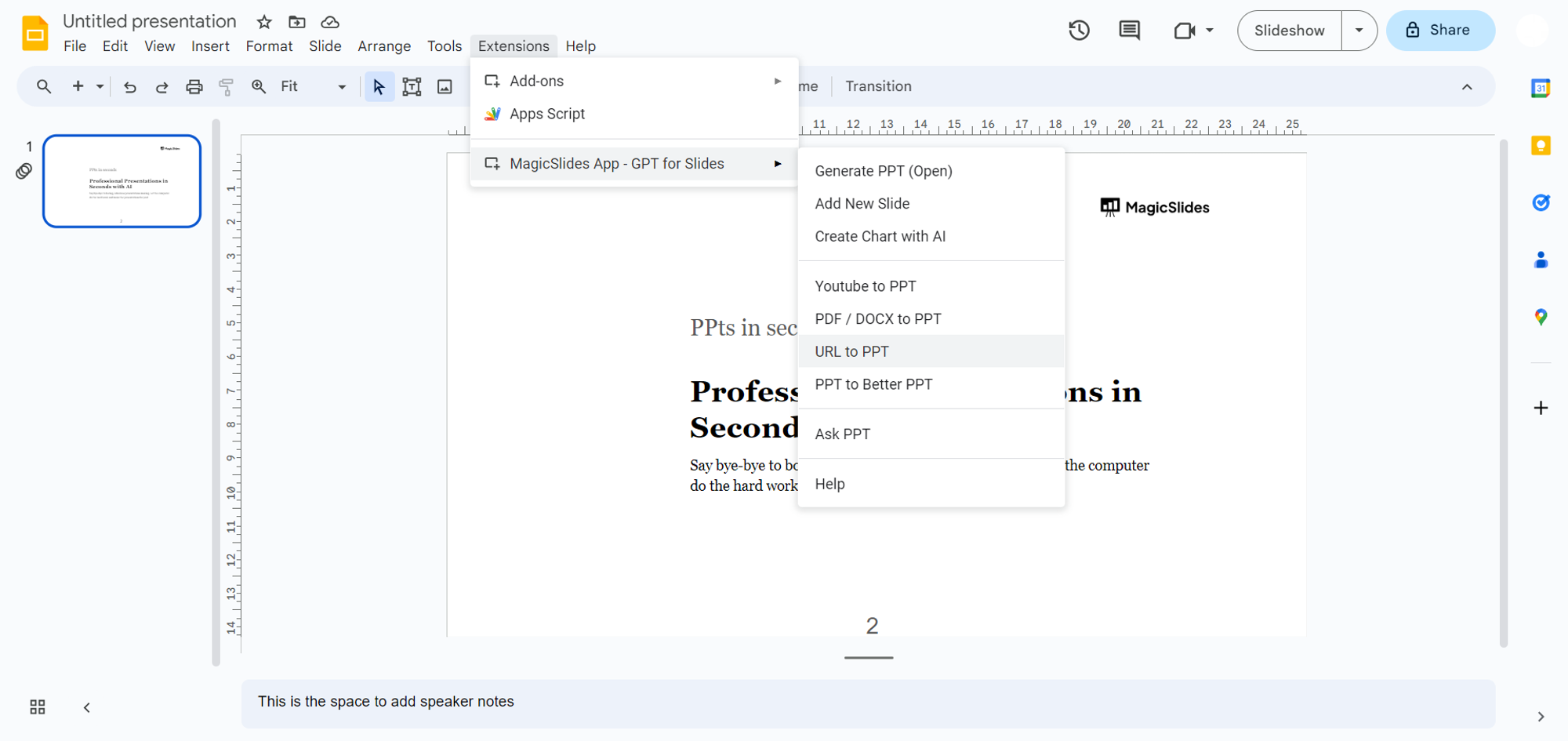
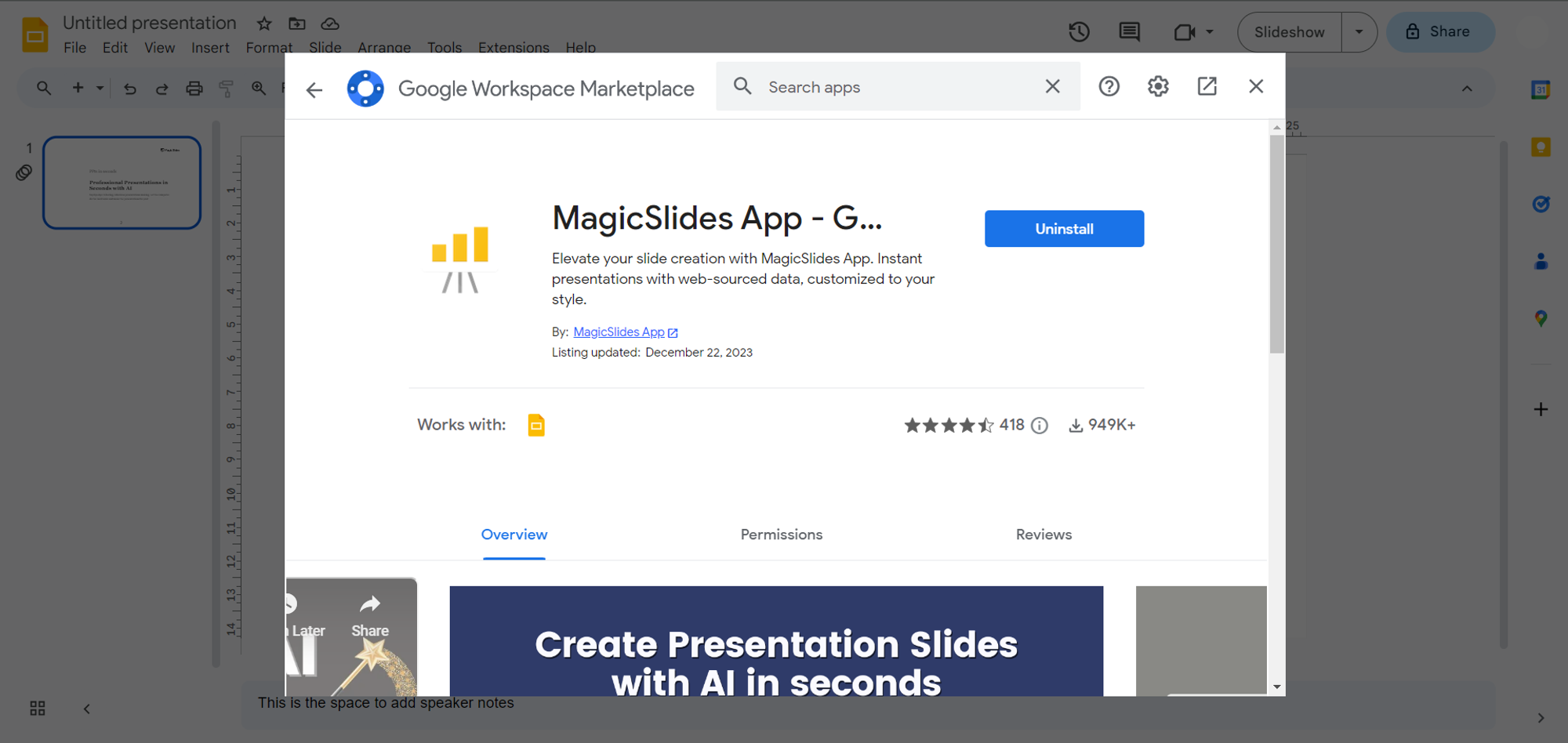
Otherwise, go to the extensions marketplace, search for "Magicslides.app," and download the extension to enhance your Google Slides capabilities.
Step 3: Access the User Manual PDF
Locate the user manual PDF you want to convert. If it's online, copy the URL. If it's a file on your device, prepare to upload it during the next steps.
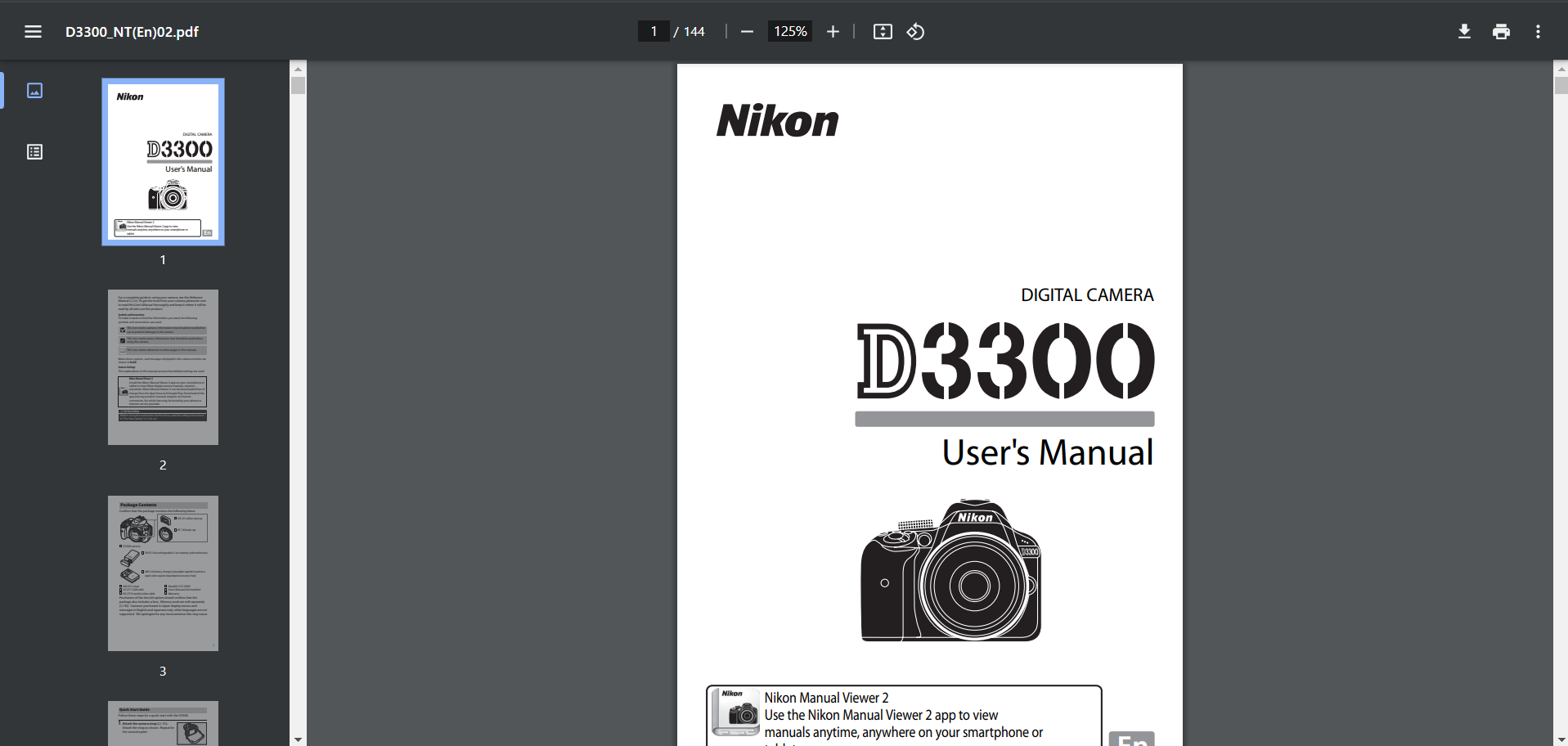
Step 4: Enter the URL or Upload PDF
In Google Slides, click on the Magicslides extension tab. If it's your first time, you might need to grant necessary permissions. Enter the URL or upload the user manual PDF directly or choose to enter the URL of PDF which is hosted online
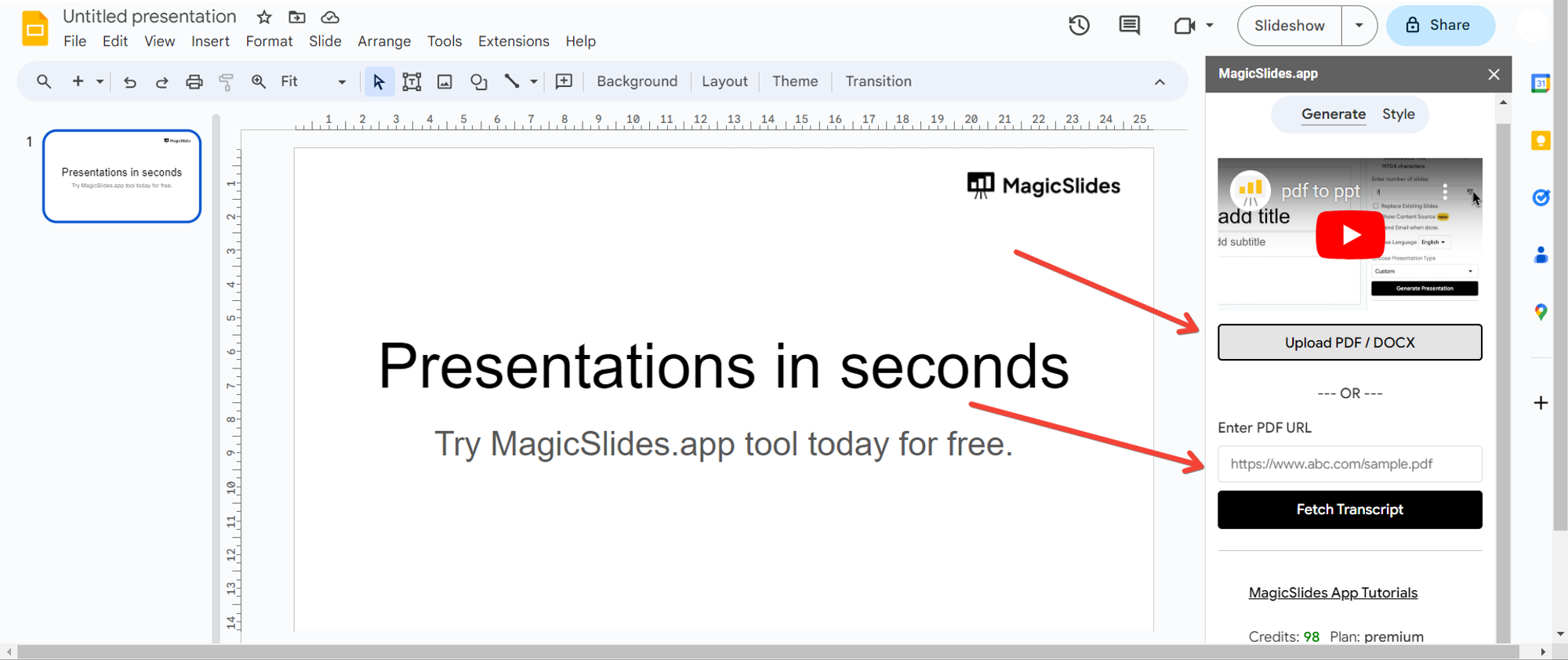
Step 5: Generate Presentation
With the PDF loaded, click on the "Generate to Presentation" button. Magicslides will work its magic, converting the content into a dynamic presentation format.
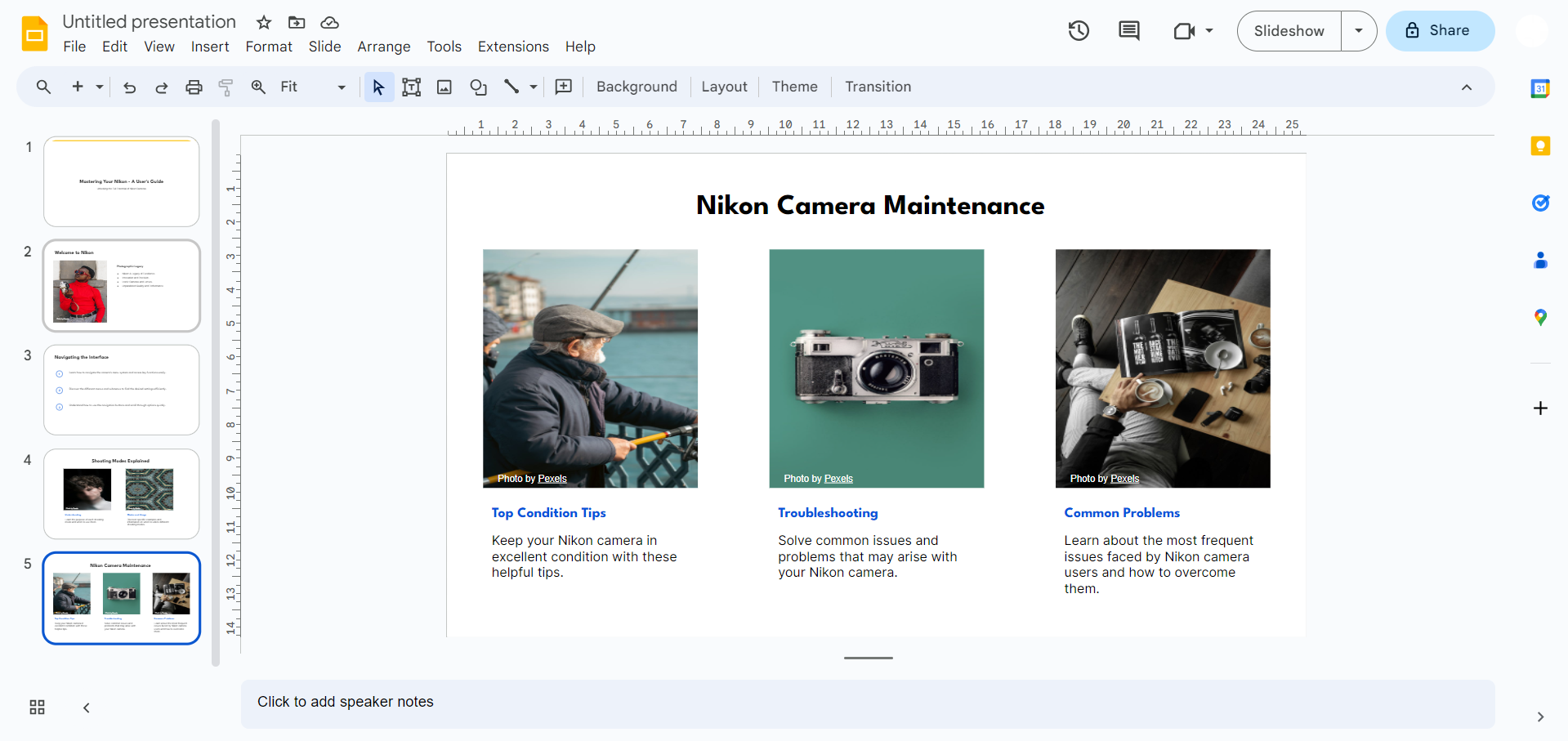
Step 6: Review and Edit
Once the conversion is complete, review the slides. Google Slides provides tools for editing and refining the presentation to suit your training needs.
Step 7: Save and Share
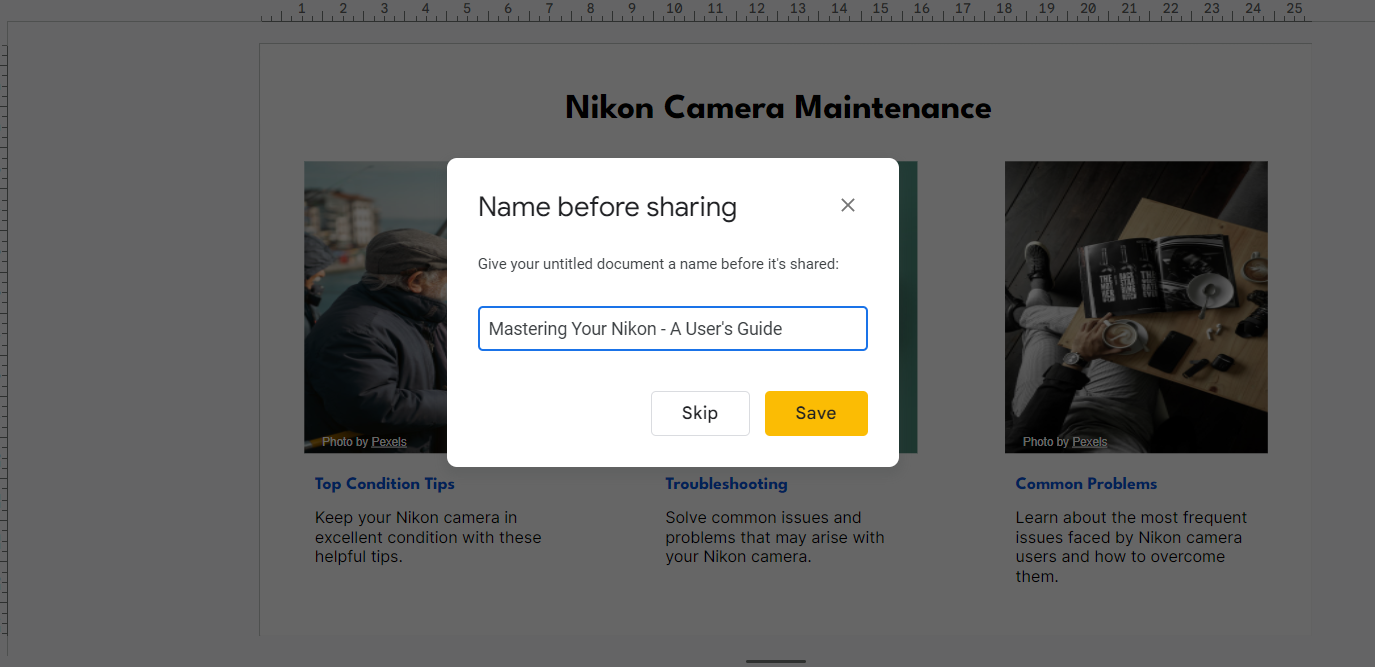
After making any necessary adjustments, save your presentation on Google Drive or download it to your device. Now, you have a visually appealing PowerPoint version of your user manual ready for training sessions.
Conclusion:
With the power of Google Slides and Magicslides, converting a user manual PDF into a training presentation is a breeze. This user-friendly process allows you to elevate your training materials, making them more engaging and accessible. Embrace the transformation and captivate your audience with dynamic presentations derived from your trusted user manuals.
Frequently Asked Questions:
Can I use Magicslides with any type of user manual PDF?
Magicslides supports a wide range of user manual PDFs, regardless of their complexity or length.
What if I encounter issues with the Magicslides extension?
Ensure proper installation and update the extension if needed. Reach out to support for assistance.
Can I customize the converted PowerPoint slides in Google Slides?
Absolutely! Google Slides offers robust editing tools to tailor the presentation to your preferences.
Is Magicslides a free extension, or does it require a purchase?
Magicslides is available for free, making it a convenient and accessible tool for users.


