How to Convert Word meeting minutes to PowerPoint Slides


Effortlessly transform Word meeting minutes into dynamic PowerPoint slides with our step-by-step guide. Elevate presentations and save time efficiently.
In the fast-paced world of business, transforming Word meeting minutes into dynamic and engaging PowerPoint slides can significantly enhance the way information is shared and presented. In this guide, we will take you through the process step by step, using the powerful tool MagicSlides GPT to streamline the conversion from Word to PowerPoint.
Step 1: Visit Google Slides
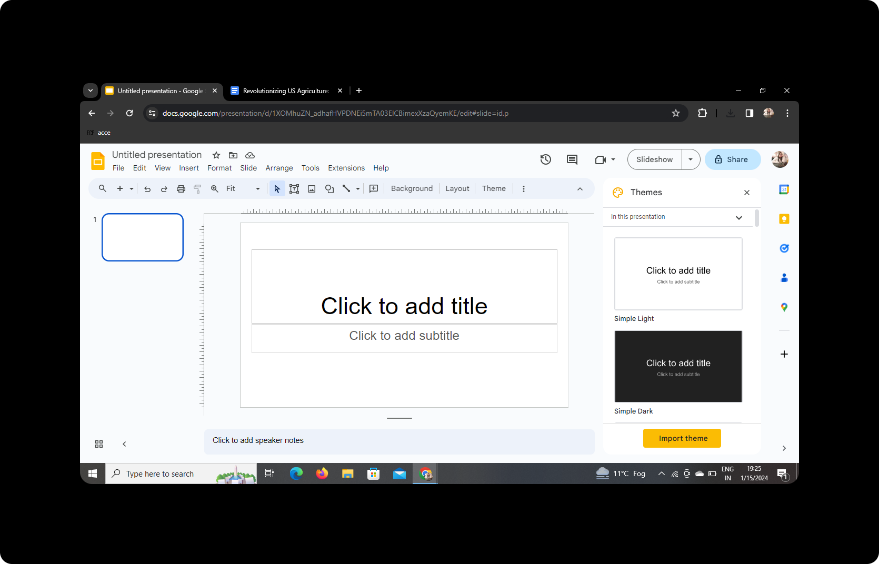
Begin by visiting Google Slides – Google's user-friendly cloud-based presentation platform. If you don't have a Google account, you'll need to sign up for one. Once logged in, create a new presentation to start the conversion process.
Step 2: Sign In with Google to Google Slides
Ensure you are signed in with your Google account. This step is crucial for saving and accessing your presentation seamlessly.
Step 3: Download MagicSlides GPT Extension (if not installed)
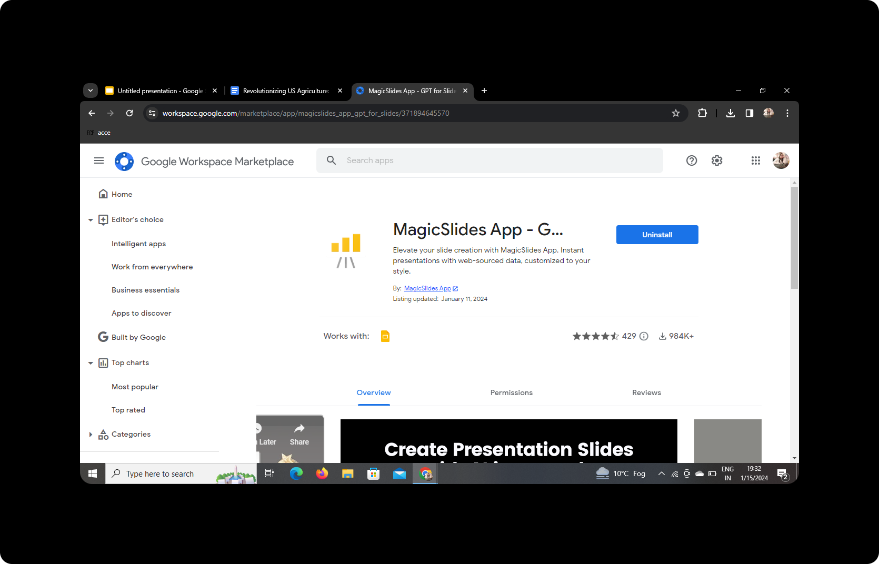
If you haven't installed the MagicSlides GPT extension, head to the Extensions tab in Google Slides and click on "Get add-ons." Search for MagicSlides GPT, install it, and then open the extension.
Step 4: Click on PDF/DOCX to PPT in MagicSlides GPT
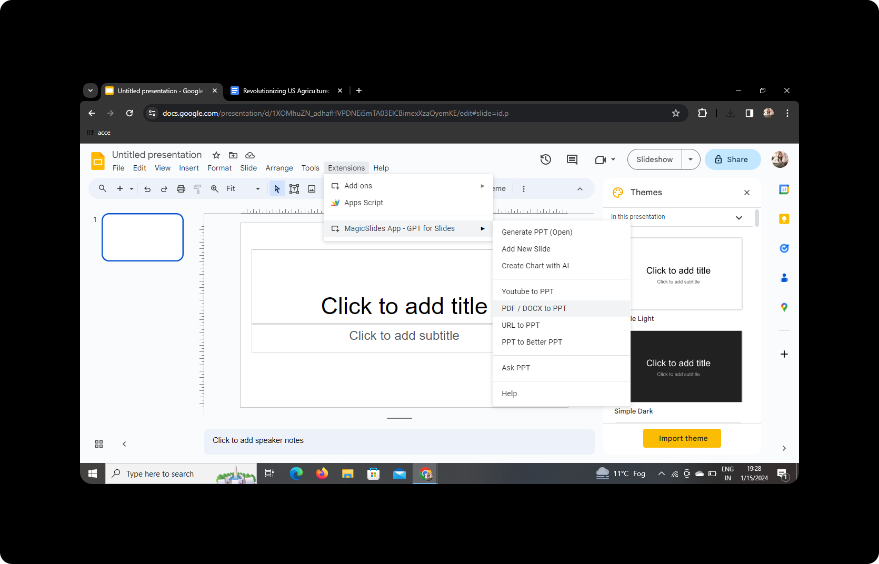
In the MagicSlides GPT extension, click on the "PDF/DOCX to PPT" option. This will initiate the process of converting your Word meeting minutes into PowerPoint slides.
Step 5: Click on 'Upload PDF/DOCX' Option
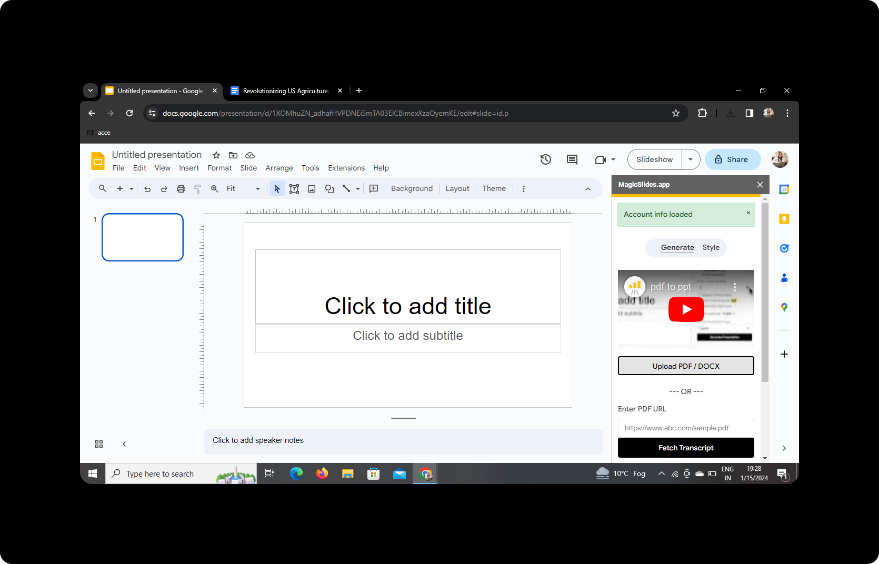
Upload your Word document of meeting minutes by selecting the 'Upload PDF/DOCX' option. MagicSlides GPT will analyze the document and prepare it for conversion.
Step 6: Select the Number of Slides
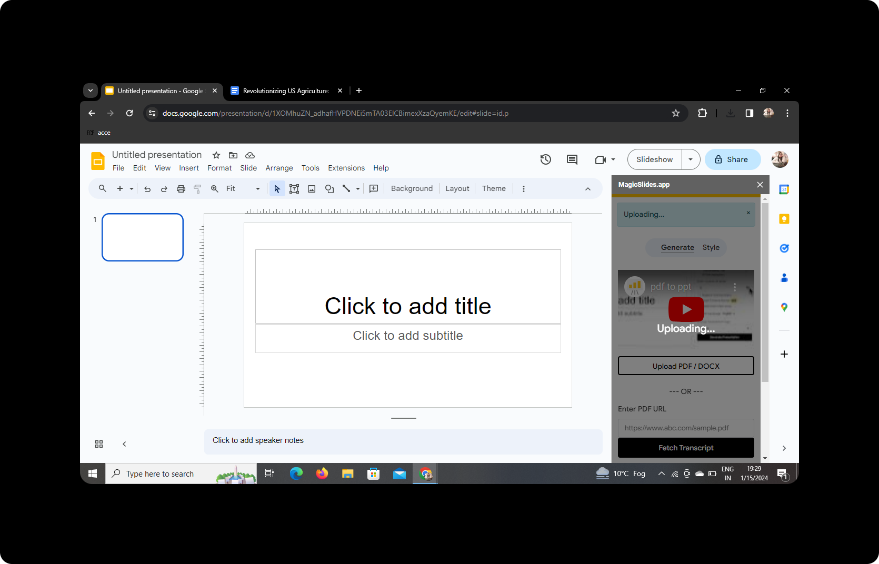
Customize the number of slides you want your presentation to have. Adjust this based on the content of your Word document and your desired presentation style.
Step 7: Click on Generate Presentation
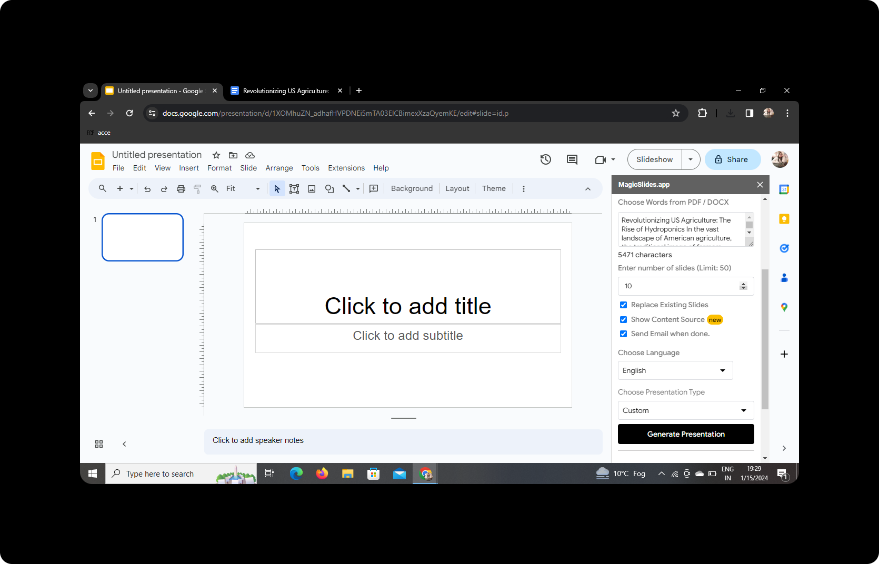
Click the "Generate Presentation" button. MagicSlides GPT will use its advanced capabilities to convert your Word meeting minutes into visually appealing PowerPoint slides.
Step 8: Your Presentation is Ready!
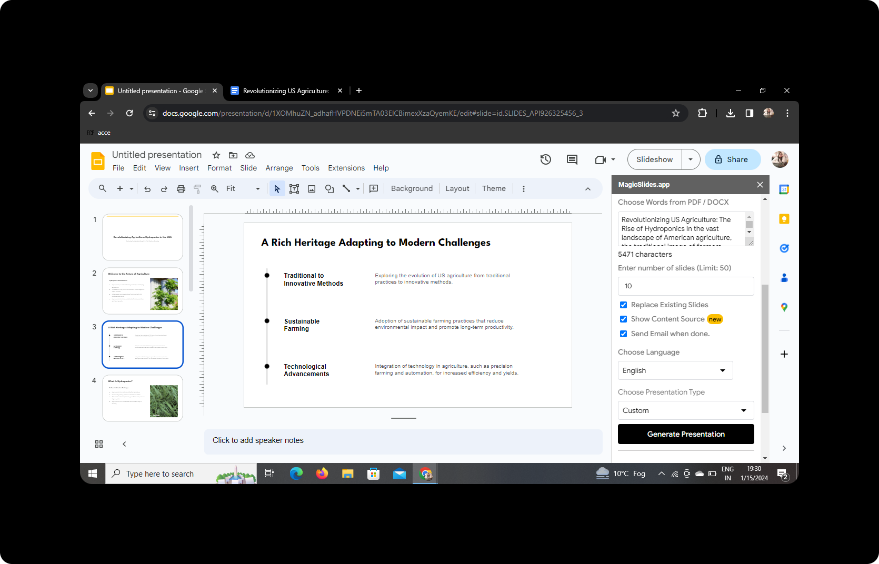
Congratulations! Your presentation is now ready. You can further refine and edit the slides within Google Slides to ensure they meet your specific requirements.
Conclusion
Converting Word meeting minutes to PowerPoint slides has never been easier, thanks to the seamless integration of Google Slides and the powerful MagicSlides GPT extension. This process not only saves time but also ensures a polished and professional presentation that effectively conveys your meeting insights.
FAQs
1. Can I use MagicSlides GPT without a Google account?
No, a Google account is necessary for using both Google Slides and the MagicSlides GPT extension.
2. Is MagicSlides GPT free to use?
MagicSlides GPT offers both free and premium versions. Basic features are accessible for free, while advanced functionalities may require a subscription.
3. Can I customize the design of the slides?
Absolutely! Once the conversion is complete, you can edit and customize the slides within Google Slides to match your preferences.
4. Is MagicSlides GPT available for offline use?
MagicSlides GPT typically requires an internet connection for optimal functionality.
5. Are there any limitations to the number of slides I can generate?
The number of slides you can generate may depend on your MagicSlides GPT subscription. Check the terms of use for more information.
With this comprehensive guide, you're ready to transform your Word meeting minutes into a compelling PowerPoint presentation effortlessly. Start creating impactful presentations today!


