How to copy slide from one powerpoint to another


Optimize your presentation workflow discover how to effortlessly copy slides between PowerPoint presentations for efficiency.
Efficiency in presentation creation often involves reusing content. Learn the straightforward process of copying slides between PowerPoint presentations. In this guide, we'll walk you through each step, allowing you to seamlessly transfer valuable content and streamline your presentation development.
How to copy slide from one powerpoint to another
Step 1: Open Both PowerPoint Presentations
Launch PowerPoint and open both the source presentation (containing the slides to be copied) and the destination presentation.
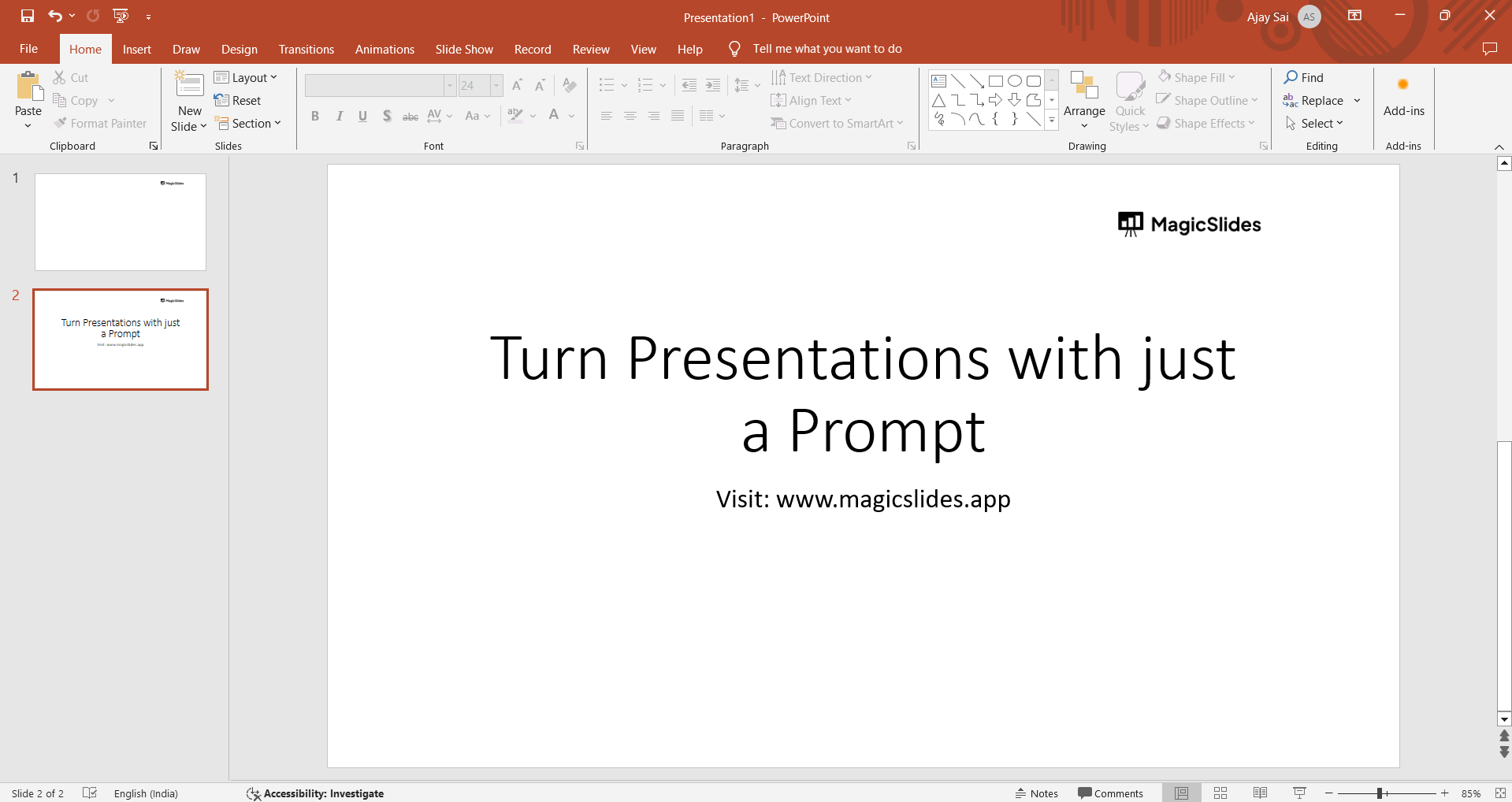
Step 2: Navigate to the Source Presentation
Go to the source presentation and select the slide or slides you want to copy. You can use the slide sorter view or the thumbnail pane for a quick overview.
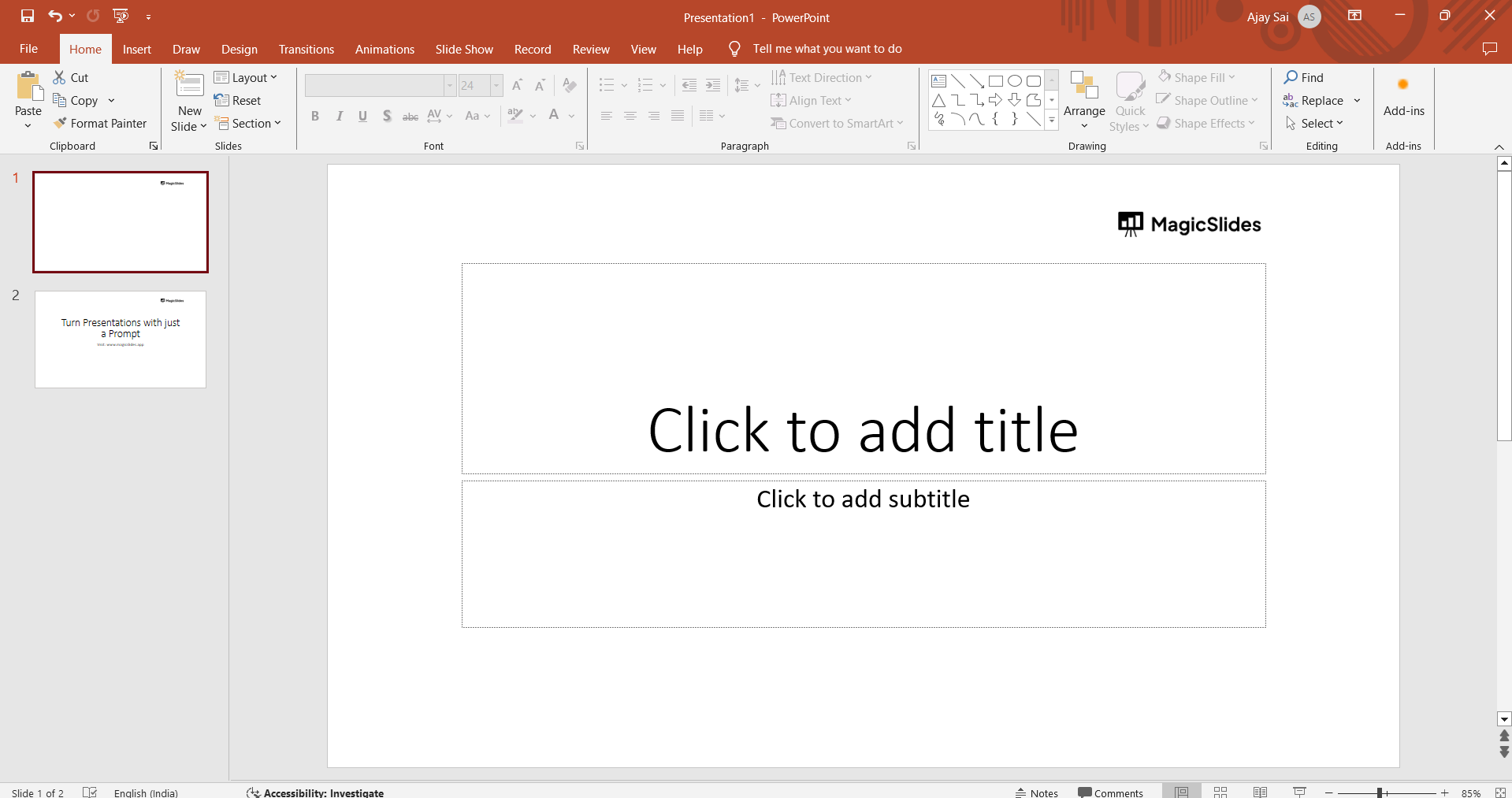
Step 3: Copy the Selected Slides
Right-click on the selected slide(s) and choose "Copy" from the context menu. Alternatively, use the keyboard shortcut "Ctrl + C" (Windows) or "Command + C" (Mac).

Step 4: Switch to the Destination Presentation
Navigate to the destination presentation where you want to paste the copied slides.
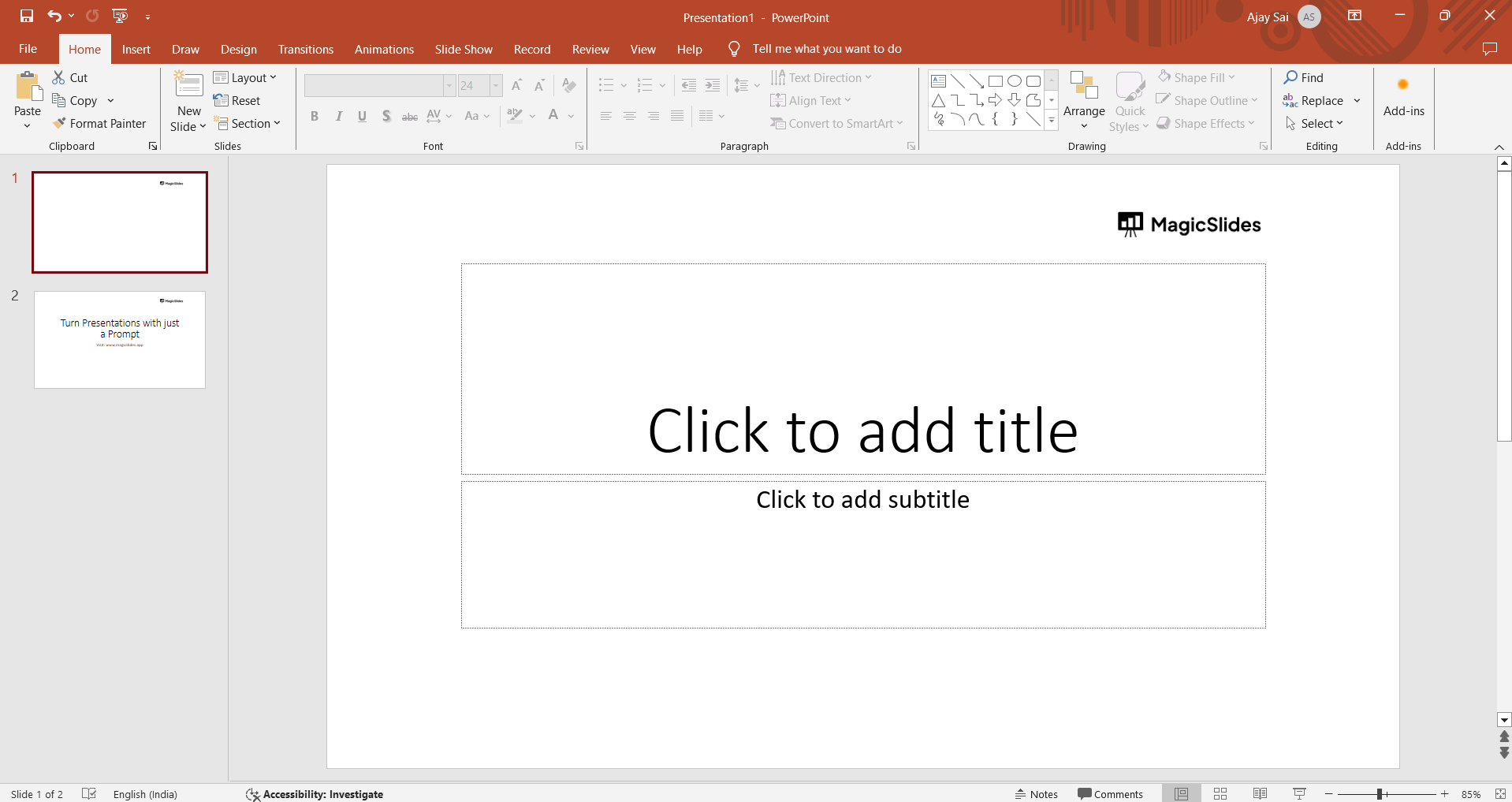
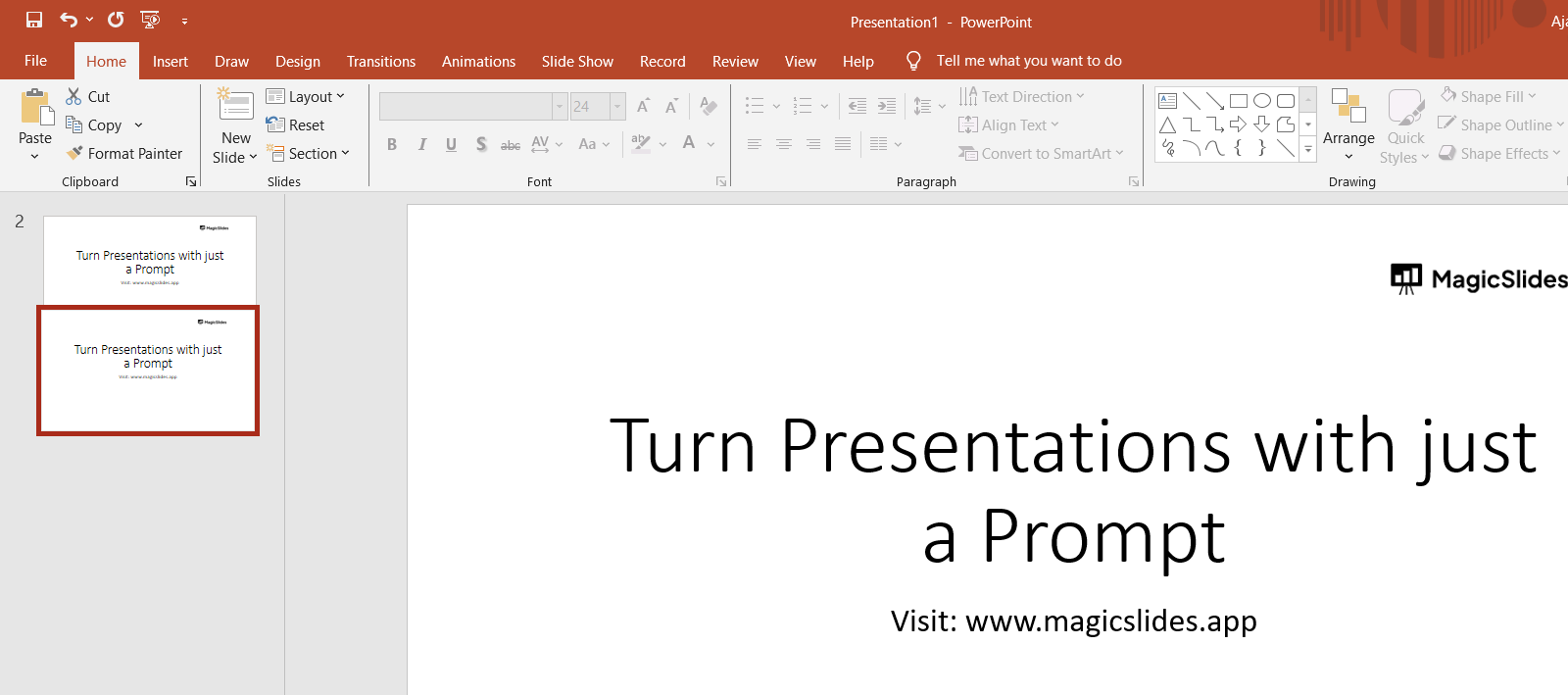
Step 5: Paste the Slides
Right-click on the desired location within the destination presentation and select "Paste" from the context menu. Alternatively, use the keyboard shortcut "Ctrl + V" (Windows) or "Command + V" (Mac).
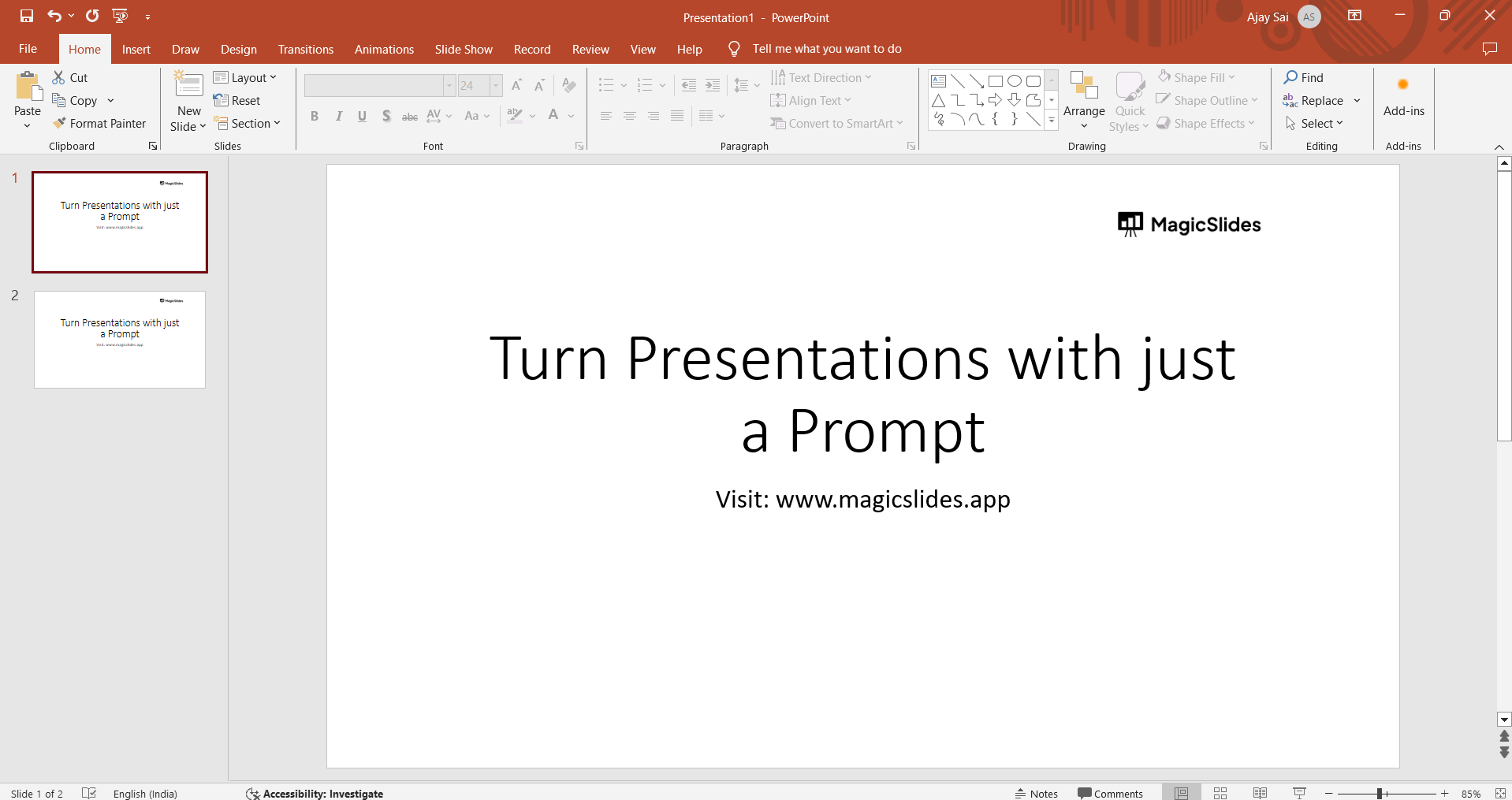
Step 6: Arrange and Adjust
If needed, rearrange the pasted slides within the destination presentation. Adjust formatting or content to ensure a seamless integration.
Conclusion:
Copying slides between PowerPoint presentations is a valuable skill, saving time and promoting consistency in your presentations. By following these simple steps, you can effortlessly transfer content and maintain a cohesive narrative across multiple presentations. Enhance your workflow and create impactful presentations with ease by mastering the art of copying slides in PowerPoint.
Frequently Asked Questions:
Can I copy slides with animations and transitions between presentations? Yes, animations and transitions are copied along with the slides, maintaining their effects in the new presentation.
What happens if the source and destination PowerPoint versions differ? While most features are compatible, consider potential formatting issues when copying between different PowerPoint versions.
Can I copy slides across different operating systems (Windows/Mac)? Yes, the process is the same regardless of the operating system, ensuring cross-platform compatibility.
Is there a limit to the number of slides I can copy at once? No strict limit, but extremely large selections may be challenging to manage. Consider copying in batches if needed.


