How to create a QR code in Canva


Learn how to easily create a custom QR code in Canva to enhance your designs
QR codes have become an essential tool for quickly sharing information. Whether you're adding a QR code to a flyer, business card, or presentation, it can help your audience access a link, document, or any resource instantly.
Canva, a popular online design platform, makes it incredibly easy to create custom QR codes.
In this guide, I'll walk you through the step-by-step process of creating a QR code in Canva so that you can integrate it into your designs seamlessly.
How to Create a QR Code in Canva: A Step-by-Step Guide
Step 1: Open Canva and Create a Design
Log into your Canva account and click on the “Create a design” button at the top-right corner.
Choose a design type that suits your project, such as a flyer, presentation, or business card. If needed, you can also set custom dimensions for your design.
Step 2: Find the QR Code Generator
Visit magicslides.app tool to get a plethora of QR code generating tools created to fulfill each of your needs, and create a QR code to use in canva design.
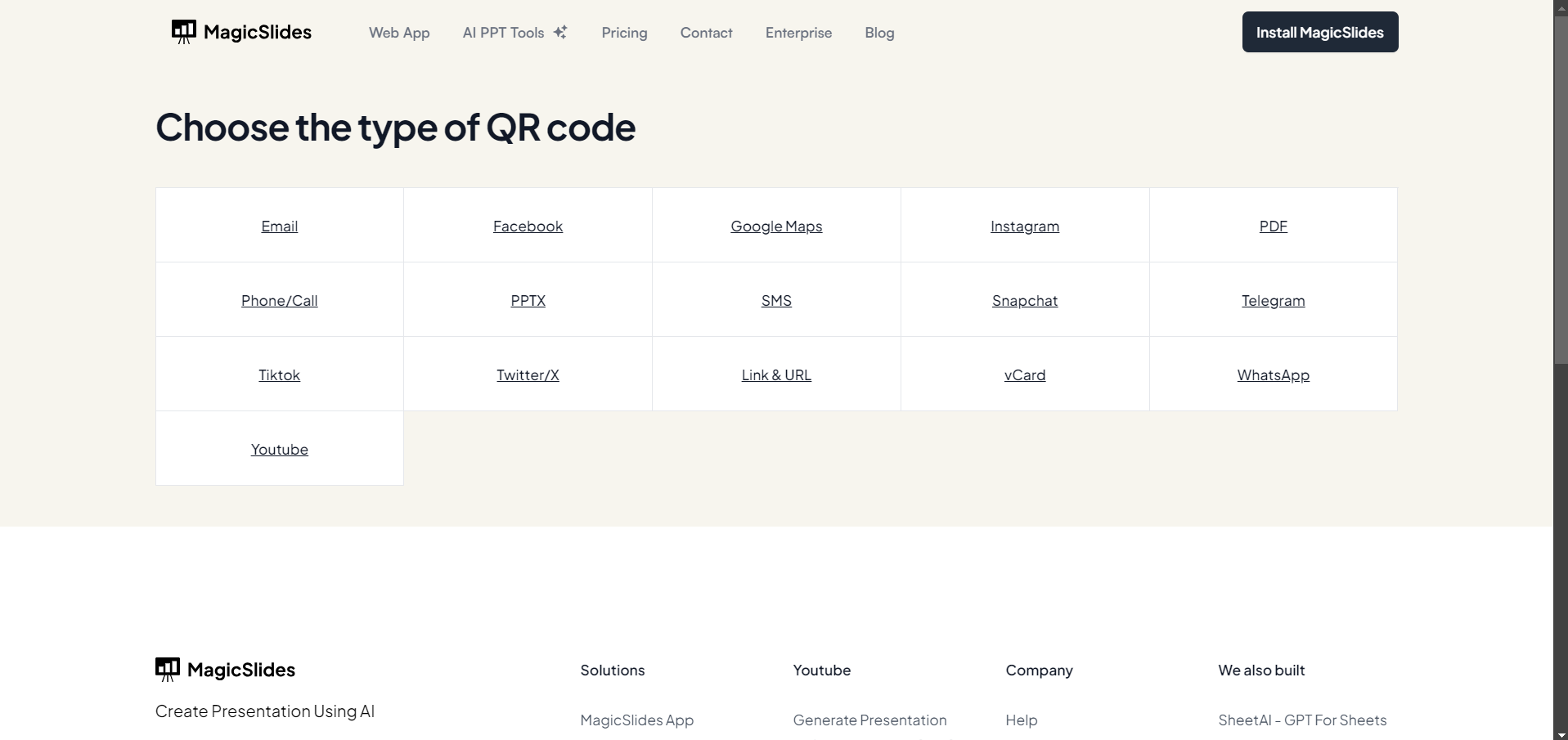
Step 3: Enter Your URL
A box will appear asking for the URL you want the QR code to point to.
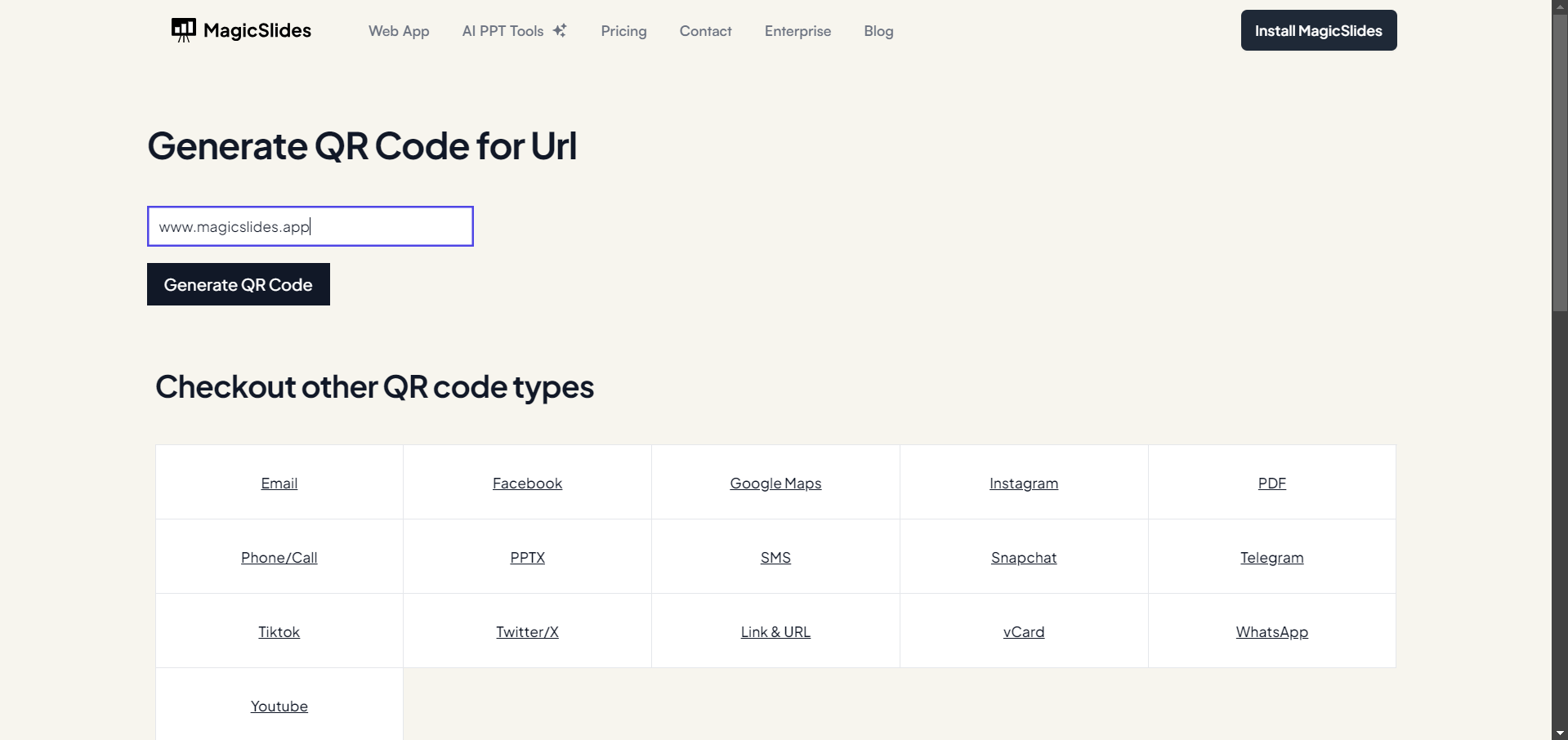
Enter the correct web link (like a website, social media page, or file), and double-check to ensure the link is accurate before proceeding.
Step 4: Generate and Customize
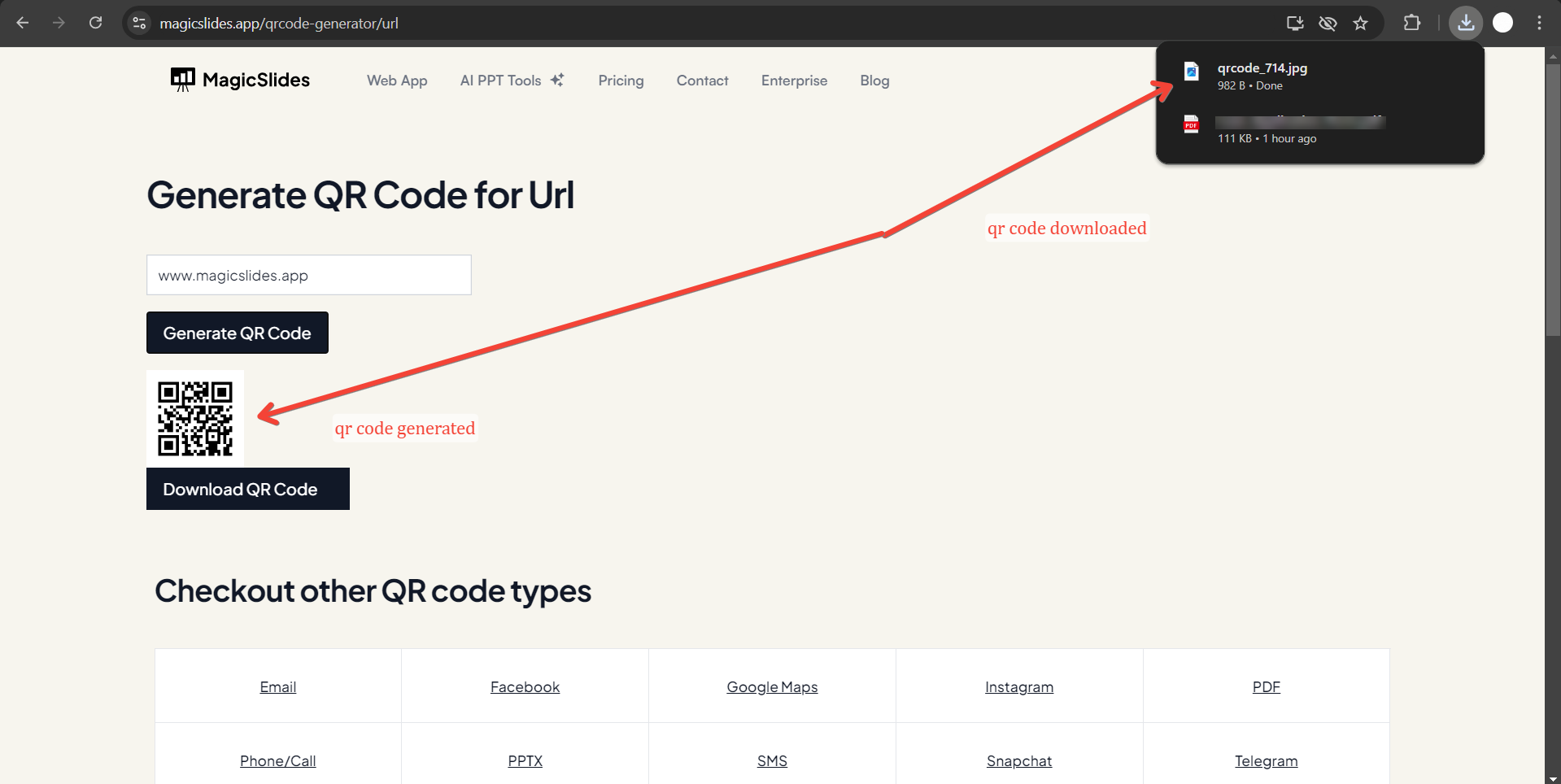
Click the "Generate QR Code" button, and Canva will create the QR code for you.
You can then resize and reposition it within your design, adding backgrounds or additional elements around it to match your layout.
Step 5: Use in Canva
Once you're satisfied with your design, click the "download" button at the button below generate QR code button. Use this in Canva design.
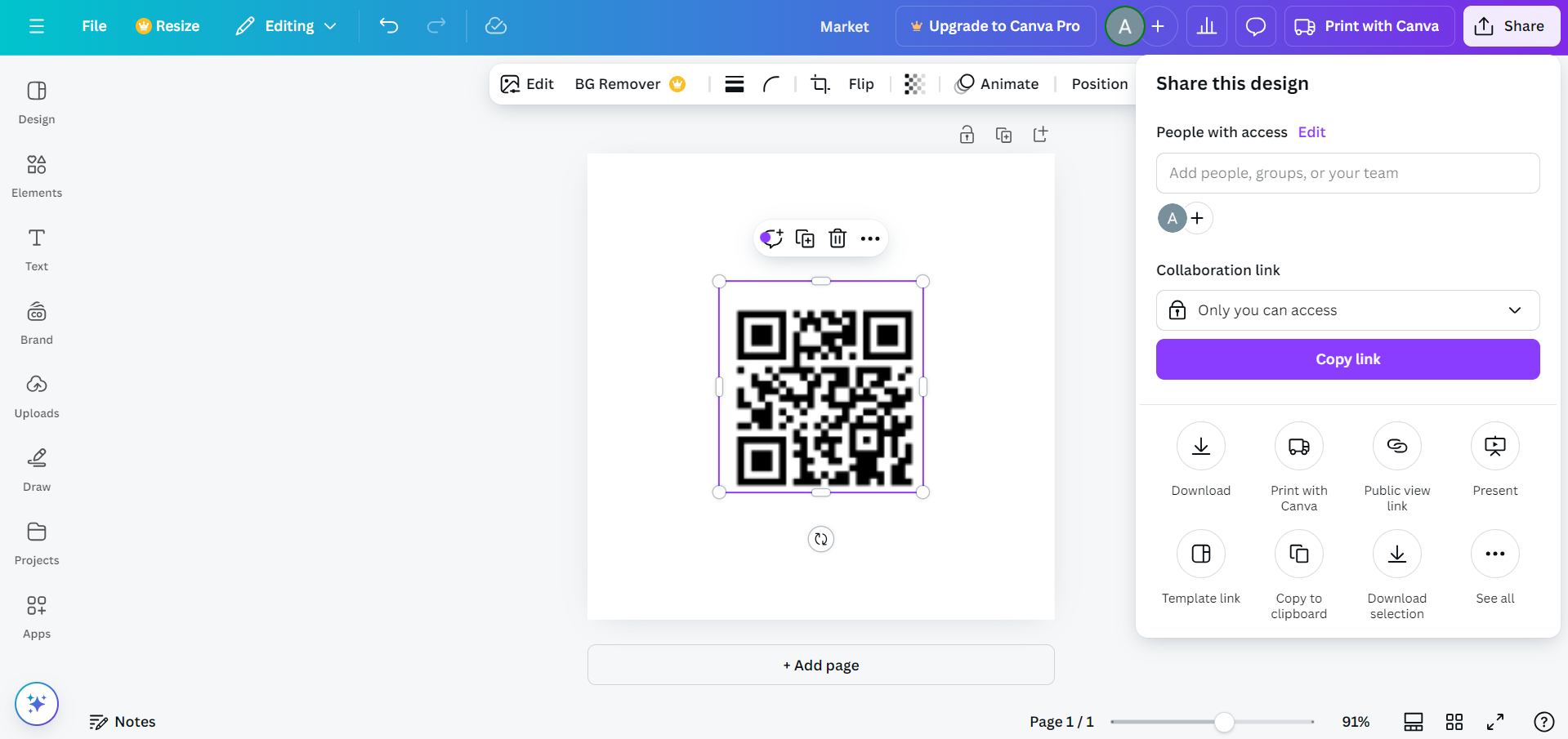
You can either download your design as a file or share it directly. Before printing or sharing, test the QR code to make sure it works correctly.
Once you've created a QR code in Canva, take your design one step further by integrating AI-powered tools that automatically generate relevant slide content. This will ensure your presentations remain polished and cohesive, no matter the complexity
Conclusion
Creating a QR code in Canva is a straightforward process that can add a touch of professionalism and convenience to any of your designs.
Whether you're sharing contact details, directing people to a website, or linking to resources, Canva's built-in QR code generator ensures that your audience can access information with just a scan.
Try it out and integrate QR codes into your next design project effortlessly!
FAQs are here to help!
Can I edit the URL of a QR code after generating it in Canva?
No, once a QR code is generated, you cannot edit the URL. You'll need to create a new QR code with the updated link.
Can I customize the design of the QR code itself in Canva?
The QR code pattern remains static, but you can customize the design around it by adding backgrounds, frames, and other elements.
Is creating a QR code in Canva free?
Yes, generating a QR code in Canva is free, but some premium design elements may require a subscription.


