How to Create a Smart Checklist Template in Excel Easily


Create and use a checklist template in Excel efficiently. Learn step-by-step instructions and how to convert it into a PowerPoint with MagicSlides.app.
A checklist template in Excel is a simple yet powerful tool that helps individuals and businesses streamline tasks, track progress, and stay organized. Whether managing a project, maintaining compliance, or ensuring daily productivity, an Excel checklist can provide a structured approach to task management.
In this guide, we will explore how to create a checklist template in Excel, its benefits, and how you can use MagicSlides.app to convert your checklists into instant PowerPoint presentations effortlessly.
Why Use a Checklist Template in Excel?
A checklist template in Excel is beneficial for various applications, including:
- Task Management – Keep track of daily, weekly, or project-based tasks.
- To-Do Lists – Organize personal or work-related tasks systematically.
- Quality Control – Ensure all required steps in a process are completed.
- Inventory Management – Maintain accurate records of stock.
- Event Planning – Track progress on planning and organizing events.
How to Create a Checklist Template in Excel
Follow these steps to create a checklist template in Excel:
Step 1: Open Excel and Create a New Sheet
Open Microsoft Excel and create a new worksheet. Label the first column as "Tasks" and the second column as "Status" (or "Completed").
Step 2: Enter Your Checklist Items
List all the tasks or items you need to track in the "Tasks" column.
Step 3: Add a Checkbox for Each Task
To make the checklist interactive, enable Developer Mode:
- Go to File > Options > Customize Ribbon.
- Check Developer under the Main Tabs and click OK.
- Click on the Developer tab, select Insert, and choose the Checkbox Form Control.
- Click on the cell where you want the checkbox to appear.
- Copy the checkbox to other rows as needed.
Step 4: Apply Conditional Formatting
To visually highlight completed tasks:
- Select the "Status" column.
- Click on Conditional Formatting > New Rule.
- Choose Use a formula to determine which cells to format.
- Enter the formula (e.g.,
=B2=TRUEif B2 is the checkbox column). - Choose a formatting style (e.g., green background for completed tasks).
Step 5: Save and Reuse
Once created, save the file as a template (.xltx) to reuse it in the future.
Using MagicSlides.app to Convert Your Excel Checklist into a PowerPoint Presentation
For professionals who need to present their checklist in meetings or reports, MagicSlides.app offers a seamless way to convert Excel data into engaging PowerPoint presentations.
Steps to Use MagicSlides.app
- Visit MagicSlides.app.

- Enter your topic in the given space.

- Click "Generate Instant PPT."

- Choose your template and number of slides as prompted.
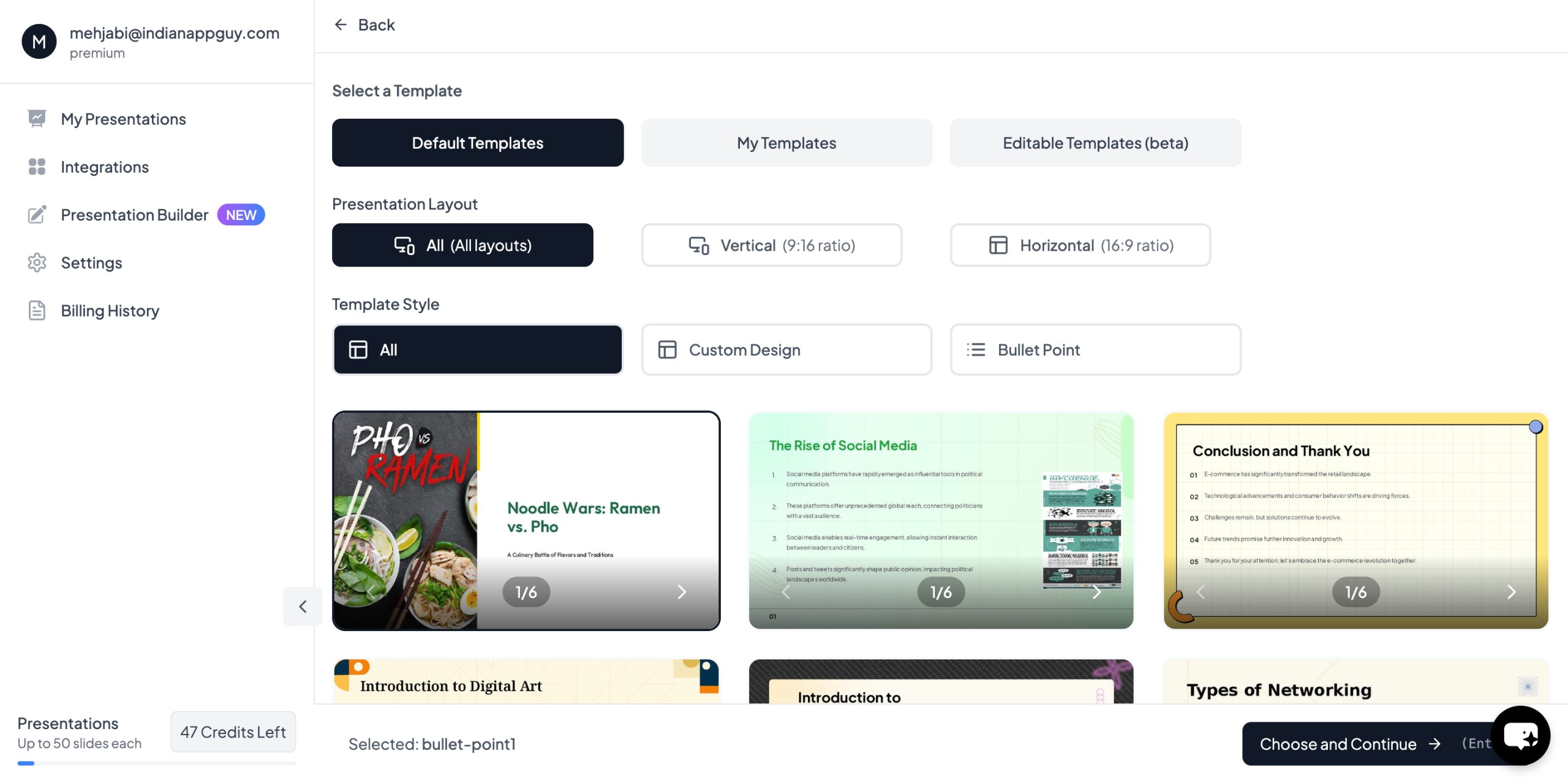
- Once all your details are filled, click "Generate Instant PPT."
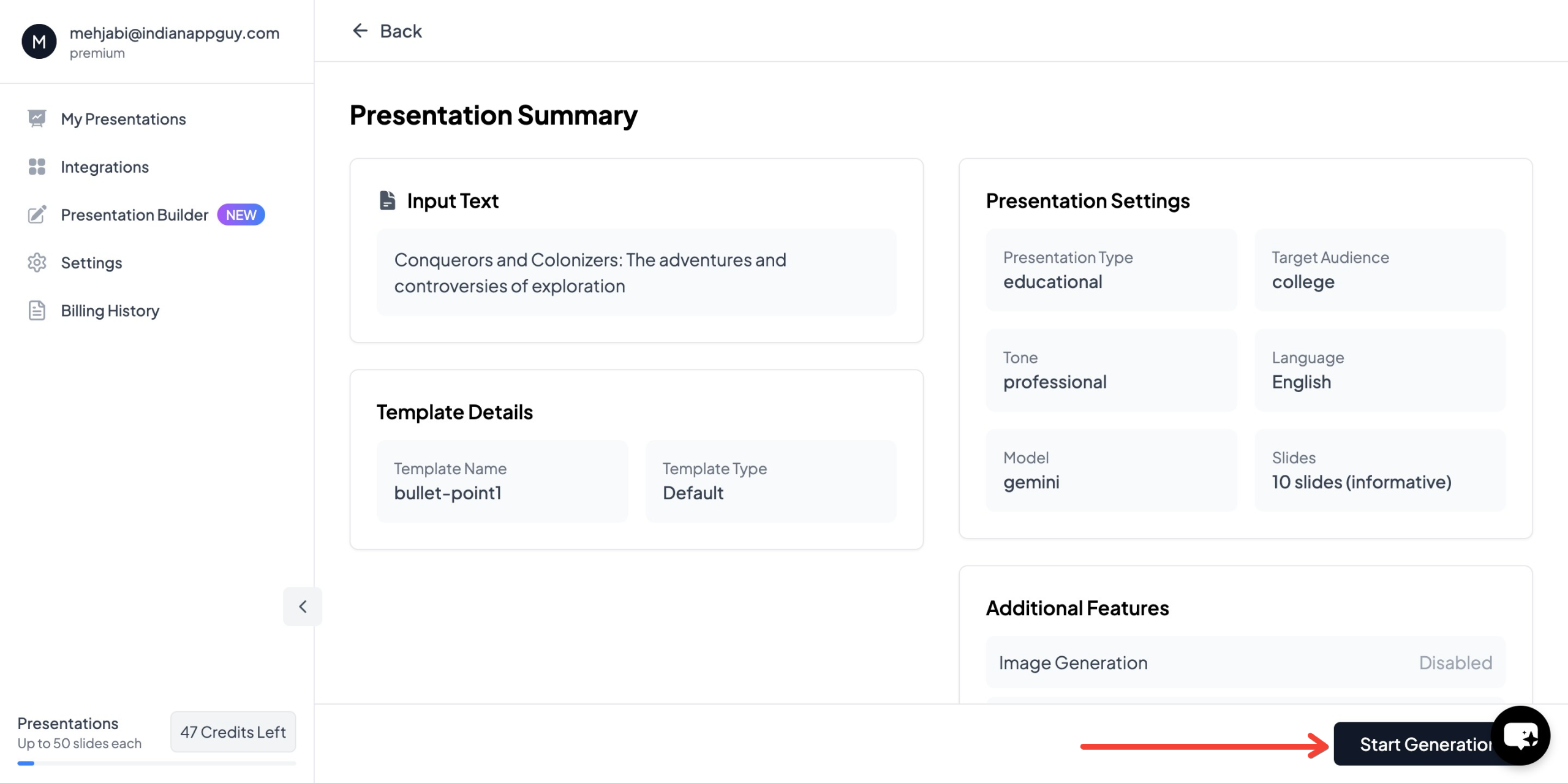
- Your PowerPoint presentation will be generated within seconds.
This AI-powered tool saves time by automating slide creation, making it ideal for professionals who need quick, high-quality presentations.
MagicSlides Pricing & Features

If you're unsure which plan suits you best, use MagicSlides' pricing calculator to find the perfect option for your needs.
Final Thoughts
A checklist template in Excel is a powerful tool to improve productivity and organization. When paired with MagicSlides.app, you can seamlessly convert your checklists into professional presentations, enhancing efficiency and communication.
Whether you're managing tasks, preparing reports, or giving presentations, leveraging AI tools like MagicSlides.app ensures you get the job done faster and more effectively. Try it today and experience the convenience of AI-powered slide generation!


